How to configure document expiration and renewal rules
Last updated: October 17, 2026
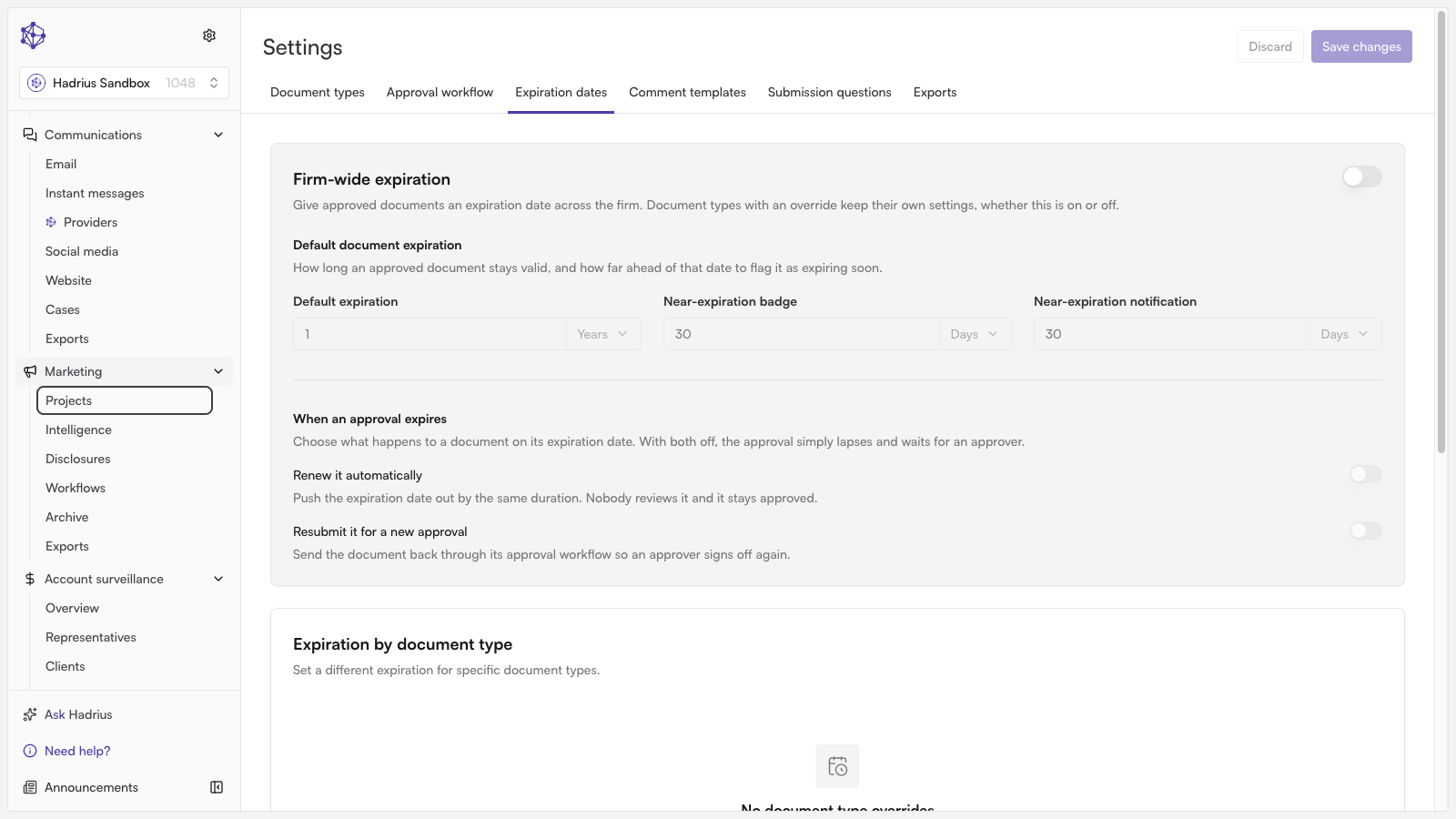
Maintaining active, compliant marketing materials requires keeping track of review cadences and expiration timelines. Hadrius allows you to automate this process by defining firm-wide lifecycle baselines, creating granular overrides for specific content types, and triggering proactive review notifications. Follow the steps below to configure your expiration and renewal rules.
Configuring Document Expiration and Renewal Rules
Access Marketing Settings: Navigate to Marketing Settings in your Hadrius dashboard to manage your document expiration and renewal policies.
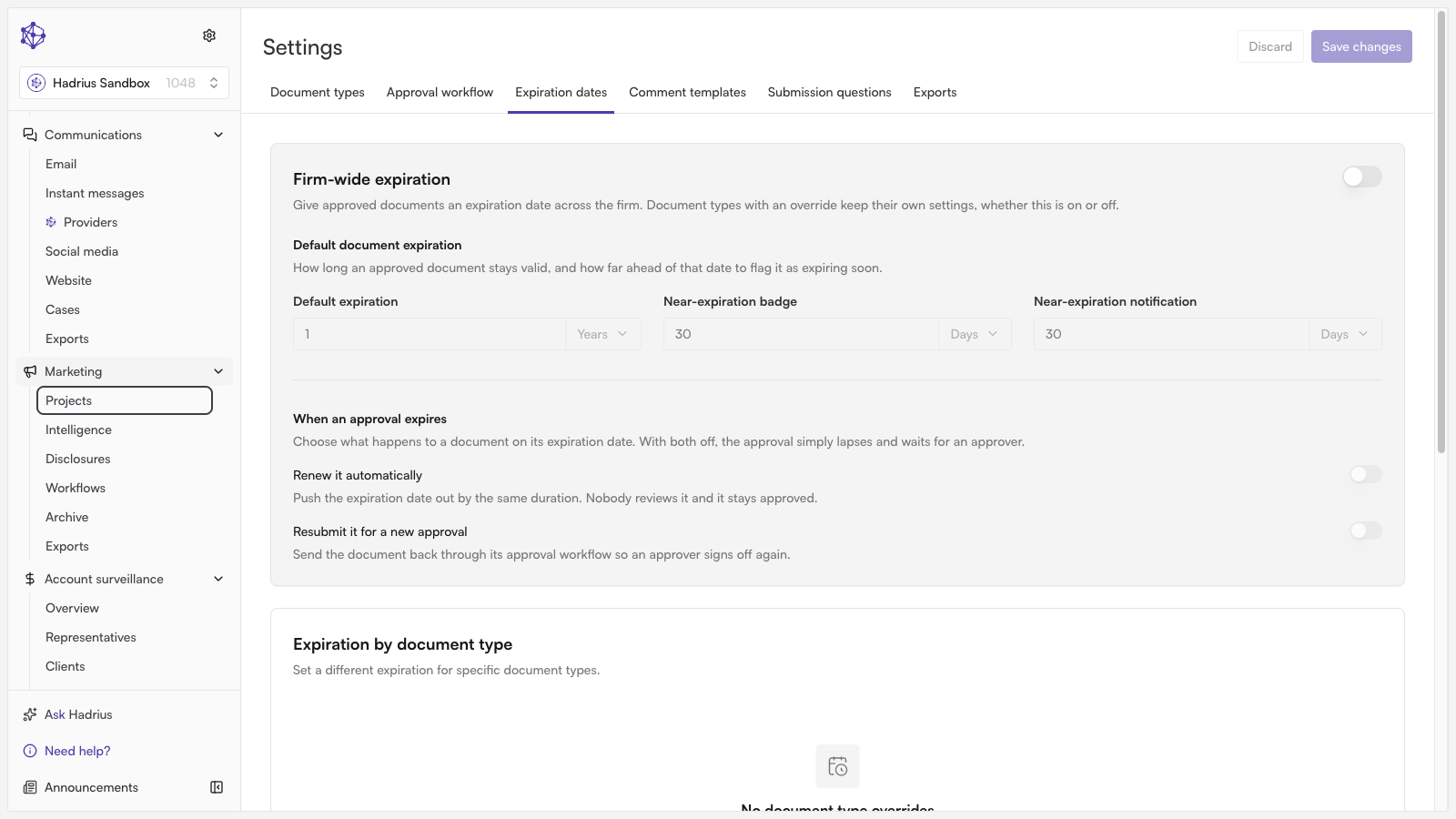
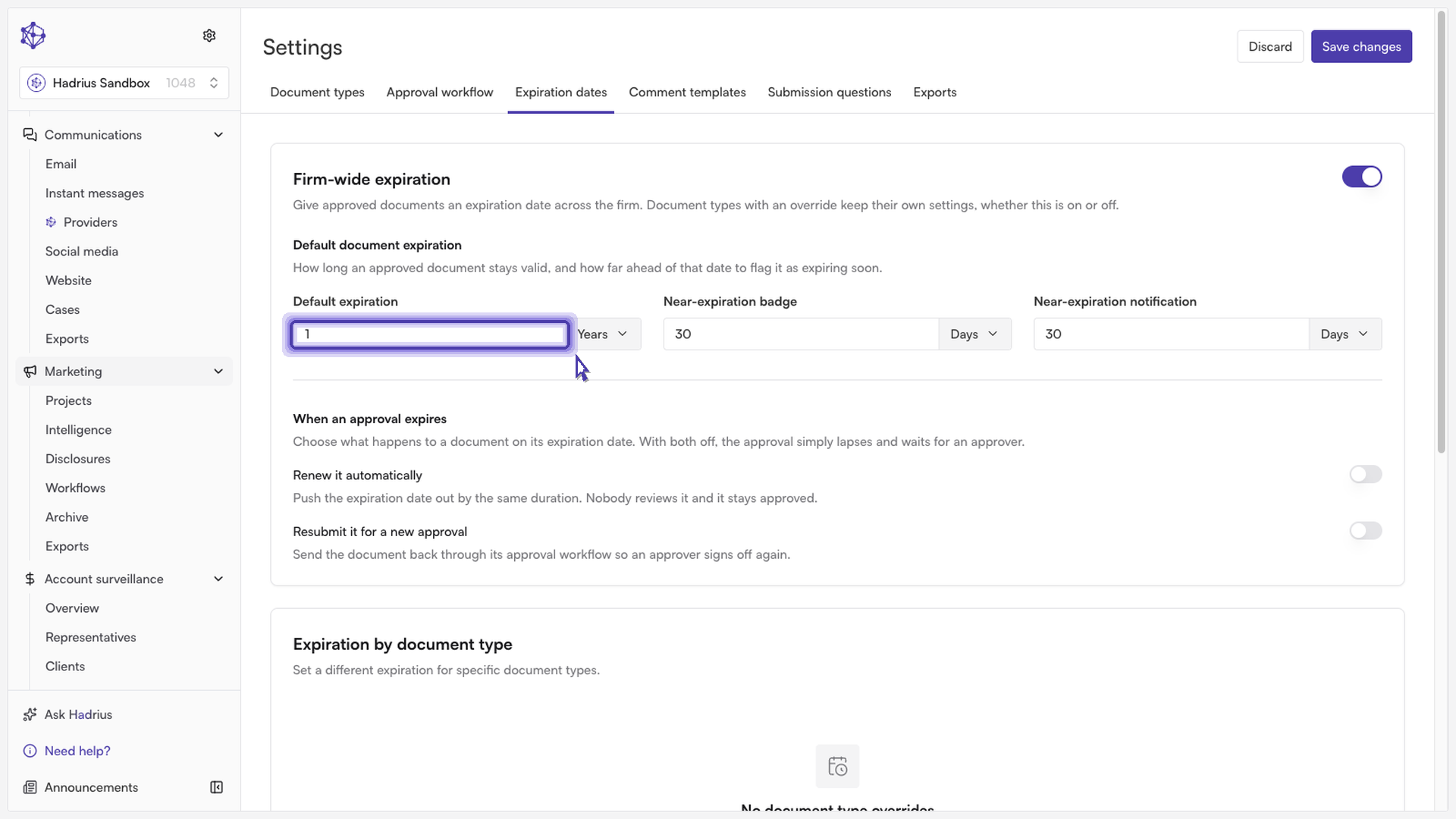
Establish Firm-Wide Expiration Defaults: Set the default lifecycle duration for your firm's standard collateral. If you want approved materials to remain active without requiring a manual reset, toggle on automatic renewals.
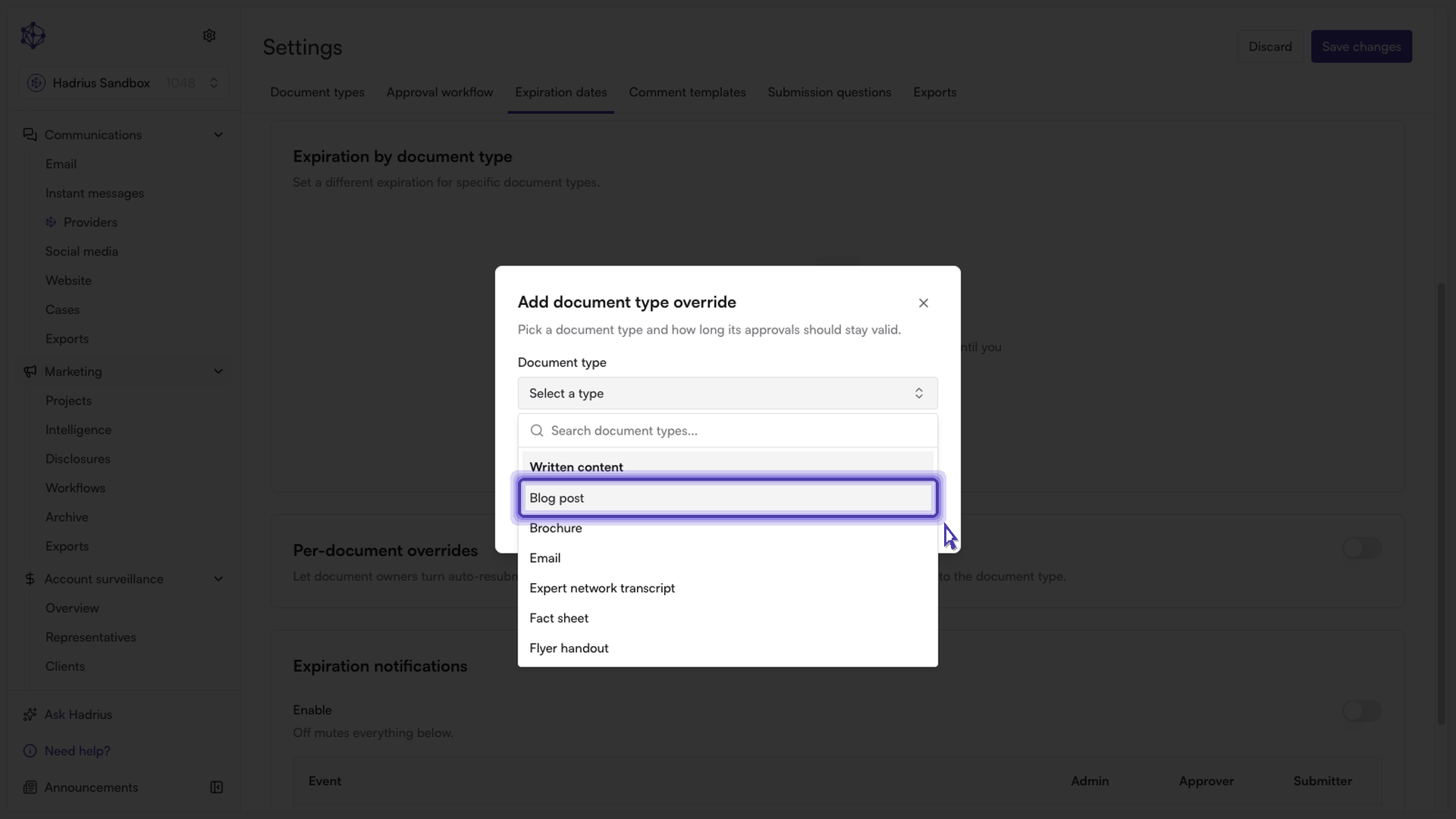
Add Content-Specific Overrides: For materials that follow a different review schedule, add an override rule. Select the collateral type (such as blog posts or social updates) and adjust the duration to match the appropriate cadence.
Allow Individual Customization: If certain assets require unique timelines on a case-by-case basis, enable the option allowing team members to set custom expiration dates on individual documents during creation or review.
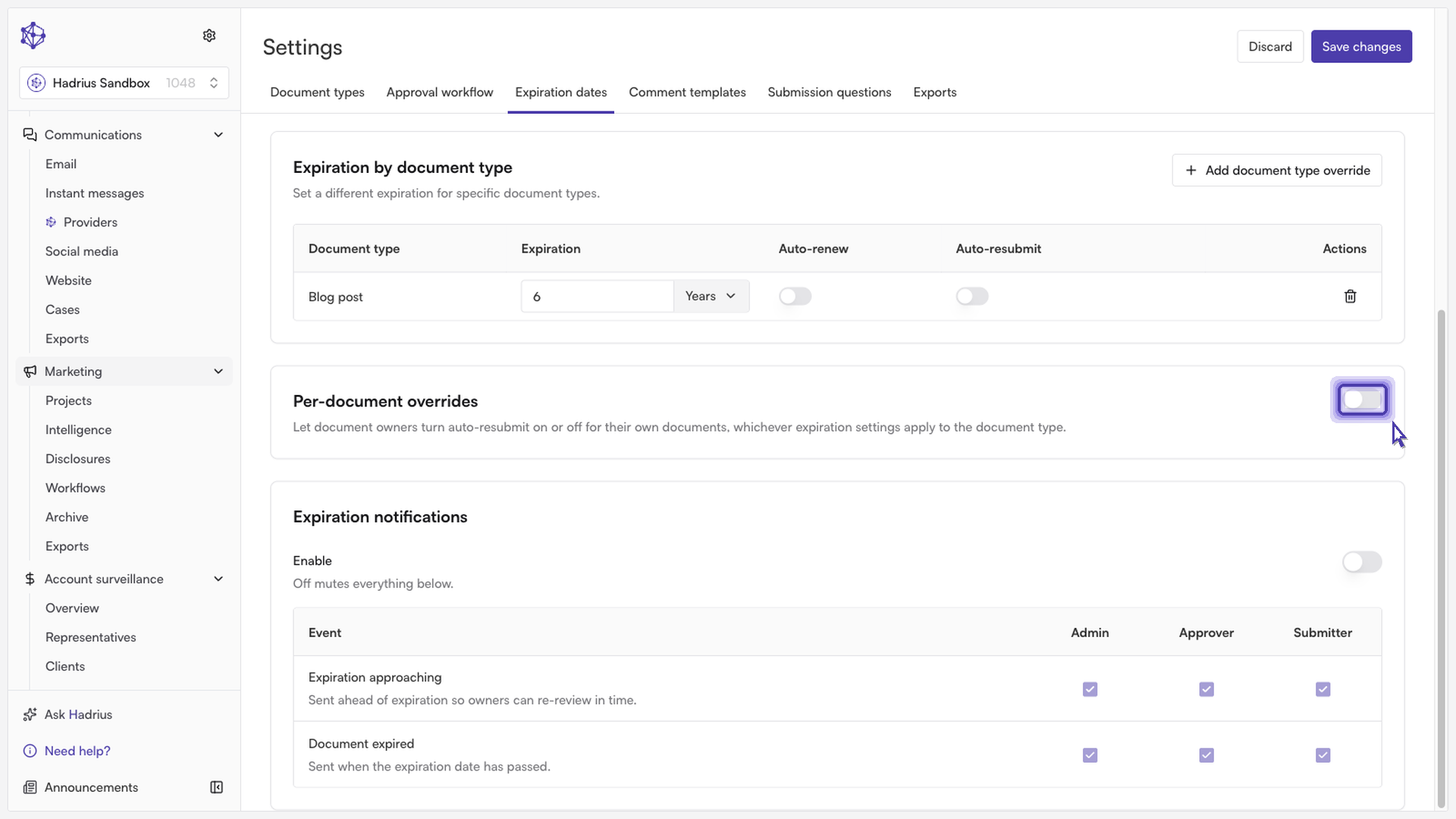
Set Review Reminder Intervals: Enable expiration reminders to ensure your compliance team is notified well before materials lapse. Select the reminder timeframes that best fit your team's internal review and re-approval workflow.
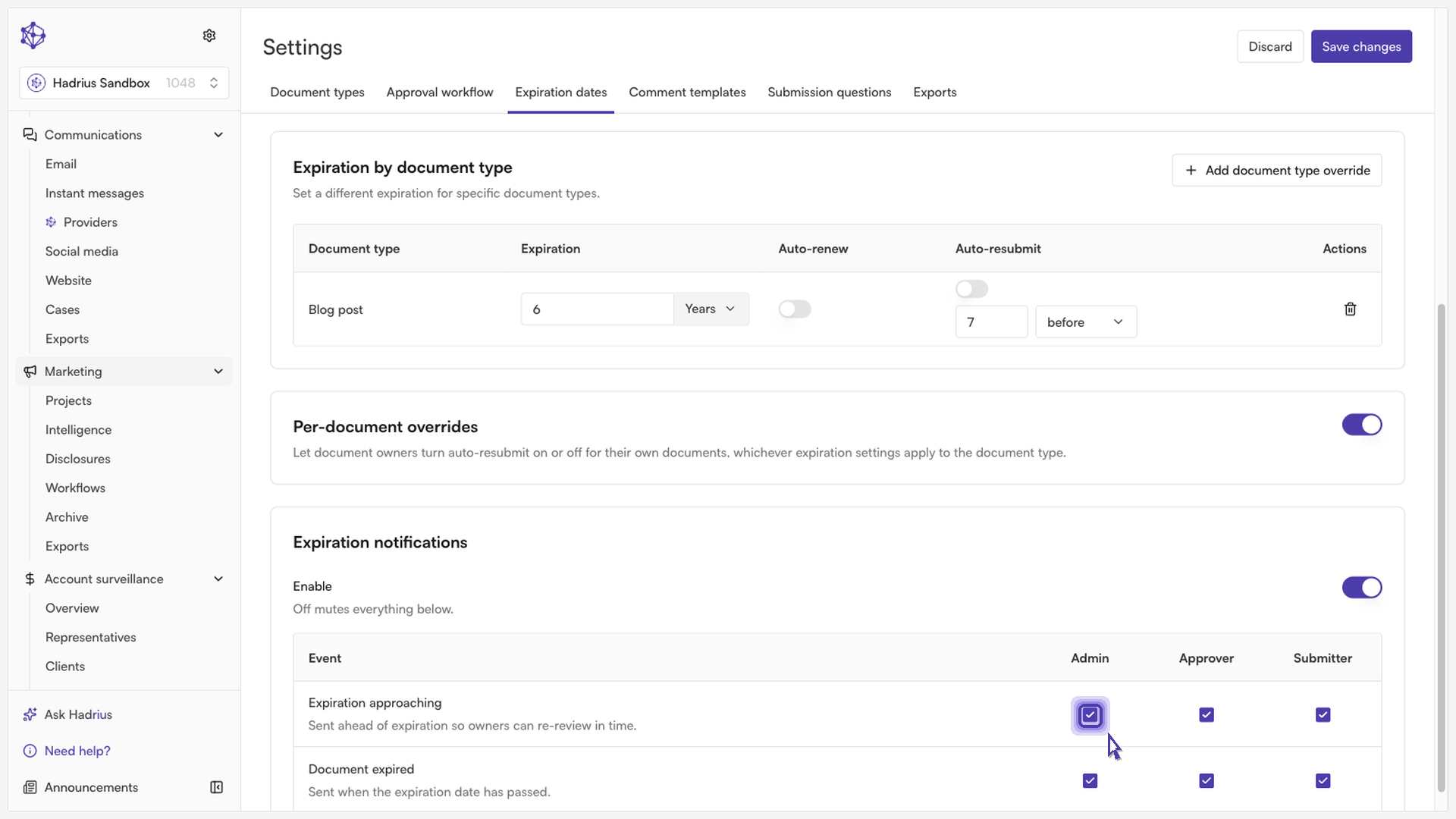
Save Your Changes: Click Save to lock in your expiration rules and activate automated lifecycle tracking across your library.
Once saved, Hadrius will automatically apply these lifecycle rules across your marketing library, keeping your content compliant and ensuring expiring assets are flagged for review on schedule.