How to View Flags
Last updated: October 17, 2026
When a piece of marketing content is flagged during review, you can open the flag list to see which issues were raised and what still needs attention. This article shows how to get from the projects list to the full list of flags on a document. Use it when you want to check what was flagged before you edit, respond, or resolve anything.
Viewing all flags on a document
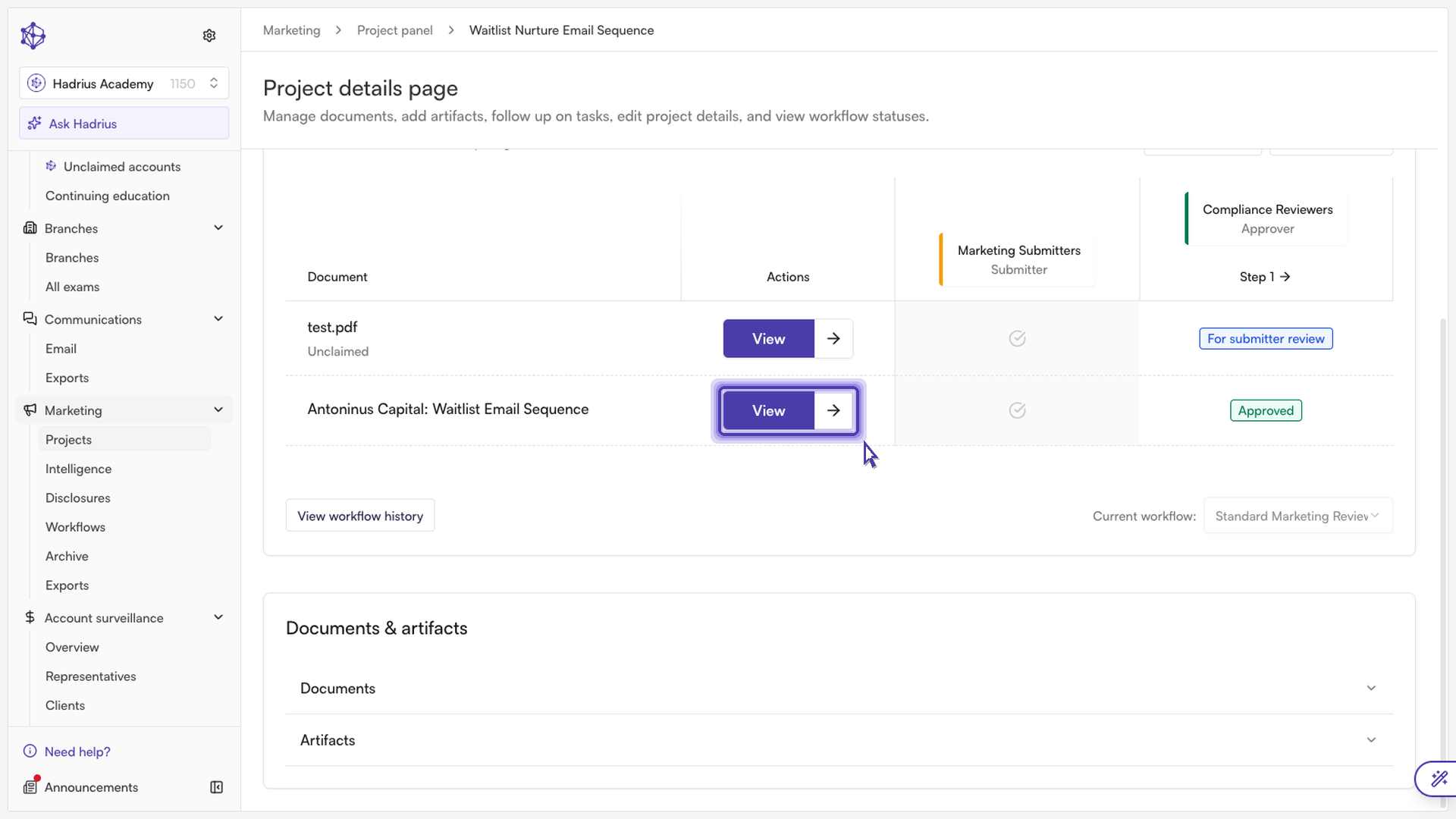
- Start in the projects list. This page collects the projects that are waiting on your review. Find the project you want to look at.
- Open the project. A project can hold one or more pieces of content. In this example it holds an email sequence. Open it to see the documents inside.
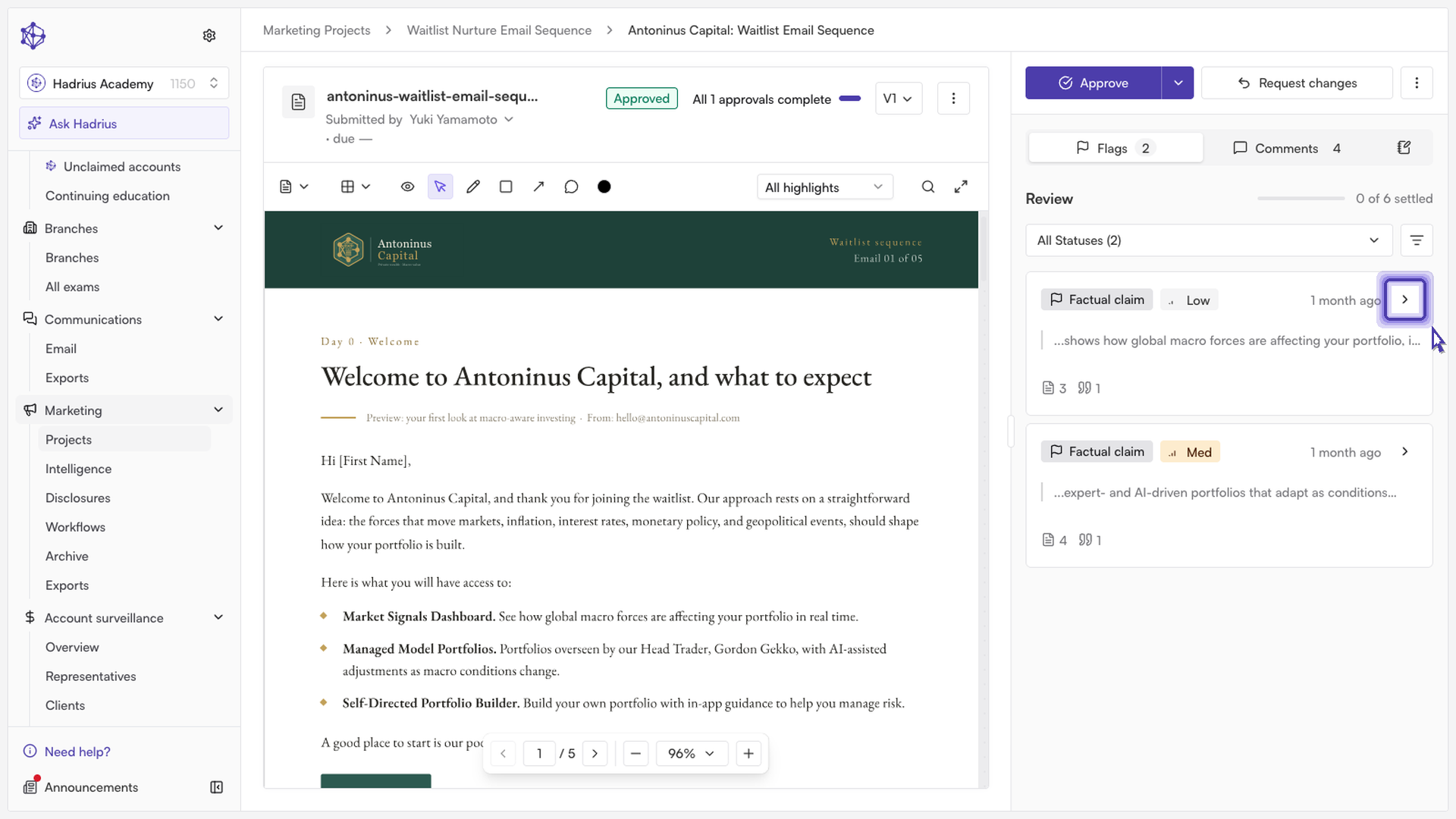
- Open the flagged document. Select the document that was flagged during review so that it opens in the review view.
- Find the review flag control. It shows any issues raised against this content.
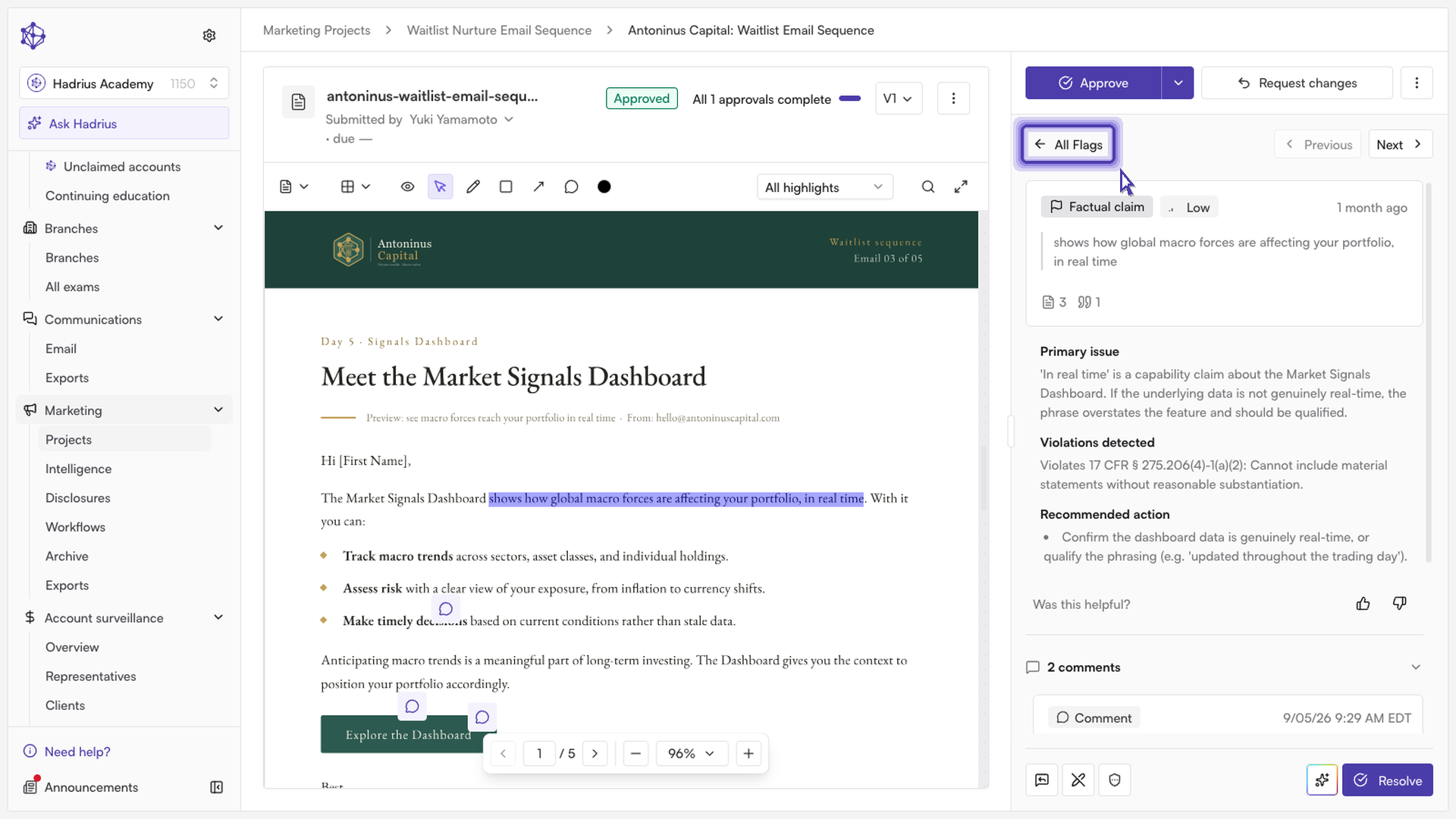
- Choose "All flags". This lists every flag on the document, so you can see exactly what needs attention.
Other ways to organize the list
The flag list can be grouped by type or by severity. Each group shows a count badge. There is also a view for flags that are still waiting. "All flags" includes every flag on the document. The "Resolved" group contains flags that were resolved or dismissed. The waiting view shows only flags that have not yet been actioned. A flag can carry more than one severity. In that case it appears under each severity it has, so the severity counts may add up to more than the total number of flags.
What happens next
Once you have reviewed the list, open an individual flag to read the details and decide how to handle it. Flags that are resolved or dismissed move out of the waiting view and into the "Resolved" group.