How to Change to Due Date on a Project
Last updated: October 17, 2026
This article walks through how to change the due date on a document within a Marketing Review project. Use this workflow when a review needs more time and the deadline for submitting or completing a document should be pushed out — for example, when the underlying work won't be ready by the original date.
Step 1: Find the project and document
Start from the Projects list, where all active workflows are tracked. Open the project you need to work in to view its current progress.
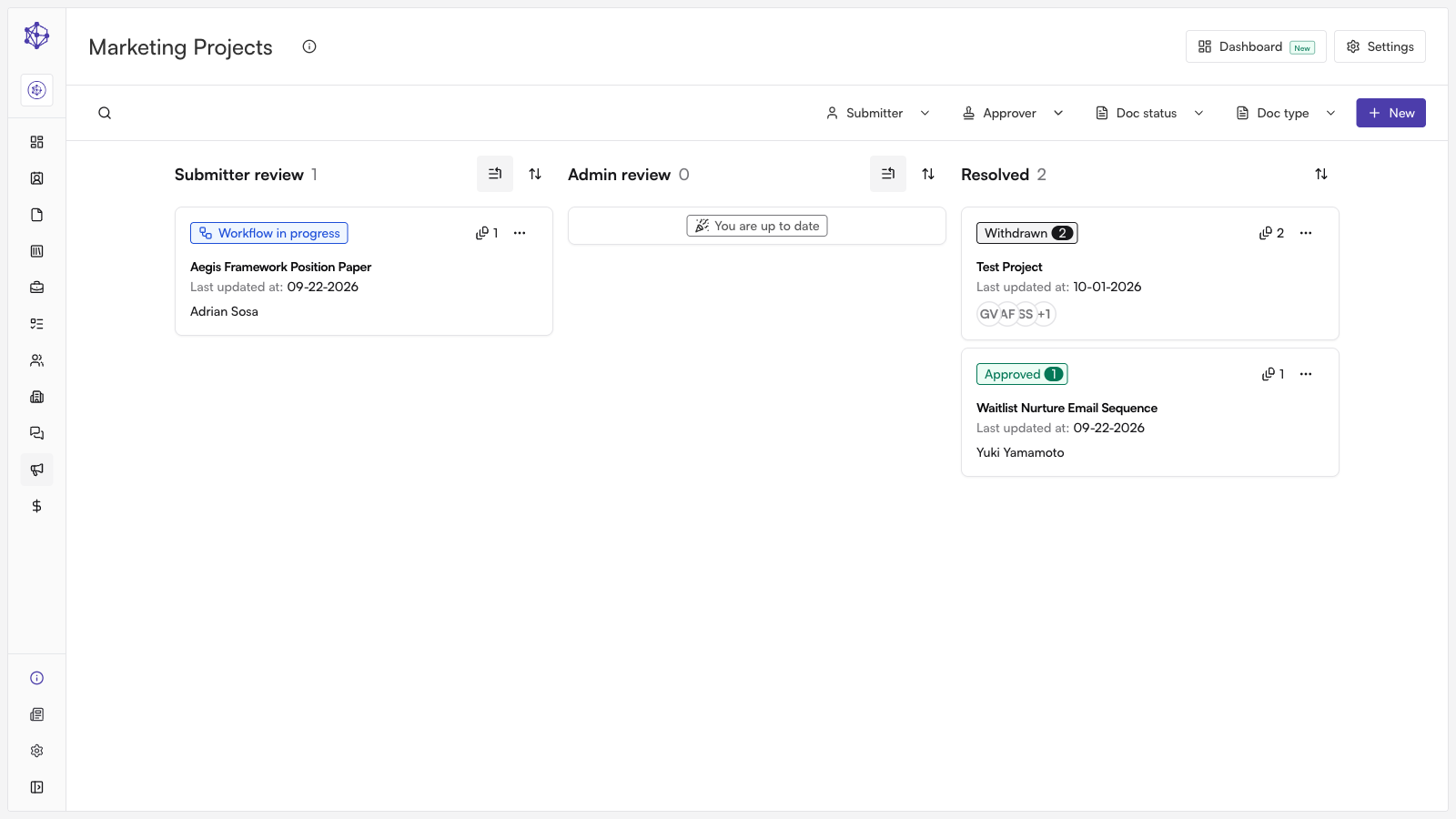
Once inside the project, go to the Documents tab to see everything tied to that project, and open the specific document whose due date you want to update.
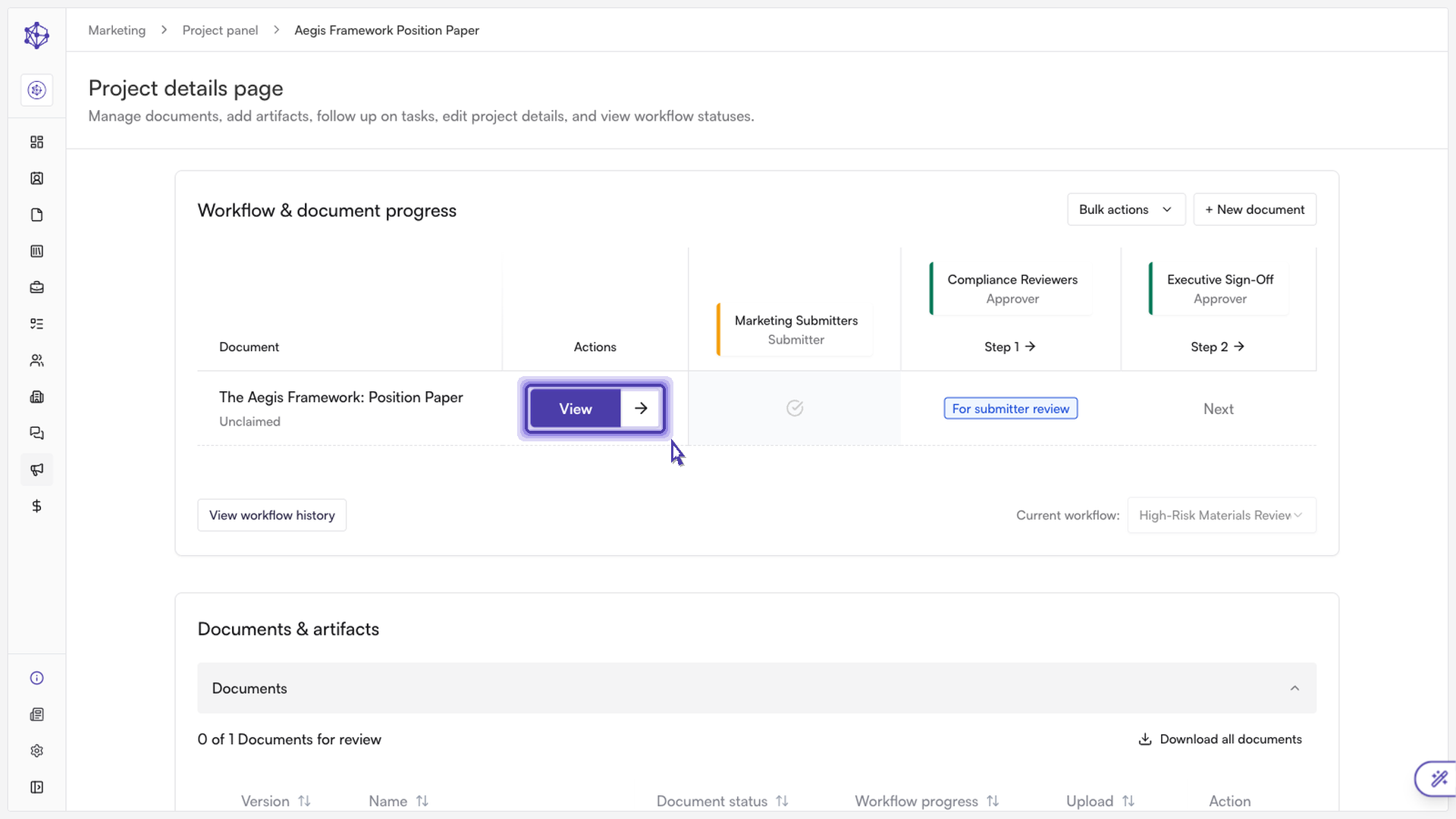
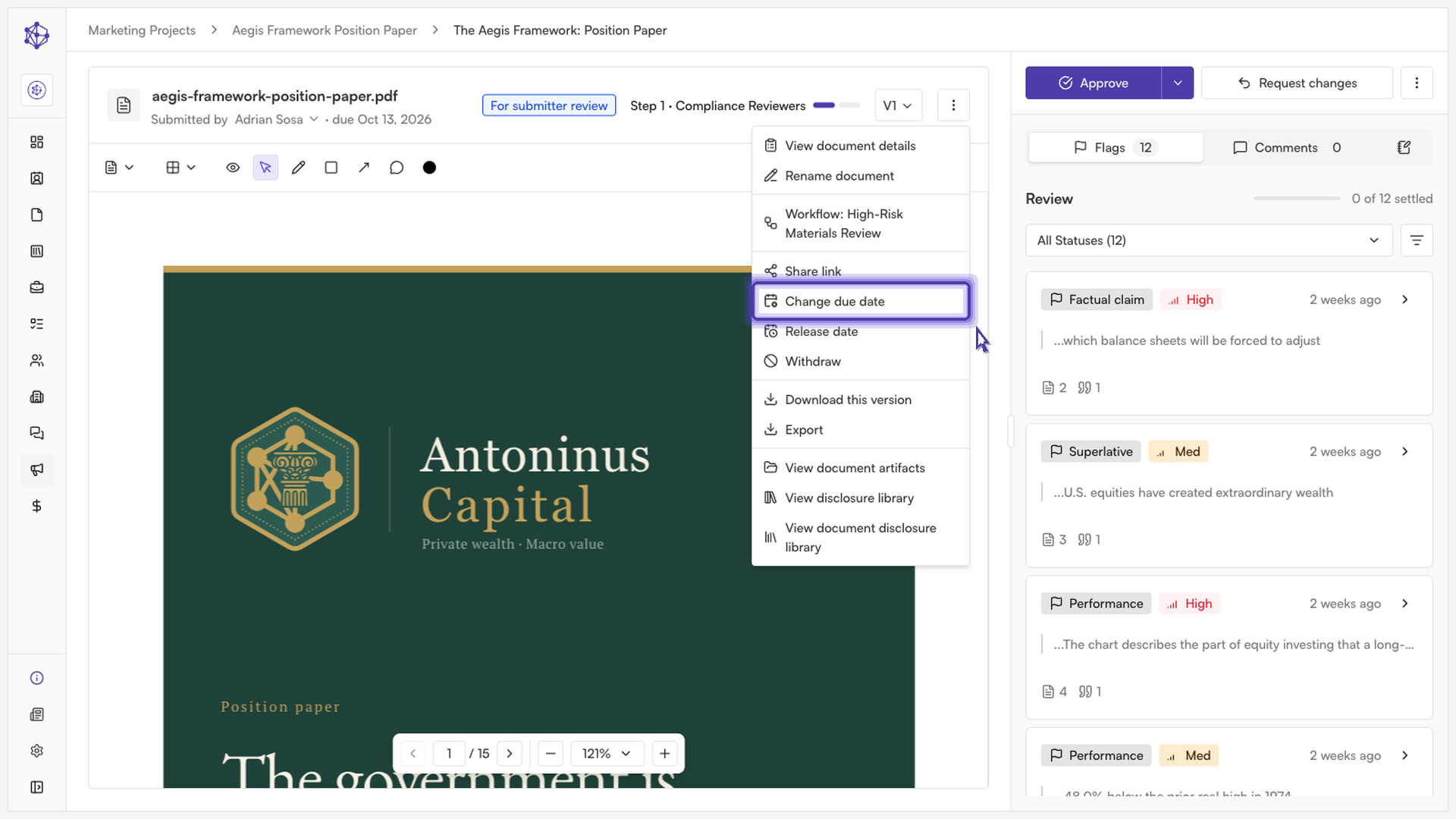
Step 2: Open the due date action
With the document open, click its action menu (the "More document actions" icon) to see the full set of options available beyond the basics shown on the page. From this menu, select Change due date.
Step 3: Pick a new date and save
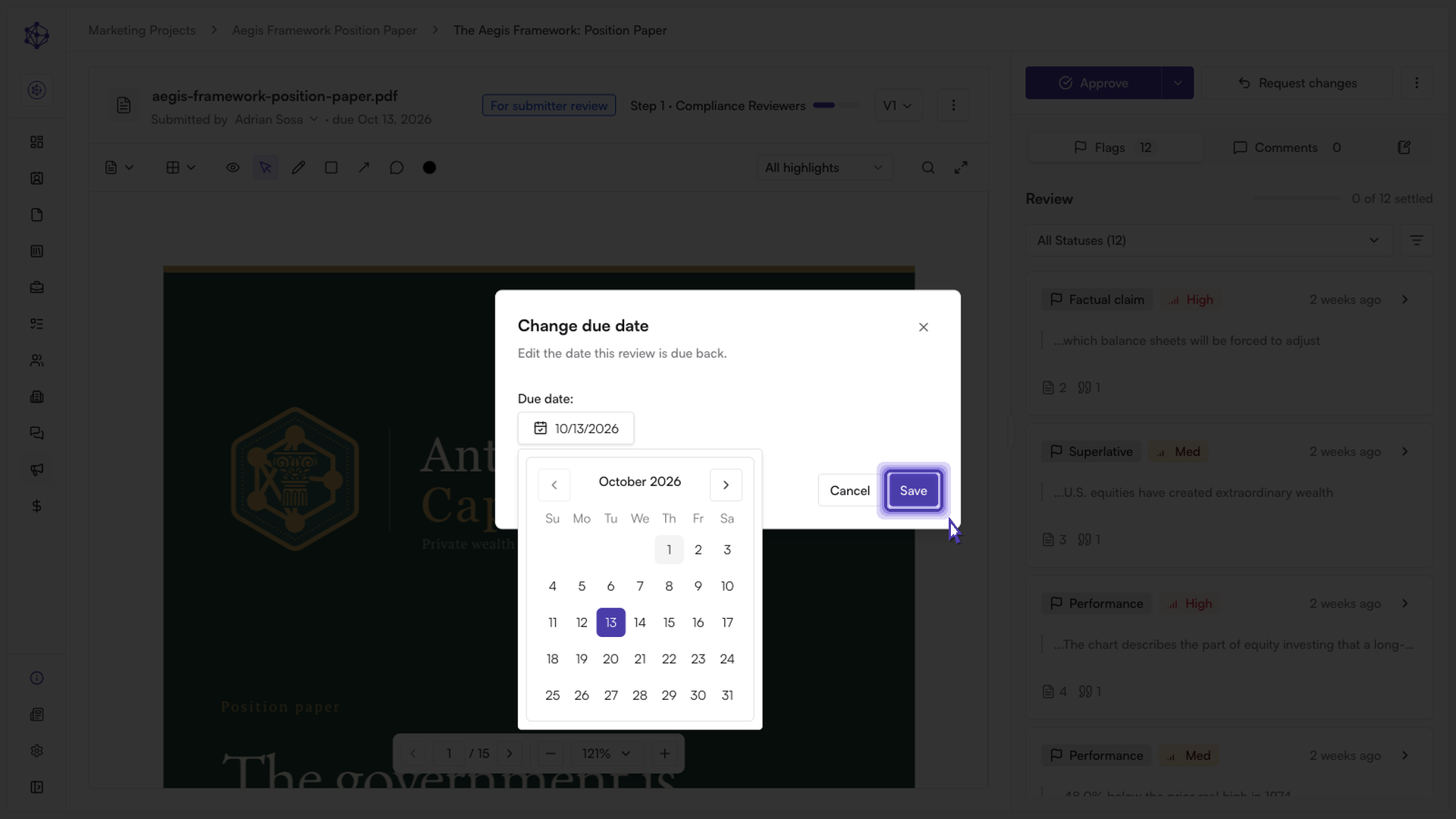
A calendar opens showing the date currently set for the document. Select the new date you want to push the deadline to — the date picker only allows selecting a date in the future, so you can move the deadline out but not set it in the past.
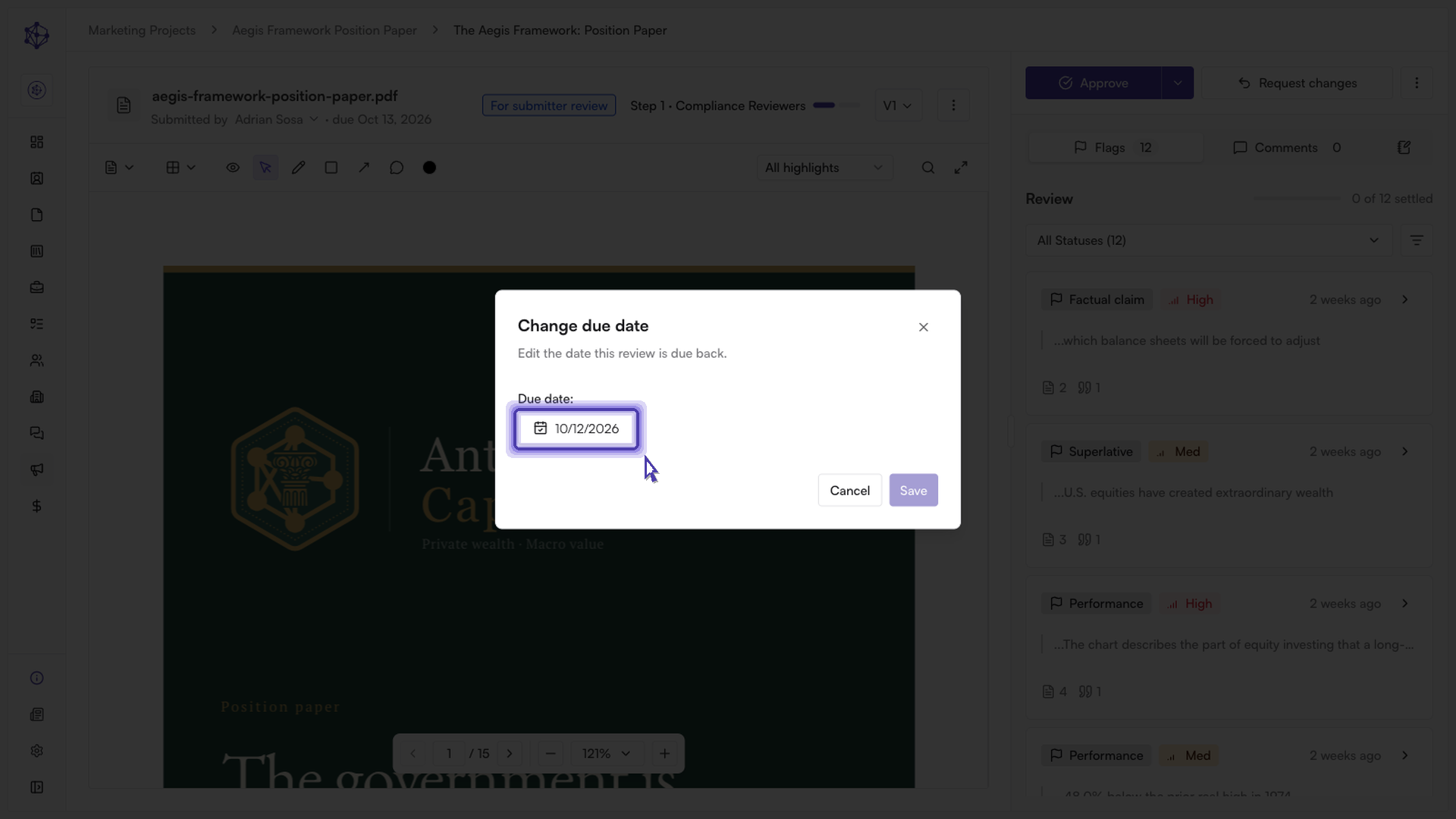
Once you've chosen the new date, select Save to lock it in. The updated due date takes effect immediately.
What happens next
Once saved, the document reflects the new due date right away, and any reminders or overdue indicators tied to that document will be based on the updated date going forward.