How to Rename a Document
Last updated: October 17, 2026
Document names show up throughout a review, so they need to be clear. This article explains how to rename a document that is attached to a step in a project's review workflow. Use it when a file name is unclear, outdated, or doesn't describe what the document contains.
Before you begin
You need access to the project that contains the document. Renaming changes only the name shown in Hadrius. It doesn't change the file's contents.
Steps
- Go to the project list and open the right submission. From inside a project, head back to the project list and find the submission that holds the document. Opening it takes you to the review workflow, which lists each step and its documents.
- Expand the step. Expand the step the document belongs to to see the files attached to it.
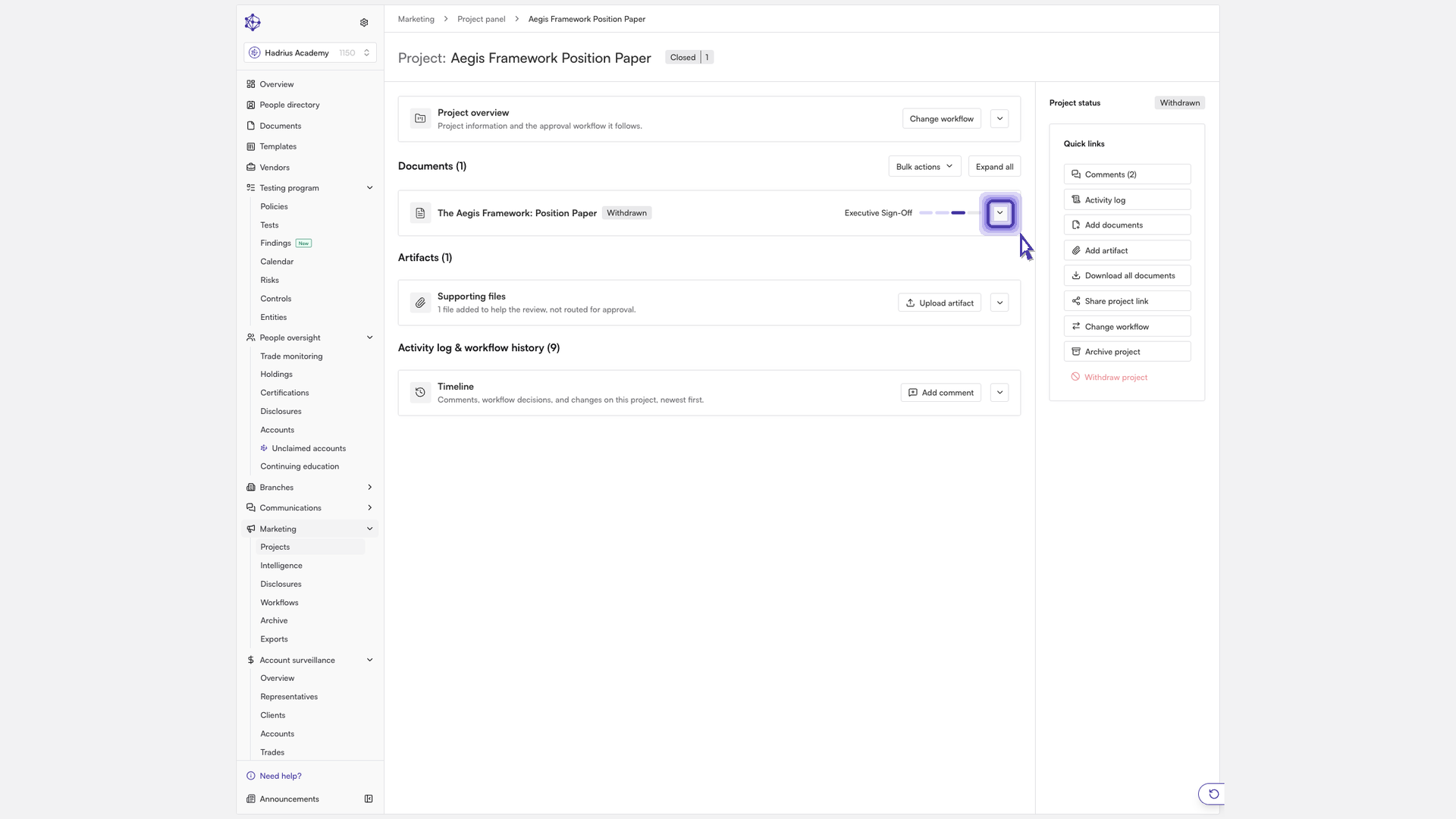
- Open the document. Select the document to open it in the review view.
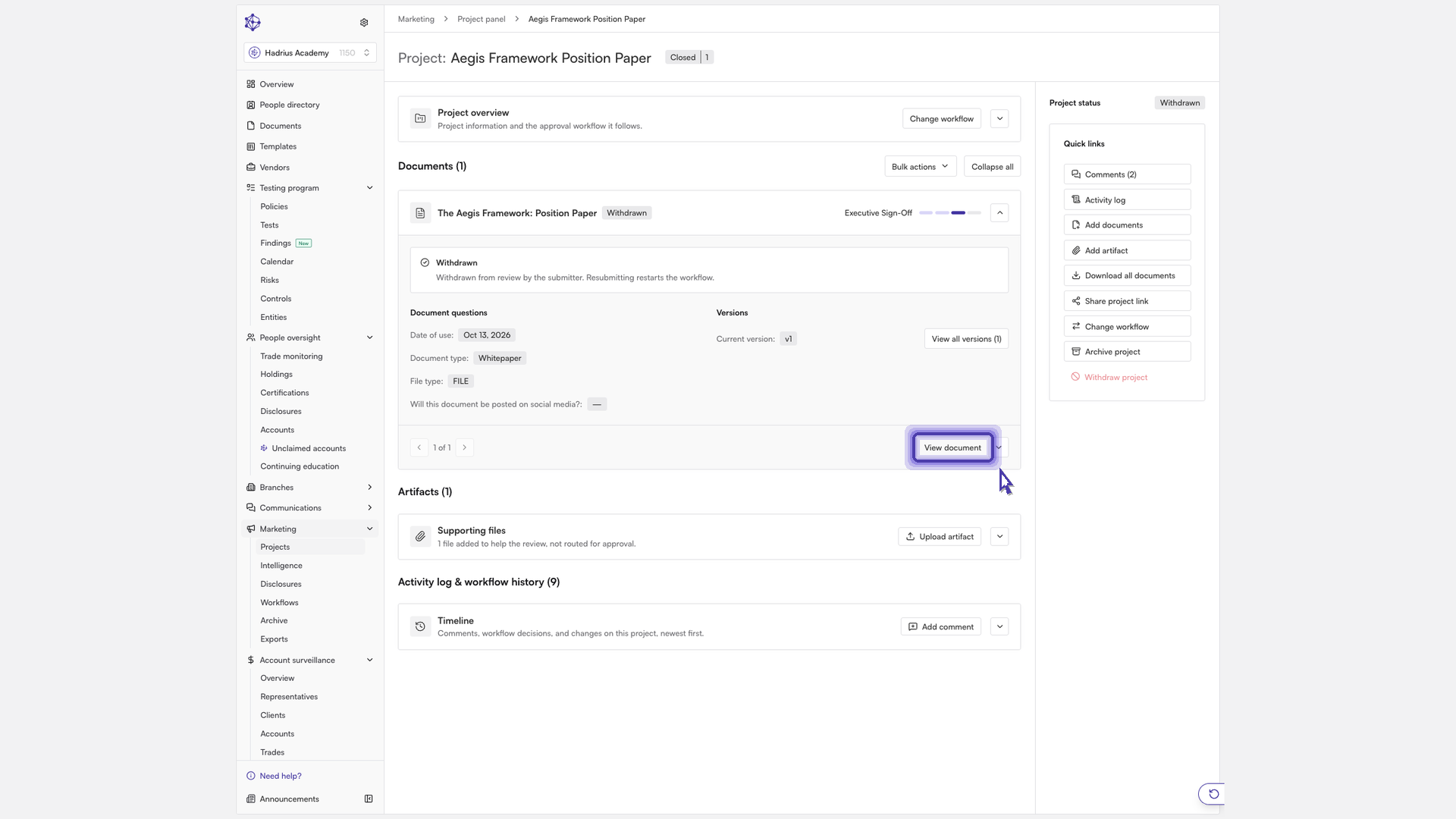
- Choose "Rename document". Open the document's actions menu and select "Rename document". A dialog opens with the current name filled in.
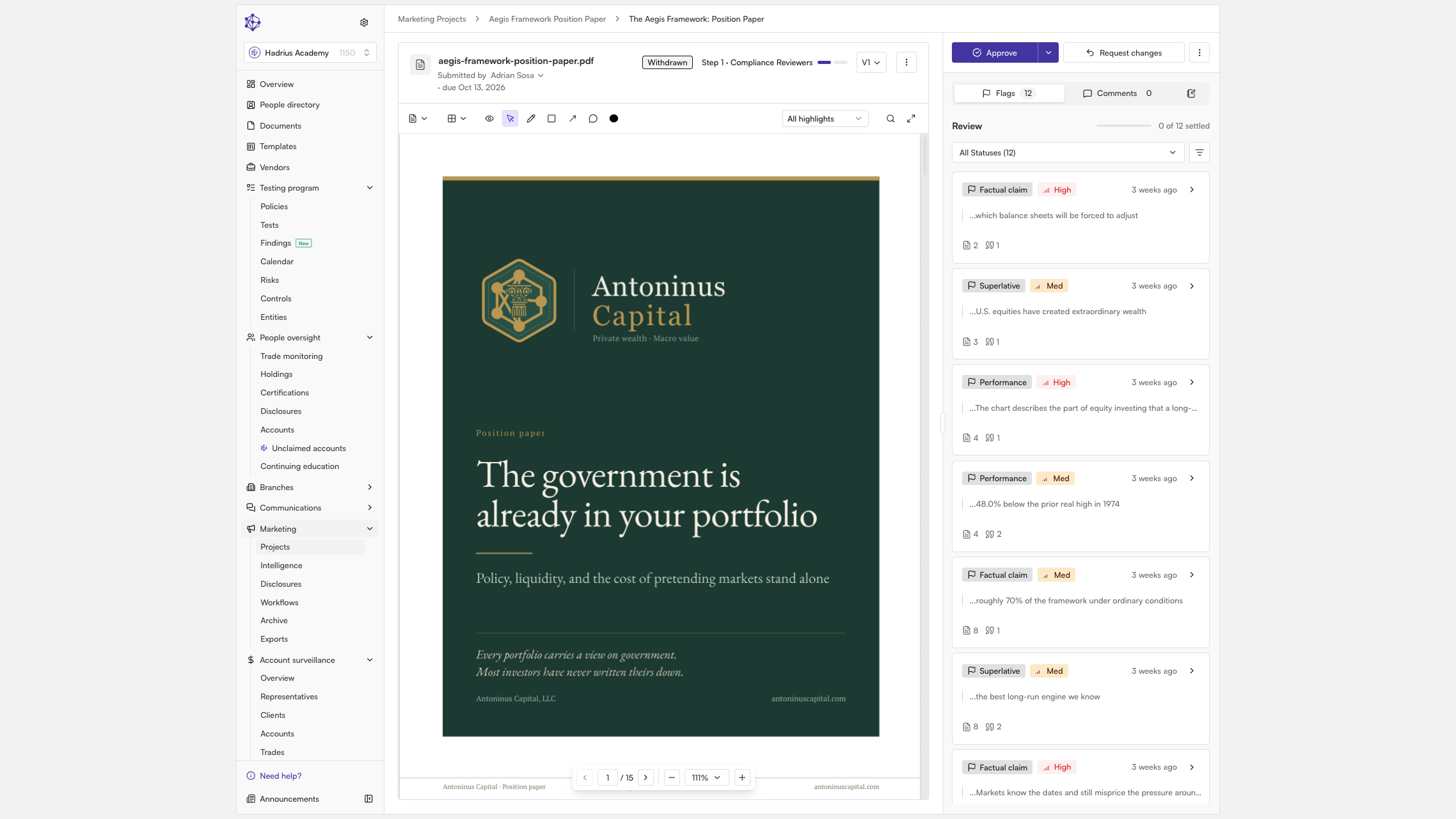
- Enter the new name and save. Type the new name in the "Document name" field and select "Save". "Save" stays unavailable until you enter a name that differs from the current one. Select "Cancel" if you change your mind.
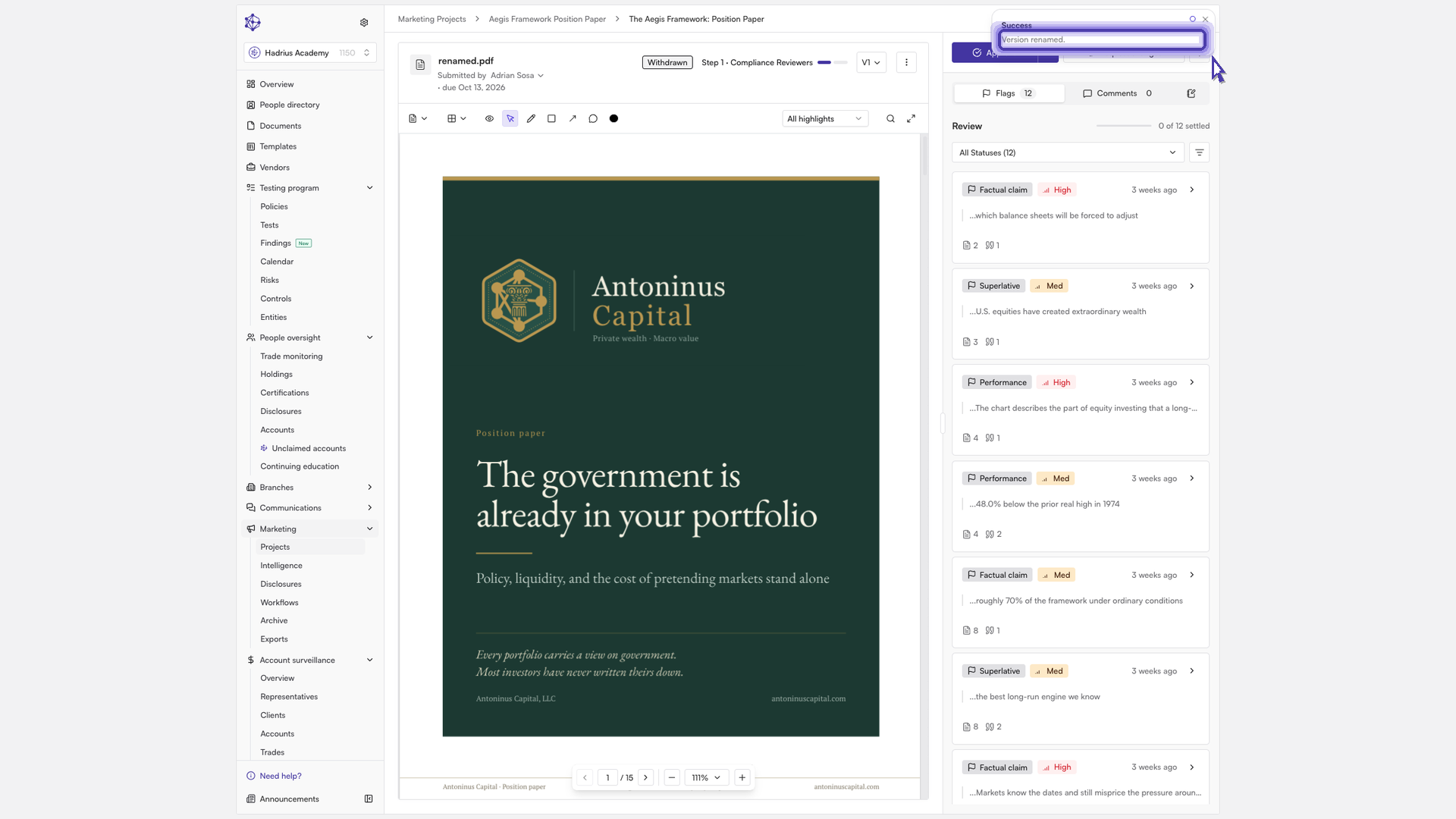
- Check the confirmation. A short message appears to confirm that the document was renamed.
What to expect
The new name is saved against this document version and appears wherever the document is listed in the review workflow. If you don't see the confirmation message, reopen the step and check the document name before you try again.