How to edit or manage a Firm Intelligence finding
Last updated: October 17, 2026
Firm Intelligence keeps a growing memory of context for your firm — documents, links, and notes it has processed into individual findings. This article covers how to review, edit, save, archive, and delete those findings from the Manage Context view.
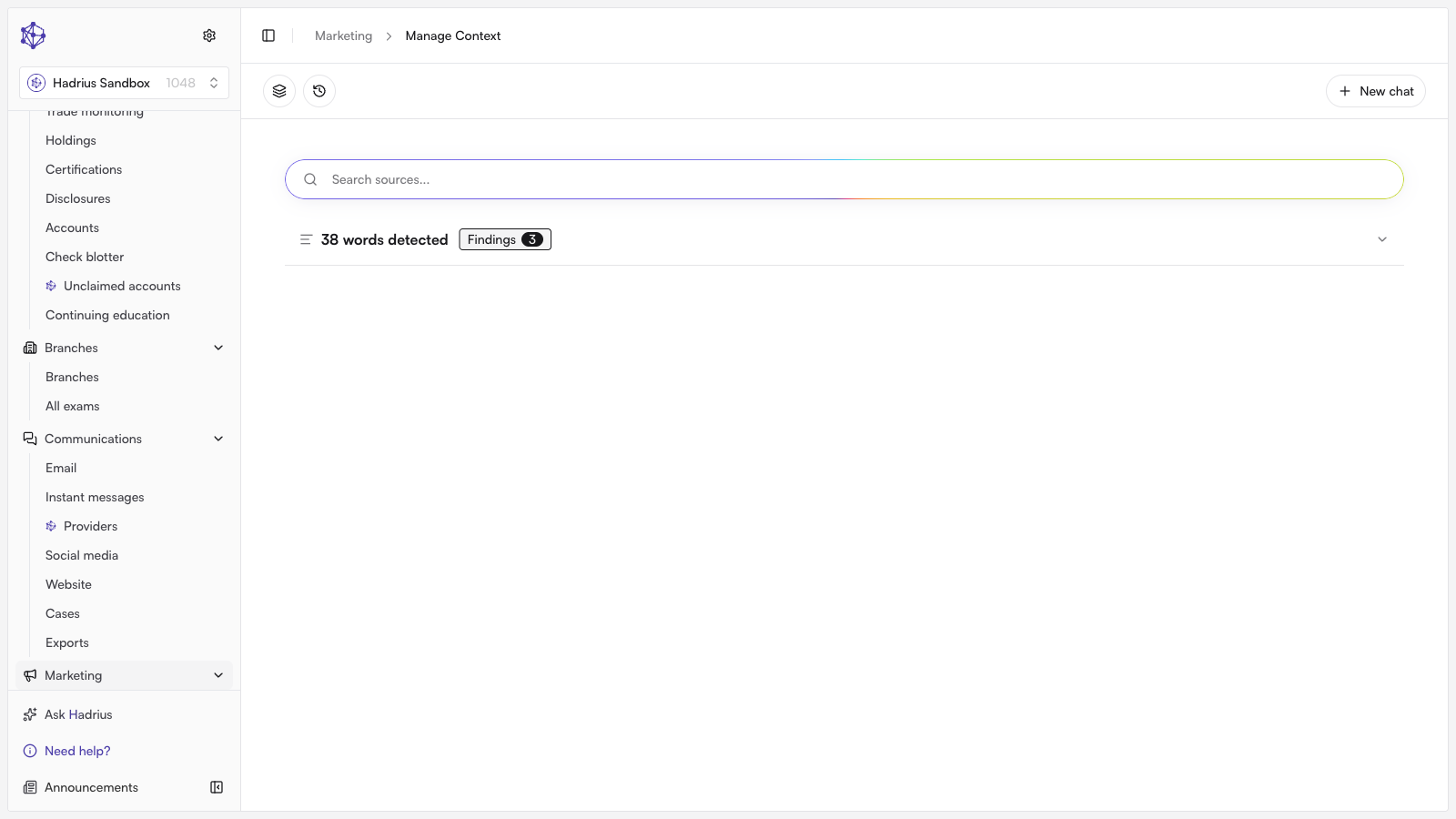
Opening a source's findings
From Marketing > Intelligence > Manage Context, each source you've added appears in a list with a count of its findings. Click a source to expand it and see everything that's been extracted and flagged for review, shown in a table with each finding's name, last updated date, status, and classification.
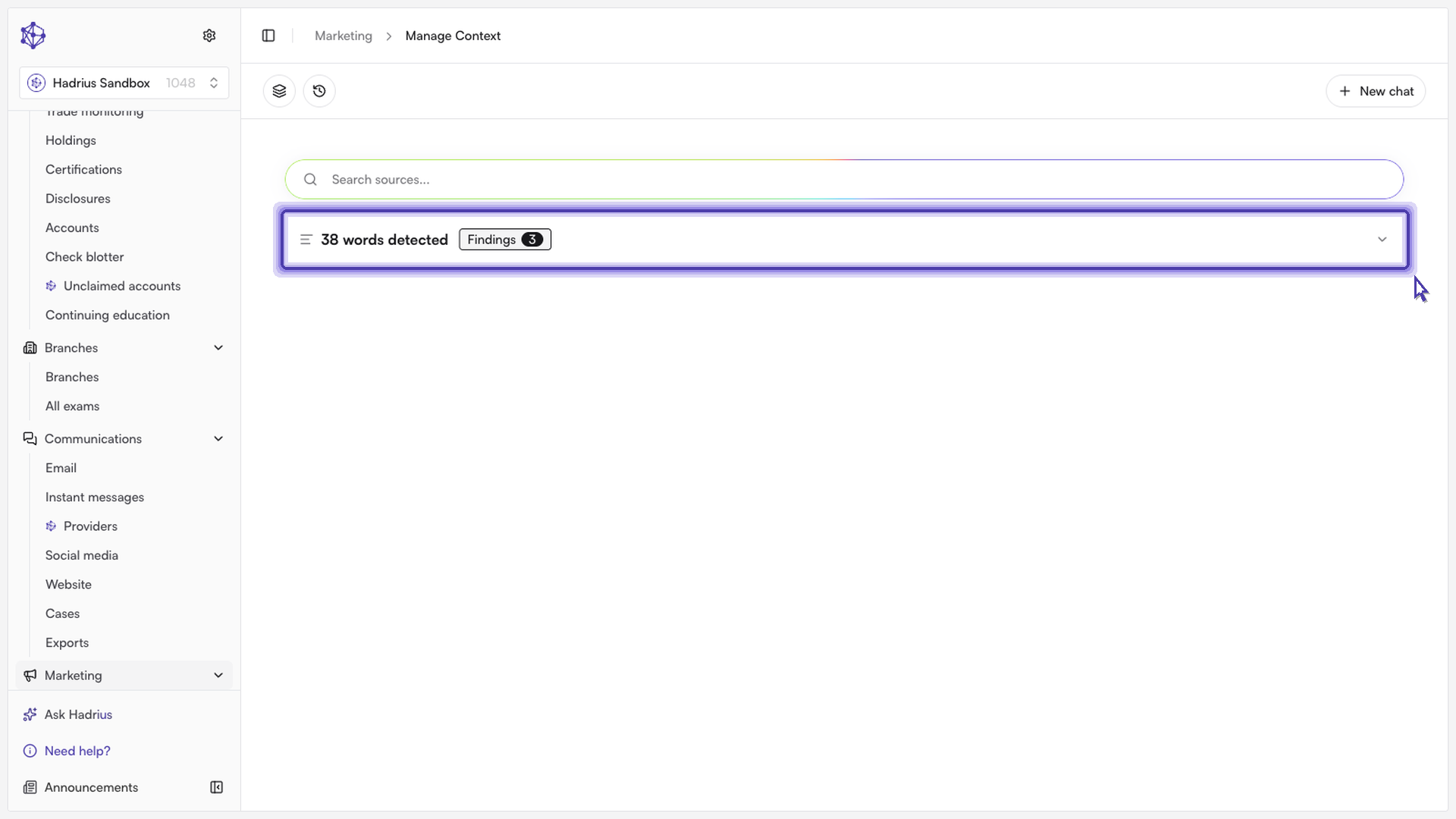
Status is shown as a badge and reflects where a finding stands:
In review — newly extracted and not yet approved for use.
Active — approved and available to inform future answers and reviews.
Archived — retired and excluded from future reviews or answers.
Reviewing a finding
Click the view icon on any row to open that finding in a detail panel alongside the table. The panel shows the source it came from, when it was created, its classification (if any), and its full content, along with feedback thumbs and a set of action buttons that change depending on the finding's current status.
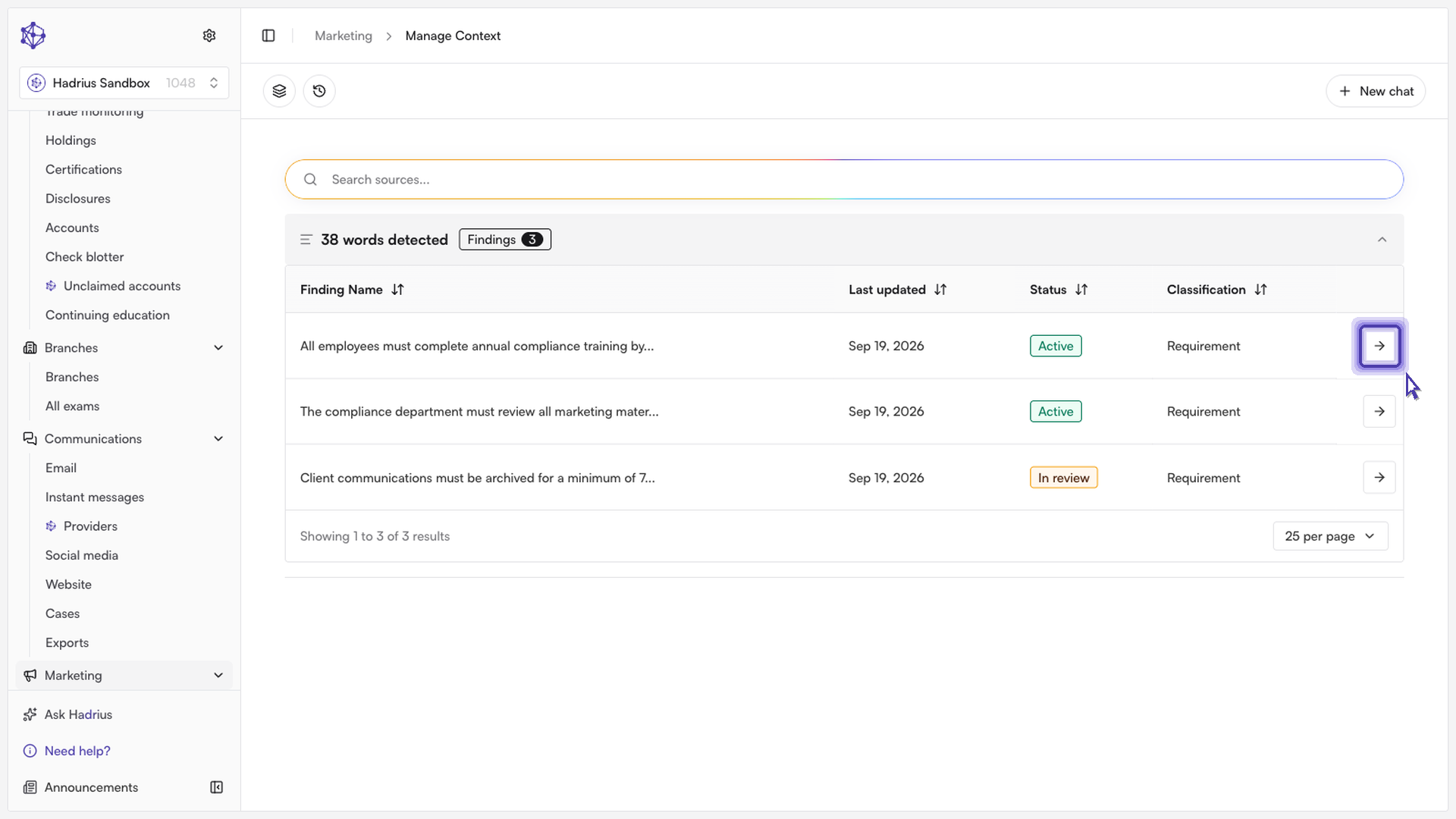
Editing a finding
Select Edit to open the edit dialog, where you can update the source title and revise the finding's content in a single view.
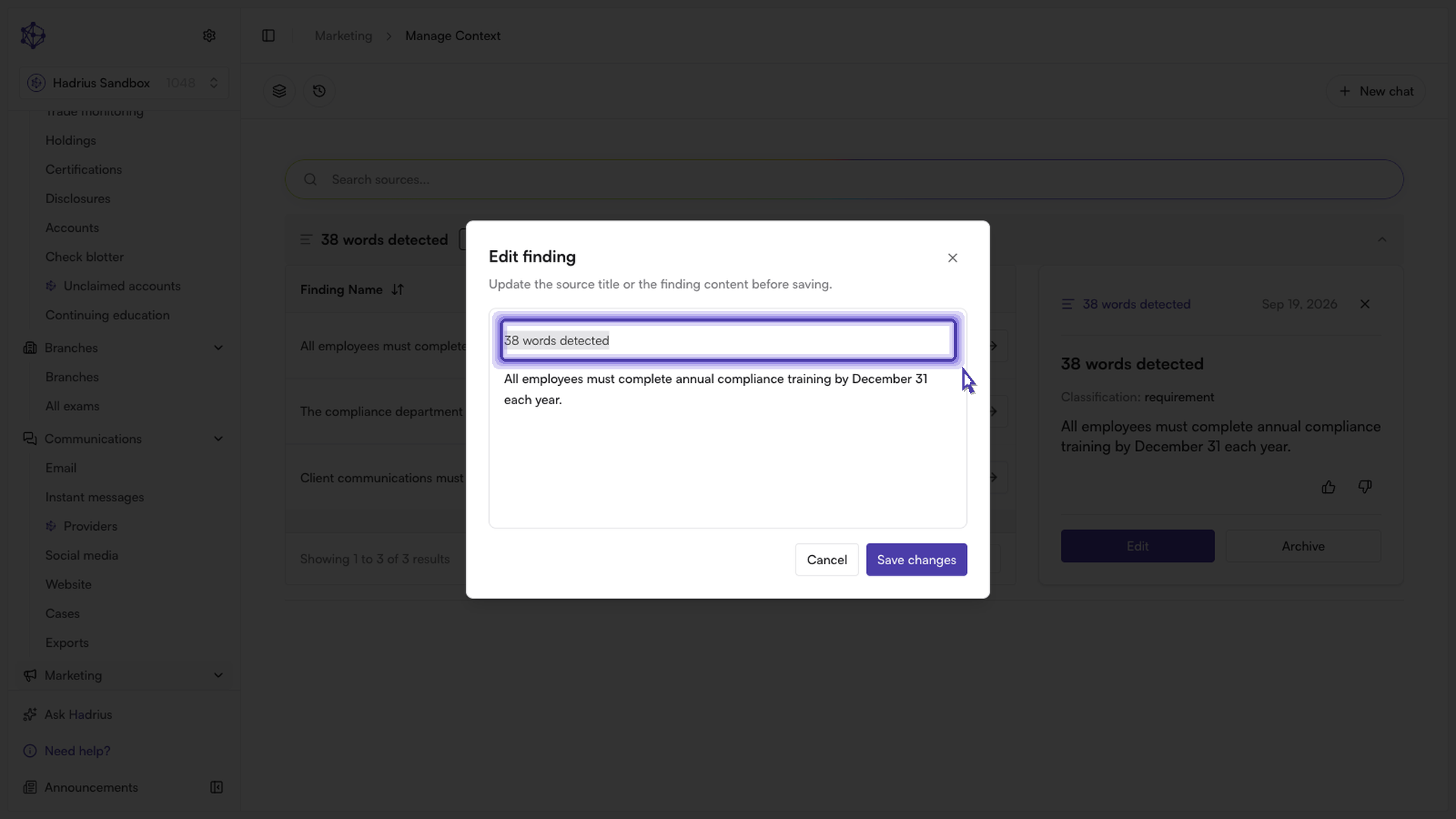
Note that the title field here updates the title of the underlying source, not just this one finding, so the change will apply to any other findings tied to the same source. If the source already had a title, you can't clear it entirely — you'll need to leave some text in the field, or the "Save Changes" button stays disabled and an inline message reminds you a title is required. Sources that were previously untitled can be left blank. Once you're satisfied with the title and content, select Save Changes to update the finding's record immediately.
Approving, archiving, and deleting
The remaining actions available depend on the finding's status:
While a finding is In review, you can select Save Context to approve it, which moves it to Active status and makes it available to future reviews and answers. You can also select Delete to permanently remove it — a confirmation dialog appears since this action can't be undone.
Once a finding is Active, select Archive to retire it. Archiving removes it from future reviews or answers without deleting it.
An Archived finding can be restored at any time by selecting Unarchive, which returns it to Active status.
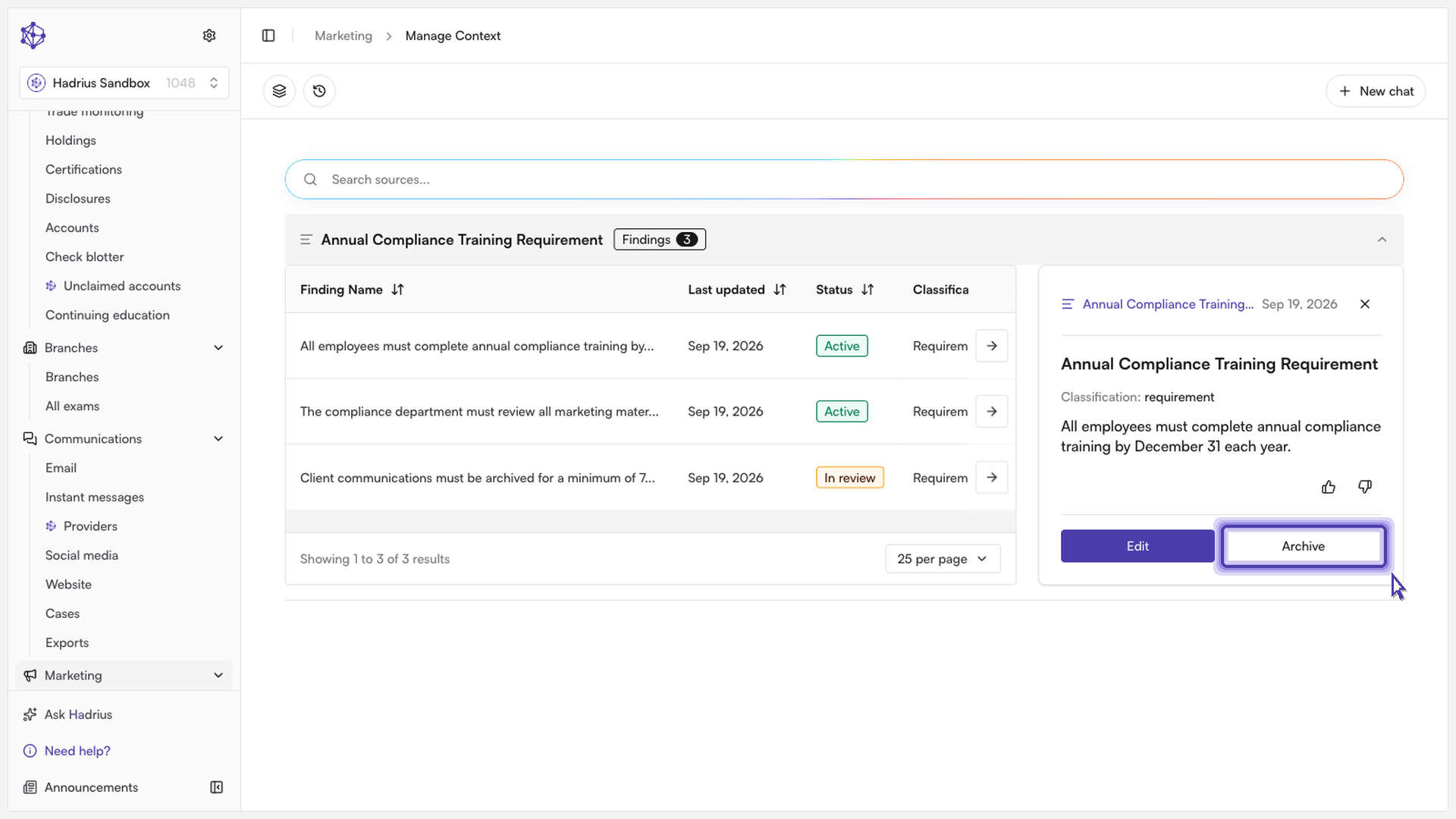
Edits, approvals, archive/unarchive actions, and deletions all take effect immediately — there's no separate publish step, so it's worth double-checking a change before you confirm it, especially deletion, which can't be reversed.