How to Change the Workflow Associated to a Project
Last updated: October 17, 2026
Use this workflow when you need to move one or more existing projects onto a different review workflow in bulk, rather than reassigning them one at a time. This is useful after a workflow is restructured, consolidated, or retired, and existing projects need to follow a new set of review rules going forward.
Opening the bulk reassignment tool
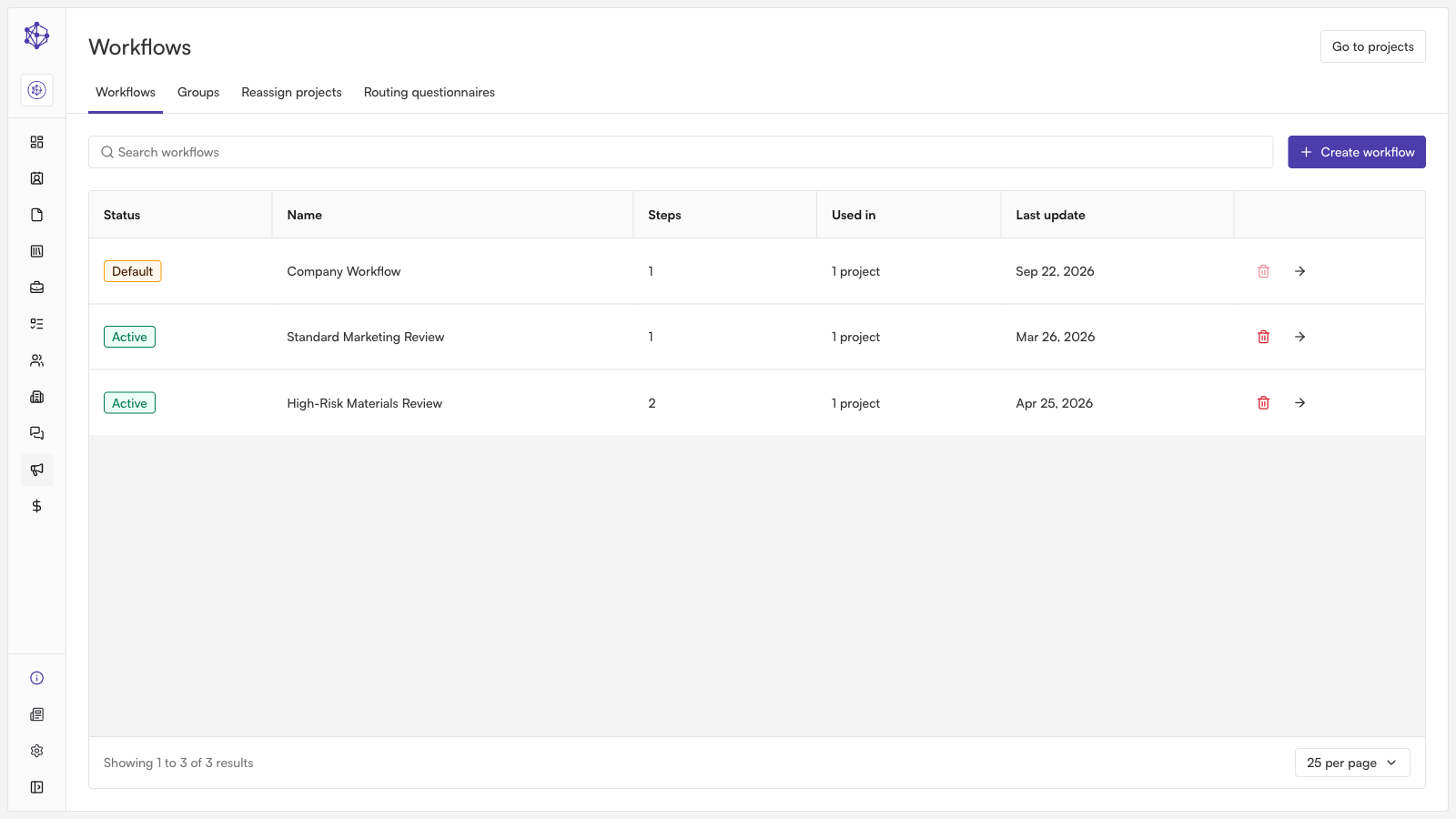
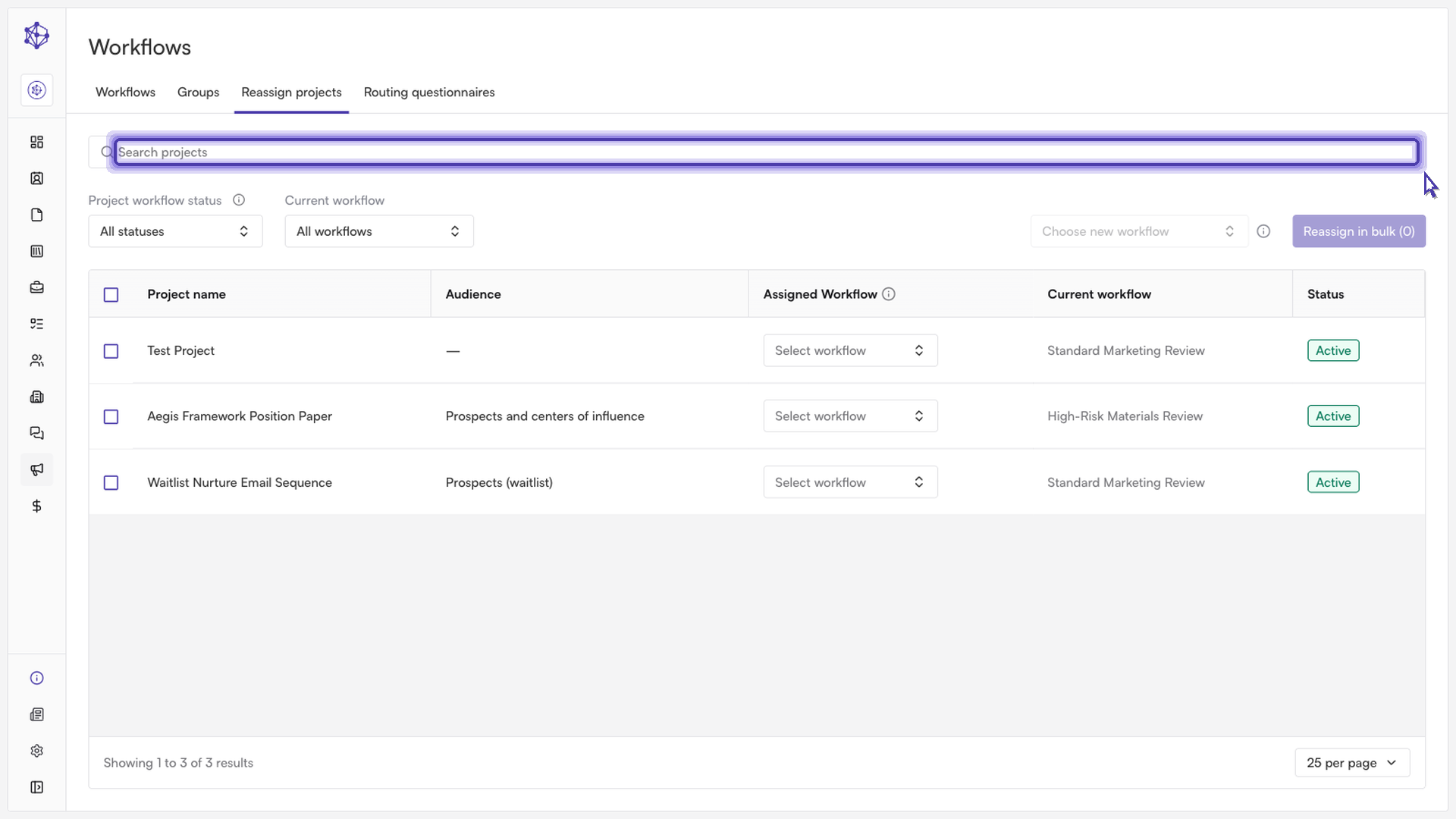
From the workflows library, where all review workflows used across your projects are configured, open the reassignment tool.
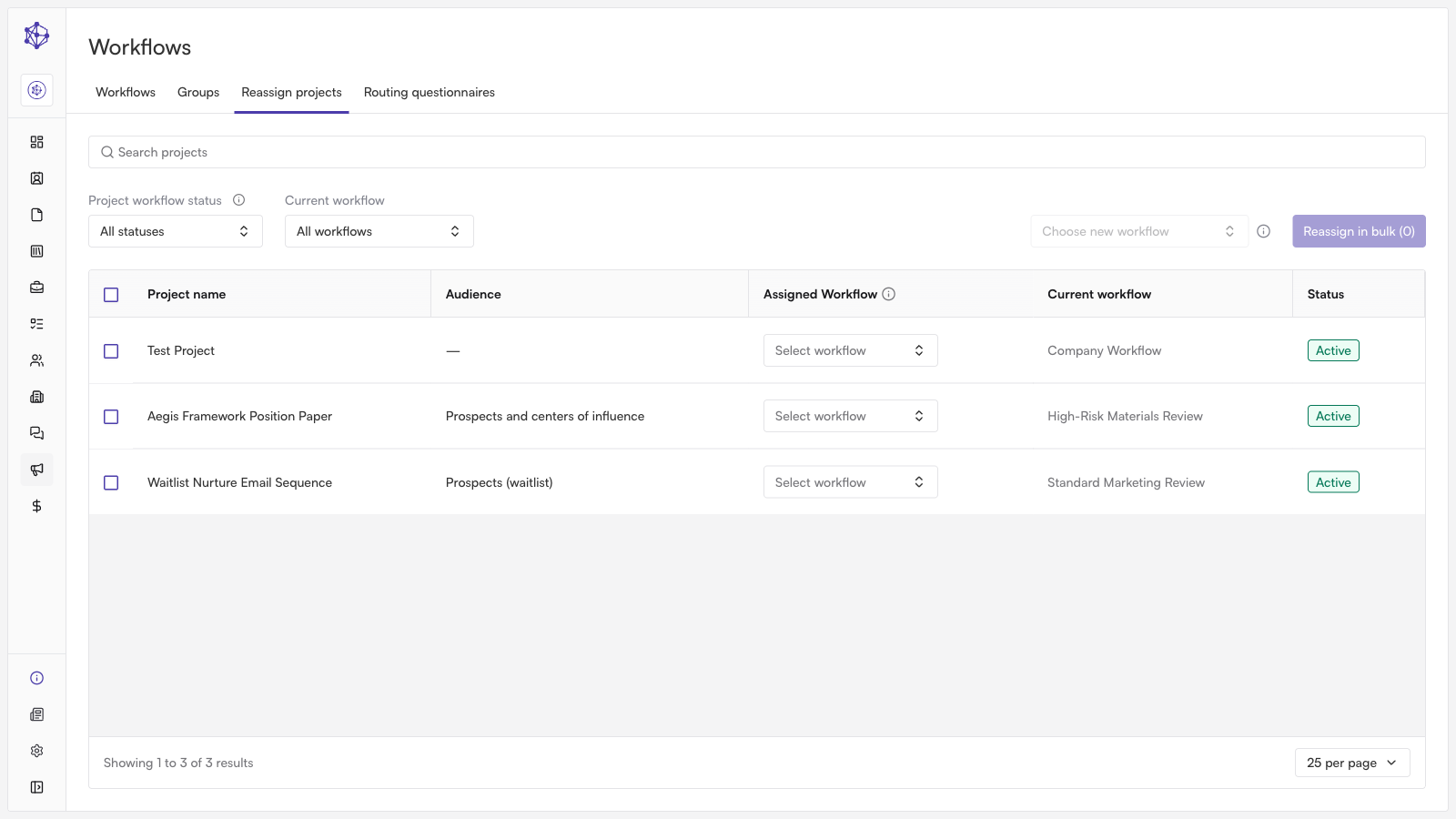
This opens a table listing your projects, along with their current workflow, status, and audience. You can search by project name, audience, or current workflow, and filter by project workflow status (Paused, In Progress, or Completed) or by current workflow to narrow down the list before making changes.
Selecting projects and a target workflow
Select the checkboxes next to the projects you want to move.
Use the "Choose new workflow" dropdown to pick the workflow you want these projects to follow going forward. Selecting a workflow here sets it as the new target for every project you've selected.
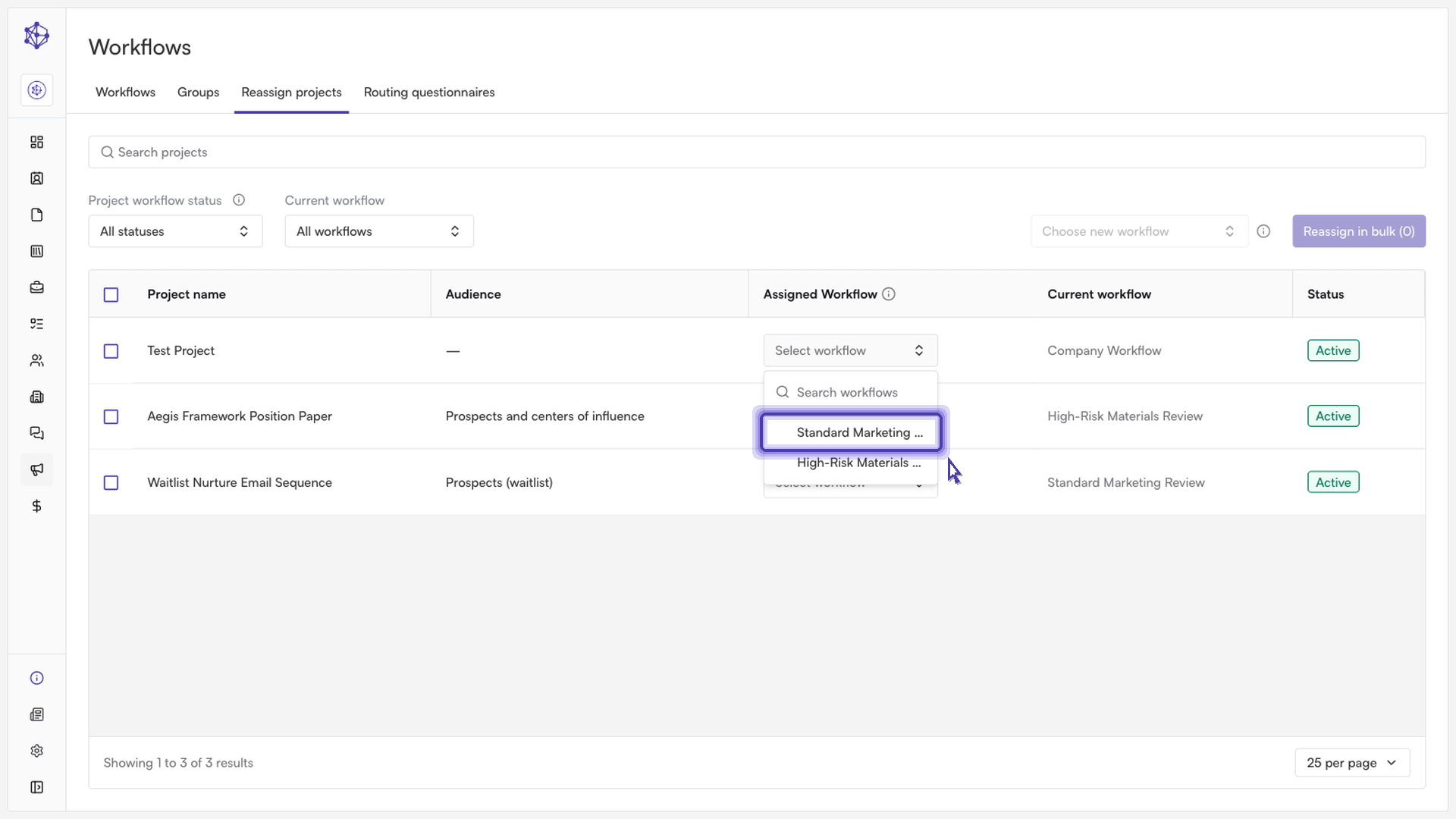
Note: only workflows where every selected project's creator belongs to that workflow's submitter group will appear as eligible options in the dropdown.
Confirming the reassignment
Once projects and a target workflow are selected, select "Reassign in bulk" (the button shows a count of how many projects are selected).
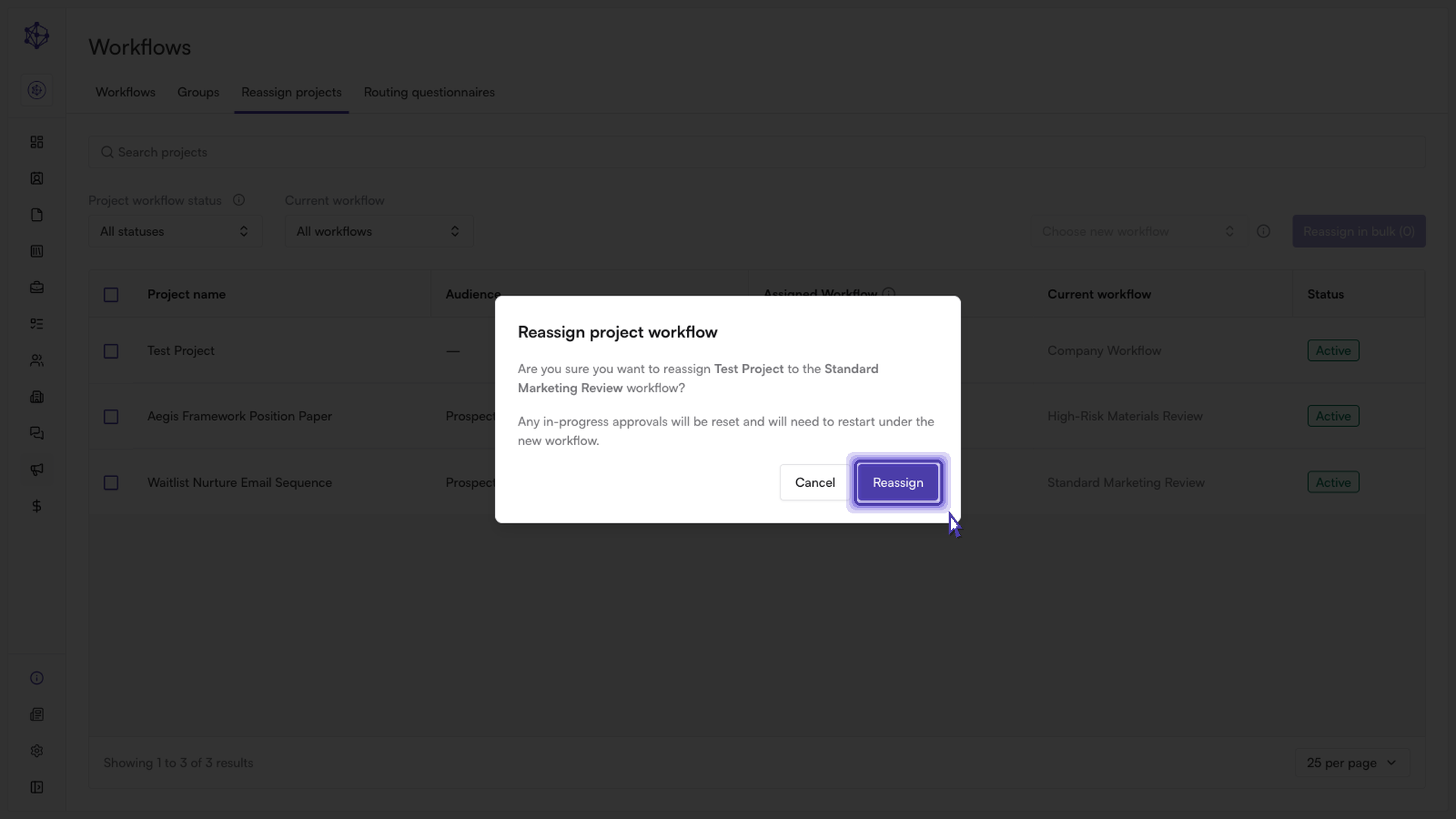
A confirmation dialog summarizes how many projects will move and to which workflow, and warns that any in-progress approvals on those projects will be reset and will need to restart under the new workflow.
Select "Reassign" to apply the workflow to the selected projects right away.
Verifying the change
After the reassignment completes, you'll see a confirmation showing how many projects were successfully reassigned (and if any failed, how many). You can use the search bar to look up a specific project and confirm its "Current workflow" column now reflects the new workflow.
Keep in mind that reassigning a project resets any in-progress approvals, so documents under that project will need to move through the new workflow's review steps from the start.