How to add a new branch
Last updated: October 17, 2026
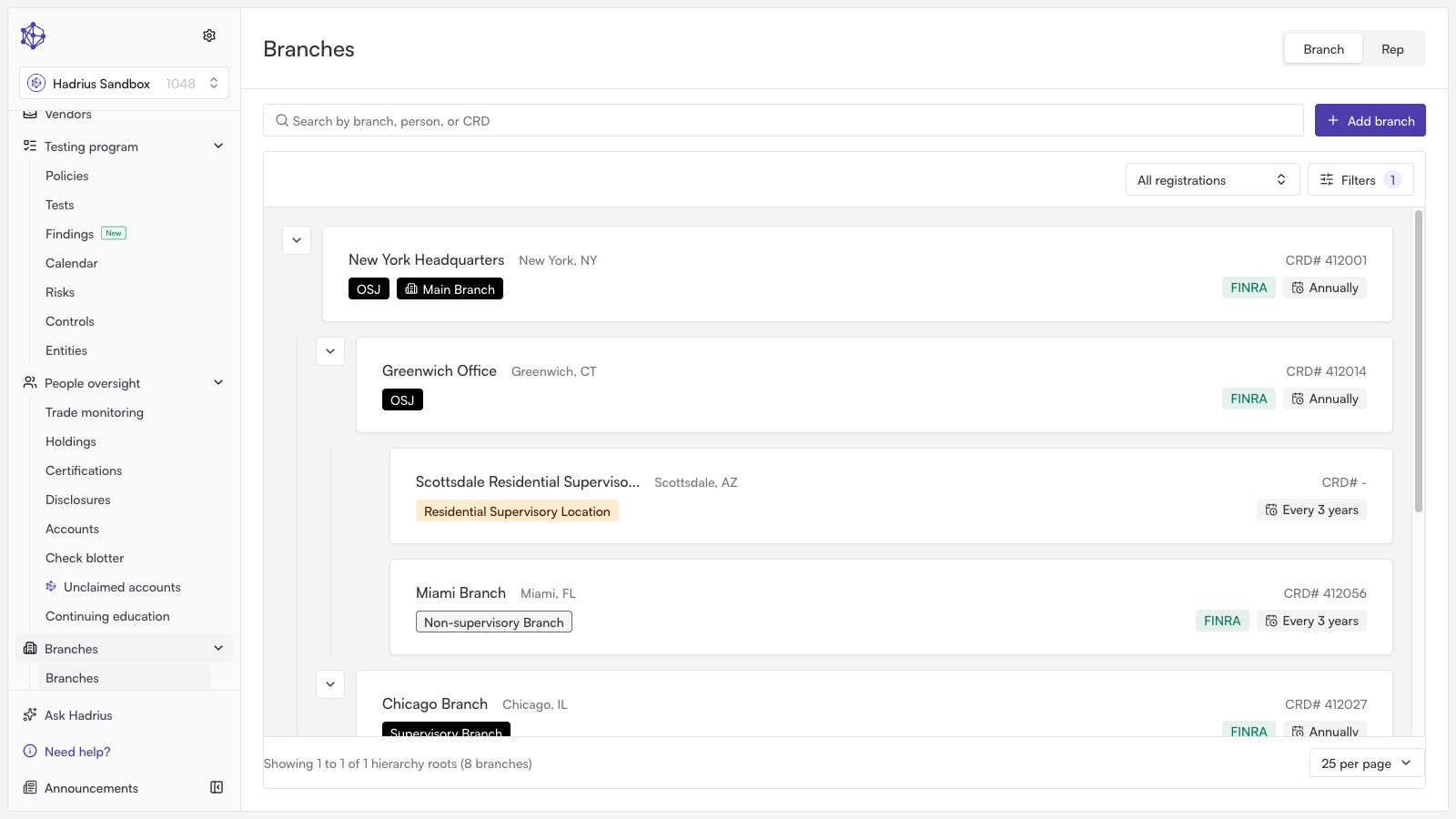
Use this workflow any time your firm needs to add a new office or location to the branch directory — for example, when you open a new physical office, need to track a remote or non-branch location, or want to bring an existing FINRA-registered branch into Hadrius. The steps below walk through creating a branch as an SEC-registered (RIA-regime) location, which is one of three paths the system supports.
Start from the branch directory
Navigate to the branch directory, which lists every registered location for the firm. Click "Add branch" to open the branch creation dialog.
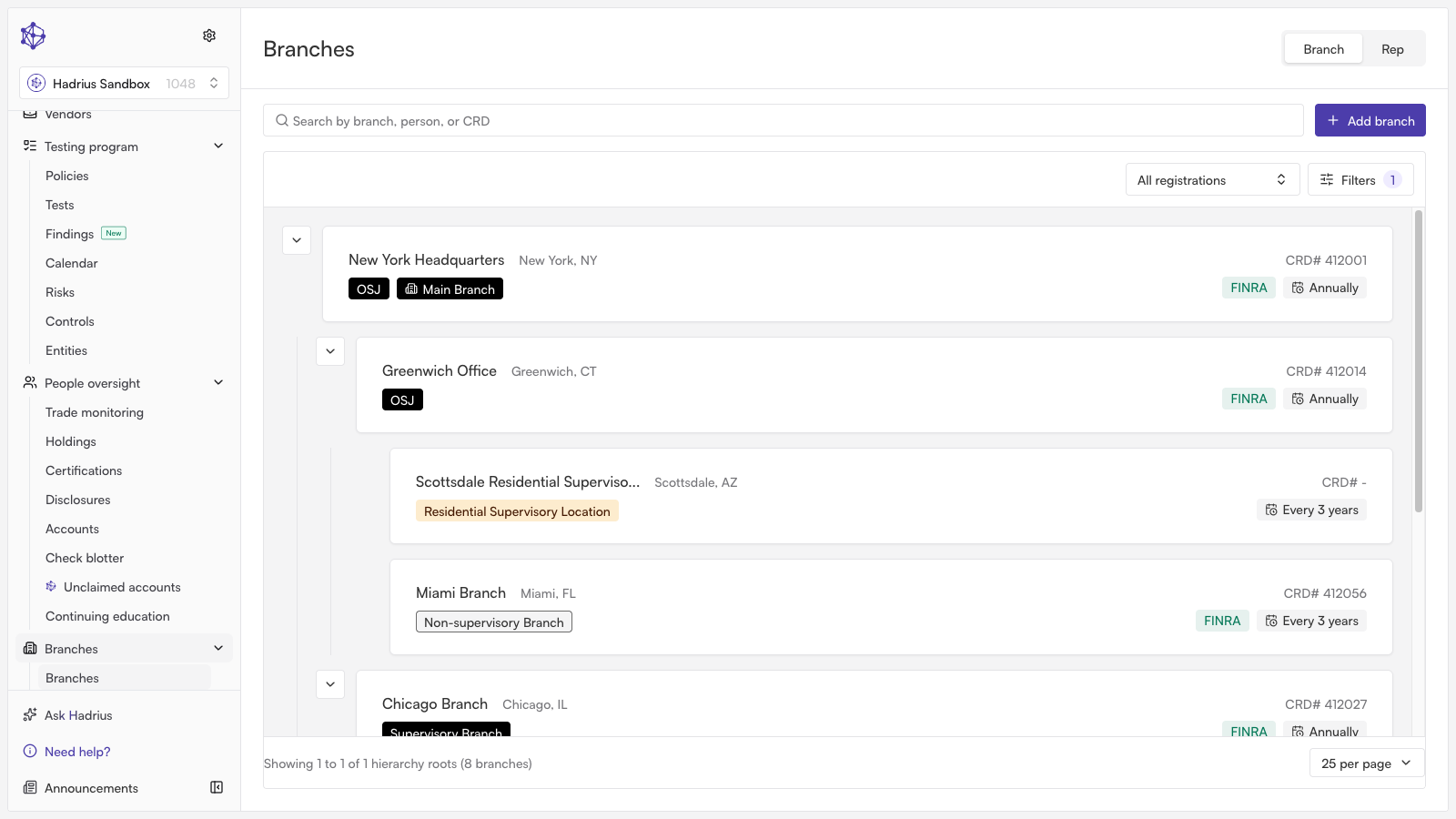
Choose the regulatory regime
The first step is telling Hadrius which regime the new location falls under, since this determines what information the platform collects next:
FINRA — a broker-dealer office subject to Rule 3110 supervision and inspection. You can sync an existing branch already registered in the FINRA Gateway, initiate a new Form BR filing, or add a non-branch location (such as a rep's home office) that doesn't require a filing.
SEC — an RIA-regime location. Choosing this manually creates a record for an SEC-registered branch.
Other — a location outside both the FINRA and SEC regimes that you still want to track, such as an international office or an internal location with no securities activity.
For an SEC-registered office, select "SEC" and click "Next."
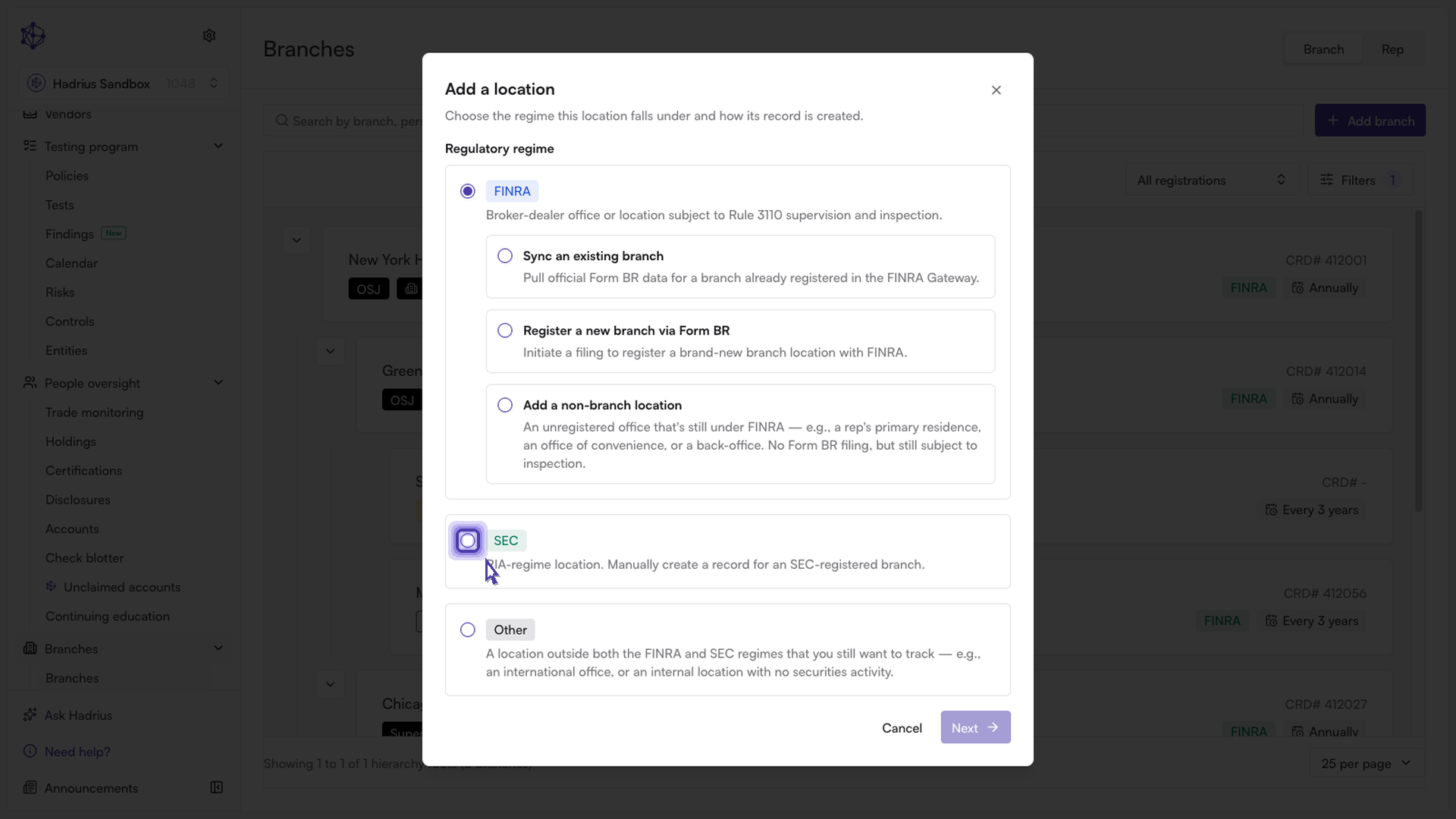
Enter the branch details
On the branch details screen, fill in the following:
Branch name — a name that makes the branch easy to identify in the directory.
SEC firm ID — links the branch to the firm's SEC filing record, so this location is tied to the correct regulatory record.
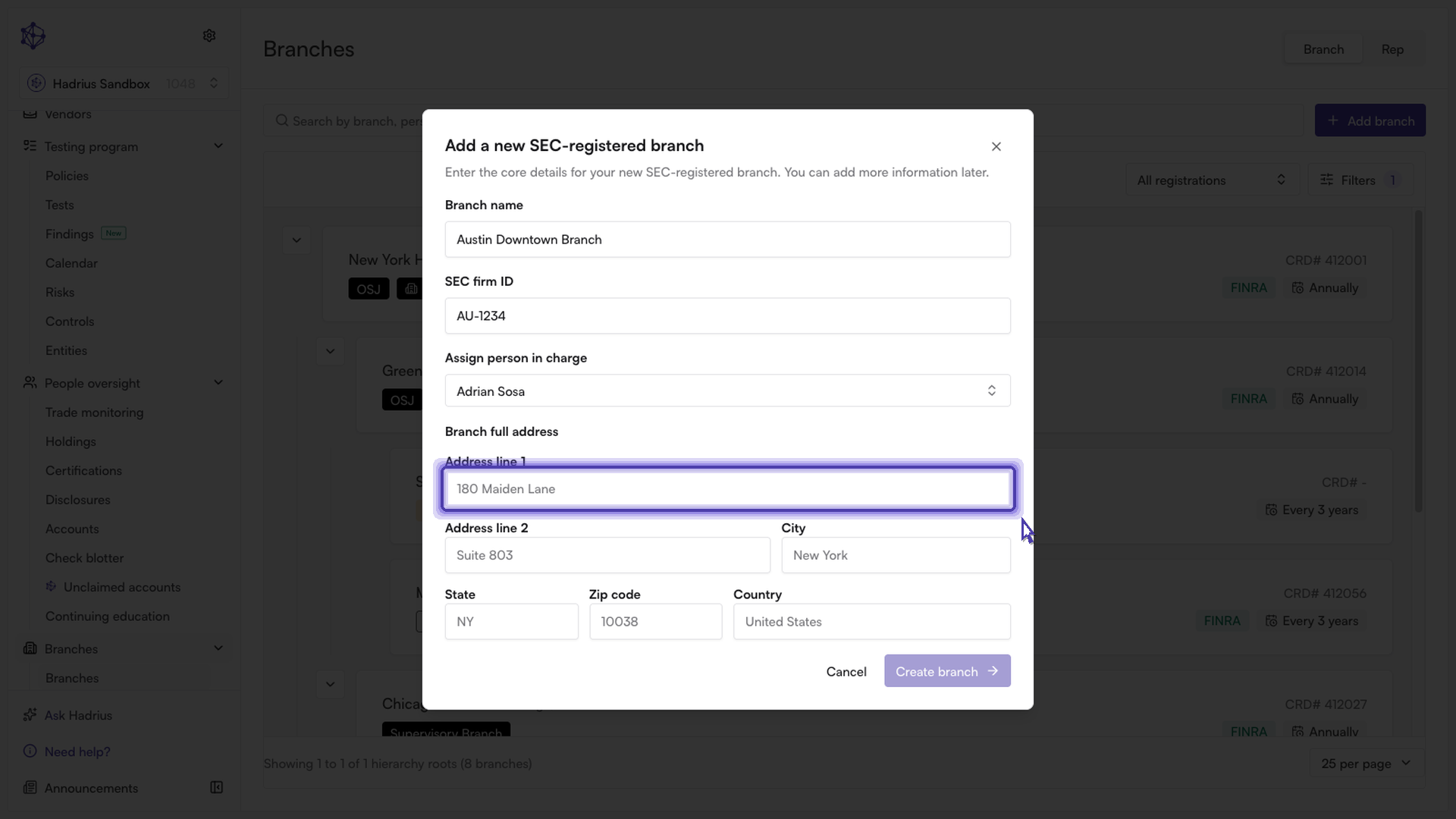
Person in charge — assign the employee who will own compliance oversight and branch exam responsibilities for this location going forward.
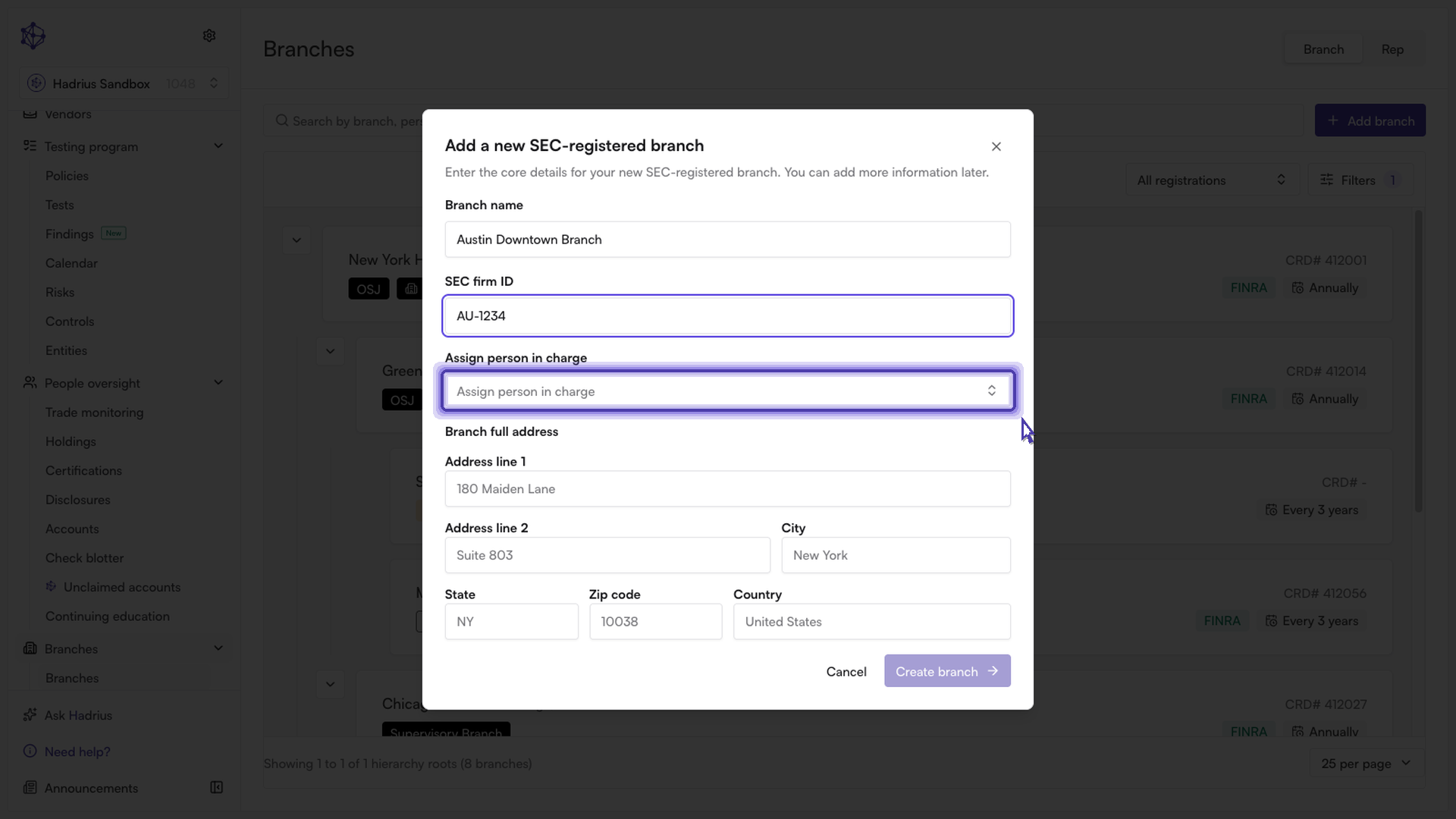
Then fill in the branch's full physical address: address line 1 (and, if needed, line 2 for a suite or unit), city, state, zip code, and country.
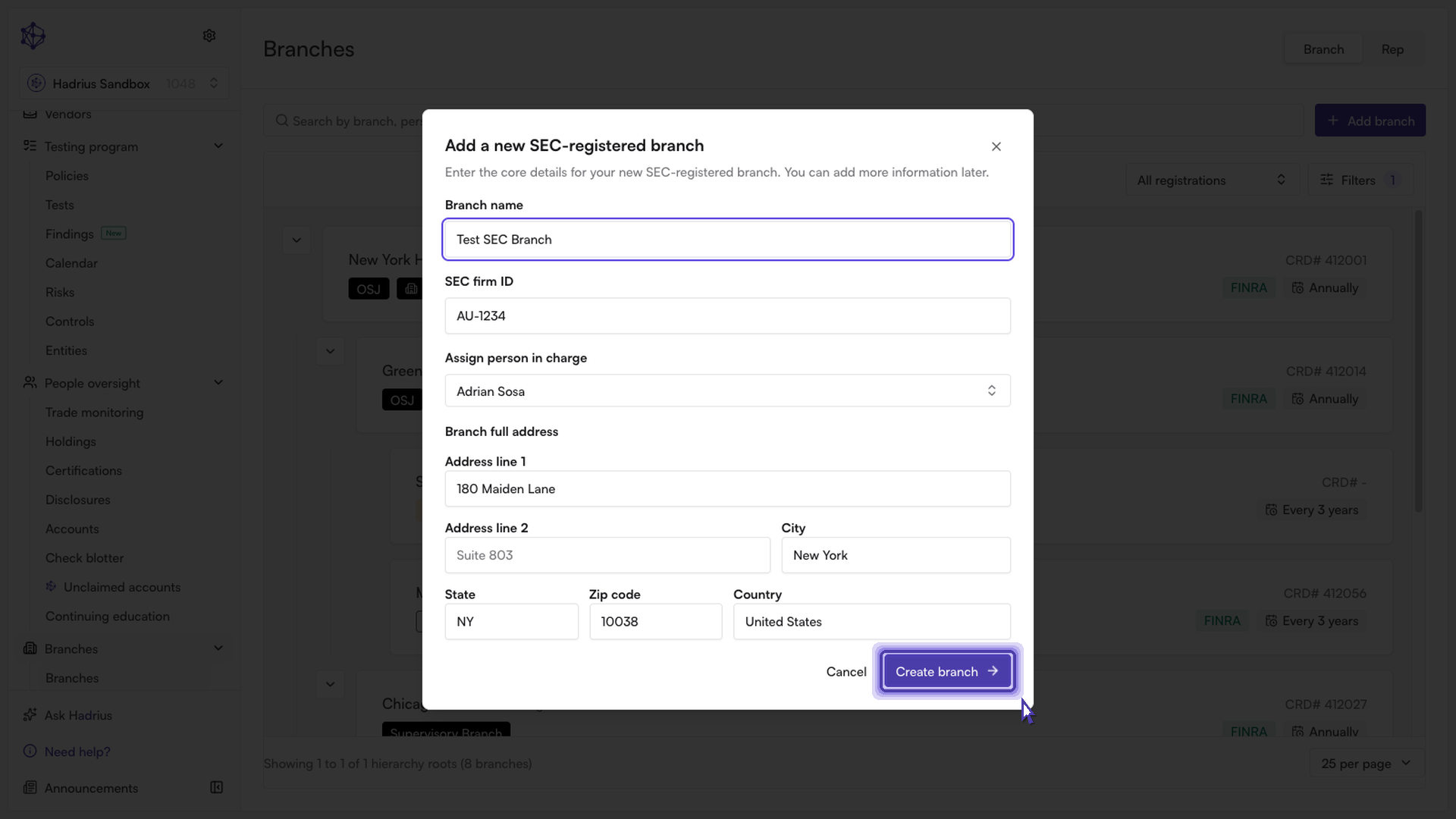
Review and create
Before submitting, double-check that the branch name is correct — it's the label that will appear throughout the directory and on reports. Once the branch name, SEC firm ID, person in charge, and full address are filled in, click "Create branch."
The branch is created immediately and appears in the firm's branch directory, ready for further setup such as adding personnel or scheduling examinations.