How to Create a Branch Exam Questionnaire Template
Last updated: October 17, 2026
Branch exam questionnaire templates set the questions an examiner answers during a branch exam. Once you publish a template, it stays in the Template Library and can be reused for future branch exams, so every exam follows the same structure. This article covers creating the template, adding different question types, flagging answers that need compliance attention, showing a follow-up question only when it applies, giving examiners extra guidance, and publishing.
Create the template
Open the Template Library. It holds reusable templates for every product workflow.
Click "Create template".
In "Template name", enter a clear name your team will recognize. This field is required.
Under Module, choose "Branch exam". A template needs both a name and a module before it can be created.
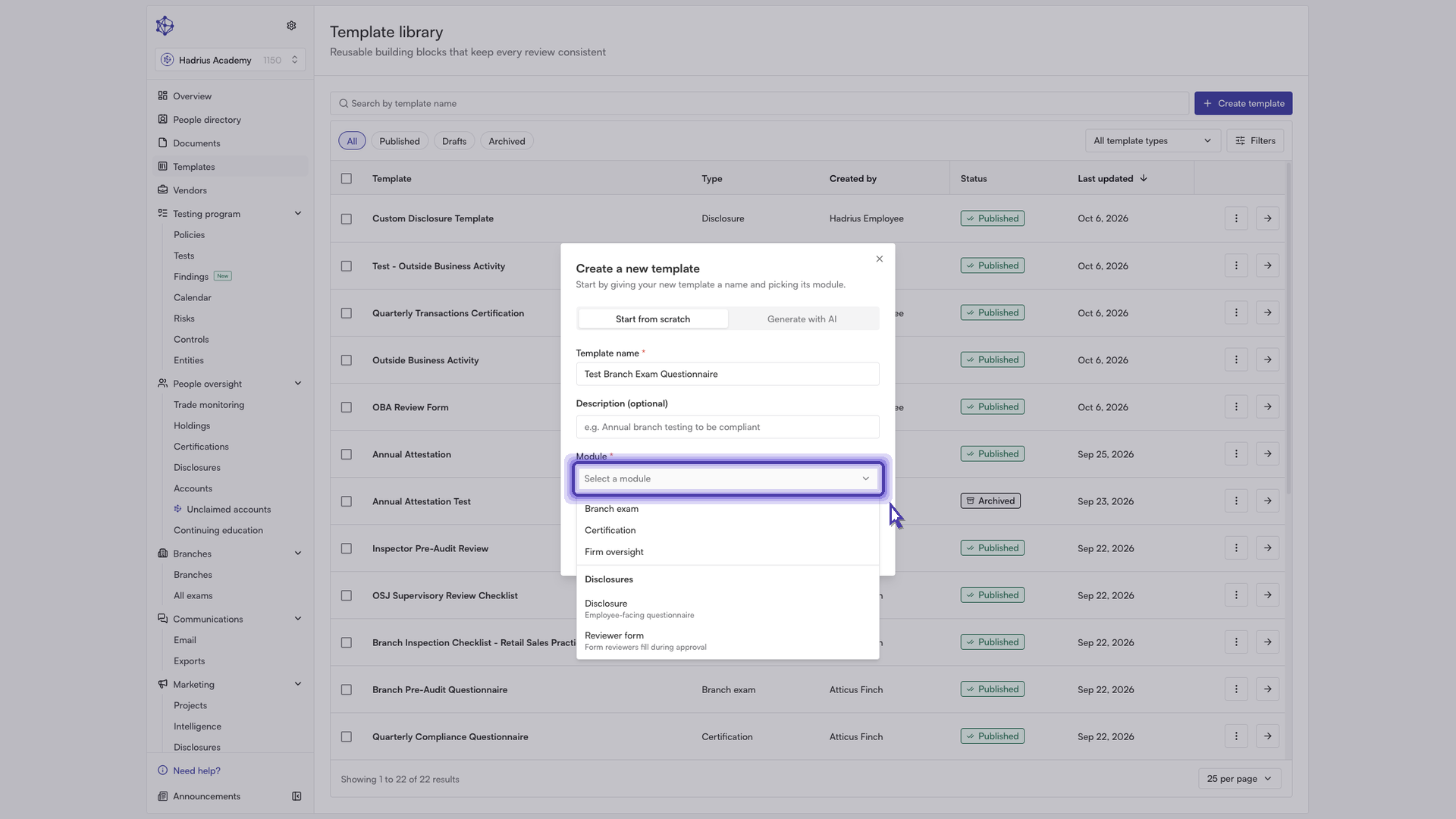
When you create the template, the form builder opens and you can start adding questions.
Add a Yes / No question with a flag
Add your first question and enter its text.
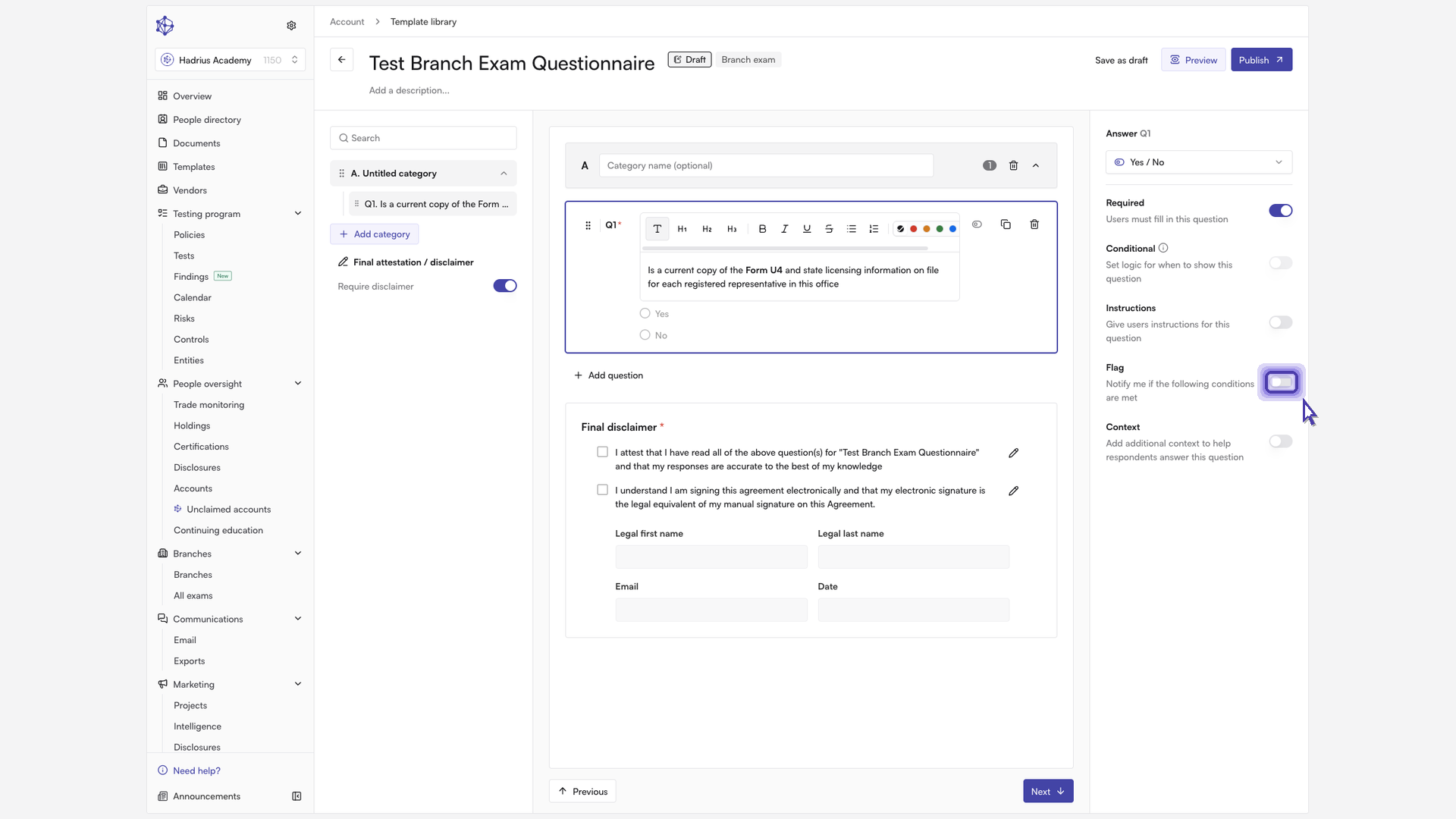
Set the question type to "Yes / No". This suits questions with a simple, direct answer.
In the question settings, turn on "Required" so examiners can't skip it.
Turn on "Flag", then choose which answer gets flagged, for example "No". When an examiner gives that answer, the response is highlighted for compliance review.
Add a multiple choice question
Click "Add question" and enter the question text.
Set the question type to "Multiple choice" for questions with a fixed set of answers.
Type each answer choice. Add more choices until every option you need is listed.
Turn on "Required".
Add a conditional follow-up question
Use a conditional question when you only need more detail for certain answers, such as asking the examiner to explain a response.
Click "Add question" and write a question asking the examiner to explain their answer.
Turn on "Conditional". The question will then appear only when it applies.
Pick the earlier question this one depends on. In the example, that's the multiple choice question you just added.
Choose how the answer should be compared, then pick the answer that triggers the question. In the example, the explanation question appears only when the examiner selects "Only a few."
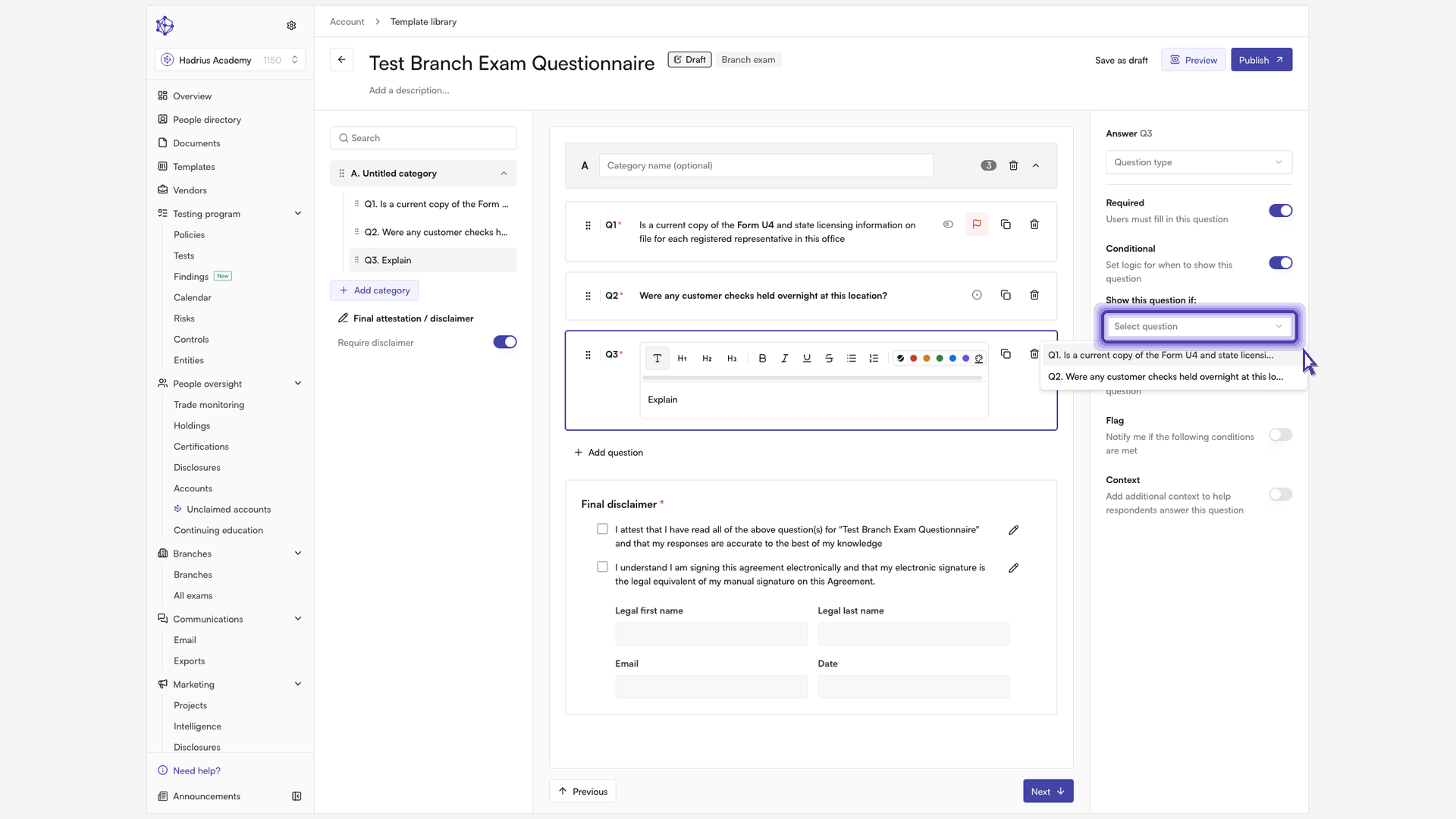
Note: The first question in a template can't be conditional, because conditional logic has to point to an earlier question.
Add a long answer question with context
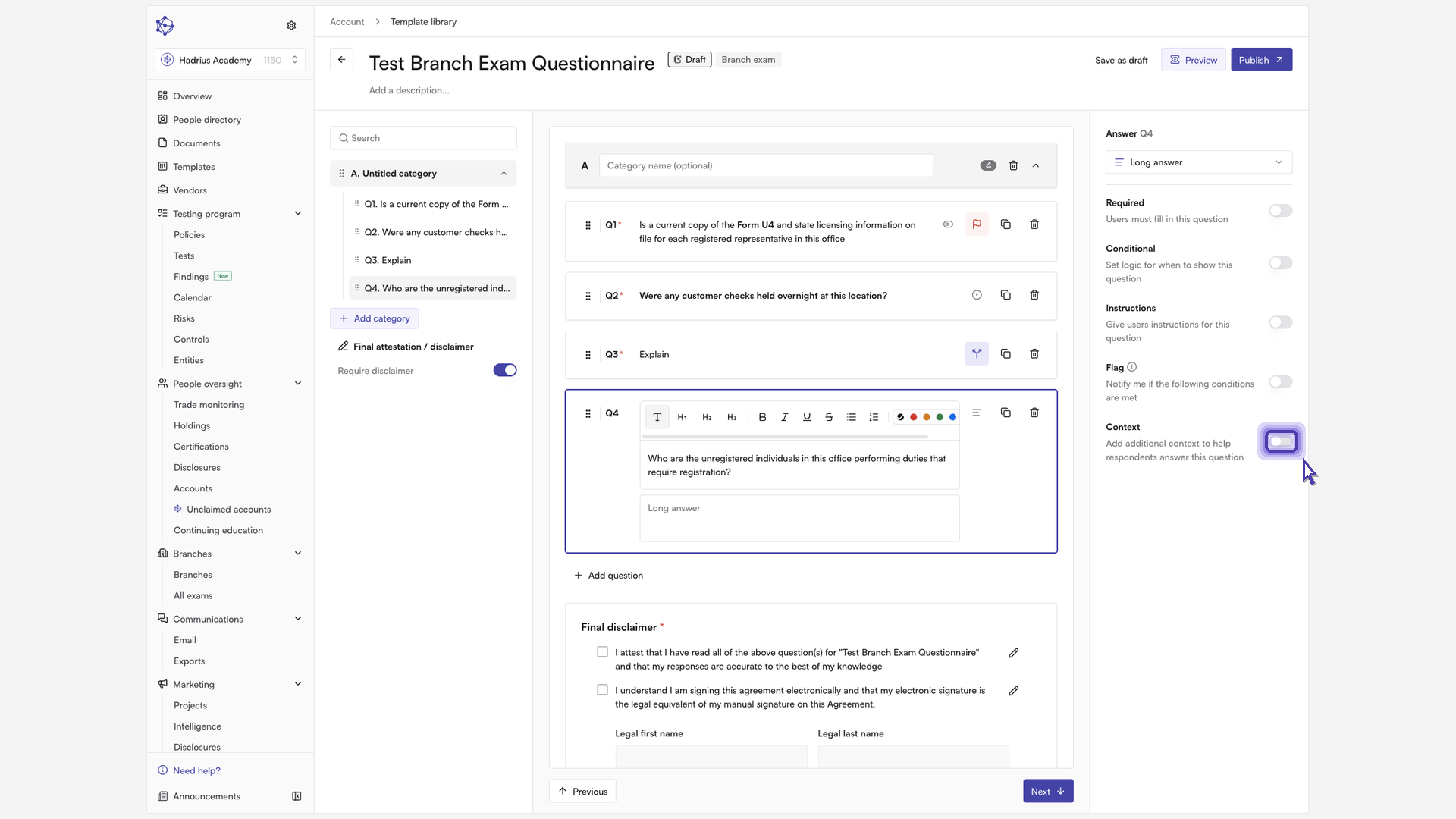
Click "Add question" and set the question type to "Long answer". This gives examiners room for detailed observations.
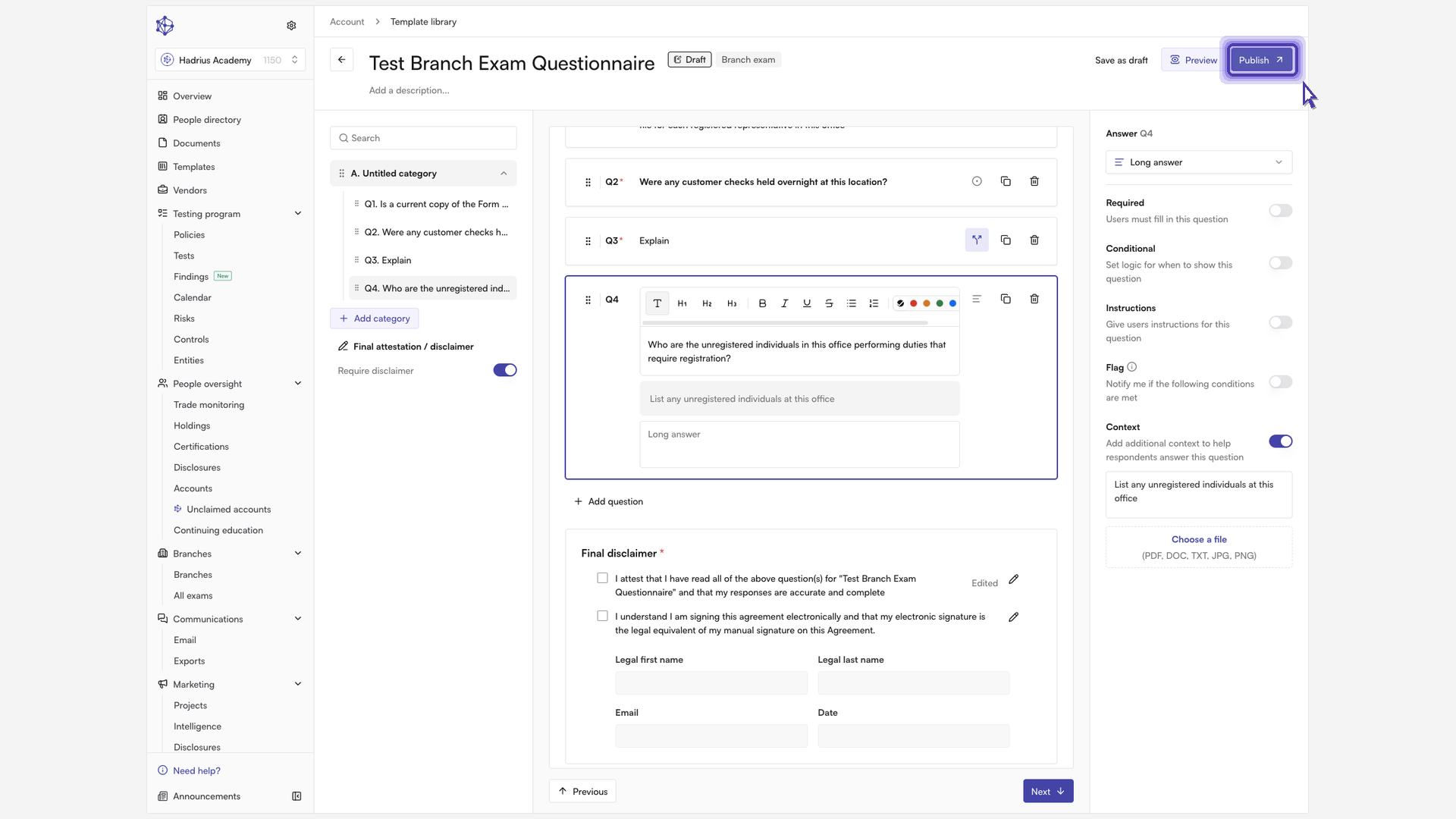
Turn on "Context" and type the guidance you want examiners to see with this question. You can also attach supporting documents to help them answer.
Review the attestation and publish
Before you publish, read the attestation at the end of the form. This is the final disclaimer examiners confirm when they submit the questionnaire.
When every question is in place, click "Publish".
Your branch exam template is now published and available in the Template Library. You can use it for future branch exams, and any flagged answers will be highlighted for your compliance team to review.