How to log a corrective finding during a branch exam
Last updated: October 17, 2026
This article walks through how to log a corrective finding while conducting a branch examination in Hadrius, including how to describe the issue, tie it to a specific rule, set its severity, assign a responsible individual, and open a corrective action task to track the fix. Use this workflow any time you spot an issue during a branch walkthrough or exam and need to create a formal record of it.
Getting to the exam
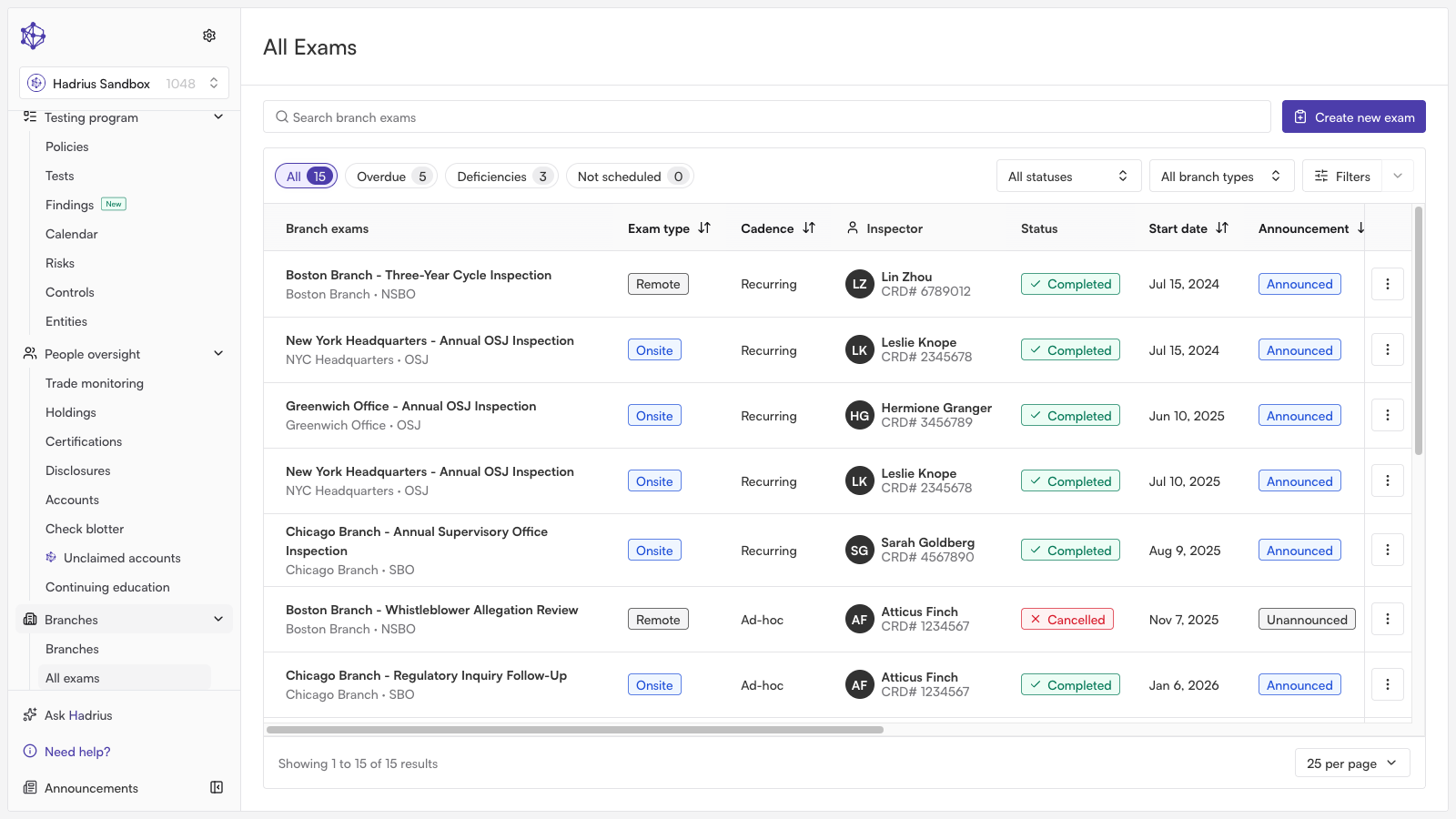
Start from the Branch Exams list, which shows every scheduled and completed inspection. Open the exam for the branch you're examining to bring up its detail view, which is scoped to that exam's inspection cycle.
Logging the finding
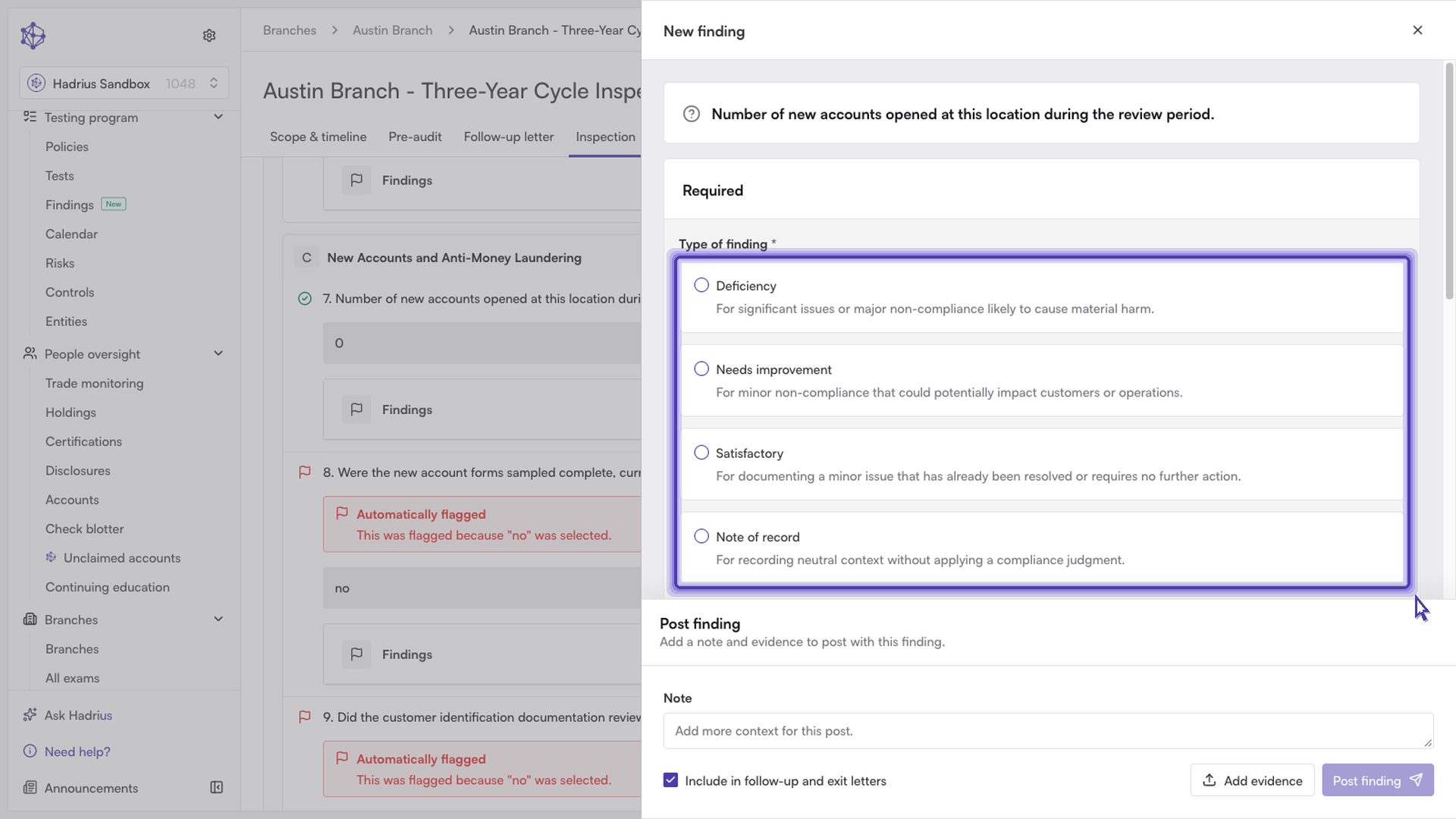
From the exam's overview, go to the Inspection tab — this is where findings are logged during the exam. When you spot an issue, open the panel to log it as a new finding.
First, choose a finding type. The options are:
Deficiency — a significant issue or major non-compliance with real potential for material harm
Needs improvement — minor non-compliance that could potentially affect customers or operations
Satisfactory — a minor issue that's already been resolved or needs no further action
Note of record — neutral context recorded without a compliance judgment
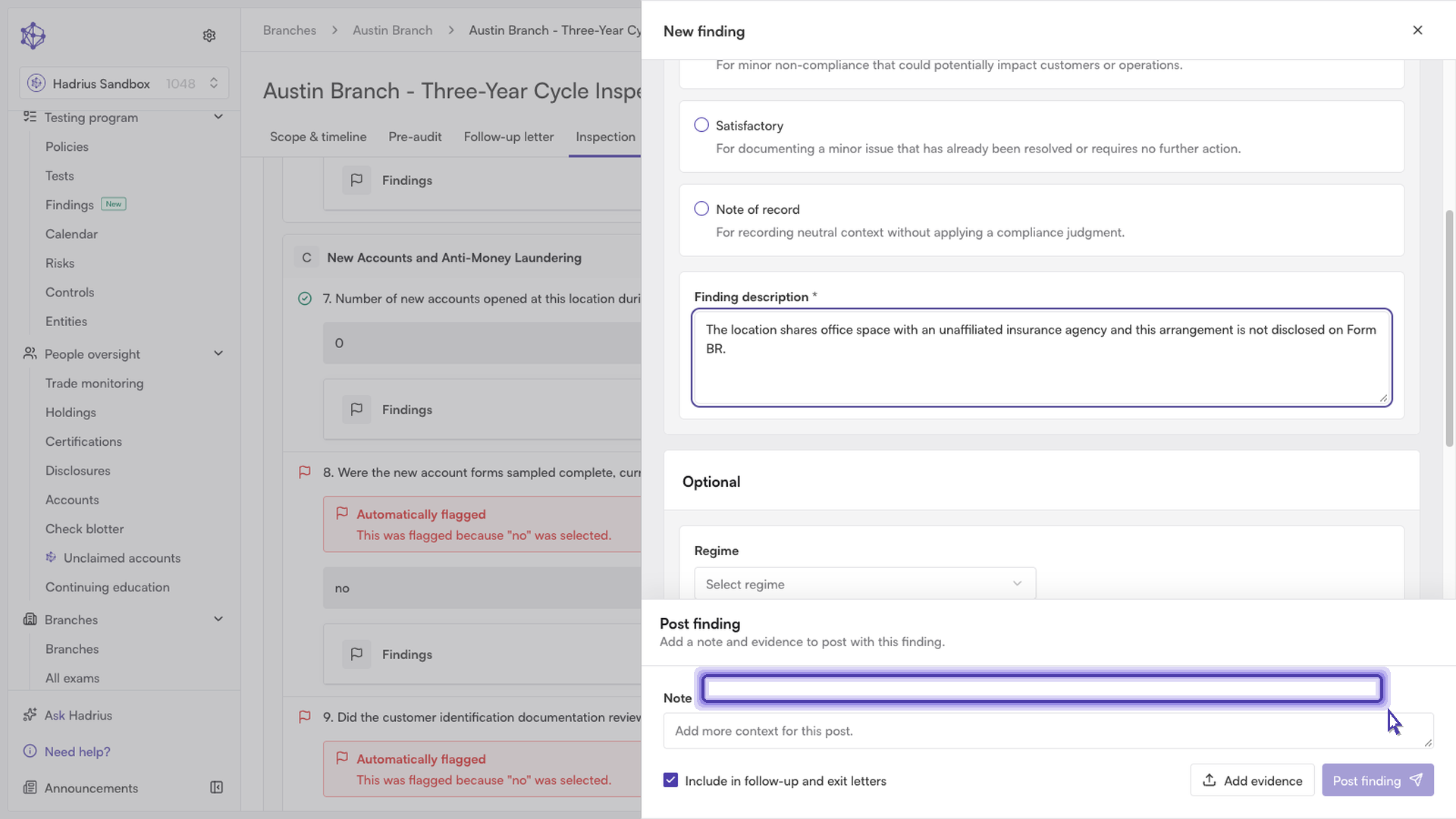
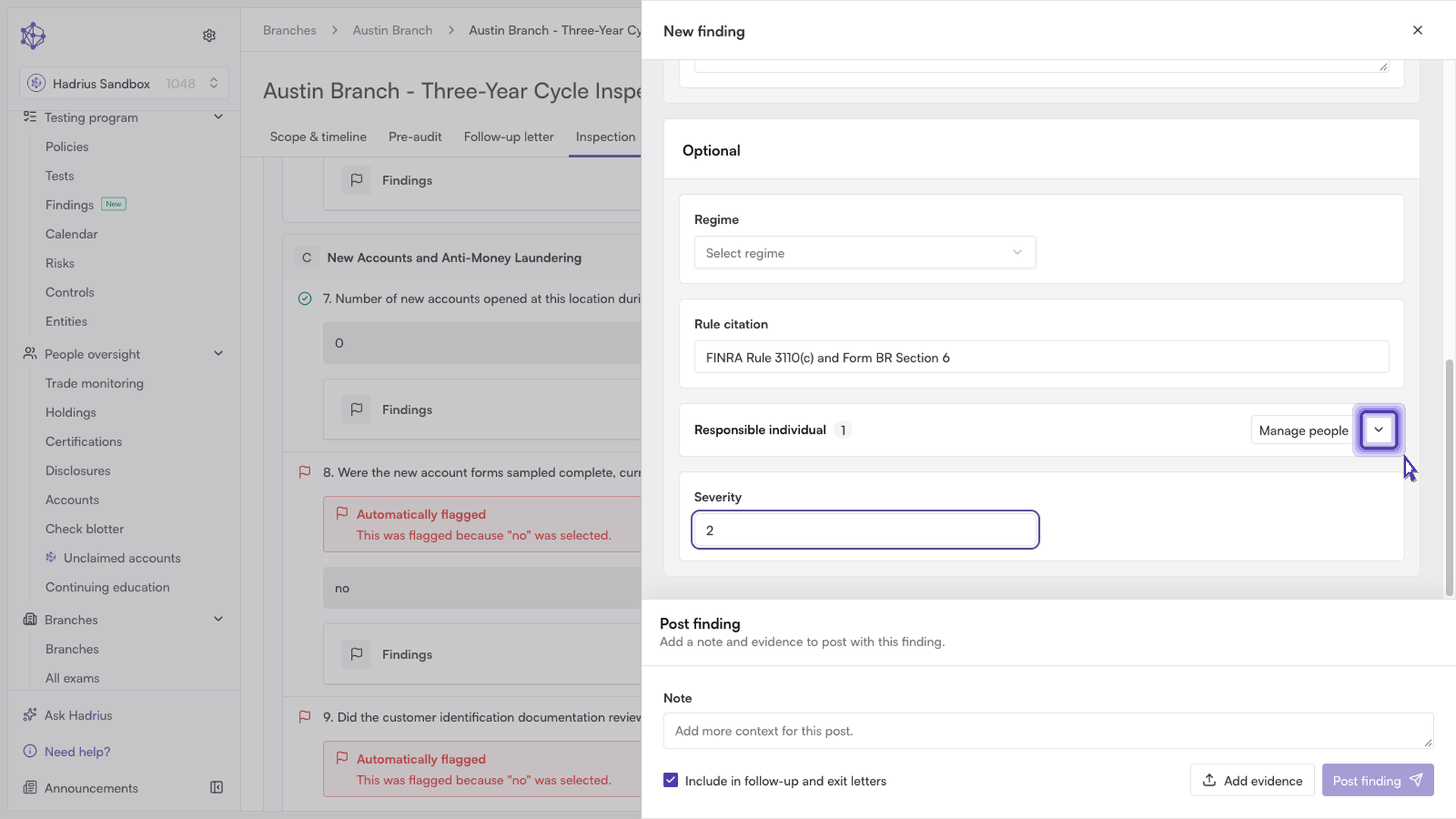
Next, write a finding description explaining exactly what was found — this field is required. Two optional fields help complete the record: a rule citation, so the finding ties directly to the requirement it violates, and a severity rating from 1 to 5, where 1 is the most severe.
Assigning a responsible individual
Expand the Responsible individual section and select "Manage people" to pull in someone from the branch's team. The person you select is marked as responsible for addressing the finding; when more than one person is added, you can designate one of them as the "Person in charge."
Adding a corrective action
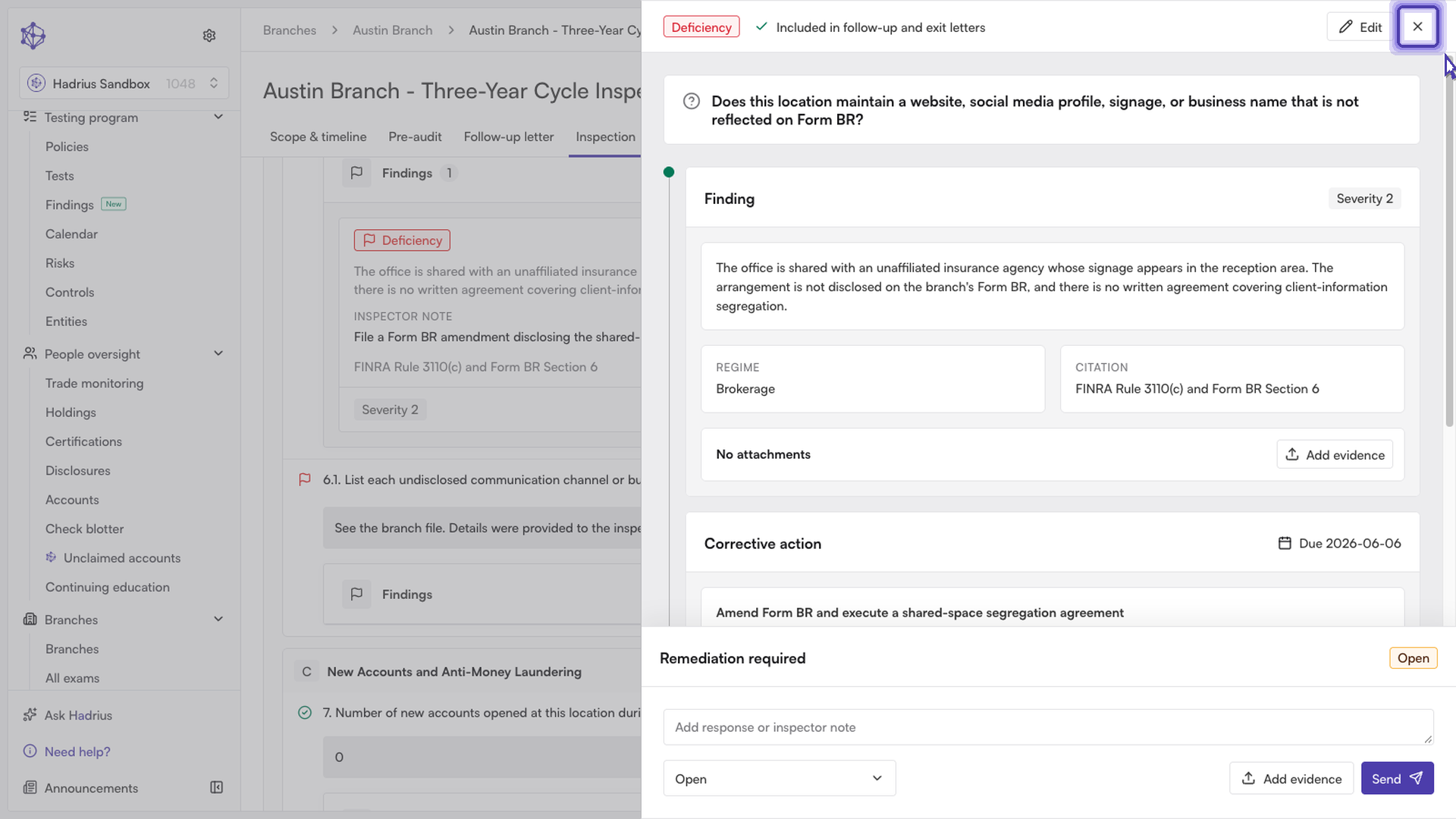
If you flagged the finding as a Deficiency, the form also shows fields for a corrective action: a title, a description of what needs to happen, and a due date. These fields are optional, but filling them in creates a linked corrective action task automatically as soon as the finding is submitted — there's no separate step required to start it.
When you're ready, add any final note, optionally attach evidence, and select Post finding. This posts the finding to the exam record and, for a Deficiency, opens the corrective action task at the same time — starting the clock on getting it resolved.
What happens next
Once posted, the finding appears in the exam's Inspection tab and rolls up into the exam's overall findings summary. If a corrective action task was created, it can be tracked and updated — including status changes and remediation notes — from the same finding record until it's resolved.