How to Add a Project Submitter Once a Project has Been Submitted
Last updated: October 17, 2026
If a project has already been submitted for review but someone else needs to be added as a submitter — for example, to give a colleague visibility into the submission or let them collaborate on it going forward — you can add them directly from the project without restarting the submission process.
Adding a submitter to an existing project
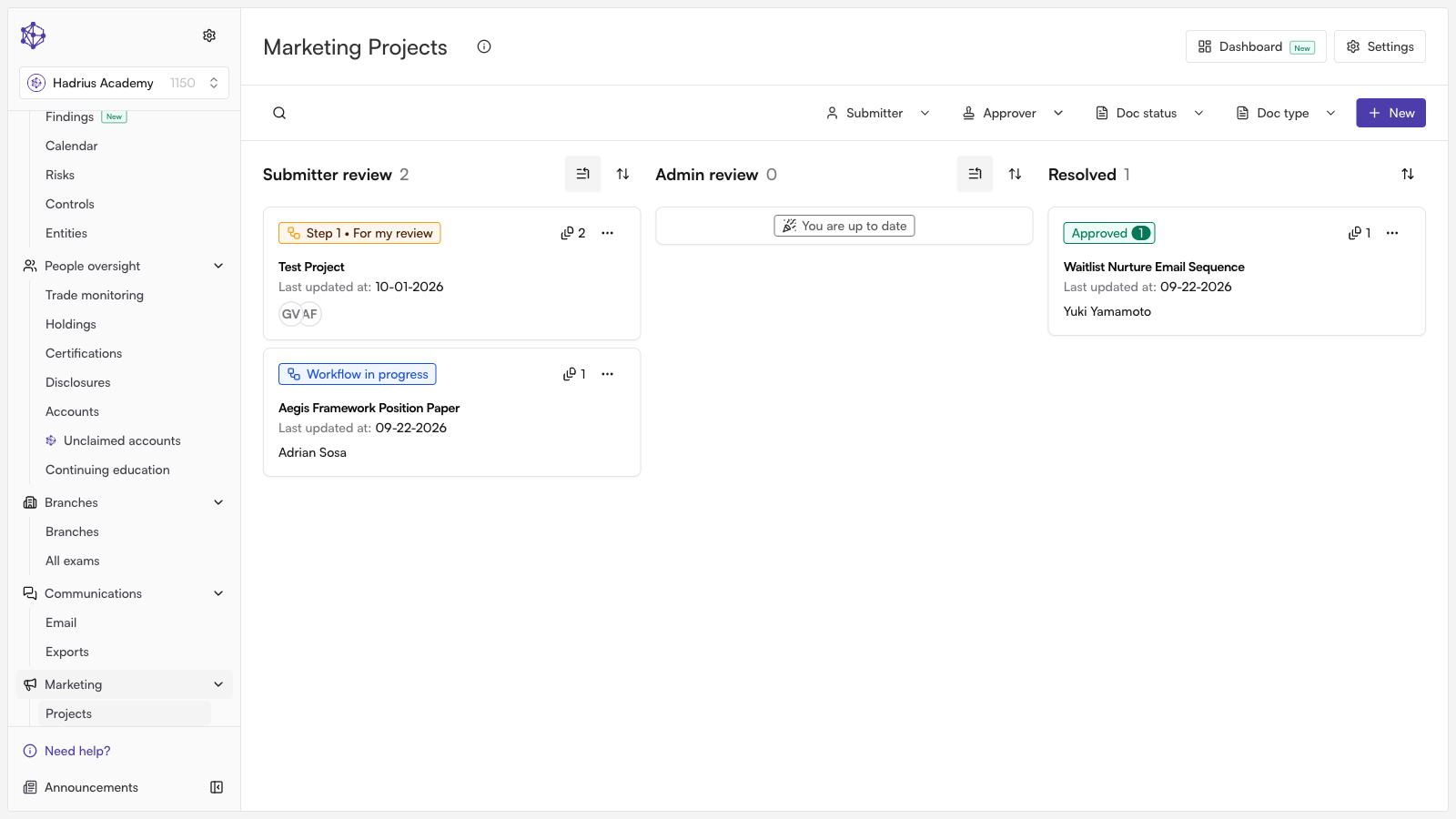
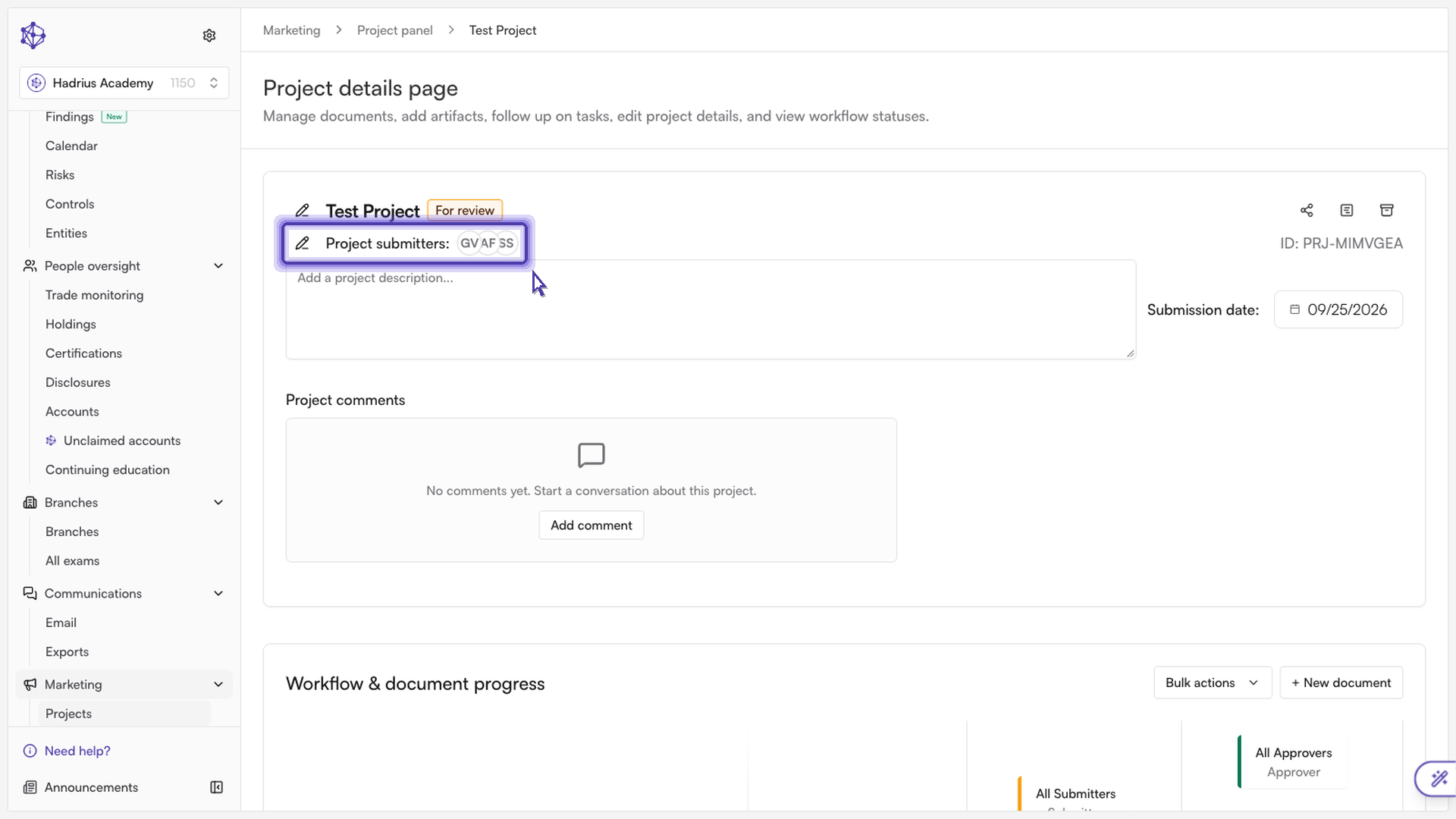
From the Projects list, find and open the project you want to update. This brings up its full submission record, including the project header with details like status, due date, and current submitters.
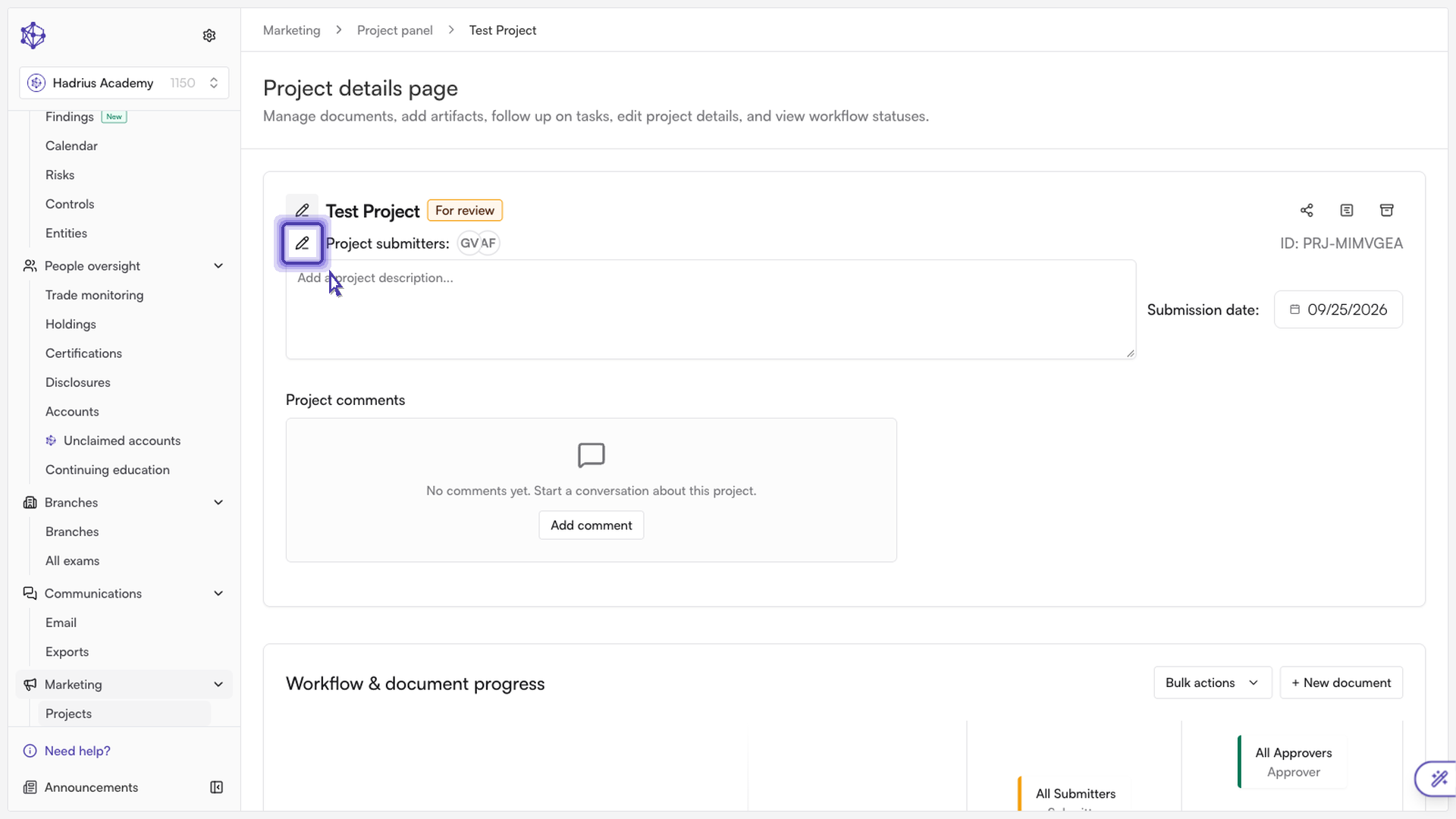
In the project header, locate the Project submitters field and click the edit (pencil) icon next to it.
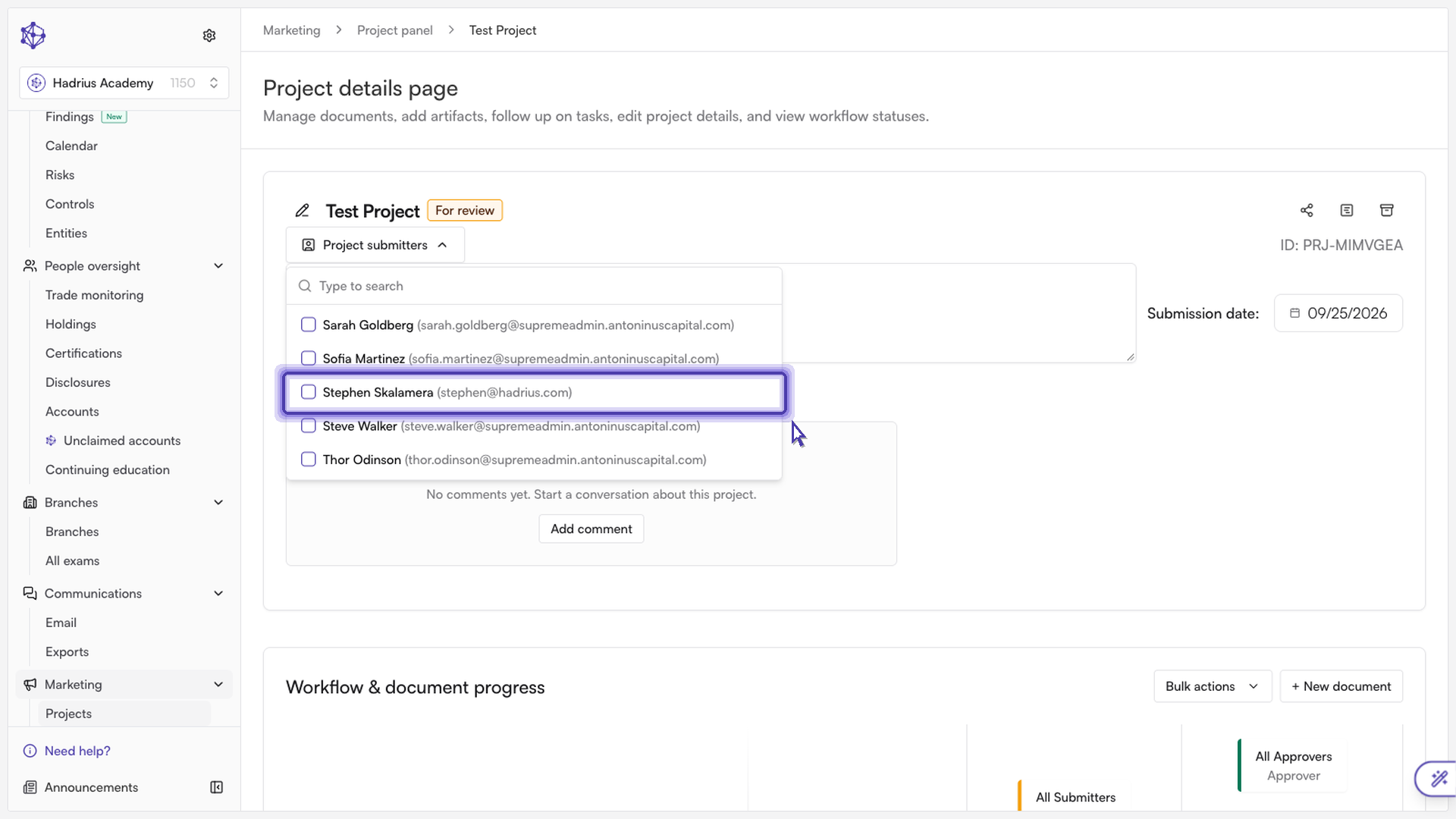
A menu opens listing everyone eligible to be a submitter on this project. Use the search box to type a name, or scroll through the list to find the person you want to add.
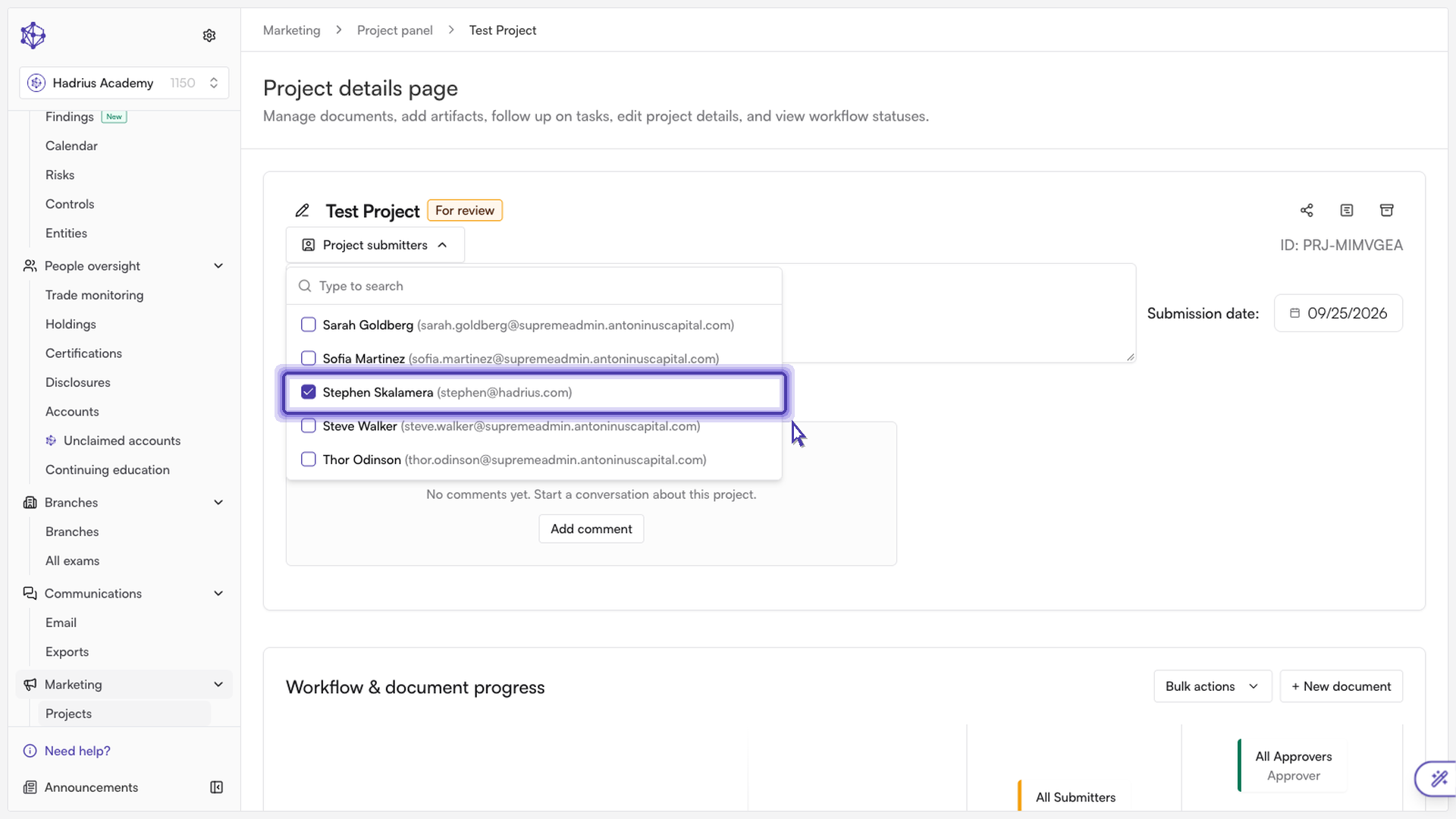
Check the box next to their name to add them to the submission.
Close the menu to save your change. The new submitter is added to the project and immediately gets full access to view and collaborate on it.
A note on permissions
Depending on your role, you may only be able to add submitters rather than remove existing ones from this menu. If you need to replace a submitter entirely rather than add one, you may need additional permissions — check with your firm's Hadrius administrator if the option to remove someone isn't available to you.
Once added, the new submitter will appear alongside any existing submitters in the project header and will be notified according to your firm's configured notification settings.