Excluding Employees from a Campaign
Last updated: September 22, 2026
Occasionally a certification task shouldn't apply to someone in a particular round — an employee has left the firm, is on extended leave, or the requirement simply doesn't apply to them this period. Excluding the task removes it from that round so it no longer counts toward completion, without changing the campaign configuration or affecting any future round. This article walks through how a reviewer excludes a single employee's task from an active round.
Before you begin
Exclusion is only available while a round is active. If the round has already been completed or cancelled, the action appears in the menu but is disabled, with a tooltip explaining that the round is no longer active and the task can't be modified.
Steps
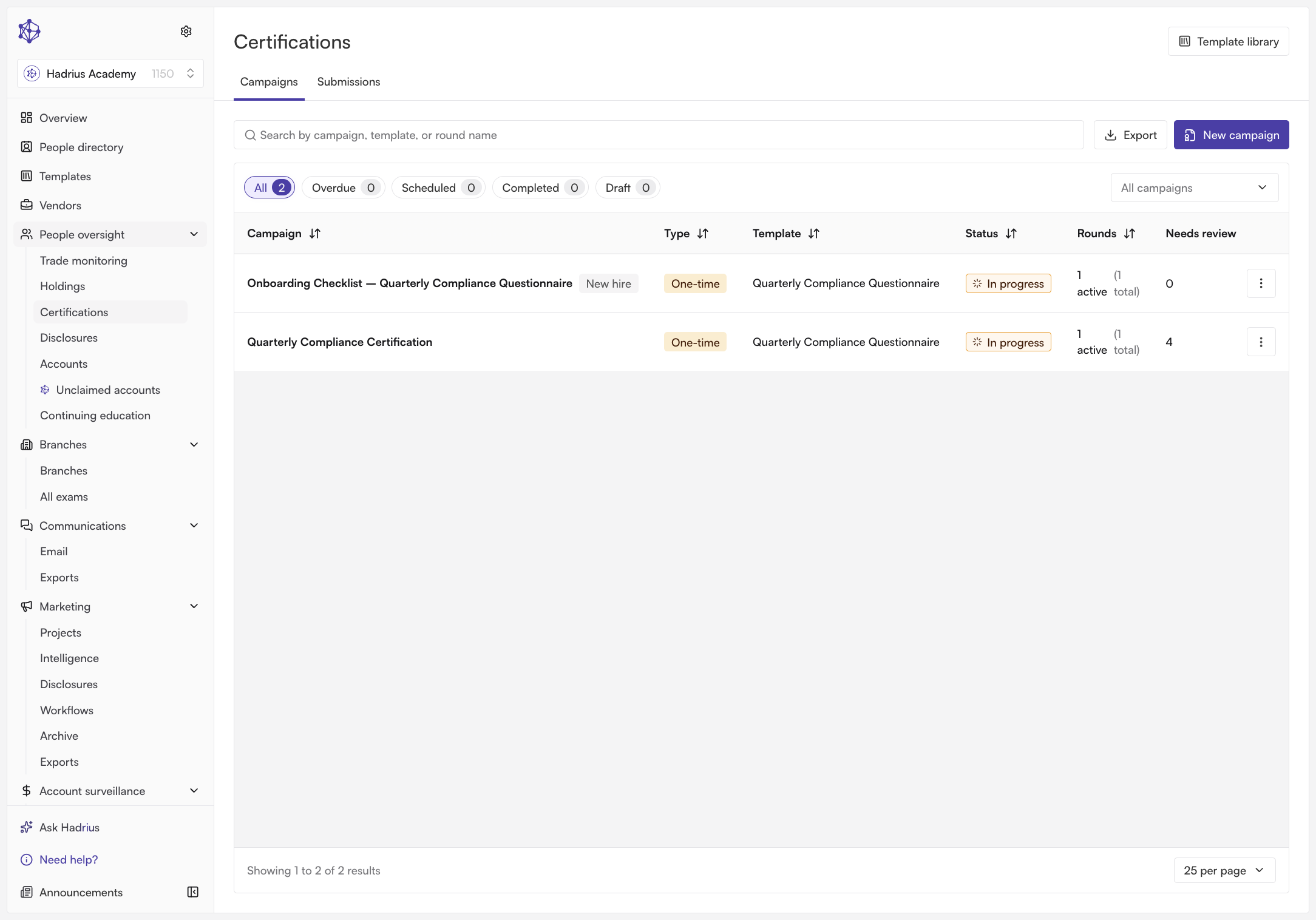
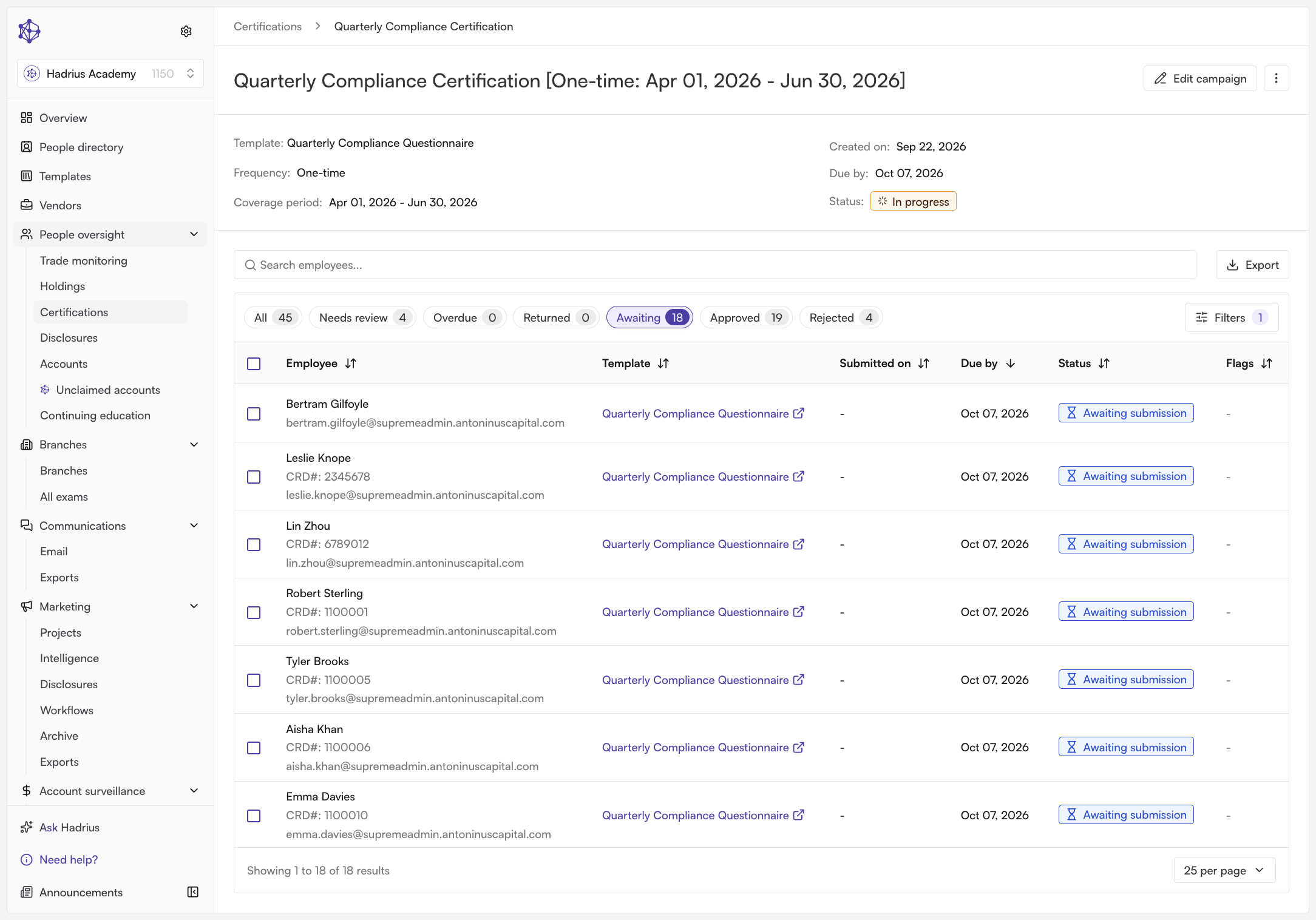
Open the campaign from the certifications overview. The overview lists every active campaign the firm is tracking. Select the campaign you need to adjust, then open the round you're working in.
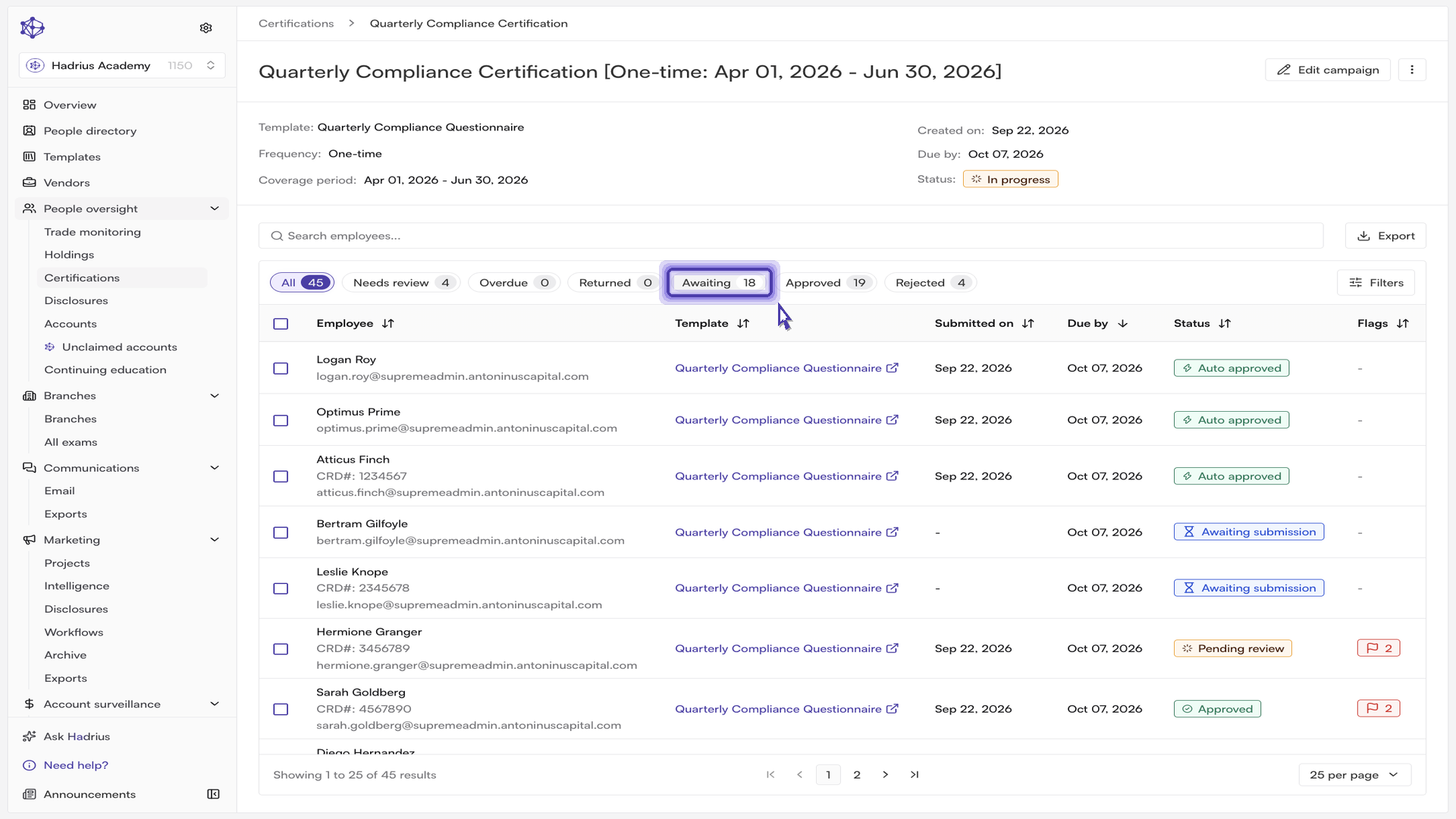
Narrow the task list to outstanding work. The status chips above the task table let you filter the round down to what still owes a response — use "Awaiting" for tasks that haven't been submitted yet and "Overdue" for those past their due date. Each chip shows a live count, and you can also search by name or open the filter panel to narrow by employee or by date.
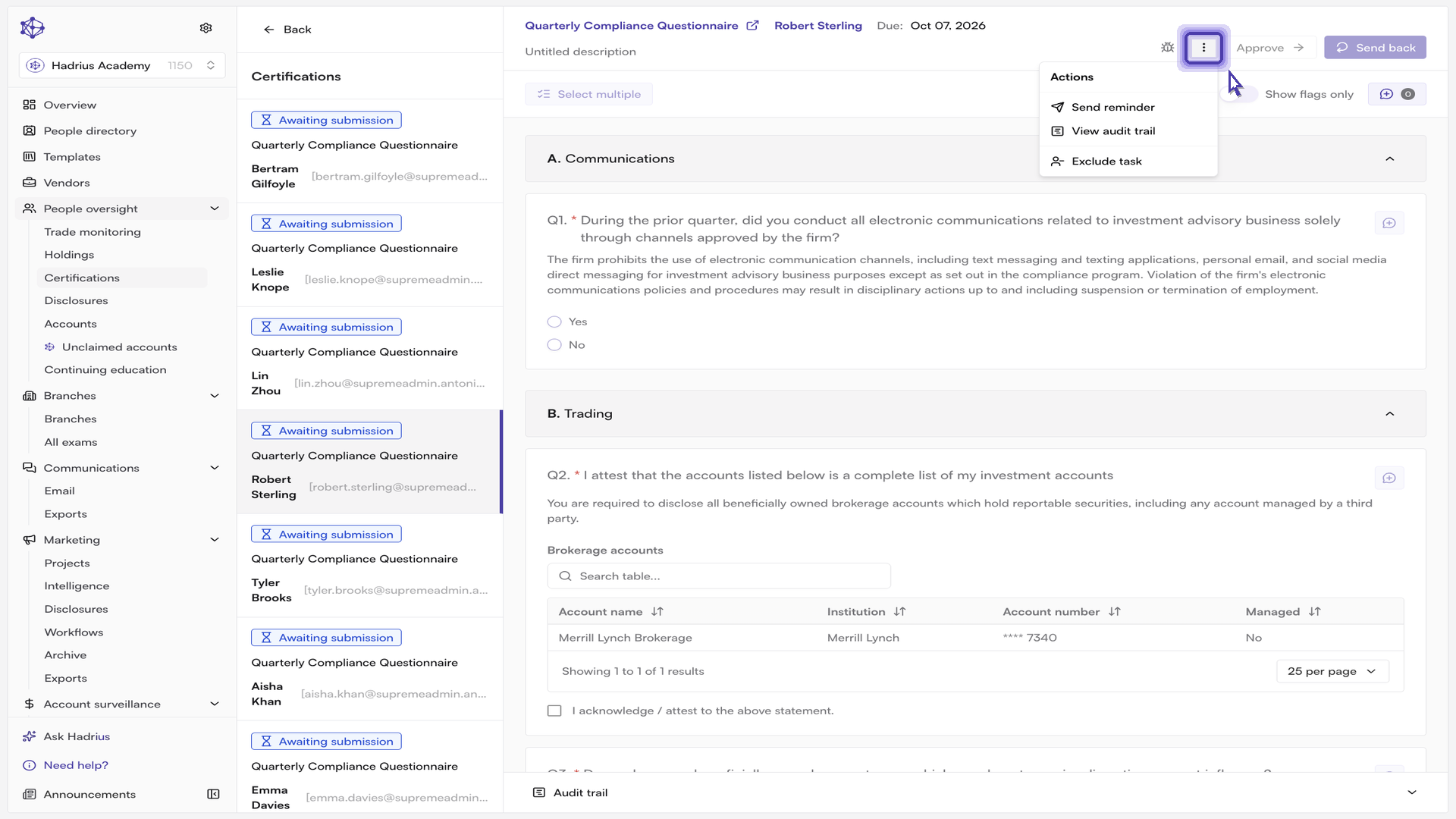
Open the task you need to handle. Exclusion applies to one task at a time, so work from the individual assignment rather than a multi-row selection. (Selecting several rows in the table enables "Send reminder" only — there is no bulk exclude.)
Choose "Exclude task" from the actions menu. The actions menu on a task holds every administrative action available to a reviewer for that task's current status — sending a reminder, viewing the audit trail, returning or re-opening a submission, and excluding. "Exclude task" sits at the bottom of the menu, separated from the other actions.
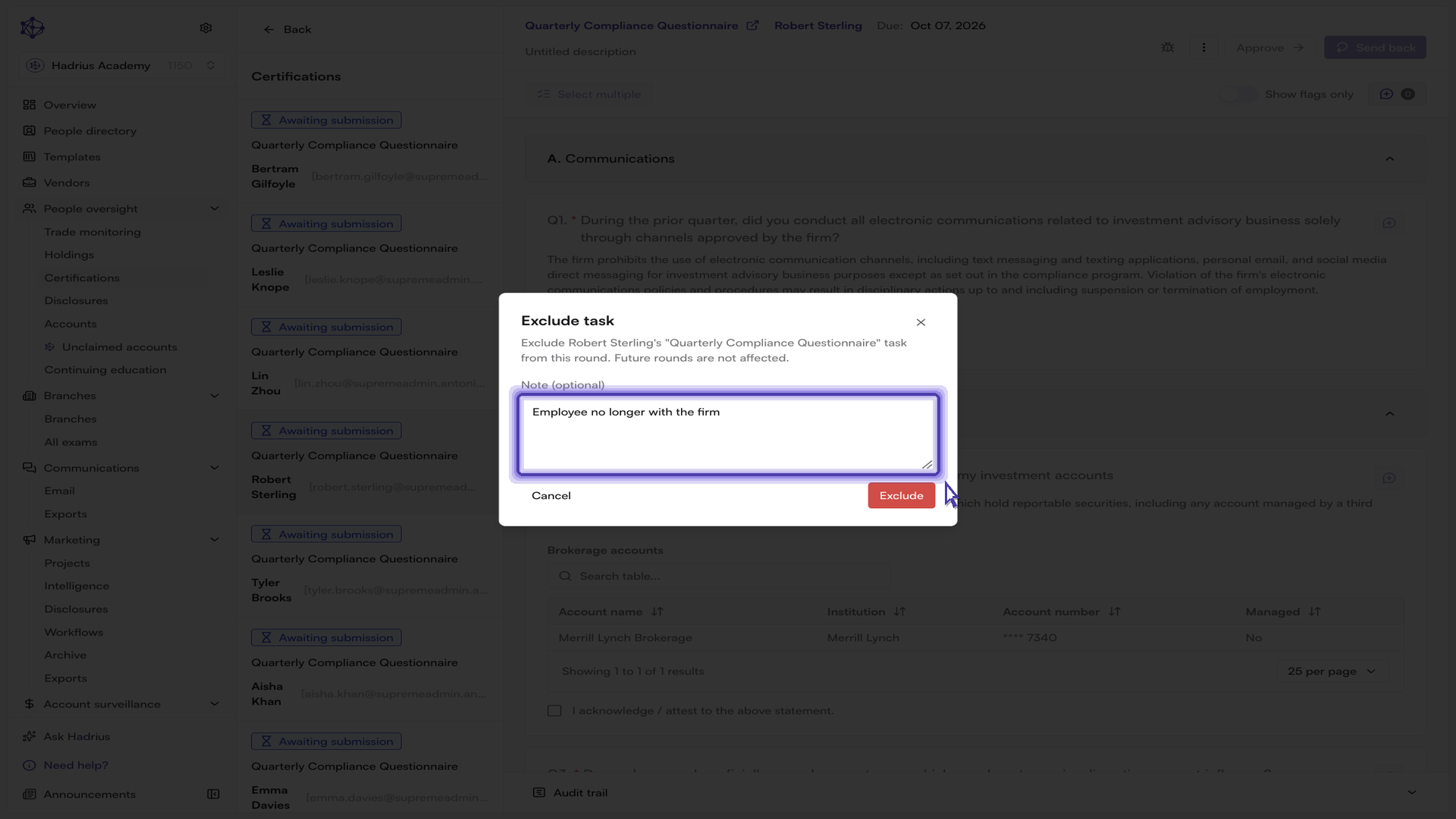
Add a note and confirm. The confirmation dialog states plainly that the exclusion applies to this round only and that future rounds are not affected. The "Note (optional)" field isn't required, but we strongly recommend using it: whatever you enter is written to the task's audit trail alongside the exclusion event, so the reasoning is preserved for anyone reviewing the round later. Select "Exclude" to apply the change.
Review the updated round. The task table refreshes immediately. The task moves to "Excluded" status and drops out of the round's outstanding counts, so it no longer blocks the round from completing and the employee stops receiving reminders for it. An "Excluded" chip appears above the table whenever a round contains excluded tasks, so you can always see and review what was removed.
Reversing an exclusion
An exclusion isn't permanent. Filter to the "Excluded" chip, open the task's actions menu, and choose "Re-include in round". Hadrius restores the task to the status it held before it was excluded, and the employee is again expected to complete the submission.
A note on departing employees
Excluding a task handles a single assignment in a single round. If an employee has left the firm, we also recommend deactivating their profile in the People Directory. Deactivation automatically excludes their open certification tasks in active rounds and keeps them out of any future rounds, so you won't need to exclude them round by round.