Assigning Disclosures
Last updated: September 22, 2026
Disclosure requests are sent and tracked from the disclosures workspace in People Oversight. Most disclosures are reported ad hoc and initiated by the employee, but you can also push out a fresh round yourself — for example, when a new template goes live or a periodic filing comes due. This article walks through assigning disclosures to individual employees or entire groups, and what happens to those requests once they're created.
You'll need the assign disclosures permission to do this. If you don't see the "Assign disclosures" button, contact your firm's Hadrius administrator.
Before you begin
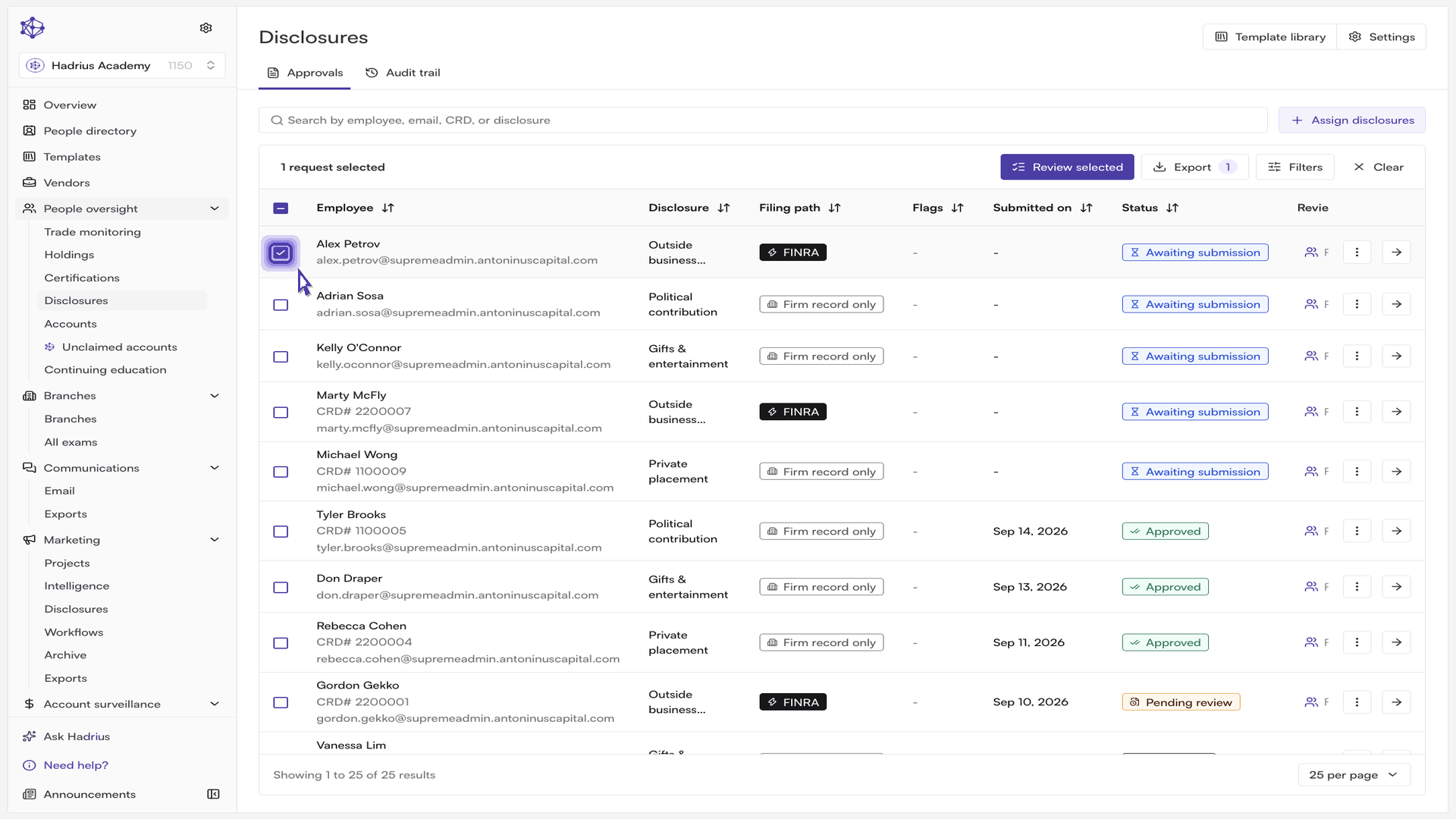
Open People Oversight and go to the disclosures workspace. This is where every outstanding and completed filing lives — you can filter by status, employee, template, disclosure type, reviewer, or submitted date, and search by employee, email, CRD, or disclosure.
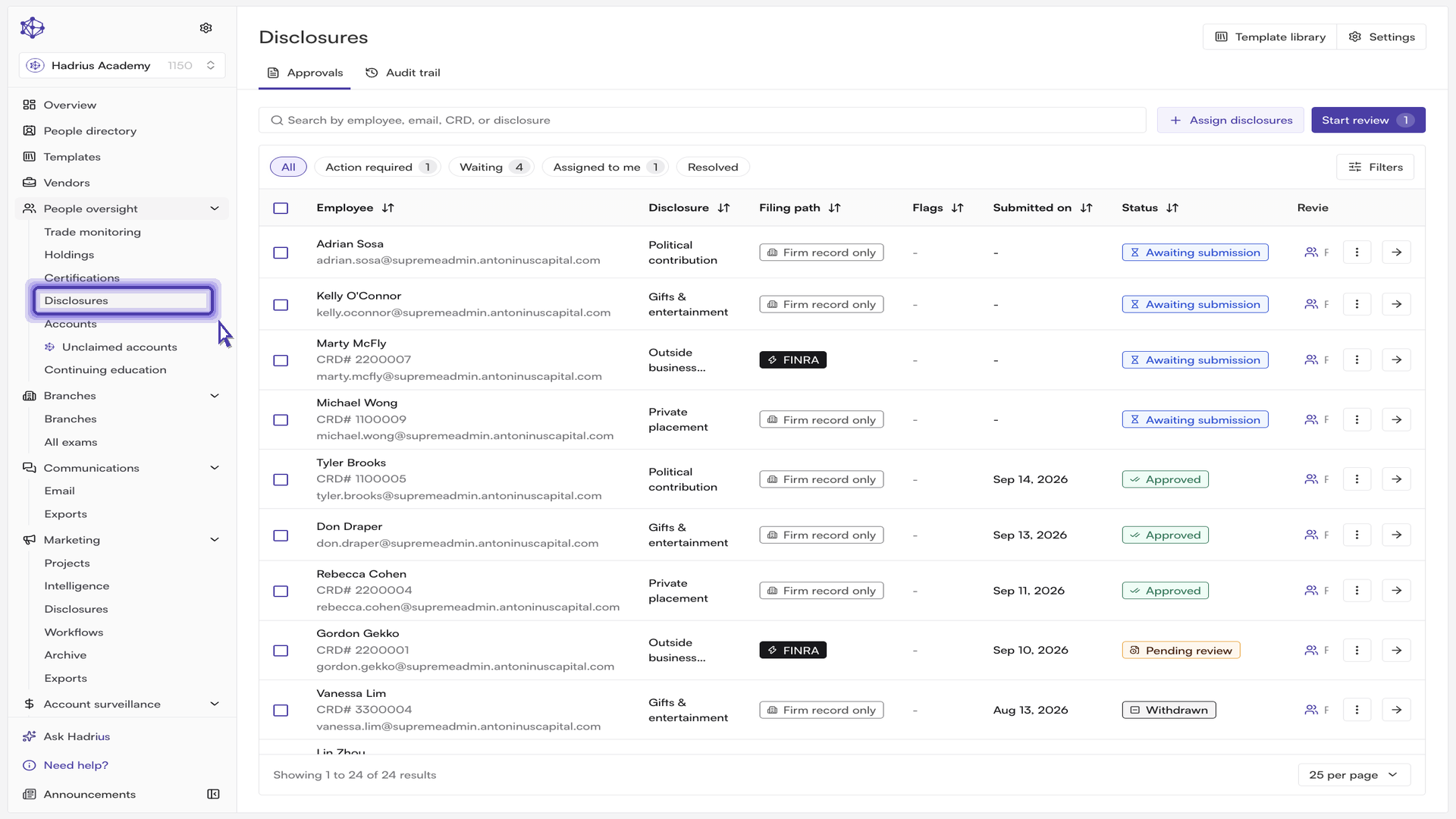
Assigning a round of disclosures
Select Assign disclosures above the table to open the assignment wizard. The wizard moves through three stages — Prepare disclosure, Choose reviewers, and Summary — and you can jump back to any completed step from the stepper on the left.
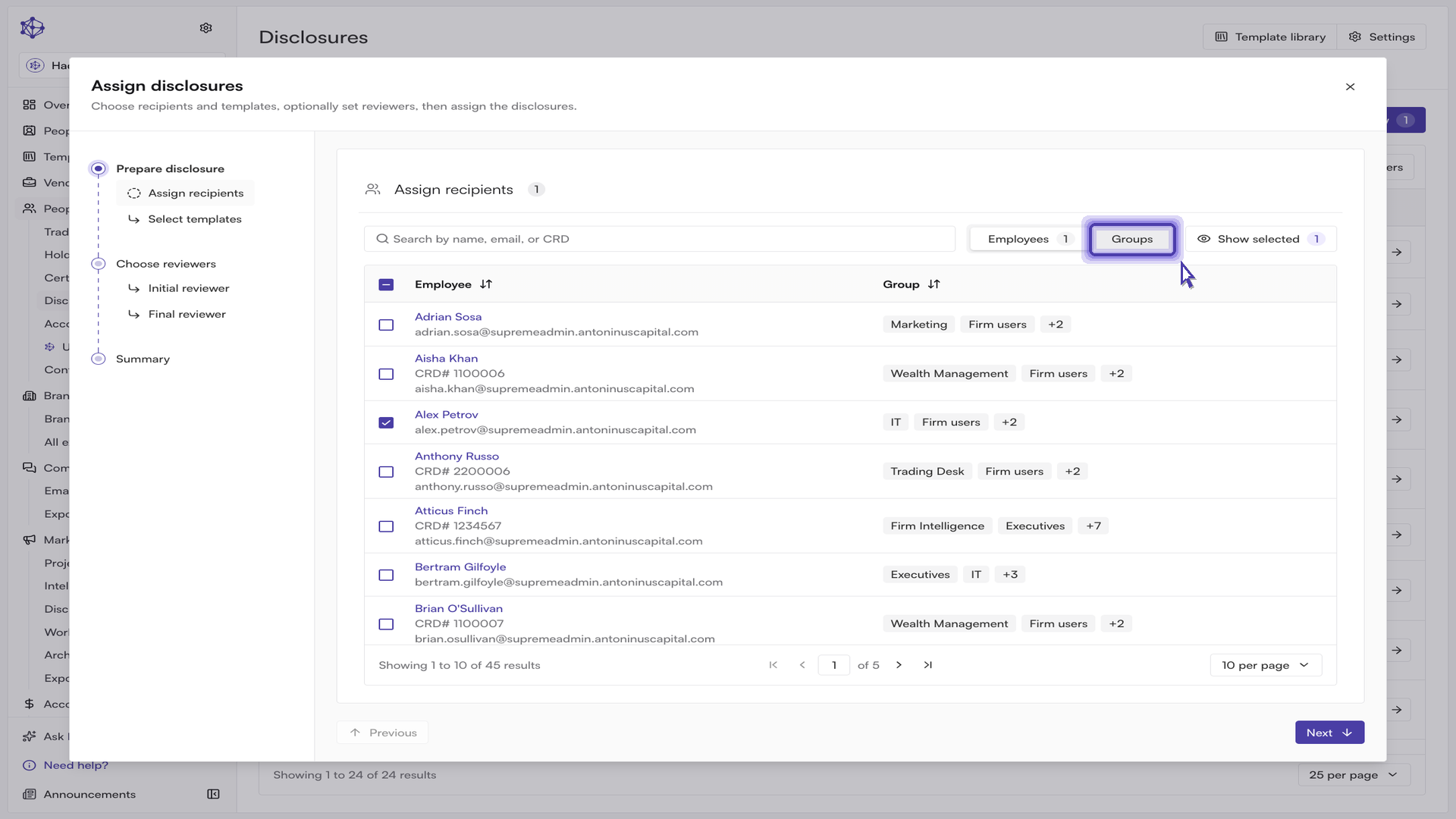
Choose your recipients. On the "Assign recipients" step, pick the people who need to file. You can select individual employees, or switch to the groups view to pull in whole teams at once rather than adding members one by one. Individual and group selections work together: the wizard resolves them into a single list of unique employees, and the count beside the step title shows how many people that comes to. Only active internal employees are available here.
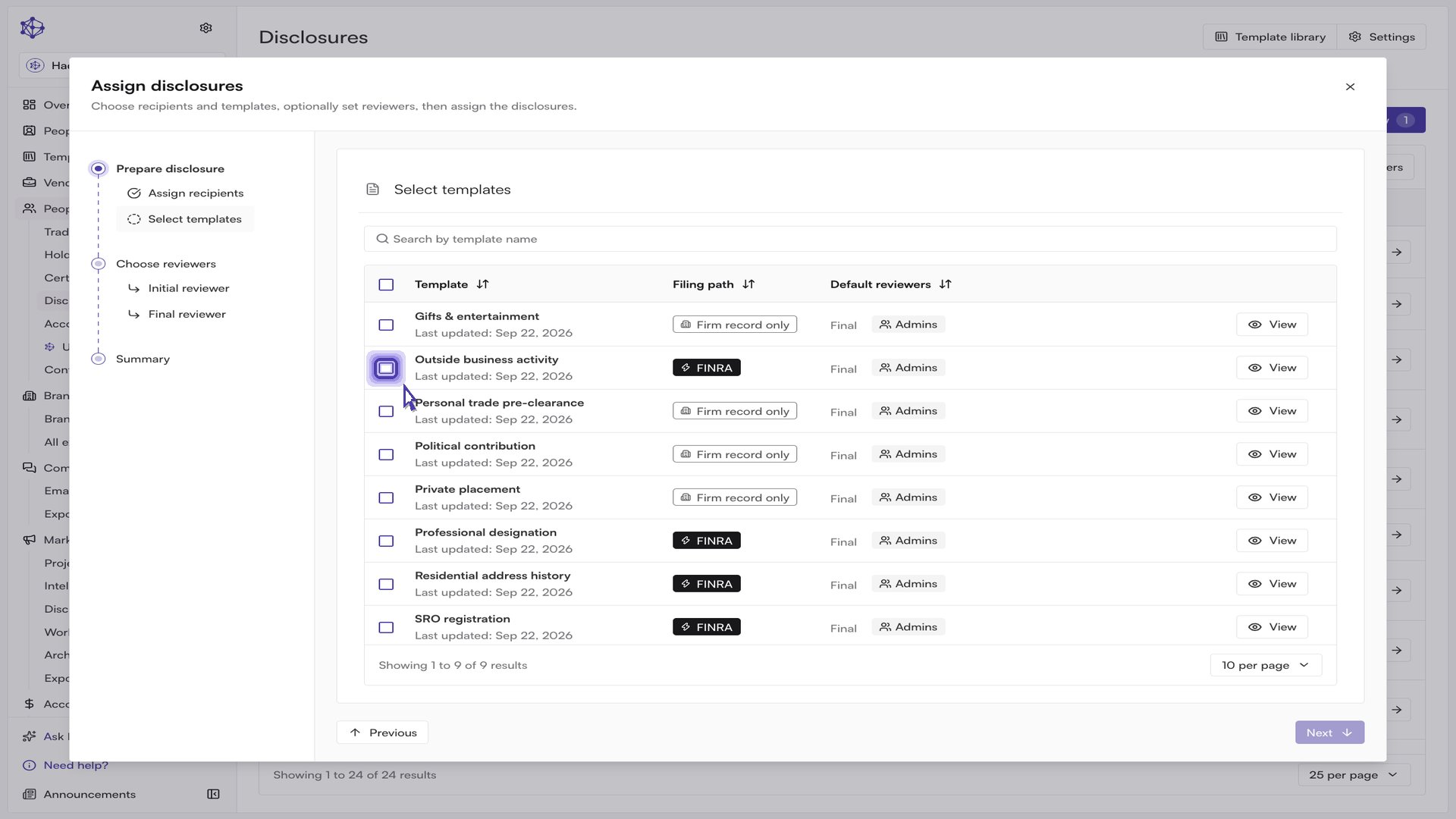
Select the templates. The template is the questionnaire recipients will actually fill out. Only active, non-archived disclosure templates appear. Each row shows the disclosure type, when the template was last updated, and its default reviewers, so you can confirm you've picked the right questionnaire before moving on. You can select more than one template in a single assignment.
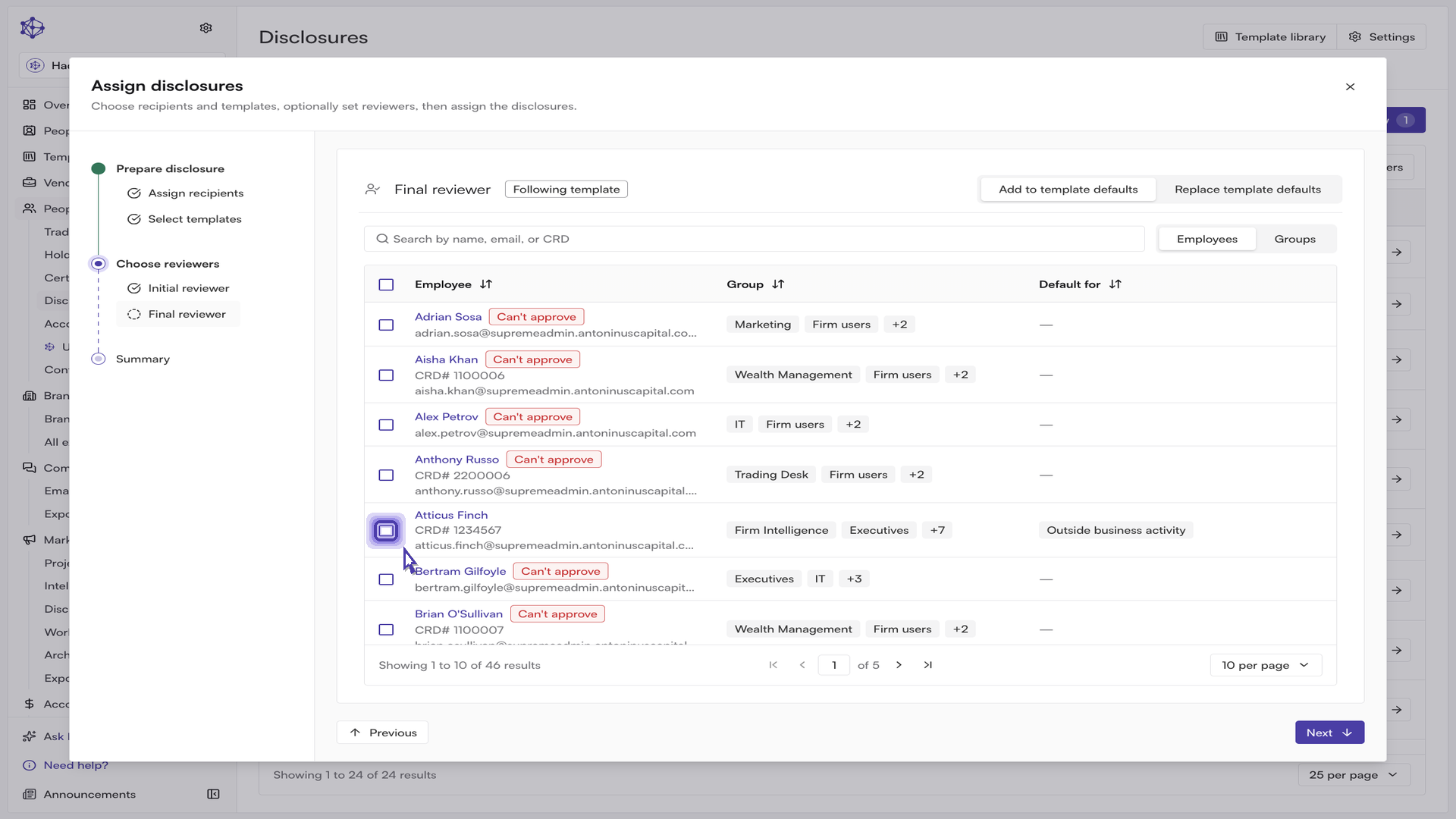
Confirm or override the reviewers. The wizard then walks through two reviewer steps — initial reviewer and final reviewer — where the final reviewer is the person who signs off once the filing comes back. Both steps start empty, which means each disclosure simply follows its own template's default reviewers; the badge on the step reads "Following template" until you change something.
If you do choose reviewers here, the step switches to "Customized" and you can decide whether those people are added to the template defaults or replace them. A couple of notes worth knowing:
Reviewer steps live on the template. If a selected template has only one configured review step, that step counts as the final one, and anything you set on the initial step won't apply to it. The wizard flags this inline.
Approving a disclosure requires the disclosure approval permission. Employees who don't hold it are marked in the picker, and the wizard warns you if a selection resolves to nobody who can approve.
Review the summary and assign. The final step recaps your recipients, templates, and reviewer choices, with an edit link back to each. Above the action button, the wizard tells you exactly how many disclosures will be created — one per recipient, per template. Select Assign disclosures to create them and notify the recipients.
If a recipient would end up as the only eligible reviewer of their own disclosure, the wizard flags it here and blocks the assignment until you add another reviewer — nobody can review their own filing, and inactive employees aren't counted as eligible.
Logging a disclosure on behalf of an employee
If you hold the submit-on-behalf permission, the assign button carries a secondary option: Log on behalf. This creates exactly the same disclosures, but employees aren't emailed — instead, the fill form opens immediately on the first new disclosure with the rest queued behind it, so you can record them in one sitting.
After you assign
The new requests appear in the disclosures workspace right away, where you can track them through review and completion. Selecting rows in the table swaps the toolbar for a selection bar, where you can open the whole selection with Review selected — the review modal walks through the selected disclosures one at a time so you can work through them in a single pass — or Export the selection to a spreadsheet. Note that decisions are still made per disclosure; the selection sets the queue rather than approving items in bulk.
If an assignment is rejected, the error explains what to change — the most common causes are a template left without an eligible reviewer, recipients who are no longer active, or recipients who already have an open disclosure for the same template.