How to Invite Employees to the Platform
Last updated: October 16, 2026
This article walks through adding a new employee to Hadrius and, optionally, inviting them to set up their own platform login. Use this workflow any time a new hire joins the firm and needs to be added to the people directory — whether or not they'll need direct access to the platform themselves.
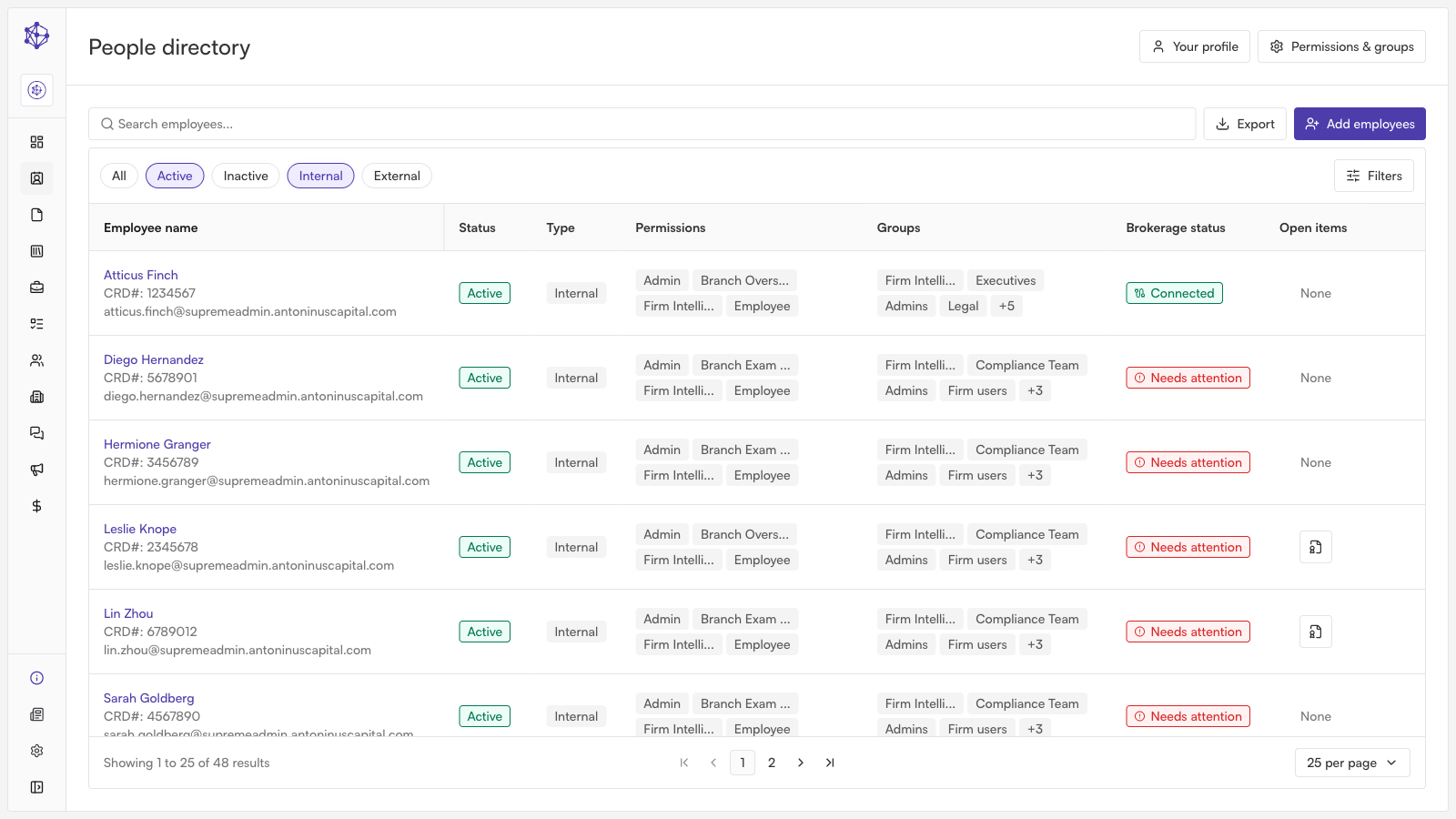
Starting the employee setup flow
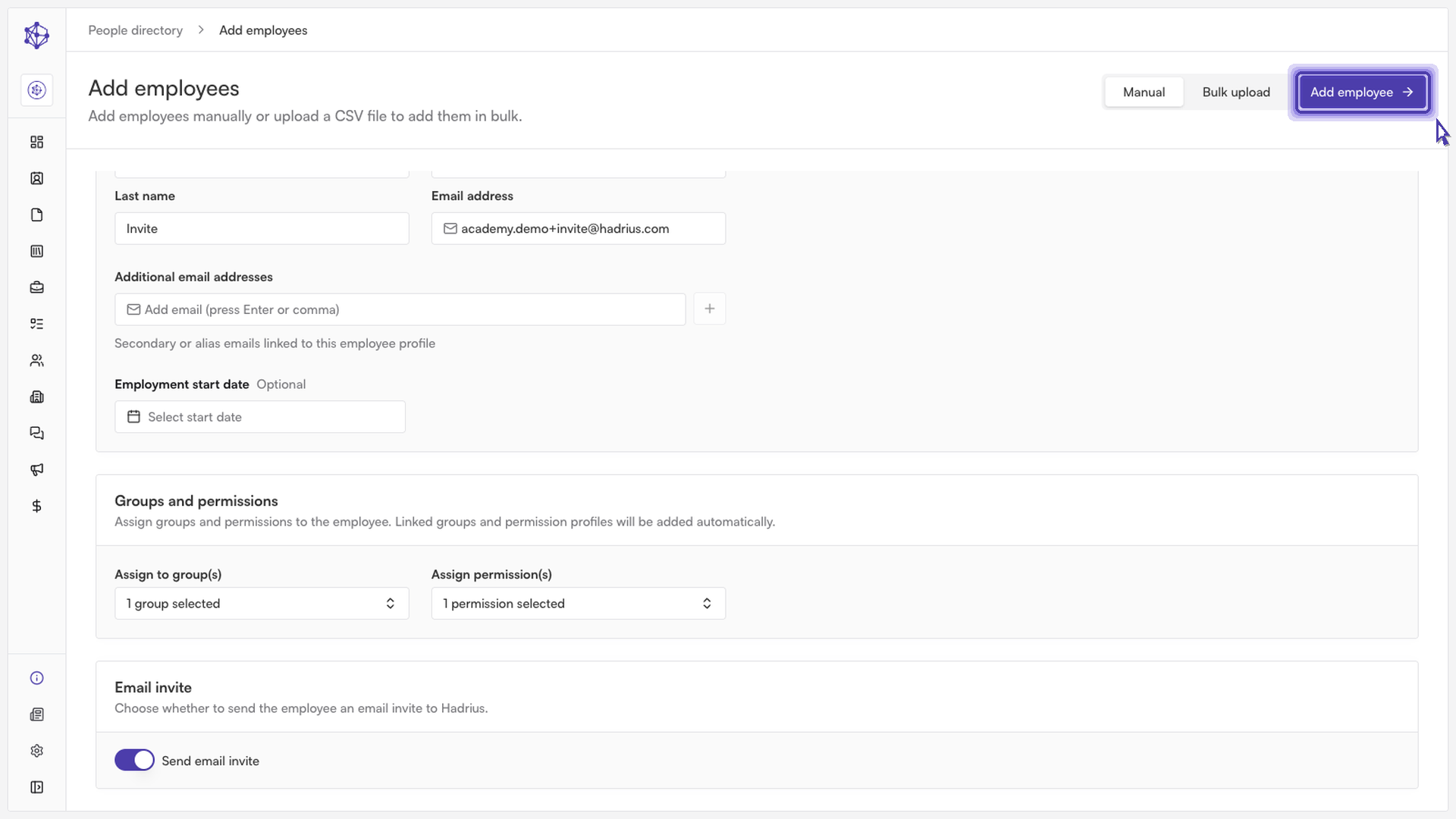
From the people directory, where every employee on the platform is managed, start the setup flow to add someone new. This opens a form that captures the new hire's identity and, if you choose, sets up how they'll be invited to the platform.
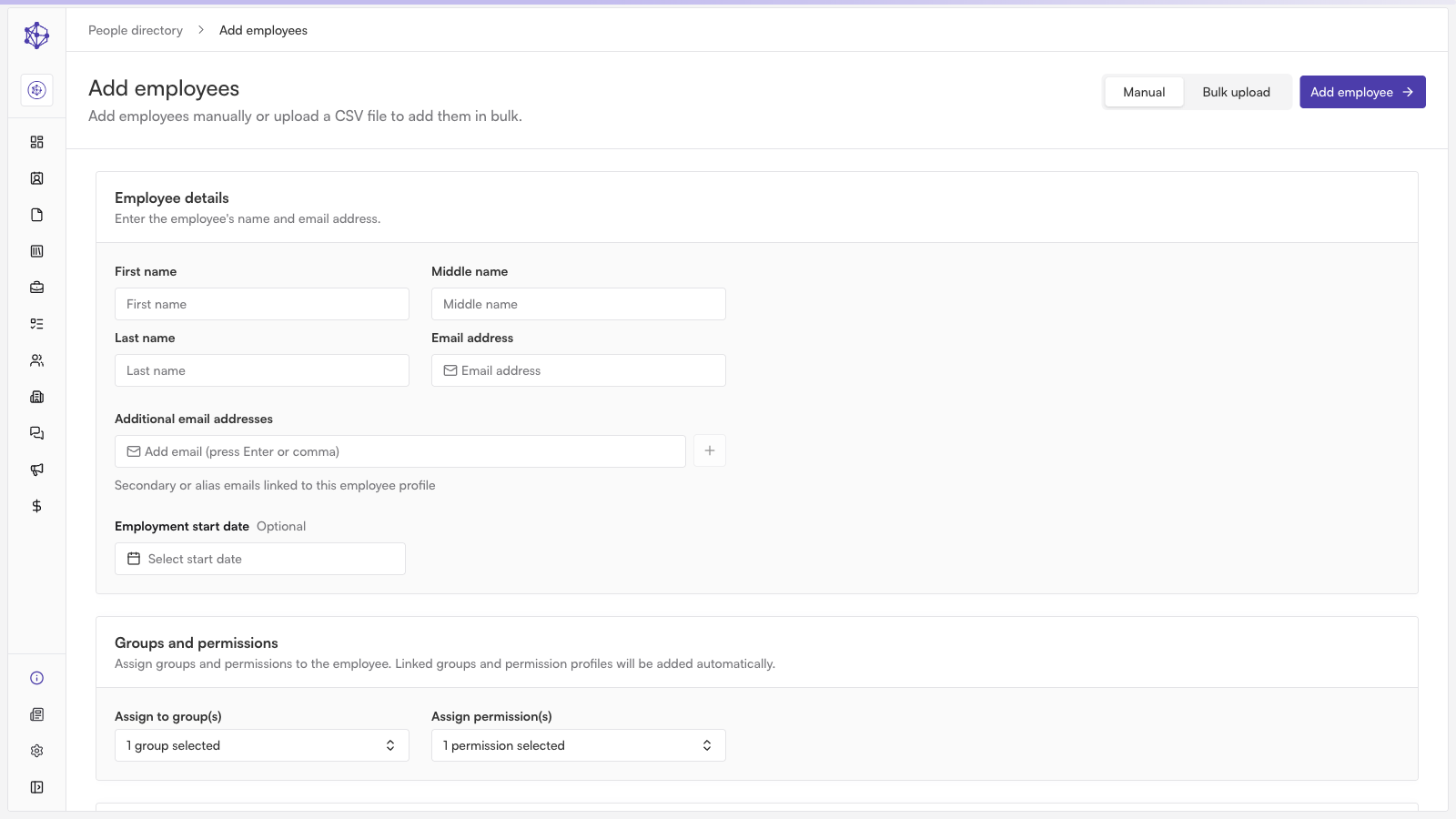
Entering the employee's details
Enter the employee's first name.
Enter their last name alongside it.
Enter their email address. This is what the platform will use to reach the employee and, if you choose to send one, deliver their login invite.
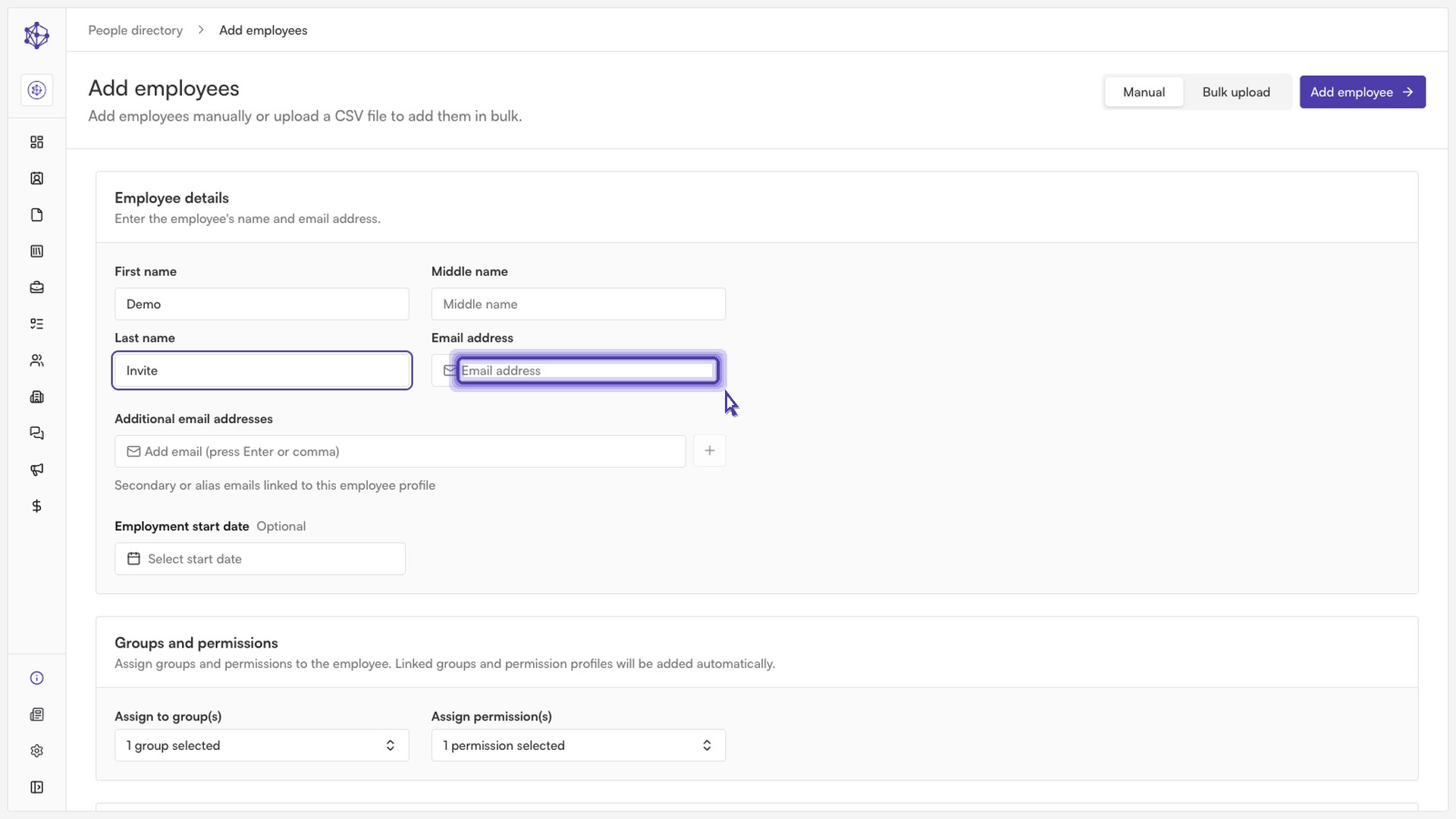
Deciding whether to send a login invite
Turning on the email invite option sends the employee an email so they can set up their own account. If you leave it off, the employee record is still created, but no invite email goes out — useful if you're adding someone who doesn't need direct platform access yet, or if you'd rather invite them later.
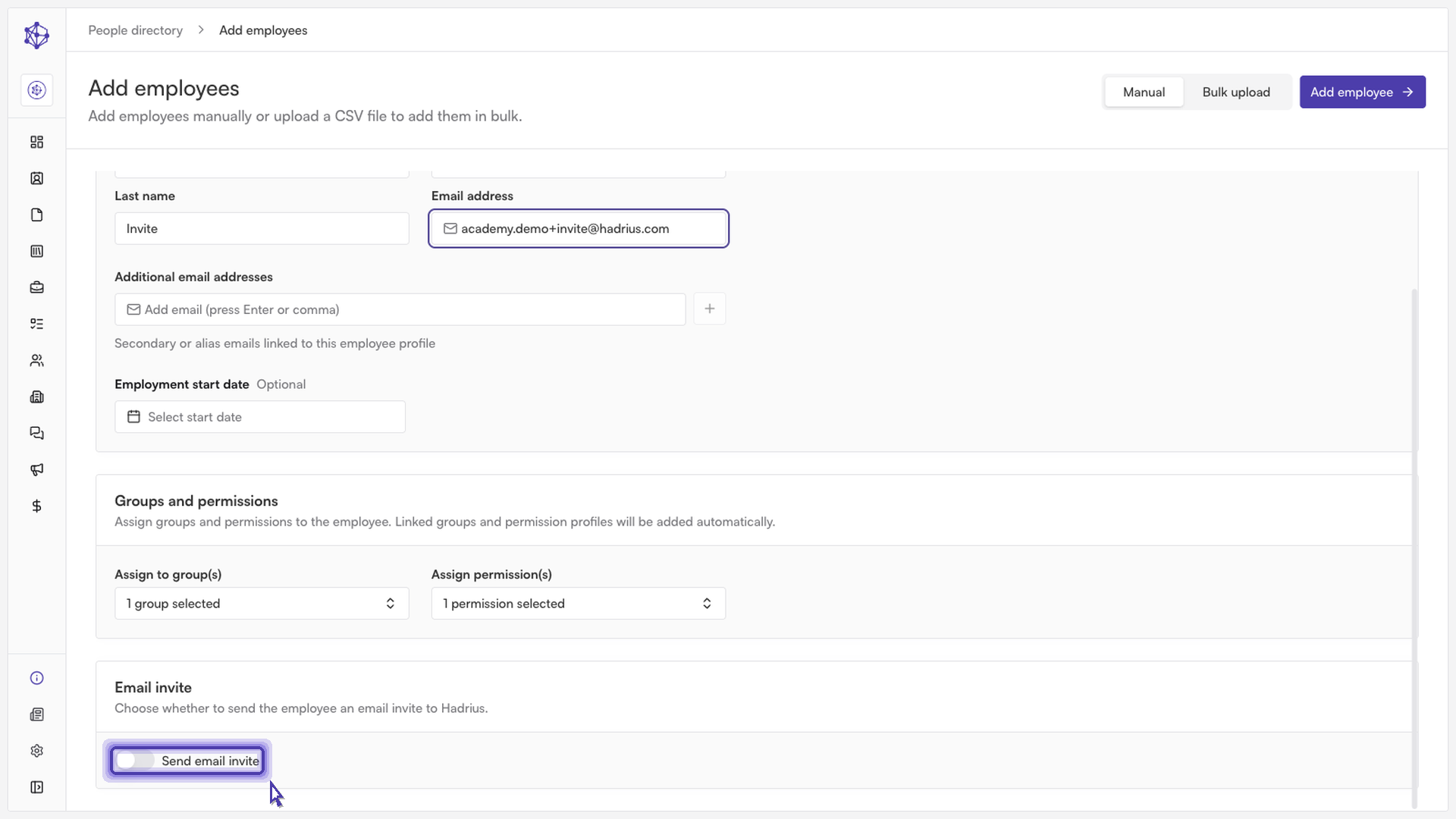
Submitting the form
Once the details are filled in, submit the form to create the employee record. This applies the employee's default role and group and, if the invite option was turned on, delivers the invite email right away.
What happens next
The new employee now appears in the people directory. If an invite was sent, the employee will receive an email prompting them to set up their own account; if not, their record is in place and an invite can be sent at any time afterward.