Reviewing Disclosures
Last updated: September 22, 2026
The Disclosures workspace is where every employee submission lands for compliance review. This article walks through the admin review workflow: working the review queue, evaluating individual responses, corresponding with the employee, finalizing a decision, and finding or exporting disclosures after the fact. Use it whenever you are clearing your review queue or researching a past submission for your books and records.
Working the review queue
The Disclosures workspace gives you a single queue for everything employees have reported, at every stage of its lifecycle. The quick-filter chips across the top of the table divide that queue into All, Action required (pending review, pending FINRA filing, pending log on behalf), Waiting (awaiting submission, sent back, pending amendment), Assigned to me, and Resolved.
There are two ways to start. Click Start review in the top right to jump straight into the first disclosure assigned to you — the count on the button tells you how many are waiting, and the Previous/Next controls in the review window then walk that same queue. Alternatively, select the Action required chip to see everything that needs admin attention, whoever it is assigned to, and open items individually.
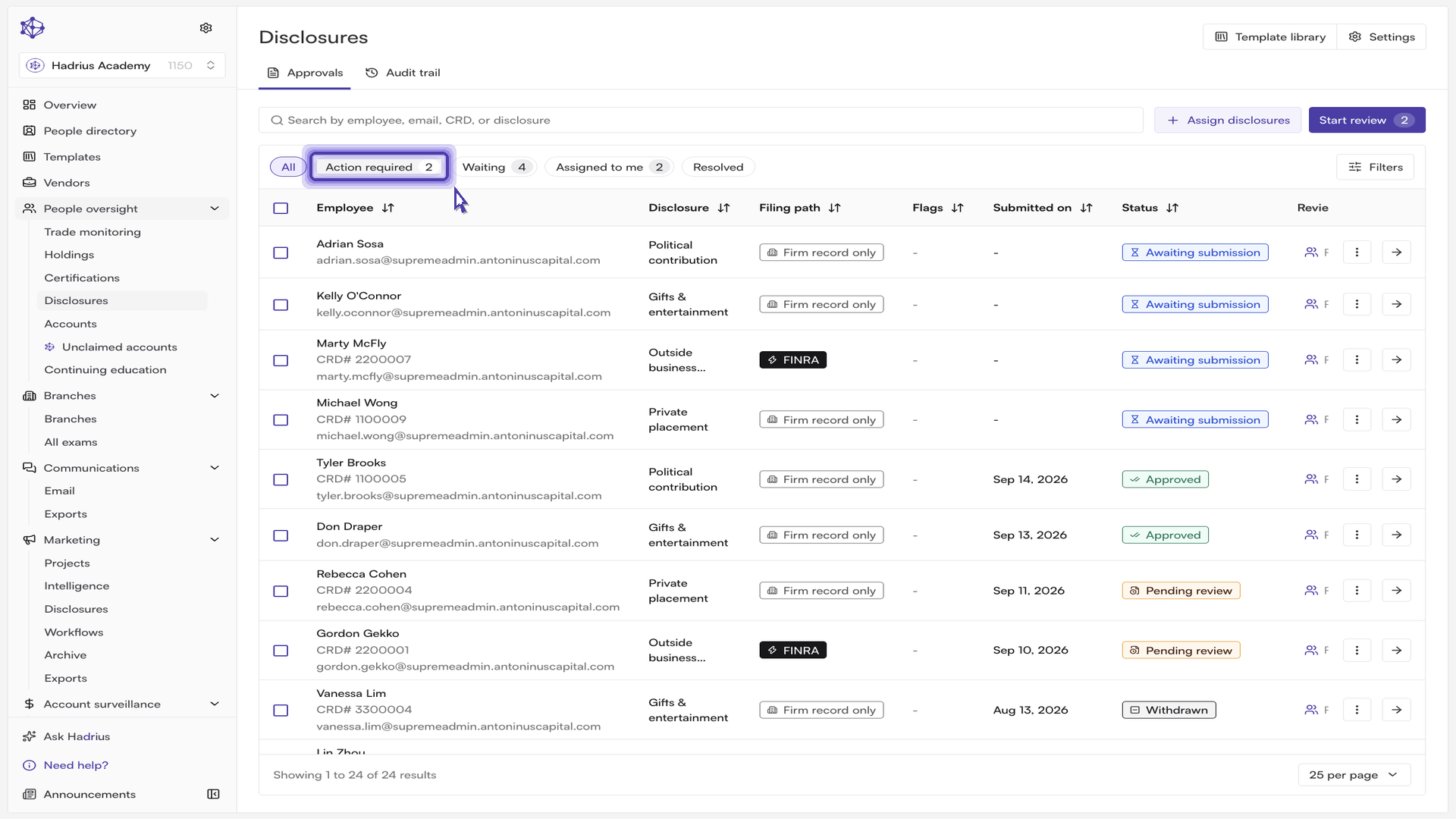
You can also select several rows with the checkboxes and click Review selected to walk just that selection. Note that selecting rows does not apply a decision to them — the selection bar offers only Review selected and Export. Approvals are always made one disclosure at a time.
Reviewing a submission
Opening a disclosure gives you the employee's responses alongside the full activity log for the record: who submitted it and when, every status change, and every determination made so far. The All activity and Comments views share that panel, and the audit trail is also available on its own from the row's three-dot menu under View audit trail.
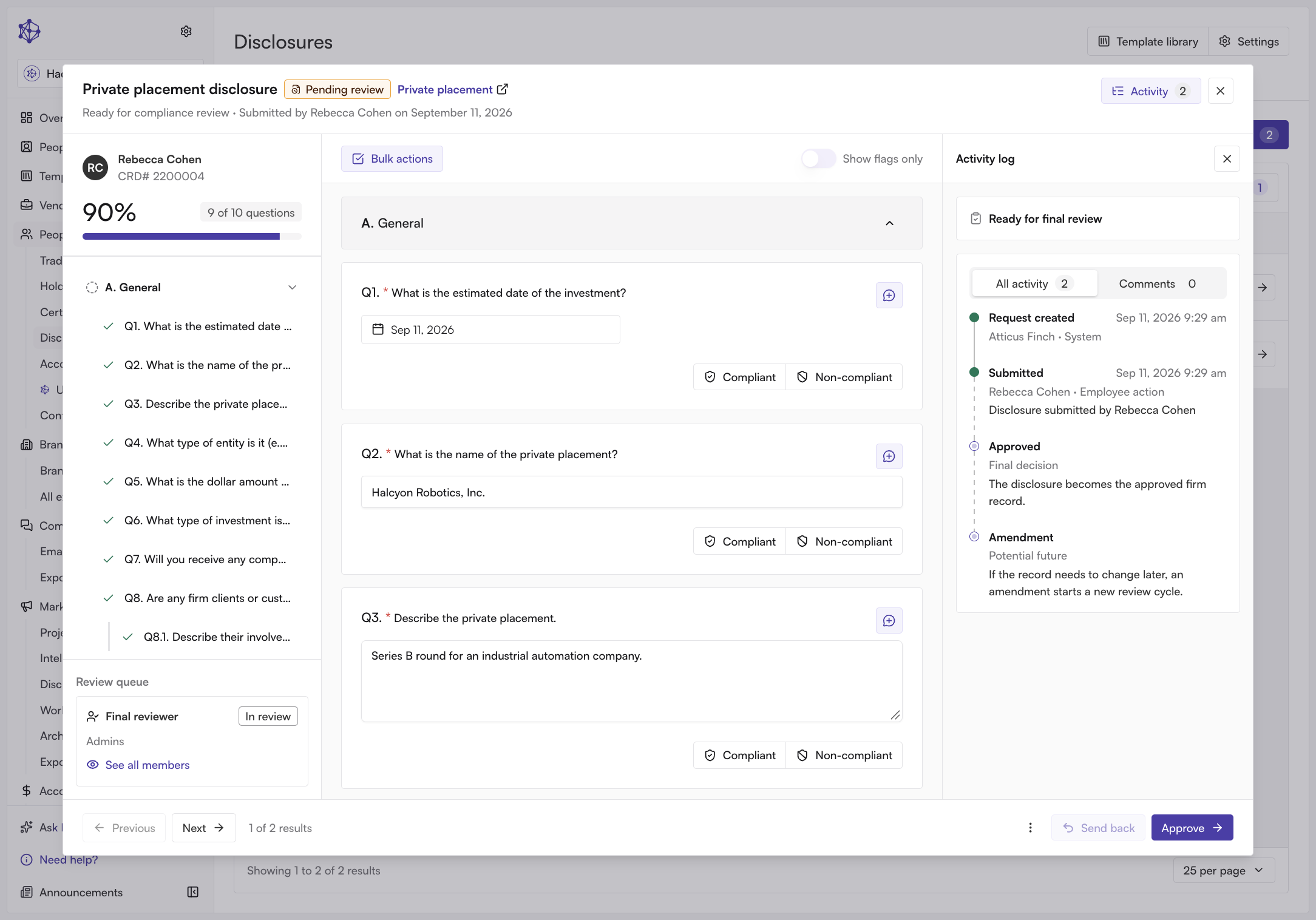
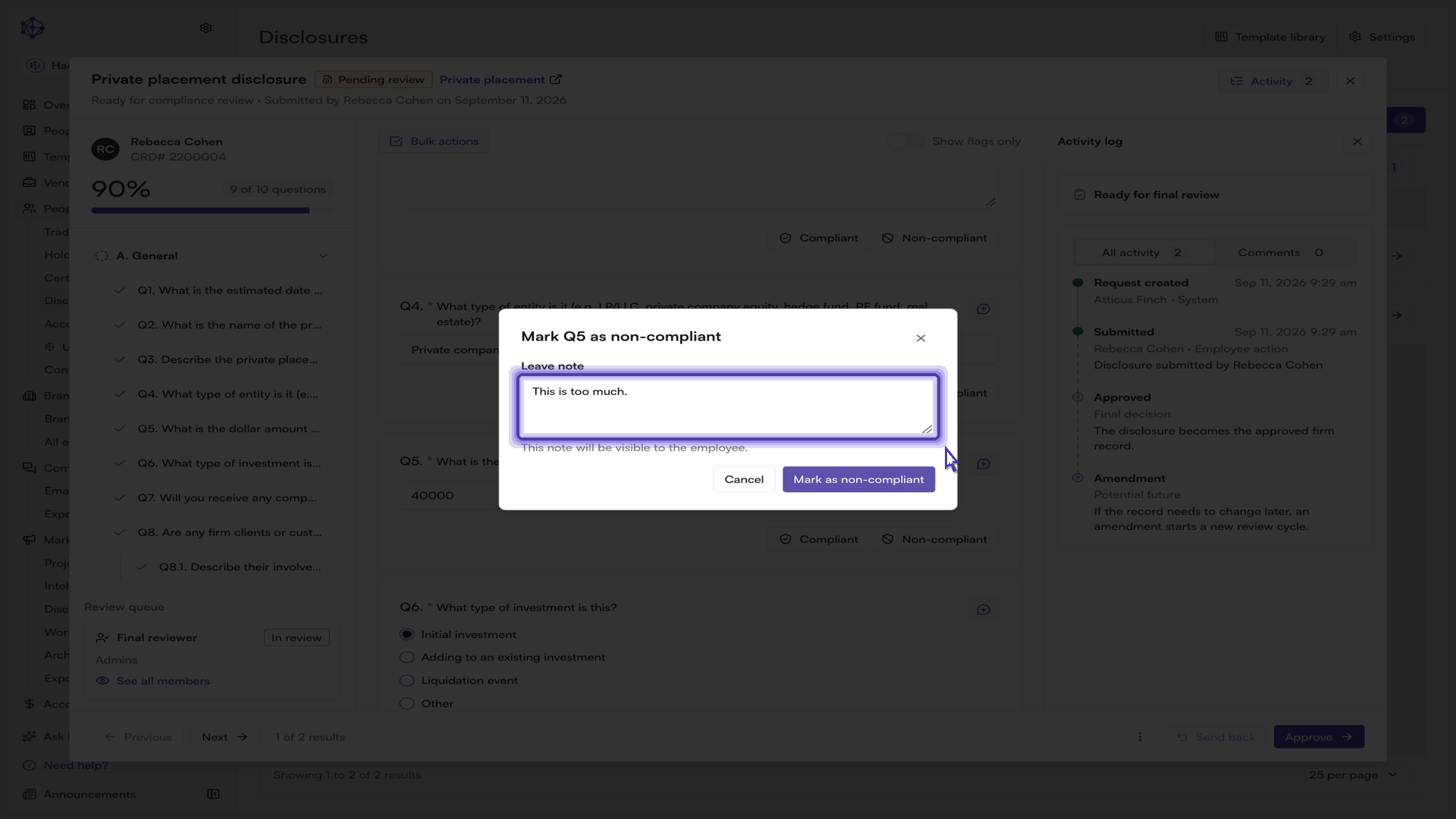
Mark individual responses. Each response can be marked Compliant or Non-compliant. Marking a response non-compliant requires a short note explaining your reasoning; the note is saved with the determination so the audit trail explains itself later, and it is visible to the employee. A note is optional when marking a response compliant.
Review several responses at once. The Bulk actions control in the toolbar lets you select multiple questions within the open submission and apply one determination — or clear determinations with Reopen — to all of them. This applies only to the questions you have selected in this one disclosure, never to other disclosures in the queue. If Show flags only is switched on, Select all questions selects only the flagged questions currently in view.
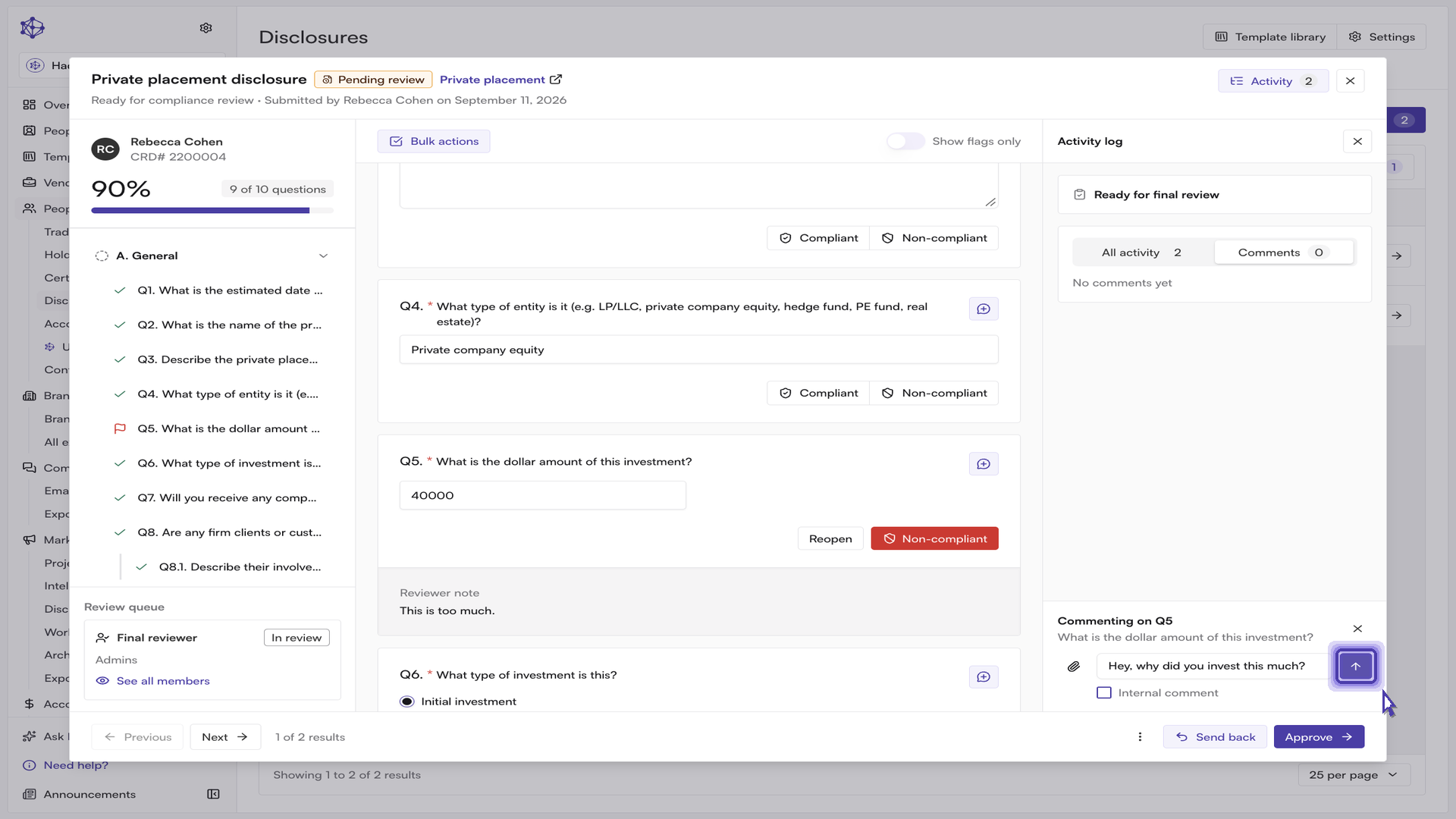
Ask the employee a question. Use the comment composer in the activity panel to message the employee directly alongside their submission, so the whole exchange stays in one record. You can comment on the submission as a whole or on a specific question. Tick Internal comment below the composer to keep a note visible only to your compliance team — the filing employee never sees internal comments, and they are badged Internal in the thread.
Finalizing the review
The decision buttons sit in the bottom right of the review window.
Send back returns the submission to the employee for corrections. It becomes available once at least one response is marked non-compliant, and requires a reason of at least ten characters, which the employee will see.
Approve finalizes your review step. If any flagged question is still unreviewed, you will be asked to confirm first.
The three-dot menu holds the remaining options, including Reject disclosure and Download submission.
If new context changes your thinking, a determination is not locked in: mark the response compliant instead, add comments so every change is captured in the audit trail, and then approve. A disclosure that has already been approved, auto-approved, or rejected can be reopened from the same footer with Reopen disclosure, which returns it to pending review for re-evaluation. The employee is not notified when you reopen.
Approving clears the disclosure from your action-required queue and moves you straight to the next submission waiting. Depending on how the disclosure is configured, approval may route it to a final review group or to a pending FINRA filing step rather than resolving it outright — the confirmation message tells you which happened.
Finding a specific disclosure
The chips and filters are there for the times you are looking for something specific rather than working the queue. Select All to bring back every disclosure regardless of where it stands, then open the Filters panel to narrow the list by employee, disclosure type or template, reviewer, submitted date, or a specific status such as pending review. You can stack filters, and the search box narrows results further by employee, email, CRD, or disclosure name. The count on the Filters button shows how many are active; Clear resets them.
Exporting for your records
For quick actions on any row, use the three-dot menu at the end of it. The options shown depend on the disclosure's status — for example, sending a reminder on an outstanding request, or downloading a completed submission.
Download submission opens the export dialog, where you choose a format (a branded PDF report, Excel, or CSV) and what to include: review forms, the audit trail, amendment history, and per-question compliance markings. If the disclosure has been amended, you can export a single version or all versions in one document. Selecting multiple rows in the queue and clicking Export produces the same output for the whole selection.
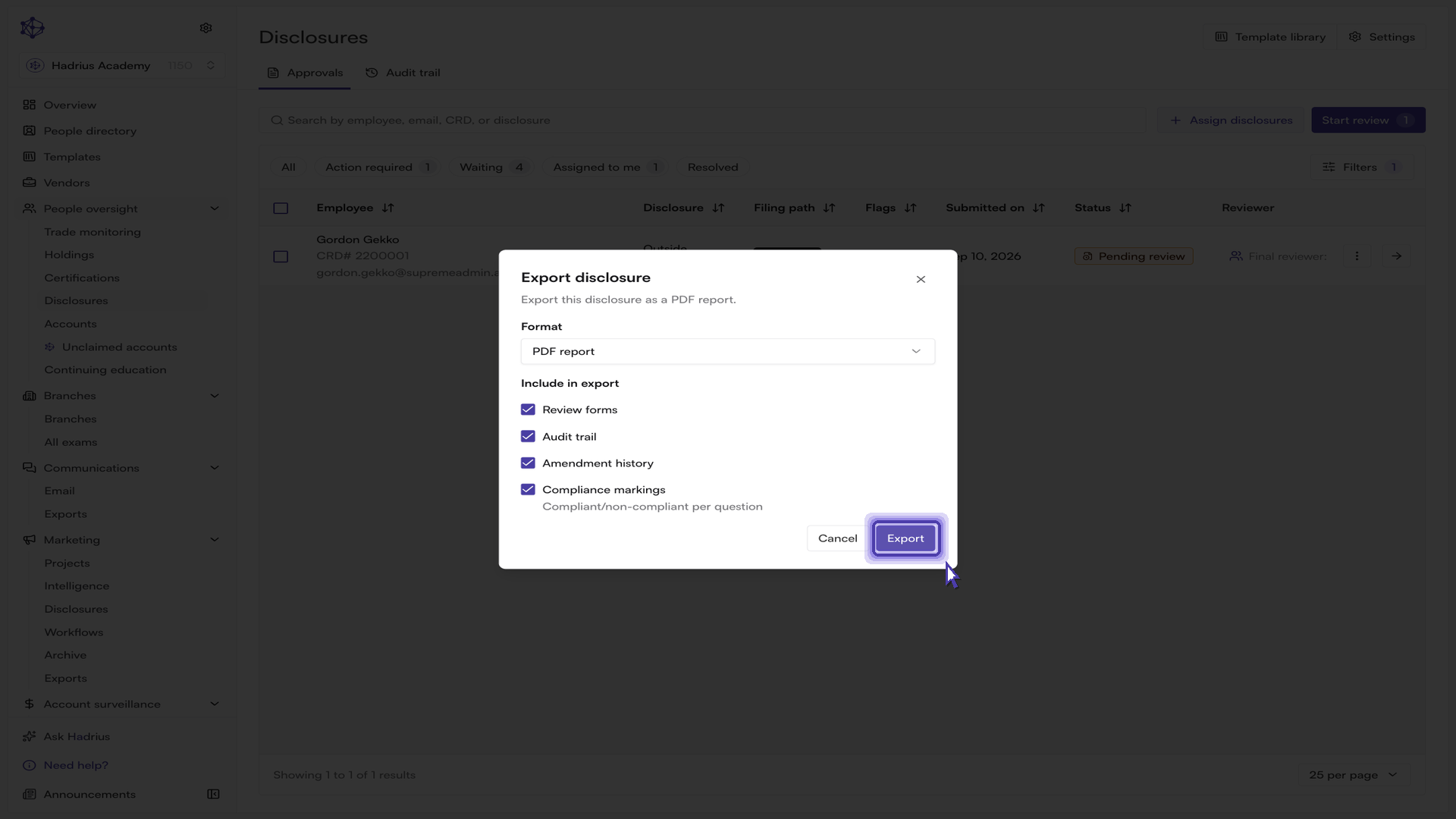
The resulting file is a clean, self-contained record suitable for your books and records or for responding to an examiner request. Everything you did during the review — determinations, notes, comments, and the final decision — is preserved in the disclosure's audit trail and available in that export at any time.