Notifying an Employee to Complete Their Certification
Last updated: September 22, 2026
Every certification campaign sends its own reminder emails on the notification schedule set when the campaign was built. Occasionally you'll want to reach someone sooner — a deadline is close, an employee has gone quiet, or a returned submission is sitting untouched. This article covers how to send an extra reminder from the certifications oversight area, either to a whole group of outstanding employees at once or to a single person.
Before you begin
Manual reminders are an addition to, not a replacement for, the campaign's automatic notifications. Reminders before the due date, overdue reminders, and weekend-skipping are all configured in the campaign's notification settings, and sending a reminder by hand does not change that schedule or the task's status.
Sending a reminder
Go to People Oversight > Certifications. This is where every certification campaign lives, each with its current status and progress.
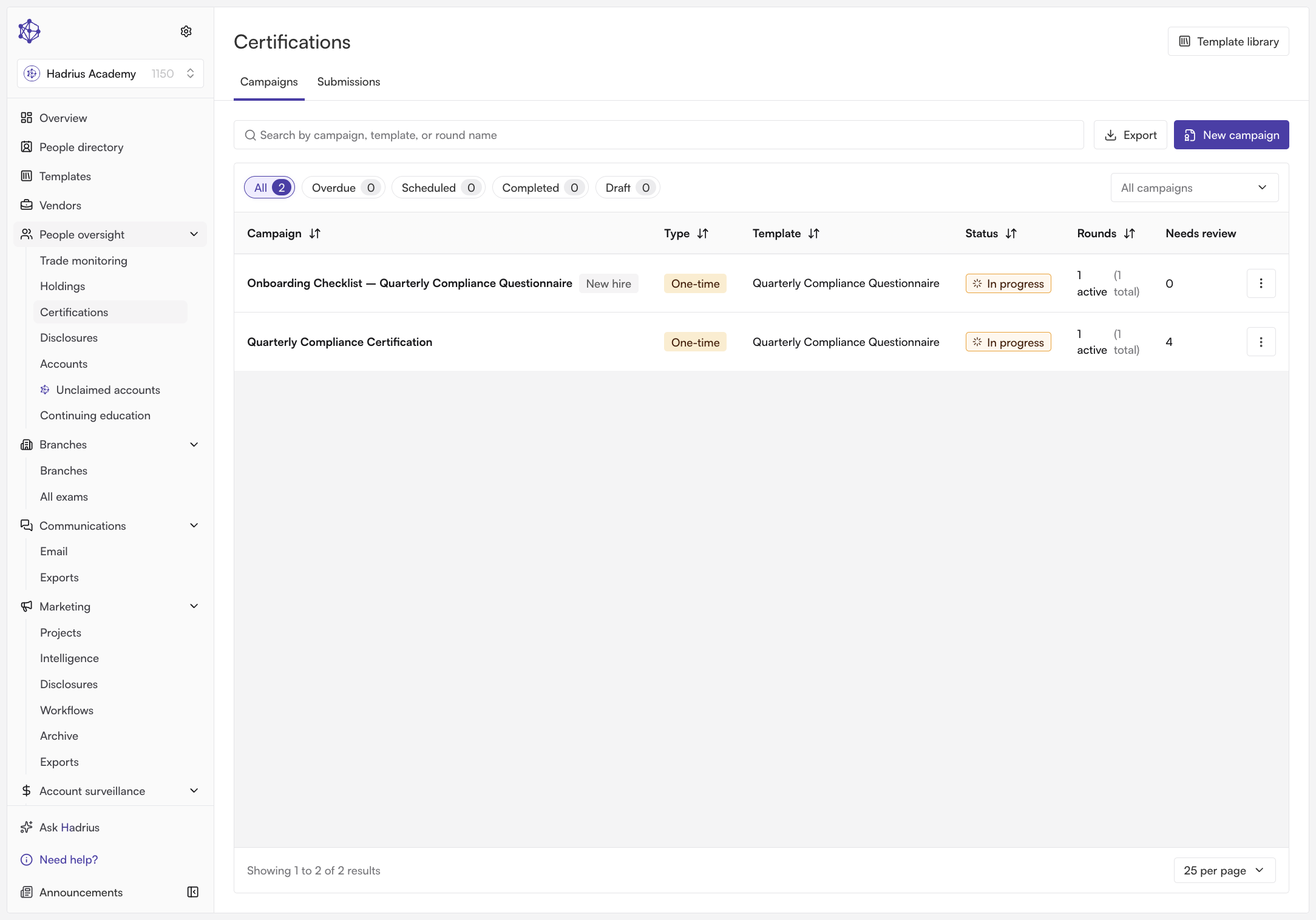
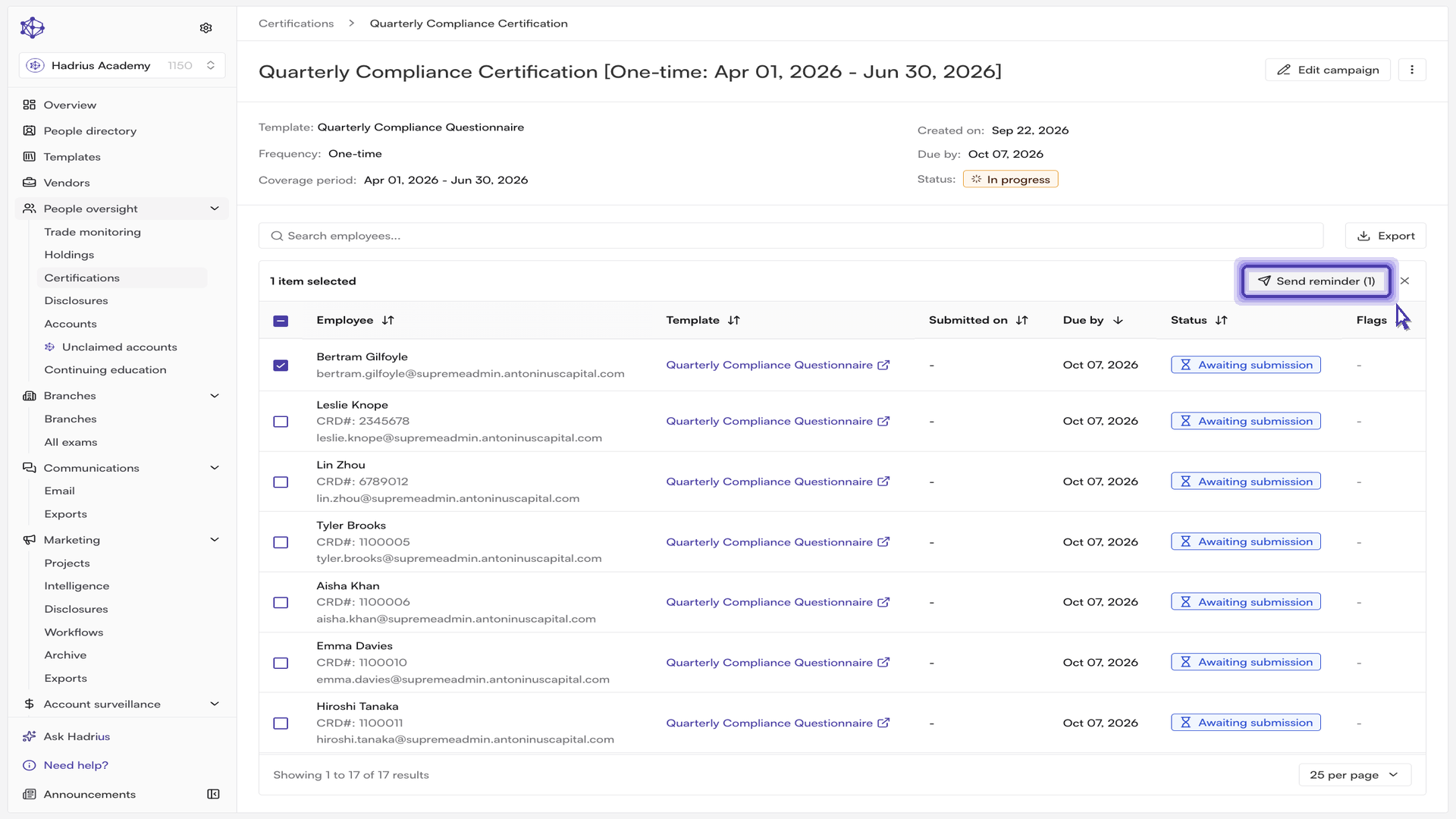
Open the campaign that contains the employees you want to nudge. The campaign shows its task list: one row per employee and template, with who has submitted, when each task is due, and a status badge for each row.
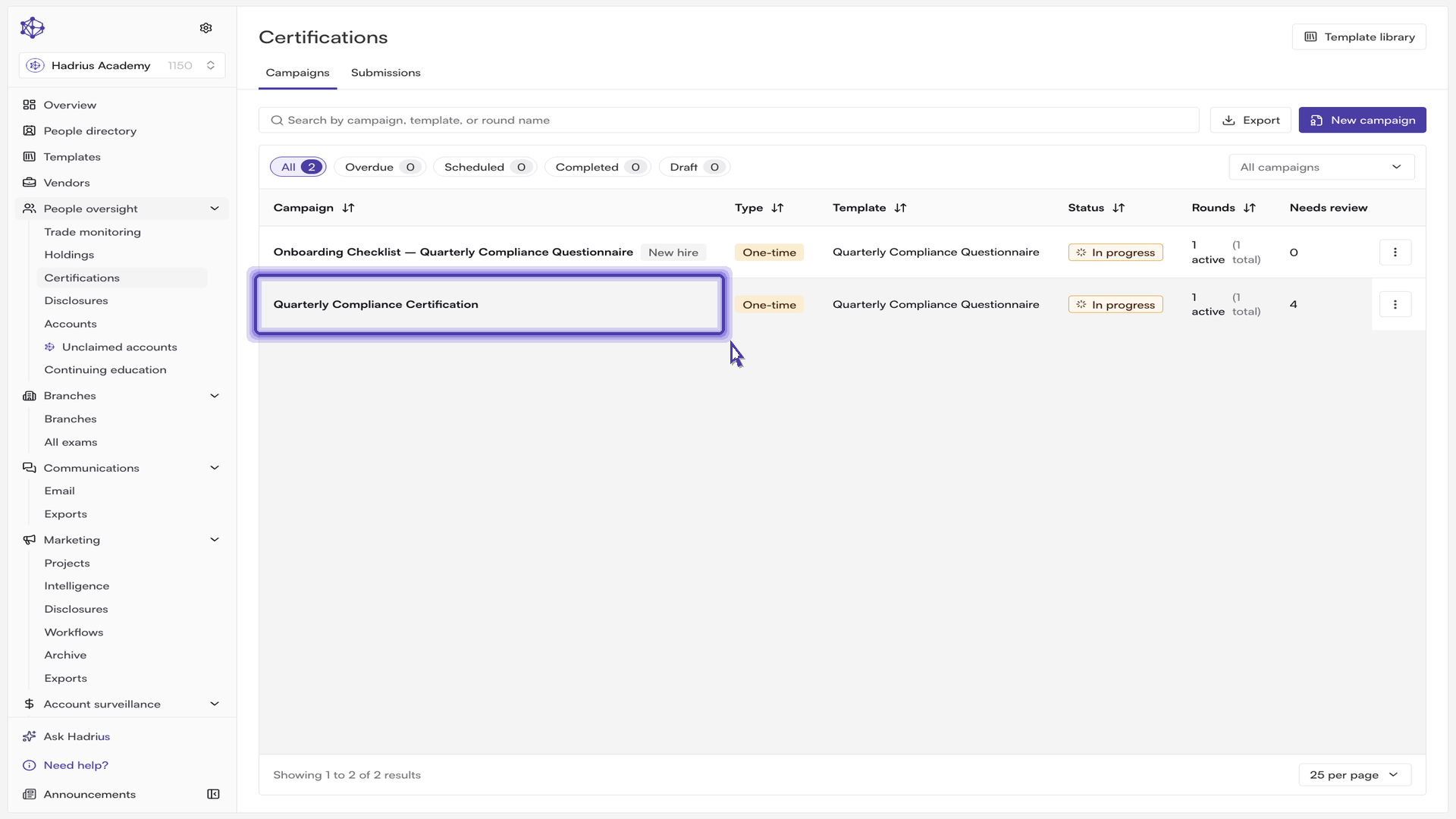
Use the status chips above the table to narrow the list. Select Awaiting to show only tasks in "Awaiting submission" — the certification is open and the employee has not submitted yet. Overdue and Returned are useful here too: those are the other two statuses that can receive a reminder.
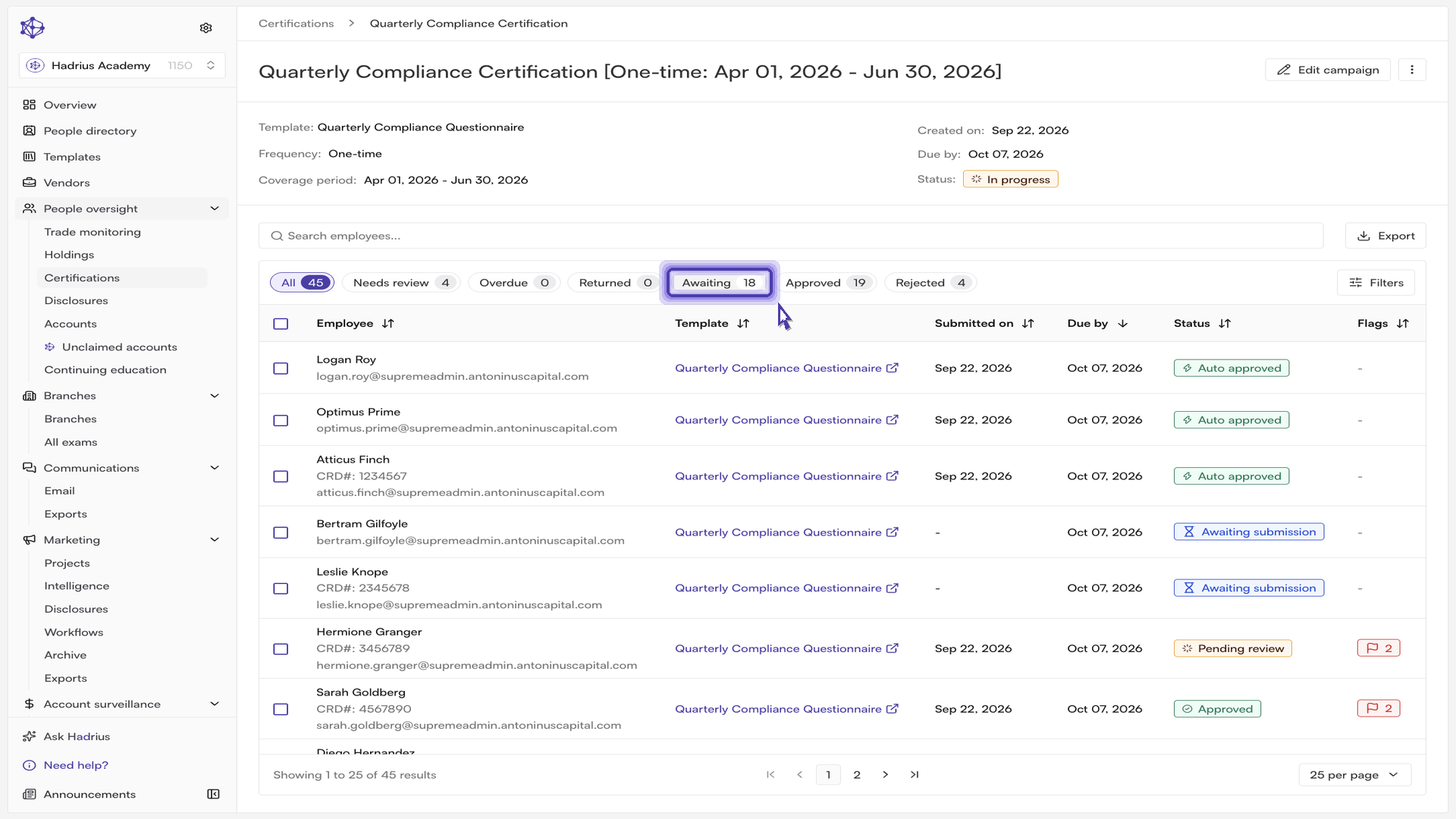
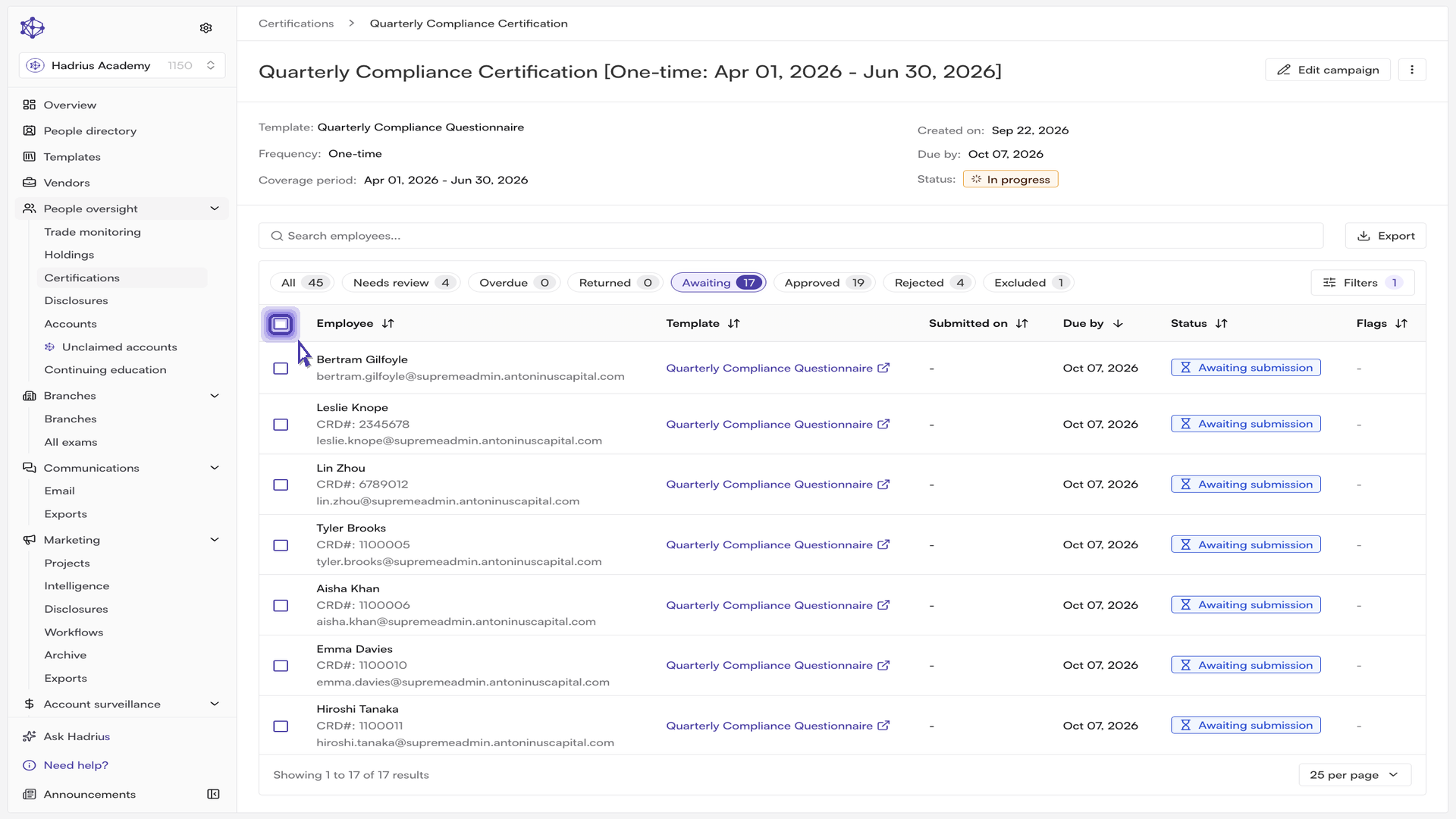
To reach the whole outstanding group, tick the checkbox in the table header to select the rows shown. The toolbar changes to a selection bar showing the number of items selected, with a Send reminder button on the right. The number in parentheses on that button counts only the selected tasks that are eligible for a reminder — anything already submitted, approved, or excluded is skipped automatically, and the button is disabled if none of your selected rows qualify.
Click Send reminder. The "Send reminders" dialog lists each employee who will receive an email and the certification they owe. Review the list, then confirm with the Send button, which restates the count. When the sends complete you'll see a "Reminders sent" confirmation and the selection clears. If any individual email fails, the confirmation tells you how many went out and how many didn't, so you can re-select just those employees and try again.
When you only need one person, clear the group selection first using the X at the end of the selection bar, then tick that single employee's row and send as above. You can also skip the selection entirely: open the actions menu at the end of the employee's row and choose Send reminder. Overdue rows have a send shortcut button next to the menu for the same action.
Either way, a single reminder email goes straight to that employee's inbox with a link to the certification they need to complete, and you'll see a "Reminder sent" confirmation.
A few things to know
Reminders can only be sent for tasks in Awaiting submission, Overdue, or Returned status. Hovering the disabled button will tell you this.
Selection applies to the rows loaded on the current page. If the outstanding list runs to more than one page, either raise the rows-per-page setting or repeat the send on each page.
Because rows are per employee and template, an employee who owes two certifications in the same campaign appears twice and will receive a reminder for each selected task.
After sending
Each reminder is recorded on the task, so you can confirm it went out from the task's audit trail. Statuses update on their own as employees submit, so you can return to the campaign later and re-apply the Awaiting filter to see who is still outstanding. Use the Certifications breadcrumb to step back up to the oversight view and check on your other campaigns.