Creating Flagged Questions on Certifications
Last updated: October 17, 2026
Flagged questions let you decide ahead of time which answers on a certification deserve a closer look. When an employee gives an answer that matches the condition you set, Hadrius flags the response so a reviewer can follow up on it. This article explains how to set up a flagged question on a certification template and where flagged answers appear once employees submit their certifications.
Set up a flagged question on a template
Certification templates live in the template library. This is where reusable forms are managed and then deployed across your disclosure and certification workflows. Flagging is configured on the template, so any certification created from it afterward uses the same rules.
- Open the template library and select the certification template you want to edit.
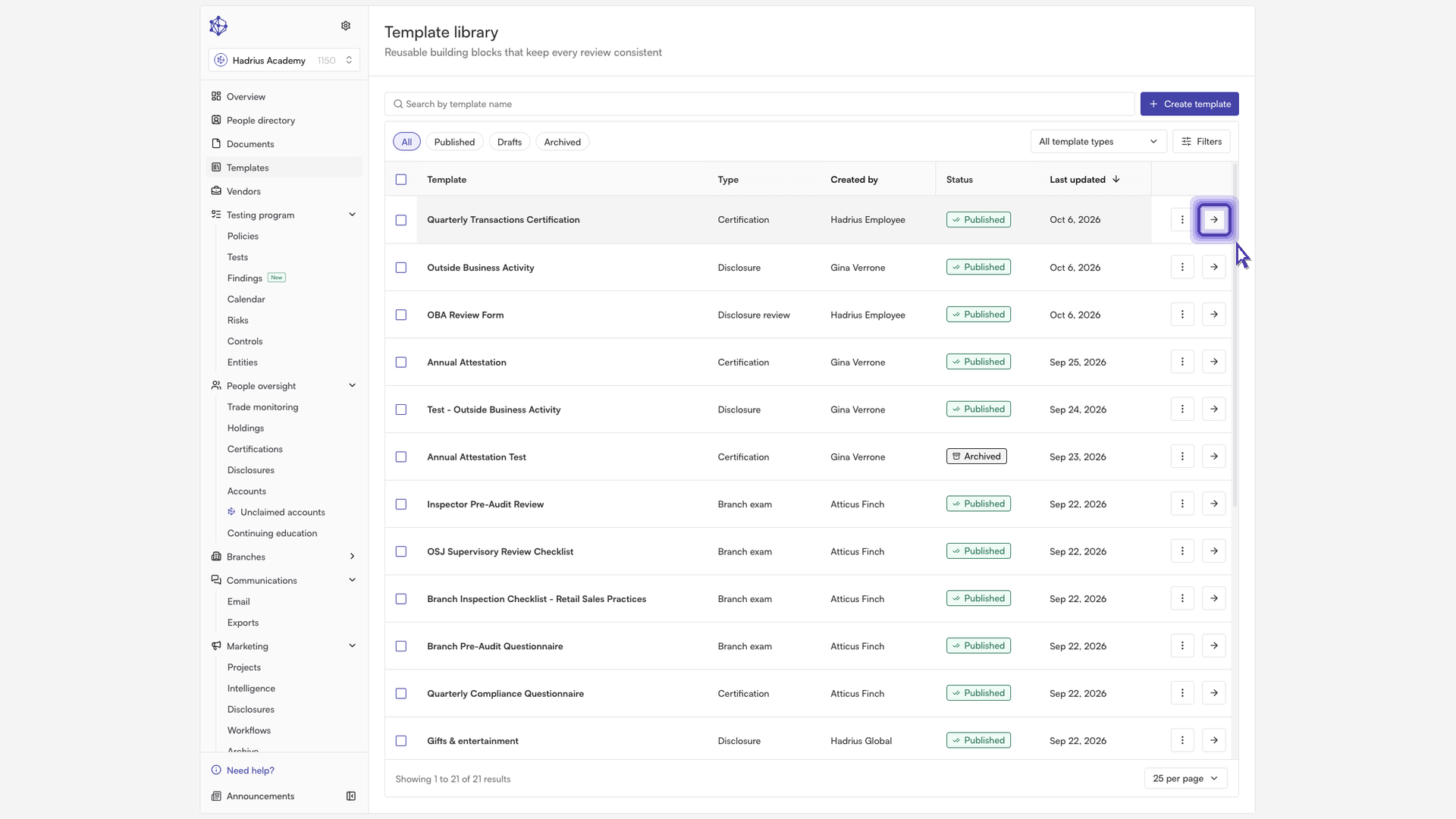
- Switch into edit mode. This lets you change the questions on the template.
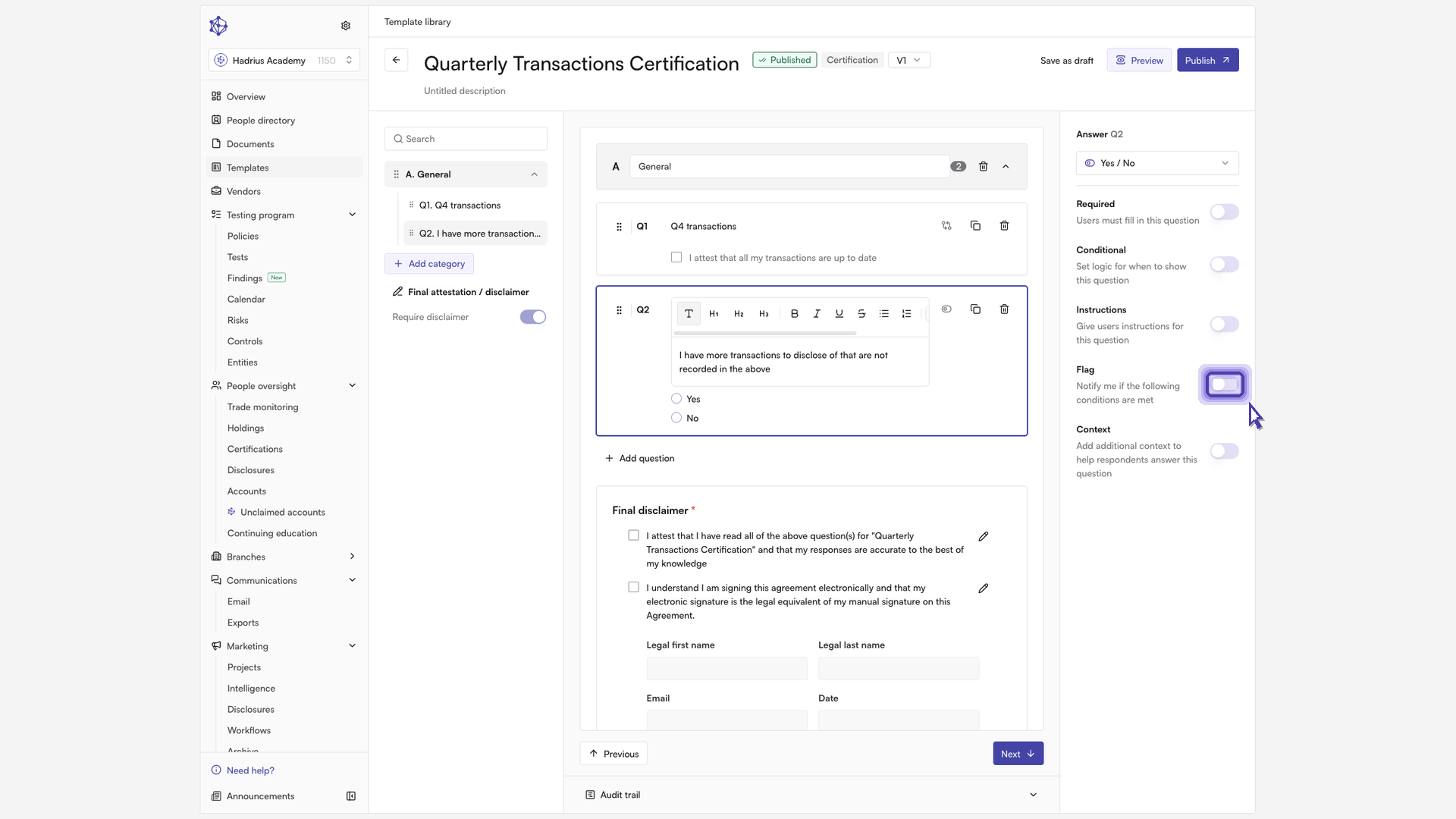
- Select the question you want to flag and choose its response option. Flagging works from the answer a respondent gives, so the question needs response options to match against.
- Turn on the "Flag" toggle. This tells the platform to notify you when an answer meets your conditions. Then use the options shown below the toggle to choose which answer should trigger a flag. For a yes/no question, for example, you can choose to flag every "No" answer.
- Publish the template.
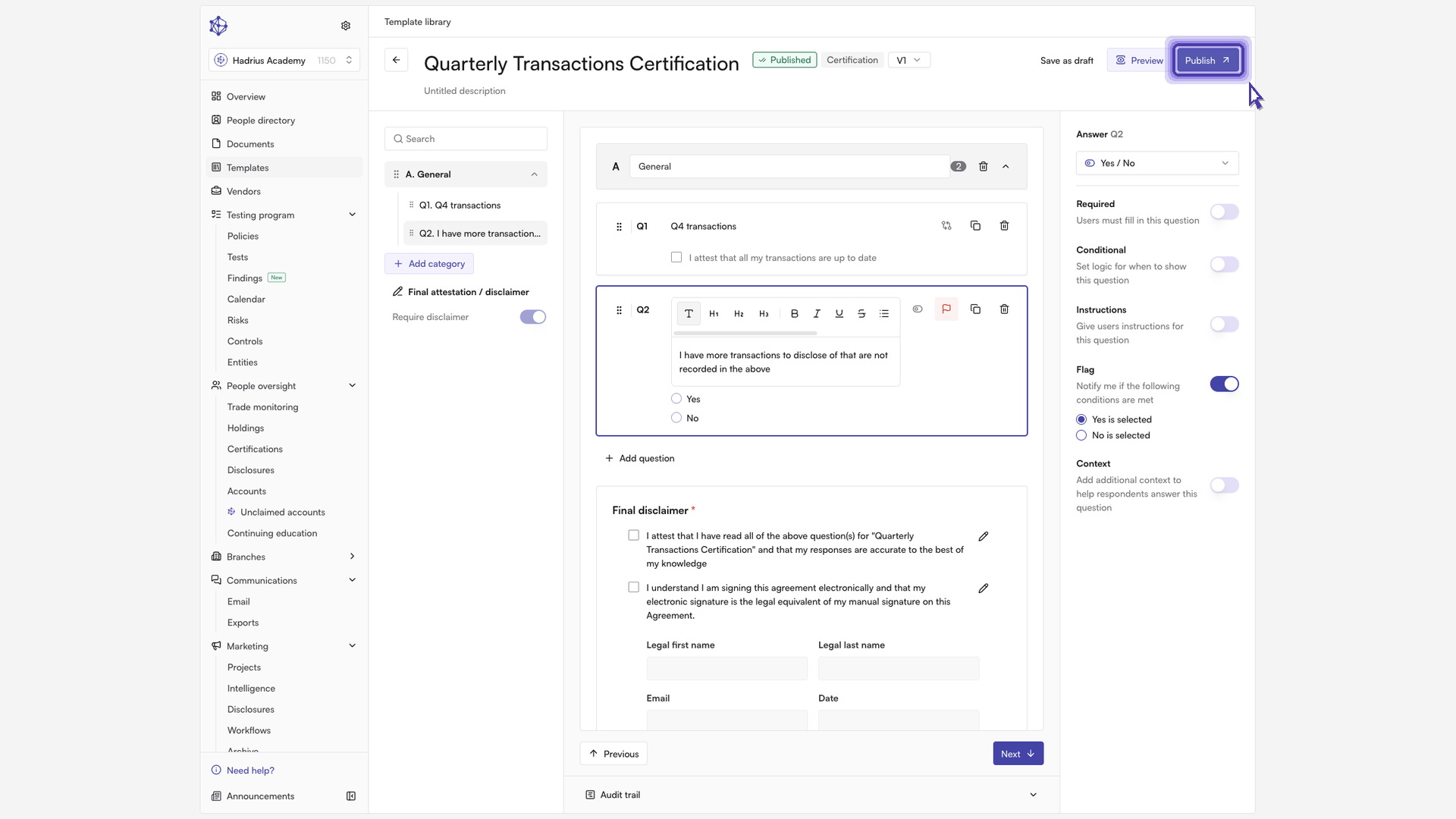
Publishing makes the updated template available for future certifications. Certifications that were already sent out from an earlier version are not changed by this edit.
See flagged answers in a certification
Once employees respond to a certification built from the updated template, you can review the flagged answers.
- Open the certification you want to check, such as a quarterly certification.
- Go to the submissions that are pending review. This is where flagged answers surface.
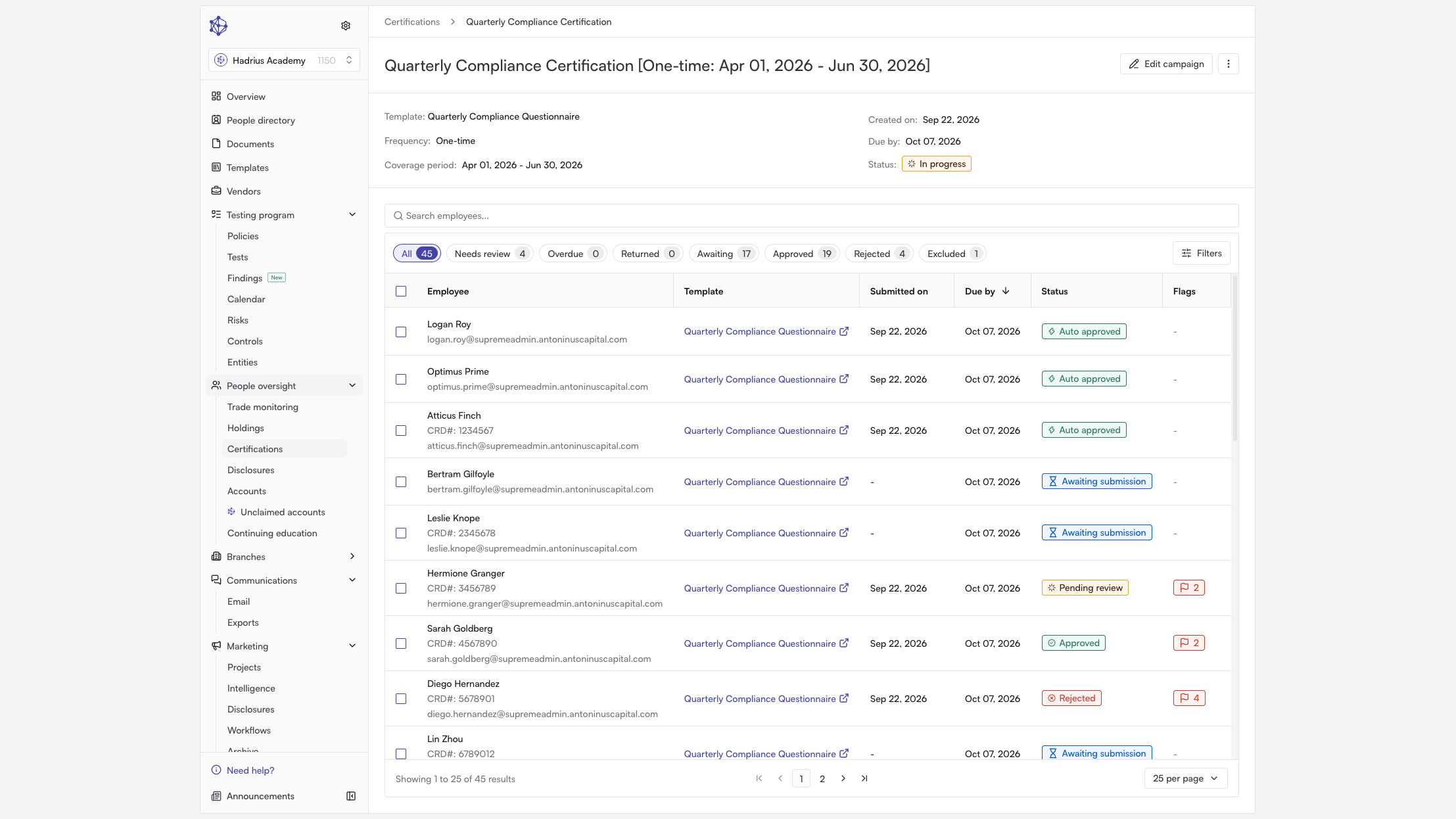
- Look for responses marked as flagged. In the example, the platform flagged a response because the employee answered "No" to the flagged question.
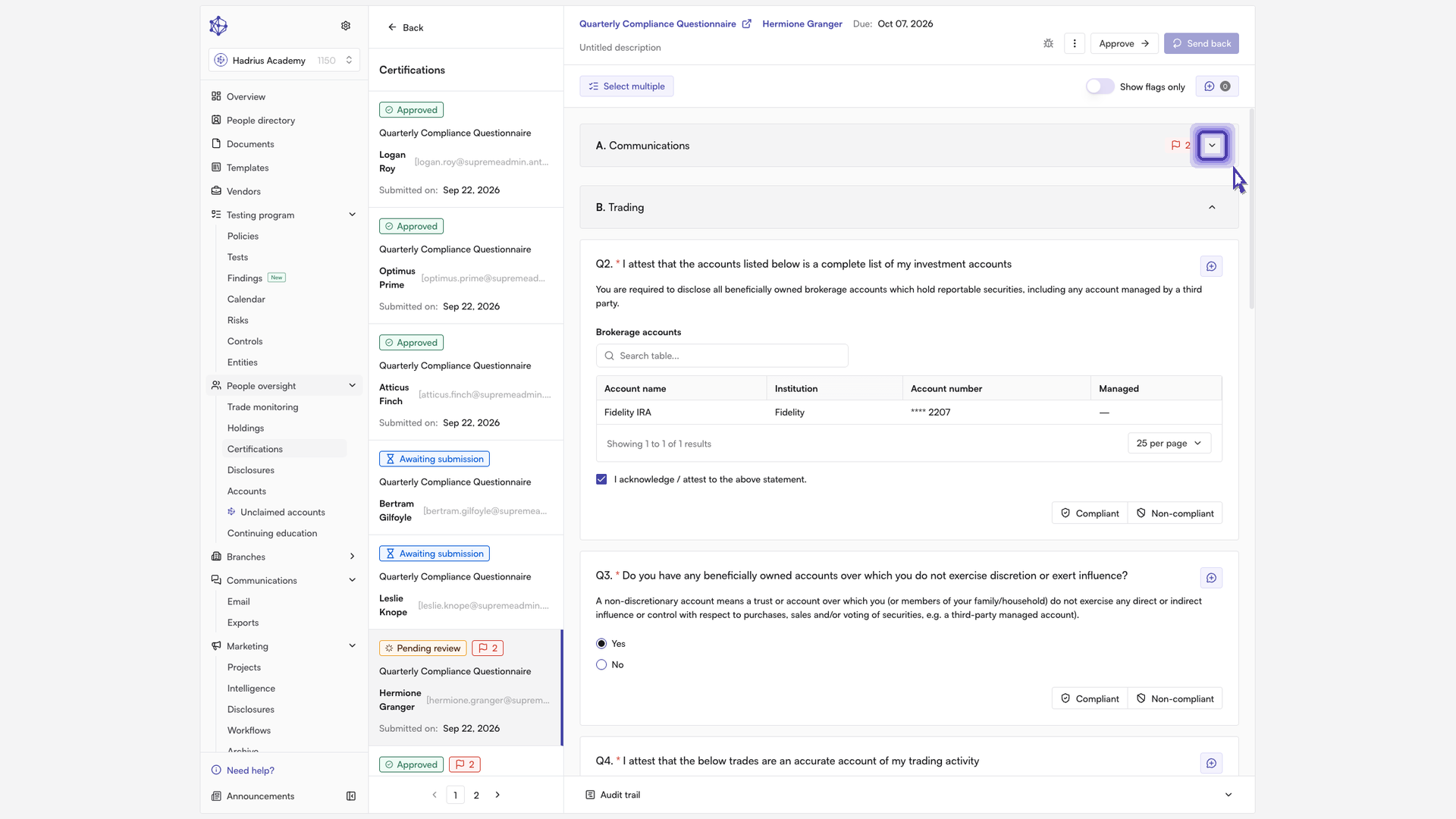
Each flagged answer shows the reason it was flagged, so reviewers can see which issue needs attention and follow up on the right responses instead of reading every submission in full.
Good to know
- Flags are based on the conditions you set on the template, so review the trigger answer before you publish.
- Some question types, such as attachment uploads, are flagged automatically and can't be switched off.
- To change or remove a flag later, edit the template again and publish the new version. The change applies to future certifications.