The Difference Between Uploading a New Version or a New Document
Last updated: October 17, 2026
In Marketing Review, a document you've already submitted can change over time. When the content is a revision of the same piece, you upload a new version of the existing document. When the material is a different piece, you add a new document to the project. This article walks through both. It first adds a new document to a project, then uploads a revised version of it and sends it for review.
New version or new document?
Upload a new document when the material is a separate piece, such as another flyer or a different kind of asset. It gets its own entry in the project, its own settings, and its own AI review.
Upload a new version when you are editing a piece that's already in the project. The revision sits on top of the earlier one, and the earlier versions remain in the history, so you keep a full record of what changed.
Adding a new document to a project
From the Projects list, open the project that needs the new marketing material. The project page shows everything already in play for that effort.
Choose to add a new document and upload the file from your computer.
Select the document type, such as a flyer or handout, so the right review applies.
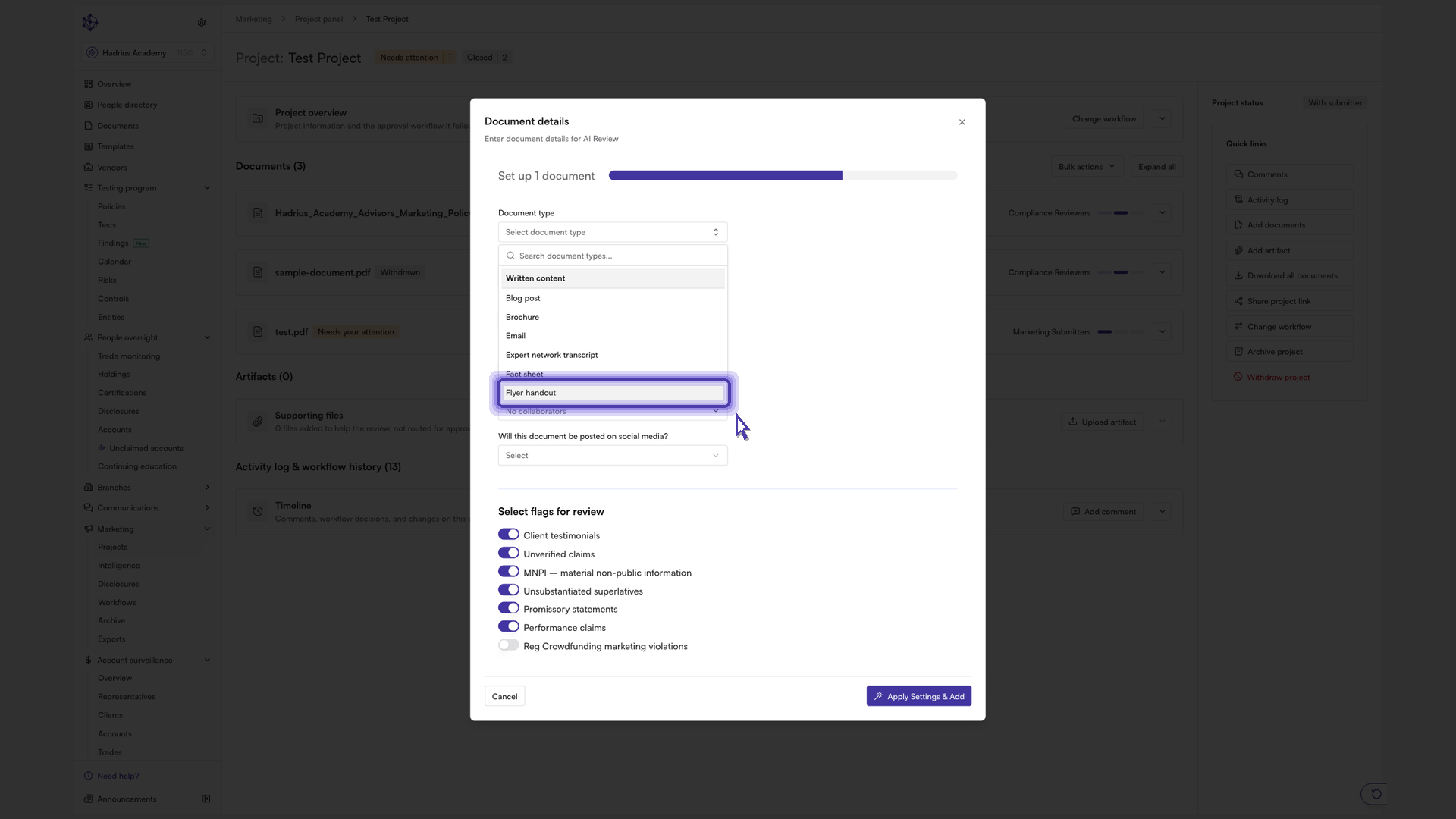
Set the due date, so reviewers know when feedback is needed.
Enter the date of use, which is when the material will actually go out.
If someone else owns the submission, you can submit on their behalf. Otherwise, leave it as yourself.
Optionally add collaborators so teammates can follow along.
Confirm the settings to add the document. The platform's AI begins reviewing it right away.
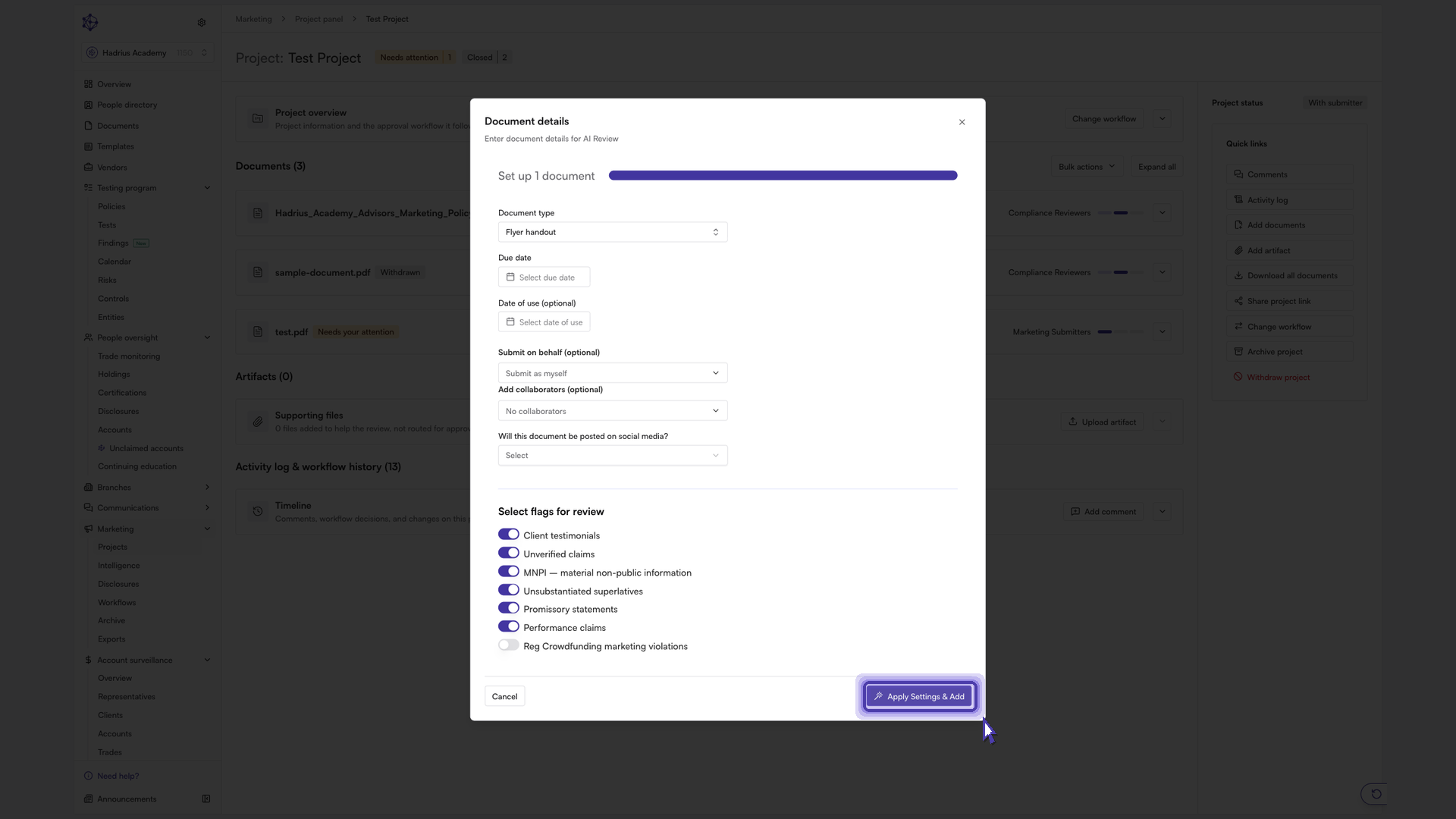
When the AI review finishes, the document shows as ready. Expand its entry to see more detail and the actions available for it.
Uploading a new version of an existing document
Expand the document's entry, open the actions menu, and choose to open the document. You'll see the document in full, along with its first version.
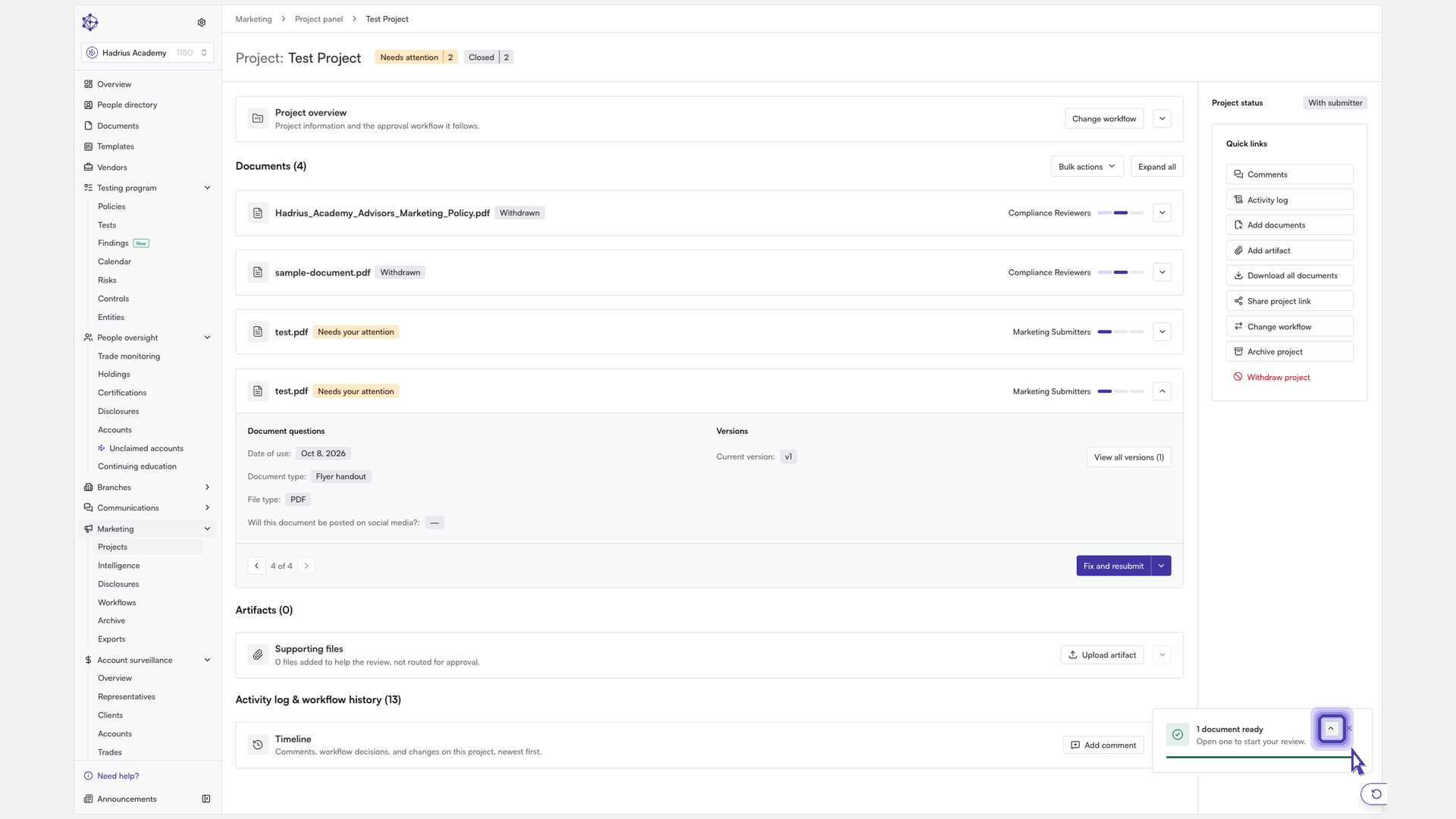
Choose Upload a new version and select the revised file.
Add a short note describing what changed, so reviewers understand the revision.
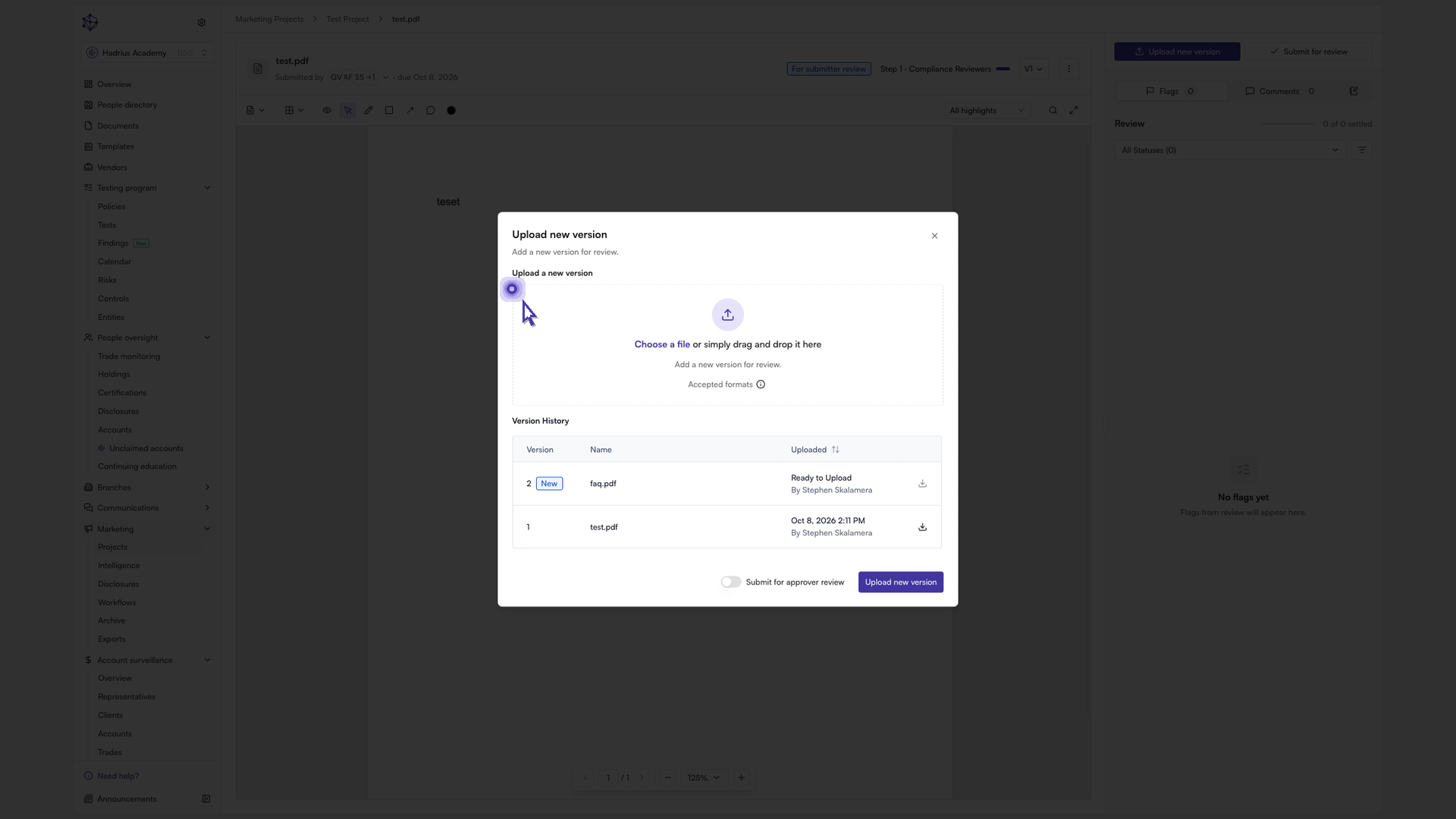
Turn on approver review if you want this version sent straight to the approver once it's uploaded.
Check the version list. The new version appears on top of the earlier one, and the history stays intact.
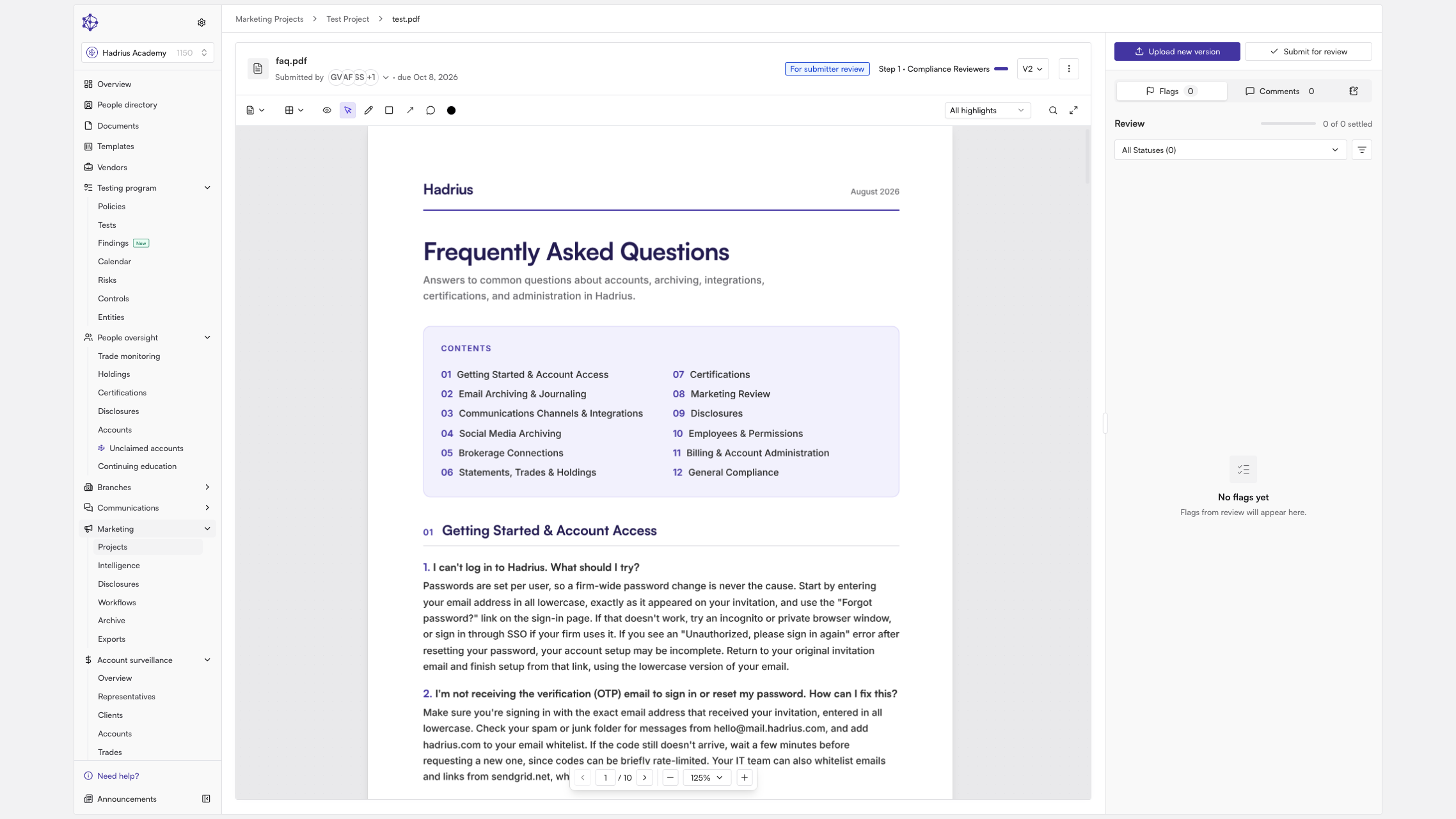
Sending the document for review
Once the revision looks right, submit it. Depending on your role on the project, the review action reads "Submit for review" or "Send to approver review". Submitting puts the document in front of reviewers and starts the approval process.
Good to know: If an approver has rejected a document or requested changes, uploading a new version is how you reopen the review. Use the version note to explain what you fixed.