Marking Trades as Compliant vs. Non-Compliant
Last updated: October 2, 2026
Every employee trade that Hadrius imports lands in Trade monitoring, and any trade that matches one of your flagging rules arrives with a status of Flagged. This article walks through how compliance reviews a flagged trade and records a determination — closing it as compliant or non-compliant, documenting the rationale, and confirming the decision was written to the audit trail. Use it whenever you are working down the flagged queue, whether that's a daily routine or a periodic sweep ahead of an exam.
Before you begin
Setting a review status requires trade approval permissions. If the status dropdown and the checkbox column don't appear for you, ask an administrator to review your trade monitoring permissions.
Reviewing and closing a flagged trade
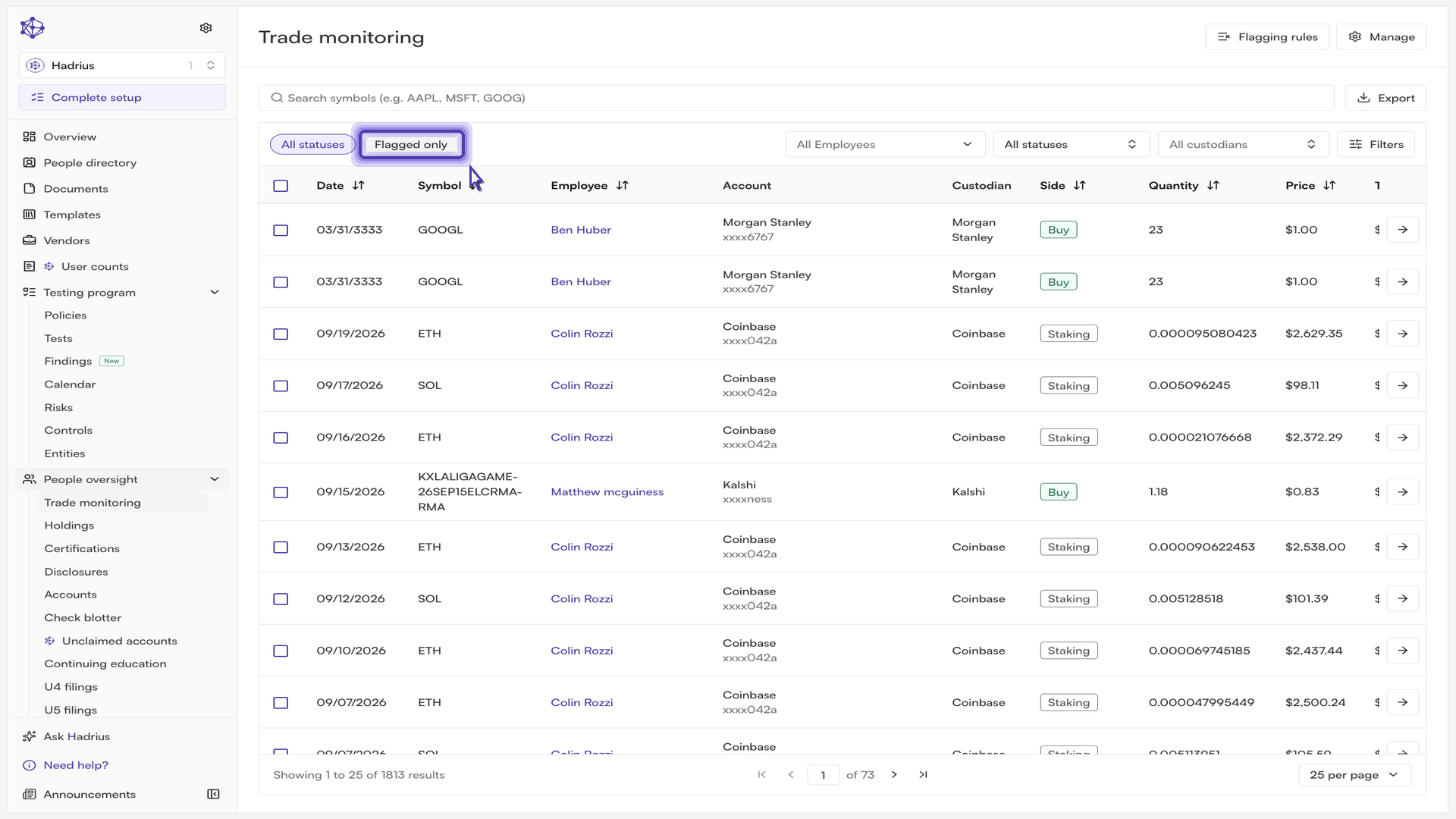
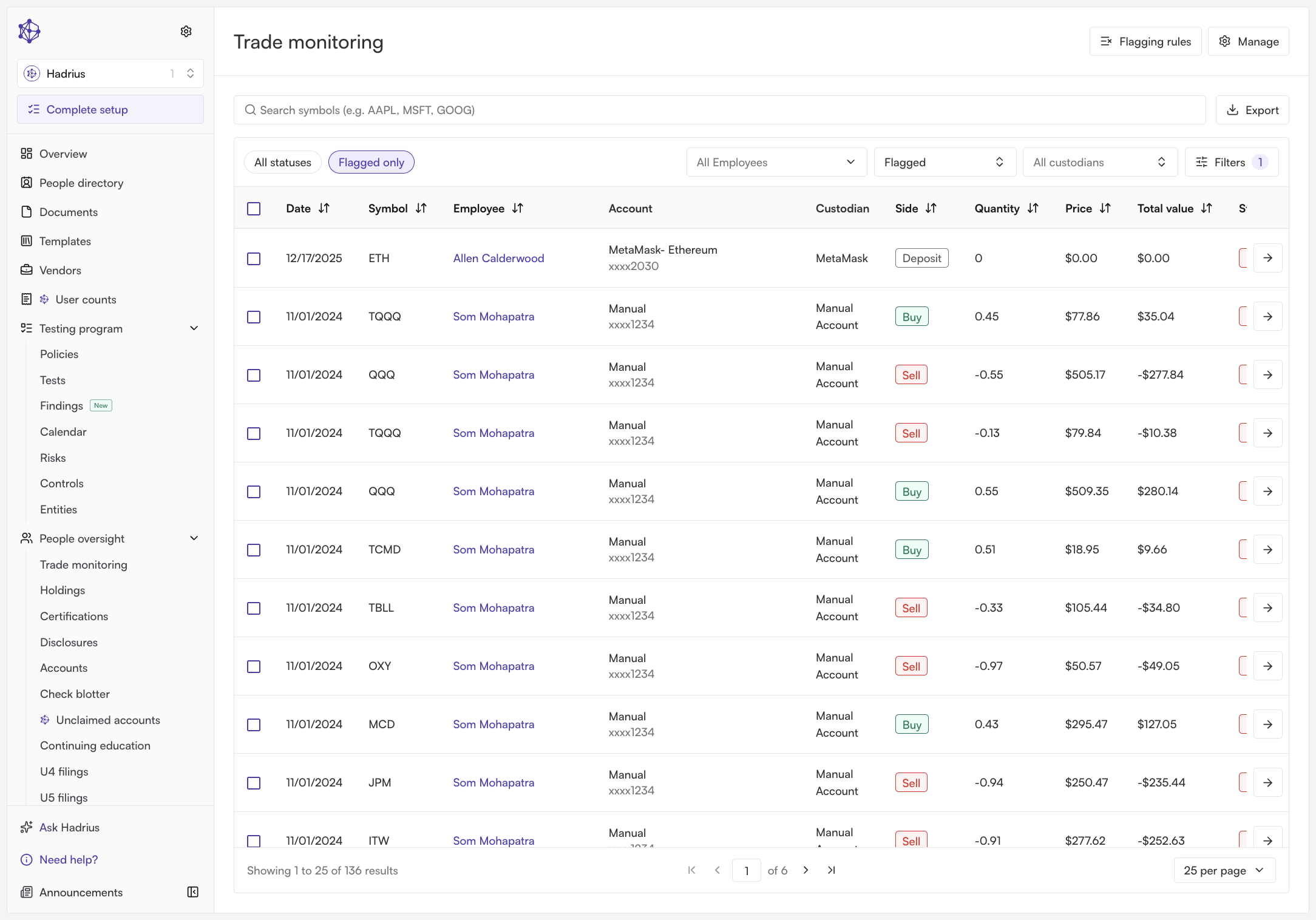
Open Trade monitoring and narrow to flagged trades. Trade monitoring opens with every trade in view. Select the "Flagged only" prefilter above the table — or choose "Flagged" from the status dropdown — to reduce the table to the trades still awaiting a decision. You can layer on the employee, custodian, date, total value, and symbol filters to work the queue in whatever order suits your process.
Open a trade to see the full picture. Click a row's view action to open the trade detail page. The top of the page lays out the trade itself — date, side, quantity, price, cost basis, security name and ticker — alongside the employee and the account and custodian the trade came from. This is the context behind the flag and the basis for your determination.
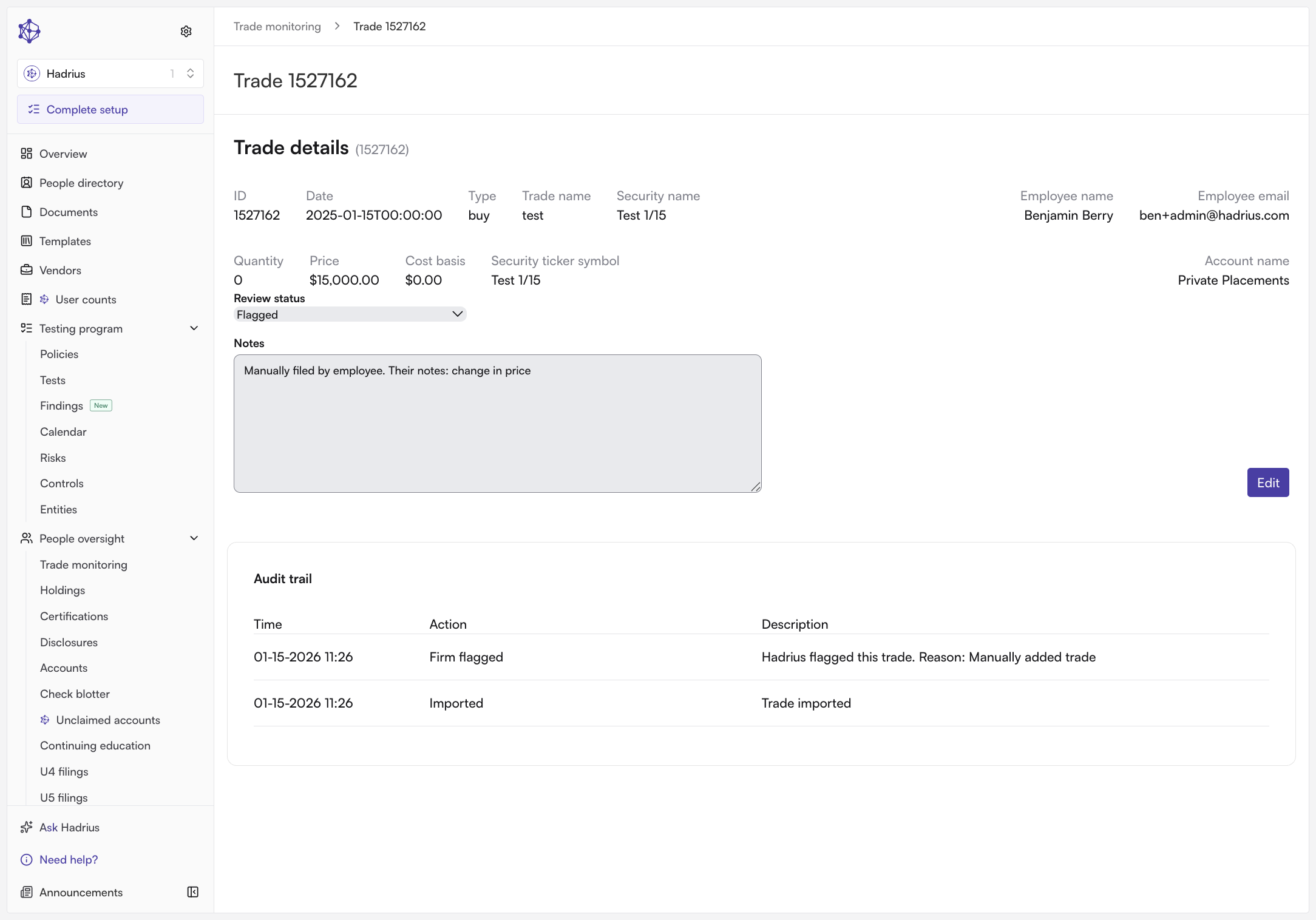
Enable editing and set the review status. The review fields are read-only until you click "Edit". Once editing is enabled, the Review status dropdown offers four values:
Closed: compliant — the trade was reviewed and raises no issue. The flag is closed.
Closed: Non-compliant — the trade was reviewed and does violate policy. The flag is also closed; the status preserves the finding for your records and for follow-up with the employee.
Flagged — leaves the trade open and in the review queue. Use this if you're not ready to decide.
Not flagged — the trade requires no review at all.
Both closed statuses remove the trade from the flagged queue; only the outcome recorded differs.
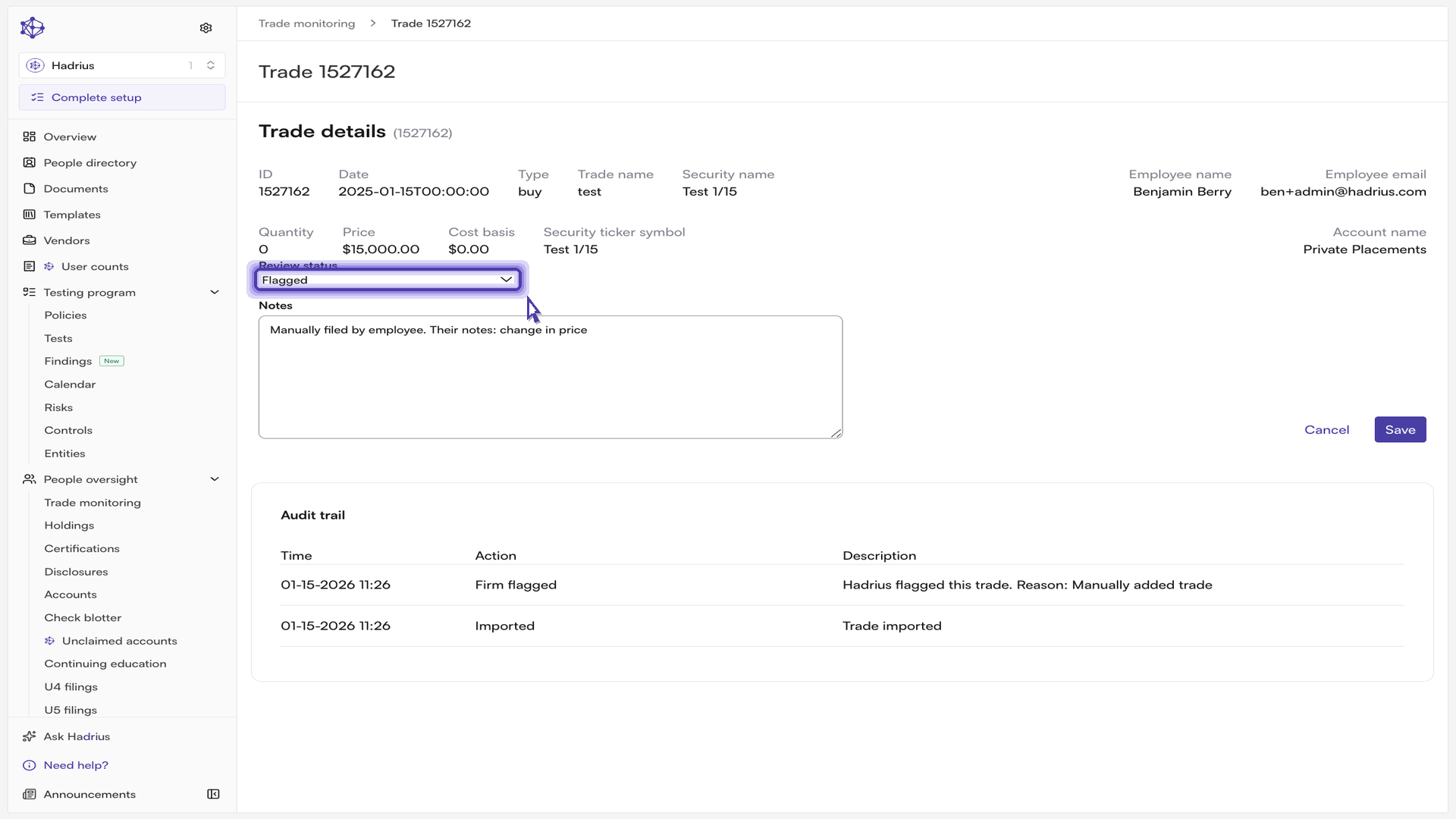
Document your rationale in Notes. The Notes field sits directly beneath the review status. This is where the reasoning behind the determination lives — what you checked, what the employee told you, why the trade was or wasn't a violation. A status on its own shows that someone looked; the note is what demonstrates the quality of the review if a regulator asks.
Save. Click "Save" to commit the status and notes together. (If you change your mind before saving, "Cancel" restores the previously saved values.) Once saved, the trade's status updates immediately and it drops out of the flagged view.
Confirm the entry in the audit trail. The Audit trail panel at the bottom of the trade detail page records every change to the trade with a timestamp, the action taken, and a description. Your determination appears there as soon as it saves — no separate step is needed to preserve it.
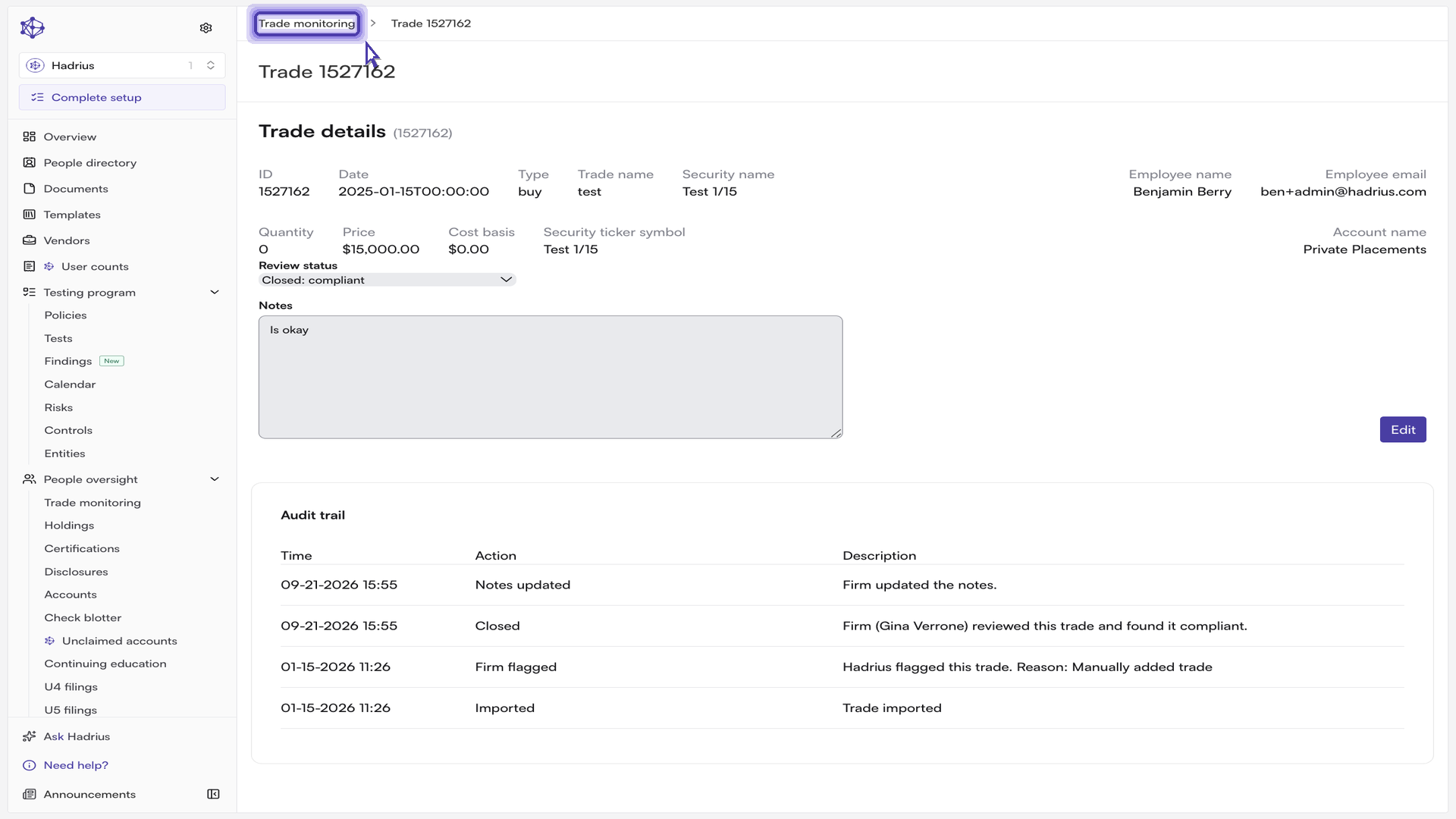
Return to Trade monitoring to verify. Back on the main view with the flagged filter still applied, the trade you just closed is gone from the queue and its status badge now reflects your determination. The count is one lower, with a documented decision behind it.
Closing several trades at once
When a batch of flagged trades share the same obvious disposition, you can close them together. Select the trades using the checkboxes in the table, then choose a status from the bulk dropdown that appears above the table and click "Update Status". A confirmation dialog states how many trades will be set and to which status before anything is applied.
Two things to keep in mind. First, a bulk update applies only to the trades you have explicitly checked — not to everything matching your current filters — and the selection clears when you change pages or filters, so select and update within a single view. Second, bulk update sets the review status alone; it does not write notes. For any trade whose determination needs an explanation, open it individually and record the rationale there.
What happens next
Closed trades remain fully searchable in Trade monitoring — filter by "Compliant" or "Non-compliant" to pull up past determinations, and use Export to produce a CSV of any filtered set for reporting or an exam request. Trades closed as non-compliant are often the starting point for follow-up with the employee; the notes you recorded travel with the trade and remain available to whoever picks that work up.