How to configure comment templates for document review
Last updated: October 17, 2026
Comment templates let marketing review admins set up reusable messages that reviewers can quickly apply to a document during review, instead of retyping the same approval, rejection, or revision language each time. Use this workflow whenever you want to standardize common review feedback or speed up how quickly reviewers can respond to submissions.
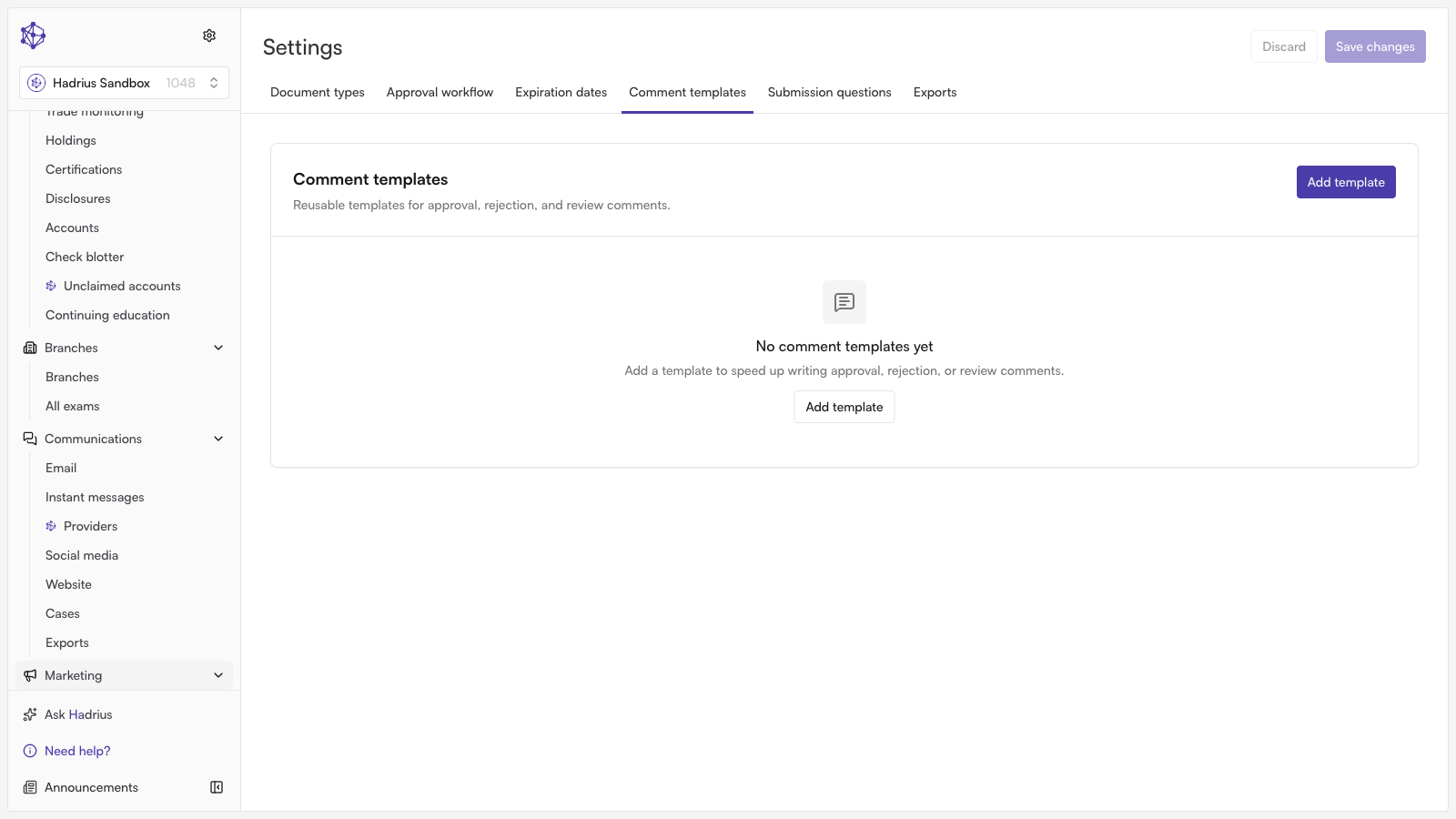
Where to find it
Comment templates are managed from Marketing Review Settings, under the Comment templates tab. This tab lists every template currently configured, showing its title and a preview of its body text.
Adding a template
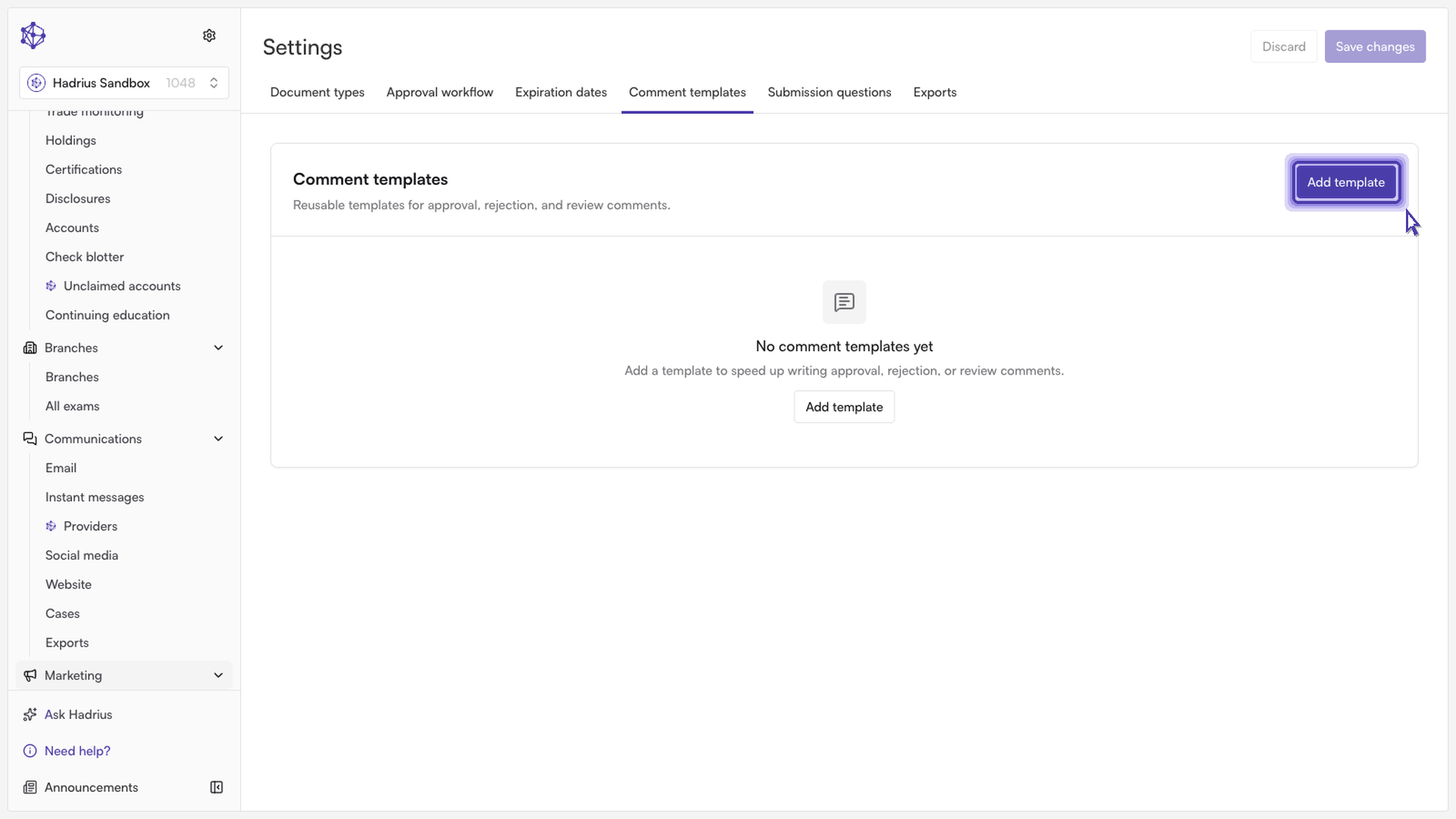
From the Comment templates tab, click Add template (this button also appears in the empty state if no templates have been created yet).
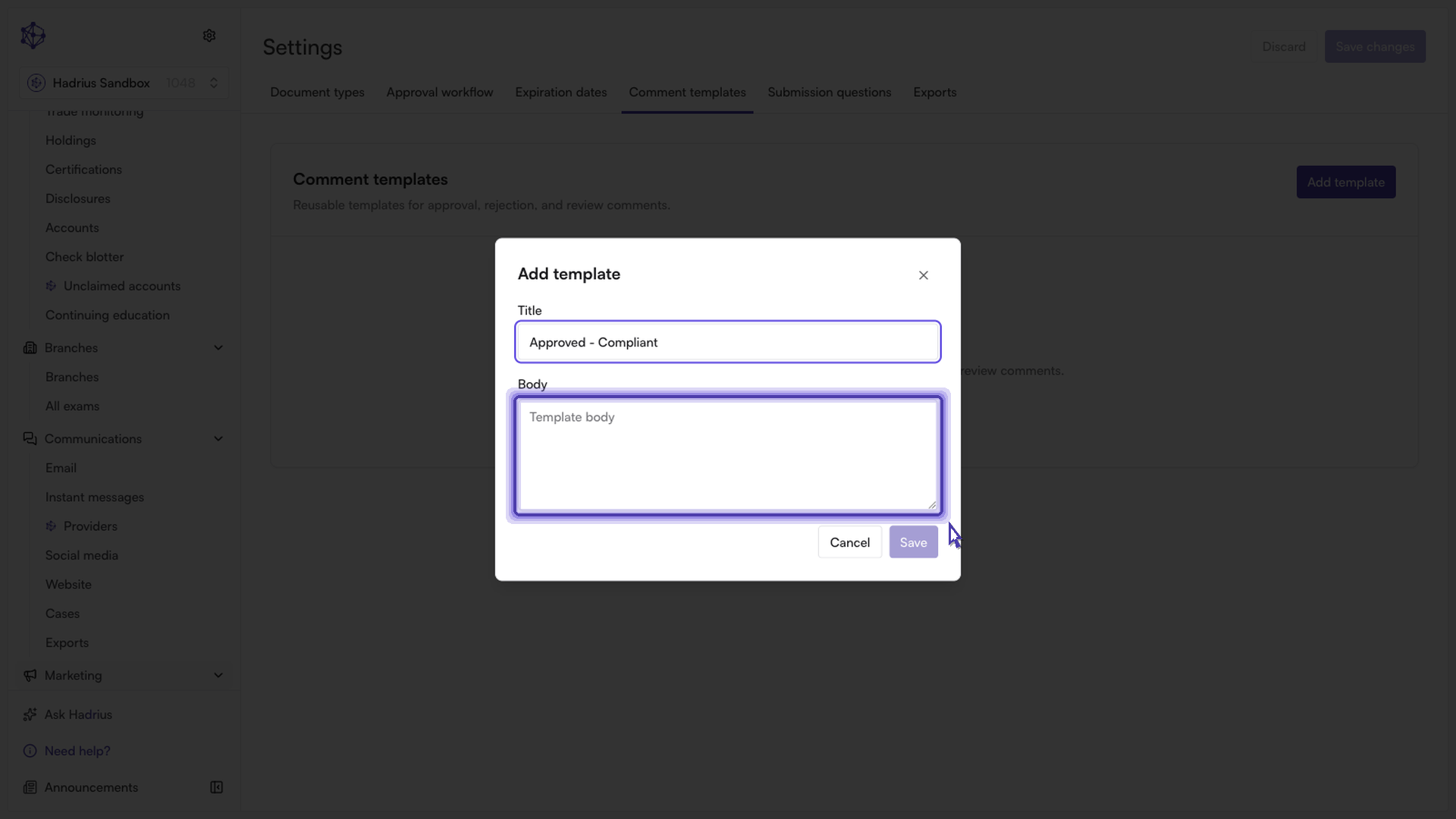
In the dialog that opens, enter a Title — a short, recognizable name that will help you find this template in the list later.
Enter the Body — the actual message that will be applied to a document during review.
Click Save in the dialog. Both the title and body are required; the Save button stays disabled until you've entered text in each field.
The new template appears immediately in the table on the Comment templates tab, with the title, body preview, and edit/delete actions on each row.
Editing or removing a template
To update an existing template, click the pencil icon on its row to reopen the same dialog pre-filled with its current title and body, make your changes, and click Save. To remove a template you no longer need, click the trash icon on its row — this deletes it right away.
Making it permanent
Adding, editing, or deleting a template updates it in the list on screen, but these changes aren't saved to your account until you click Save changes in the Settings page header. If you'd rather back out of any unsaved additions, edits, or deletions, click Discard instead to revert the tab back to its last saved state.
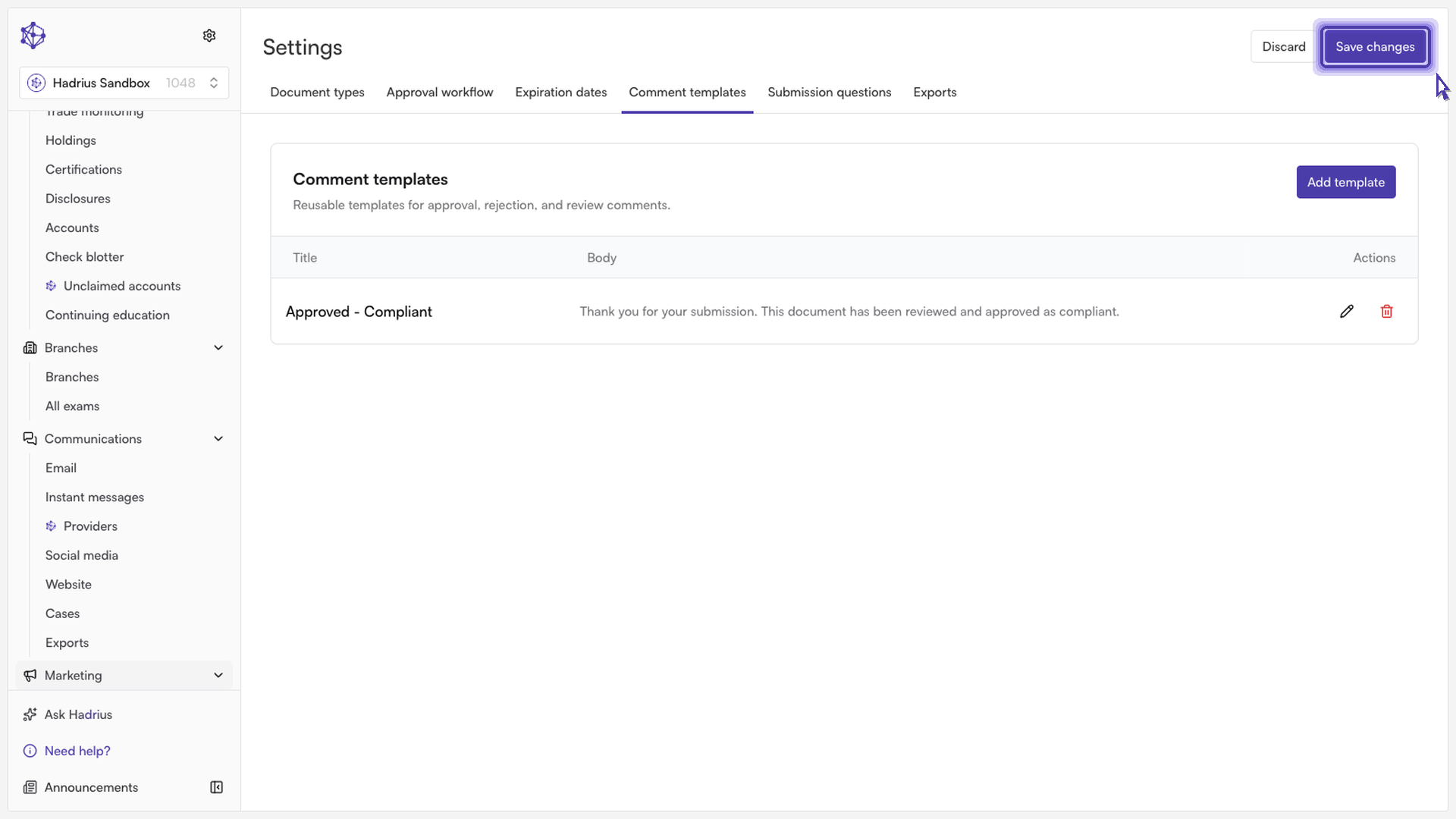
Once you click Save changes, the templates become part of your firm's shared set and are available to reviewers the next time they need to apply that response to a submission.