How to Connect Brokerage Accounts
Last updated: October 2, 2026
Your firm needs every outside brokerage account on record so that your holdings and trades can be monitored for personal trading compliance. This article walks through adding an account from the employee side — including the guided flow, which works out whether an account is even reportable — and connecting it automatically to your brokerage so it stays current on its own.
Before you start
You will need your sign-in credentials for the brokerage where the account is held. If you are not sure whether an account has to be reported at all, start with the guided flow described below rather than guessing.
Step 1: Open Personal trading
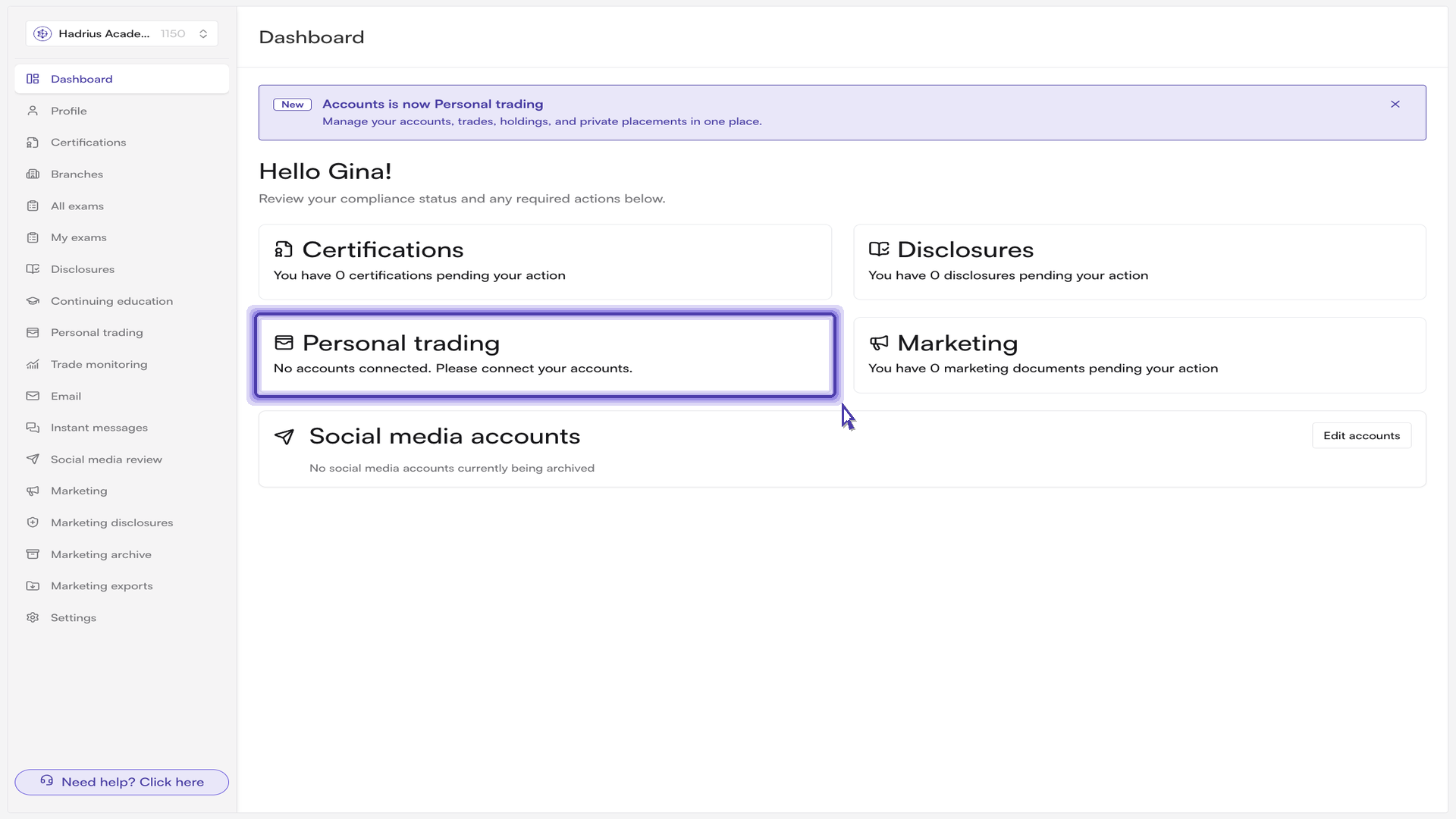
From your employee dashboard, the Personal trading card shows the current state of your accounts. If you have not connected anything yet, it reads "No accounts connected. Please connect your accounts." Click the card to open the Personal trading page, where your accounts live.
Step 2: Choose how the account reports
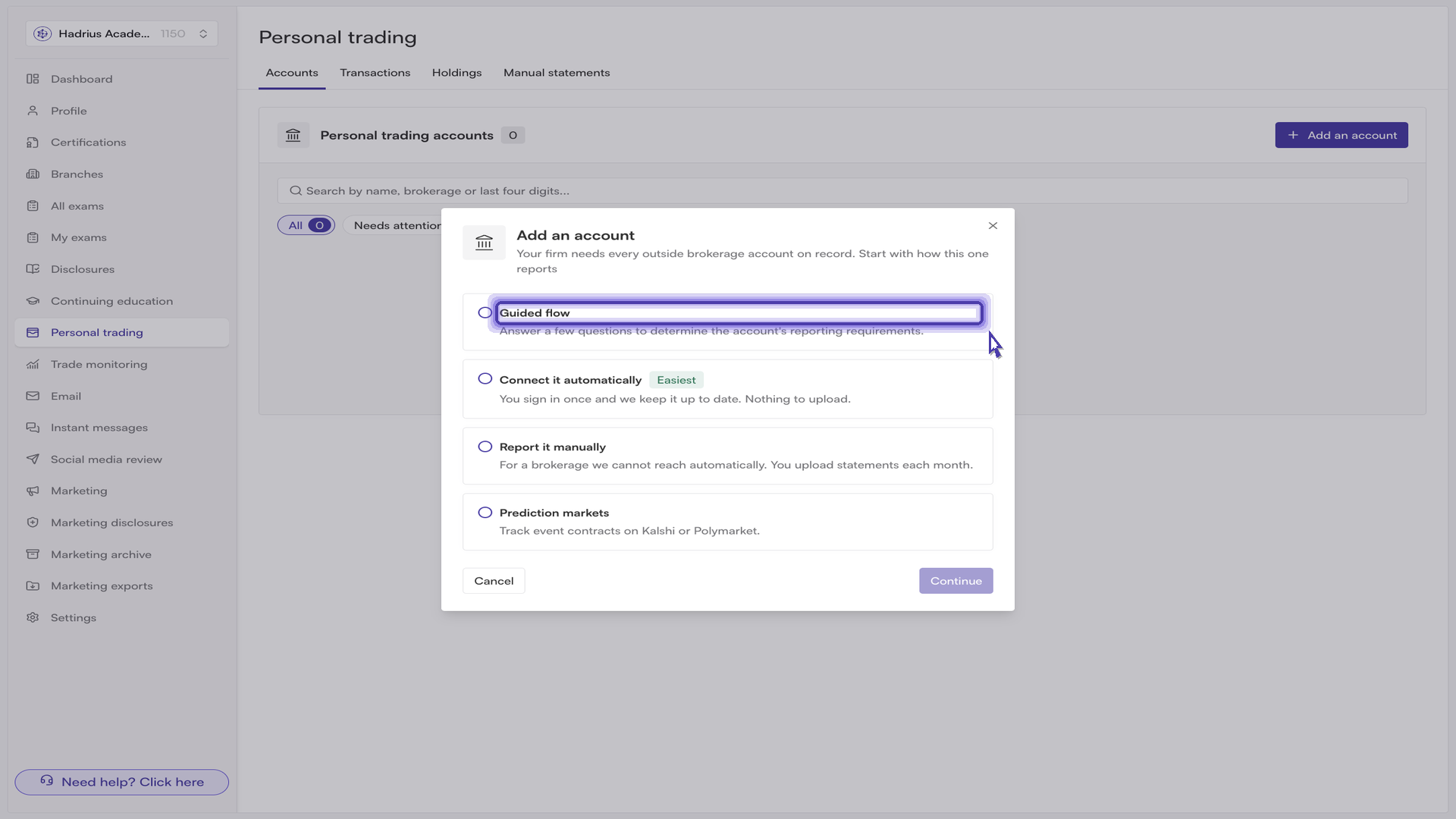
On the Accounts tab, click Add an account. The dialog asks how this account reports and offers four options:
Guided flow — answer a few questions and let Hadrius determine the account's reporting requirements.
Connect it automatically — sign in once and the account stays up to date on its own. This is the recommended route and is marked "Easiest".
Report it manually — for a brokerage we cannot reach automatically. You upload statements each month.
Prediction markets — for event contract accounts held on a supported prediction market platform.
Select an option and click Continue.
Step 3: Work out whether the account is reportable
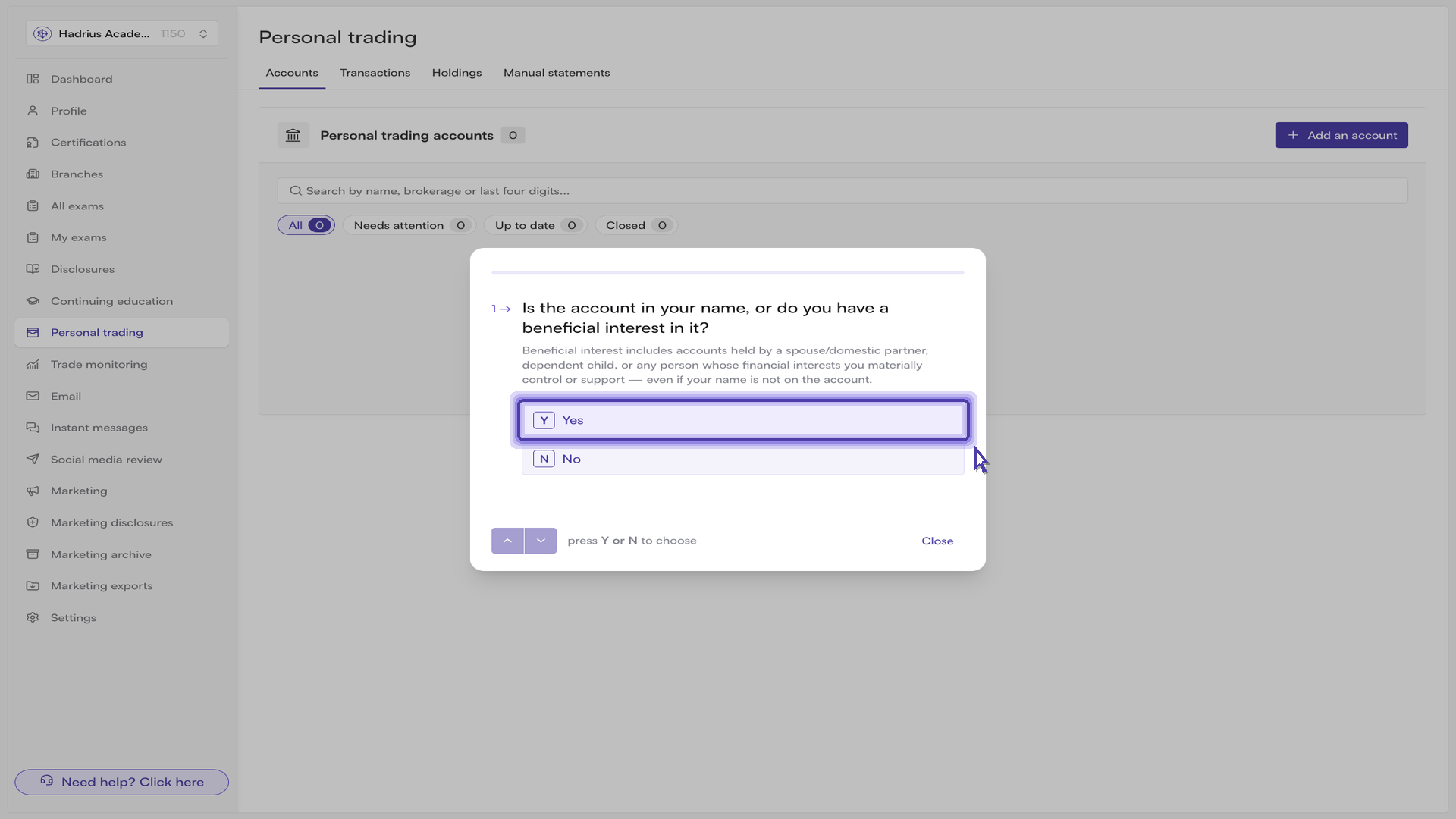
If you are unsure whether the account needs to be reported, choose Guided flow. It asks one question per screen, and each answer advances the flow automatically — you can also answer from the keyboard using the letter shown beside each choice, step back with the up arrow, and follow your progress on the bar at the top.
The questions establish, in order:
Beneficial interest. Is the account in your name, or do you have a beneficial interest in it? Beneficial interest covers accounts held by a spouse or domestic partner, a dependent child, or anyone whose financial interests you materially control or support — even if your name is not on the account. If you have no beneficial interest, the account is exempt and the flow ends here.
Advisor management. Is the account managed by an advisor, and if so, can you direct trades in it? An account an advisor runs on a fully discretionary basis is treated differently from one you can trade in yourself.
Account type. Brokerage or investment, retirement, crypto, HSA, a 529 plan or ESA, or other. The type shapes everything that follows.
What the account can hold. For a standard brokerage account, whether it can hold individual securities, options, or ETFs. If it can, the account is reportable.
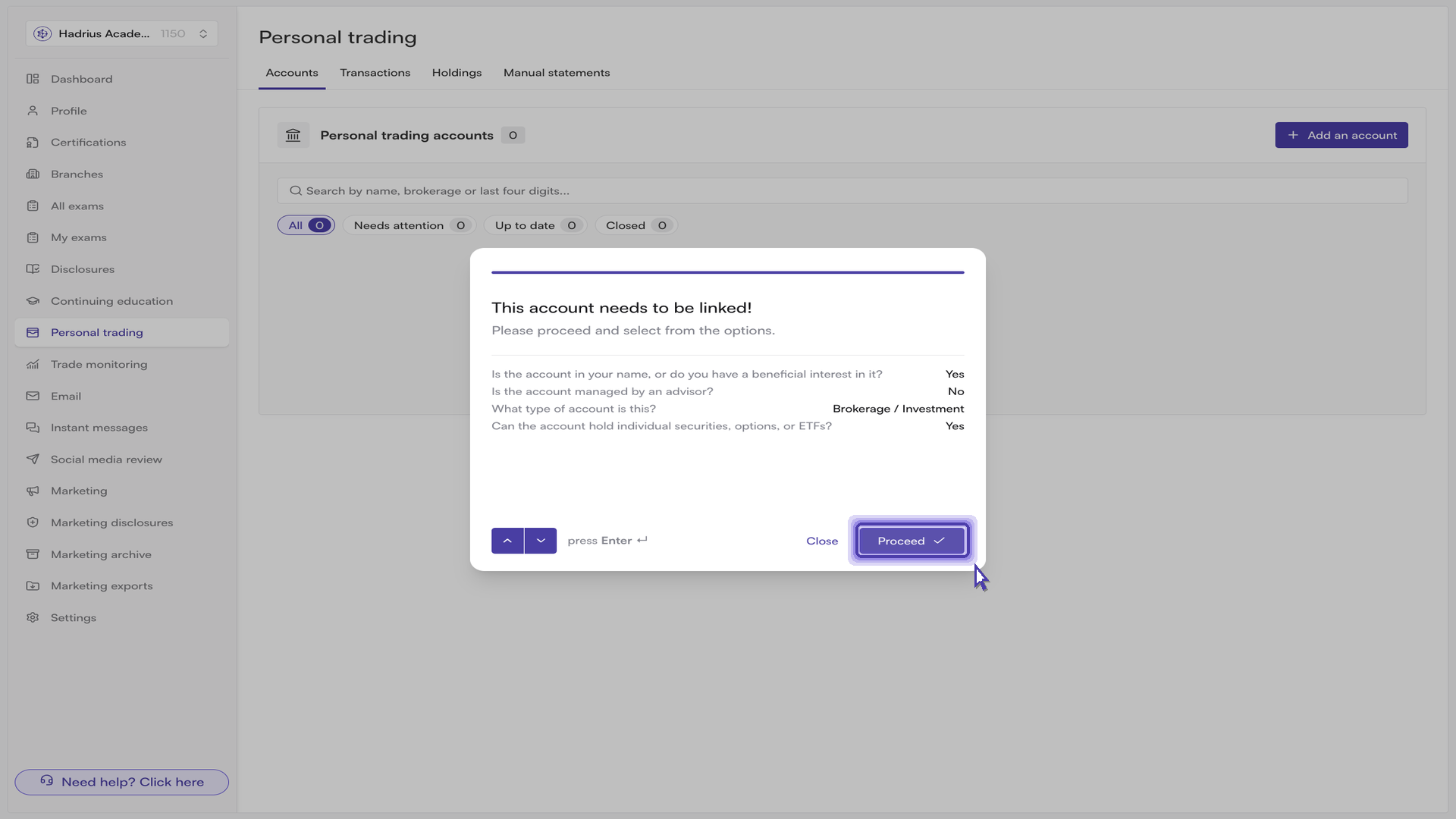
The flow closes with its determination, along with a recap of every answer behind it so you can check the reasoning before confirming. For a reportable account, the determination reads "This account needs to be linked!" — click Proceed and you are handed straight to the linking options.
Step 4: Choose how to link the account
The "Select account reporting method" dialog offers three ways to put a reportable account on record: Connect it automatically, Report a managed account (a third party makes the trades, and your firm confirms that with the broker), or Report it manually. Connecting automatically is the easiest route — you sign in once and holdings and trades stay current, with nothing to upload. Select it and click Continue.
Note: if you are within 30 minutes of market open or close, the dialog warns you before you commit. Many brokers block new connections during those windows. If the connection fails, try again an hour later.
Step 5: Find your brokerage and sign in
From here it is a matter of finding the brokerage where the account is held. The institution picker lists the most commonly used institutions and lets you search for others by name. Select the institution, click Add account, and you will be prompted to sign in with your username and password for that brokerage.
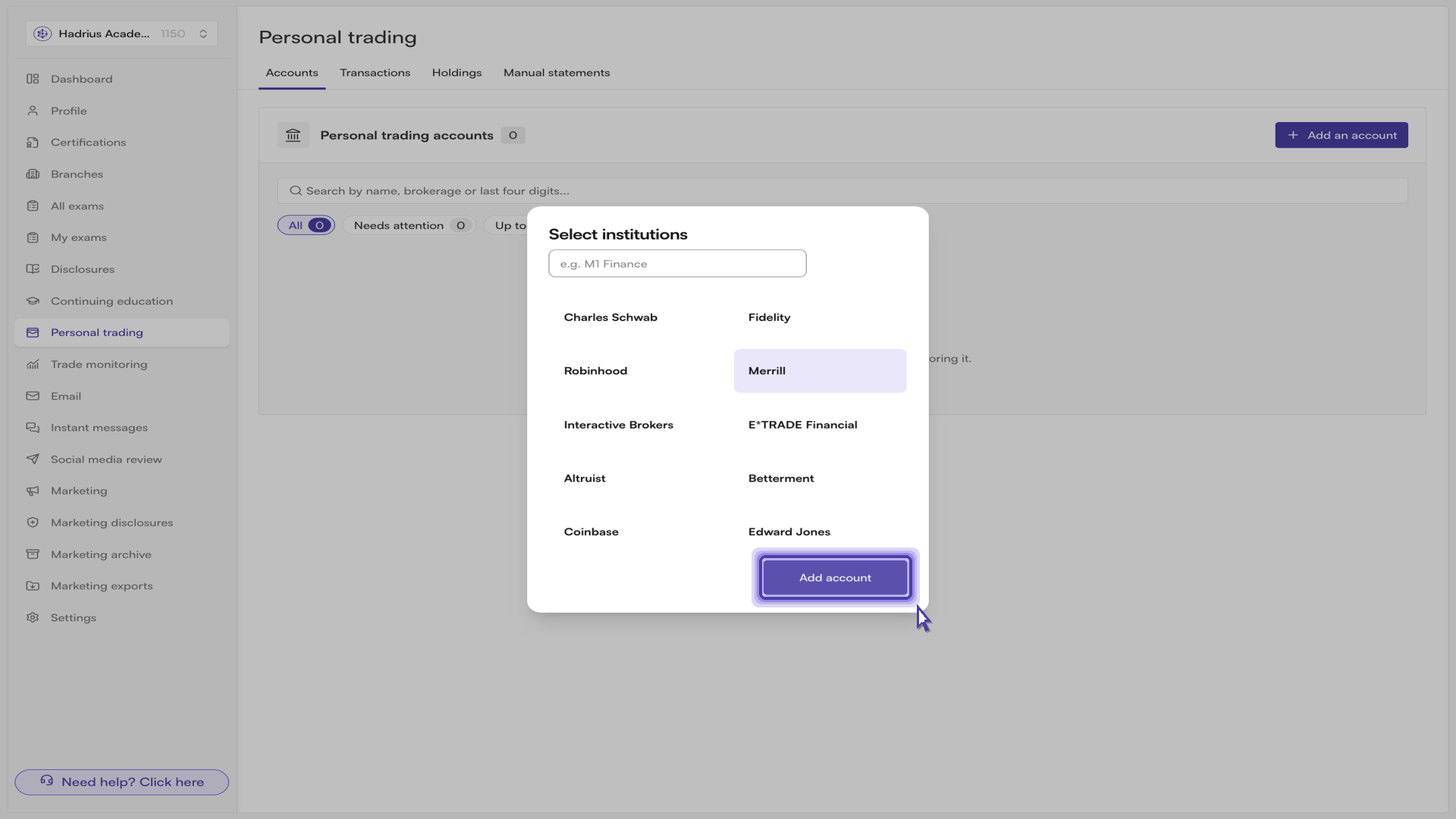
If your institution is not in the list, it is not available for automatic tracking. Go back and choose Report it manually instead, then enter the brokerage, a nickname, the full account number, and the account type.
What happens next
Once you have signed in, the account is on record and your firm's monitoring picks it up from there — holdings and trades sync automatically, with no further action from you. The account appears on the Personal trading page, where you can filter by "Needs attention", "Up to date", or "Closed" to see whether anything still requires your input.