Building a Certification Template
Last updated: October 2, 2026
Certification templates are the reusable questionnaires that go out to employees each attestation cycle. This article walks through building one from scratch in the Template Library: naming it, tying it to the Certification module, adding attestation and yes/no questions, setting up flagging and conditional logic, previewing the employee experience, and publishing. Use this when you need a new annual or periodic attestation that doesn't already exist in your library, or when you want a fresh template rather than a copy of an existing one.
Before you start
You'll need Template Library access with permission to create and publish templates, plus access to the Certification module. Everything below happens in the Template Library, not inside an individual certification campaign.
Step-by-step
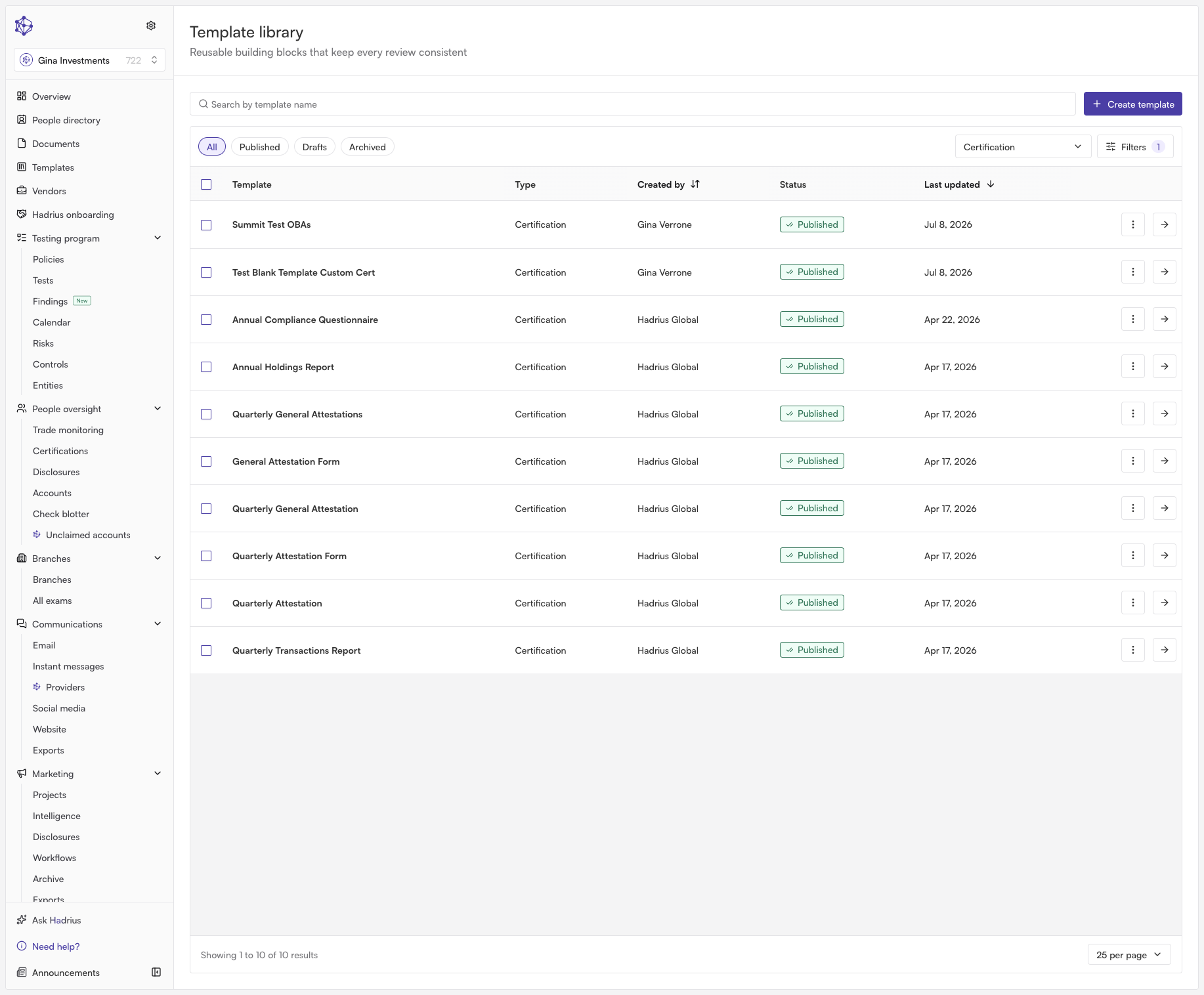
Open the Template Library. Every questionnaire in the platform — certifications included — starts life here. The library lists all of your templates and lets you filter by status: Published, Drafts, or Archived. Published templates are active and available to assign, drafts are still in progress, and archived templates are retired from use (an archived template can't be edited until it's restored).
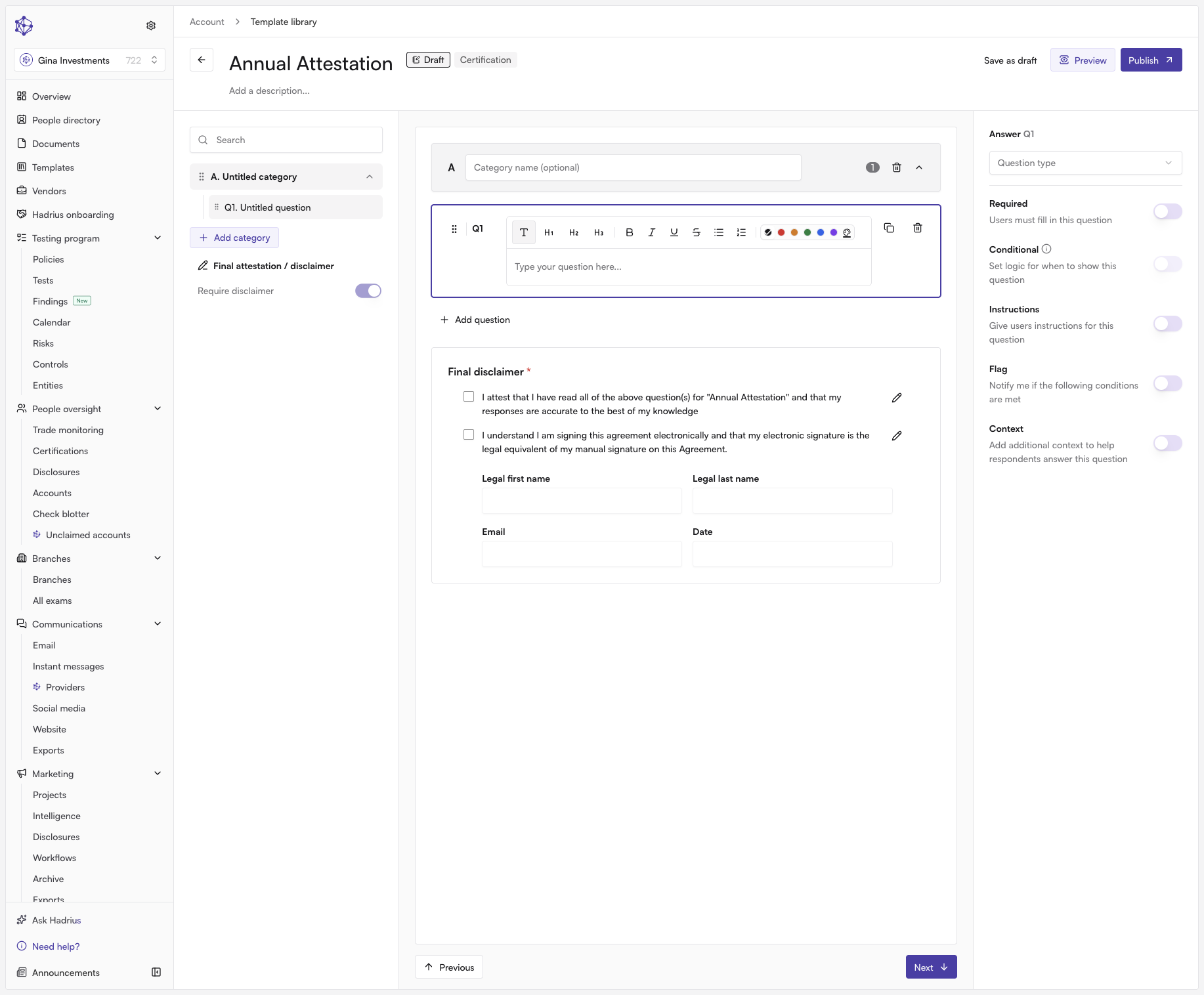
Create the template. Select Create template. On the Start from scratch tab, enter a Template name — pick something employees will recognize when it lands in their task queue — and add an optional description for internal context. Then set the Module to Certification. The module determines where the template is filed and which workflows can use it, so it's required before you can continue.
Get familiar with the builder. The builder is where questions, flagging rules, and conditional logic all come together. Questions are added with Add question and appear in a numbered list (Q1, Q2, and so on); selecting a question opens its settings in the configuration panel alongside, where you set the question type and everything specific to it. Questions can be dragged into a new order using the grip handle, duplicated, or deleted.
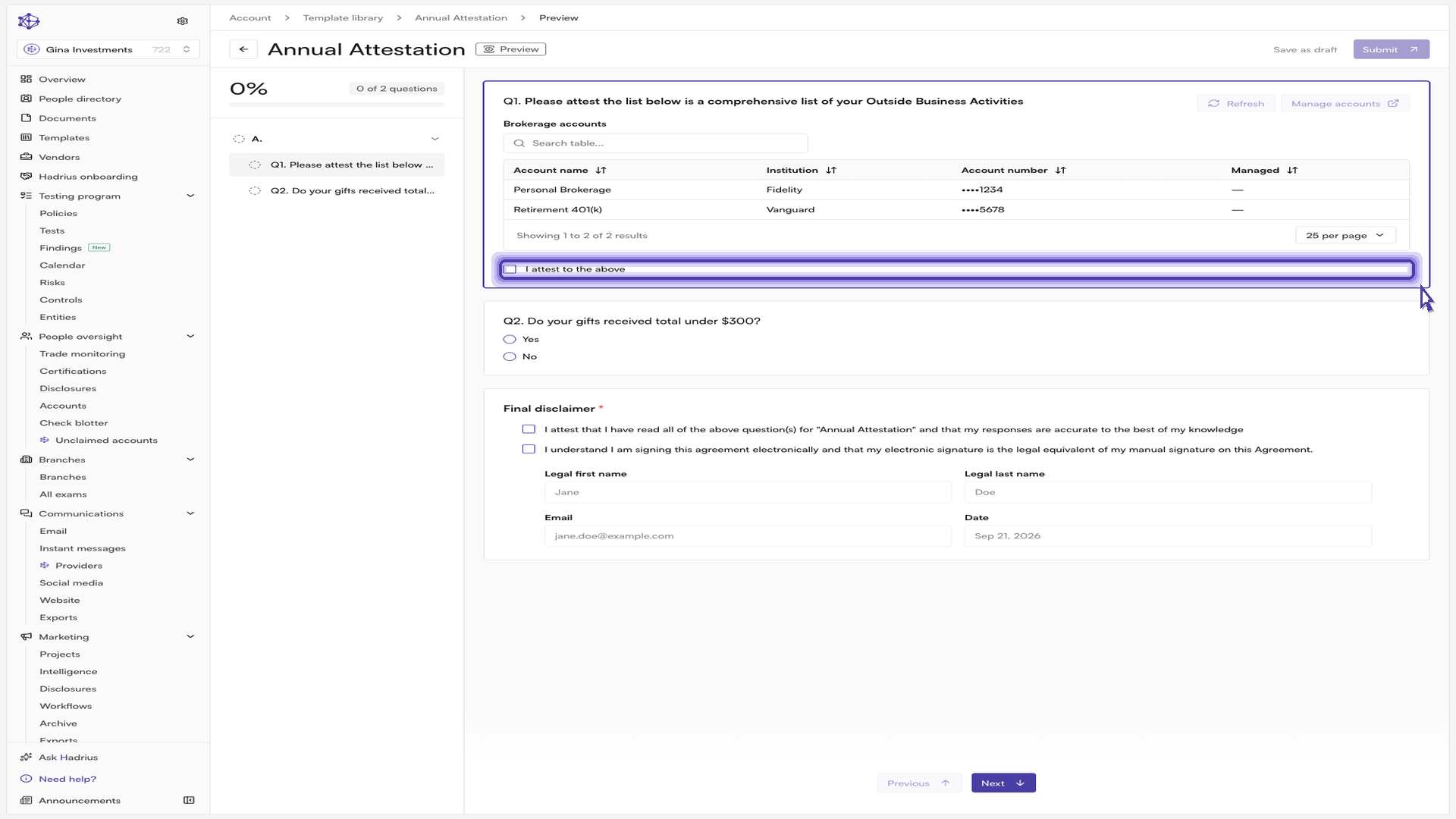
Add an attestation question over records the platform already holds. Attestation questions pull an employee's existing records into the questionnaire rather than asking them to retype anything. Add your first question, set its type to Attestation, and then choose the Attestation type that matches the records you want referenced — for example Investment account to surface the employee's investment accounts inline. In the attestation field, write the statement the employee is confirming, phrased so it's clear they are attesting to the accuracy and completeness of what's shown.
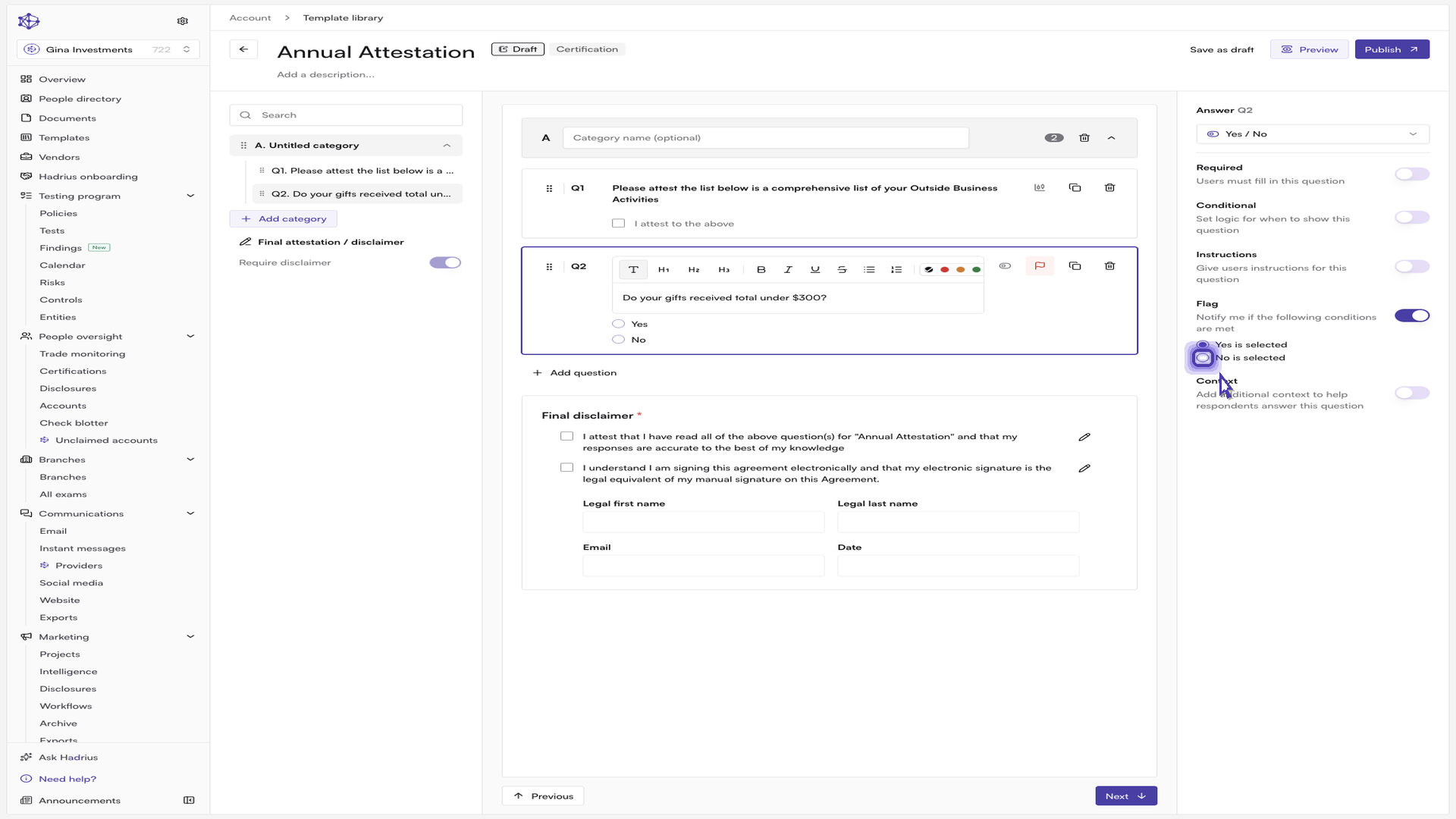
Add a yes/no question. For a straightforward compliance check — such as whether gifts received stayed under the firm's reporting threshold — add a second question and set its type to Yes / No. A binary answer keeps responses clean and easy to review at scale across a full population of employees.
Turn on flagging for the answer you care about. In the question's configuration panel, open Flagging and enable it. Flagging tells the platform to watch responses for you and surface the ones that need attention, under the rule "Notify me if the following conditions are met." For a yes/no question you choose which selection triggers the flag — here, selecting No is selected surfaces any employee whose answer indicates the threshold was exceeded. A flagged question shows a flag indicator on the question card in the builder.
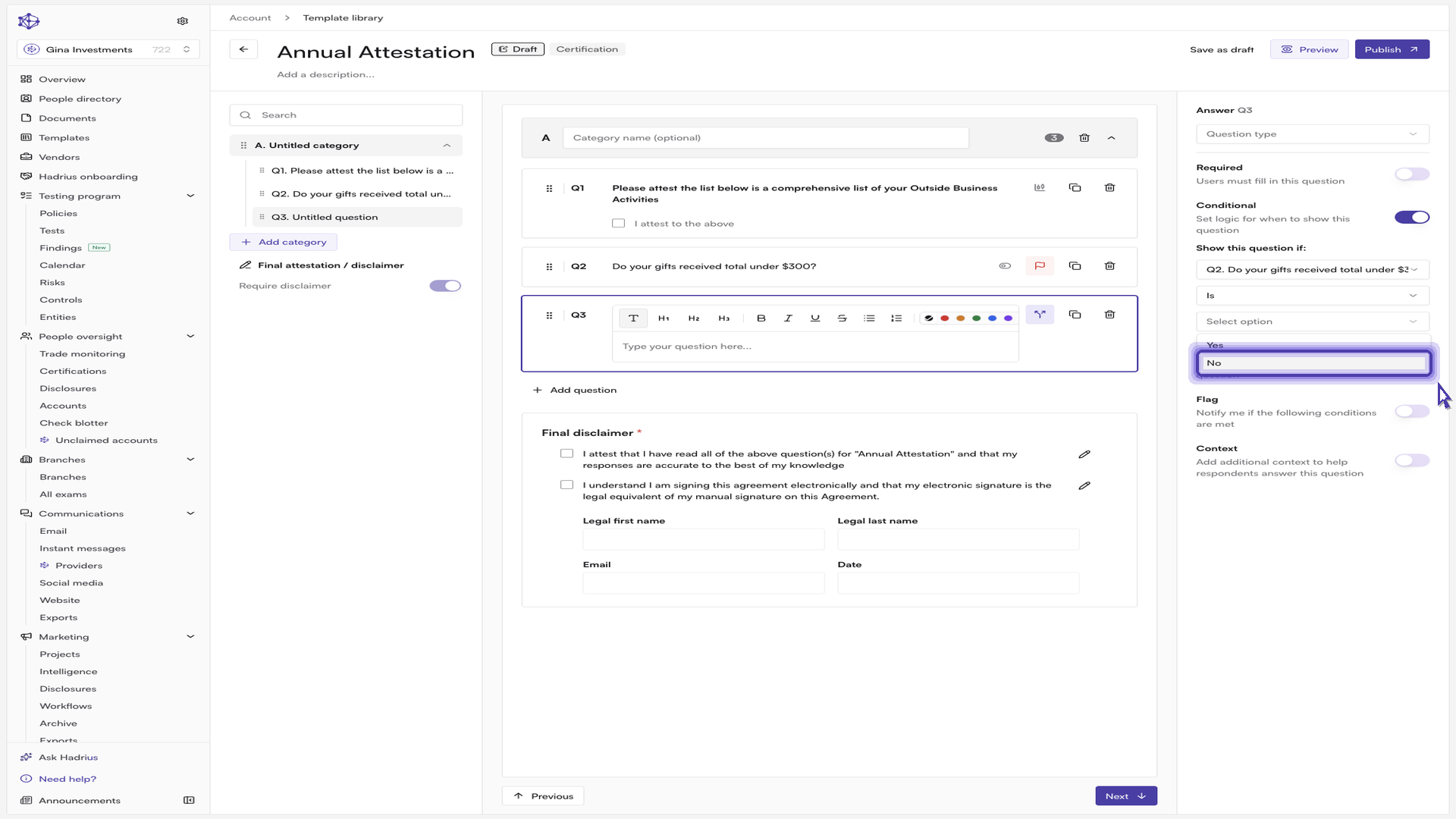
Add a follow-up with conditional logic. Conditional logic keeps the form short by showing a question only when it's relevant. Add the follow-up question, then in its configuration panel use Show this question if: to point at the earlier question you want to branch on — conditional logic always references a preceding question — and set the condition that reveals it. Pointing it at the yes/no question and setting the condition to a "no" answer means the follow-up appears automatically, and only for the employees it applies to. A branching indicator appears on the question card so the logic is visible at a glance.
Choose an answer format that fits the follow-up. For a question inviting employees to explain circumstances in their own words, set the type to Long answer — it gives them room to provide compliance with real context, rather than a one-line response.
Preview the employee experience. Before publishing, select Preview to see the questionnaire exactly as the employee will. The attestation question renders with the employee's own accounts listed and a single confirmation to sign off; where records are referenced, employees can also select Manage accounts to add a missing account in real time rather than abandoning the attestation. Answering "no" to the yes/no question reveals the follow-up field, confirming the conditional logic works as designed. Use the back arrow to return to the builder at any point.
Publish, or save as a draft. When the template is ready, select Publish. Publishing makes the template active and available to assign in a certification campaign. If the template is still a work in progress, select Save as draft instead — it will be stored under the Drafts filter in the library and won't be assignable until published.
What happens next
Once published, the template appears under Published in the Template Library and can be selected when you set up a certification campaign, with its flagging rules and conditional logic carried through to every employee who receives it. Flagged responses surface for compliance review as submissions come in. You can return to the template later to edit it and publish a new version, or archive it when it's no longer in use.