Setting Gift & Entertainment Amount Thresholds
Last updated: October 17, 2026
Hadrius can approve routine, low-value gifts and entertainment automatically, so reviewers only see the disclosures that need a closer look. You control this with an annual dollar limit per employee. This article explains how to turn on auto-approval for gifts and entertainment (G&E) and set that limit. Do this when you first configure G&E disclosures, or whenever your firm's gift policy changes.
Before you begin
You need permission to manage firmwide disclosure settings. These settings apply to every employee at your firm.
Set the annual G&E limit
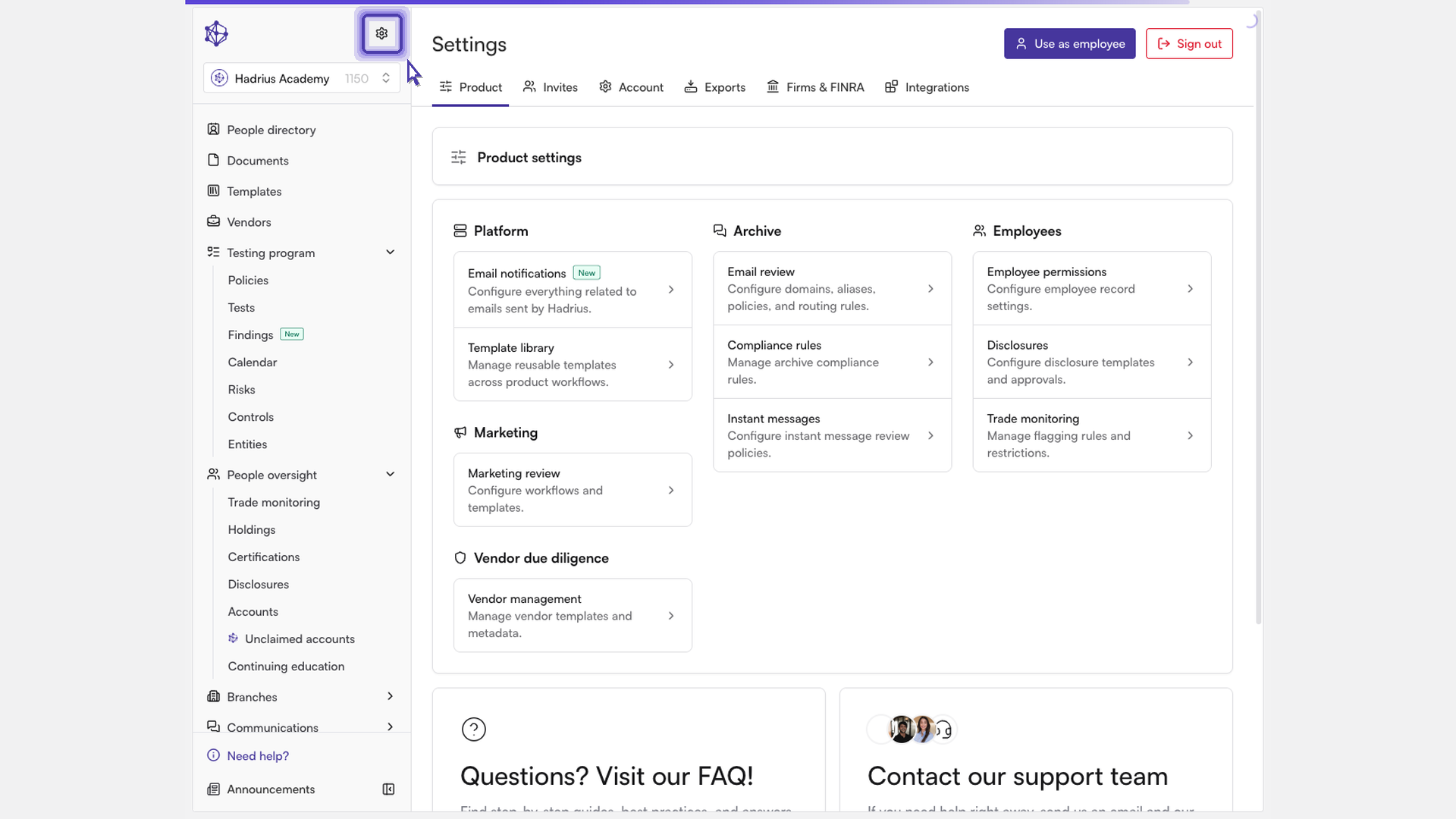
Open Disclosures settings. Go to the Disclosures area of the platform and open its settings. The "Disclosures settings" page holds the firmwide rules for how disclosures are managed, approved, and monitored, including the approval rules for trades and for gifts and entertainment.
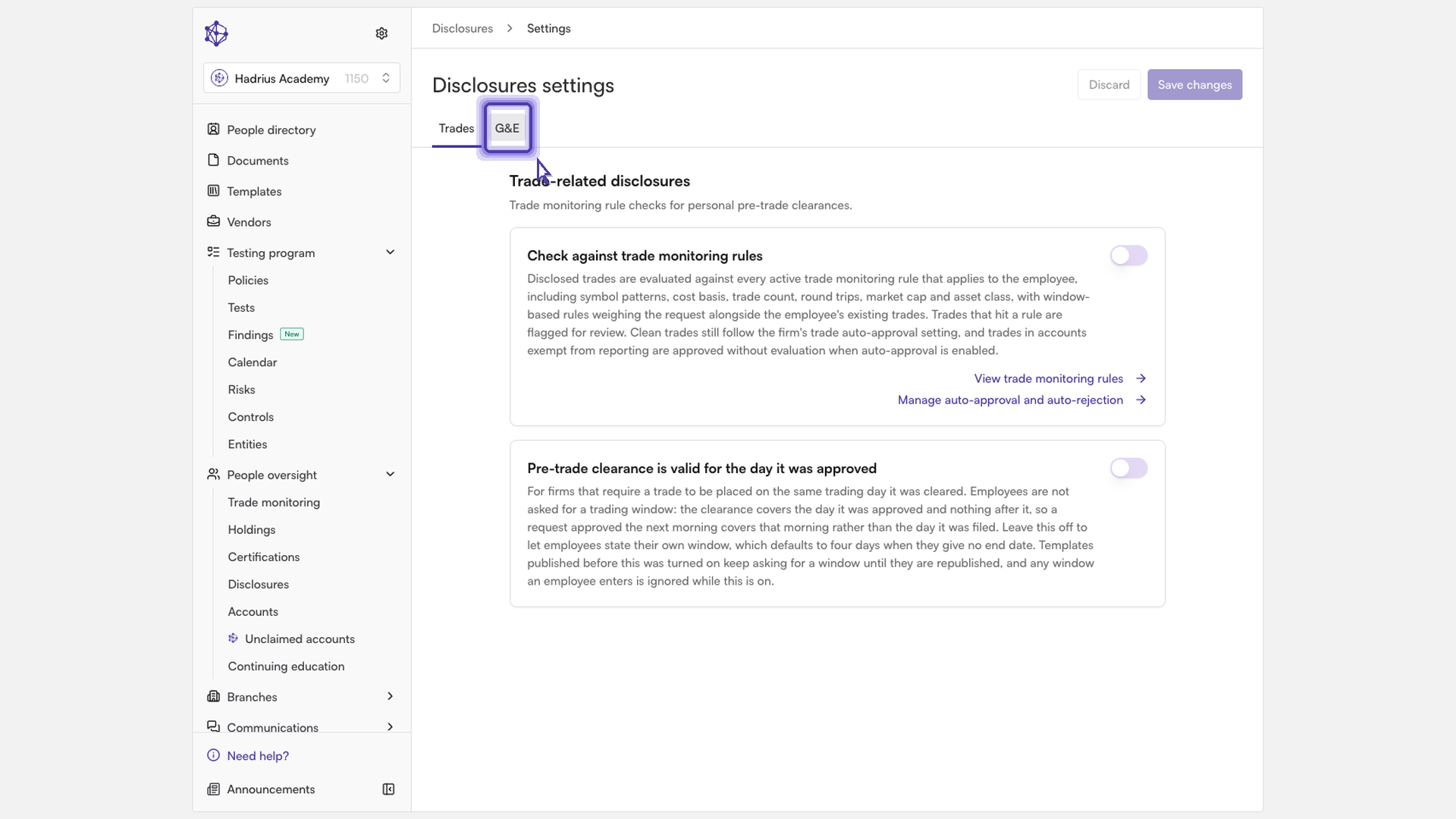
Select the "G&E" tab. The settings page has two tabs, "Trades" and "G&E". The "G&E" tab holds the approval rules for gifts and entertainment.
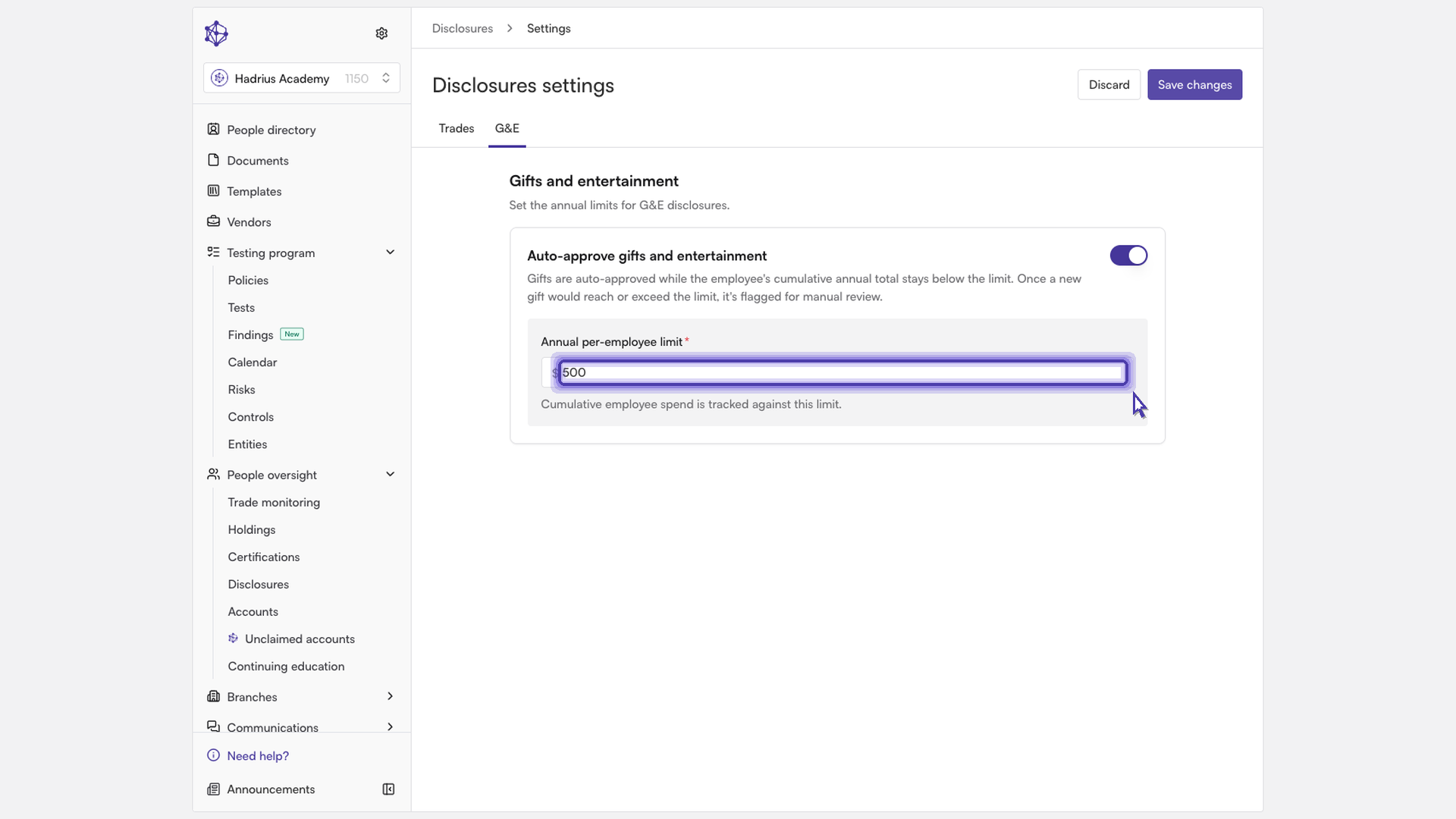
Turn on "Auto-approve gifts and entertainment". When this switch is on, reviewers no longer have to approve routine, low-value gifts by hand. The limit field stays disabled until you turn this switch on.
Enter the "Annual per-employee limit". Type a dollar amount. Hadrius adds up each employee's gifts for the calendar year and compares the total to this limit. The field is required while auto-approval is on, and the amount must be 0 or more.
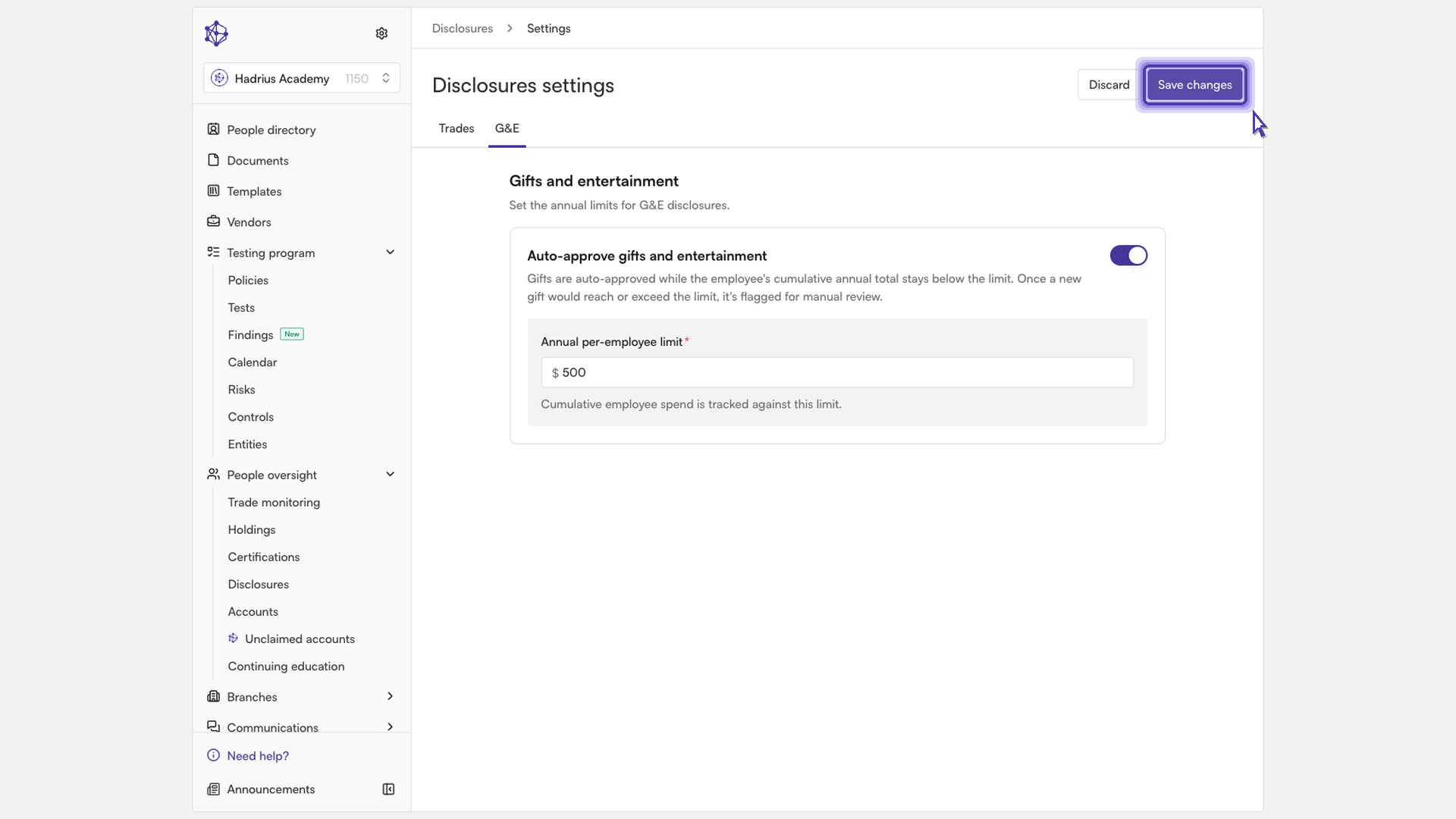
Click "Save changes". The button is in the top-right corner of the page. It becomes active once you've made a change and entered a valid limit. A "Settings saved" confirmation appears when the update goes through. To undo unsaved edits, click "Discard".
What happens next
Once you save, Hadrius approves new gift disclosures automatically as long as the employee's total for the year stays below the limit. If a new gift would bring the employee's annual total to the limit or above it, the disclosure goes to a reviewer instead of being approved automatically. Auto-approved disclosures show as "Approved" in the activity log.
To stop auto-approving gifts, go back to the "G&E" tab, turn off "Auto-approve gifts and entertainment", and click "Save changes". After that, every gift disclosure goes to a reviewer.