Creating and Updating a Private Placement
Last updated: October 17, 2026
Private placements, such as interests in private funds or privately held companies, don't trade on an exchange, so you can't report them through a brokerage account or a trade. Instead, you add them to your holdings as a private placement and update them yourself when your stake changes. This article covers how to report a new private placement and how to record a later contribution, such as a second close.
Adding a private placement
Go to your Personal Trading page. From the employee dashboard, select Personal Trading in the left-hand menu. This page holds your personal trading accounts, transactions, and other holdings, and it's also where you report private placements.
Open the Holdings tab. The Holdings tab lists every position you've reported to compliance.
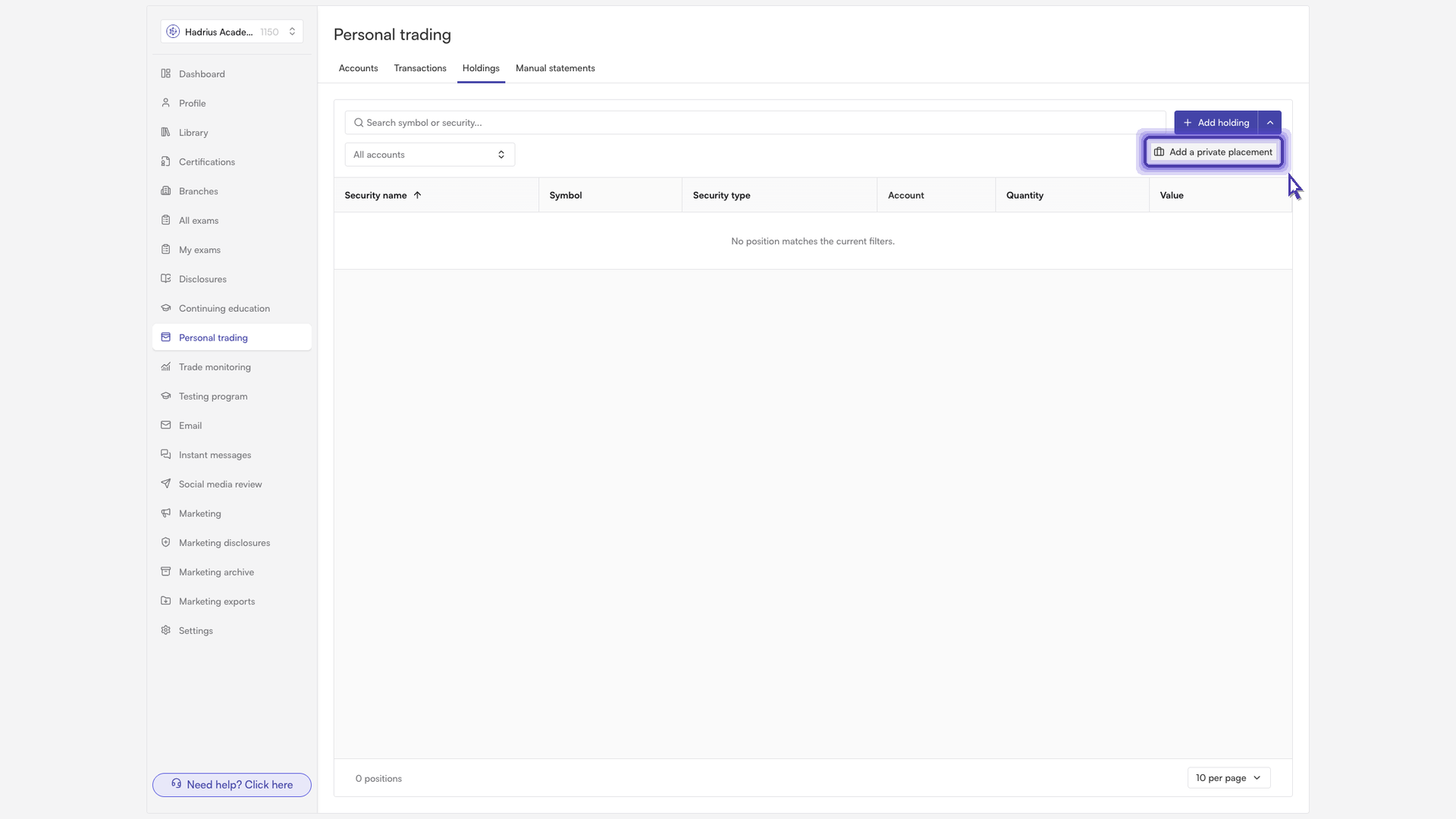
Start a new placement. Click the down arrow next to "Add holding", then select "Add a private placement". (Clicking the main "Add holding" button reports a trade instead, which is not what you want for a private placement.)
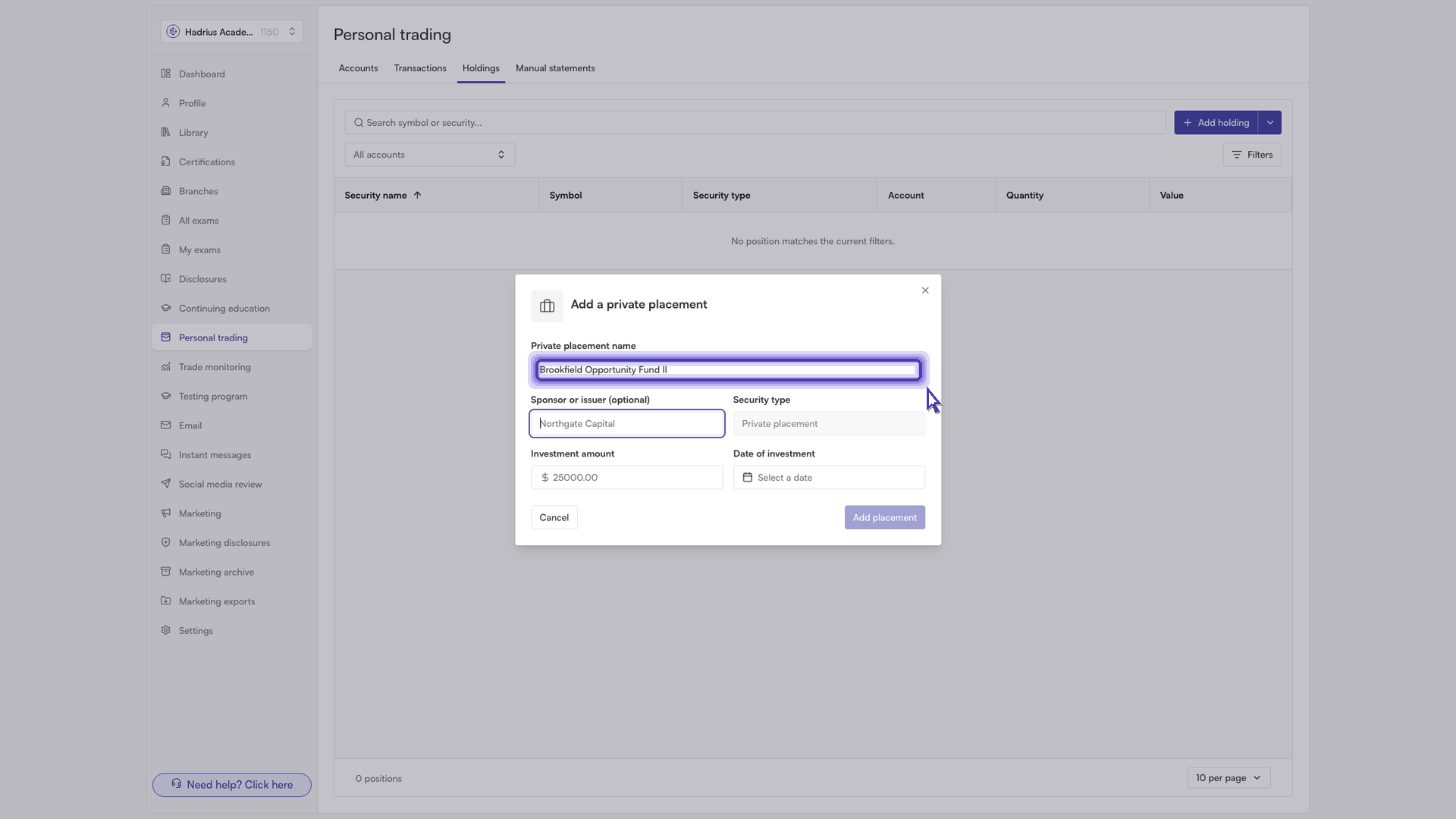
Enter the placement details. In the "Add a private placement" dialog, fill in:
Private placement name: a name compliance will recognize, such as the fund or company name.
Sponsor or issuer (optional): who sponsors or issued the investment. You can leave it blank, but it gives reviewers useful context.
Investment amount: how much you invested. This becomes the starting value of the position.
Date of investment: the date you made the investment. You can't choose a date in the future.
The Security type field is already set to private placement, and you can't change it.
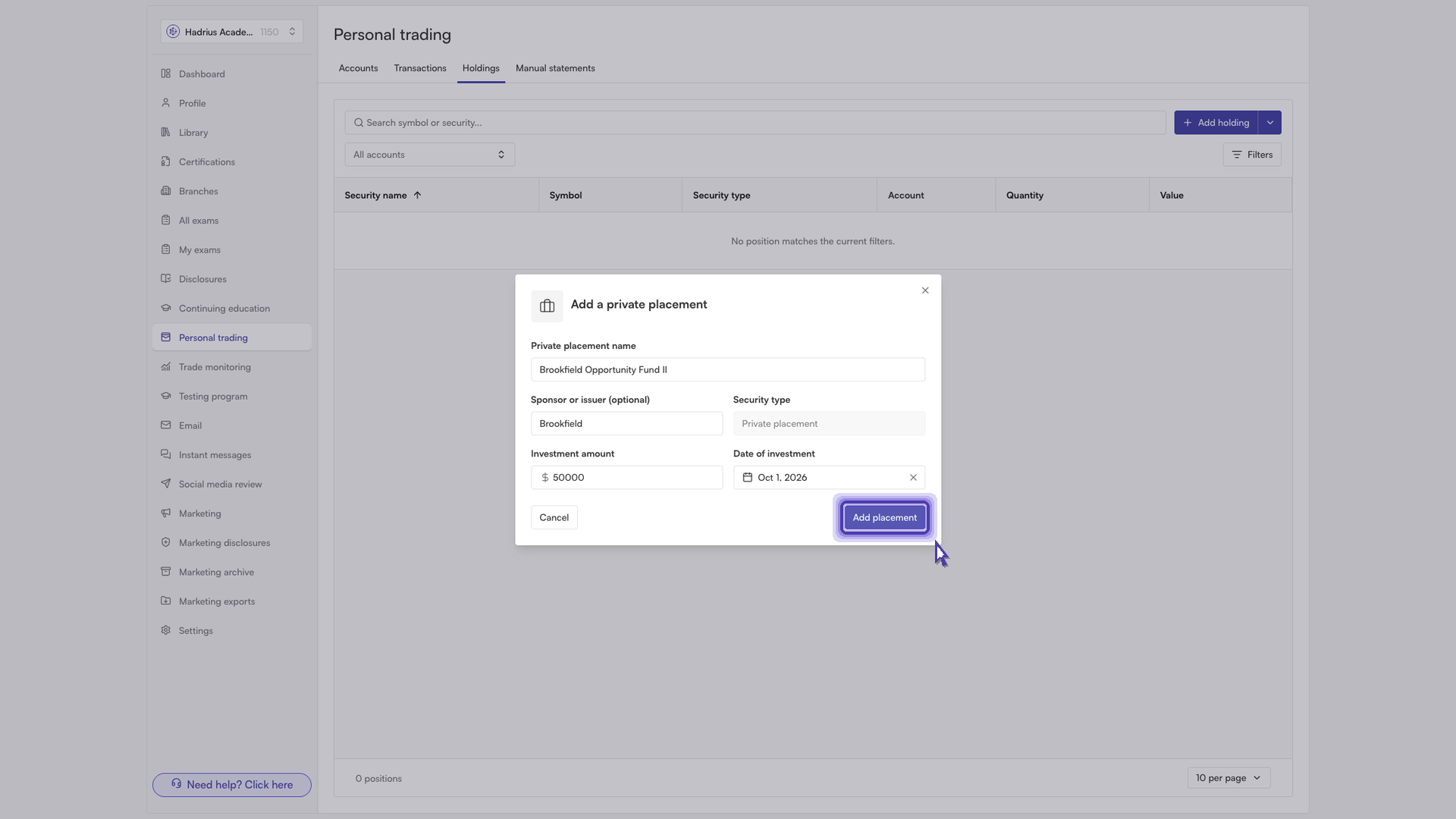
Save the placement. Click "Add placement". The button stays disabled until you've entered a name, an amount greater than zero, and a date. Once saved, a confirmation appears and the placement shows up in your holdings straight away.
Recording an additional contribution
If you put more money into a placement later, for example at a second close, record it on the existing holding. Don't add a new placement for it.
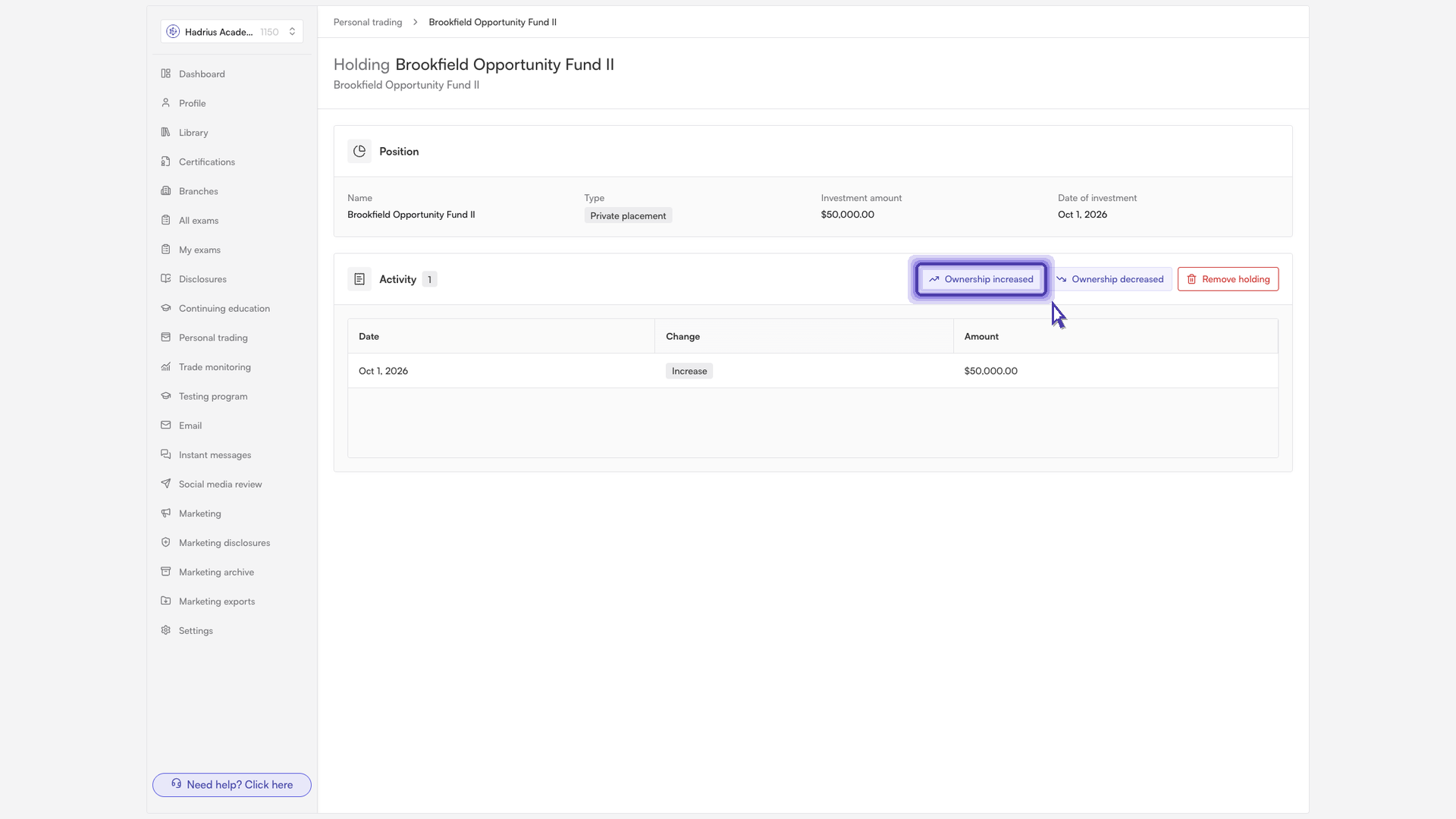
Open the placement. On the Holdings tab, select the private placement from your holdings list.
Choose "Ownership increased". This opens the "Ownership has increased" dialog.
Enter the change. Fill in:
Date: the date the change happened. You can't choose a date in the future.
Amount added: how much you added to the position.
Note for compliance (optional): context for reviewers, such as why you added the extra capital.
Submit the change. Click "Report increase". The holding's value updates right away to include the amount you added.
If your stake goes down instead, for example after a partial redemption, use "Ownership decreased" and click "Report decrease". The amount you remove can't be more than the placement is currently worth.
Reviewing a placement's history
Each ownership change is saved as its own activity entry on the placement. Open an entry to see the full record of that change. Together, these entries give compliance a clear record of every change to the position since you first reported it.
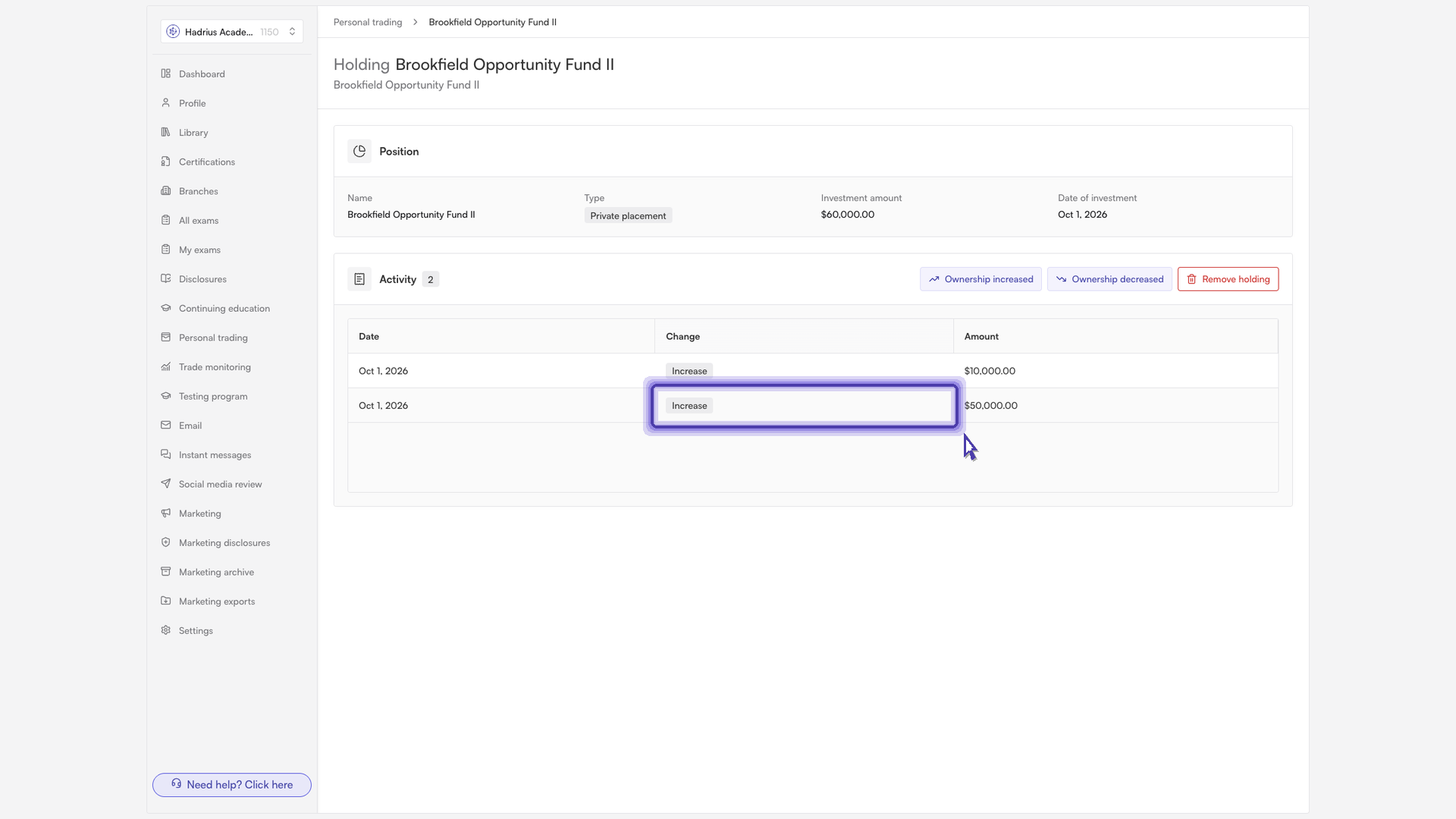
Once you've reported your placement and any later changes, you don't need to do anything else. Compliance can review the holding, its current value, and its full history directly from your records.