Monitor and Set Up Direct Feeds in Hadrius
Last updated: November 17, 2026
Direct feeds bring account data into Hadrius straight from your employees' custodians, so employees no longer have to upload their own statements. This article covers two related tasks. The first is checking that your existing feeds are delivering data on schedule. The second is requesting a new feed from a custodian and following it until it goes live. You'll want to monitor feeds regularly as part of your employee trading oversight. Set up a new feed whenever employees hold accounts at a custodian that isn't connected yet.
Monitoring your existing direct feeds
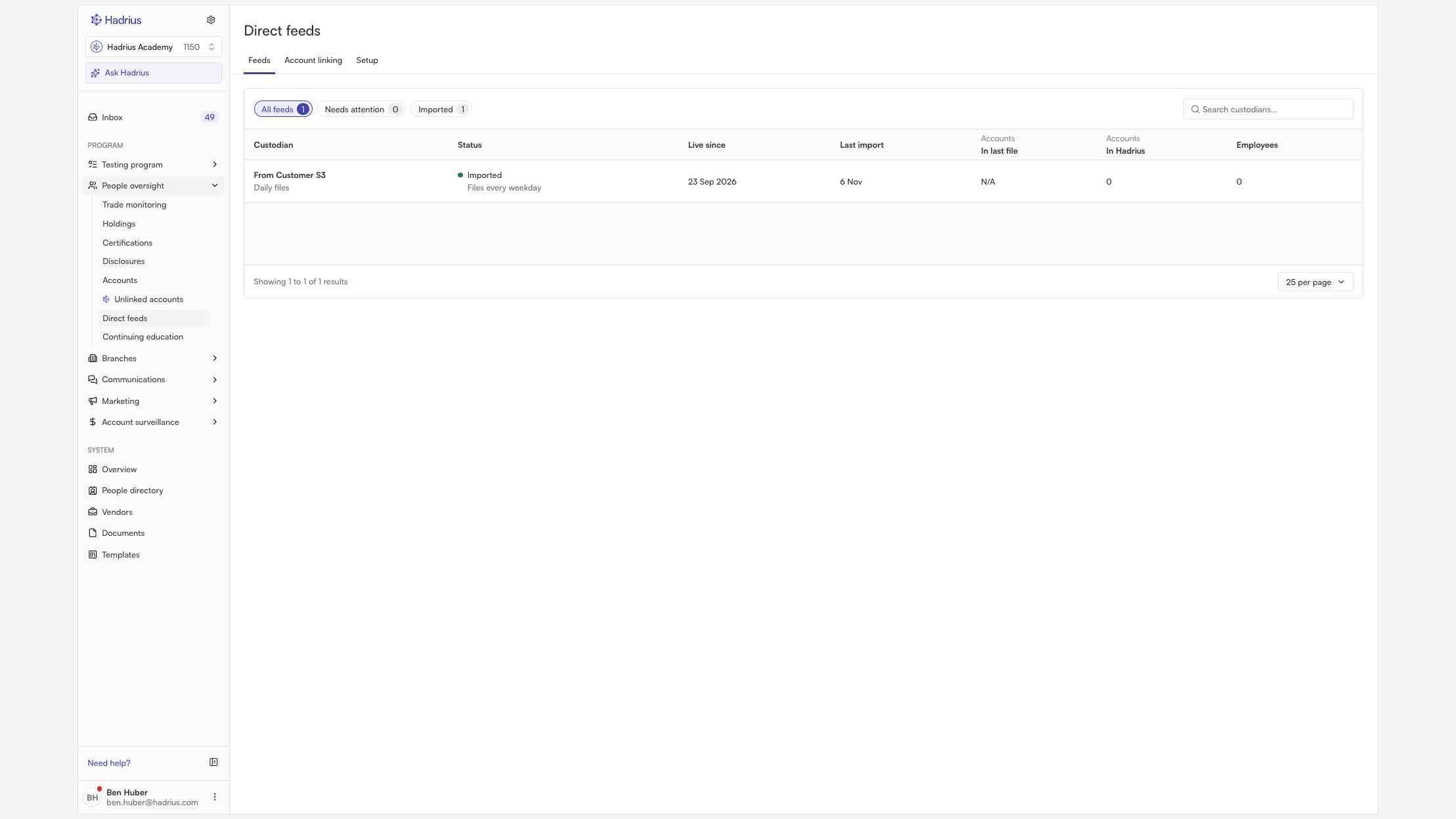
Open Direct Feeds. From the home page, go to People Oversight, where employee trading and account monitoring are managed, and open Direct Feeds.
Review the overview. The overview lists every feed and shows whether data is arriving on schedule. Use it to quickly spot any feed that has stopped delivering files.
Open a feed to check its imports. Click any feed to open its page, which shows that feed's import history and the accounts it covers. An "Imported" status means recent files were picked up and processed. The timeline shows each daily file as a separate mark, including the file type and how it was handled, so a missed or failed day is easy to spot.
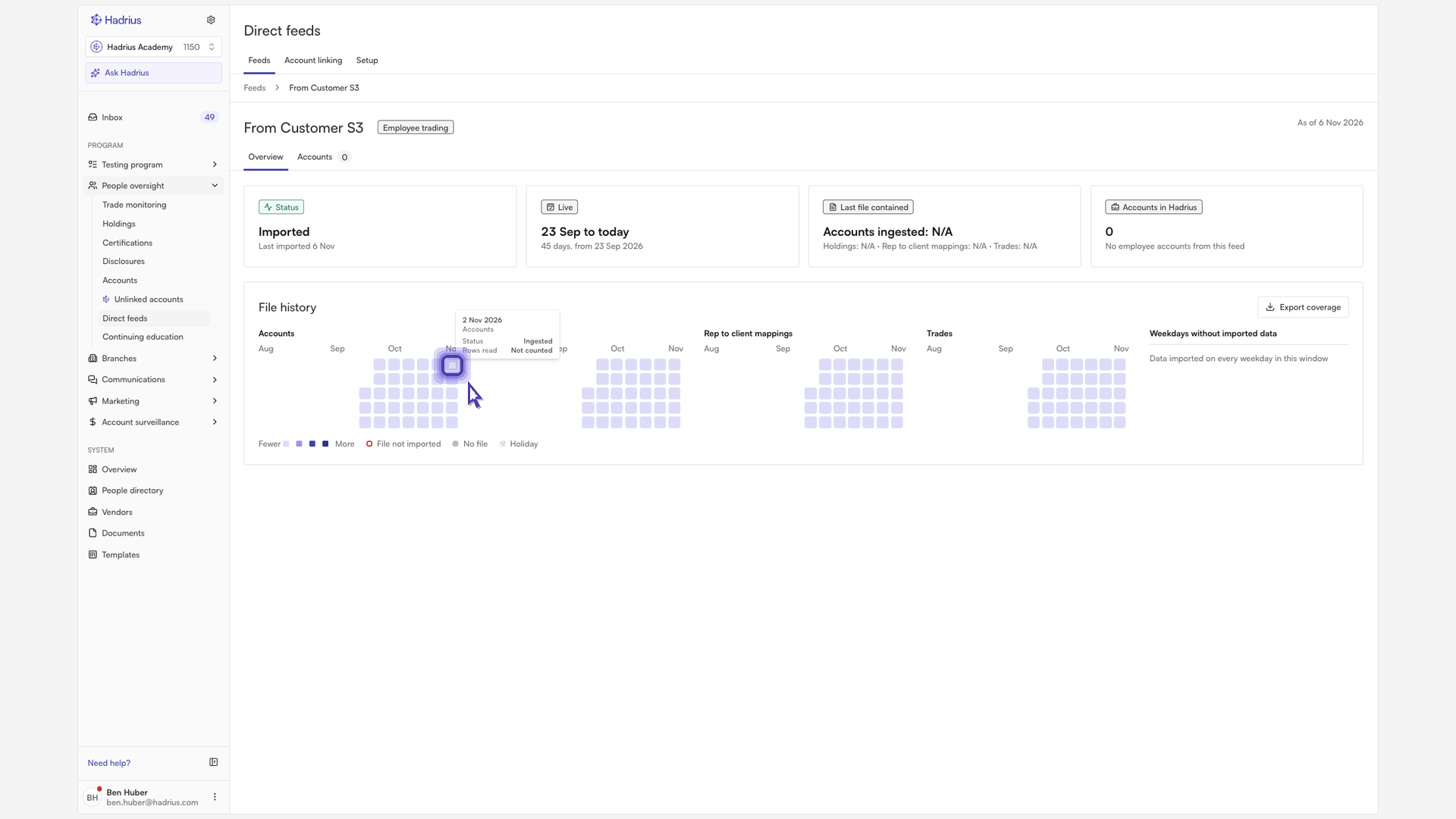
Check which accounts are covered. Open the accounts tab on the feed's page to see every account the feed reports on. Compare it with the accounts you expect so you can catch any gaps.
Requesting a new direct feed
New feeds are requested from the Setup tab, which tracks every feed request from first outreach to go-live.
Start a new request. On the Setup tab, click Add direct feed.
Choose the custodian. In the Custodian field, choose the custodian that holds your employees' accounts. You can only have one open request per custodian. If one already exists, Hadrius will prompt you to edit that draft or open the existing request.
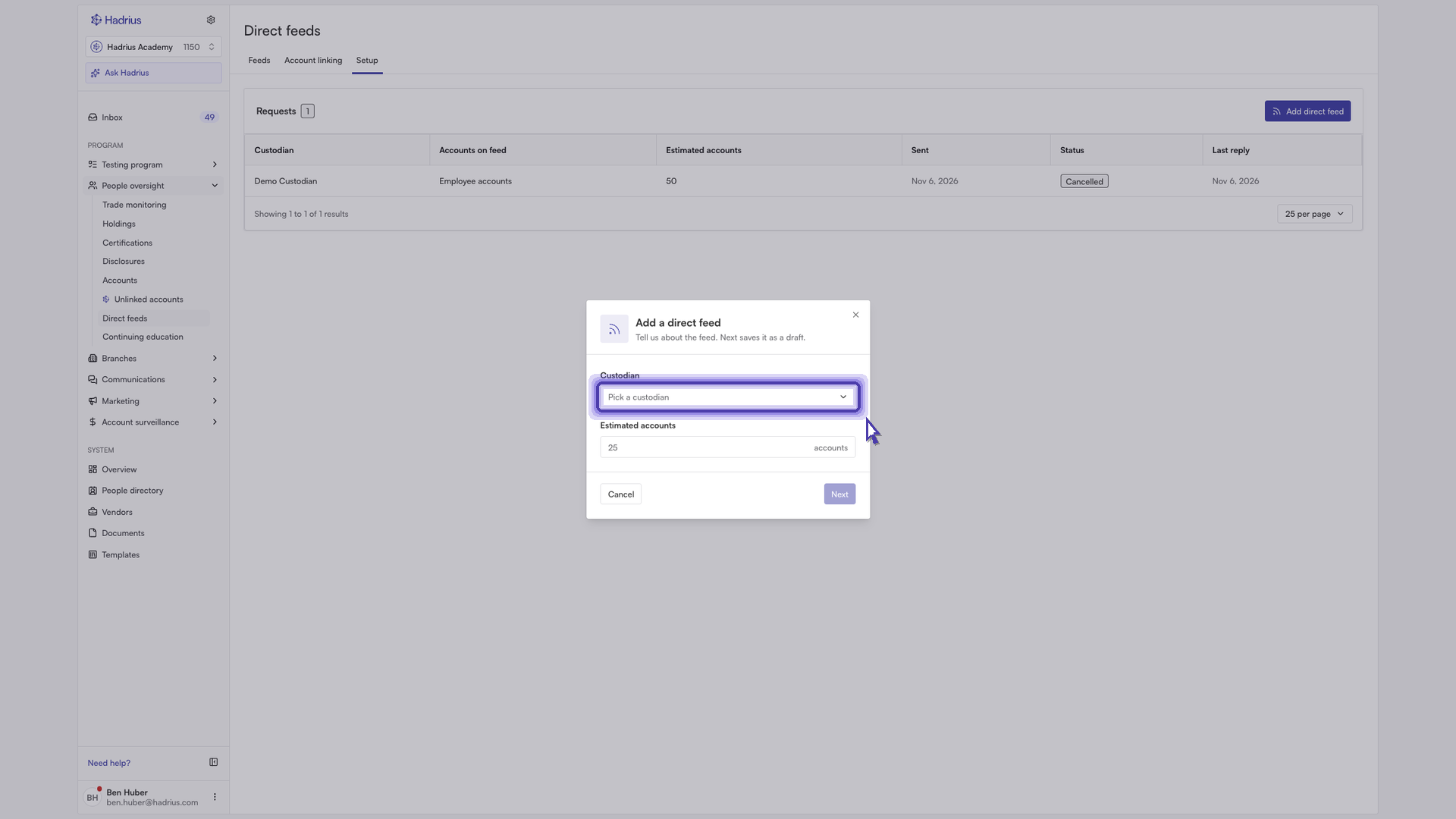
Describe the feed. In Estimated accounts, enter a rough number of accounts. This helps the custodian scope the feed. If asked which accounts the feed should cover, choose employee accounts, client accounts, or both. Then click Next.
Complete the custodian's details. The fields on the left fill in the email shown on the right. Use a contact inbox that your team monitors, because the custodian will reply there. Enter your firm's legal entity name so the custodian knows who is requesting the data. You can click any highlighted word in the email to fill in its field, and you can edit the rest of the email as needed.
Send the request. Click Send request and choose your email provider, such as Gmail or Outlook, or select Open in my mail app. The pre-drafted email opens in your email client, ready to send. You can also choose Copy email and paste it into a message yourself.
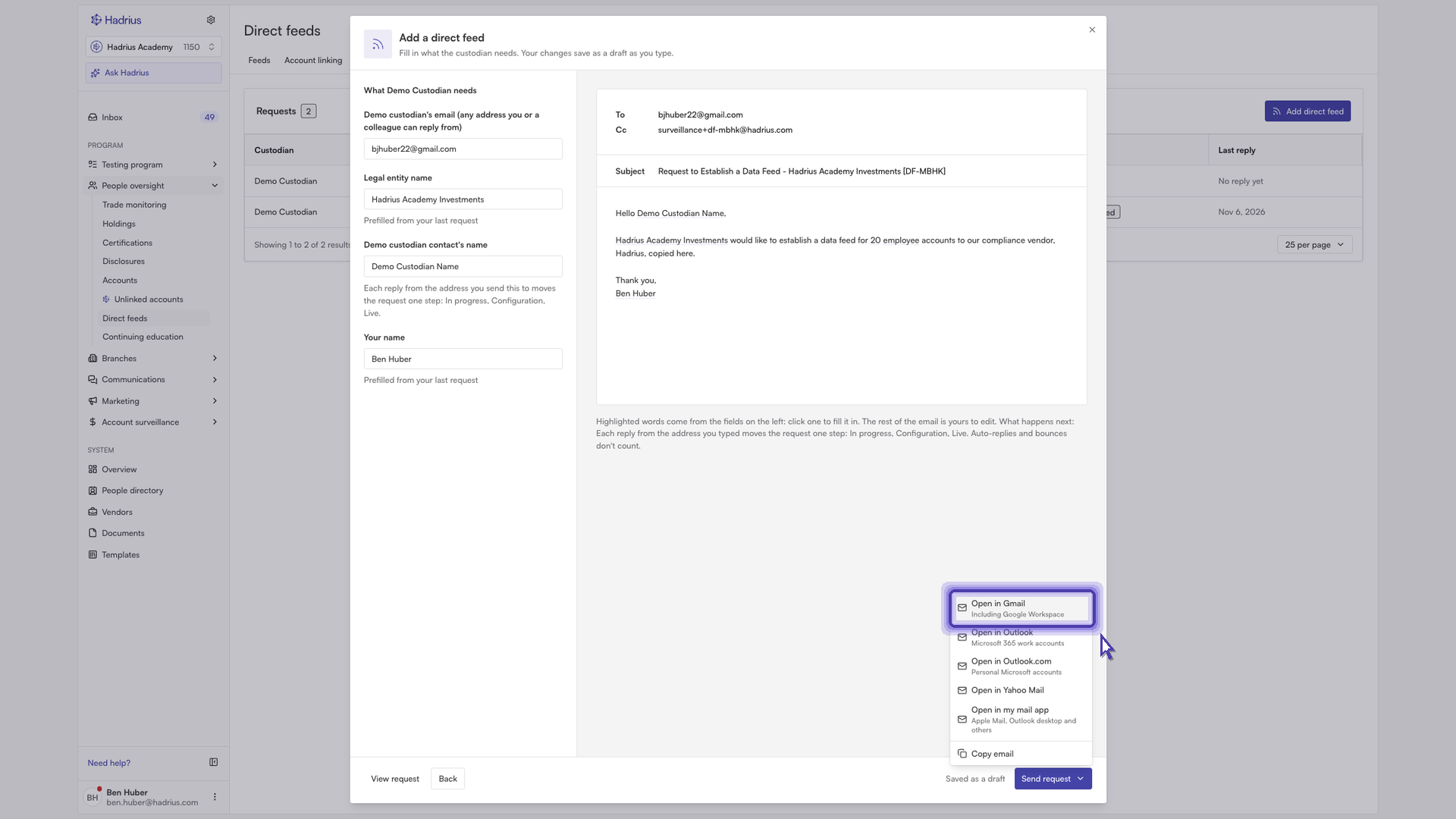
Note: The request stays in "Draft" status until your email reaches Hadrius through the reference address on the Cc line. Don't remove that address before sending.
Tracking a request through to go-live
Open the request. Back in Hadrius, click the request in the Setup list to open its page.
Follow its status. Each request moves through clear stages: "Draft", "Sent", "In progress", "Configuration" and "Live". A request that's no longer needed can be marked "Cancelled". When the custodian replies, answer them from your own inbox while Hadrius tracks the request and shows the email thread. During "Configuration", the custodian sets up file delivery.
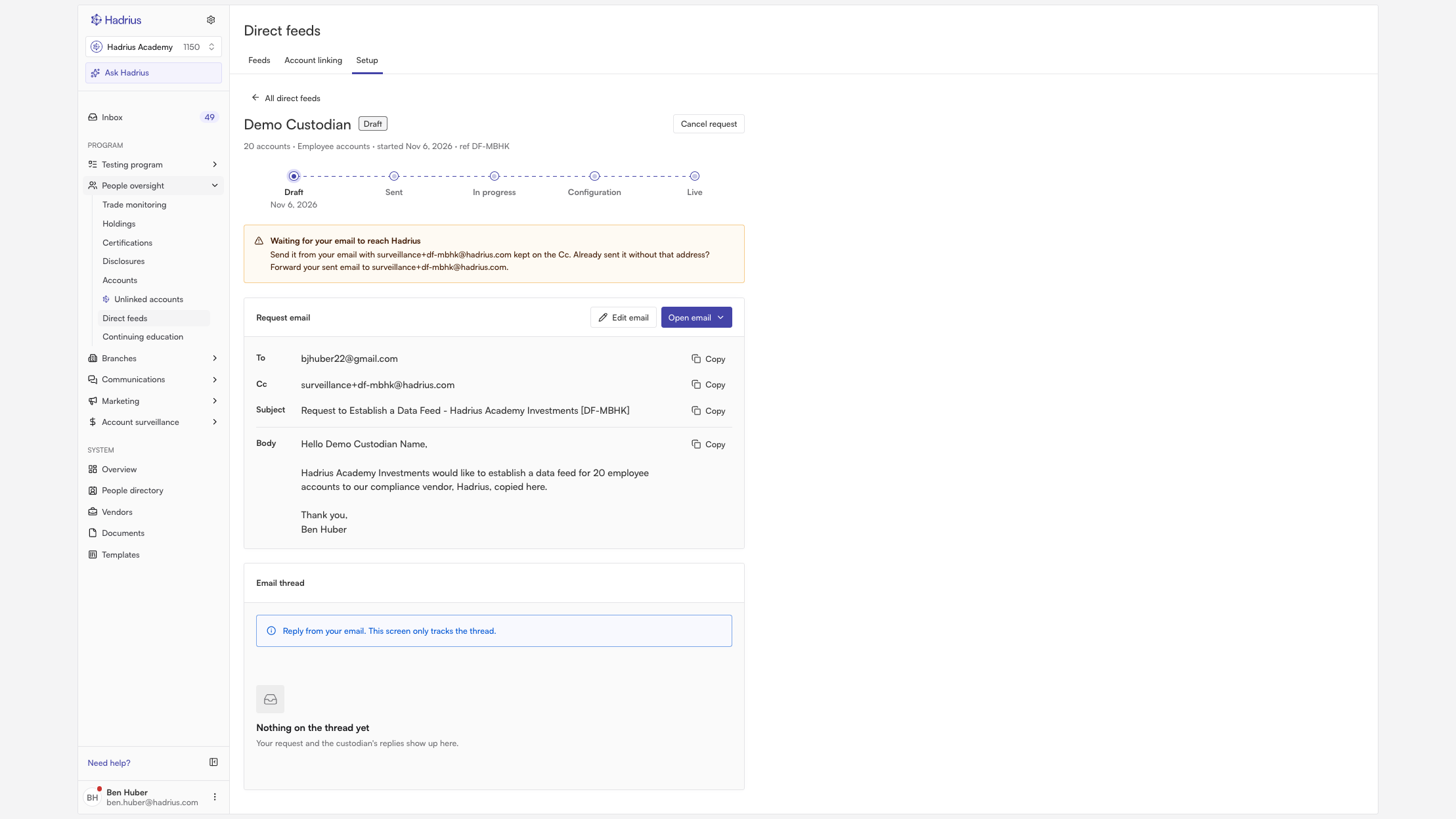
Review all requests together. Click All direct feeds to return to the full list, where every request appears side by side with its current stage. You can open any request again to check on it.
What happens next
When a feed reaches "Live", the custodian's files are imported into Hadrius automatically every day. From then on you can monitor the feed's daily imports and account coverage from its page, just like your other feeds. Requesting, tracking and monitoring all happen in the same place.