Building a Disclosure Template
Last updated: September 22, 2026
Disclosure templates are the questionnaires your firm sends to employees — what you ask, who reviews the answers, and what employees attest to when they have nothing to report. This article walks through building one from scratch in the template library, from naming the template to publishing it so employees can complete it. You'll typically do this when you're rolling out a new disclosure obligation, or replacing a questionnaire your firm has been collecting outside of Hadrius.
Before you start
Building and publishing disclosure templates requires template library permissions for employee disclosures. A template is only visible to employees once it has been published — until then it stays in draft and cannot be assigned.
Build the template
Open the template library. From the Disclosures module, where employee submissions land for review, open the template library. This is the central list of every questionnaire your firm builds and maintains, including disclosure templates, reviewer forms, and templates for other modules. Each row shows the template's status, so you can tell at a glance what is live, what is still in draft, and what has been archived.
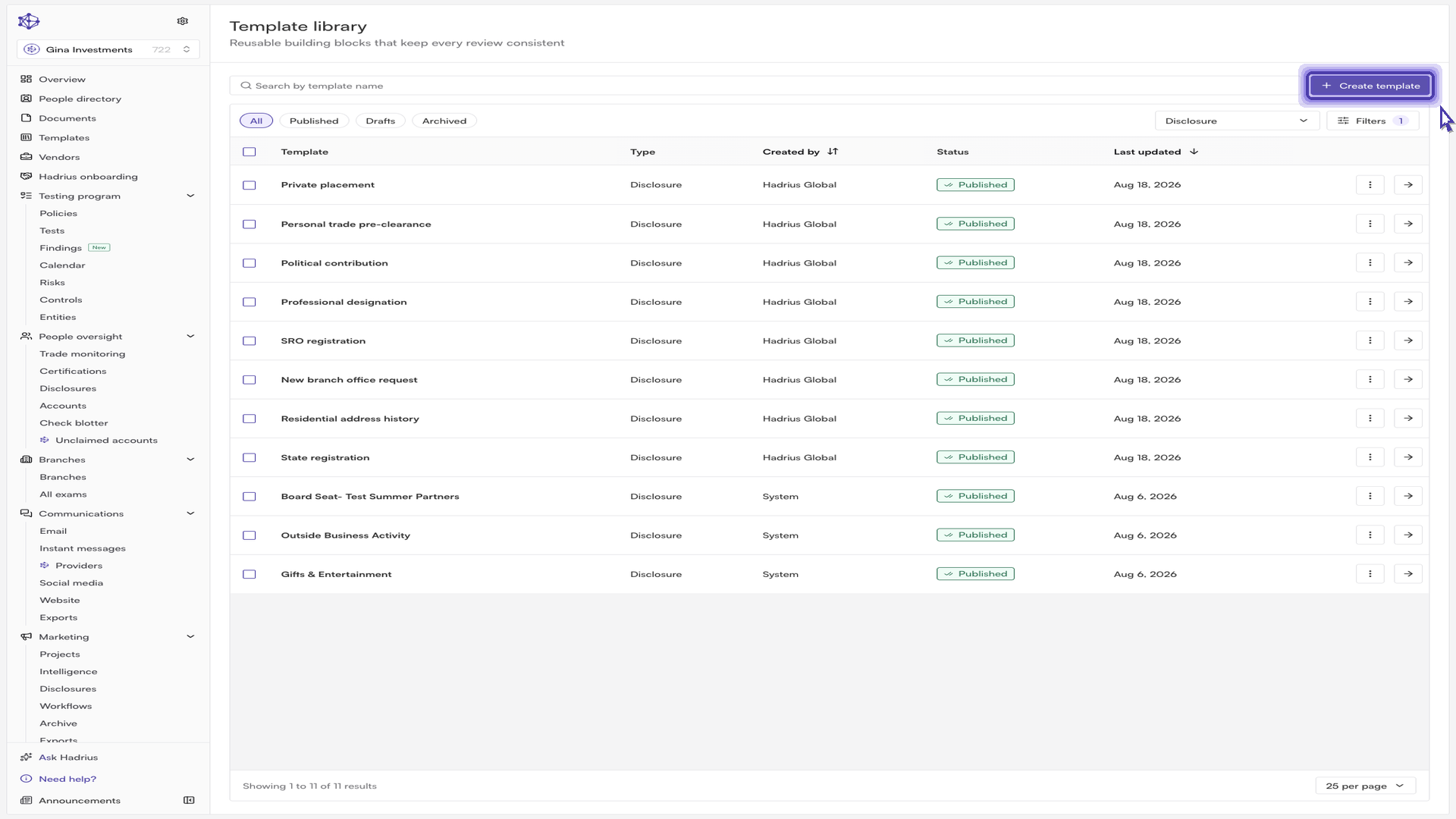
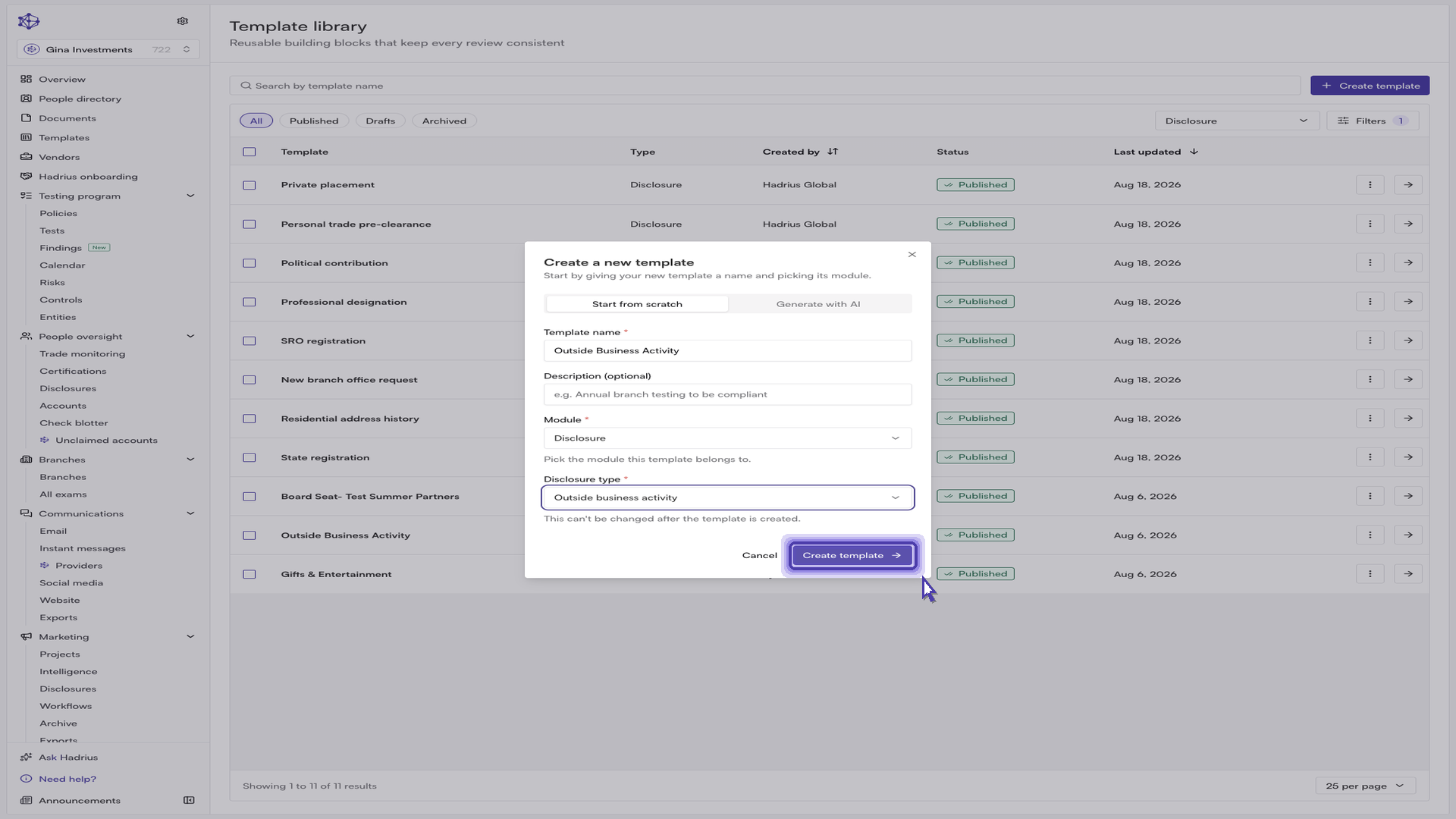
Create a new template. Click "Create template" and stay on the "Start from scratch" tab. Give the template a clear name so reviewers immediately recognize what it covers, and add an optional description. Under "Module", choose the disclosures option — the employee-facing questionnaire — so the template belongs to the Disclosures module rather than to certifications or firm oversight.
Pick the disclosure type. Once you select the disclosures module, a "Disclosure type" field appears. The type determines how Hadrius treats the resulting disclosures downstream: whether they are routed for regulatory filing, whether an approved disclosure stays active as an ongoing fact or closes out as a one-time event, and which templates can reference this data later — for example, a certification template that pulls in previously disclosed records. If none of the standard types fit, choose the custom type to build your own. This field cannot be changed after the template is created, so confirm it before continuing, then click "Create template".
Review the builder. Hadrius opens an editable builder already tagged with the module and disclosure type you chose. The builder has three tabs — Questions, Reviewer workflow, and Settings — and opens on Questions. For some disclosure types, Hadrius seeds a small set of required or suggested questions that downstream features depend on; these are marked in the builder and, where required, cannot be deleted.
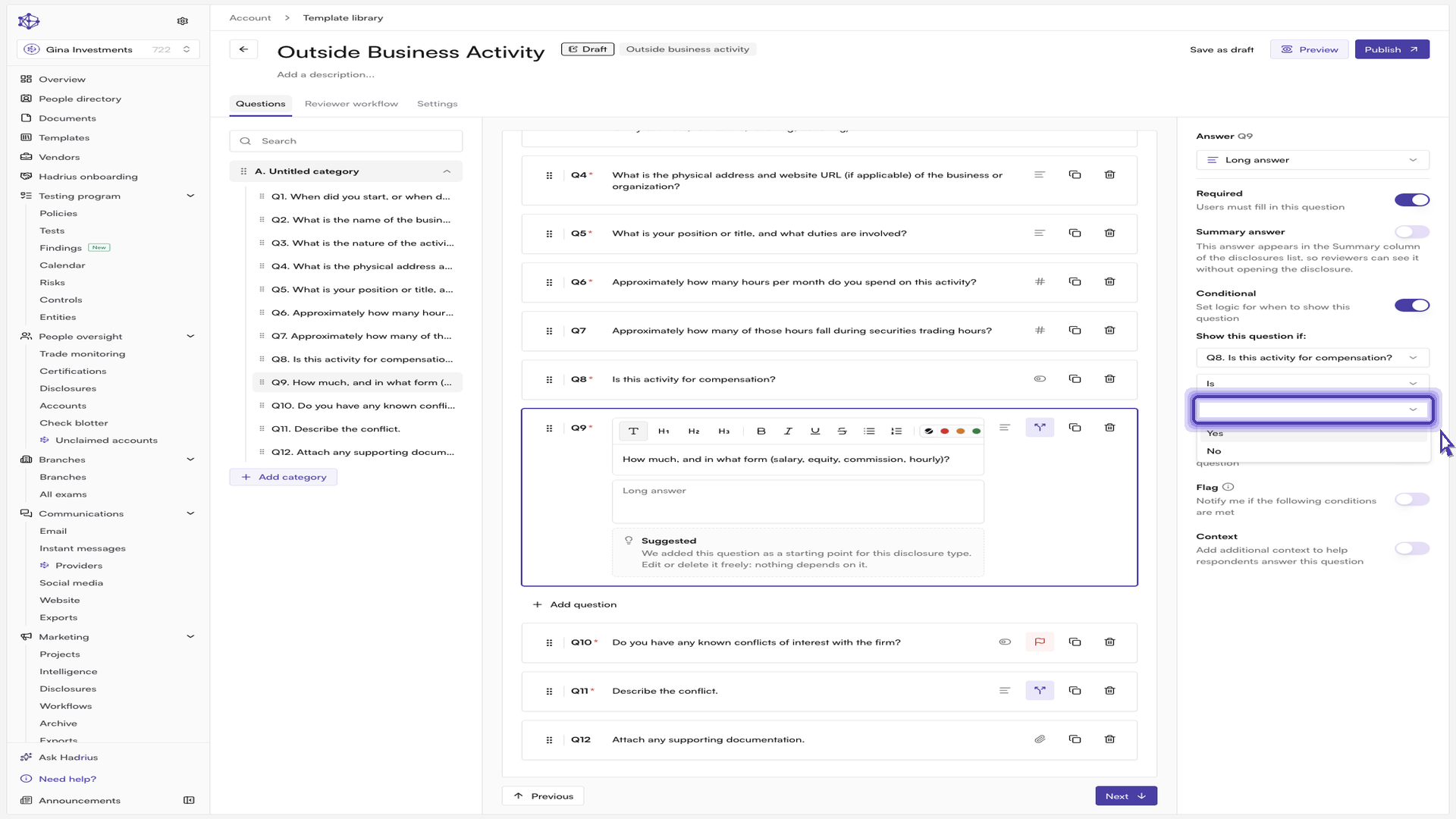
Add your questions. Use "Add question" to add your own questions, and organize them into categories from the left sidebar if the questionnaire is long. With a question selected, the configuration panel on the right lets you set the question type — the response format that fits the answer you expect, such as short answer, date, dollar amount, file upload, or a simple yes/no.
Add follow-up questions and configure each one. Good disclosures dig deeper, so add follow-up questions that probe the details a reviewer will need. For each question, the configuration panel offers:
Required — employees can't submit the questionnaire without answering.
Conditional — show the question only when an earlier answer matches a condition you set.
Flag — set a flagging rule so a specific answer is automatically flagged when it comes back, rather than relying on a reviewer to notice it.
Instructions — extra guidance that helps employees understand exactly what you're asking for.
Context — additional context text, plus reference material you can upload and attach directly alongside the question.
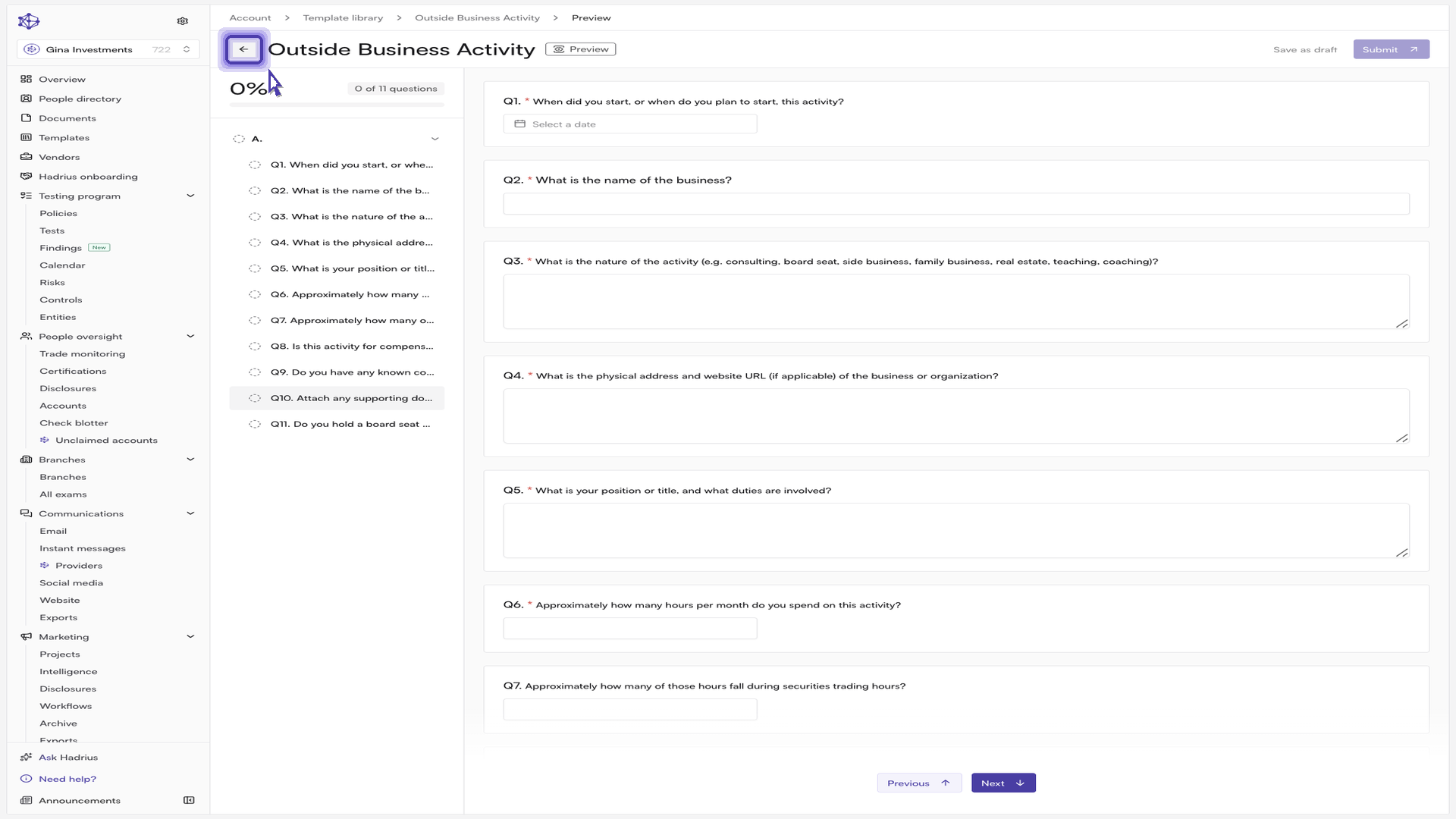
Preview the questionnaire. Before publishing, it's worth seeing the template exactly as employees will. Click "Preview" to open the live respondent view, rendered from the questions you just built, including conditional logic and attached reference material. Use the back control to return to the builder.
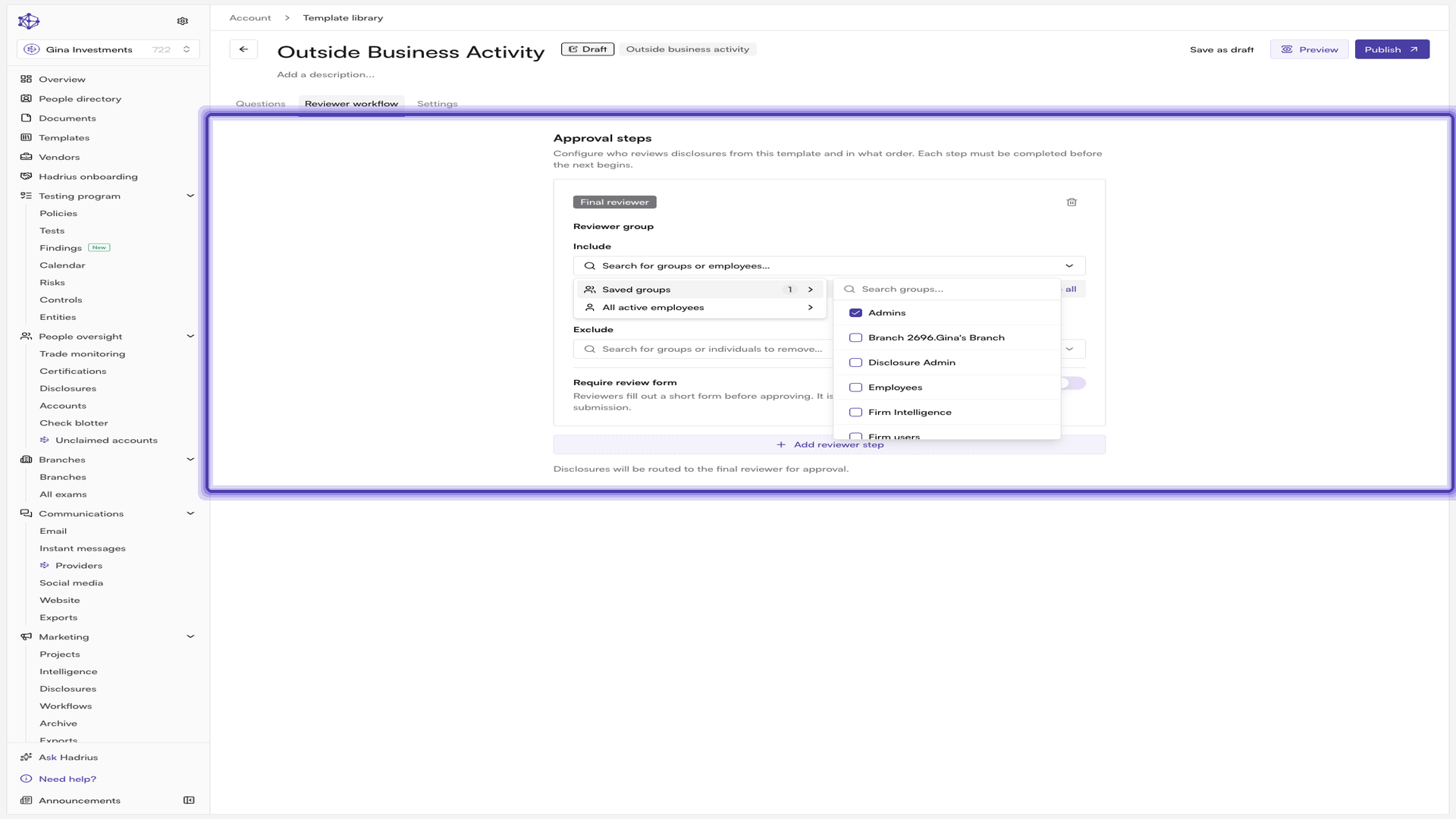
Set up the reviewer workflow. Open the "Reviewer workflow" tab and add at least one approval step — a template can't be published without one. For each step, choose who is accountable for approving: include employee groups, individuals, or both, and exclude anyone who shouldn't review. Hadrius flags selections that can't actually approve disclosures, since approving requires the disclosure approval permission. Optionally turn on "Require review form" and select a reviewer form from the library, so reviewers complete a short form before approving. You can add a second step; steps run in order, and the initial reviewer must finish before the final reviewer begins.
Finish the settings. The "Settings" tab covers everything outside the questions themselves. Confirm the template name and description under General, and check the module and disclosure type shown alongside them. Under "Nothing to disclose", write the statement employees attest to when they have nothing to report — leave it blank to use the default statement for the disclosure type. These attestations are auto-approved with no review, so reviewer time isn't spent on empty submissions.
Publish. Click "Publish" in the builder header, or "Publish template" from the Settings tab. Hadrius validates the questionnaire and the reviewer workflow first, and sends you back to the tab that needs attention if anything is missing. Confirm in the "Publish this template?" dialog, and the template goes live.
After publishing
Once published, the template is active and can be assigned to employees, and employees can complete it ad hoc. It remains available in the template library, where you can reopen it at any time to make changes. Editing a published template creates a new version: new assignments use the latest version, while disclosures already in flight continue on the version they started with. If you no longer want the template used, archive it from the Settings tab — archiving hides it from the library and blocks new assignments without disturbing work already underway, and you can restore it later.