Configuring Reviewers and Review Forms
Last updated: October 17, 2026
Each disclosure template has its own reviewer workflow. The workflow decides who reviews submissions made from that template, the order in which they review, and whether reviewers must fill out a review form before they approve. This article shows you how to set up approval steps, require a review form, and publish your changes. You would usually do this when you first set up a disclosure template, when the people responsible for reviews change, or when you want reviewers to record their assessment in a standard way.
Open the template's reviewer workflow
Go to your product settings and open the Template library. Reviewer settings belong to individual templates, so you configure them from the library rather than from a global setting.
Open the disclosure template you want to configure.
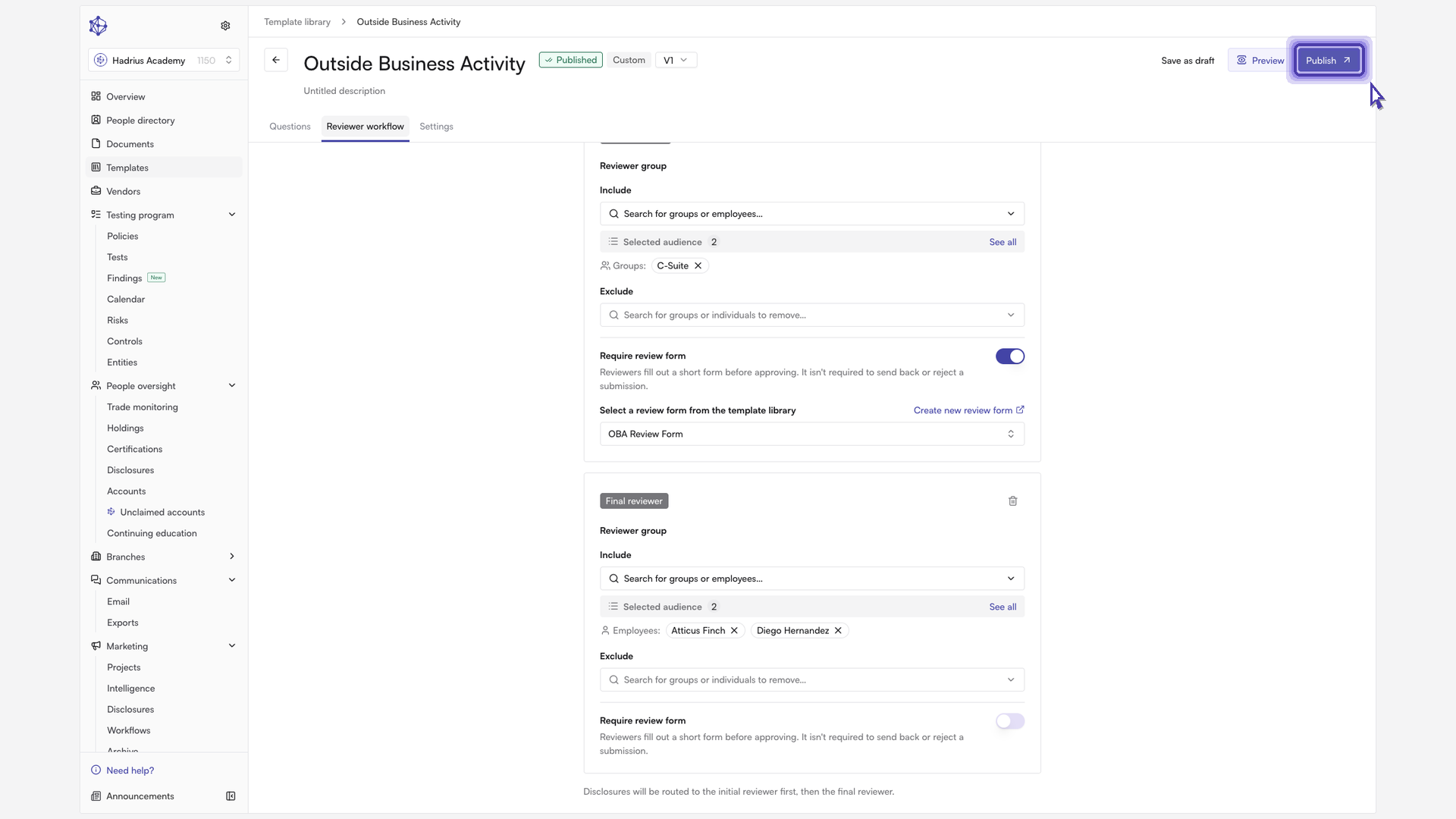
Select the Reviewer workflow tab. Under Approval steps, you can see who reviews disclosures from this template and in what order.
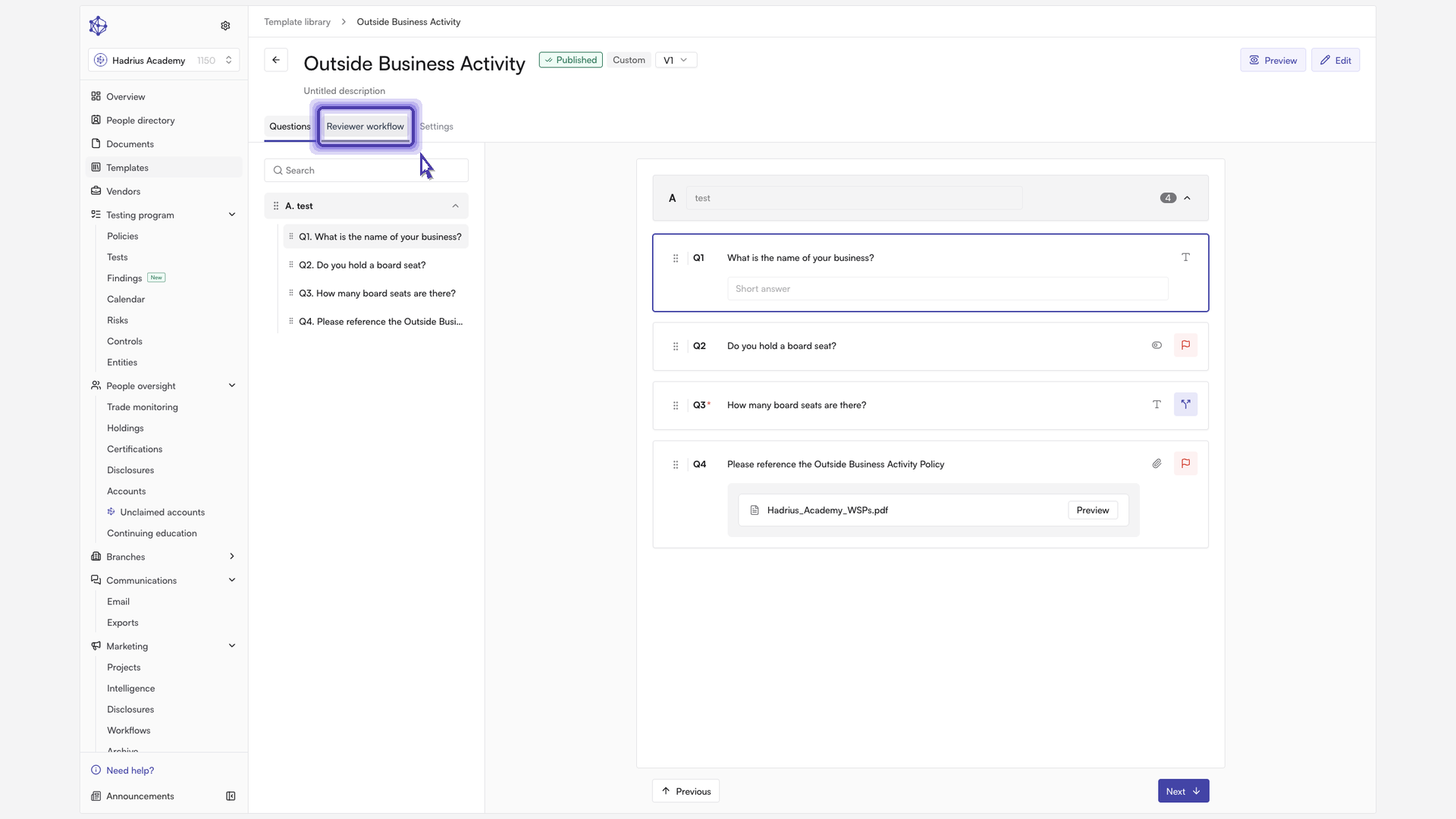
Switch the template into edit mode so you can make changes.
Set up approval steps
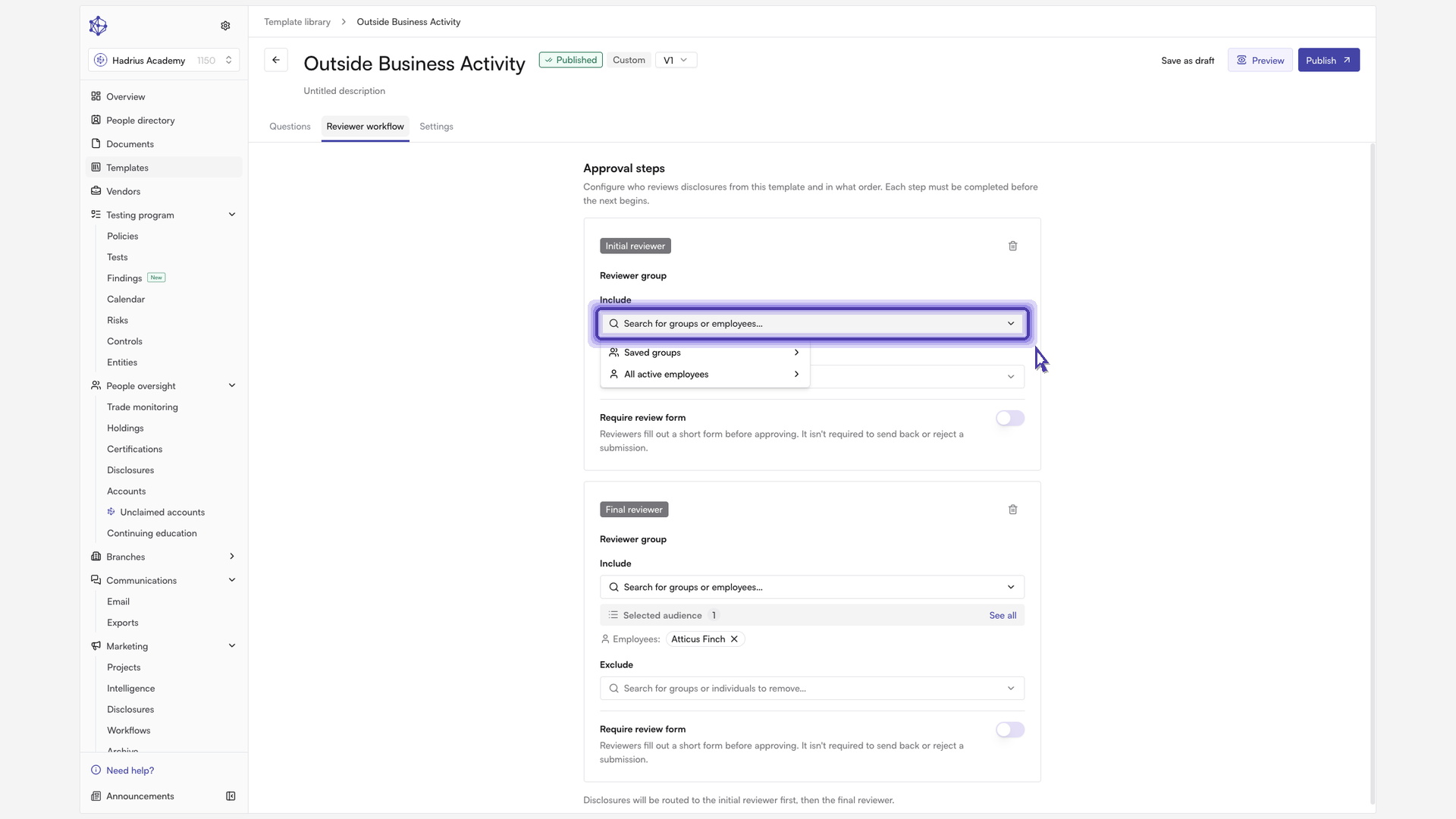
Each approval step is one stage of sign-off, and a step must be finished before the next one starts. A template can have up to two steps. With one step, disclosures go straight to the final reviewer. With two, they go to the initial reviewer first and then to the final reviewer. Use Add reviewer step to add a step, or the trash icon on a step to remove it.
For each step, use the Reviewer group field to choose who reviews. You can pick a group, individual employees, or both. A reviewer needs permission to approve disclosures. If you select someone without that permission, they are marked "can't approve." If no one in a step can approve, a warning appears, and you won't be able to publish the template until you choose someone who has the permission.
Require a review form
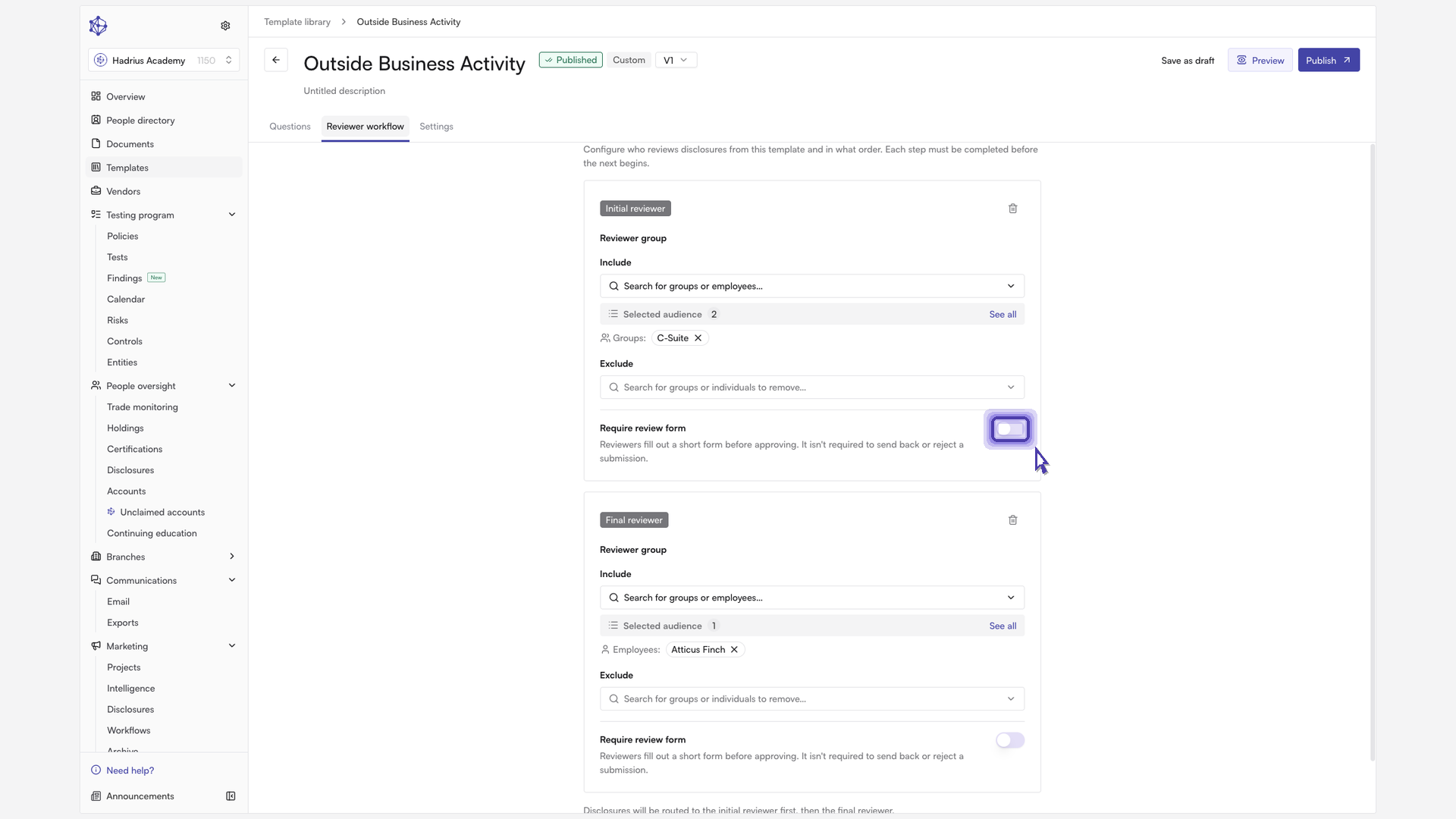
Turn on Require review form for a step if you want reviewers to fill out a short form before they approve. The form is only needed for approval. Reviewers can send back or reject a submission without filling it out.
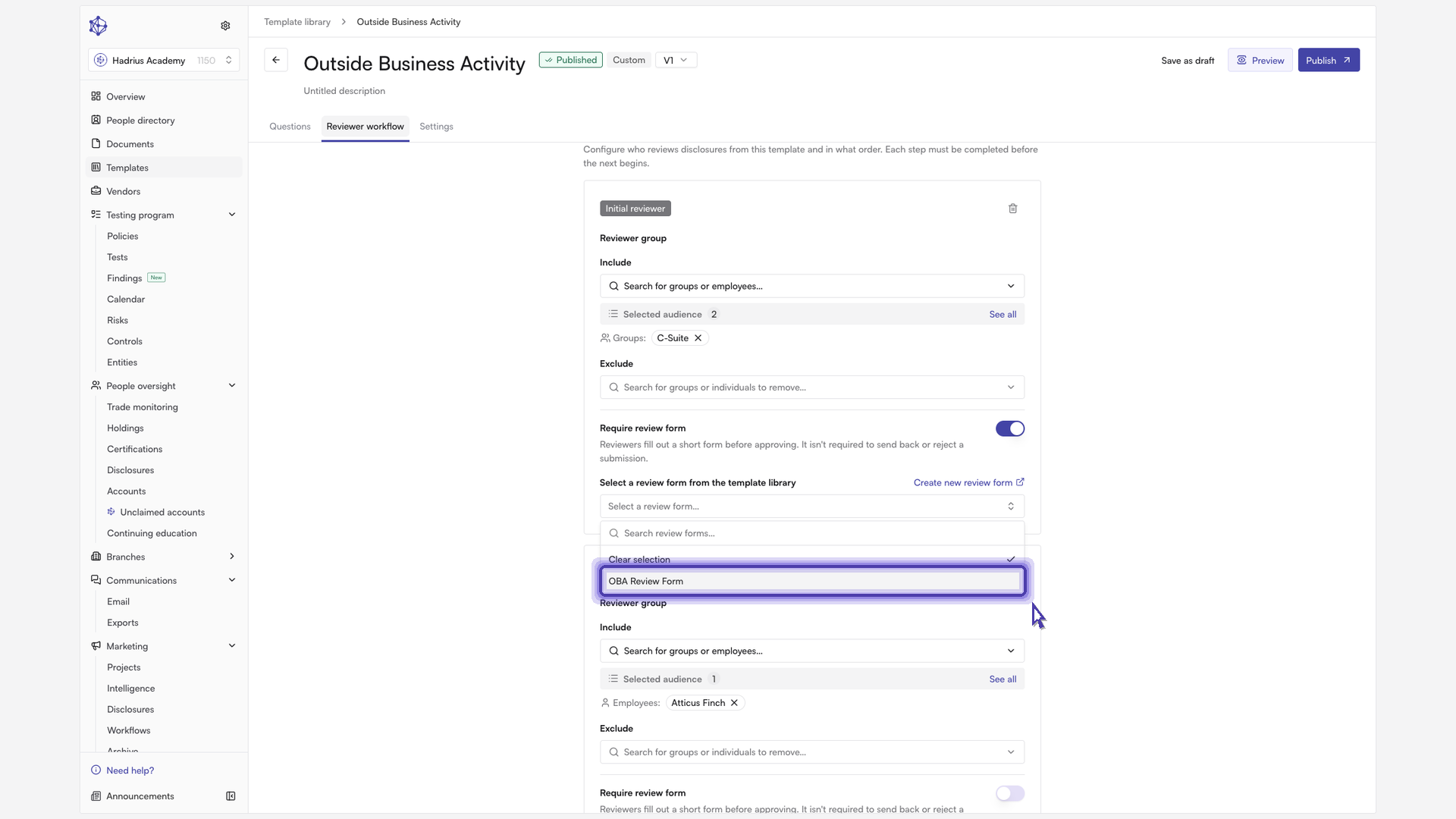
Once the toggle is on, choose a form from the Select a review form… dropdown. It lists the active review forms in your template library, such as a form built for reviewing outside business activities. If you don't have a suitable form yet, click Create new review form to build one in a new browser tab. When you come back, the list refreshes automatically. A step that has the toggle on but no form selected can't be published, so either pick a form or turn the toggle off.
Publish your changes
After you've set the approvers and review form for each step, click Publish to put the new reviewer settings into effect for this template.
If you changed the reviewers and some disclosures from this template are still in review, a dialog asks whether to apply the change to those disclosures too. The option "Apply reviewer changes to disclosures already in review" is on by default. Leave it on to send in-progress disclosures to the new reviewers, or turn it off so they stay with the reviewers they already have. Then confirm with Publish, or click Cancel to go back without publishing.
From now on, new disclosures submitted from this template go through the updated review workflow. You can come back to the Reviewer workflow tab at any time to change approvers or review forms, and the changes take effect when you publish again.