How to Hide Drawings and Comments on a Document
Last updated: October 17, 2026
When you're reviewing a document in a marketing review project, drawings, comments, and other markup can clutter the page and make it hard to read the underlying content. This article walks through how to open a document from an active review and temporarily hide all drawings and comments so you can focus on the document itself.
Step 1: Open the review
Start from Marketing Projects, where all active review workflows are tracked.
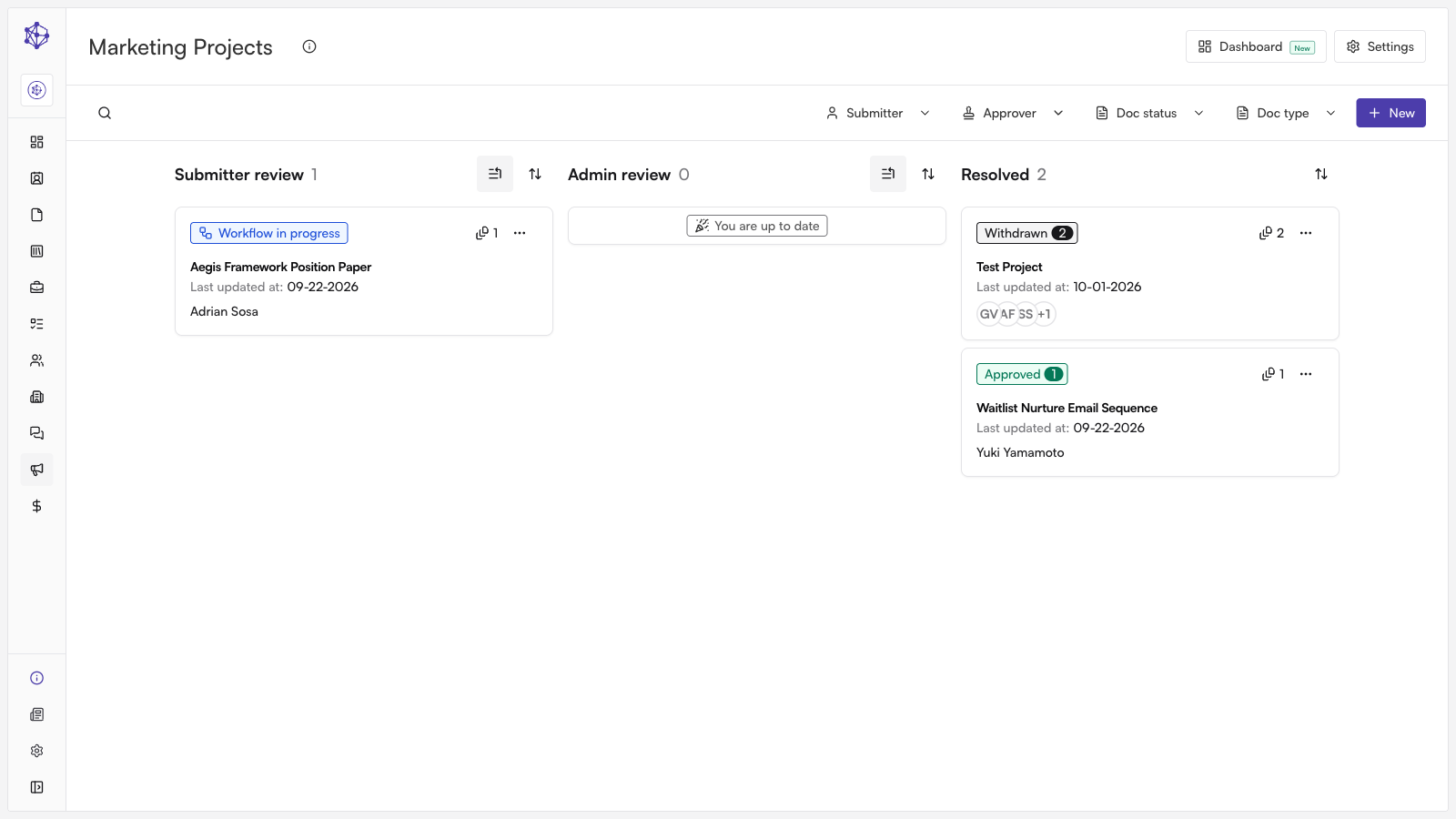
Open the project you want to work with. This takes you directly into its latest review in progress.
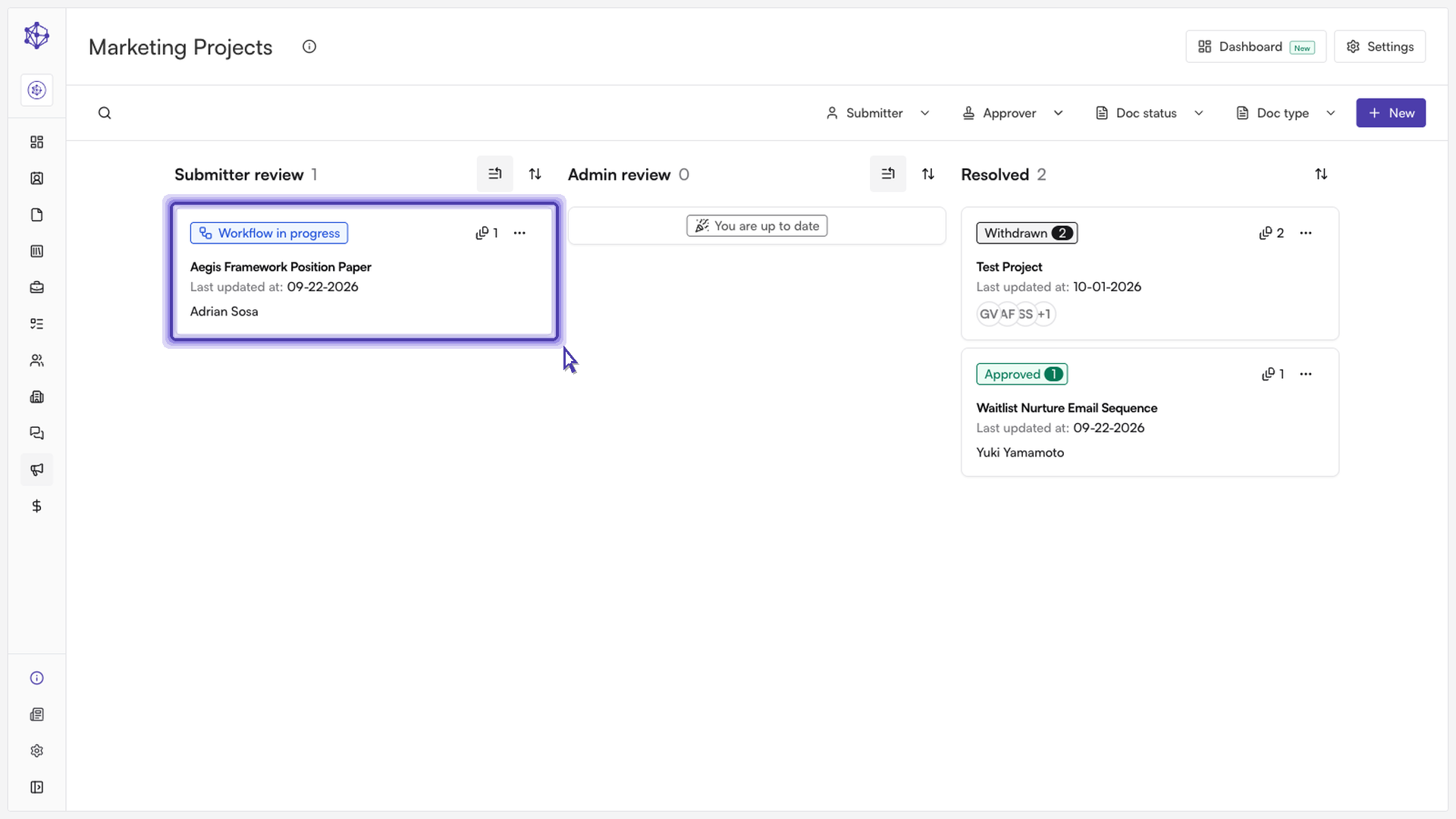
Step 2: Find the document
Expand the project to see every document tied to that review. If you'd prefer to work in the original document layout, switch to the classic view.
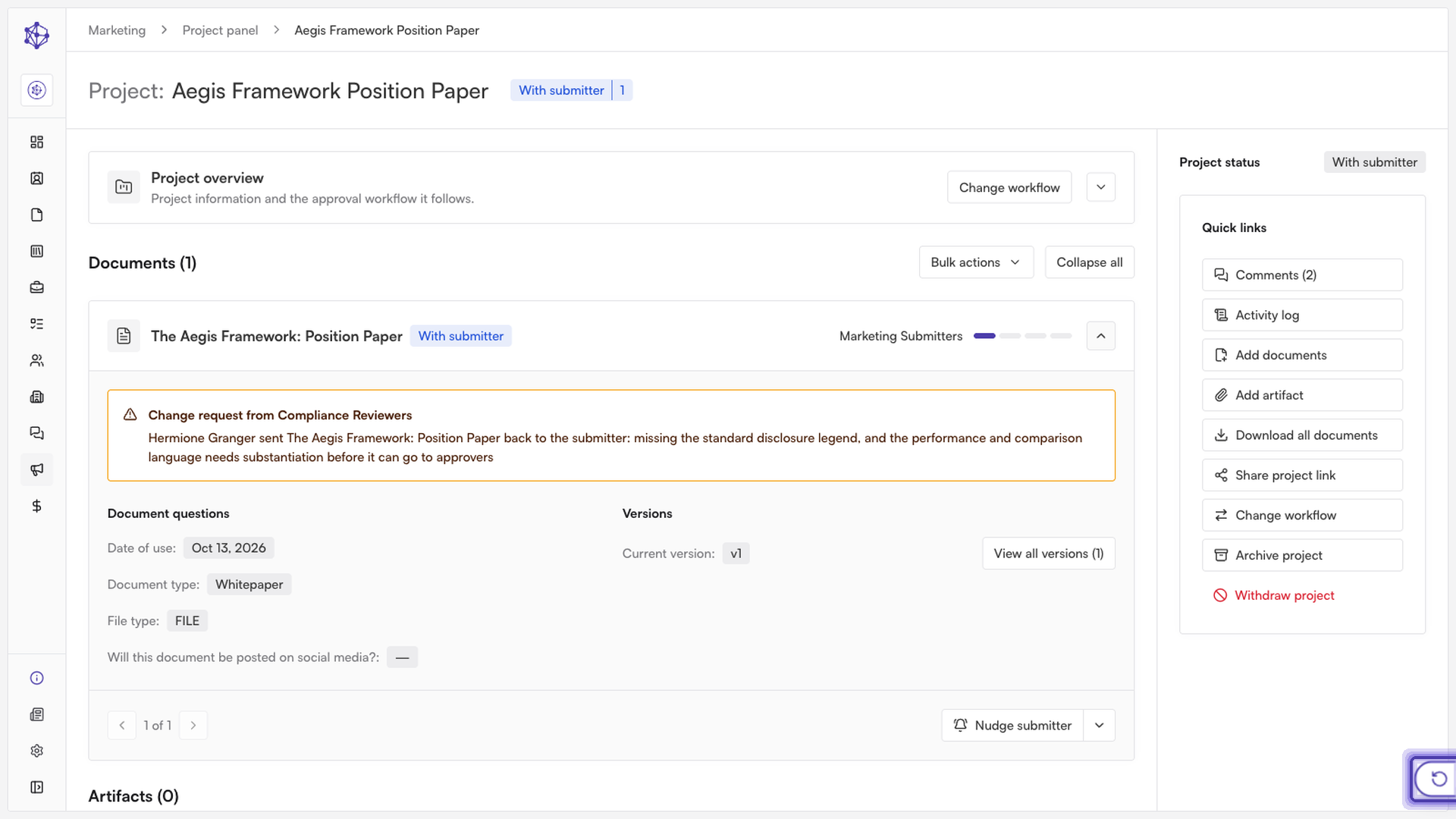
From the classic view, select the document you want to review to open it.
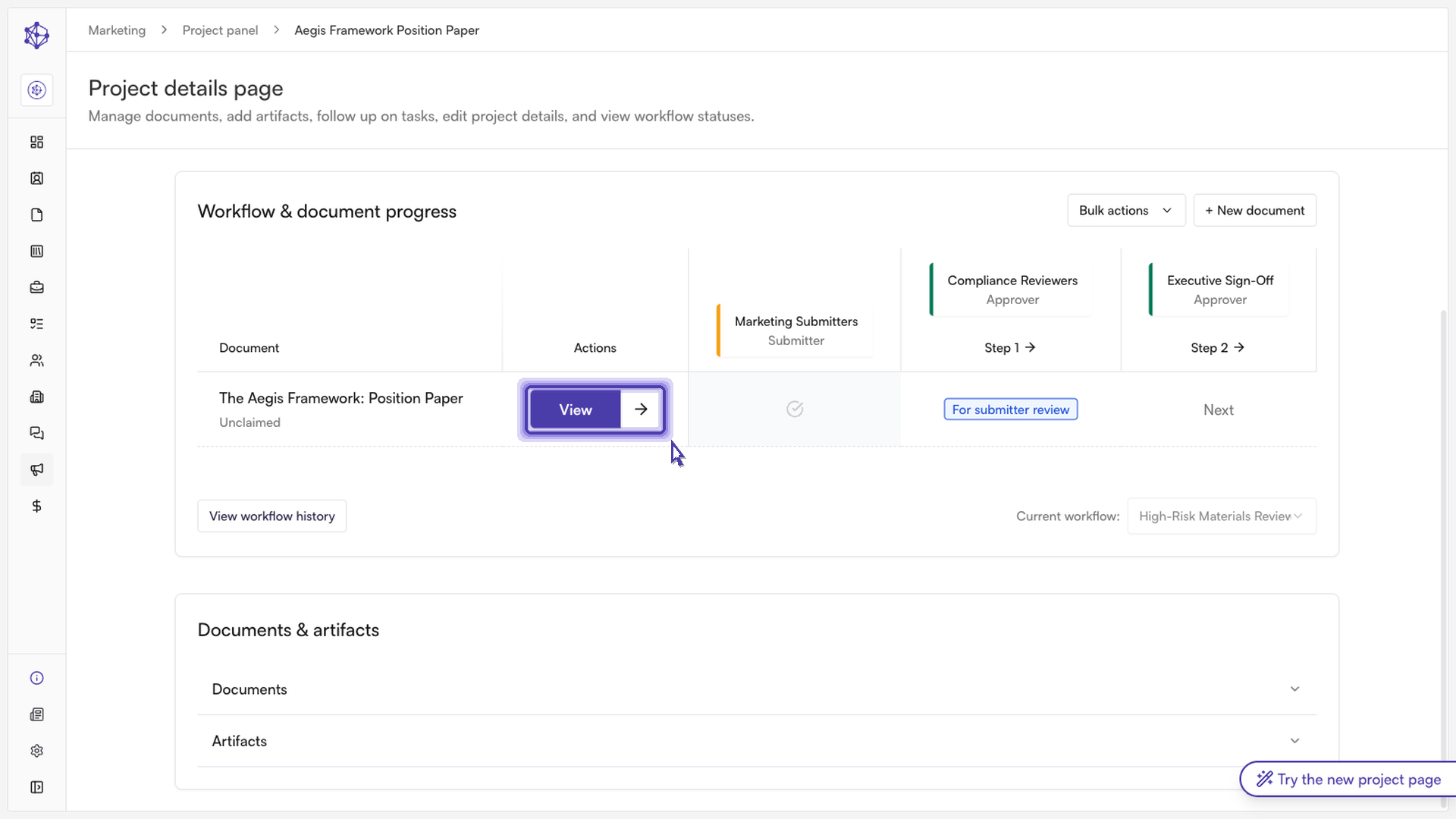
Step 3: Hide drawings and comments
Once the document is open, use the annotation toolbar above the document. Click the eye icon, labeled Hide drawings and comments, to clear all markup from view. This removes freeform drawings, area comments, arrows, and comment pins so you can read the document's content without distraction.
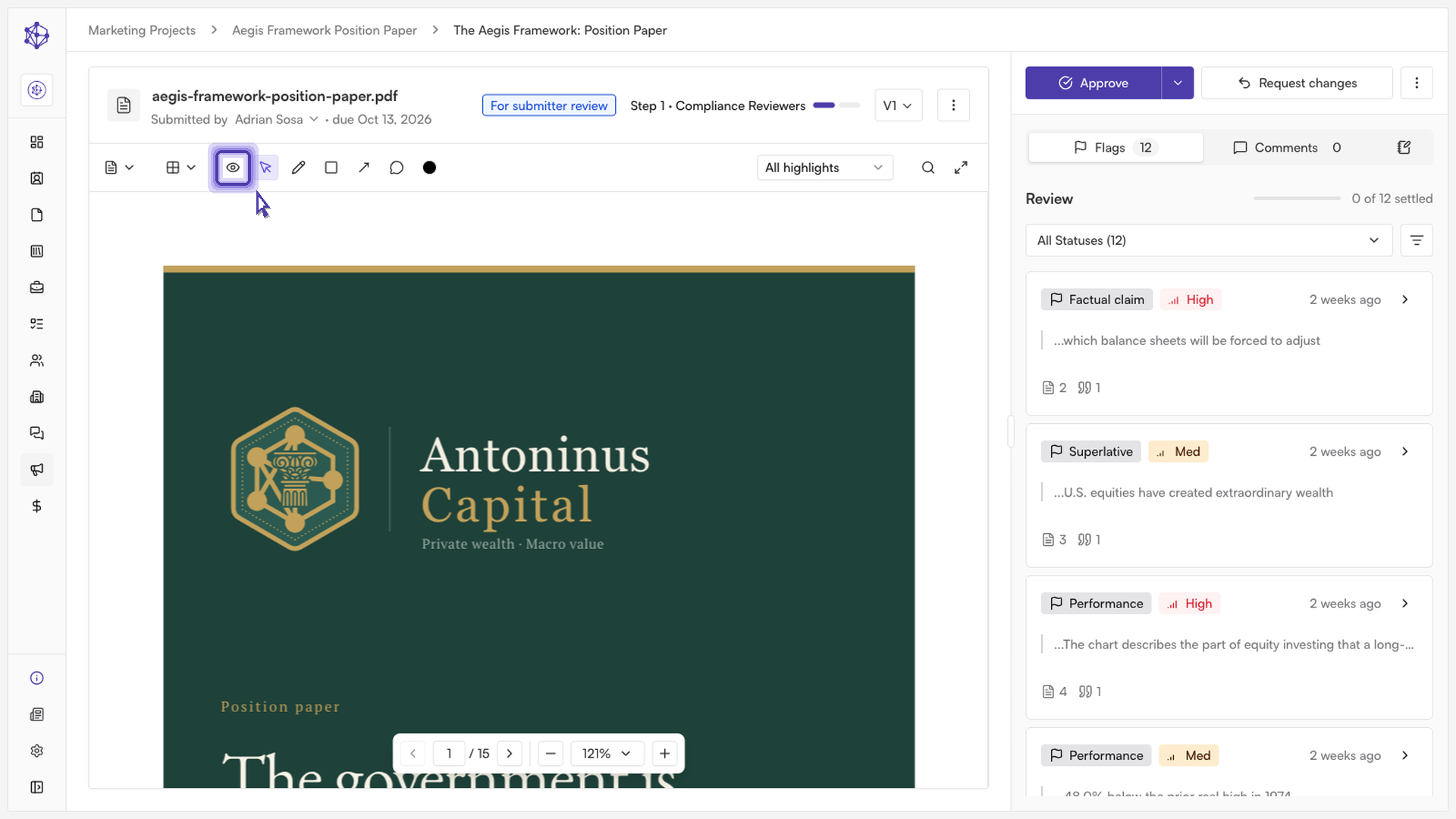
Click the same button again (it will now read Show drawings and comments) to bring the markup back.
Note
Hiding drawings and comments only changes what's displayed to you — it doesn't delete, resolve, or modify any annotation. Anyone else viewing the same document will still see all markup unless they toggle it off themselves.