How to View Comments
Last updated: October 17, 2026
Reviewers leave feedback on marketing content as it moves through review. This article explains how to find that feedback on a project, so you can see what reviewers have said, which decisions they've recorded, and which documents the comments belong to. Use it when you're catching up on a review or checking what needs to change before content is approved.
Open the project
From the main navigation, go to Projects and find the project you want to review.
Click the project to open it. The project page shows everything tied to that piece of marketing content, including its documents and review progress.
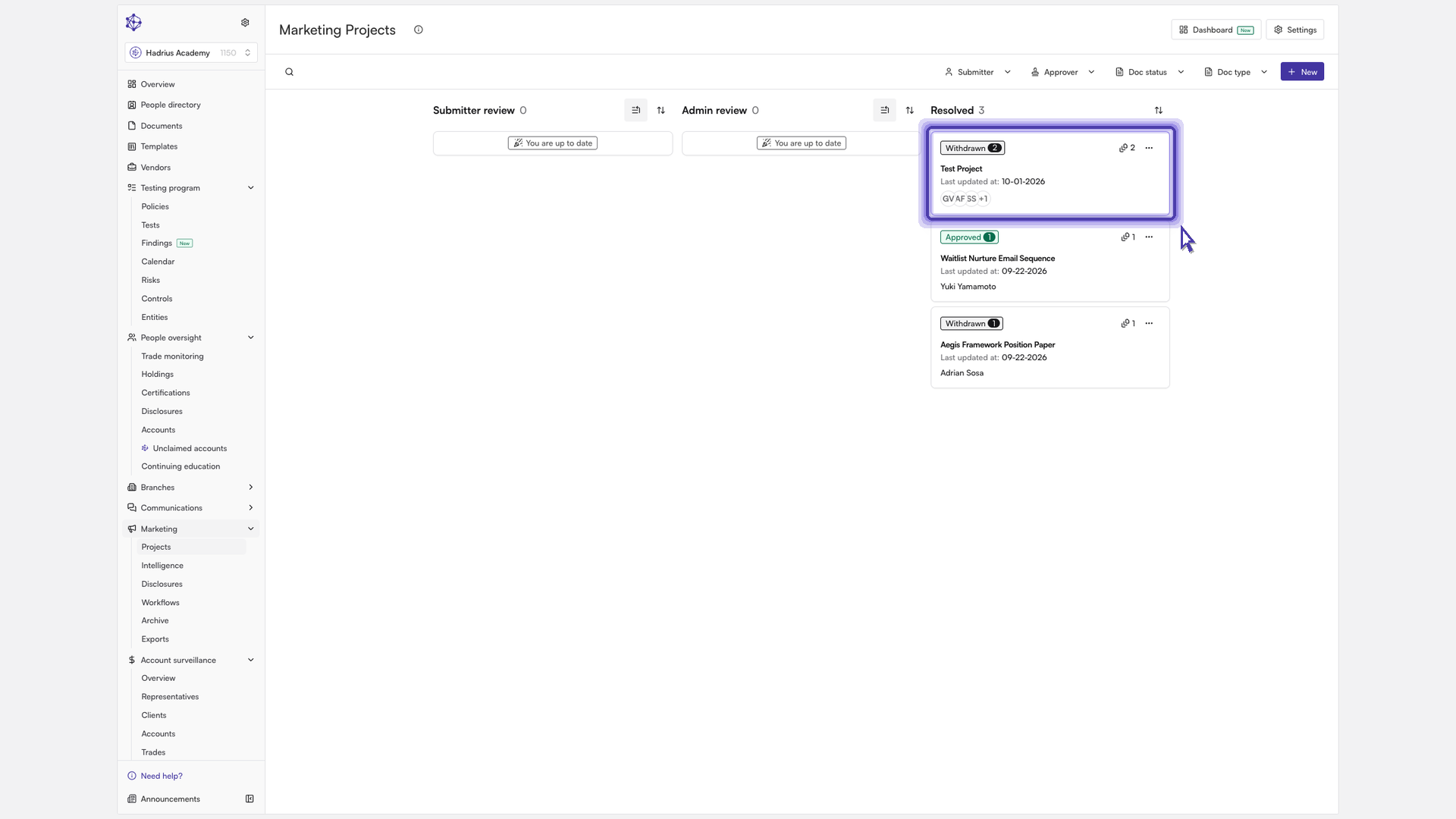
If you see an option to switch to the new project view, select it. The new view lays feedback out more cleanly and is easier to follow.
View all comments
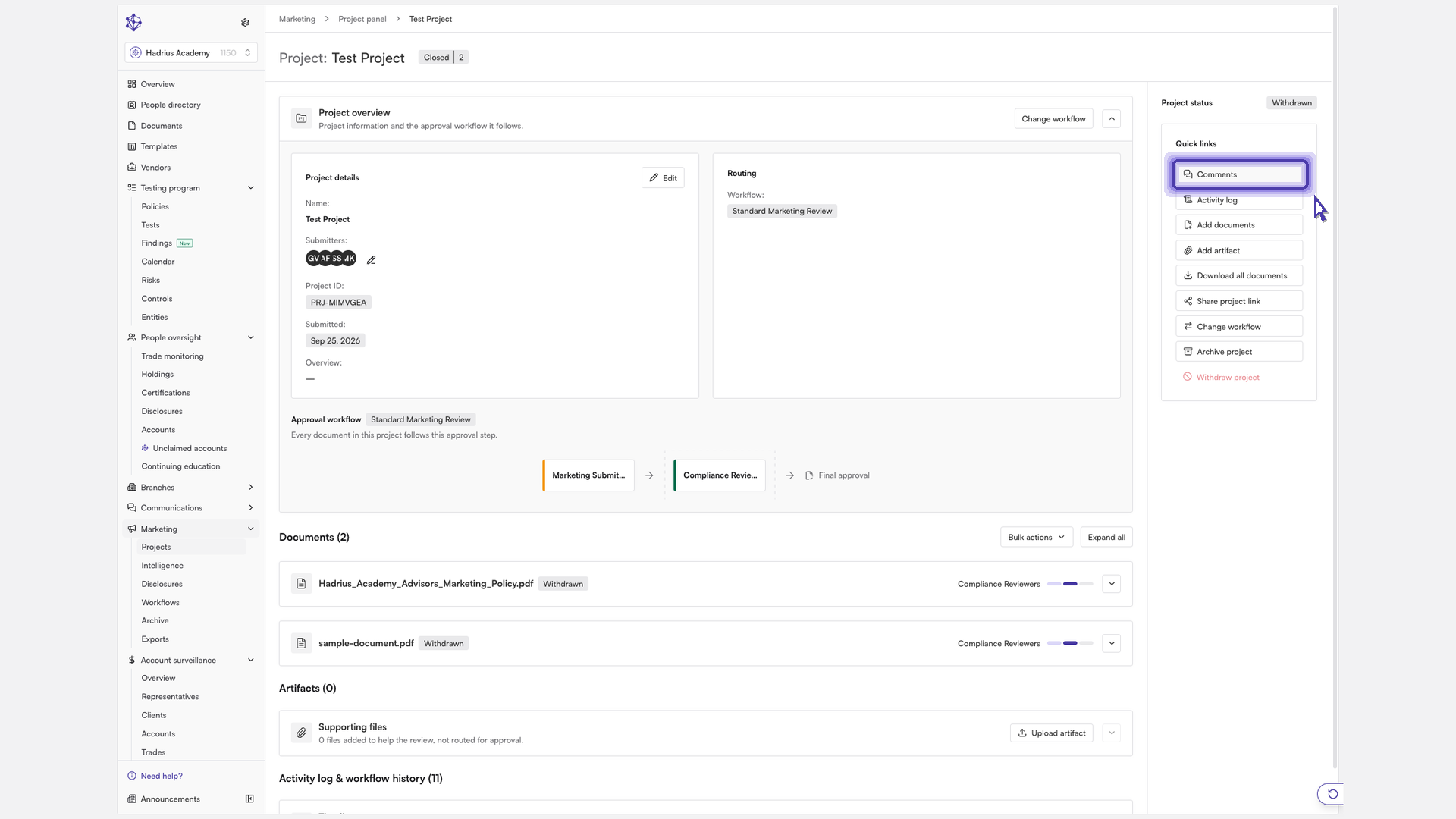
Go to the Comments tab. It gathers every reviewer remark on the project in one place, so you can read the whole conversation without checking each document separately. Comments appear newest first. The section shows the ten most recent events and a "Show all" button if there are more.
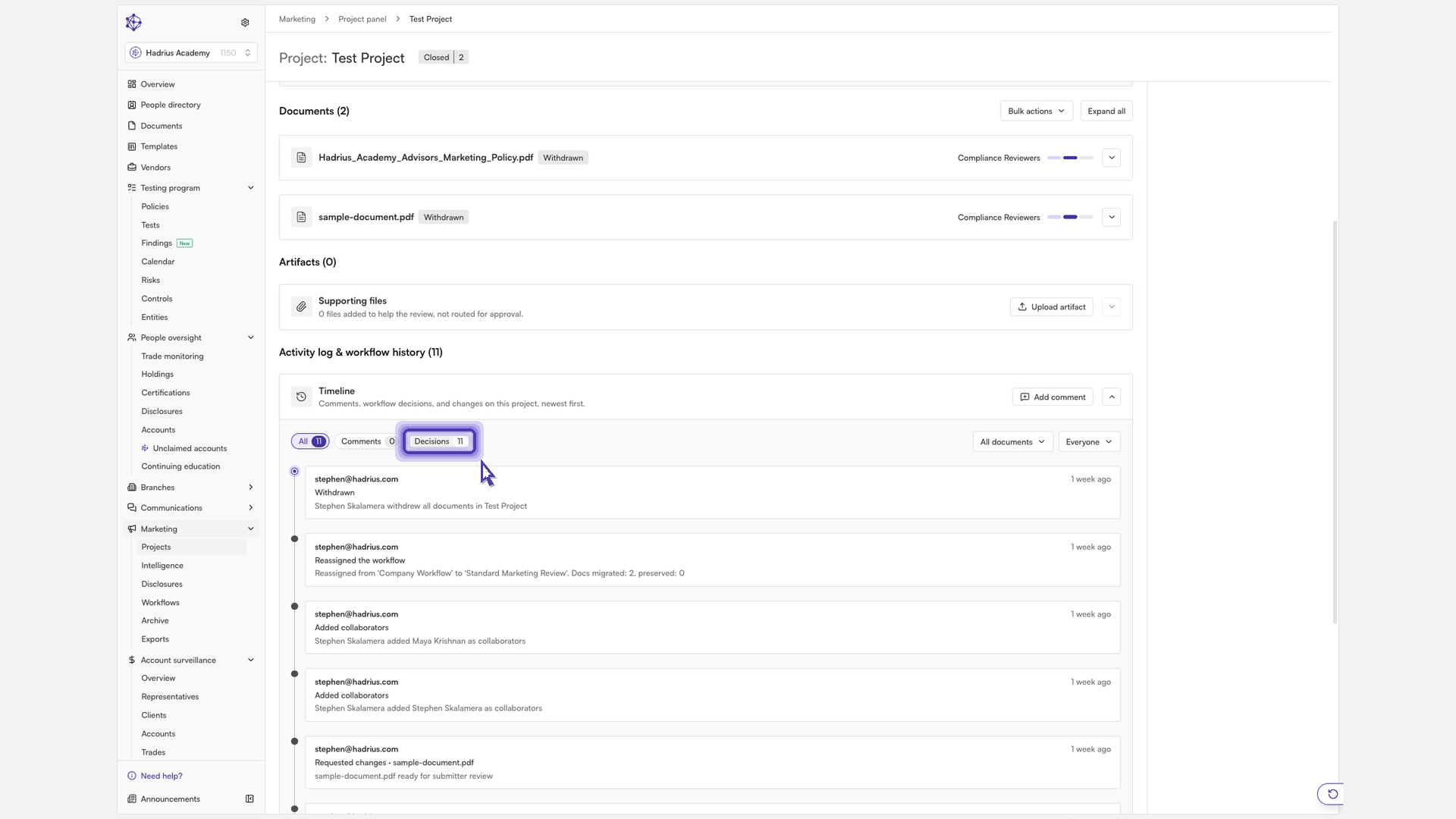
The number beside each filter shows how many events it contains. It always matches what you'll see when you select it.
Narrow what you see
Show only decisions
Select Decisions to hide the comments and show only the workflow outcomes reviewers have recorded, such as approvals. Select All to see comments and decisions together, or Comments to see only comments.
Filter by document
Use the document drop-down, which defaults to "All documents", to see feedback for one file in the project. You can also choose "Project-level only" to see feedback that applies to the project as a whole rather than to a single document.
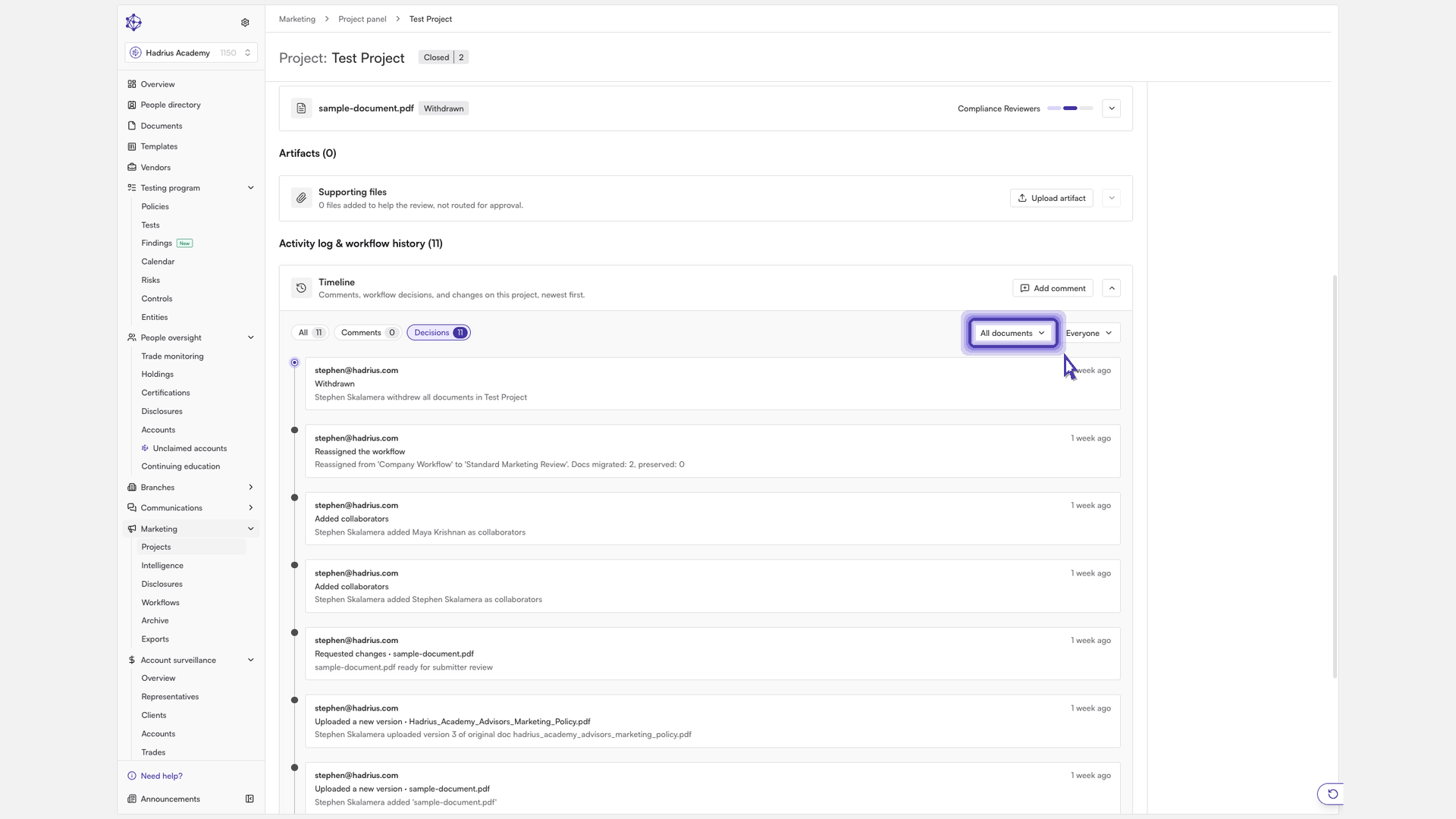
You can also filter by person to see what a single reviewer has said. Your filters work together. For example, you can view only the decisions on one document. If nothing matches, the page shows "No events match these filters". Select Clear filters to return to the full list.
Adding your own comment
If you have permission to comment, select Add comment. This takes you to the Comments filter, where you can type in the "Add a project comment…" box and select Add comment to post it.
Note: Viewing comments doesn't change the project or its review status. You can filter and browse freely.