How to Choose your Document Highlight Colours
Last updated: October 17, 2026
Hadrius lets you customize the colors used to render highlights on a reviewed document, so comment threads and flagged items are easy to tell apart at a glance. Use this when the default highlight colors are hard to distinguish, when you want a consistent color scheme across every document you review, or when you simply prefer a different look for a specific document.
Opening the highlight color settings
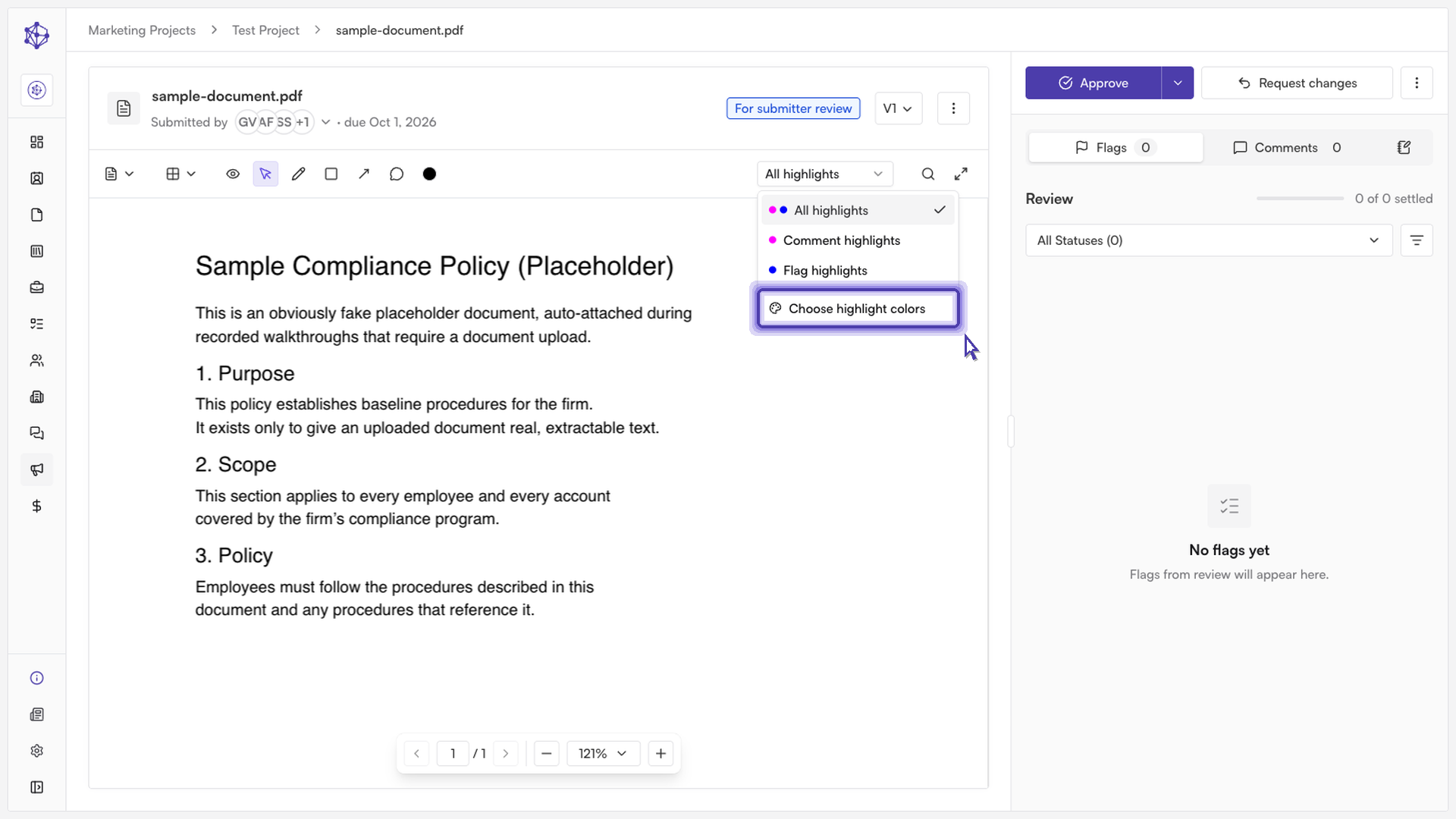
Navigate to the project the document belongs to, then open the full document list and select the document you want to review. Once the document is open, find the highlight visibility control (labeled "Highlight visibility options") near the top of the viewer. This dropdown normally lets you toggle which highlight types are shown — "All highlights," "Comment highlights," "Flag highlights," or "No highlights" — but it's also where color customization lives.

At the bottom of that dropdown, select "Choose highlight colors." This opens the "Choose highlight colors" dialog, where you can set the actual colors used for comment highlights and flag highlights throughout the document.
Choosing your colors
Under "Comment highlights," pick a color from the color grid. This color will be used to mark comment-thread highlights throughout the document.
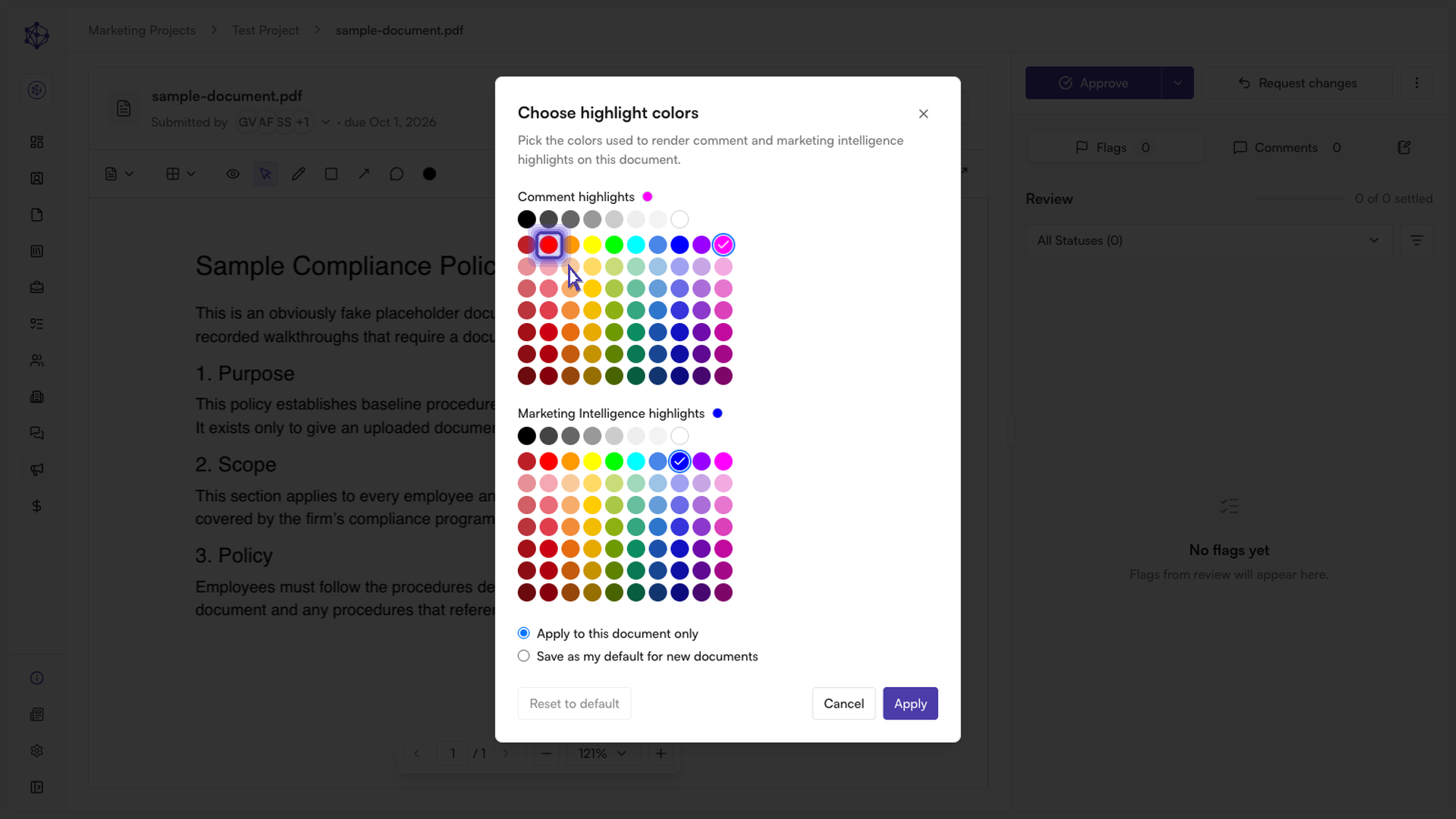
Under "Marketing Intelligence highlights," pick a second color. This covers the other highlight type, so each kind stands out distinctly from the other as you review the document.
Choosing where the colors apply
Below the color pickers, choose one of two scope options:
Apply to this document only — the colors you've chosen apply just to the document you currently have open.
Save as my default for new documents — the colors you've chosen become your standard, and every new document you open will use these same colors automatically.
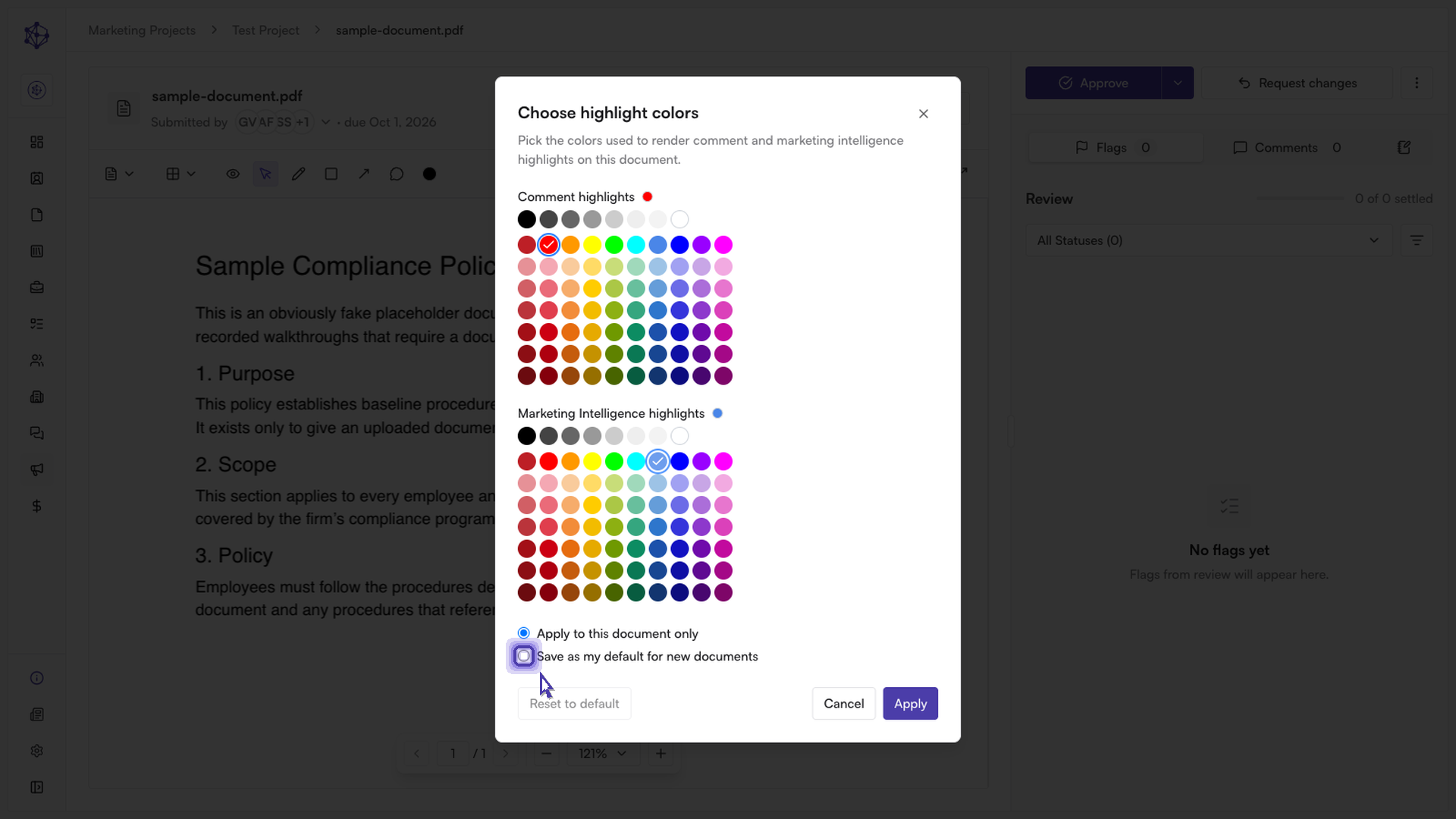
If you want to undo your changes before saving, use "Reset to default" to revert both colors back to your current defaults, or "Cancel" to close the dialog without applying anything.
Applying your changes
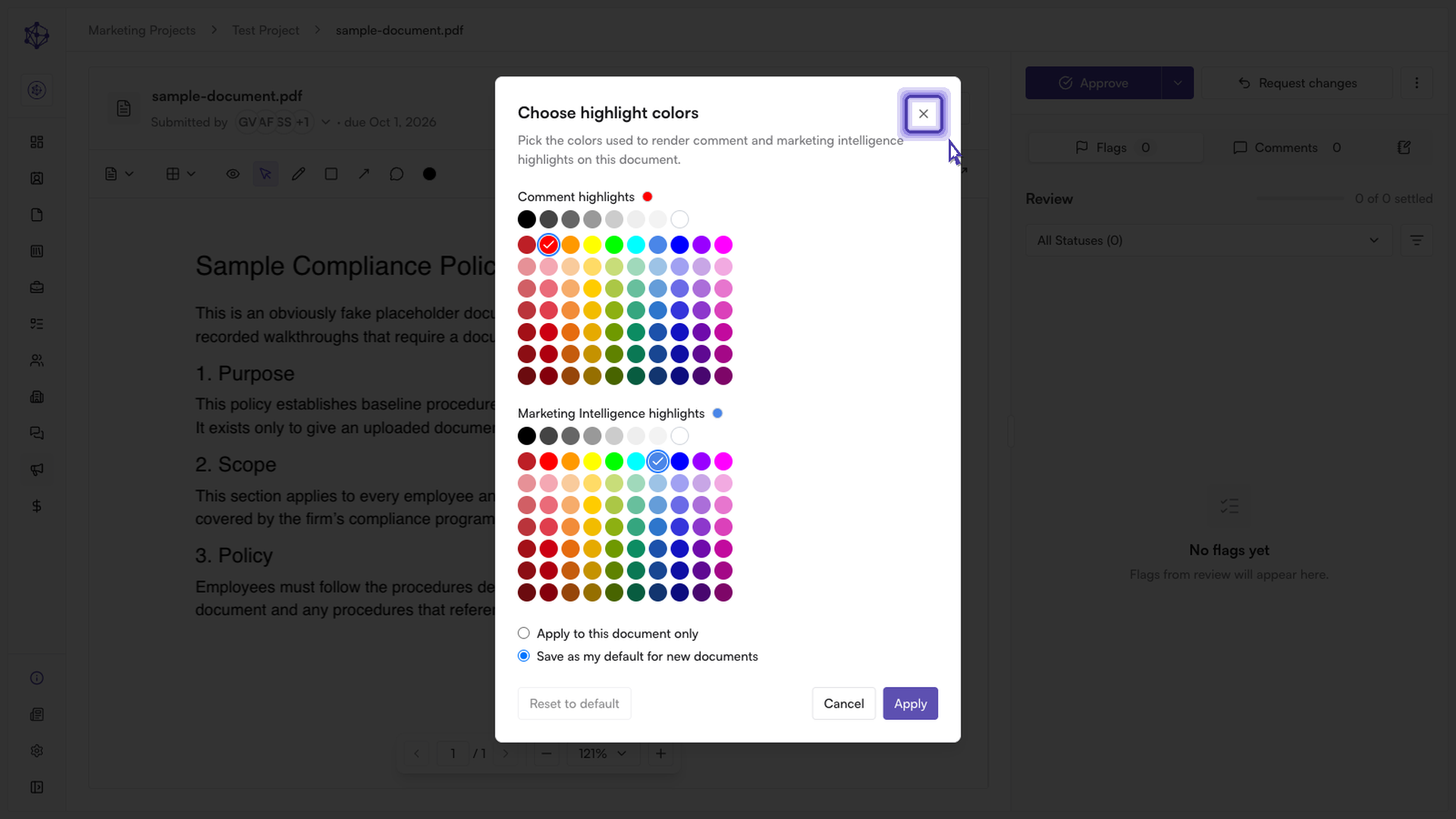
When you're ready, select "Apply." The highlights in the document update immediately so you can see the new colors in place. Closing the dialog finalizes the colors for the document, leaving you with a clearly color-coded review — comment highlights in one color and flagged highlights in another, both easy to distinguish at a glance.
What's next
If you chose to apply the colors to this document only, you can always reopen "Choose highlight colors" later to adjust them again or reset to your saved defaults. If you saved the colors as your default, every new document you open going forward will start out using that same color scheme, though you can still override it on a per-document basis at any time.