Switching Between Admin and Employee View
Last updated: October 2, 2026
Administrators on Hadrius can switch into the employee view of the platform at any time, without signing out or using a separate login. This is useful when you want to confirm what a staff member sees when they log in, walk someone through a task over the phone, or complete your own employee requirements — attestations, disclosures, and assigned tasks — as a member of the firm. This article explains how to switch into the employee view and how to return to your administrator view.
Before you begin
The view switch is only available to administrators who also have an employee record at the firm, and only at firms where employee compliance is enabled. If you don't see the switch button described below, one of those conditions isn't met — your Hadrius contact can confirm your access.
Switching to the employee view
From any page in the platform, open Settings using the gear icon in the left-side navigation panel.
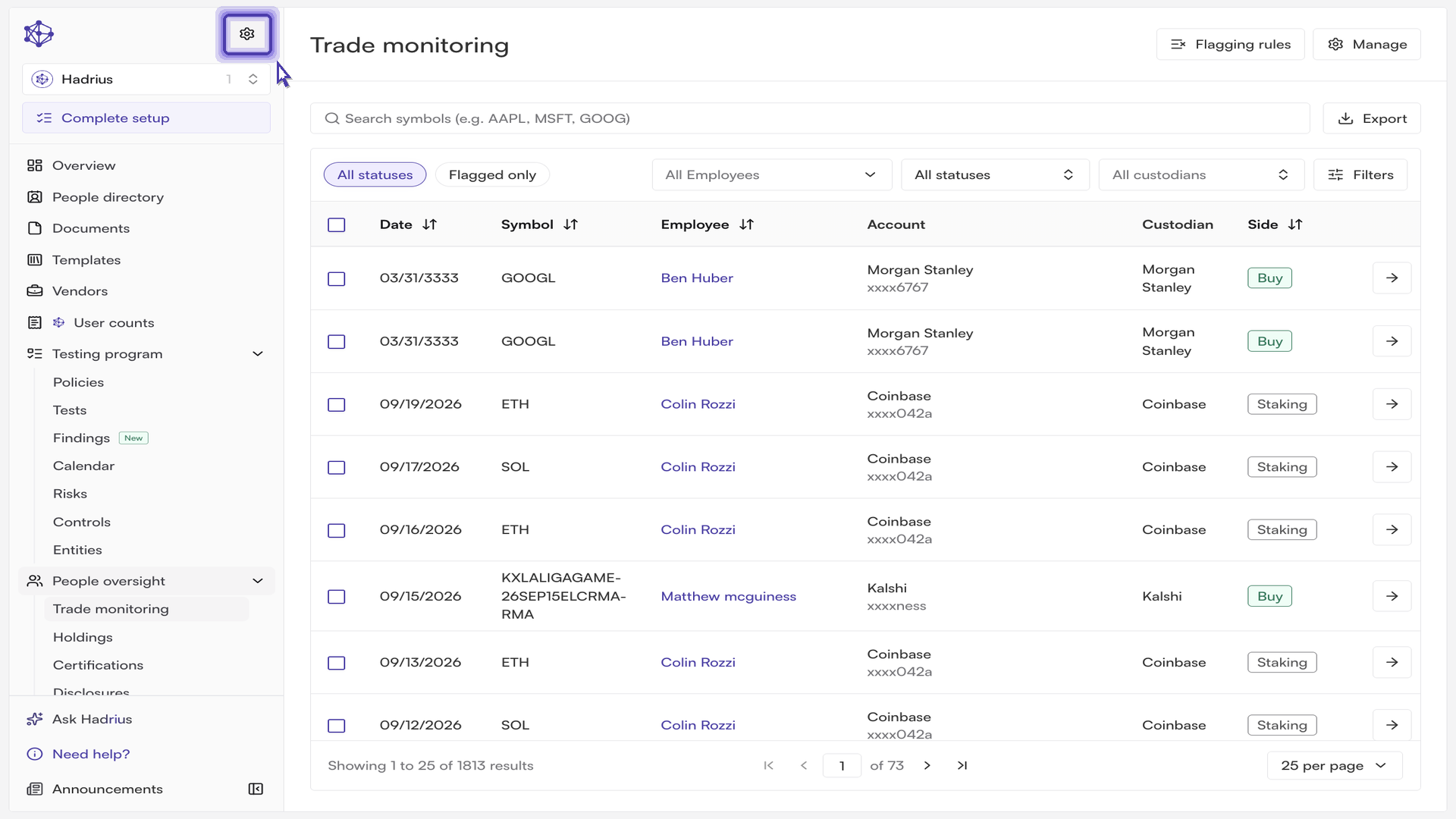
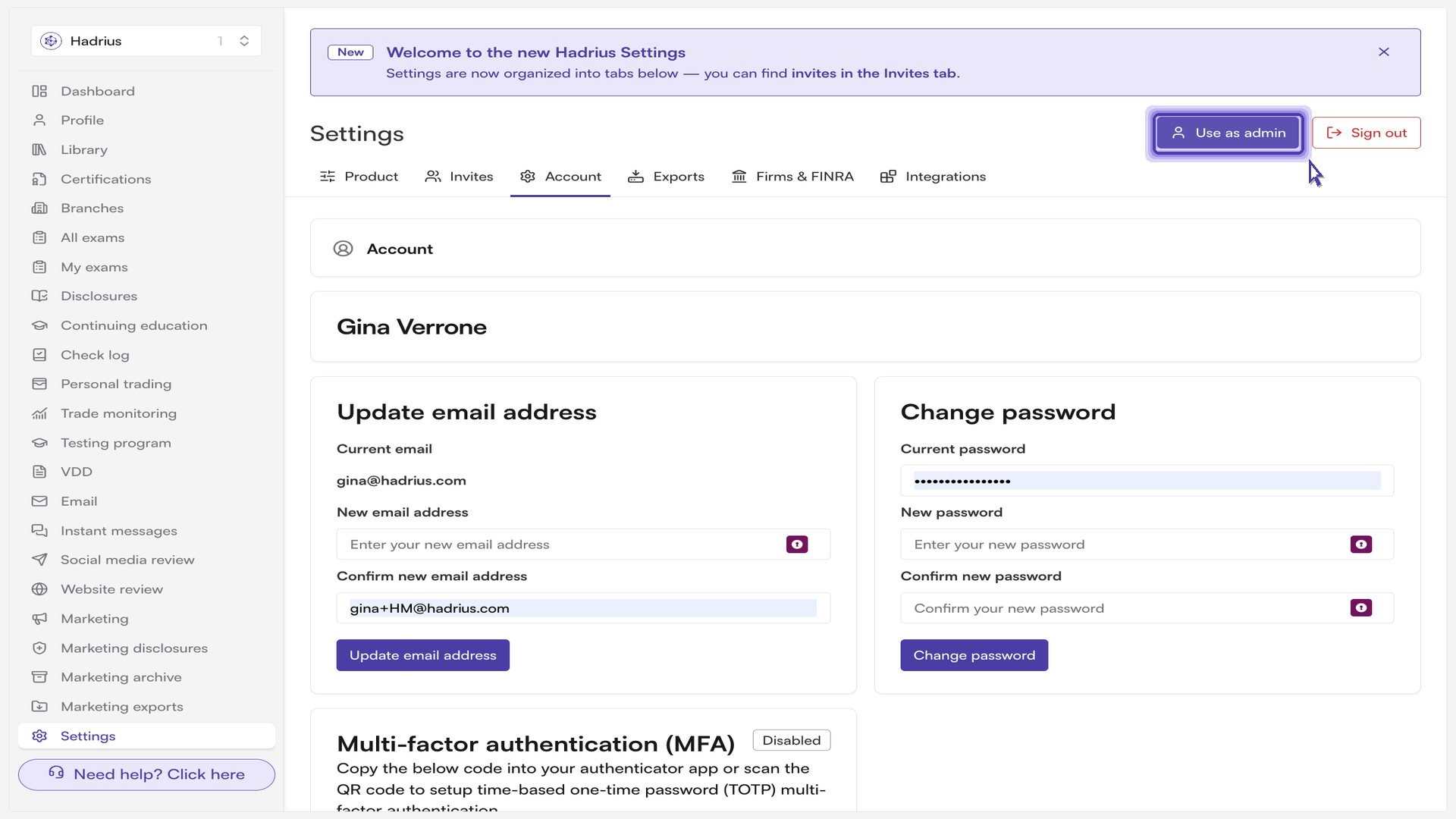
In the Settings header, click "Use as employee". The platform reloads into the employee experience.
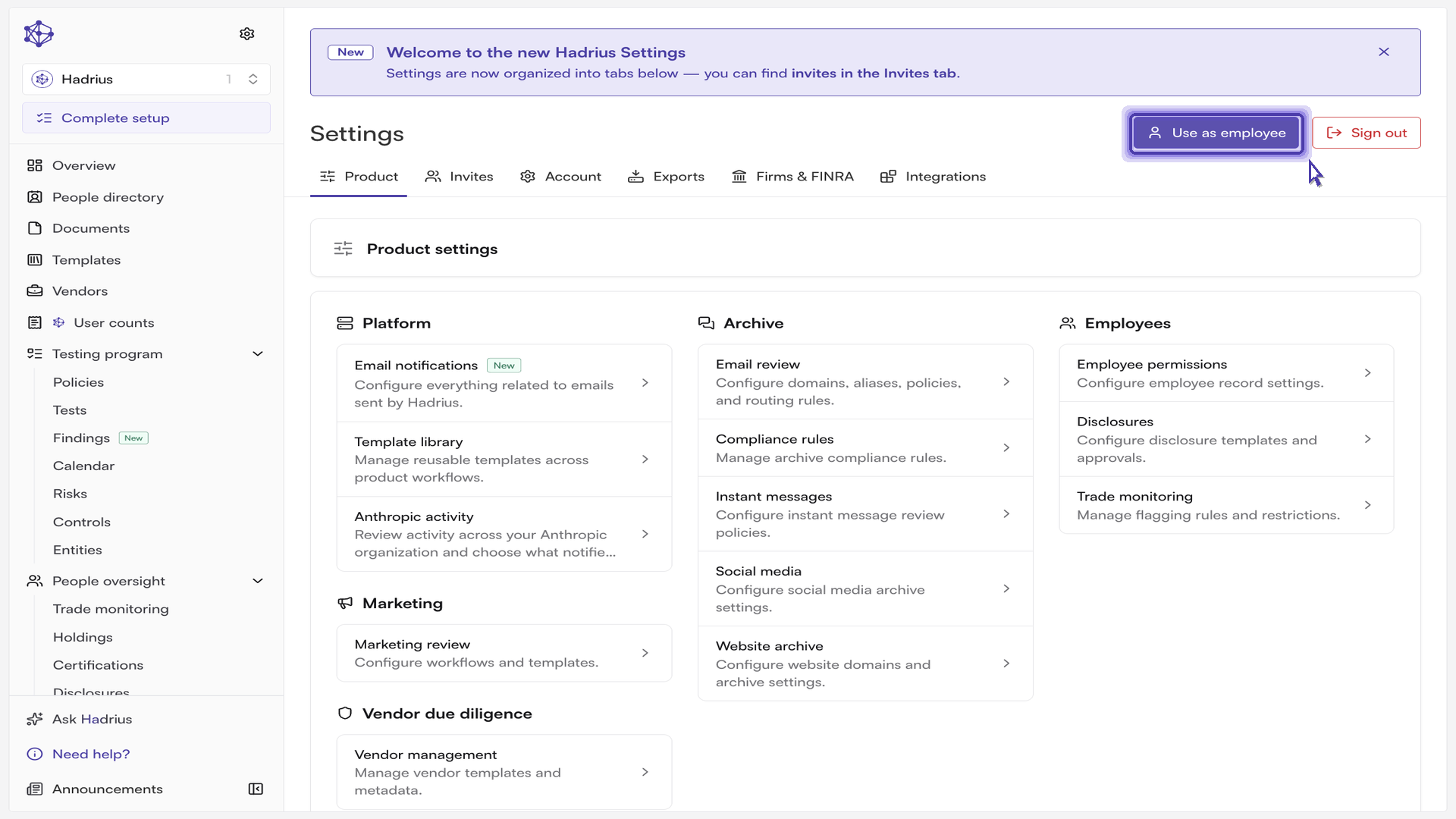
Review the employee view. The dashboard is now your own employee dashboard, scoped to your personal tasks and attestations, and the navigation reflects only the modules employees can reach. This is exactly what your staff see when they log in — and it's worth noting that employees can only ever see their own data, never anyone else's at the firm.
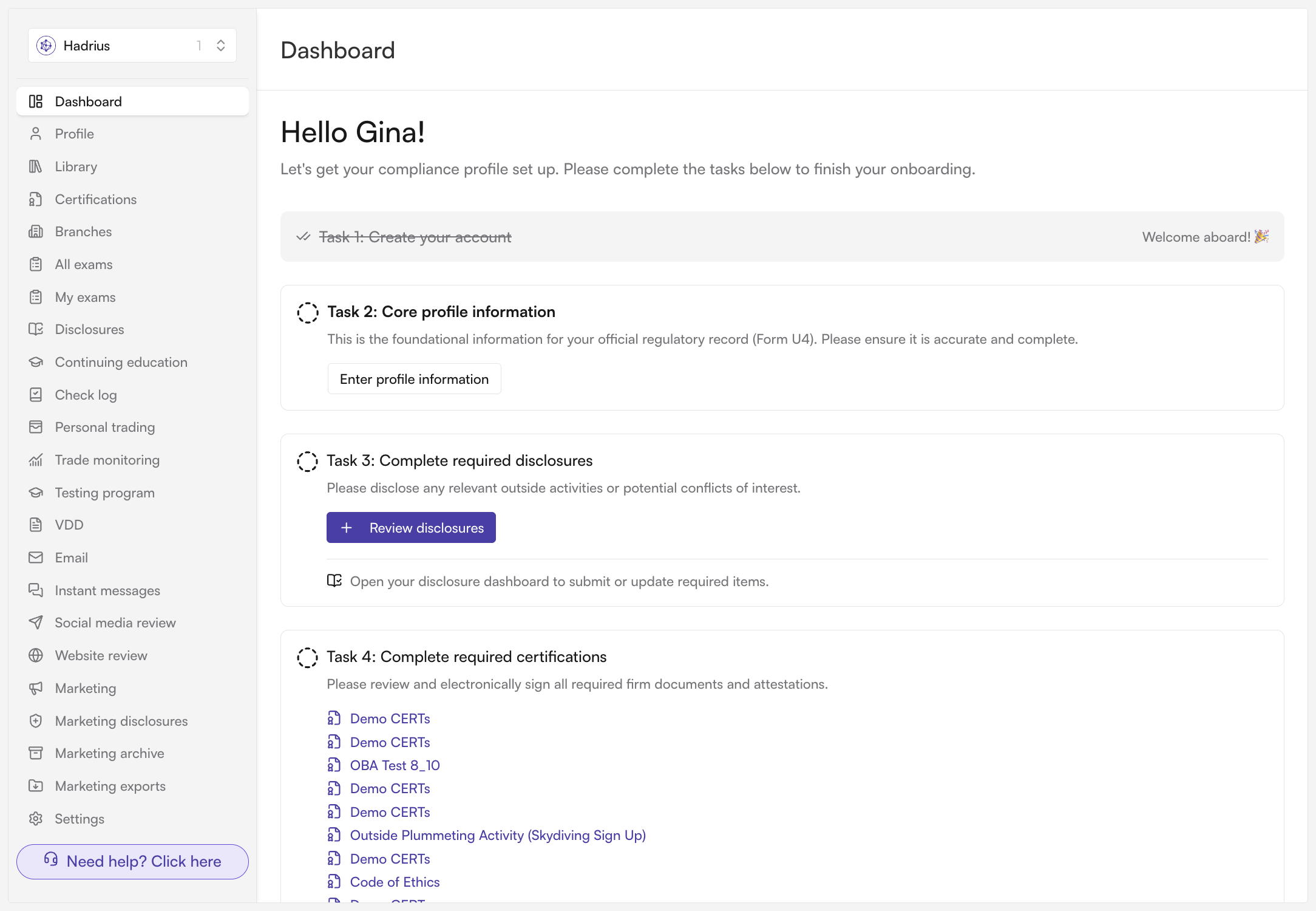
Your selected view is remembered for your account, so you'll stay in the employee view as you move between pages — and on your next sign-in — until you switch back.
Returning to the administrator view
To return to full administrator access, open Settings again from the gear icon at the bottom left of the navigation panel, then click "Use as admin" in the Settings header. Because this button only appears for users who hold an administrator role at the firm, employees cannot use it to reach the administrator side of the platform.
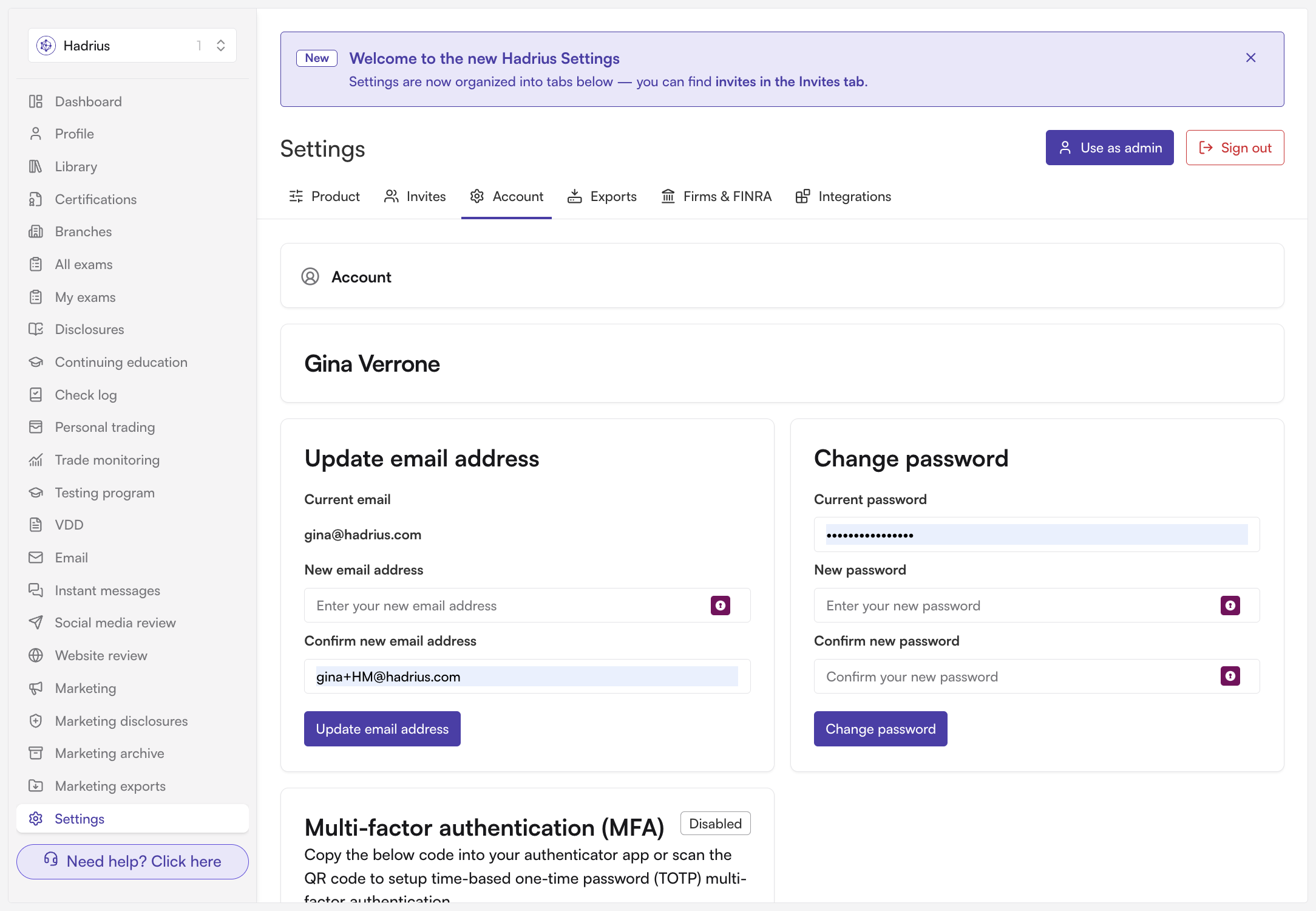
Once you're back in the administrator view, your firm-wide oversight returns immediately — dashboards, employee records, and reporting all reflect the full firm again, so you can continue supporting your team.
Tips
Switching views does not change any permissions or data. It only changes what you see; nothing is submitted, reassigned, or cleared on your employees' behalf.
If you complete a task or attestation while in the employee view, it is recorded against your own employee record, exactly as it would be for any other member of the firm.
Some Settings tabs — such as Invites and firm-level configuration — are hidden while you're in the employee view and reappear when you switch back.