How to configure marketing document types
Last updated: October 17, 2026
Marketing document types define the categories submitters can classify content under when they upload material for review. Use this workflow whenever your firm needs to add a new category to the library, rename an existing one, or change whether a type is currently available for new submissions.
Where to find it
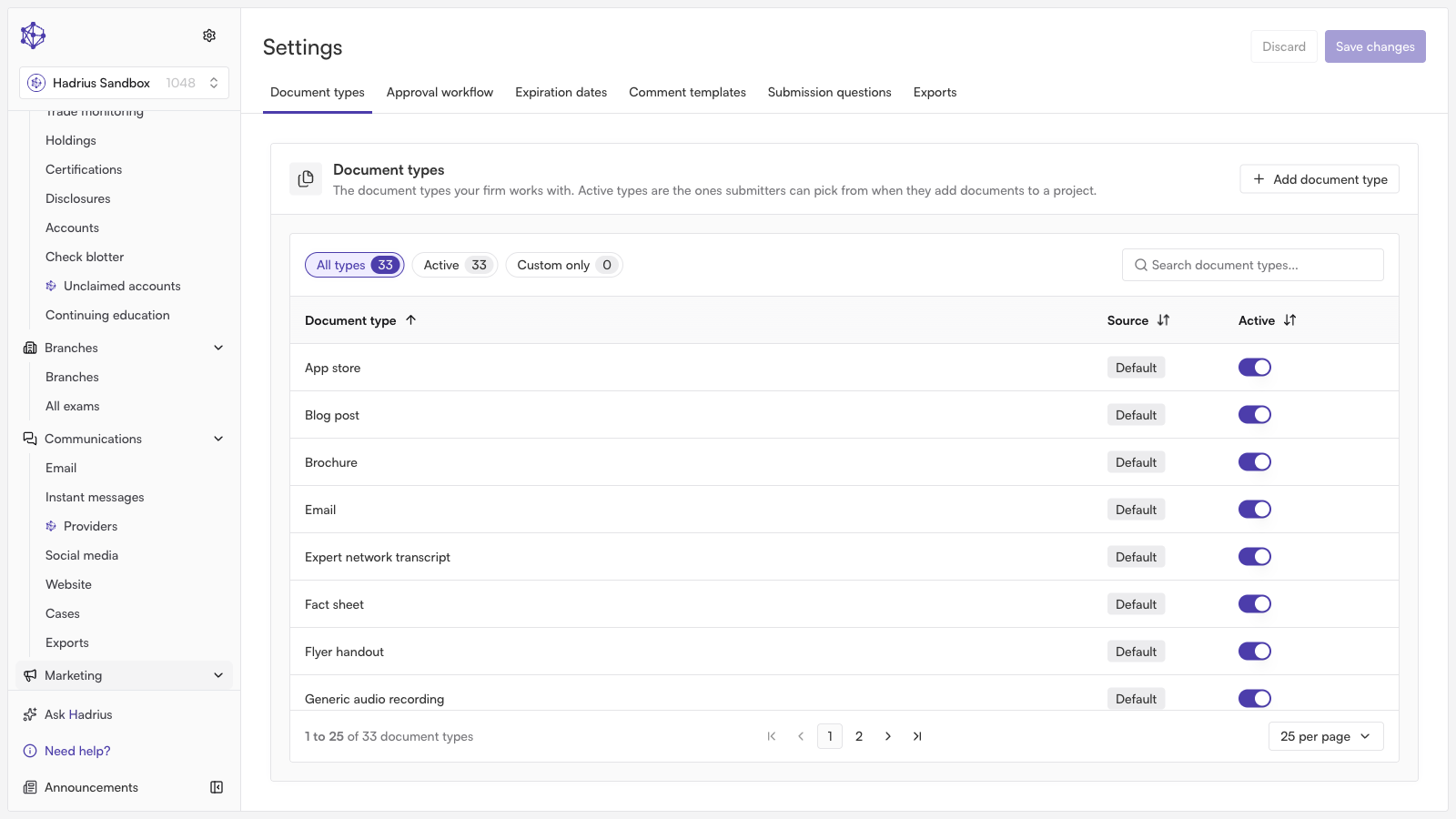
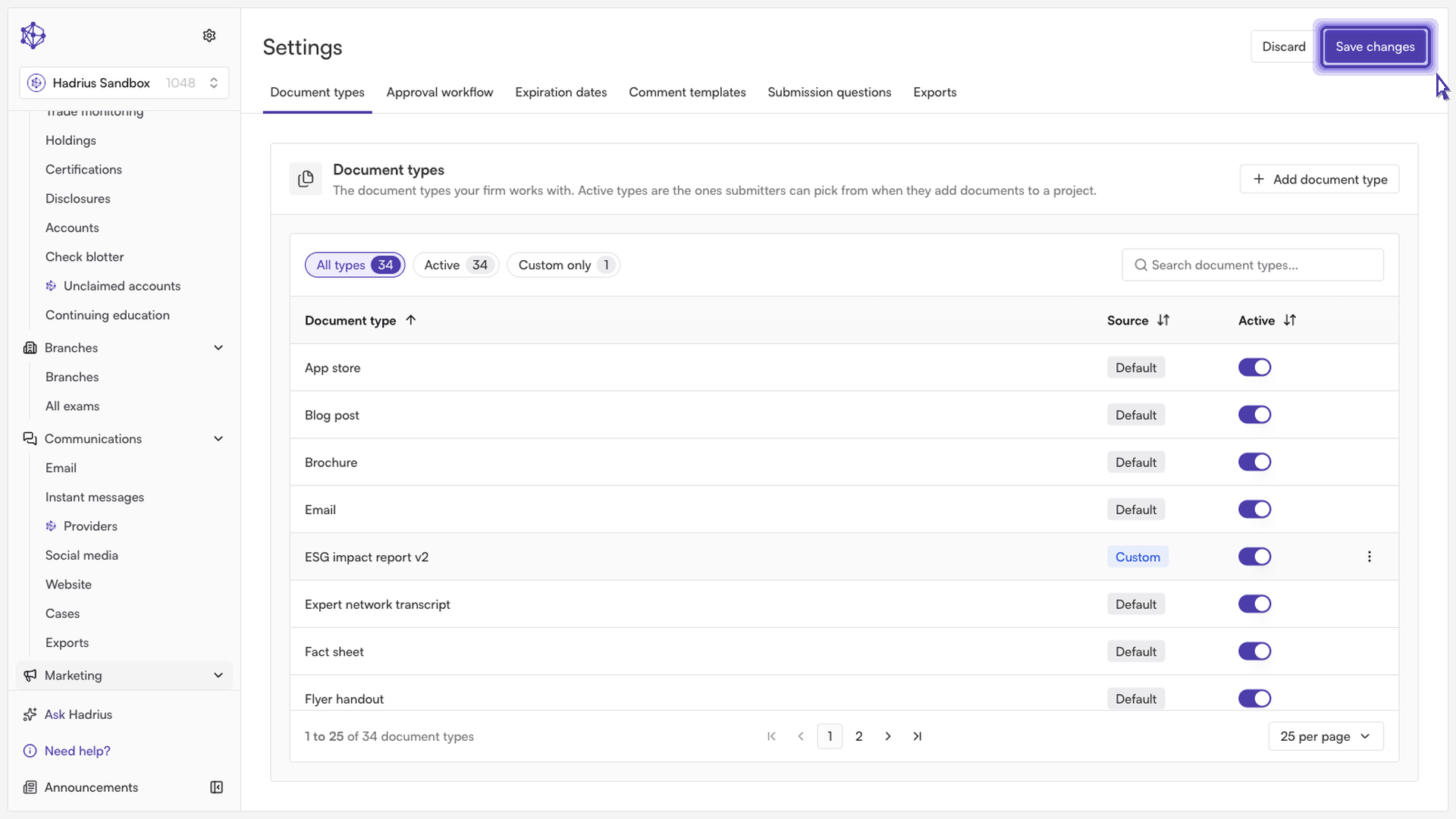
Document types are managed from Settings > Document types within Marketing Review. This tab lists every type in your library along with its source (Default or Custom), whether it's currently active, and how many documents are filed under it. You can search the list or filter it down to All types, Active, or Custom only.
Adding a new document type
Click Add document type above the list.
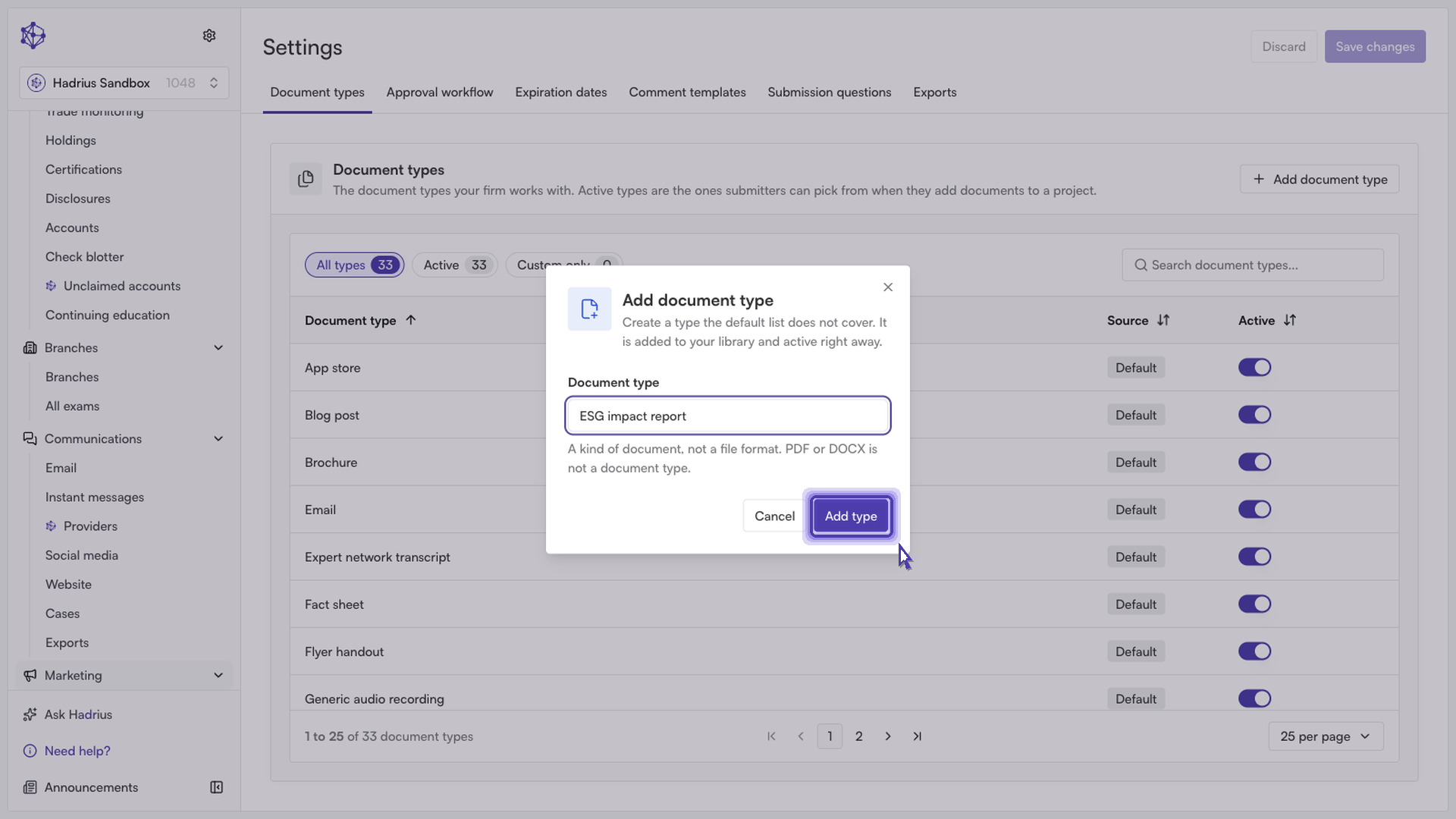
In the dialog, enter a name for the kind of content this category is meant to capture. Note that a document type describes a category of content, not a file format — the field description explicitly calls out that something like "PDF" or "DOCX" isn't a valid document type.
Click Add type to confirm.
The new type is added to your library as Custom and is marked active immediately — there's no separate step to turn it on. If you'd rather it not be selectable yet, you can switch it off from the list afterward. The dialog will flag an error if the name duplicates an existing type, or point you to restore an archived type of the same name instead of creating a duplicate.
Editing an existing type
Only custom document types can be renamed, archived, or deleted from this screen — default types that ship with the platform don't have this menu. To edit a custom type, open its row menu and select Edit.
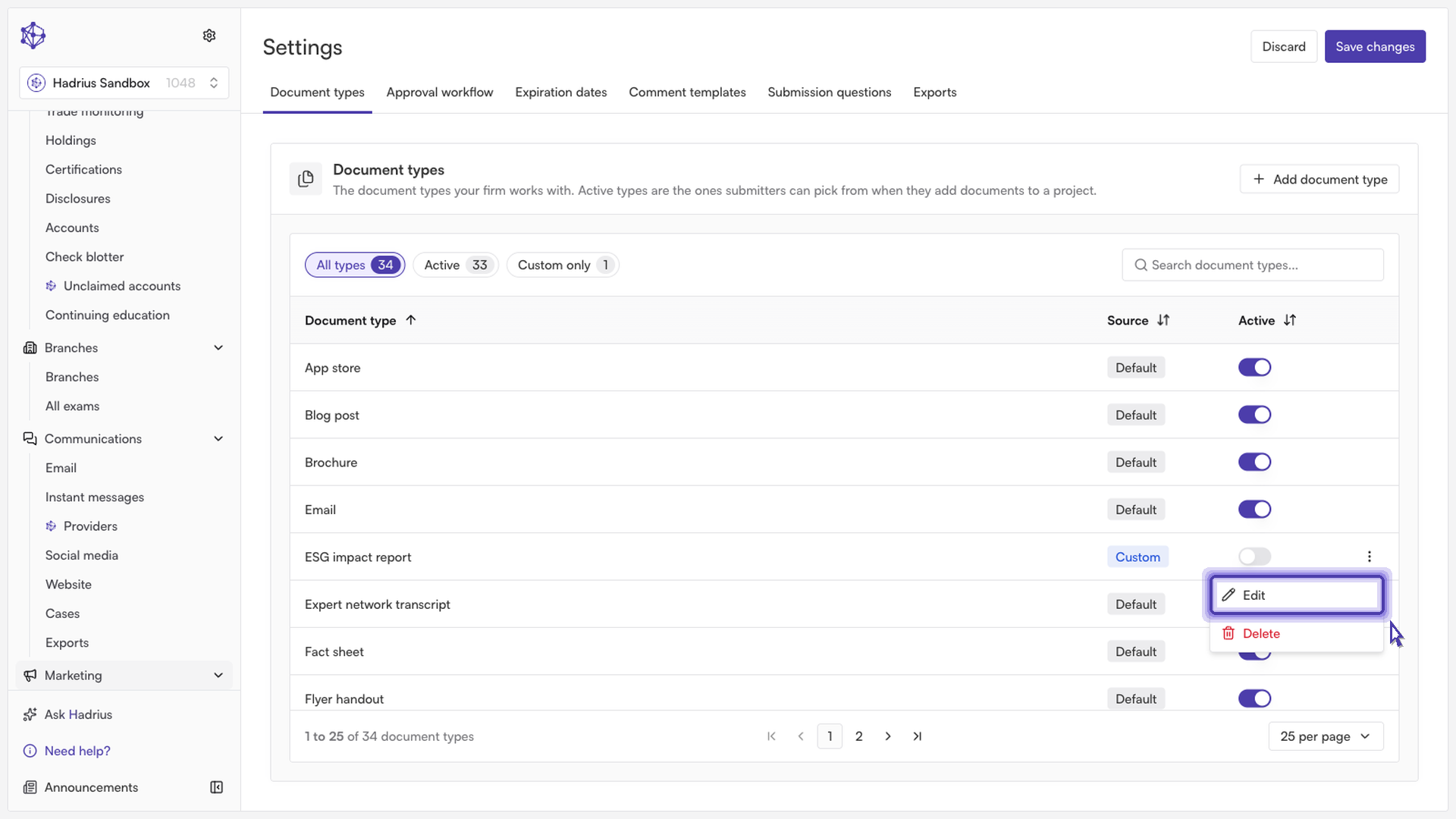
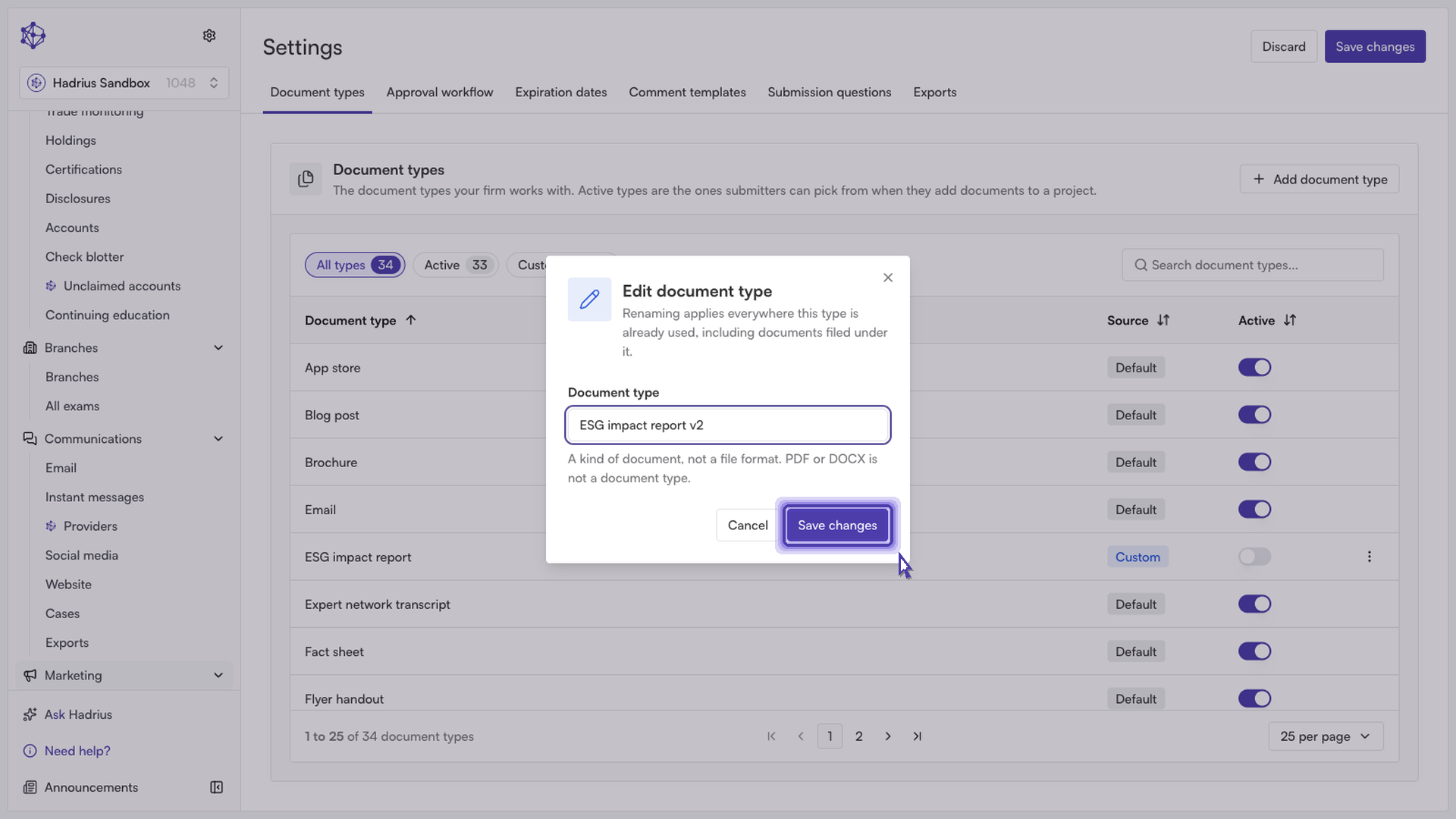
Update the name in the Edit document type dialog and click Save changes. Renaming applies everywhere the type is already used, including any documents already filed under it, and carries the rename through to any per-type overrides configured elsewhere in Marketing Review settings.
Controlling whether a type is available
Every document type — default or custom — has an Active switch in the list. Active types are immediately available for submitters to choose when classifying a document; switching a type off (or archiving it) blocks it from being selected on new submissions. Archiving is for types that already have documents filed under them and can't be deleted outright; a type with no documents attached can be deleted instead. Archived types can be restored later, though restoring returns them in an inactive state so you can decide separately whether to turn them back on.
Saving your changes
Additions, renames, activations, and archive/delete actions on this tab are staged locally until you save. Use Discard to revert everything back to how it was, or click Save changes in the page header to write the updated configuration for the whole team. This button stays disabled until something has actually changed.
Once saved, the updated document type library takes effect immediately across the platform — anyone submitting a document for review will see the current set of active types to choose from.