Creating Groups and Custom Permissions
Last updated: September 30, 2026
Groups let you organize your roster into teams, and permissions profiles control what those teams can see and do in Hadrius. This article walks through creating a group from scratch, adding members, tailoring its permissions module by module, and maintaining membership over time. Use it whenever you're standing up a new review team, onboarding a department, or granting a set of colleagues access to a specific area of the platform.
Before you begin
You'll need access to the people directory and permission to manage groups. Groups marked "System managed" are maintained by Hadrius and can't be renamed, edited, or deleted — create a new group instead if you need different access.
Create the group
Start in the people directory, the home base for everyone on your roster, and open Permissions & Groups. From the Groups tab, select the option to create a new group.
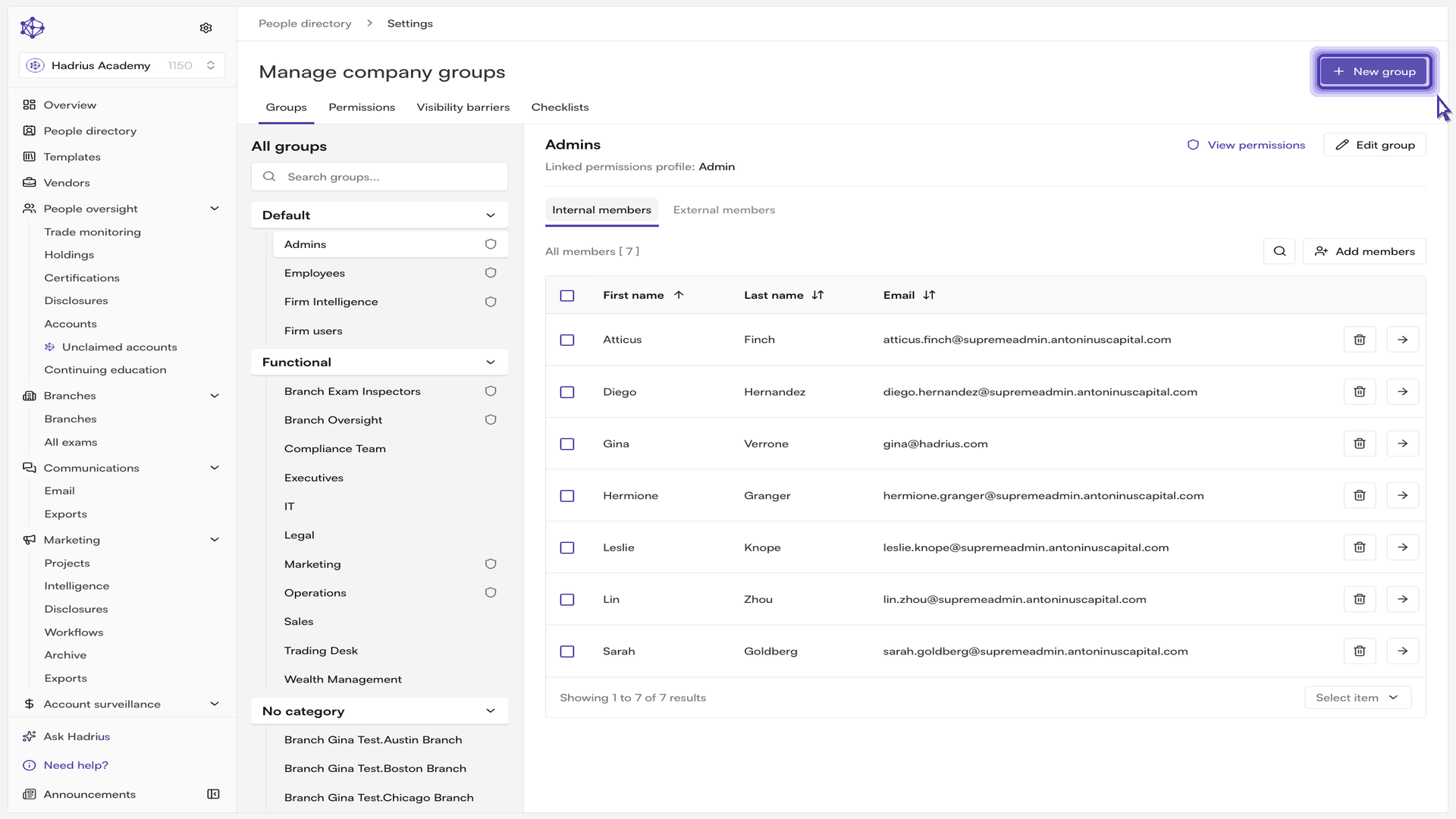
In the Create new group dialog, fill in the details:
Group name — required. Give it a clear name so its purpose is obvious to anyone reviewing access later.
Group description and Group category — optional. The category helps you organize groups in the sidebar; you can pick an existing one or create a new one as you type.
Onboarding checklist — optional. Attaching a checklist here means new joiners added to the group automatically start with the right tasks.
Create a permissions profile for this group — turning this on creates a matching permissions profile linked to the group, which is what you'll use to manage access controls for its members.
Select Create group to finish. If you later change the attached checklist on an existing group, Hadrius will ask whether to apply it to employees already in the group or to new members only.
Add members
With the shell of the group in place, open it and select Add members. The picker lists every employee who isn't already a member, and the Search by name or email box makes it quick to find specific colleagues.
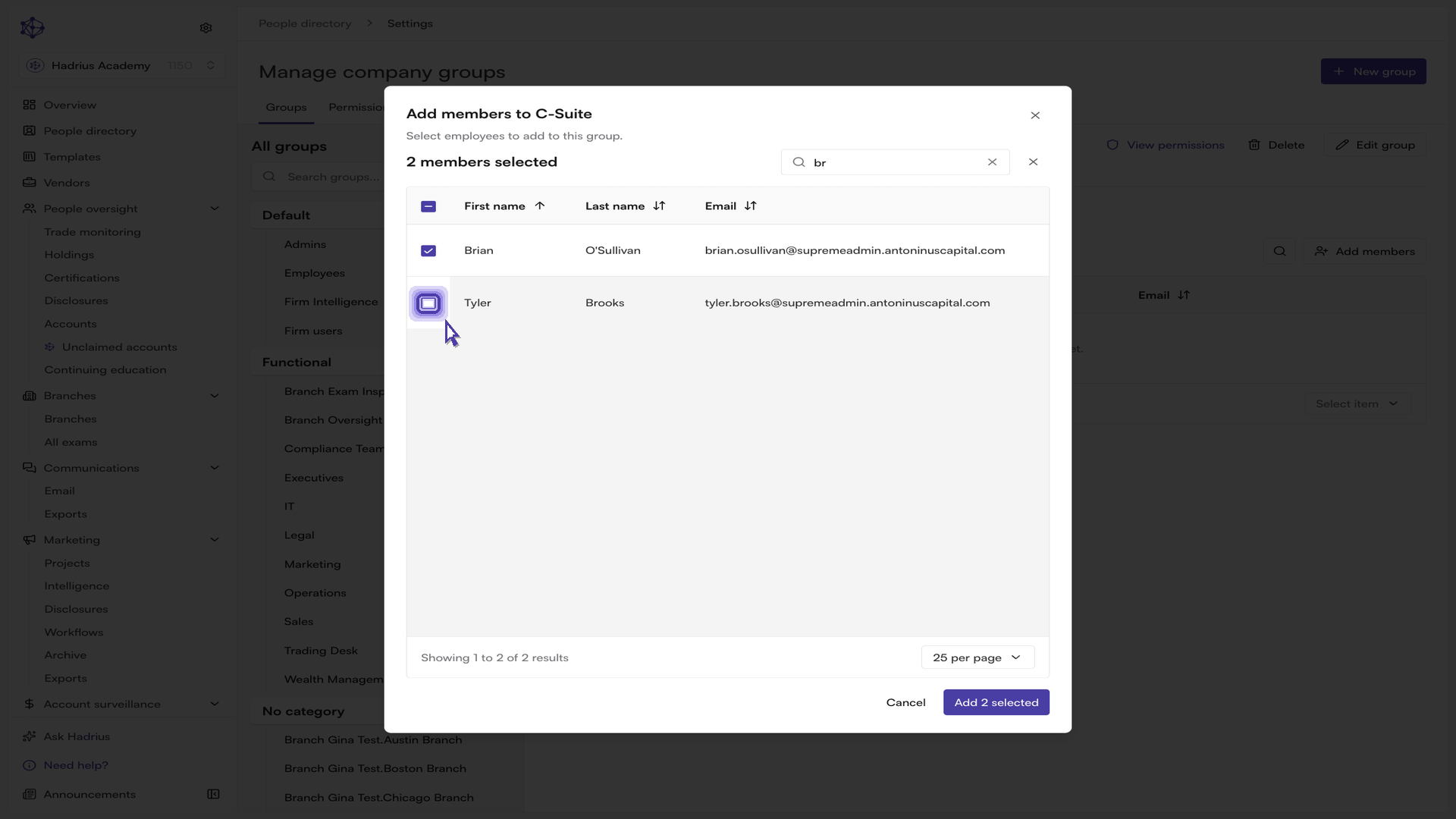
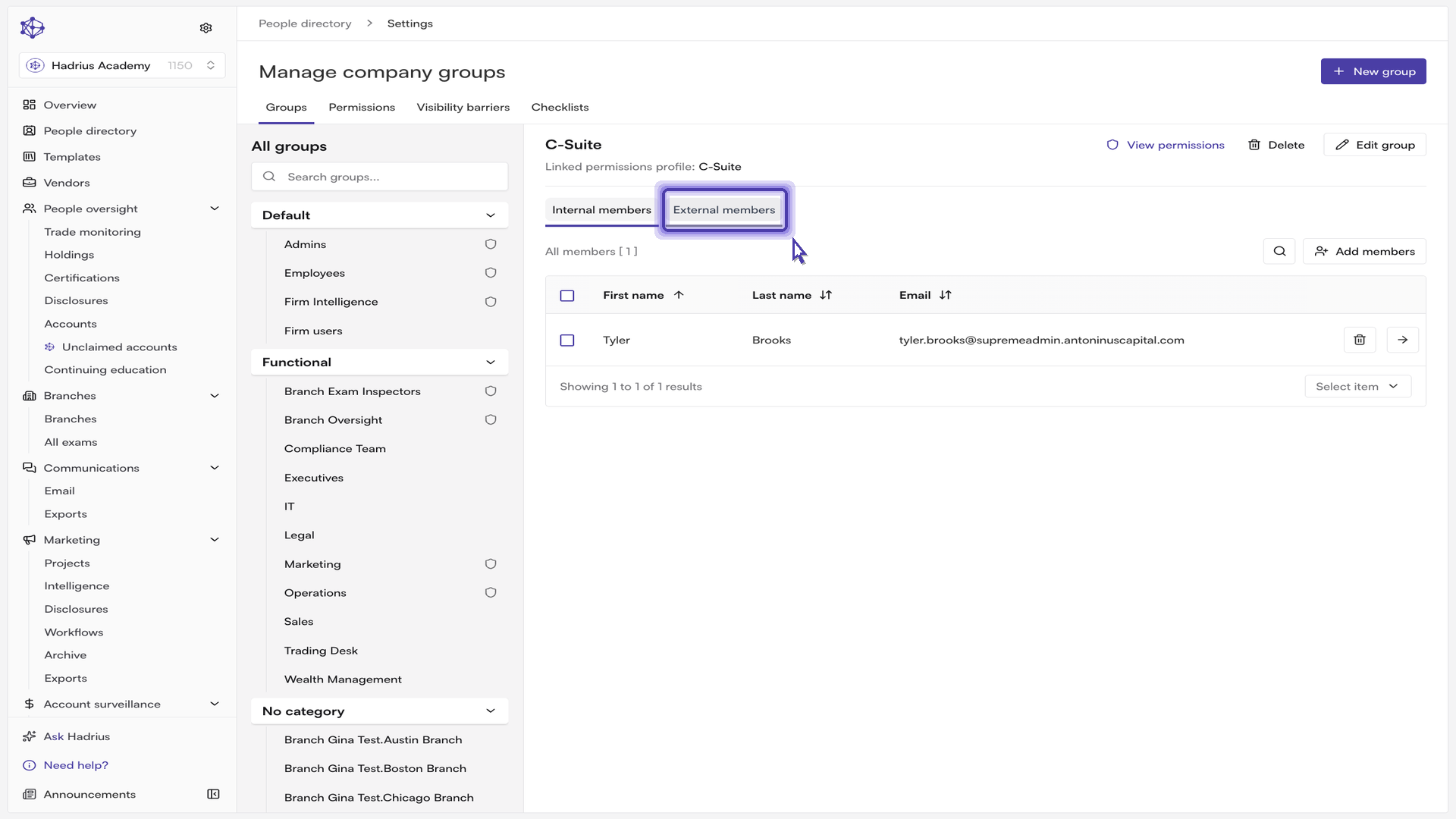
Tick everyone who belongs in this group, then select Add selected. Adding people in one pass saves repeating the process person by person. If the group has a linked permissions profile, membership is split across Internal members and External members tabs — see the section below on external members.
Set what the group can do
To review the group's access, select View permissions from the group header. Permissions are organized by module — Communications, Marketing review, Disclosures, Trade monitoring, and so on — so you can focus on one area at a time, and you can narrow the view with the module filter.
Permissions are read-only until you select Edit, which unlocks the individual toggles for fine-tuning.
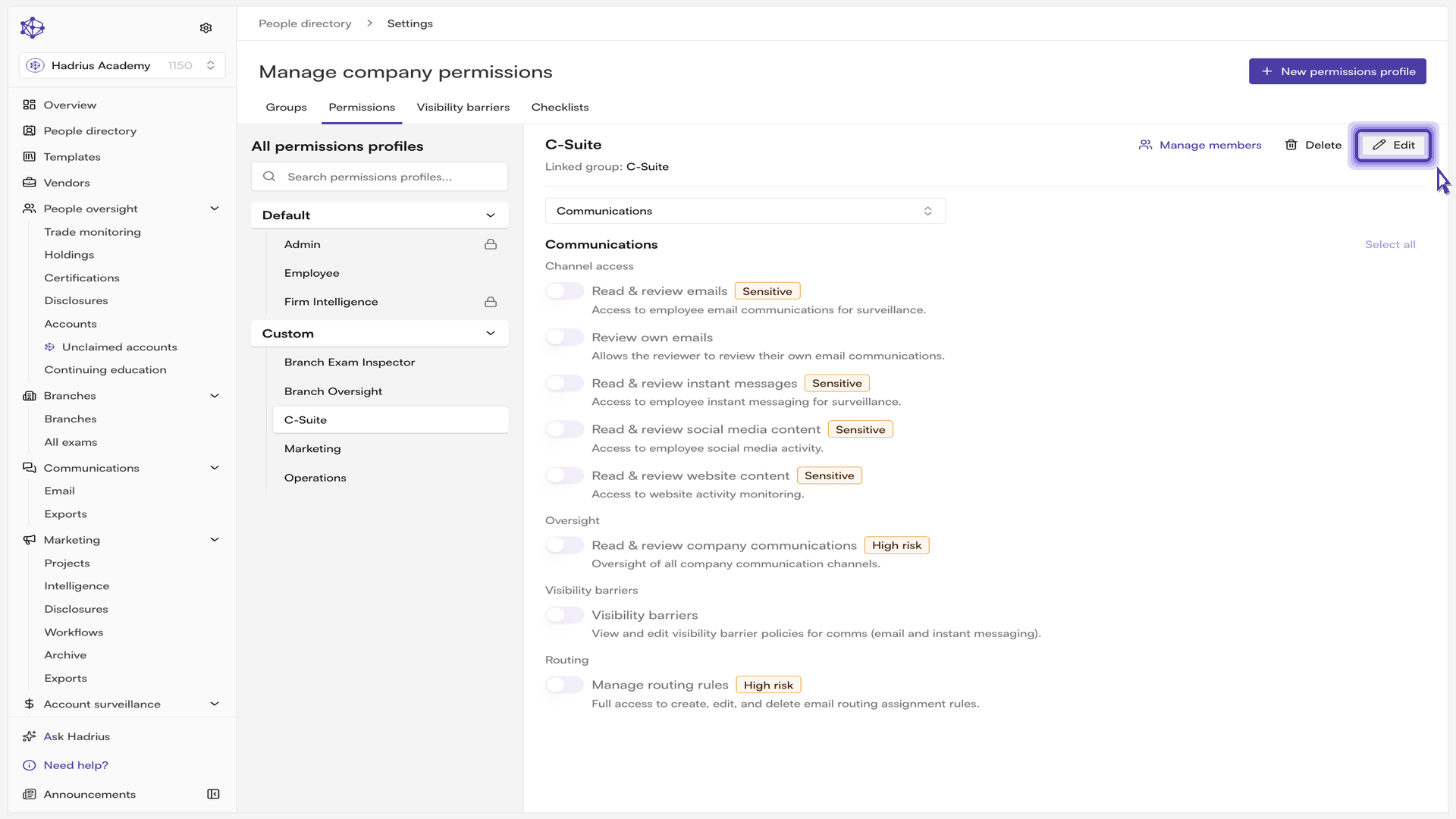
The Communications module covers oversight of employee messaging channels. Each channel is granted deliberately rather than by default:
Read & review emails — access to employee email for surveillance. This is sensitive access, so grant it intentionally.
Read & review instant messages — covers the chat platforms your firm monitors.
Read & review social media content — extends that oversight to public-facing posts.
Read & review website content — rounds out the full communications review picture.
Note that Review own emails is a separate permission. Granting a group the ability to review the firm's communications does not, by itself, let those reviewers review their own — leave it off unless your policy allows self-review.
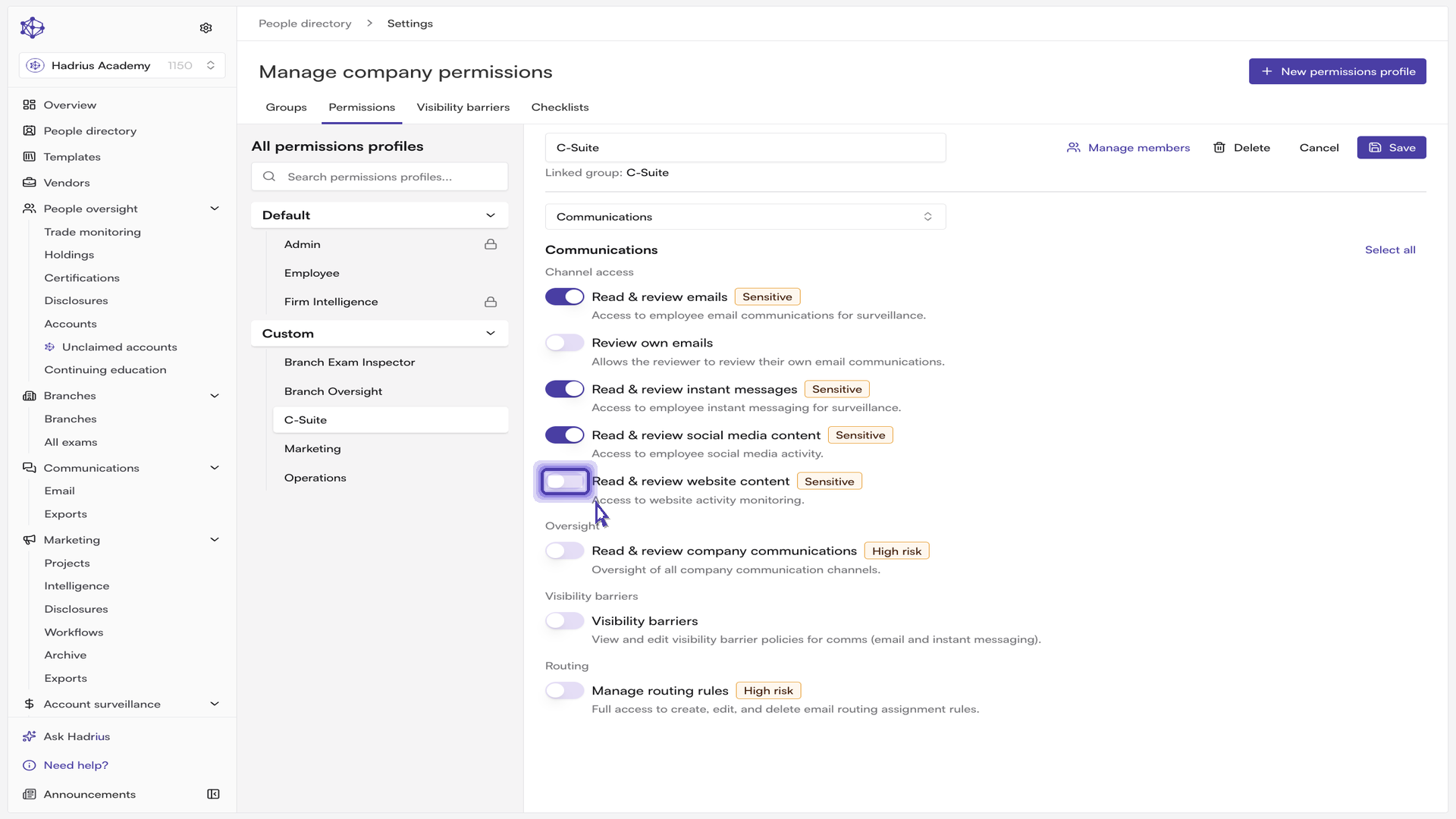
Select Save when you're done. The profile's permissions apply to everyone assigned to it immediately — there's no per-member step. If a profile is protected by the system, its toggles stay locked; create a new permissions profile to customize access instead.
Maintain membership over time
Membership can be adjusted any time as teams shift. Open the group, select the members who no longer need this access, and choose Remove selected. Because the group's permissions flow from its linked profile, removing someone revokes that access for them. Hadrius asks you to confirm the removal, which keeps your access records accurate and audit-ready. You can also remove a single member directly from their row.
External members
The External members tab covers users from outside your organization who also need this access — most frequently consultants. External members are added, searched, and removed the same way as internal members, and the same permissions profile governs what they can do.
Once the group is saved, members pick up the profile's permissions the next time they use the platform, and anyone added to the group later inherits the same access — plus the onboarding checklist, if you attached one. Revisit the group whenever your team composition or review responsibilities change.