Bulk Exporting Certification Submissions
Last updated: October 17, 2026
Hadrius can export certification submissions in bulk, either as a single spreadsheet of responses or as a full archive that also includes a PDF of each submission and every file employees attached. This article covers both: exporting a filtered set of submissions from a single campaign, and exporting a hand-picked set drawn from several campaigns at once. Use it when you need an attestation record for an audit, an examination request, or your own internal review files.
Exporting from a single campaign
Open the campaign. Start on the certifications overview, where every active certification campaign is listed, and open the one you want. This drills into the individual employee submissions that belong to it.
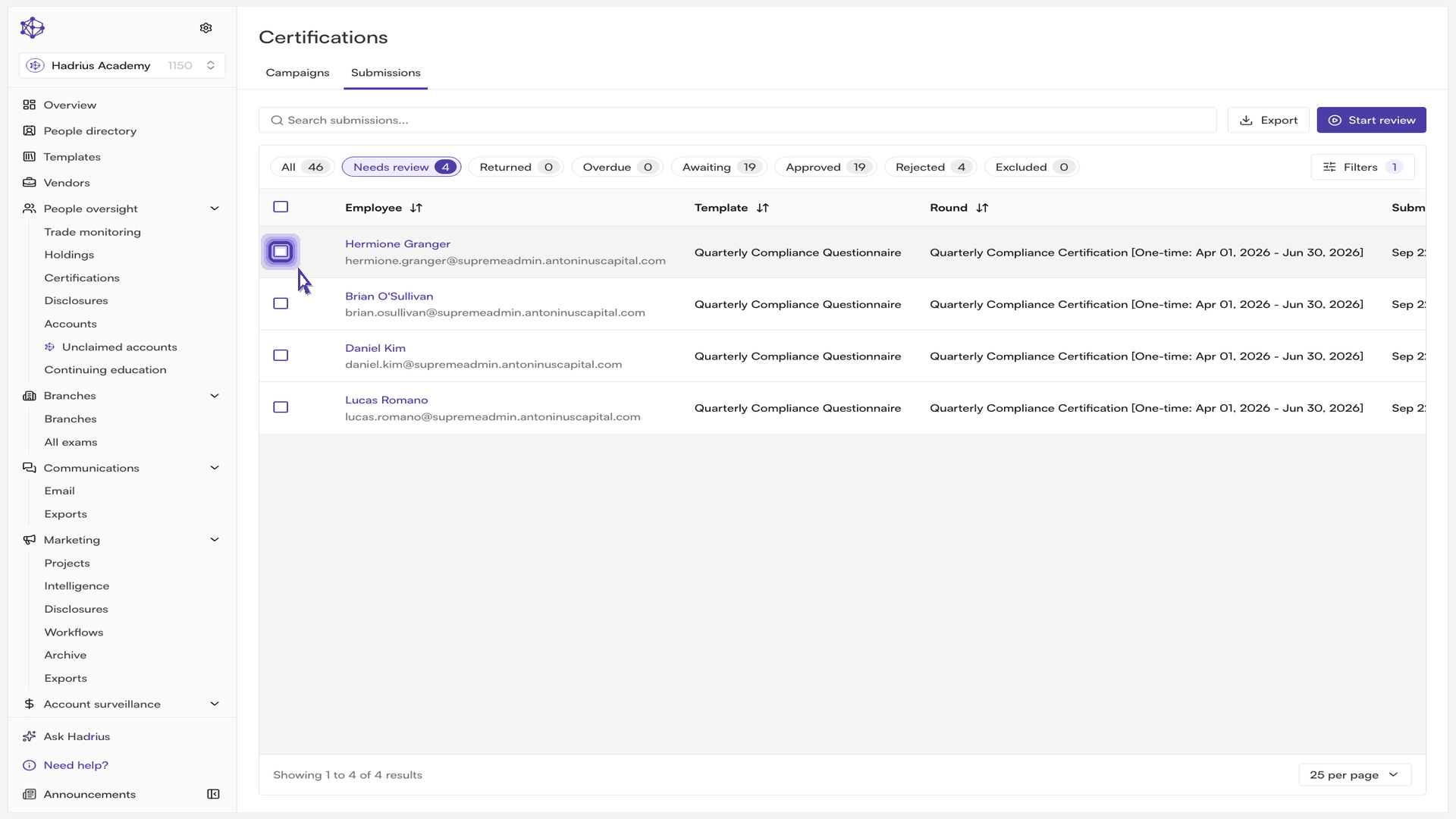
Narrow to the submissions you need. The status tiles above the table — "All", "Needs review", "Overdue", "Returned", "Awaiting", "Approved", and, when any exist, "Rejected" and "Excluded" — double as filters, and each one shows a live count. Selecting "Approved", for example, isolates just the approved submissions. You can narrow further with the search box or the "Filters" panel, which adds date and employee filters.
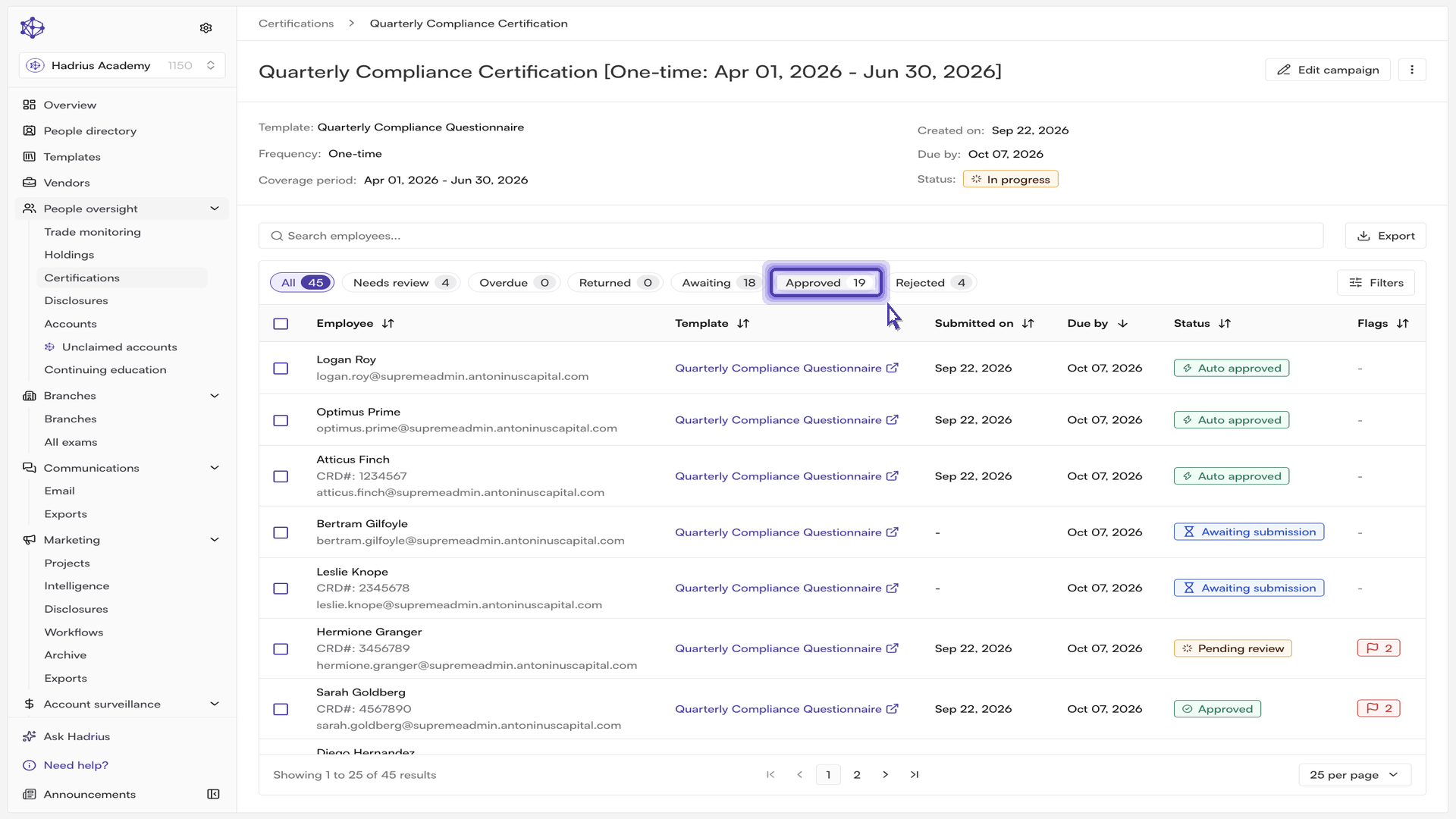
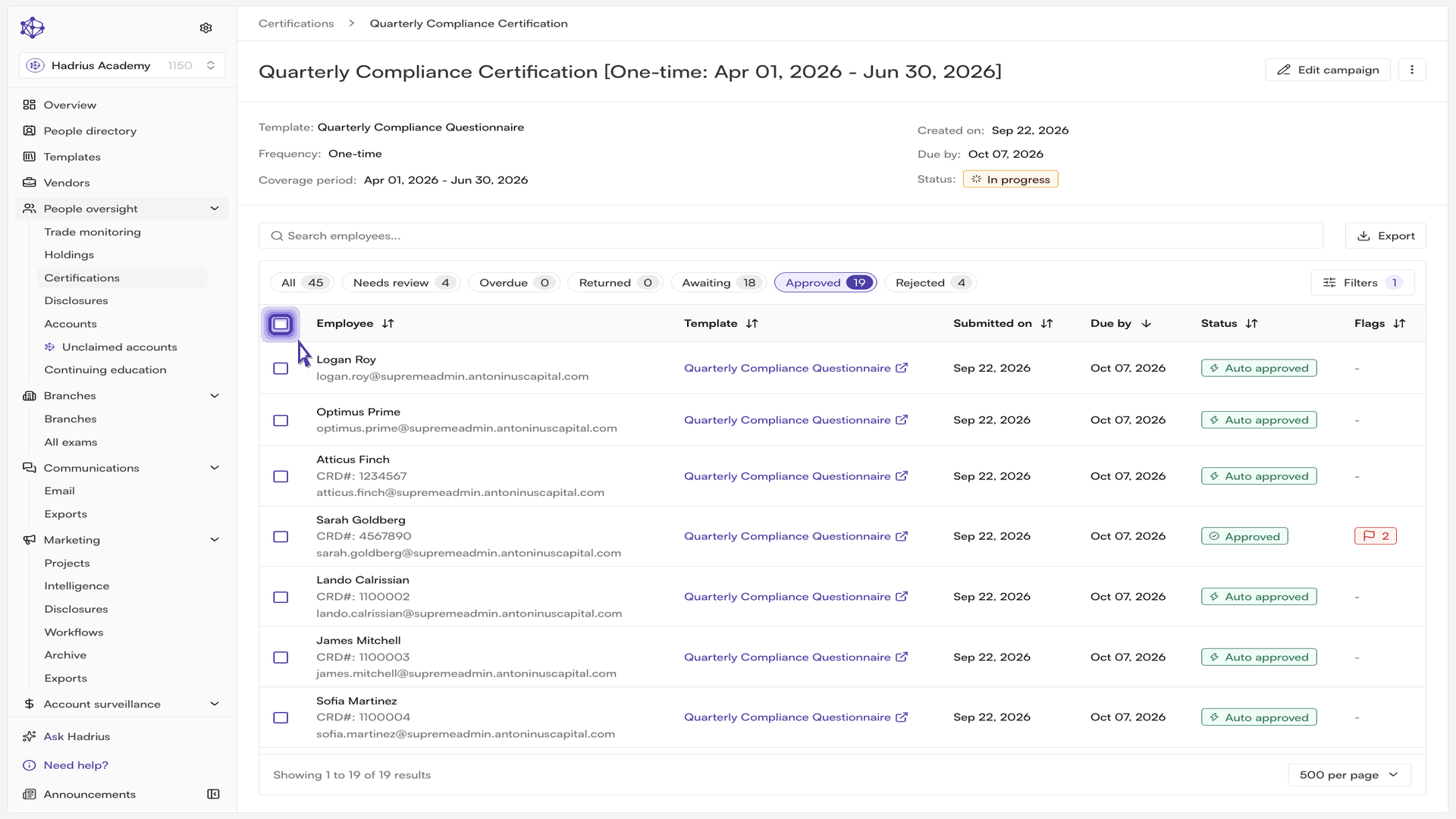
Raise the page size if the set is large. The table shows 25 rows per page by default, and the select-all checkbox only covers the rows currently in view. Use the rows-per-page control in the table footer to move up to 50, 100, or 500 so the full set you want is on screen at once.
Select the submissions. The checkbox in the table header selects every submission currently in view. You can also tick individual rows. A bar appears showing how many items are selected.
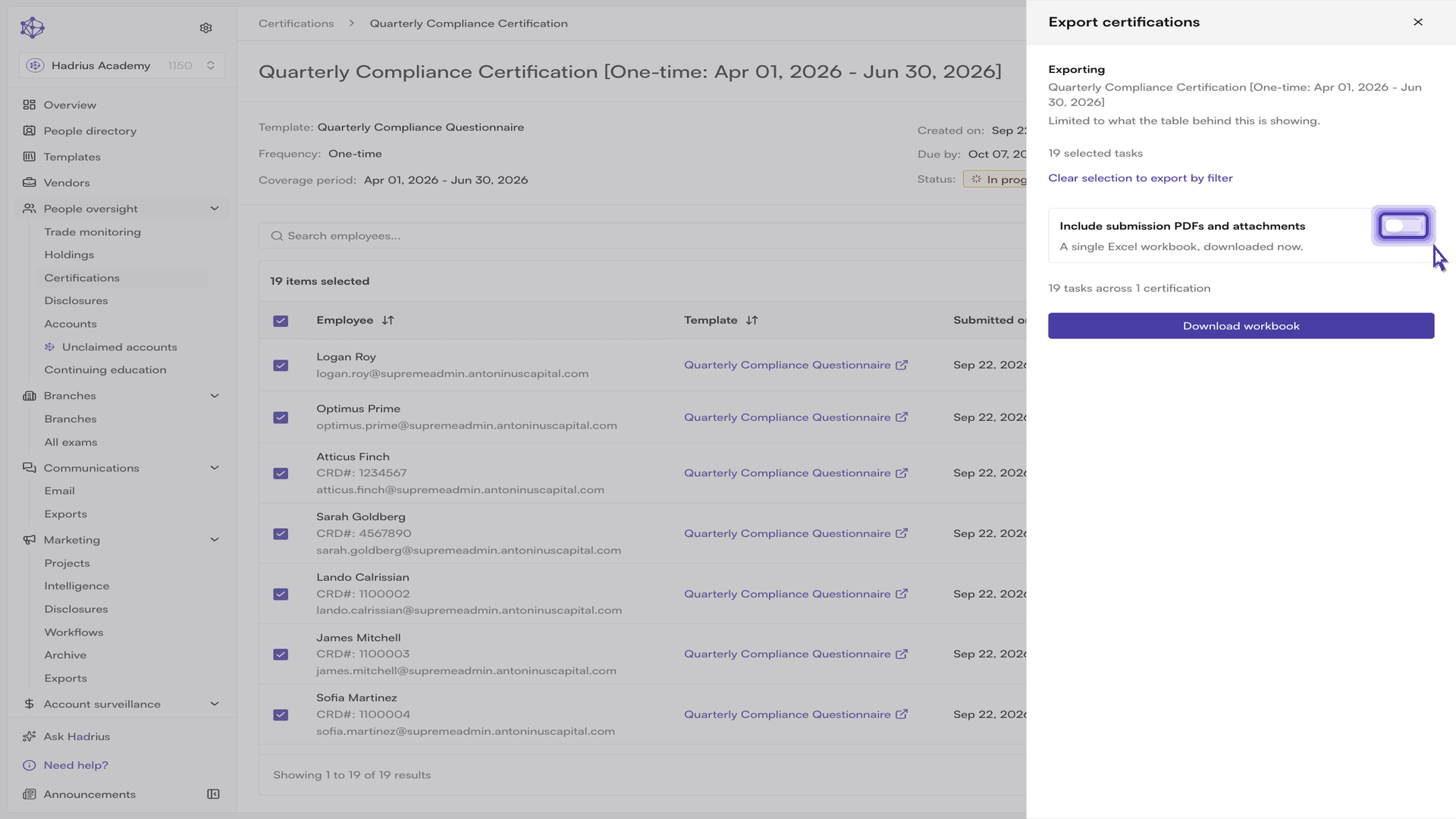
Open the export panel. Select "Export" next to the search box. The panel opens with your current filters and selection already applied, and it names what it is about to export along with a live count of covered submissions. When rows are hand-picked, the selection is the scope — the filter fields are hidden, since narrowing rows you already chose by hand is rarely what you meant. Use "Clear selection to export by filter" if you'd rather build the export from filters instead.
Choose whether to include documents. The panel has one switch: "Include submission PDFs and attachments".
Switch on to bundle a PDF for each submission, plus every attachment, together with the workbook into a single zip archive. The button reads "Start export".
Leave it off to get a single Excel workbook containing each response. The button reads "Download workbook".
Run the export. With documents included, Hadrius builds the archive in the background and emails it to you when it's ready; you can also follow its progress under Settings → Exports. Without documents, the workbook downloads immediately — no waiting required.
Exporting across multiple campaigns
The Submissions view pulls submissions from every certification together in one table, rather than scoping you to a single campaign. It works the same way as the campaign view — the same status tiles, search, filters, and page-size control — but rows here carry their own certification and round.
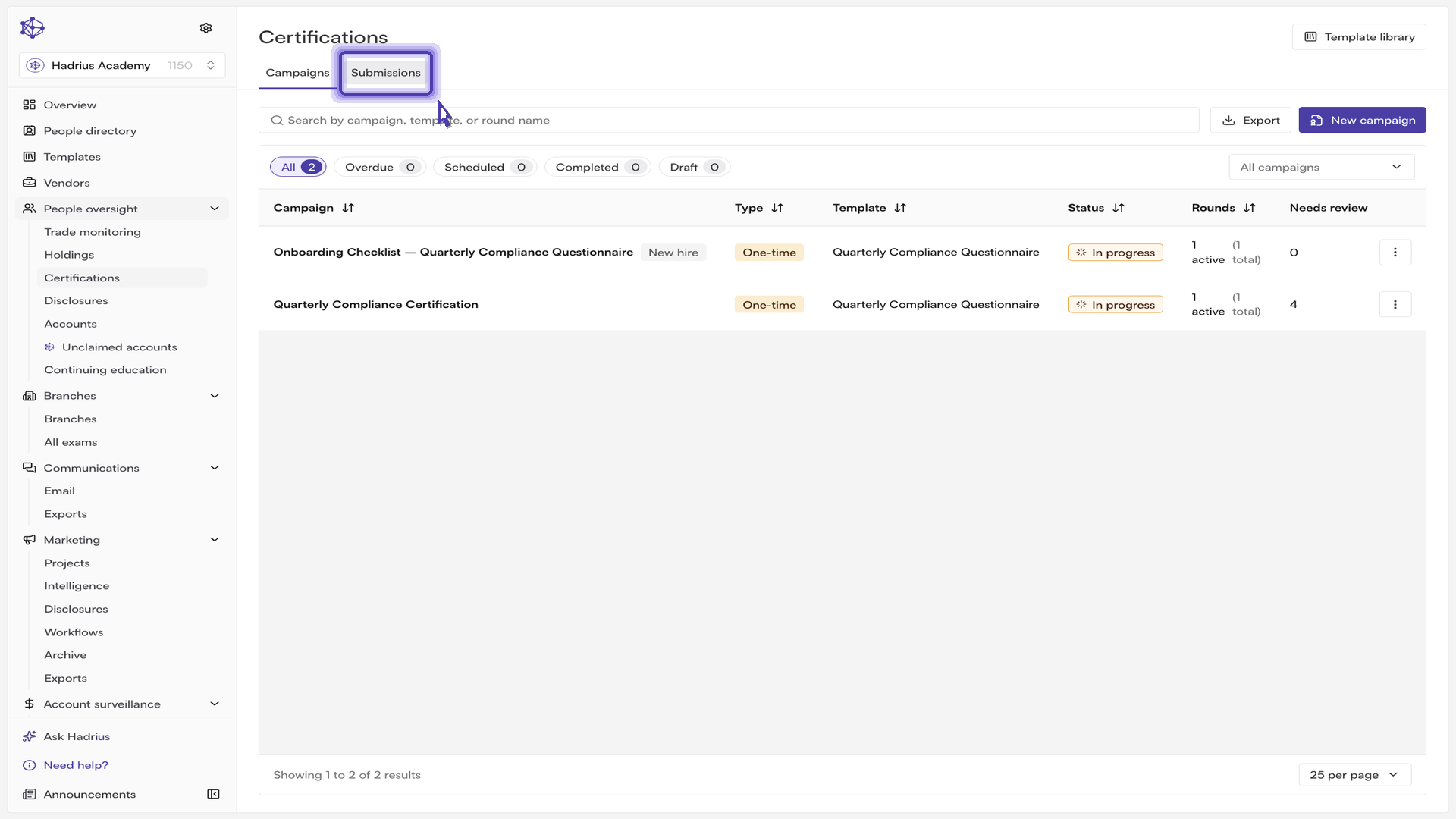
From this view you can hand-pick submissions that sit in different certifications and export them as one set. Tick the rows you want, then select "Export" and complete the panel exactly as above. Once the whole visible page is selected and more rows match off-page, Hadrius also offers "Select all results" so you can take the entire matching set rather than just the current page.
A few things to know
Excluded submissions are never exported. They remain visible and selectable in the table, but the export panel states how many will be left out so the counts don't surprise you.
Workbook-only exports have a size cap. If your selection exceeds it, the panel will tell you — either narrow the filters or turn on documents, which runs the job as a background export with no cap.
Selections survive paging and sorting but reset when you change a filter, since that changes the underlying set of matching submissions.
Background exports arrive by email as a zip archive; immediate exports land in your browser's downloads as an Excel workbook. Either way, the file reflects exactly the filters and selection shown in the export panel when you ran it.