How to export search results for email comms
Last updated: October 17, 2026
This article walks through exporting a set of email search results from the archive so they can be shared outside of Hadrius, for example in response to a regulatory request or an internal review. Use this workflow whenever you need a downloadable file of communications that match specific search terms and filters, rather than a single conversation.
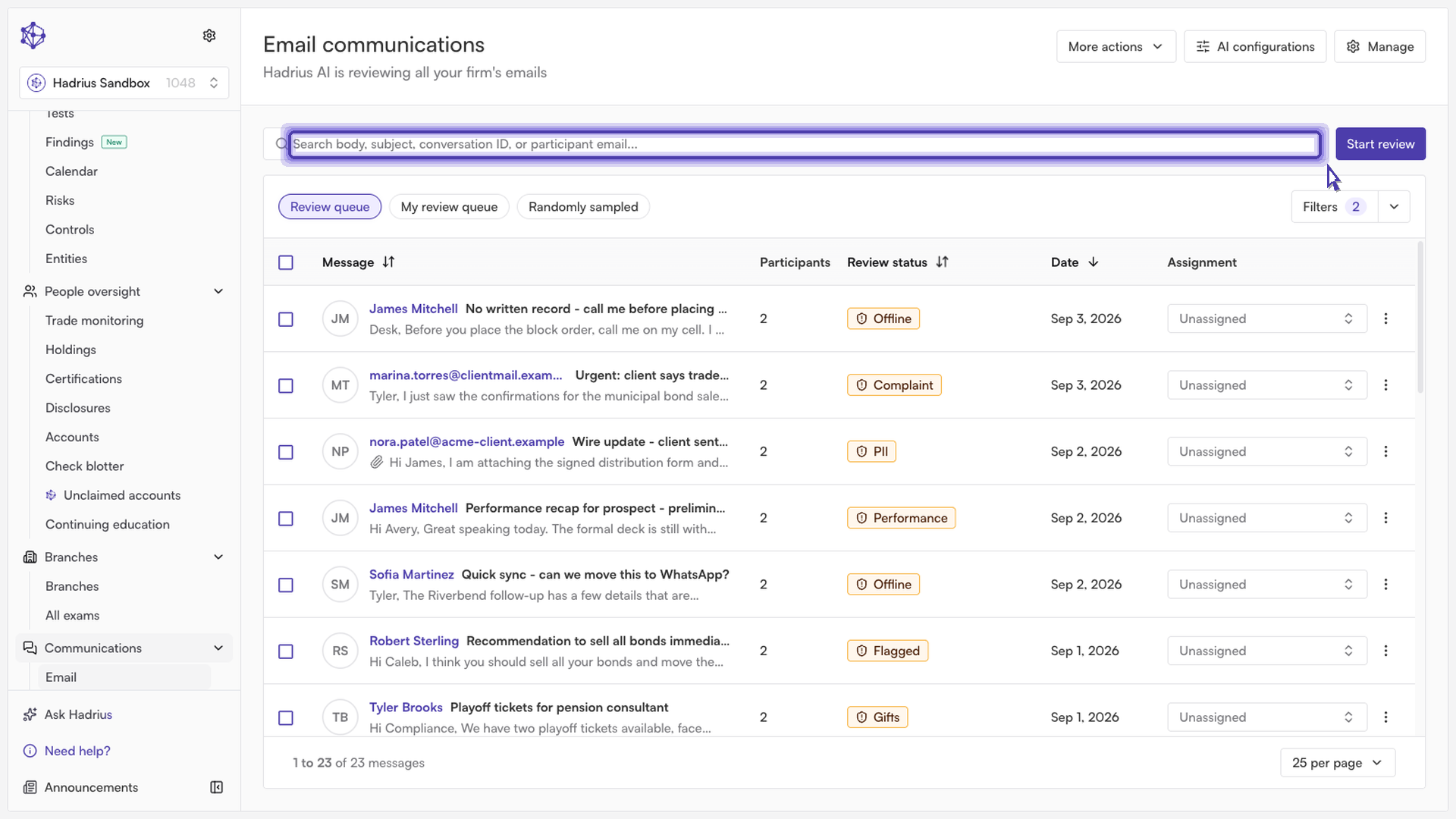
Step 1: Search the email archive
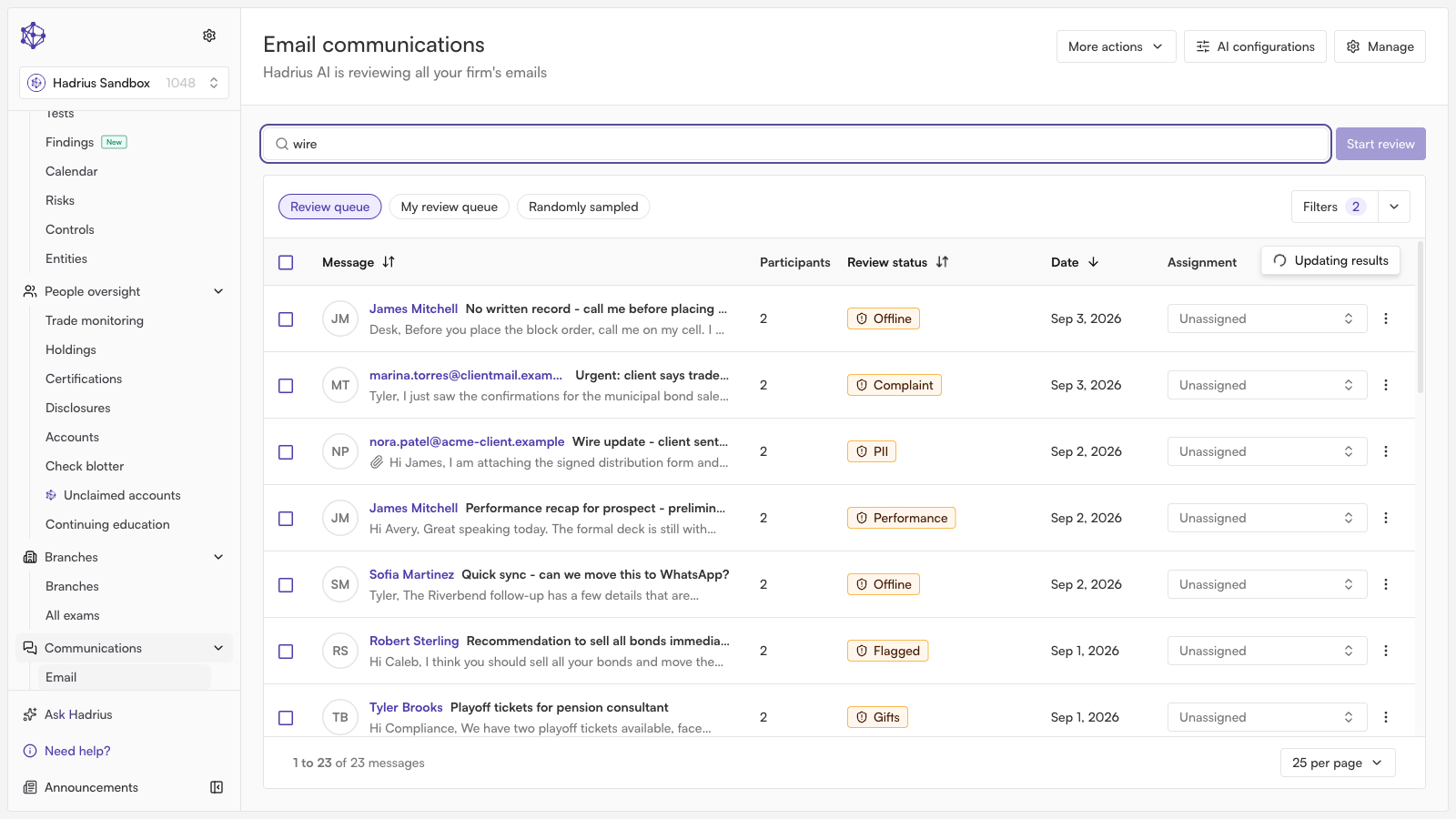
From the email archive, enter your search terms in the search bar to pull up every communication that matches. In this example, we searched for messages mentioning wire transfers.
Step 2: Narrow the results with filters
Once you have a base set of results, refine them further using the filter options. You can combine your search with status filters, such as narrowing to messages that are flagged and still awaiting review — for example, using the "Review queue" quick filter, which limits results to flagged messages that haven't been reviewed yet. Filters and query terms work together, so the result set stays exact even as you add conditions.
Step 3: Export the filtered results
With your search and filters set, open More actions above the results table. This menu shows everything you can do with the current result set, including generating a report or exporting.
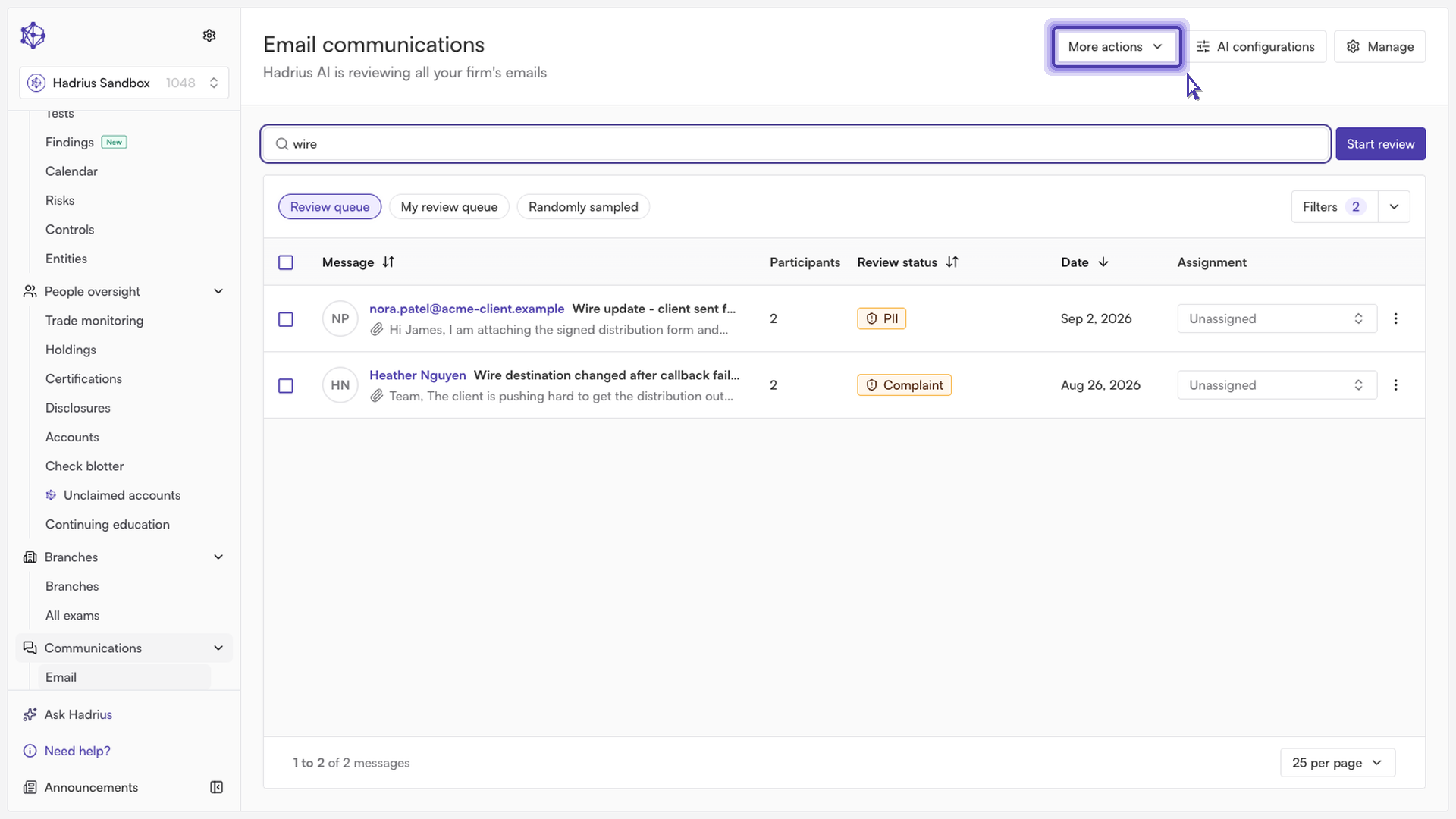
Select Export. This queues up every email matching your current search and filters for export — not just what's visible on the current page, but the full result set. A confirmation dialog appears summarizing what will be included.
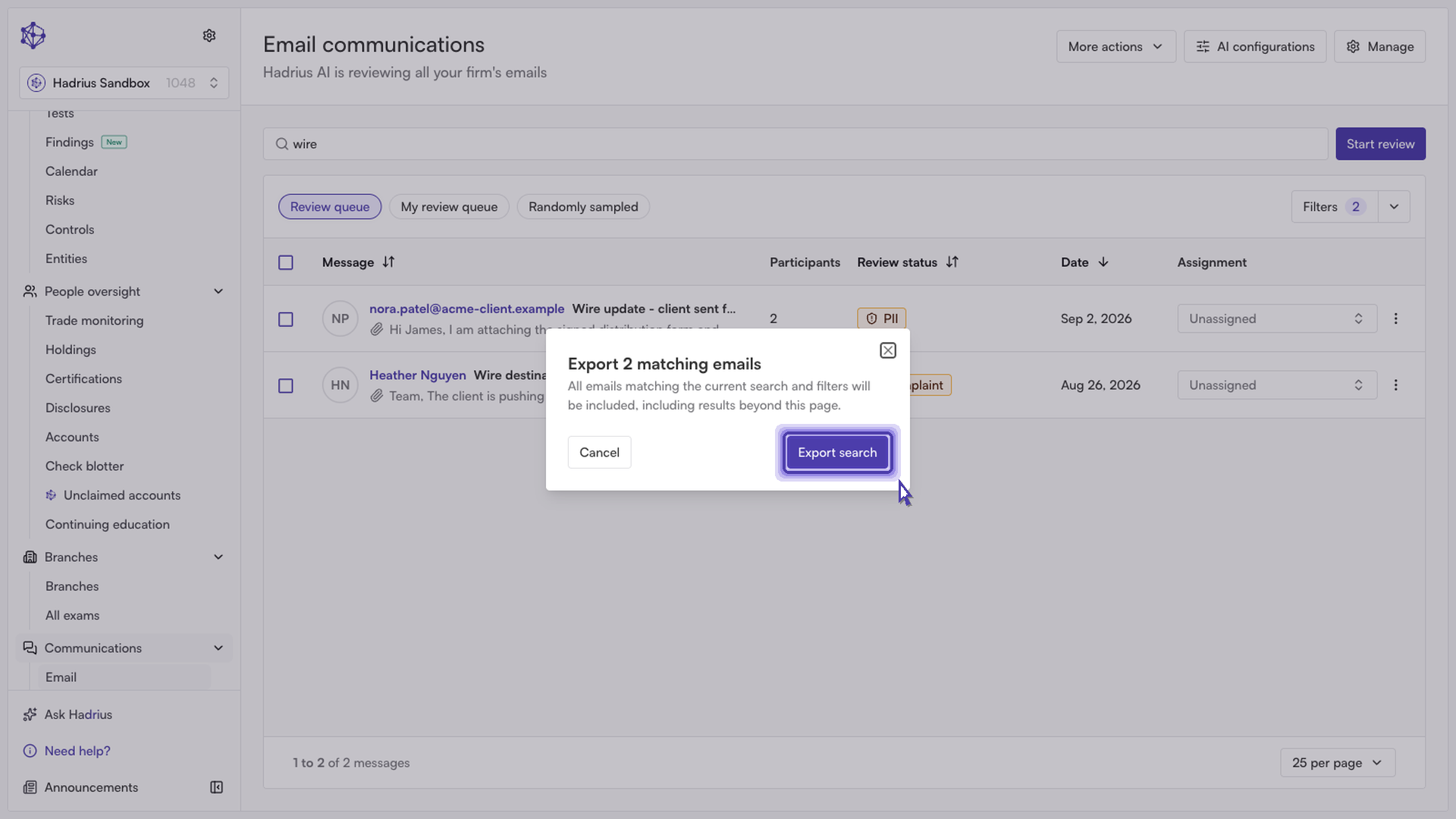
Step 4: Confirm the export
Review the confirmation dialog and select Export search to lock in the export with your search terms and filter criteria intact. Once confirmed, Hadrius starts building the export file in the background, and you'll see a notification that the export has started.
Step 5: Track and download the export
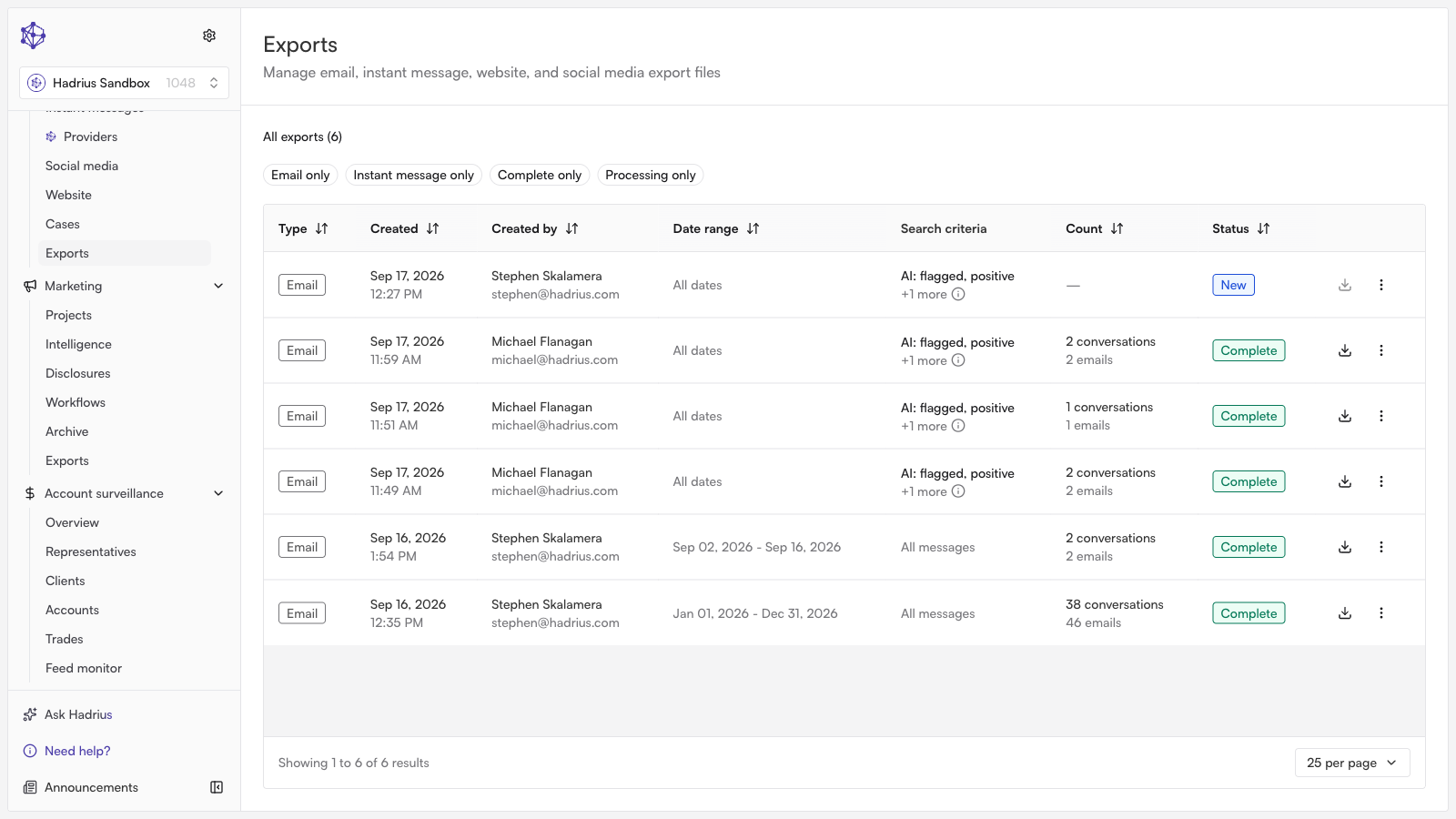
After starting the export, you can head to Exports to check on it. Exports lives in the same section of the archive as your search, so it's easy to find without navigating away to a different part of the app. From the exports list, you can track the run's progress and download the file once it's ready.
What happens next
Exports run in the background, so you're free to keep working while yours completes. Once it finishes, it will appear in the exports list as ready for download, and you can retrieve the file whenever it's convenient.