How to create a new case
Last updated: October 17, 2026
This article walks through creating a new case in the Cases workspace, which is where regulatory matters and internal investigations are tracked from open to close. Use this workflow any time you need to open a formal record for a matter that requires ownership, a timeline, and ongoing documentation — for example, a new regulatory inquiry or an internal investigation.
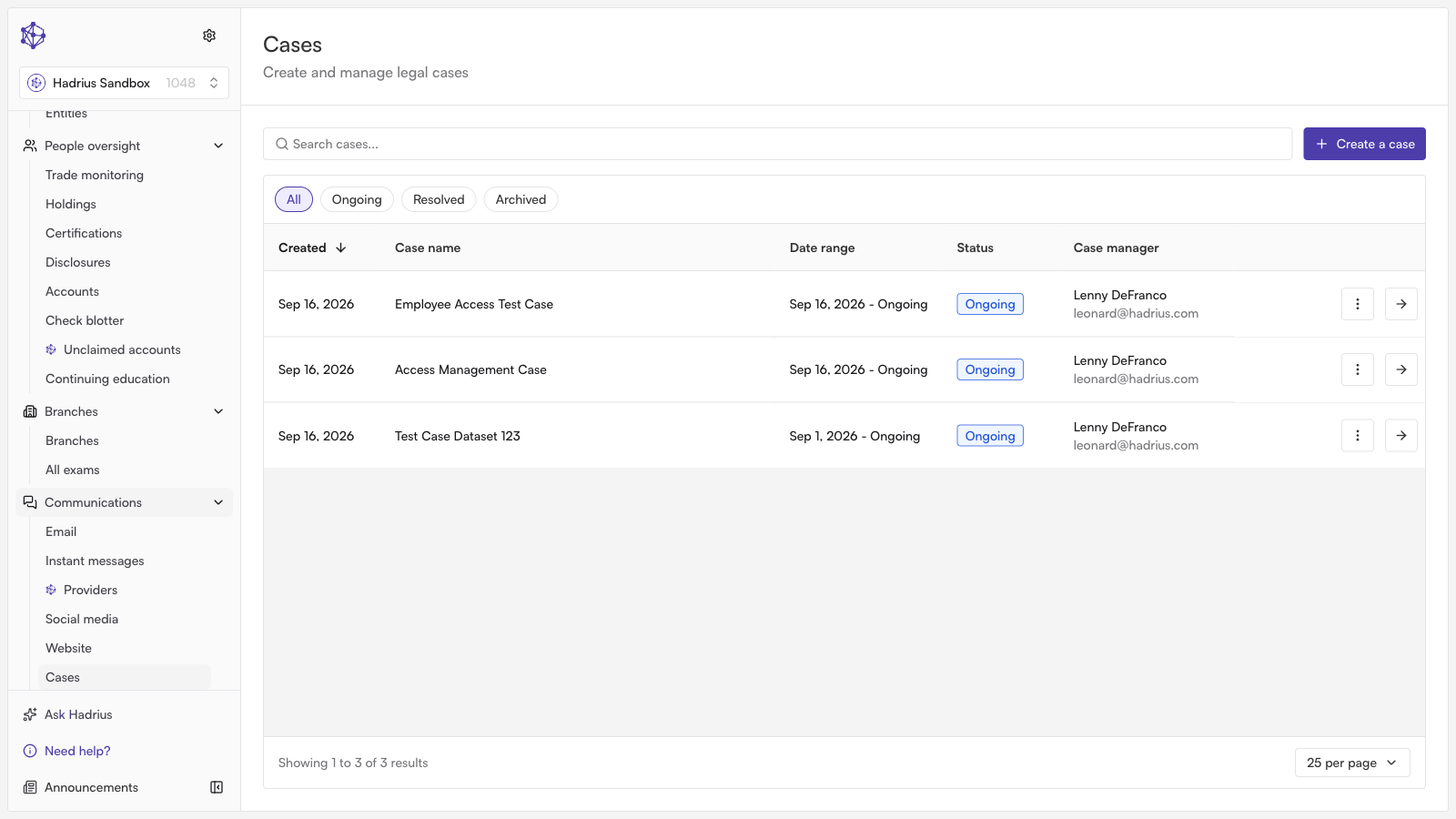
Starting a new case
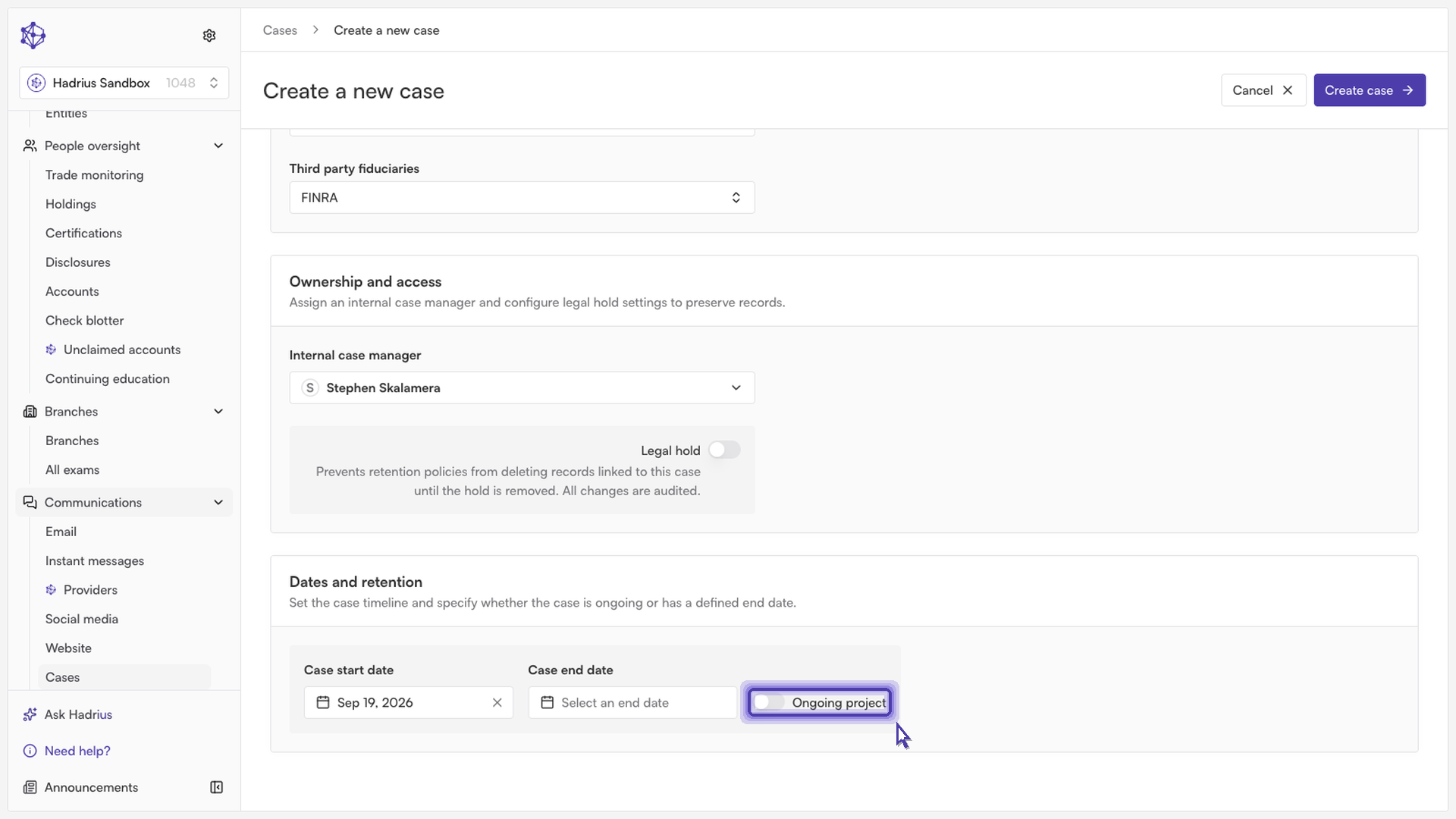
From the Cases workspace, click Create a case. This opens the case creation form, which is organized into three sections: Case basics, Ownership and access, and Dates and retention. You can fill these out in any order, but all required fields must be completed before the case can be saved.
Case basics
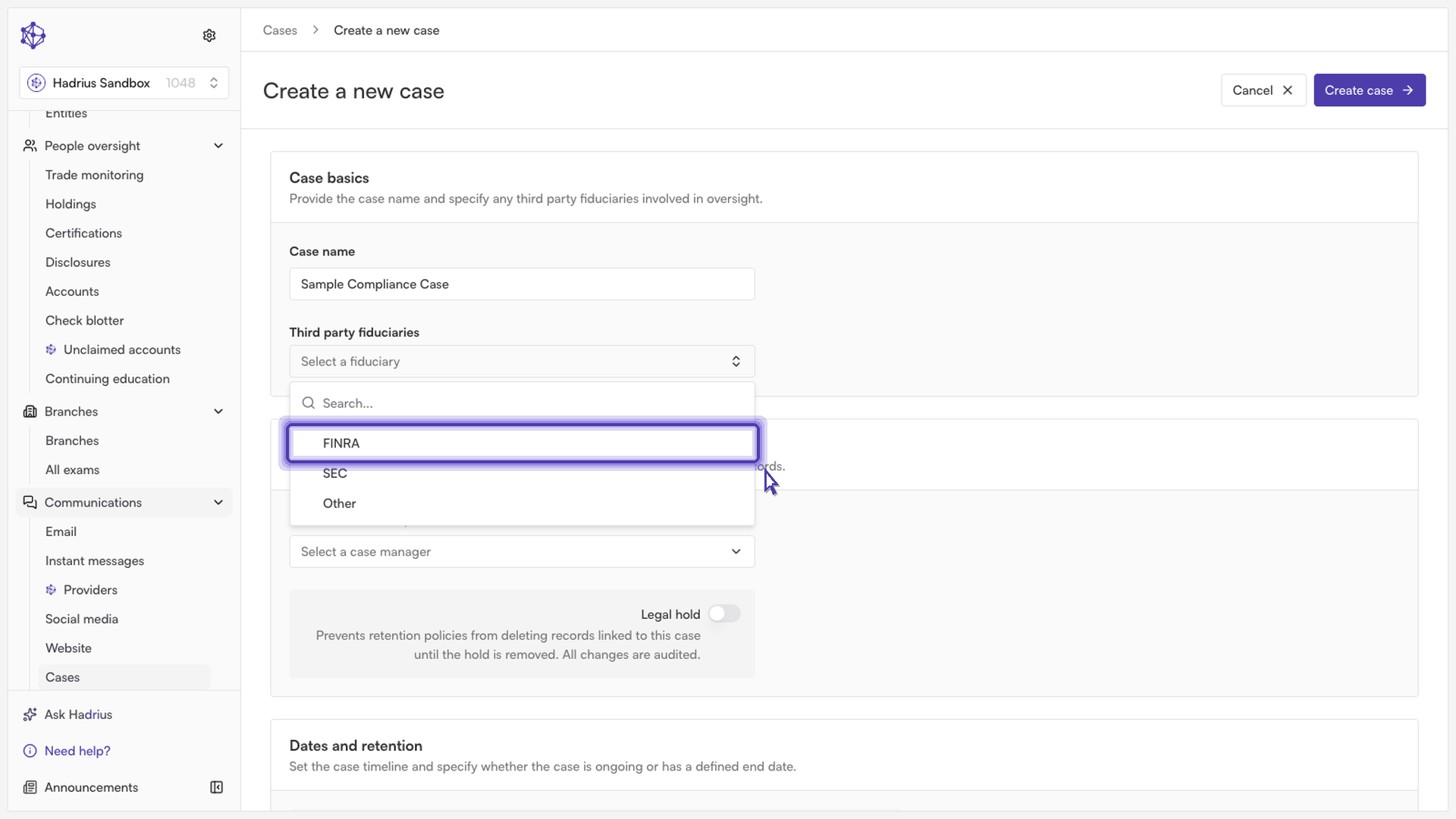
Start by entering a Case name — a clear, descriptive name will make the case easier to find later, since this is the label shown throughout the workspace and in search results.
Next, use the Third party fiduciaries dropdown to flag which regulator the case relates to. The available options are FINRA, SEC, or Other.
Ownership and access
Every case needs an owner. Use the Internal case manager field to assign the team member who will run point on the case — this is a required field, and only that person (or an admin) will later be able to reassign the case manager.
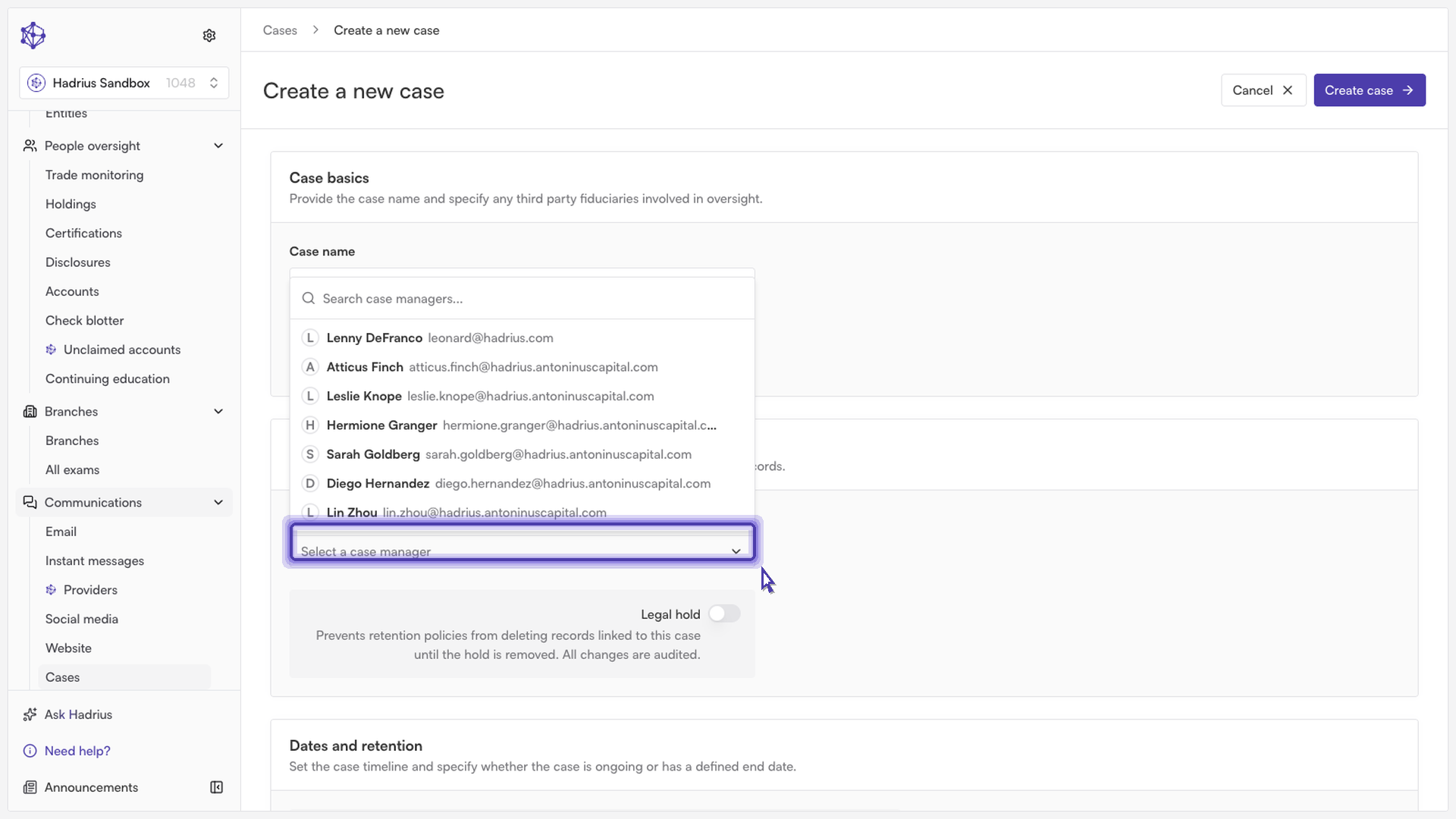
This section also includes a Legal hold toggle. Turning it on prevents retention policies from deleting any records linked to the case until the hold is removed, and all changes to this setting are audited. Leave it off if a legal hold isn't needed for this matter.
Dates and retention
Set a Case start date for when the matter actually began — this is required, and can be set to today or any other relevant date.
If the case has a known end date, enter it in the Case end date field. If it doesn't have a fixed end in sight, turn on Ongoing project instead — this disables the end date field, since one isn't needed while the case remains open.
Creating the case
Once the required fields — case name, regulator, case manager, and start date (plus end date, unless marked ongoing) — are filled in, click Create case in the top right of the page. You can also click Cancel at any point to discard the form and return to the Cases workspace.
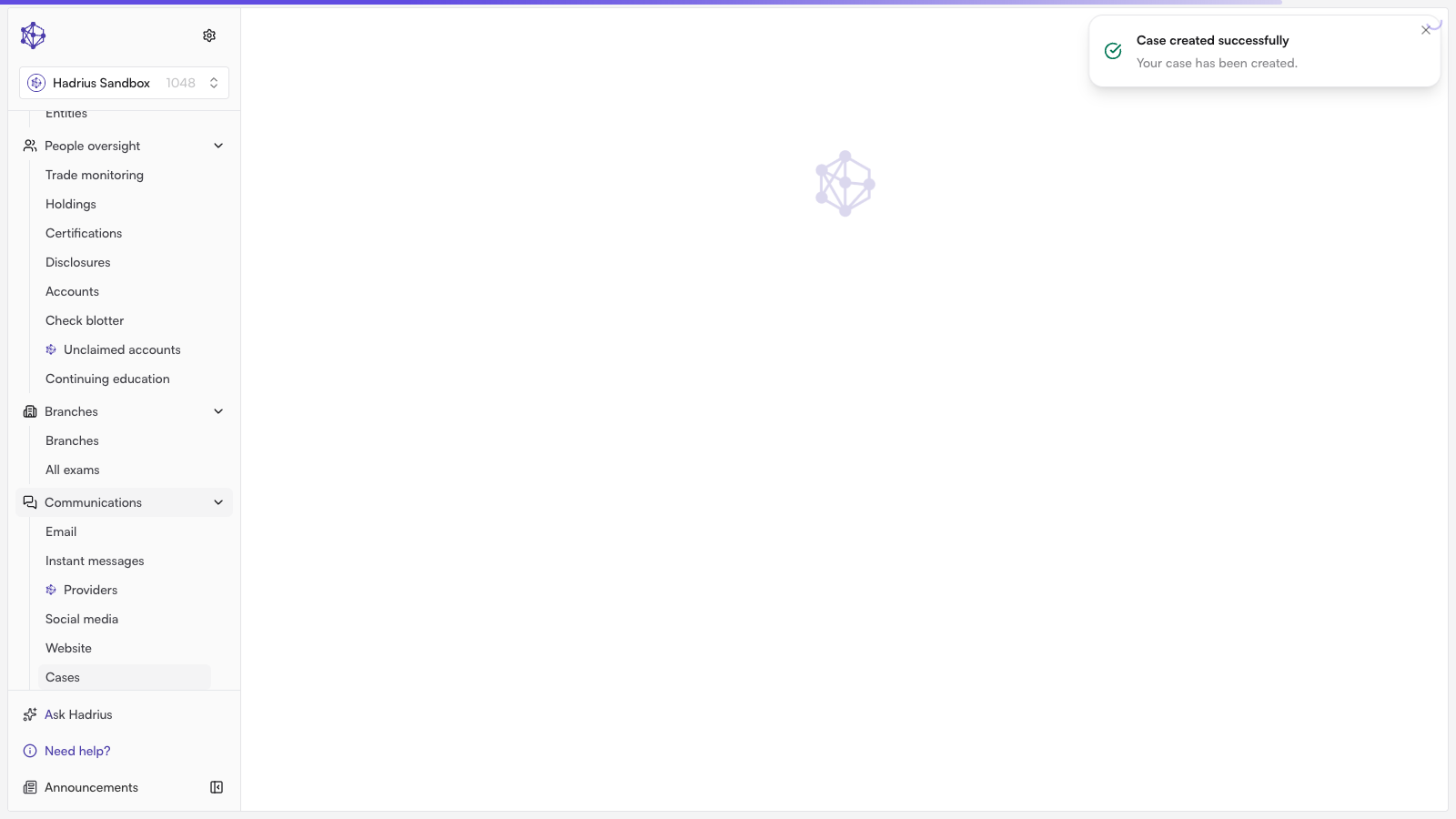
After creation, you'll see a confirmation and be taken directly to the new case's detail page, where it's ready for documents, notes, and tracking as it unfolds.