How to create a disclosure template for People oversight
Last updated: November 23, 2026
This article walks through creating a disclosure template under People Oversight — the reusable questionnaire employees complete to report things like gifts and entertainment. Create a template whenever you need a new type of employee disclosure that doesn't already exist in your template library, or when you want to adjust the review chain for an existing disclosure type.
Where templates live
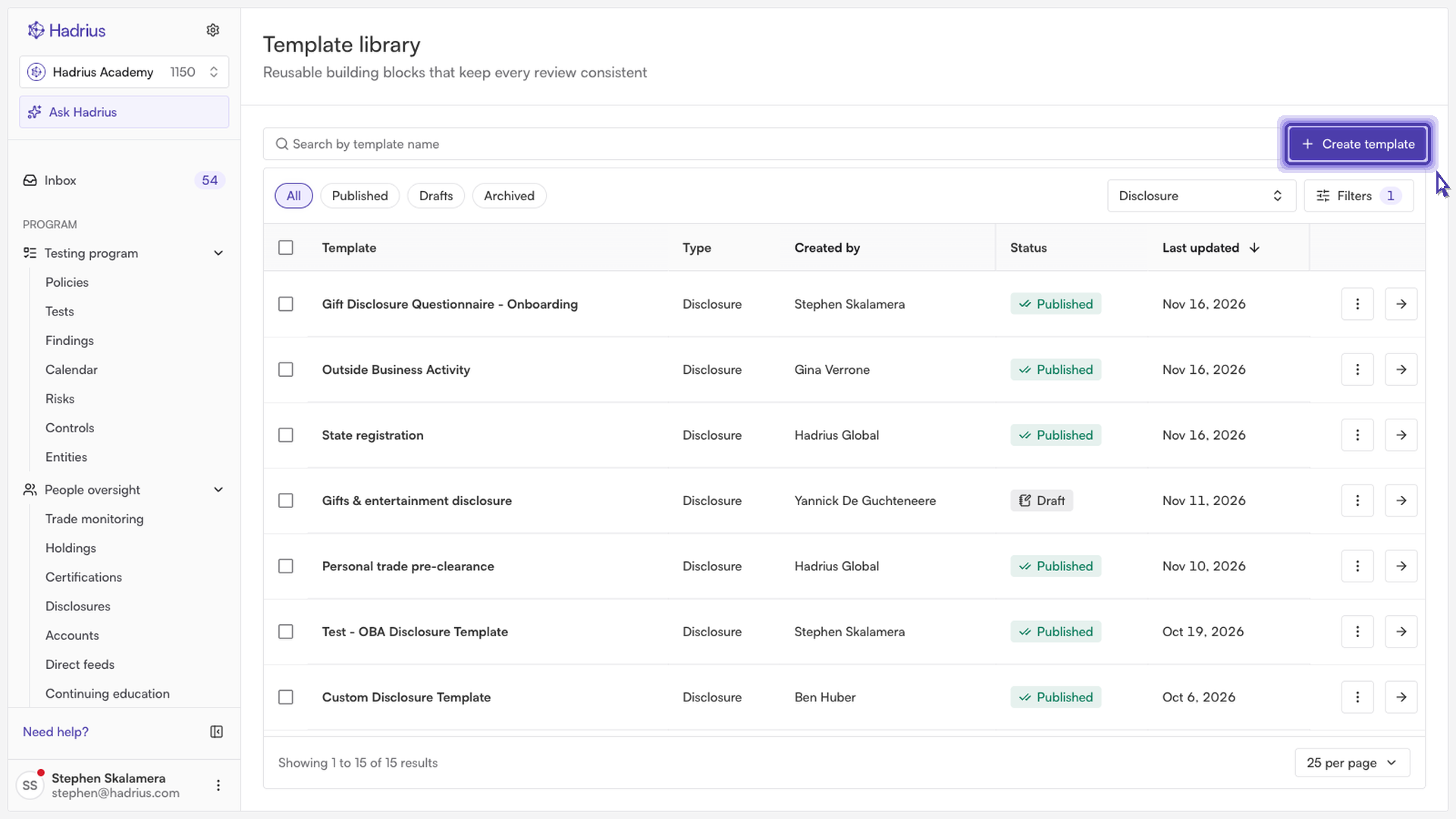
Disclosure templates are managed from the template library, found under People Oversight > Disclosures. The library is the home base for every disclosure questionnaire your firm uses — from here you can view existing templates or create a new one.
Starting a new template
From the template library, click Create template to open the Create a new template dialog.
Give the template a clear, descriptive Template name so reviewers immediately know what it covers (and, optionally, a short description).
Choose the Module this template belongs to. Selecting the disclosure module marks it as an employee-facing questionnaire — the disclosure appears with the subtext "Employee-facing questionnaire" to distinguish it from a reviewer form.
With the disclosure module selected, choose a Disclosure type to scope the template — for example, gifts and entertainment reporting. This can't be changed once the template is created, so confirm it's correct before continuing.
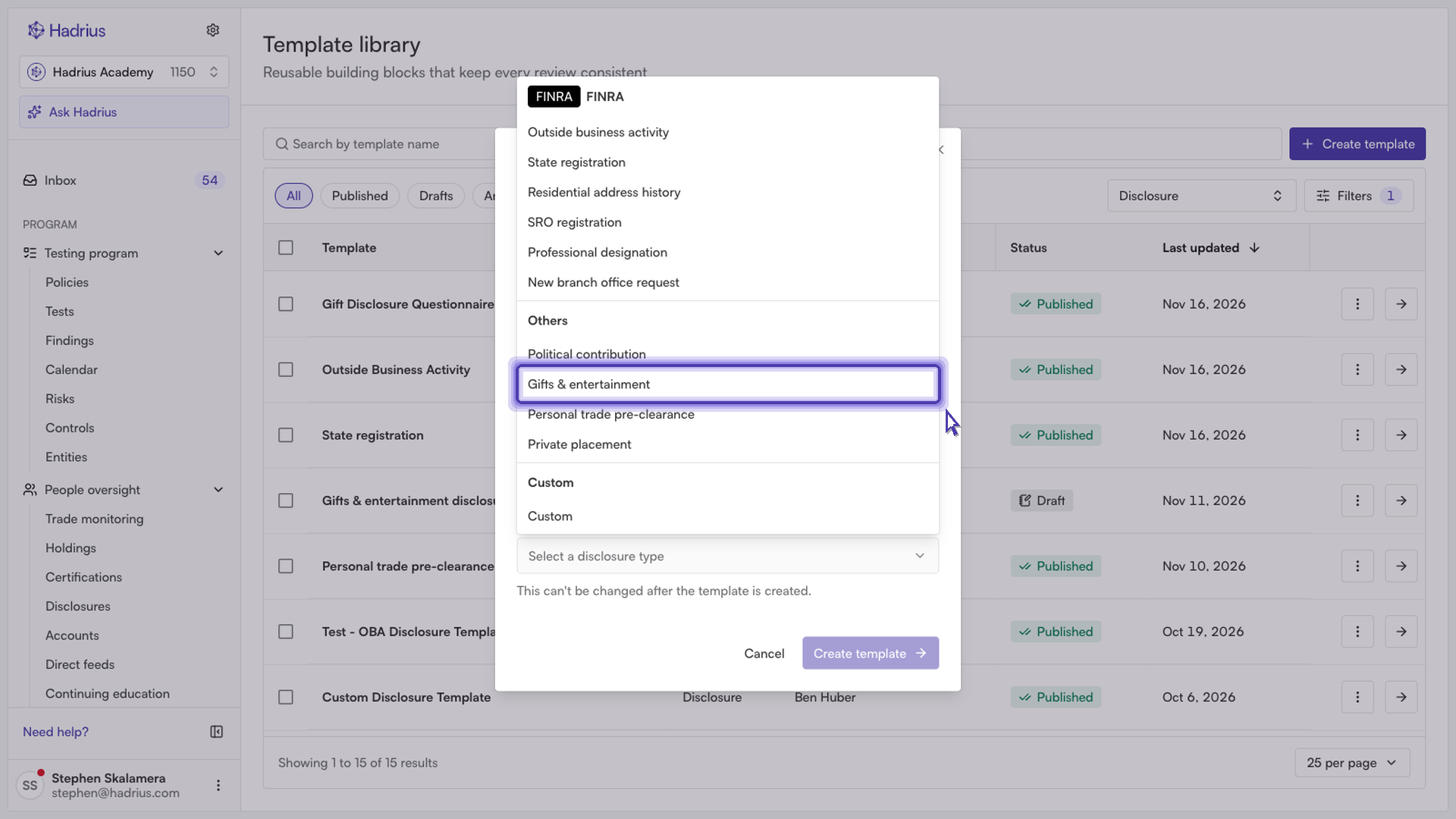
Click Create template to open the template builder, where you'll build out the questionnaire itself.
Setting up the approval chain
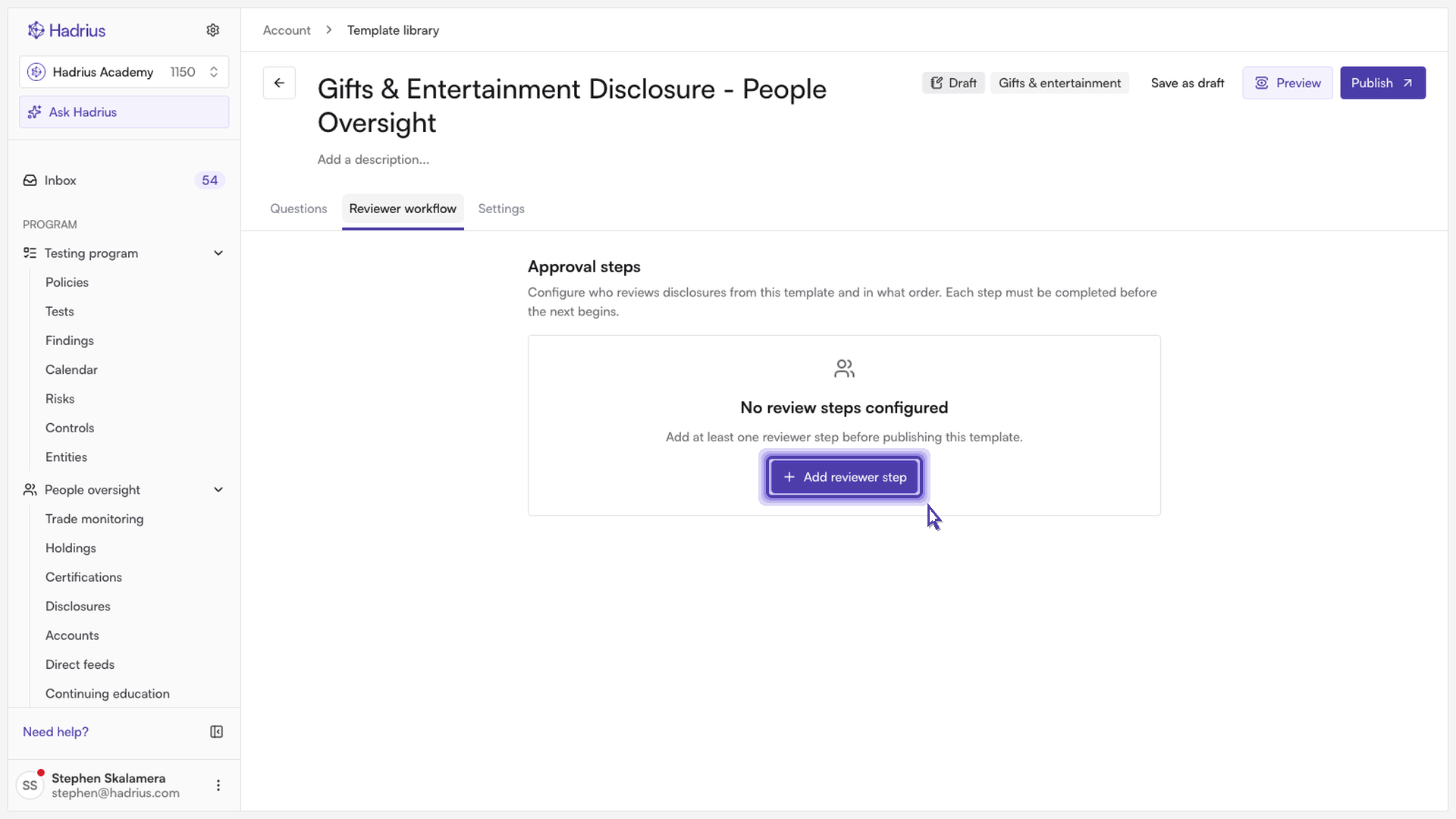
Once the basic questionnaire is in place, switch to the Reviewer workflow tab to configure who reviews disclosures submitted against this template.
Click Add reviewer step to add a step to the approval chain. You can configure up to two steps — an initial review and a final review — each of which must be completed before the next begins.
For each step, define the Reviewer group — the audience this workflow applies to. Open All active employees to pick the specific person who reviews at this step.
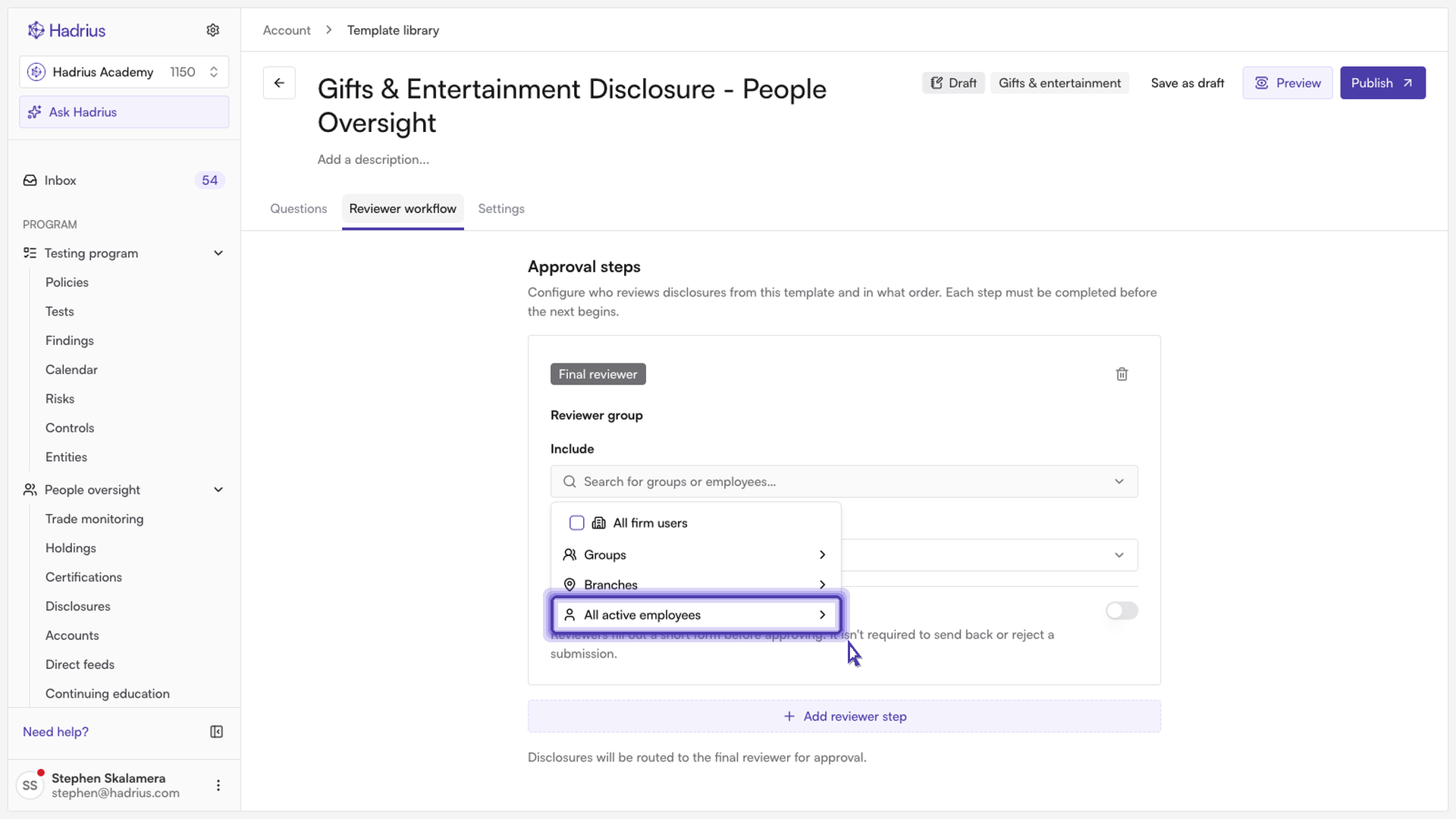
Select the specific reviewer(s) responsible for approving at that step. You can optionally require reviewers to fill out a short review form before approving, chosen from any active reviewer-form templates in your library.
Once a step's reviewer group and reviewer are set, that step is ready, and you can add a second step if your workflow needs one.
Reviewing settings and publishing
Before publishing, check the Settings tab for the template's broader configuration (disclaimer requirements, final attestation text, and similar options) to make sure everything matches how you want the disclosure to behave.
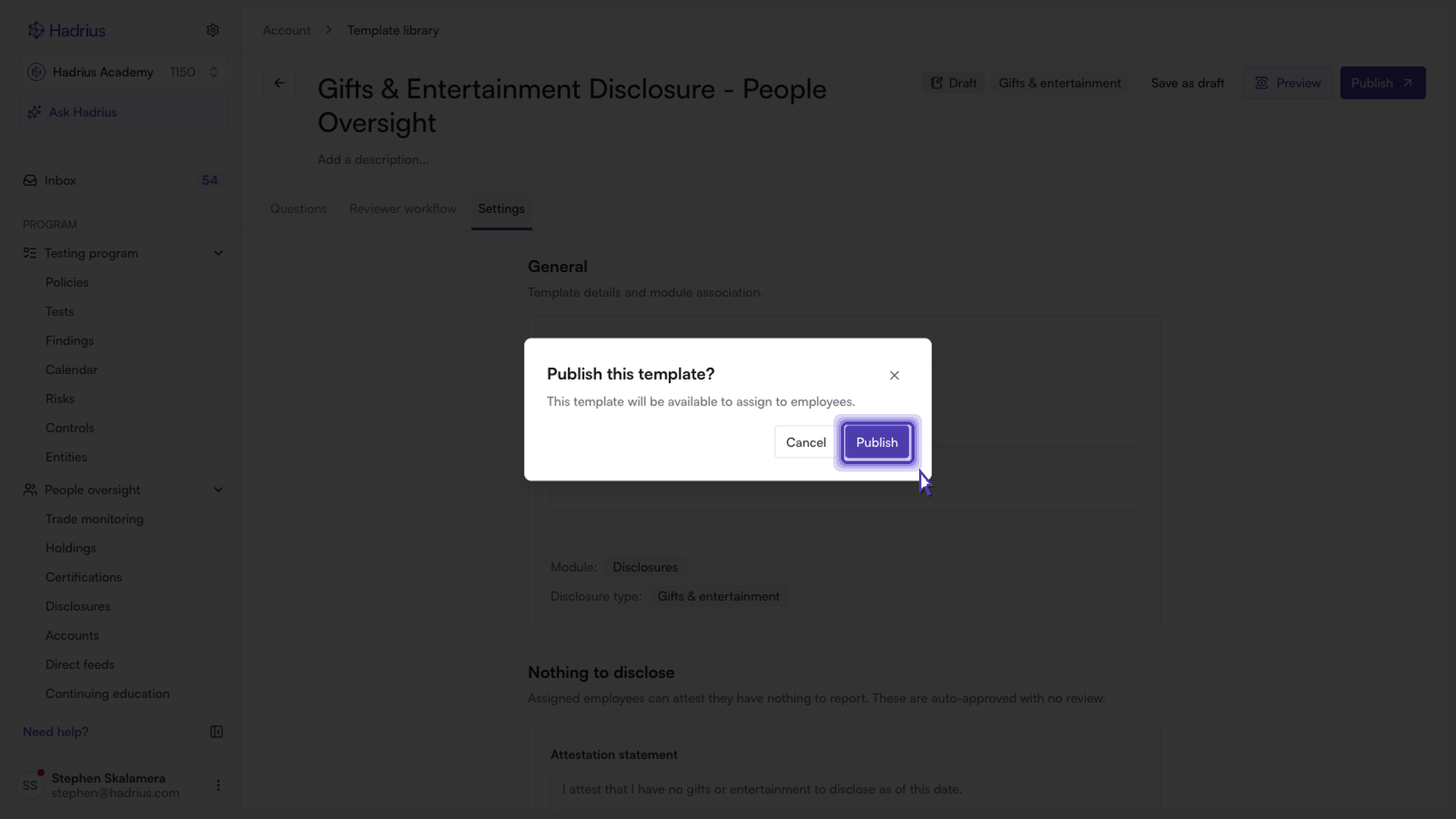
When everything is configured, click Publish. Confirming in the Publish this template? dialog makes the template live and available to assign to employees right away.
What happens next
Once published, the template appears in the template library as an active disclosure type. From there, it can be assigned to employees — for example, a gifts and entertainment disclosure — and any submissions will automatically route through the reviewer steps you configured for approval.