How to download a branch exam's audit trail
Last updated: October 17, 2026
Every branch exam in Hadrius keeps a running audit trail — a timestamped, attributed record of every action taken on that exam, from questionnaire activity to status changes. This article walks through where to find that record and how to export it as a CSV for compliance documentation, evidence retention, or sharing outside the platform.
Who can access the audit trail
The audit trail is restricted: only branch exam managers or employees assigned as inspectors on that exam can view or download it. If you don't have one of those roles, the tab will show a message explaining that access is restricted rather than the log itself.
Steps to download the audit trail
Open Branch Exams. This section lists every scheduled inspection for the firm.
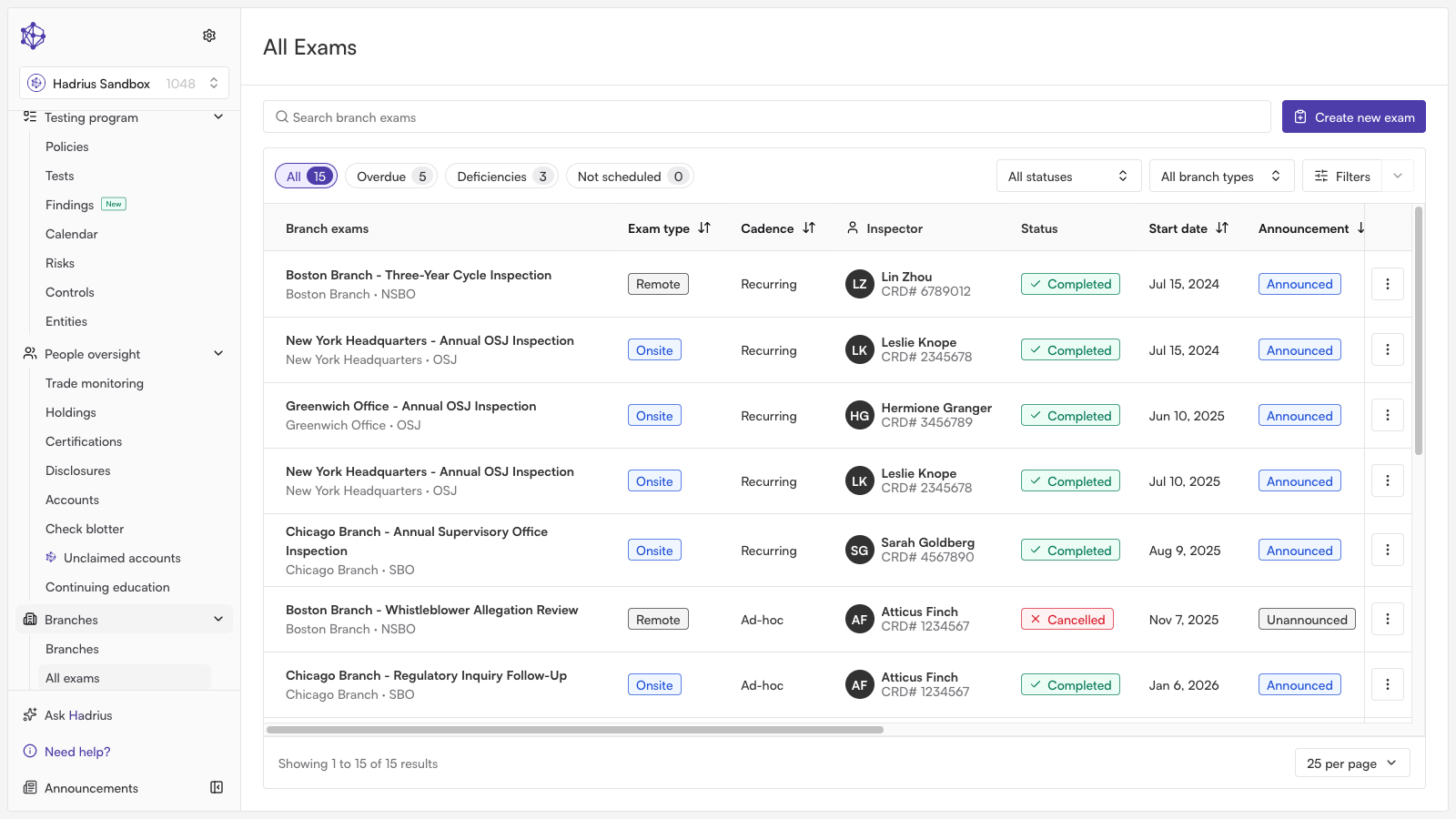
Open the specific exam. Selecting a branch exam from the list takes you into its full inspection record, with detail tabs across the top (Overview, and others depending on the exam's stage).
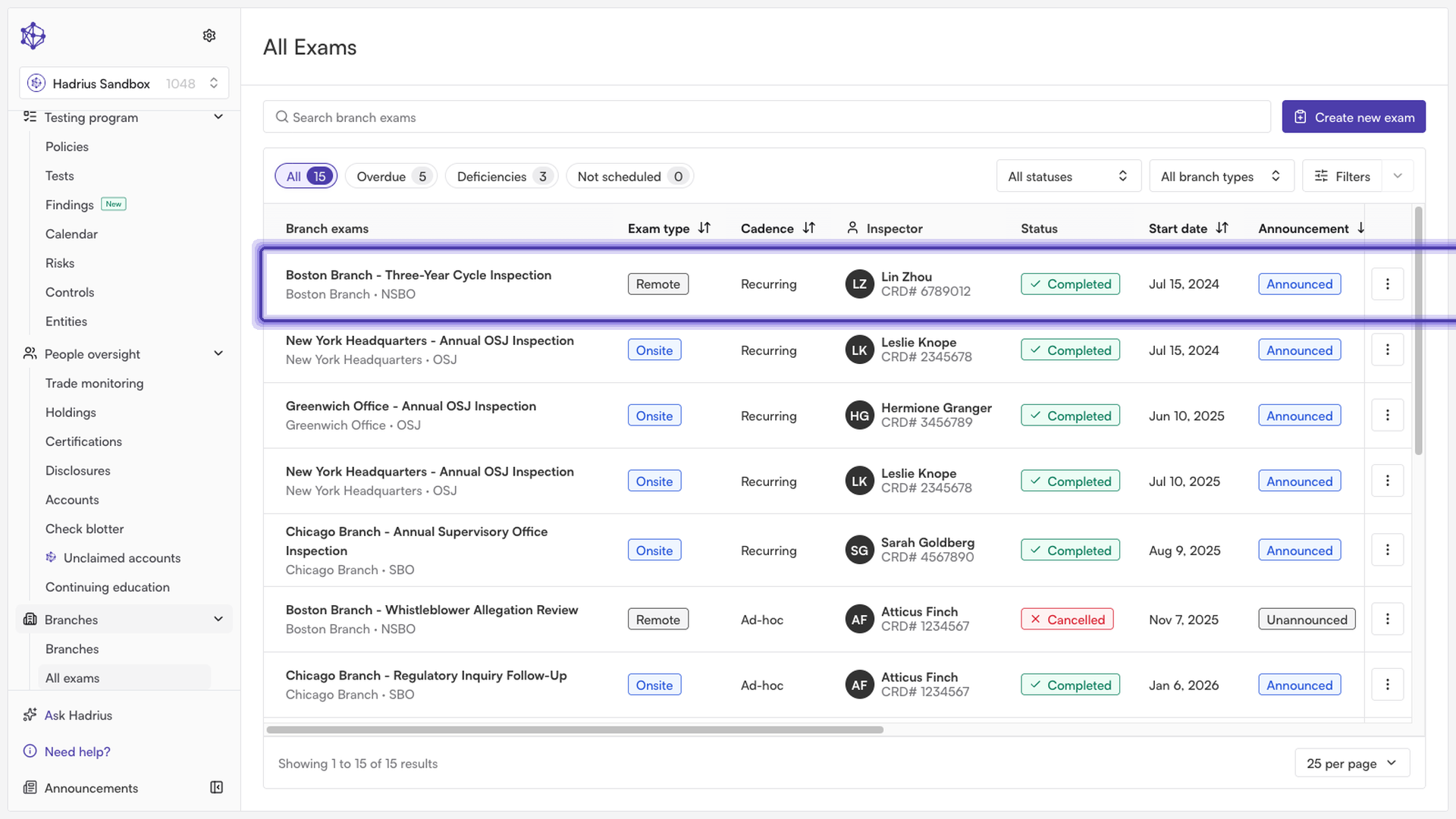
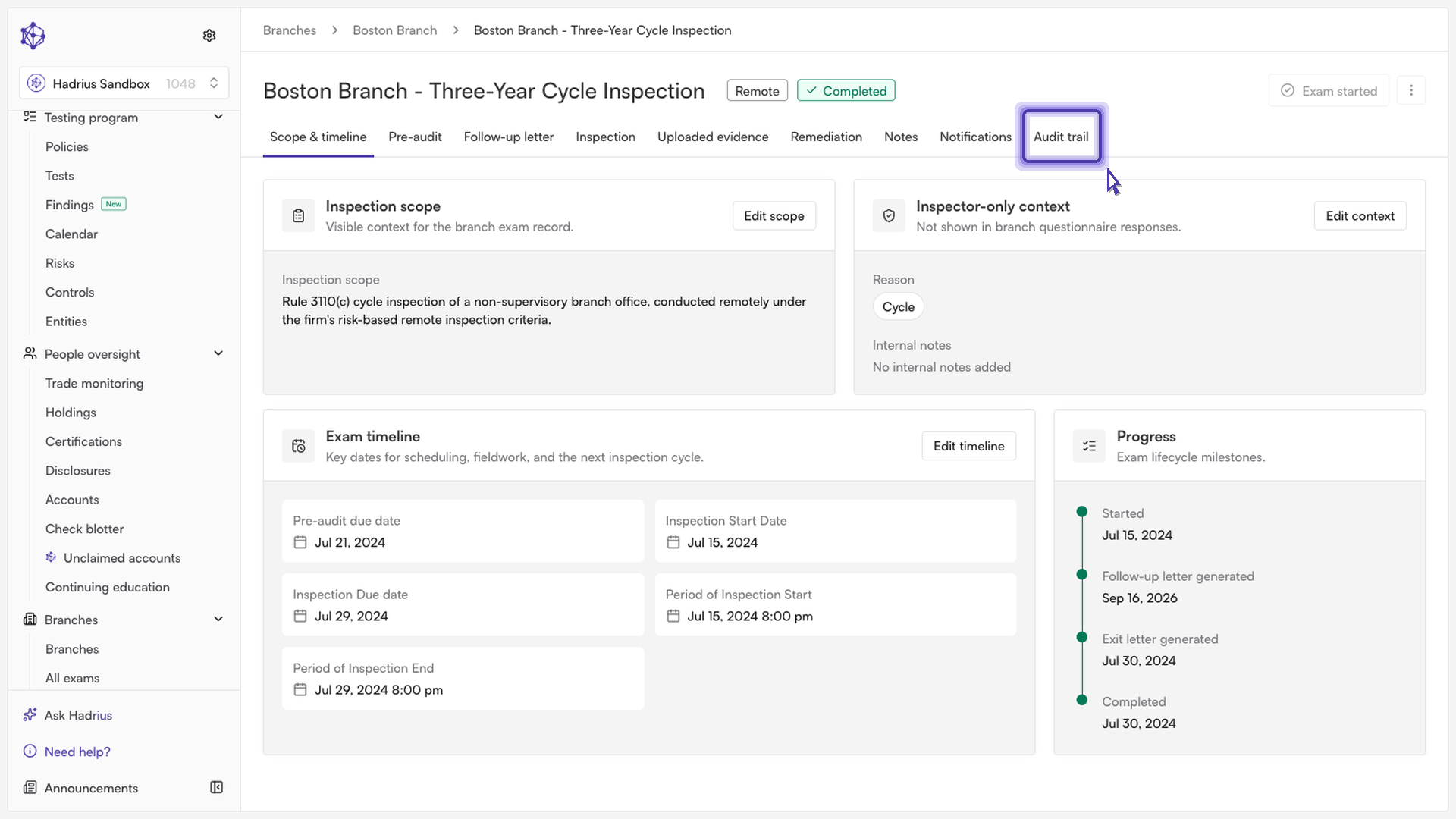
Go to the "Audit trail" tab. This tab lists every recorded event for the exam — timestamp, who performed the action, the action type, and a description — with an event count badge and tools to search or filter by action type and by performer.
Click "Download." The button sits above the table, next to search. Clicking it pulls the complete, unfiltered set of audit trail entries for the exam (not just what's currently visible on the filtered or paginated view) and saves it as a CSV named
branch-exam-audit-trail.csv. The exported file includes date and time, user name, email, action, and description columns for every entry.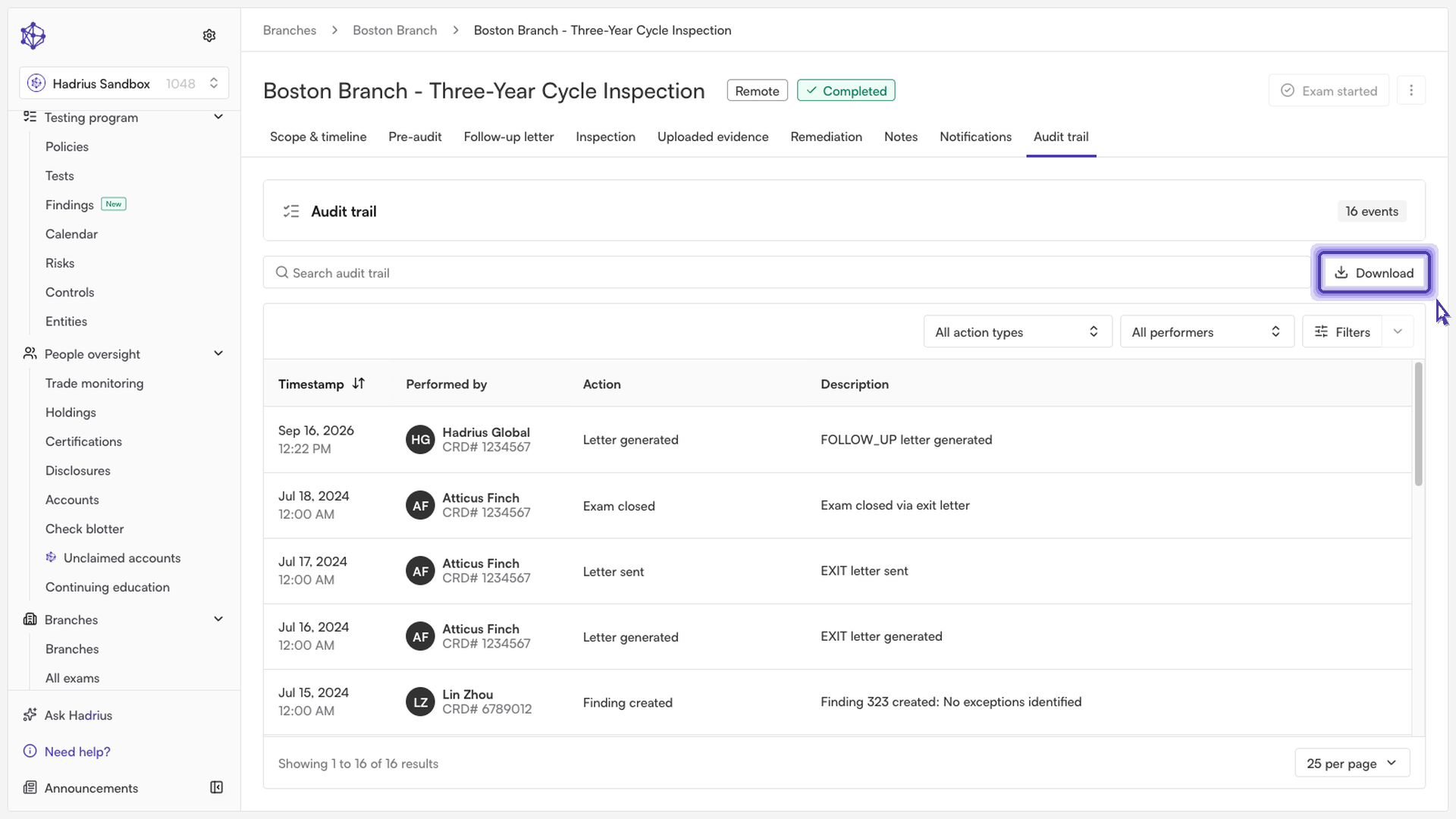
If the download fails
If something goes wrong while pulling the records, you'll see a toast notification reading "Audit trail download failed." Simply click "Download" again — the button shows a loading state while it's working, and it's safe to retry.
What to do with the export
Because the export always contains the full audit trail regardless of any search or filter applied on screen, it's suitable as a complete evidentiary record — attach it to your compliance file, examiner package, or retention archive as needed.