How to Export Flags and/or Threads from a Document
Last updated: October 17, 2026
Use this workflow when you need to pull a document's flagged passages and/or review comment threads out of Hadrius for sharing, external review, or recordkeeping. Exports can include the current version only, every submitted version, or the document's original native file, and you control exactly what review content rides along with it.
Find the document
Start in Marketing, where active projects are organized by review stage. Open the project you need, which takes you into its documents and any work already in progress.
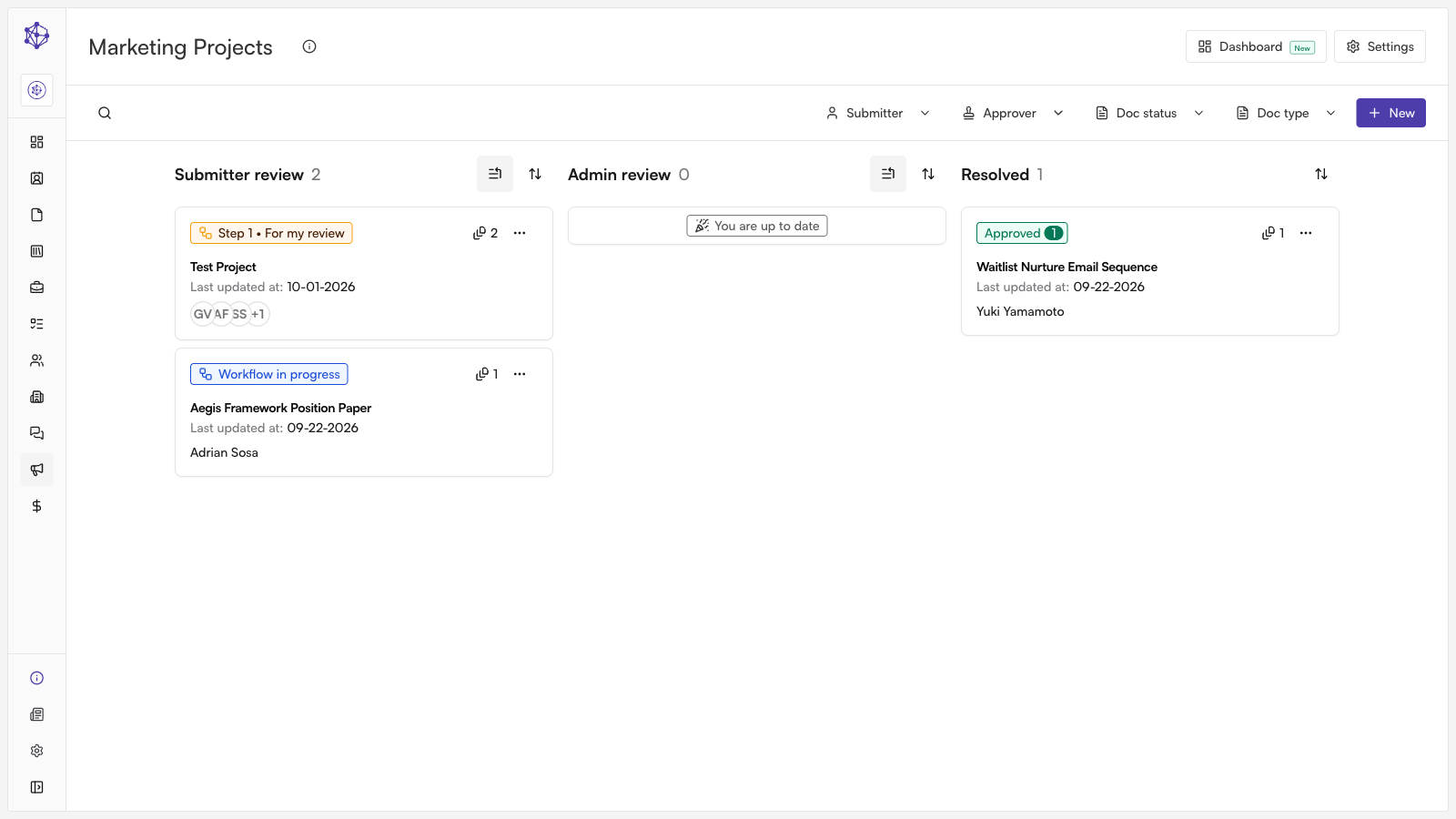
From the project, open the document library and locate the document you want to export from. Expanding the document gives you a closer look at its content before you commit to an action.
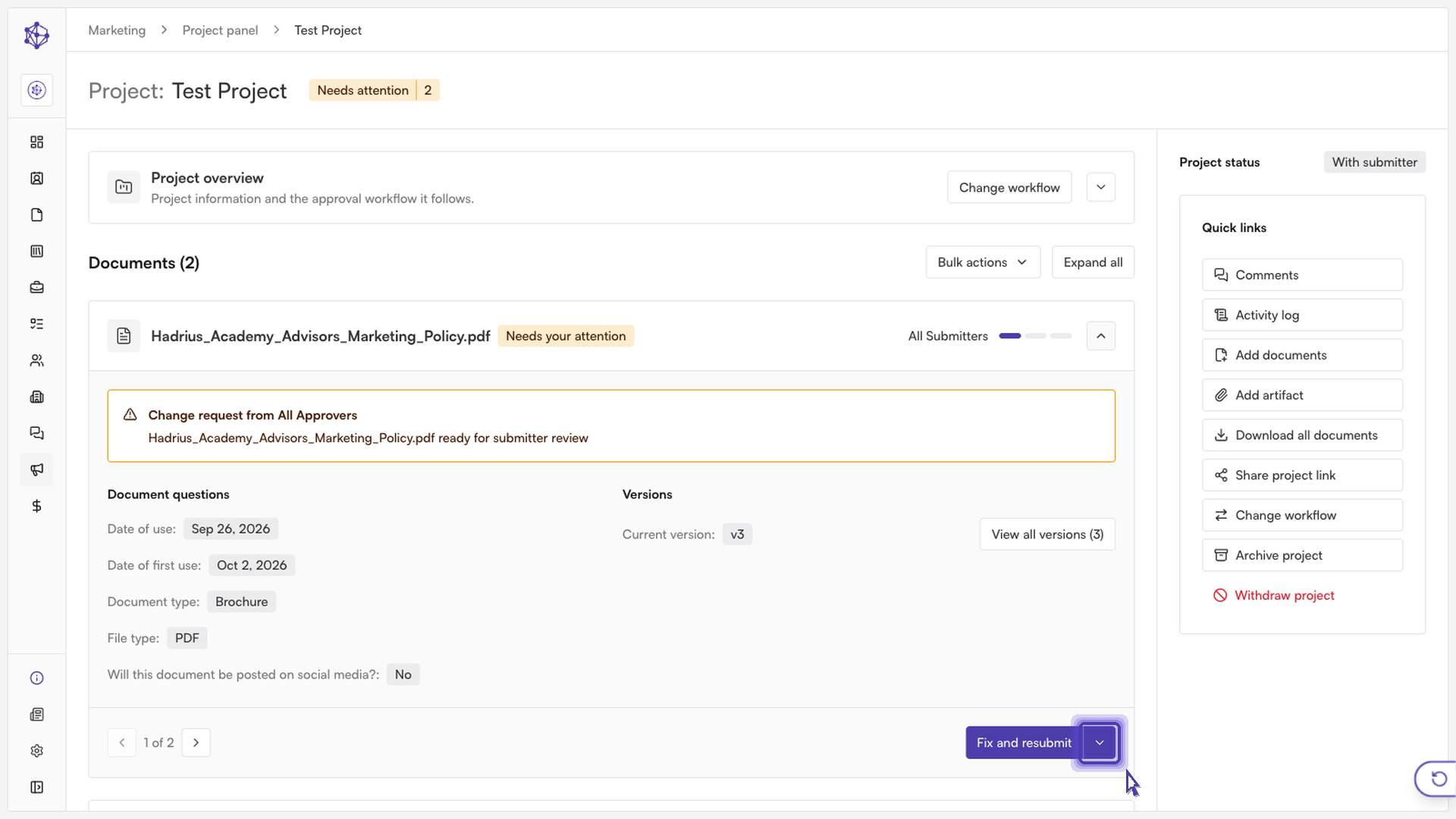
Open the document's actions
With the document selected, open its actions menu to see what you can do with it.
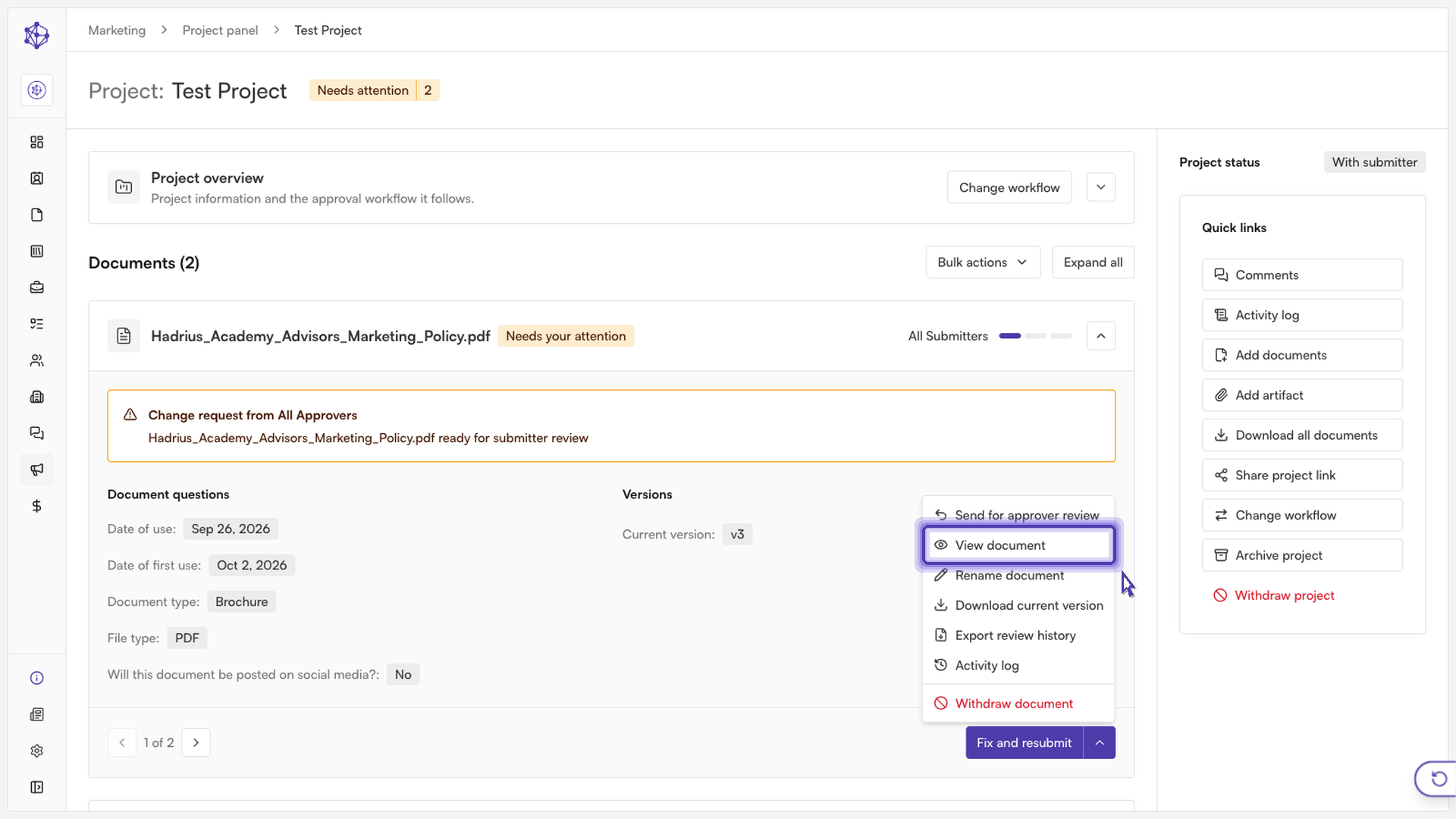
From there, view the document directly to review it in full. Once it's open, check the actions available from within the document view as well — this is where the export option lives.
Export flags and threads
Select Export to pull flags and/or comment threads out of the document for sharing or review.
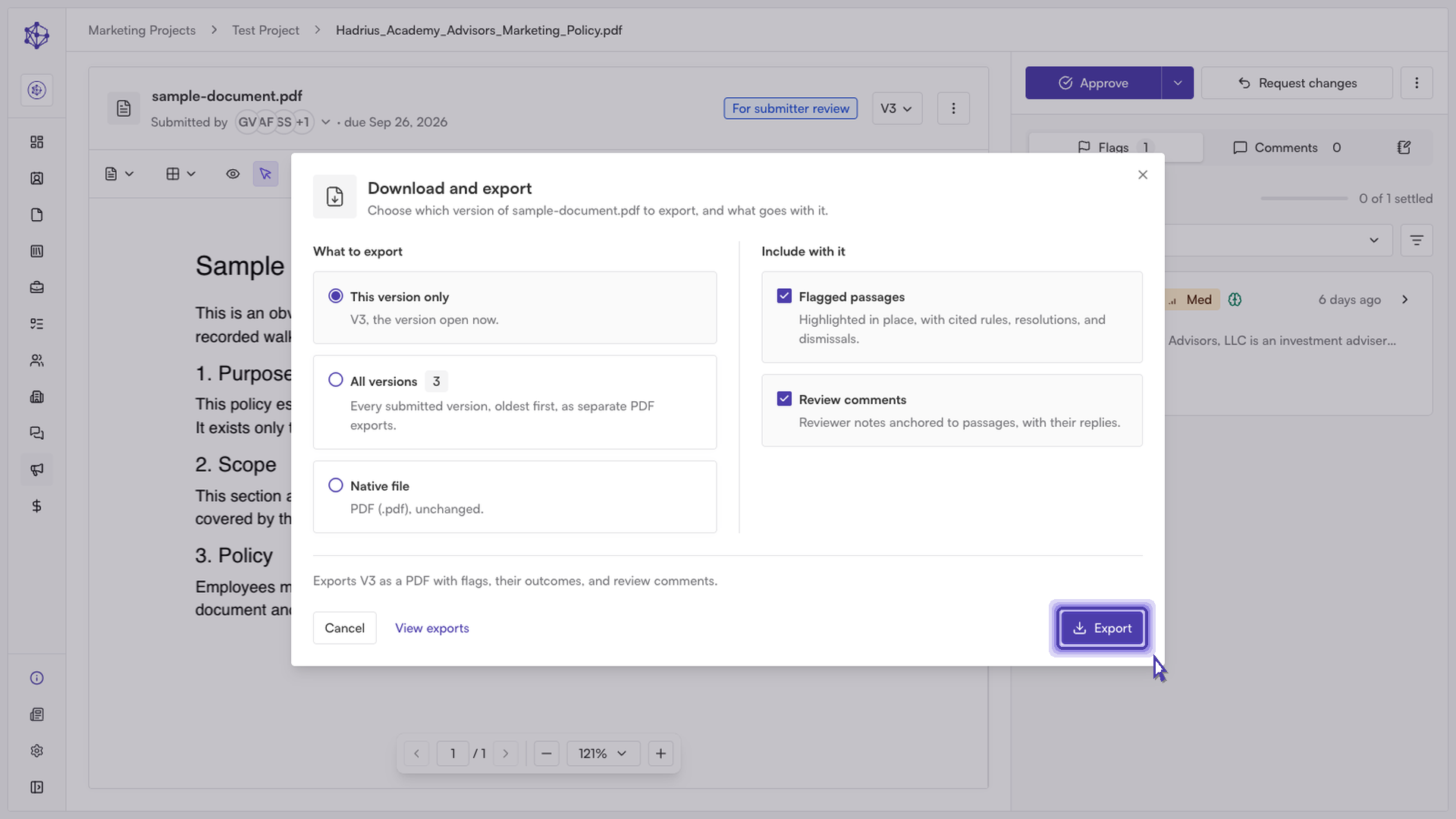
The export dialog lets you choose what to include before generating the file:
What to export — "This version only" (the version currently open), "All versions" (every submitted version, oldest first, exported as separate files), or "Native file" (the original file, unchanged).
Include with it — for version exports, you can toggle "Flagged passages" (highlighted in place, with their cited rules, resolutions, and dismissals) and "Review comments" (reviewer notes anchored to passages, including replies). For a native file export, you can instead choose whether to stamp the project's reference number onto the file.
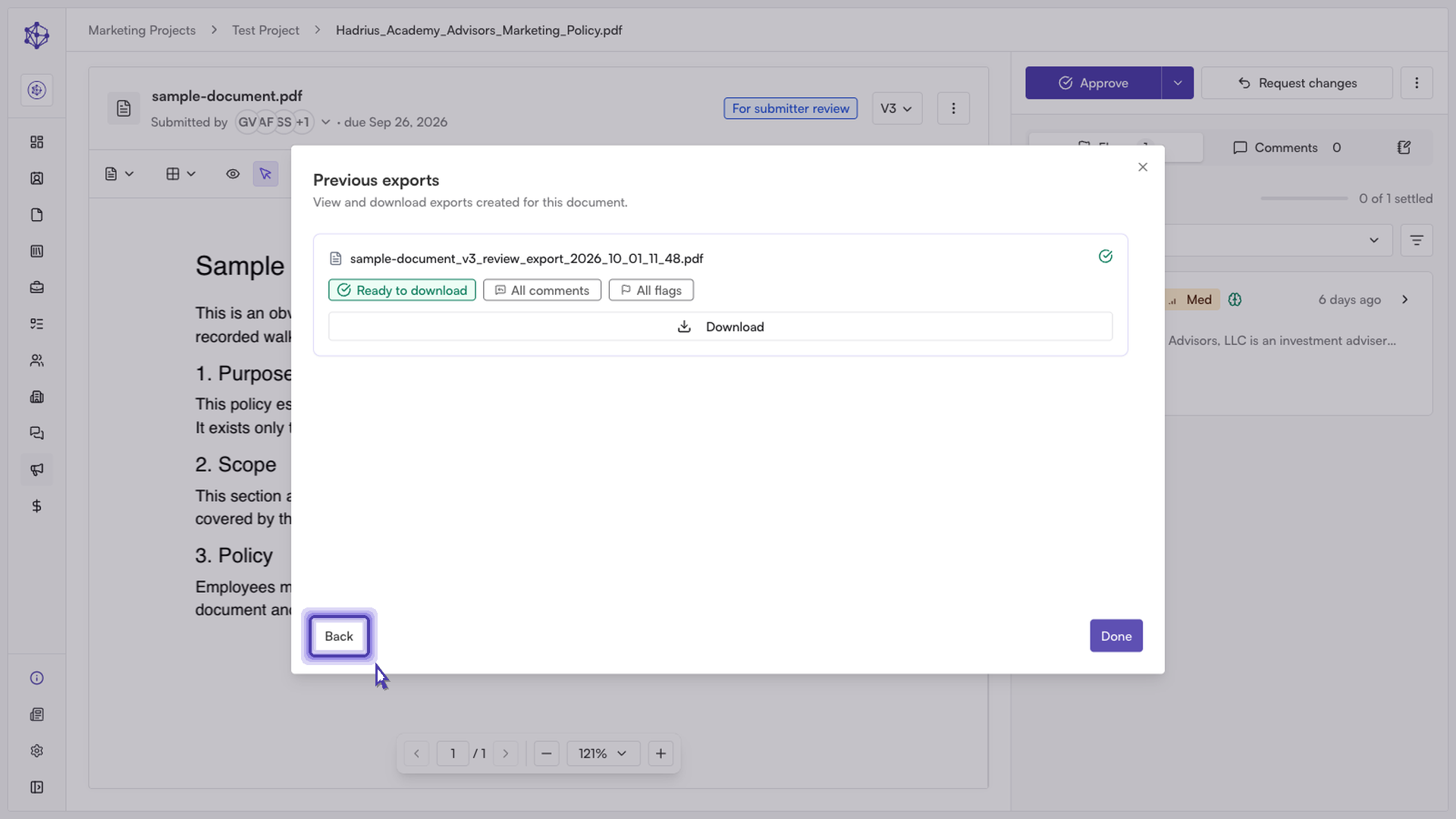
A summary line at the bottom of the dialog reflects your selections before you generate the export, so you can confirm exactly what will be produced.
Downloading your export
Select Export (or Download, for a native file) to start the job. Export is generated in the background — you'll be notified once it's ready. Use View exports from the export dialog at any time to see previous exports for the document and download any that have finished.