Creating Firm Intelligence Context
Last updated: October 1, 2026
Firm Intelligence is the platform's working memory of how your firm operates. You teach it by adding context — policies, procedures, and the standards your firm is held to — and it applies that context as rules when reviewing your firm's materials. This article walks through adding a source, reviewing what the platform extracted from it, saving that context so it takes effect, and managing your context library afterward. Follow these steps whenever you adopt a new policy, revise an existing one, or want the platform to account for a standard it does not yet know about.
Note: Firm Intelligence context is currently applied to marketing materials only.
Before you begin
You will need access to the Intelligence module. If your firm does not yet have Firm Intelligence enabled, the page will show an overview of the module instead of the workspace, along with an option to request a demo.
1. Add your context
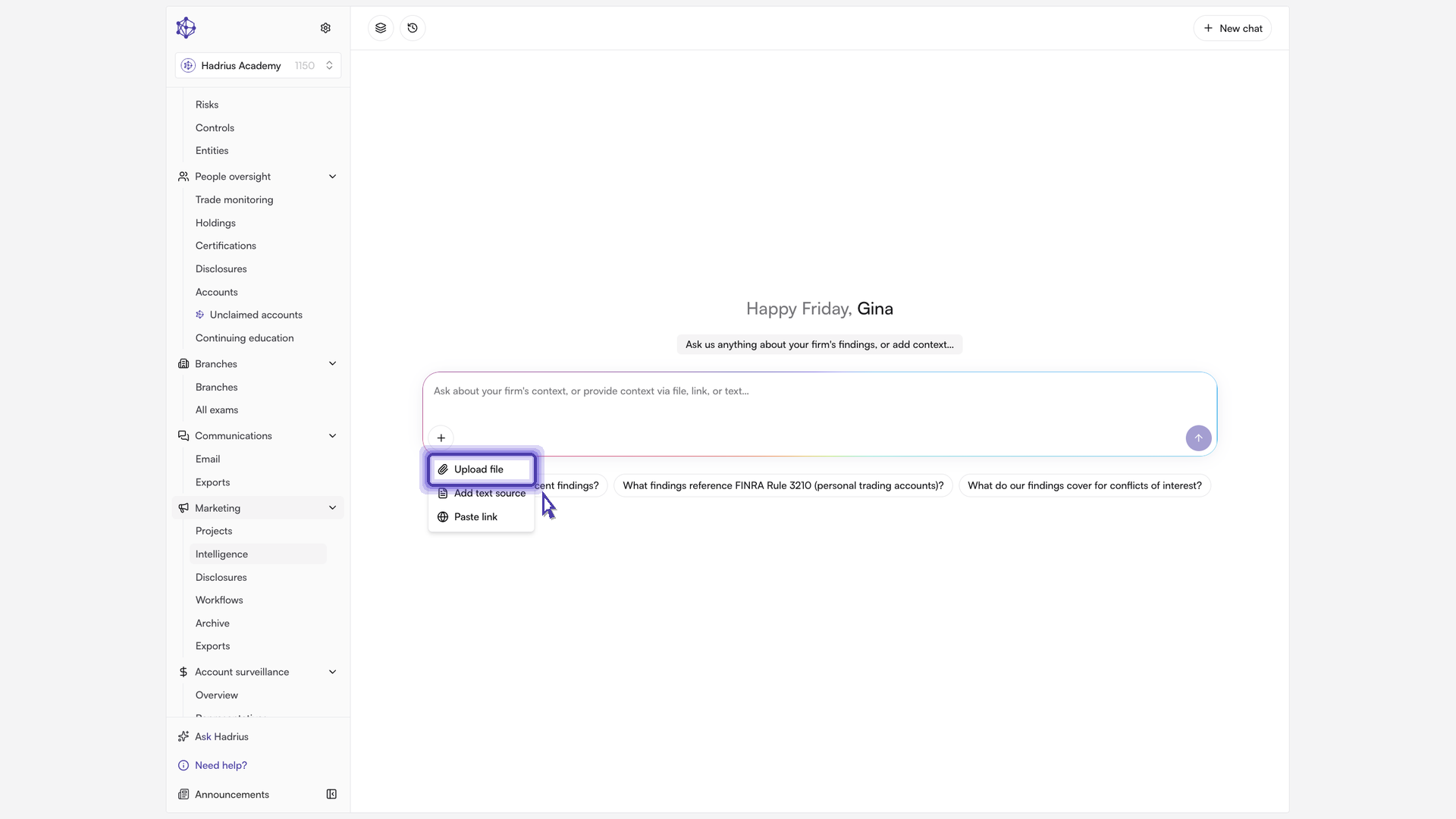
Open Intelligence from the Marketing area. The workspace opens on a single composer used both for asking questions and for adding context. You can type context directly into the composer, or use the + button to add a source:
Upload file — attach a policy or procedure document. Accepted formats are PDF, PNG, JPG, JPEG, and SVG; you can upload up to 10 files per submission, each under 25 MB and 250 MB in total.
Add text source — paste a longer passage of text as its own source.
Paste link — point the platform at a page to read.
Each item you add appears as a card beneath the composer, so you can confirm what is staged (or remove it) before submitting. If you type a link into the composer without staging anything else, the platform will ask whether to treat it as firm context or as a search of your existing findings — choose Add as firm context to add it as a source.
2. Submit and let the document process
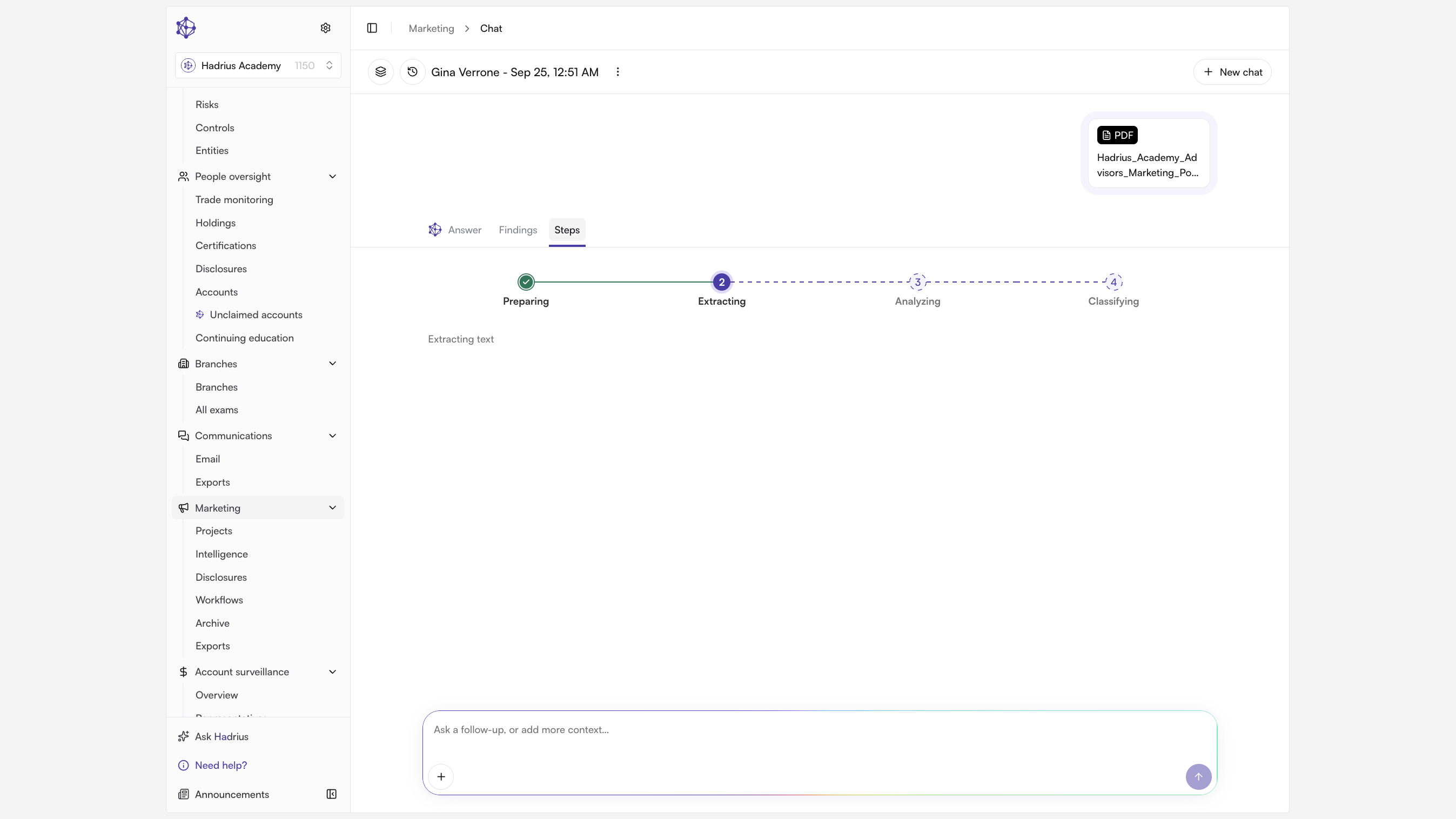
Submitting hands your source over to be read and broken into structured findings. A thread opens for that submission, with the Steps tab showing progress through four stages: Preparing, Extracting, Analyzing, and Classifying. When several sources are submitted together, the step view reports how many have reached each stage.
Processing may take a few minutes. You can leave the page and return to the thread later; progress is saved and continues in the background. If a source fails at a stage, the Steps tab flags it and offers the option to retry.
3. Review the extracted findings
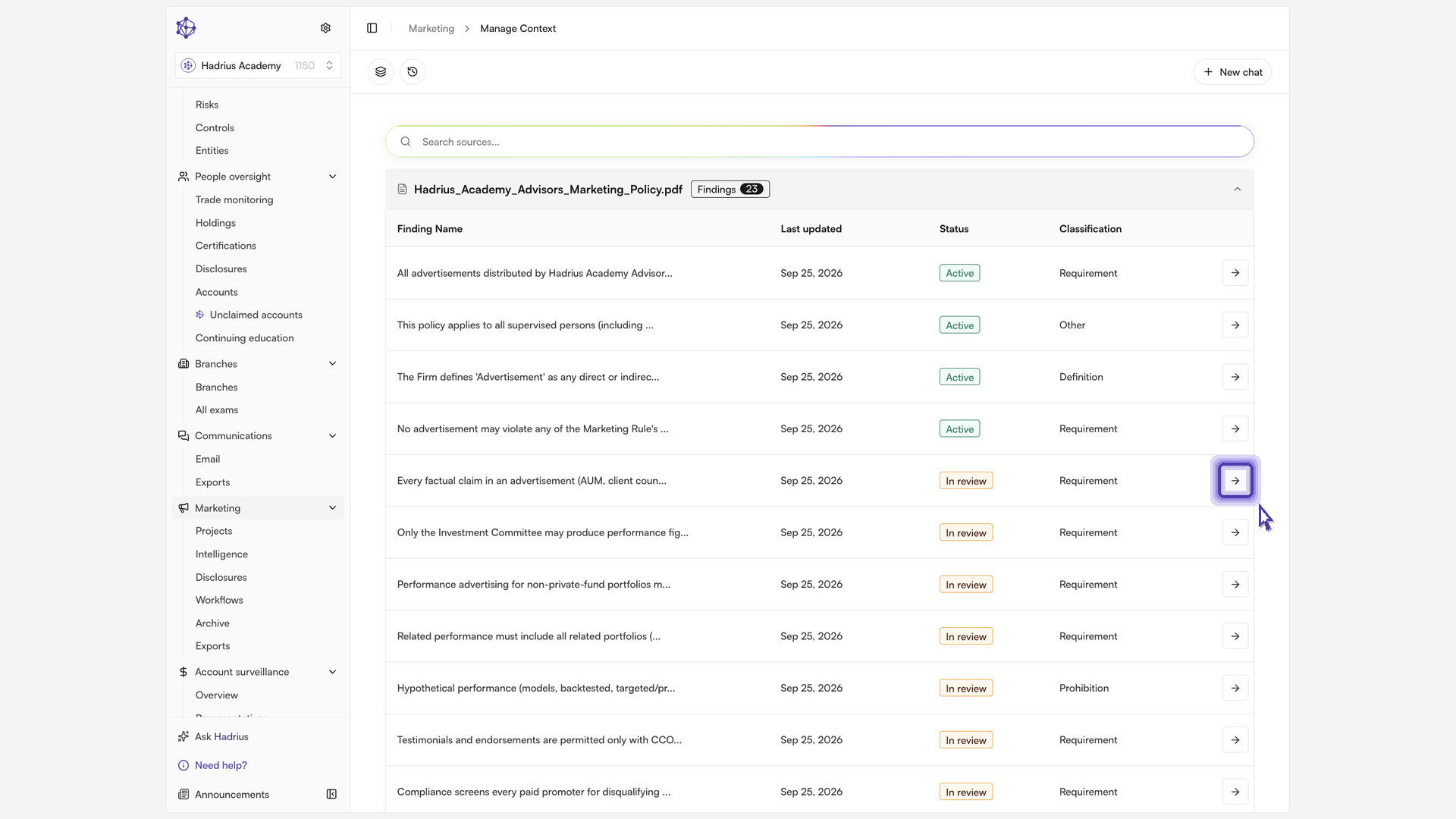
When processing completes, the thread switches to the Answer tab, where each finding the platform extracted comes back as its own card. Findings arrive with a status of In review — they are proposed context and are not yet applied to anything.
Review each one on its own terms. From a finding card you can copy the text, copy a direct link to it, edit it, or delete it. Editing lets you correct the finding's wording or retitle its source before you save.
4. Save the context
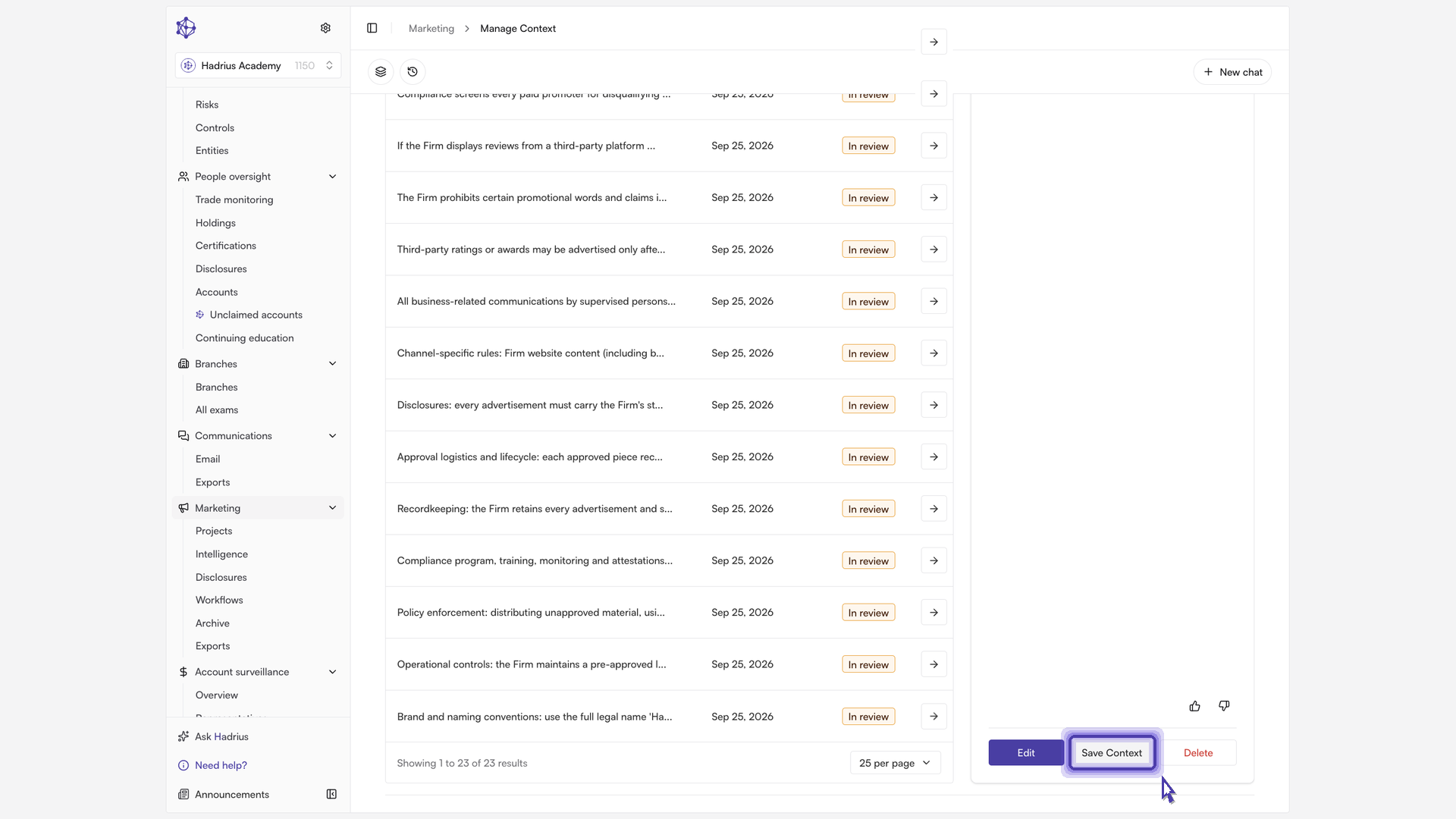
When a finding reads correctly, select Save context. The finding's status changes to Active, it moves into your context library, and from that point forward it is applied as a rule when marketing materials are reviewed. Findings you leave in review have no effect until they are saved.
Saved findings collect on the Findings tab of the thread, and the confirmation message includes a View Library shortcut to jump straight there.
5. Manage context later
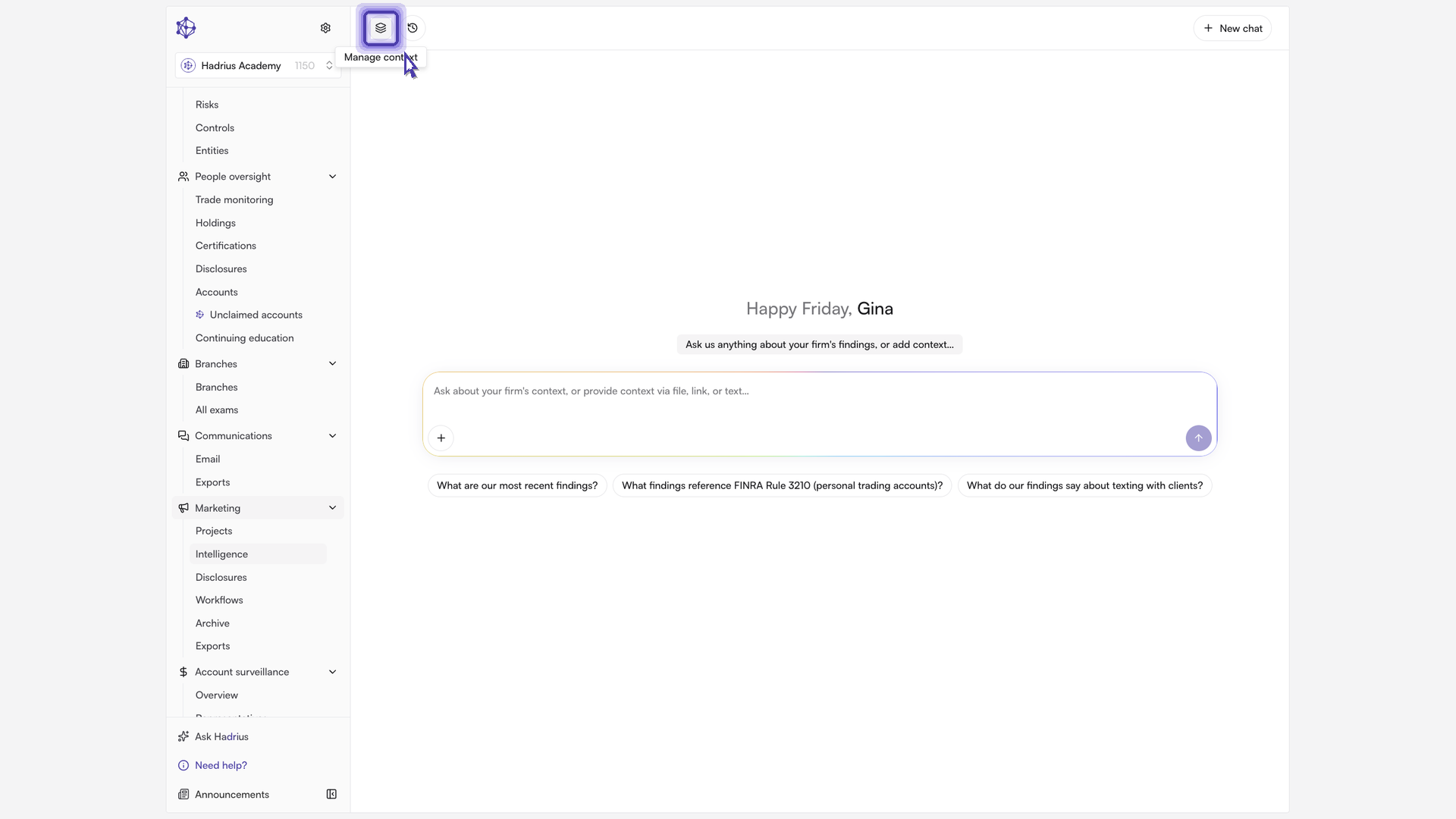
To revisit or update your rules at any time, return to the Intelligence tab and open Manage Context from the header. This is the library view: every source you have added, and what came out of it. Search by source title to narrow the list, then expand a source to see each finding the platform pulled from it, along with its last updated date, status, and classification.
Selecting a finding opens a detail panel showing its full text, its classification, and the document it came from. From there you can:
Edit — revise the finding's text or its source title.
Save Context — activate a finding that is still in review.
Archive — retire an active finding so it stops being applied; archived findings can be restored with Unarchive.
Delete — permanently remove a finding that is still in review. This cannot be undone.
The thumbs-up and thumbs-down controls on each finding let you tell us whether the platform extracted it well, which helps improve future extractions.
What happens next
Once a finding is active, it is applied to marketing materials reviewed from that point forward. Keep the library current as your policies change: archive rules that no longer apply, edit those that have been revised, and add each new policy document as its own source so the platform's understanding of your firm stays accurate.