How to Bulk Approve Documents
Last updated: October 17, 2026
When several documents in a project are ready for the same sign-off, you can approve them together instead of opening each one. This article explains how to use "Bulk approve" from a project's Documents tab. It applies when you are an approver and the documents are at the review step.
Before you begin
- You need approver permissions on the project. Bulk actions are not available if the project is read-only.
- The "Bulk actions" menu is disabled when the project's workflow is inactive.
- Approving in bulk marks every AI flag and comment thread on the selected documents as resolved. Review any open flags first if you want to read them before they are closed.
Steps
- Open the project. From the projects list, where documents awaiting your review are collected, open a project that has items in the review step. This takes you to the project workspace.
- Go to the Documents tab. It lists every document in the project and where each one stands in the workflow.
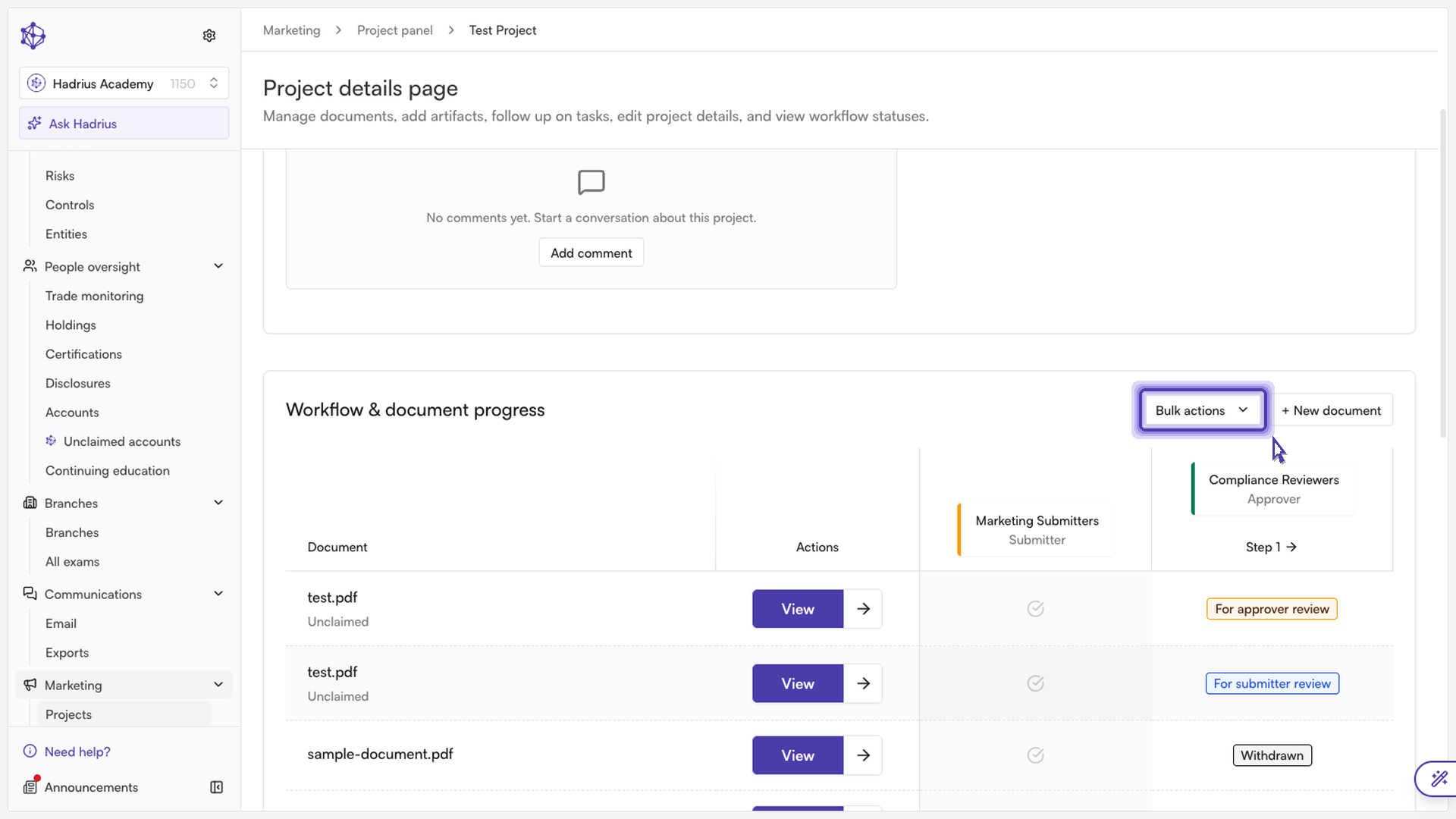
- Start bulk approve. Select the "Bulk actions" dropdown above the document list, then choose "Bulk approve".
- Select your documents. The list switches into selection mode, with a checkbox beside each document. Tick the documents you are ready to approve. You can also use "Select all" to choose every eligible document. The approve button at the top of the list shows how many documents you have selected, for example "Approve (3)". It stays disabled until you select at least one document. Choose "Cancel" at any point to leave selection mode without making changes.
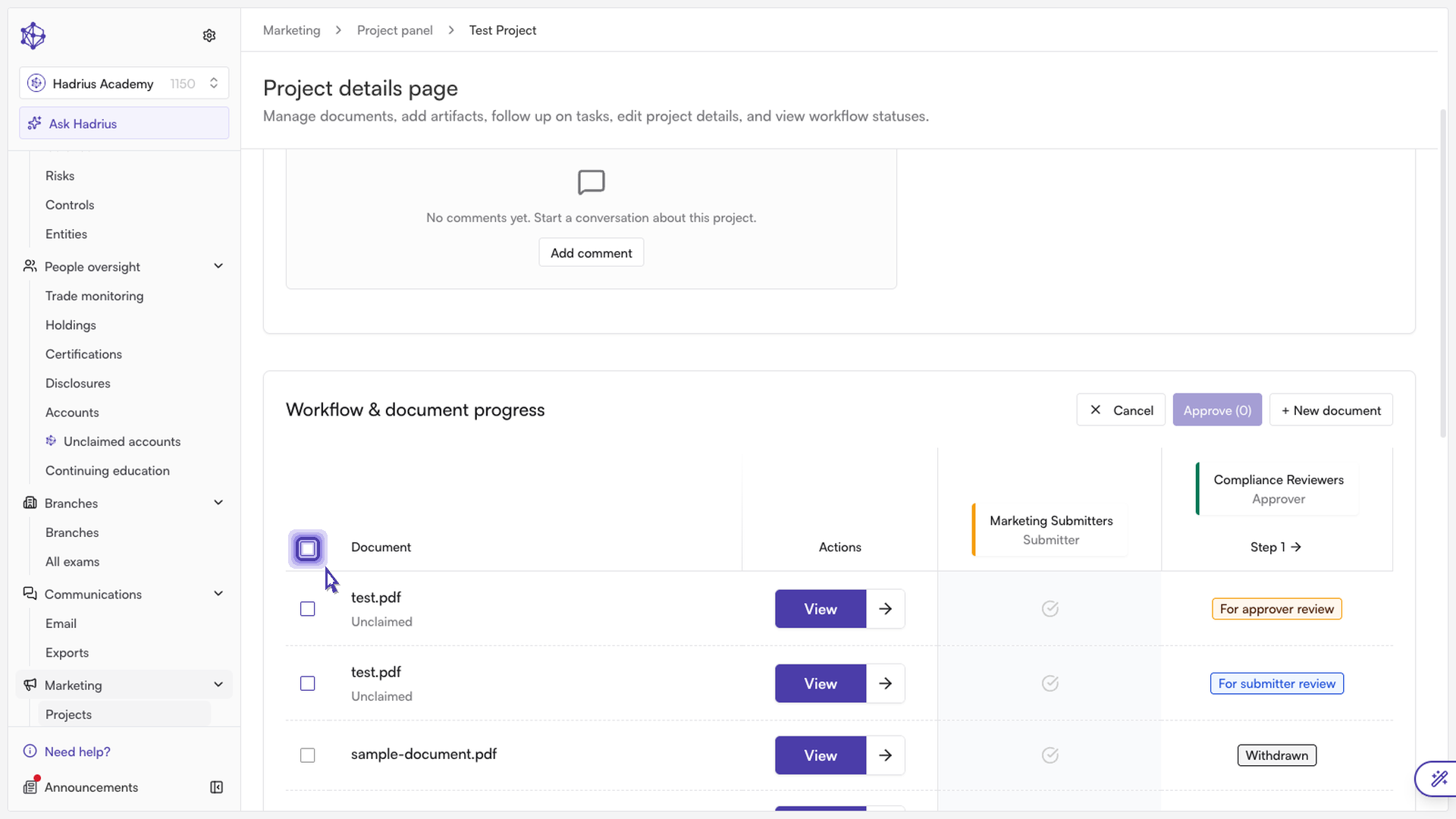
- Select "Approve". A confirmation dialog opens.
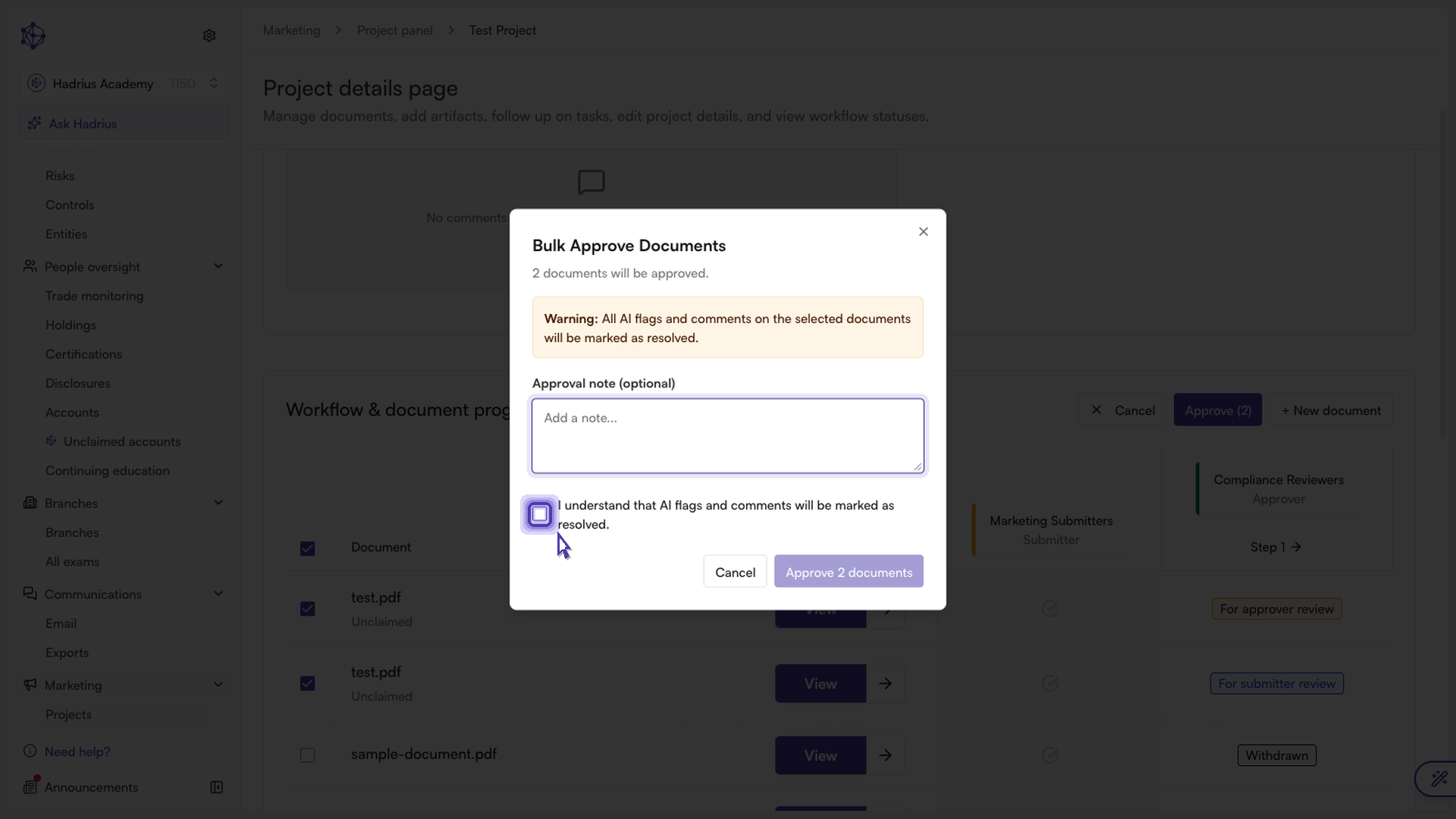
- Confirm. The dialog warns that all AI flags and comment threads on the selected documents will be marked as resolved. Check the acknowledgment that you understand this. You can add an optional note, then confirm to approve.
What happens next
All selected documents are approved at once and move forward in the workflow. A notification reports the result, for example "3 documents approved successfully." If some documents could not be approved, you will see a partial-success message showing how many succeeded and how many failed. The documents that failed stay where they were, so you can open them individually and try again.
The same menu also offers other bulk actions, such as reject, withdraw and send back for edits. They follow the same select-and-confirm pattern.