How to add a document type override for expiration in Marketing
Last updated: October 17, 2026
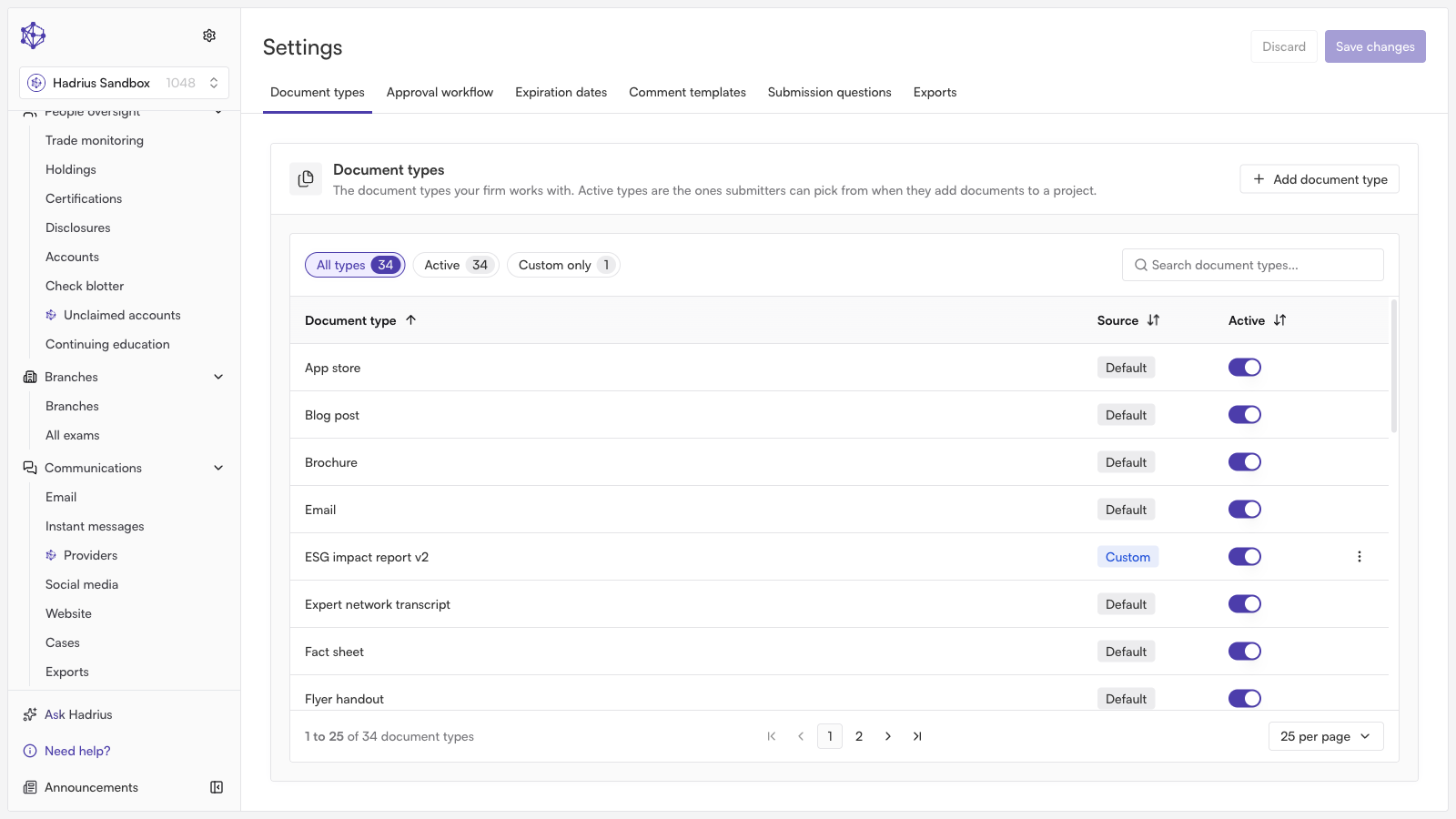
By default, marketing assets in Hadrius follow your organization's general lifecycle and expiration policies. However, certain categories of collateral—such as brochures, quarterly commentaries, or pitch decks—may require distinct review cycles. Setting up a document type override allows you to define custom expiration timeframes for specific marketing materials without altering your firm-wide defaults.
Steps to Add a Document Type Override
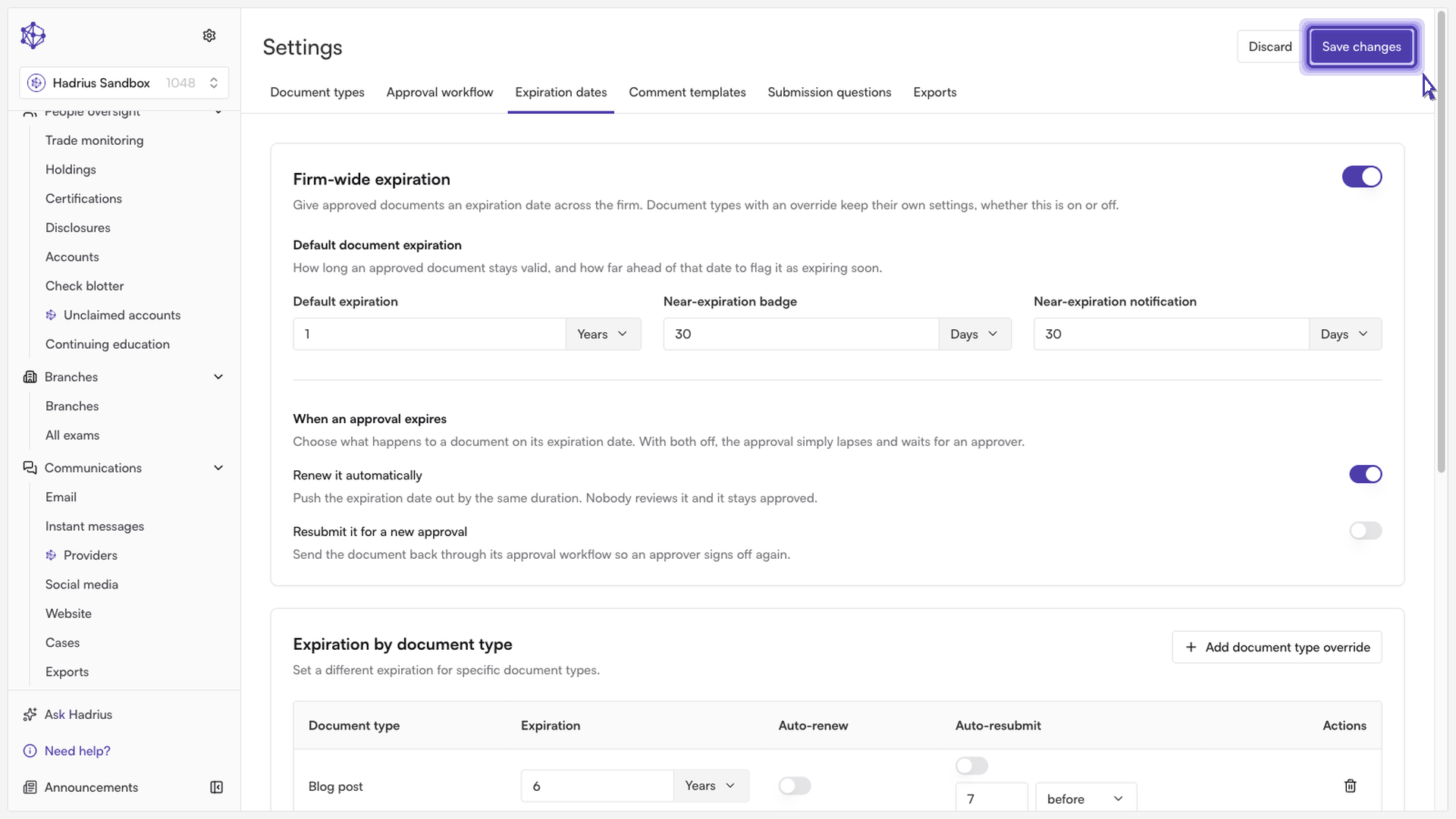
Open Expiration settings: Navigate to Marketing Settings and select Expiration dates to view your active lifecycle policies.
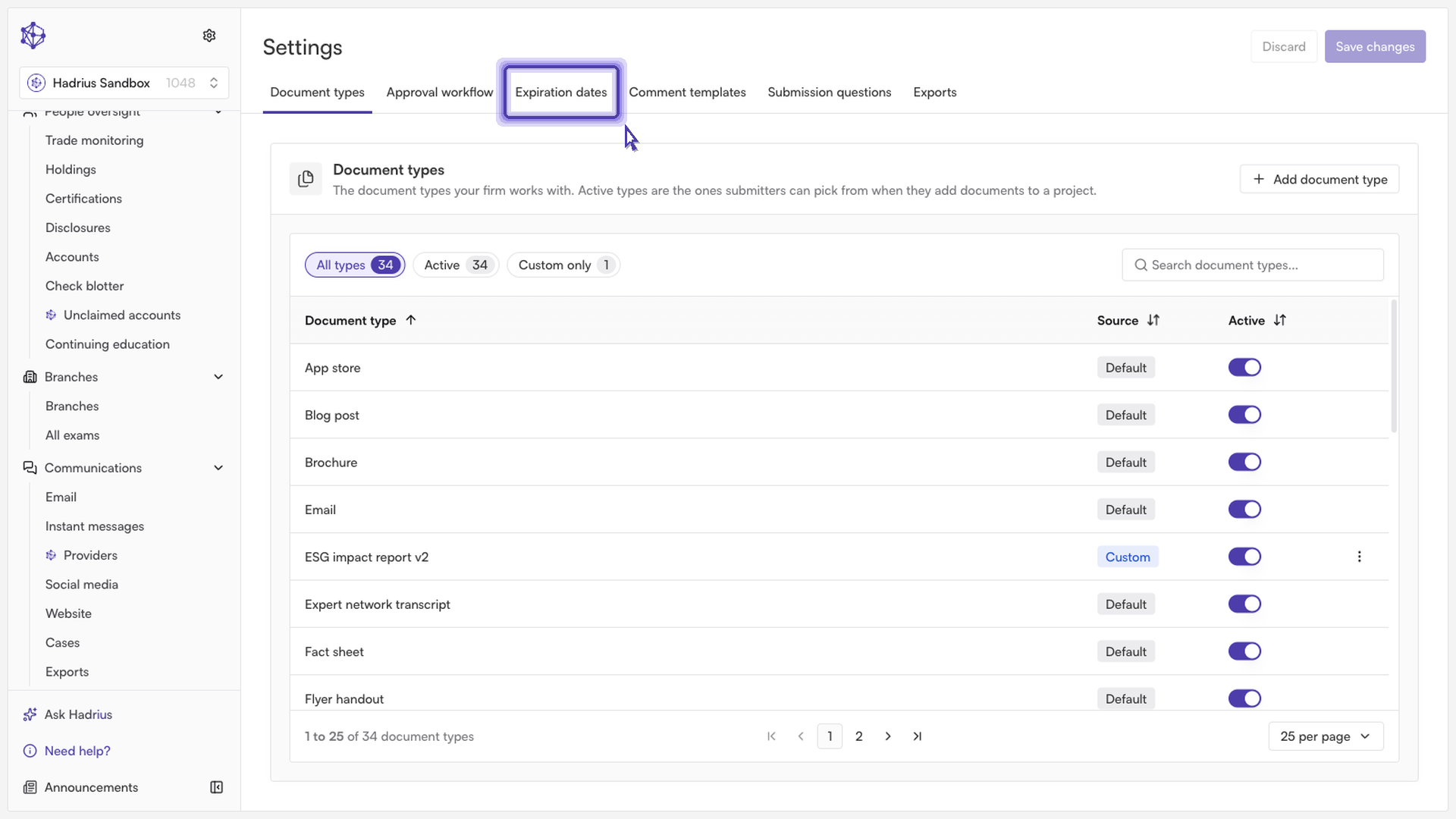
Create an override: Select the option to establish a new override for a specific document category.
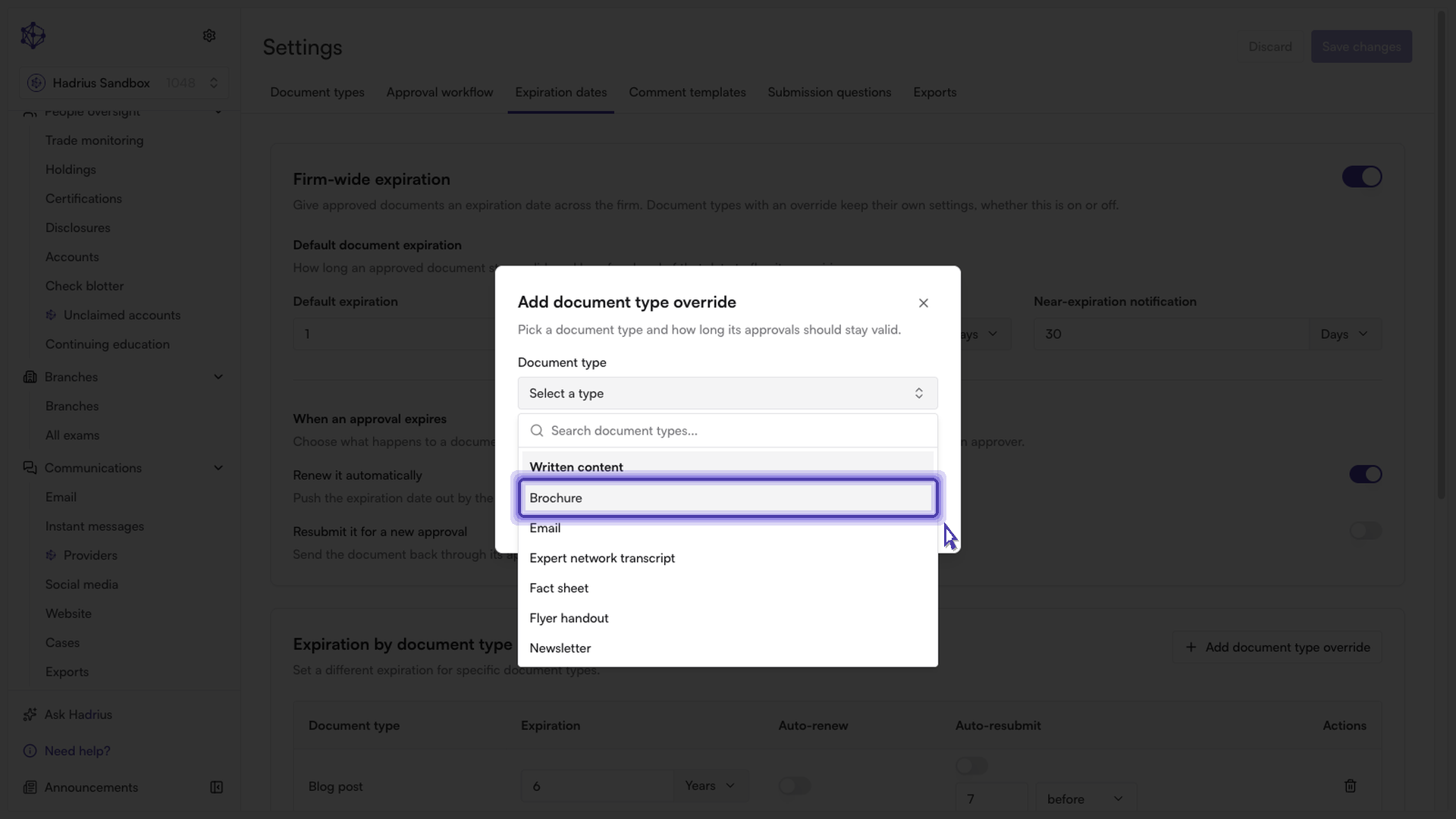
Choose the collateral type: From the dropdown menu, select the document category you wish to customize (e.g., brochures).
Define the active duration: Specify how long materials in this category should stay active before reaching expiration.
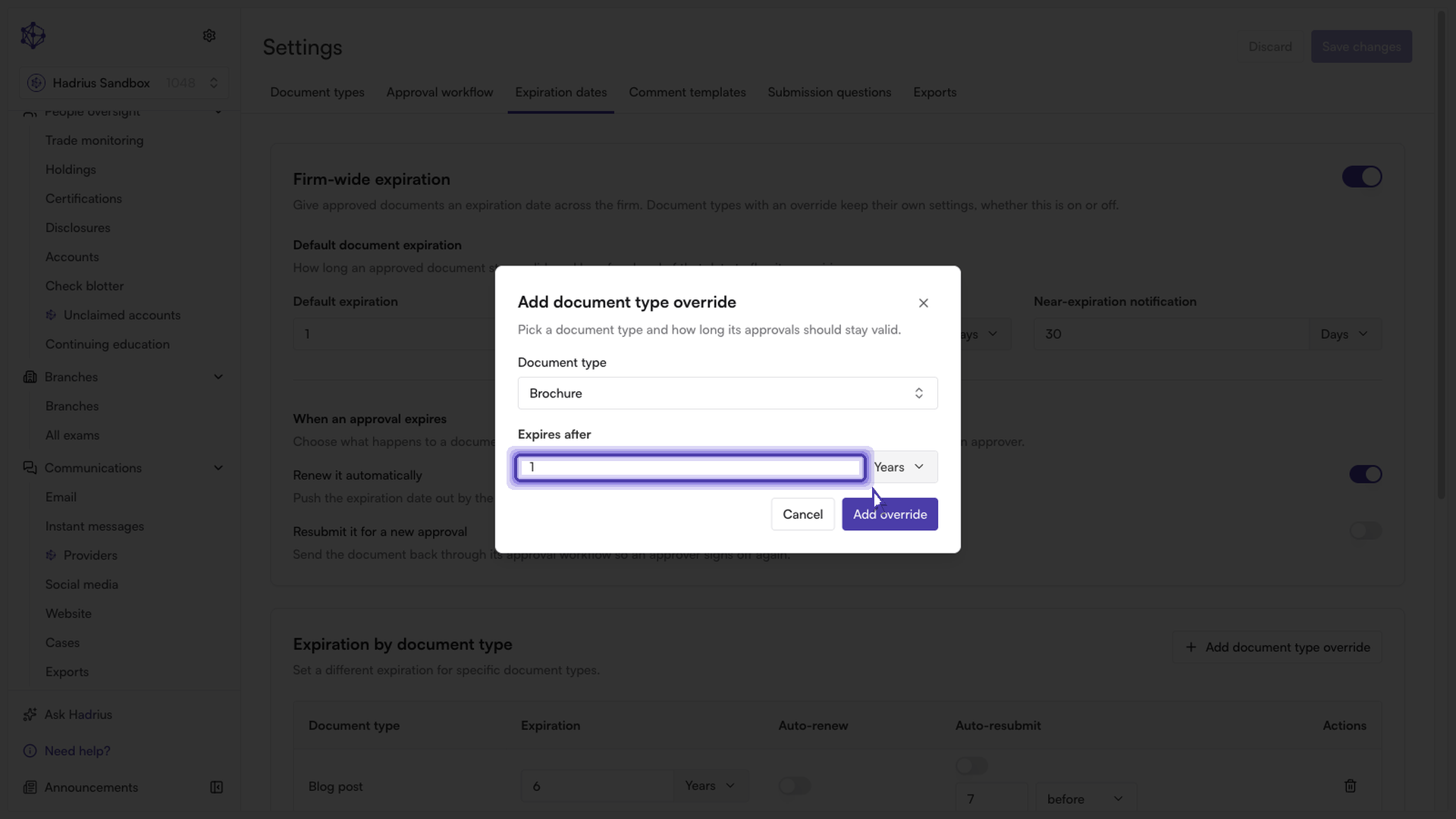
Save your configuration: Click Save to lock in the override.
Once saved, Hadrius will automatically apply this tailored lifespan to all collateral matching the selected document type, keeping your marketing review schedules and compliance records aligned.