Submitting a Disclosure on Behalf of An Employee
Last updated: October 17, 2026
Compliance administrators can create a disclosure for an employee and complete the filing themselves, rather than sending the employee a request to fill out. This is useful when you already hold the underlying information — for example, when an employee has reported an outside activity by email or in person, or when you are recording a filing retroactively on the employee's behalf. This article walks through creating the disclosure, entering the answers, and submitting it for review.
Filing on behalf of another employee requires the "Submit disclosures on behalf of others" permission. If you do not have it, the option described in step 4 will not appear, and you will only be able to assign disclosures to employees to complete themselves.
Before you begin
Both paths — assigning to the employee and filing on their behalf — start in the same place: the disclosures dashboard, where every employee filing is tracked. Select "Assign disclosures" to open the assignment wizard. You will choose the employee and the template first, and only decide at the very end whether the employee fills the form or you do.
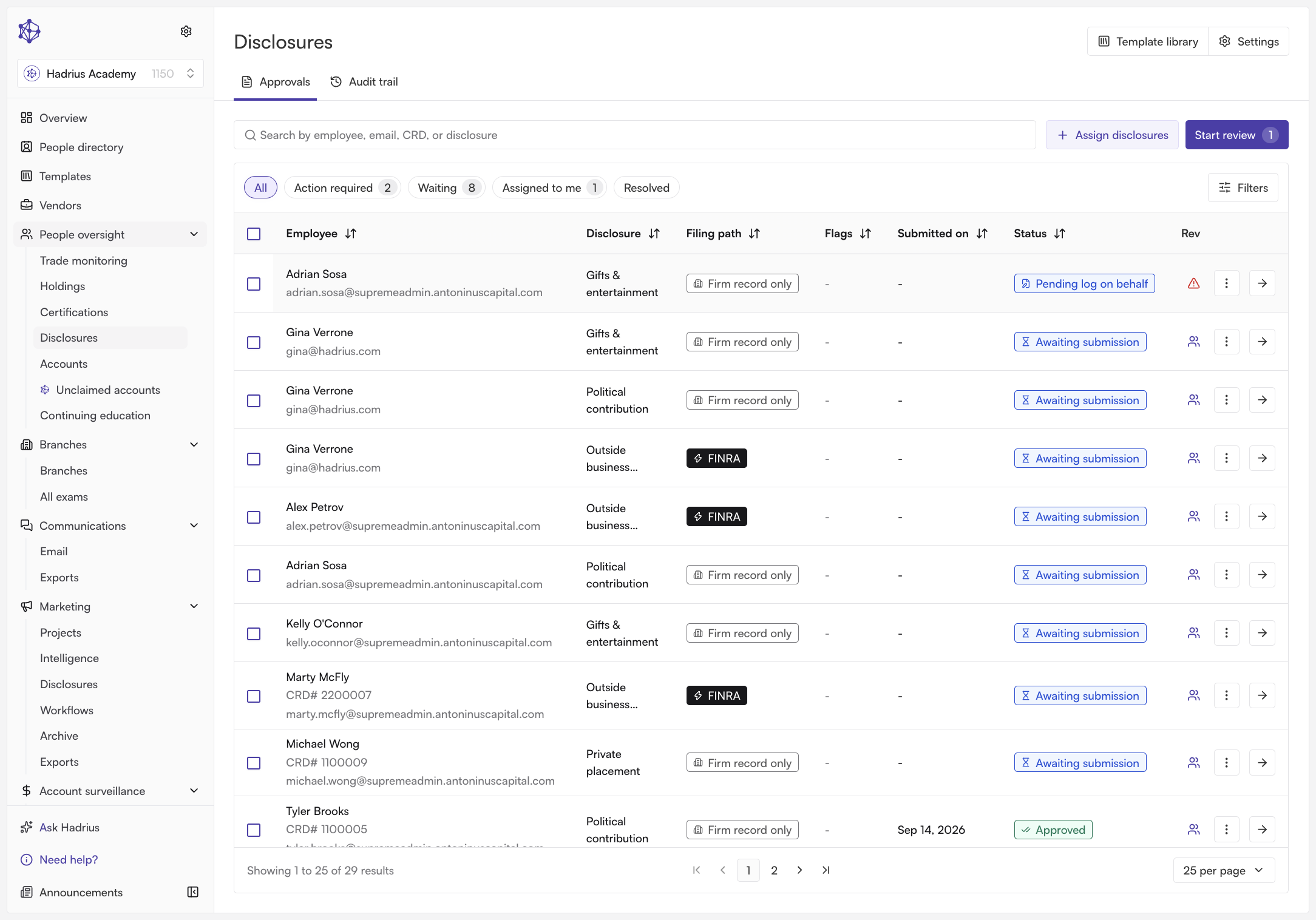
Creating the disclosure
Choose the recipient. On the "Assign recipients" step, select the employee the disclosure belongs to. You can select individual employees, employee groups, or a combination; groups resolve to their active members. Only active, internal employees are available here.
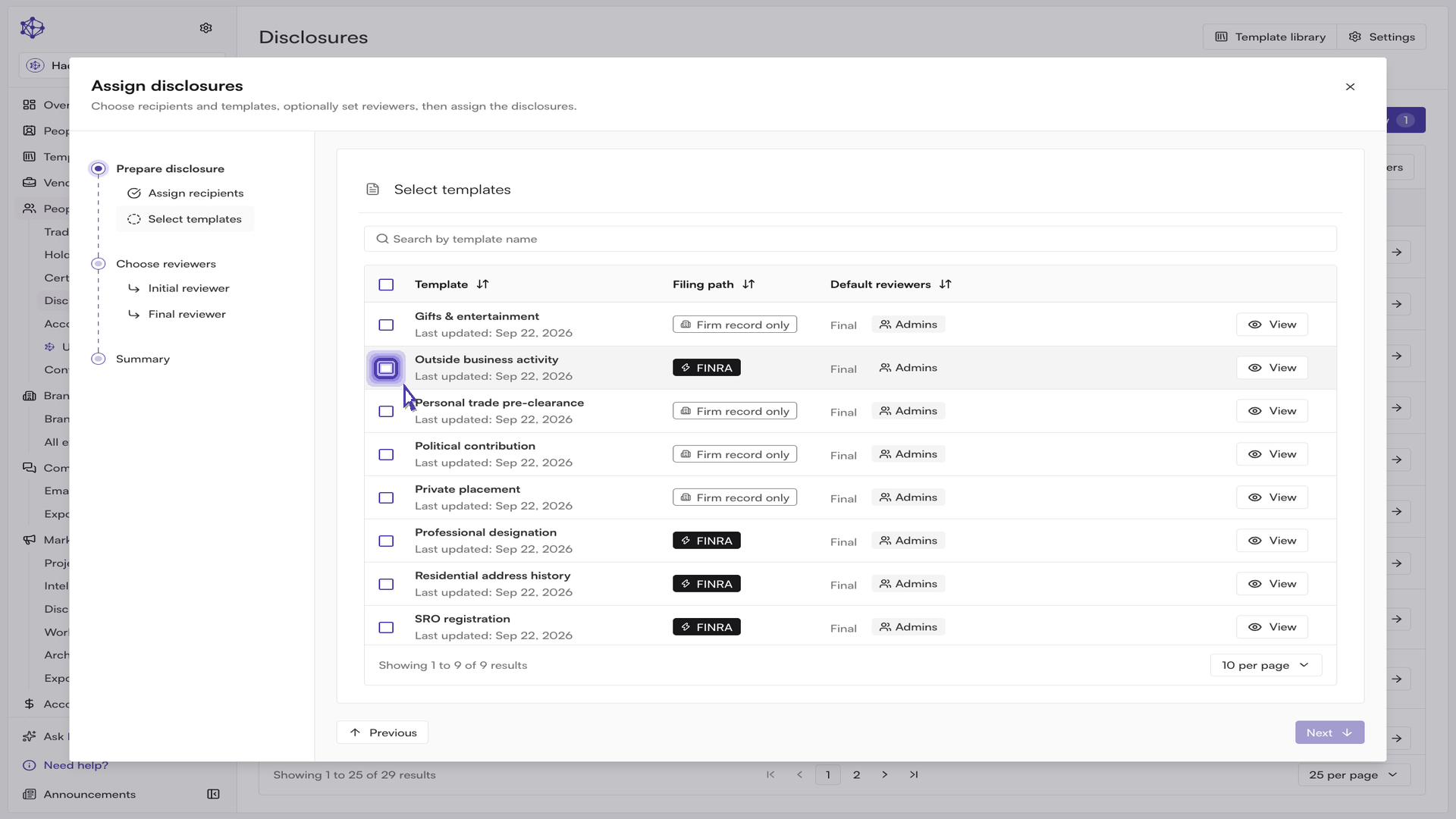
Select the template. On the "Select templates" step, pick the disclosure template that matches the activity being disclosed. Each row shows the disclosure type, the template's default reviewers for each review step, and when the template was last updated.
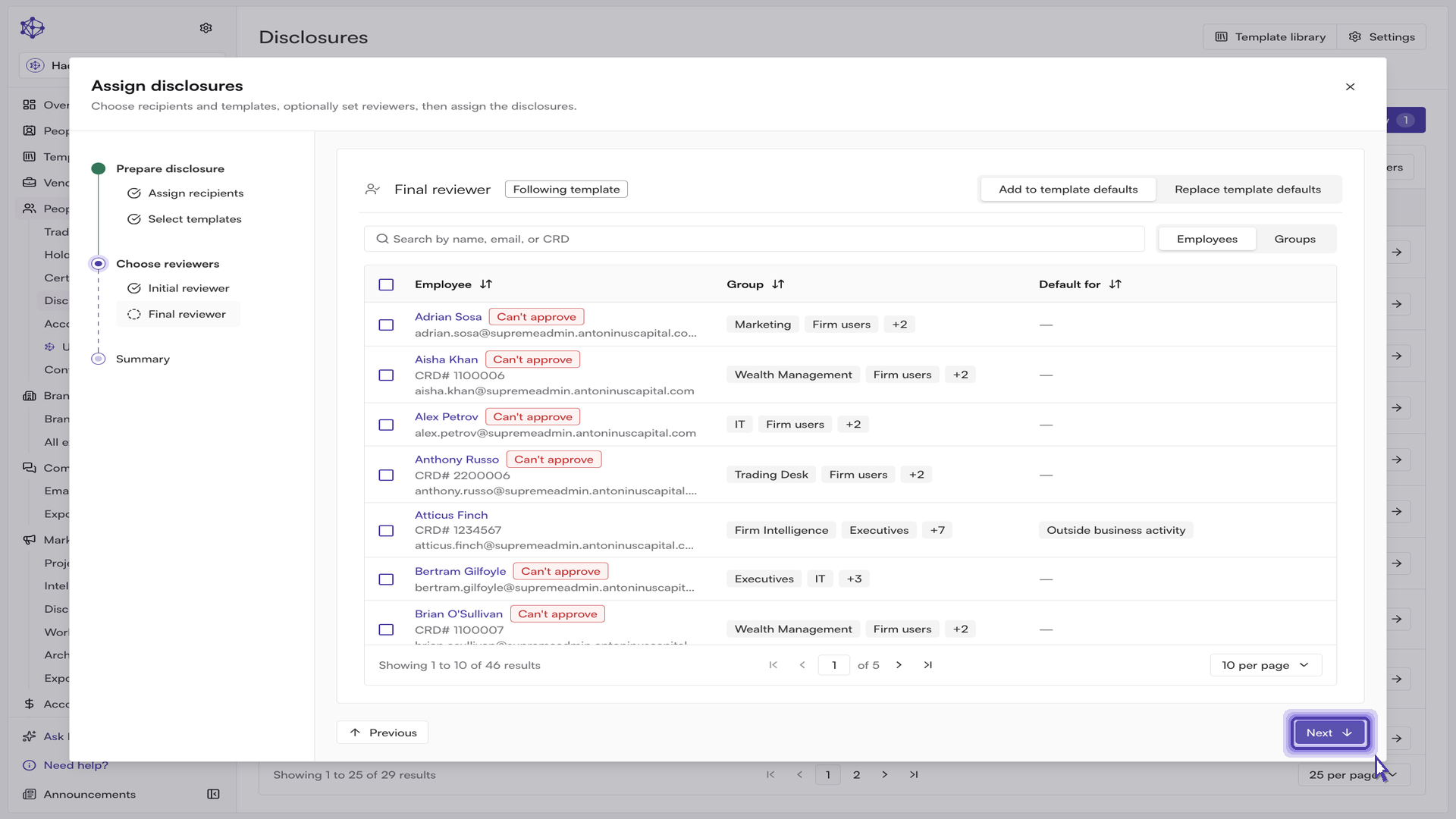
Confirm or override the reviewers. The "Initial reviewer" and "Final reviewer" steps let you keep each template's configured defaults or set your own. Leaving a step untouched shows a "Following template" badge, meaning every disclosure uses its own template's defaults. If you do select reviewers, choose whether they are added to the template defaults or replace them entirely. Note that reviewers selected on a step only apply to templates that actually have that review step configured — the wizard flags this if any selected template does not.
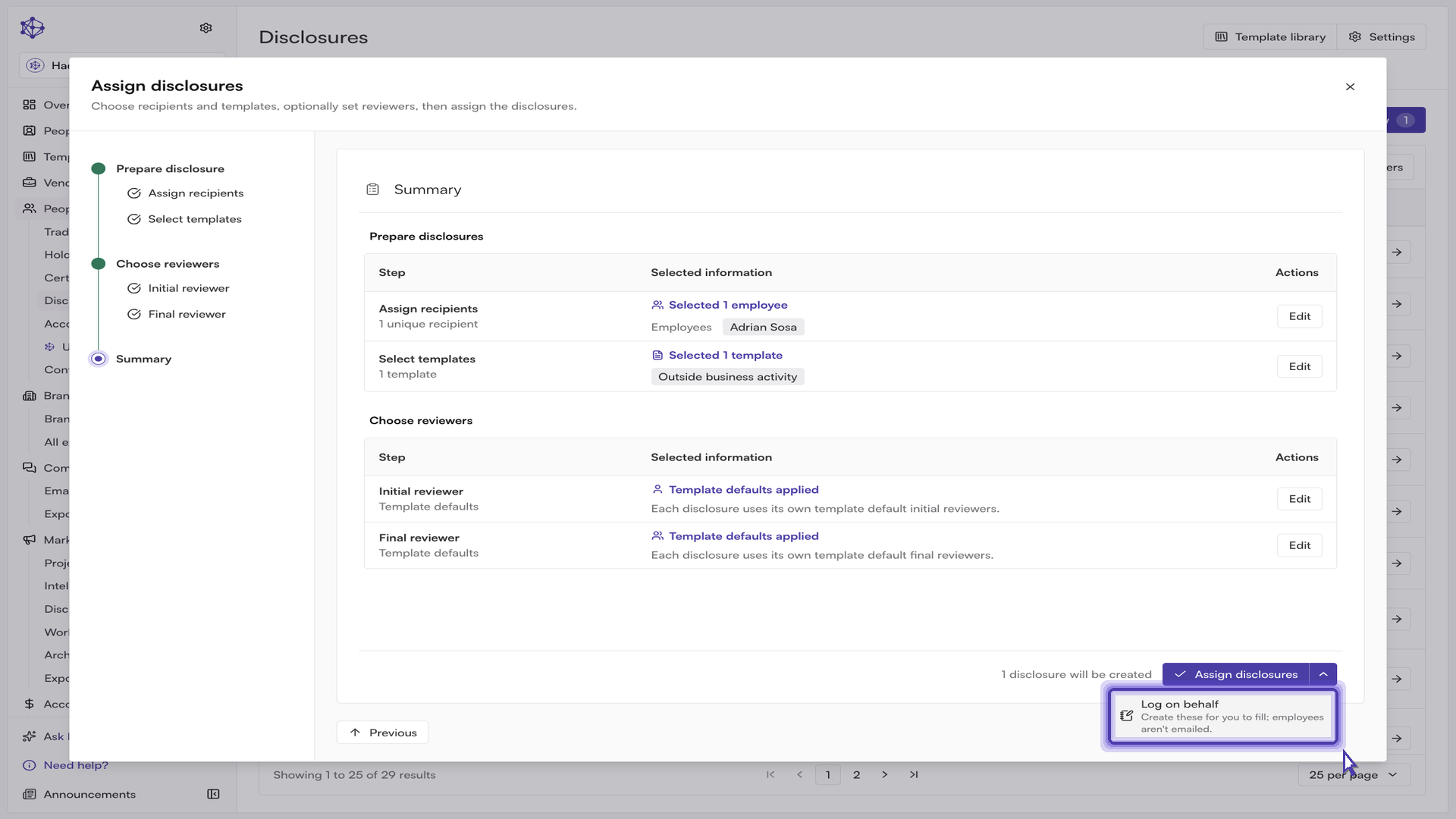
Review the summary. The final step confirms your recipients, templates, and reviewer choices, and states exactly how many disclosures will be created — one per recipient and template pair. The wizard also checks reviewer eligibility here: because an employee cannot review their own disclosure, any template that would be left without an eligible reviewer is flagged, and the action is blocked until you resolve it.
Finish with "Log on behalf" rather than assigning. The primary button on the summary is "Assign disclosures", which creates the disclosures and notifies the employees. To file the disclosure yourself instead, open the "Other ways to finish" menu on that button and choose "Log on behalf". This creates exactly the same disclosures, but leaves them for you to complete — no request email is sent to the employee.
Completing the filing
As soon as the disclosures are created, the platform opens the filing form for the first one, with any others queued behind it. The form is the same questionnaire the employee would see, with a header confirming that you are filing on behalf of them, and a progress sidebar listing each question.
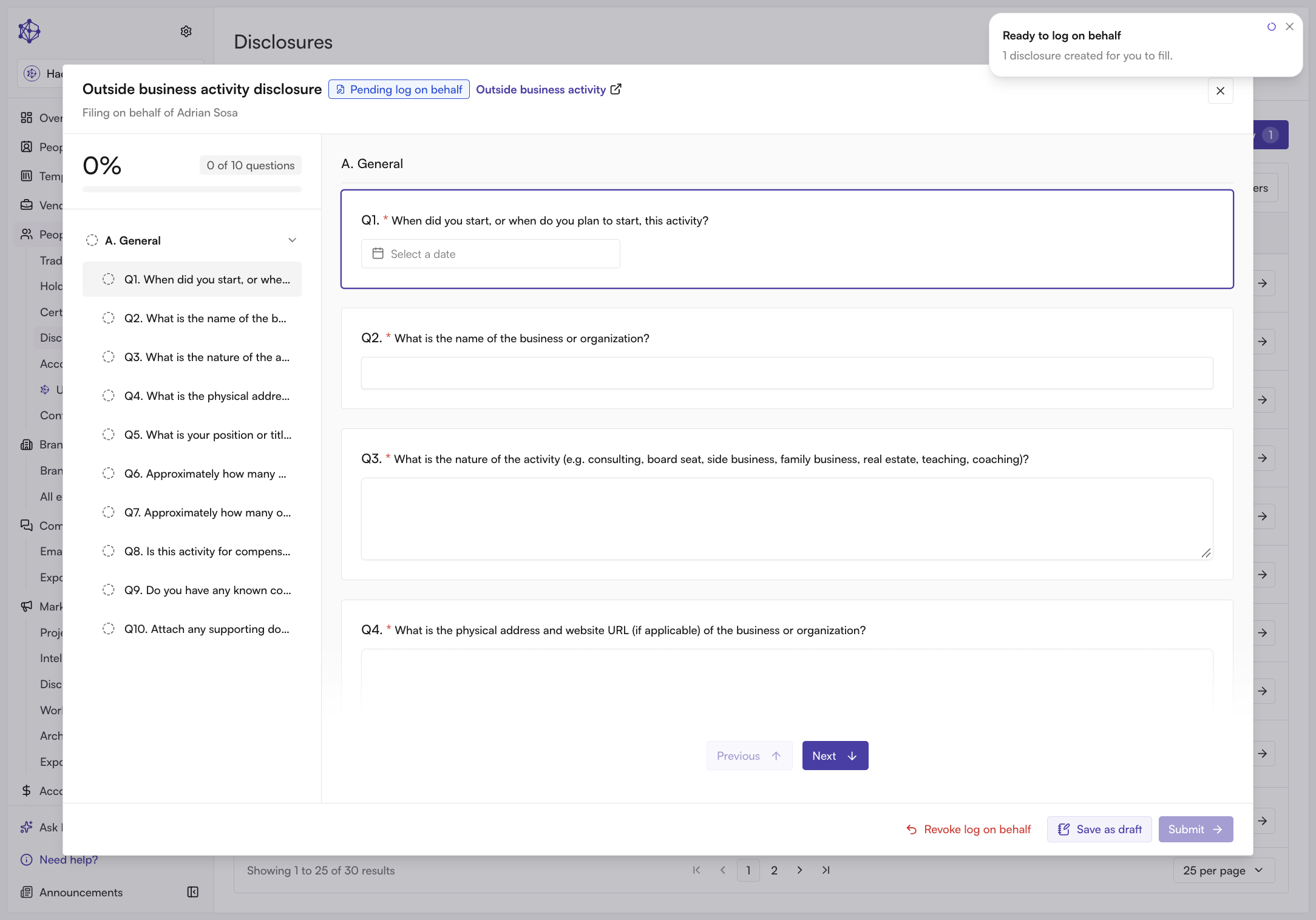
Work through the questions, entering the details of the activity being disclosed. Supporting documentation is attached directly to the relevant question, alongside the answers it supports. Your progress is saved automatically as you move between questions, and you can use "Save as draft" at any point to stop and return later — the disclosure stays in your queue with a "Pending log on behalf" status until it is submitted.
When every required question is answered, select "Submit" to file the disclosure. If other disclosures are queued behind it, the button reads "Submit and next" and moves you straight to the next one. The submit action stays disabled until all required questions are complete, so take a final pass through the sidebar to confirm nothing was missed.
What happens next
Submitting sends the disclosure into the review queue and records it as filed on the employee's behalf, with your name captured in the activity log. You are returned to the dashboard, where the disclosure now appears awaiting its assigned reviewers. If your firm has auto-approval rules configured and the submission meets them, the disclosure is approved on the spot instead.
If you decide partway through that the employee should complete the filing themselves, use "Revoke log on behalf" in the filing form. The disclosure is returned to the employee to complete, and it leaves your queue.