Deactivating an Employee Who Has Left the Firm
Last updated: October 17, 2026
When someone leaves your firm, you should deactivate their record in Hadrius so they no longer appear in your active roster, can't sign in, and stop receiving compliance tasks. This article walks through deactivating an employee from the People Directory and confirming the change.
Before you begin
Deactivation removes some of the employee's data permanently, so use it only for someone who has actually left the firm. The confirmation window lists everything that will change. Read it before you continue.
Deactivate the employee
- Find the employee. Open the People Directory and search by name to narrow the list to the right person, then open their profile.
- Open the Take action menu. It sits in the header of the employee's profile. Depending on your firm's setup and the employee's current status, it can also include FINRA and login options.
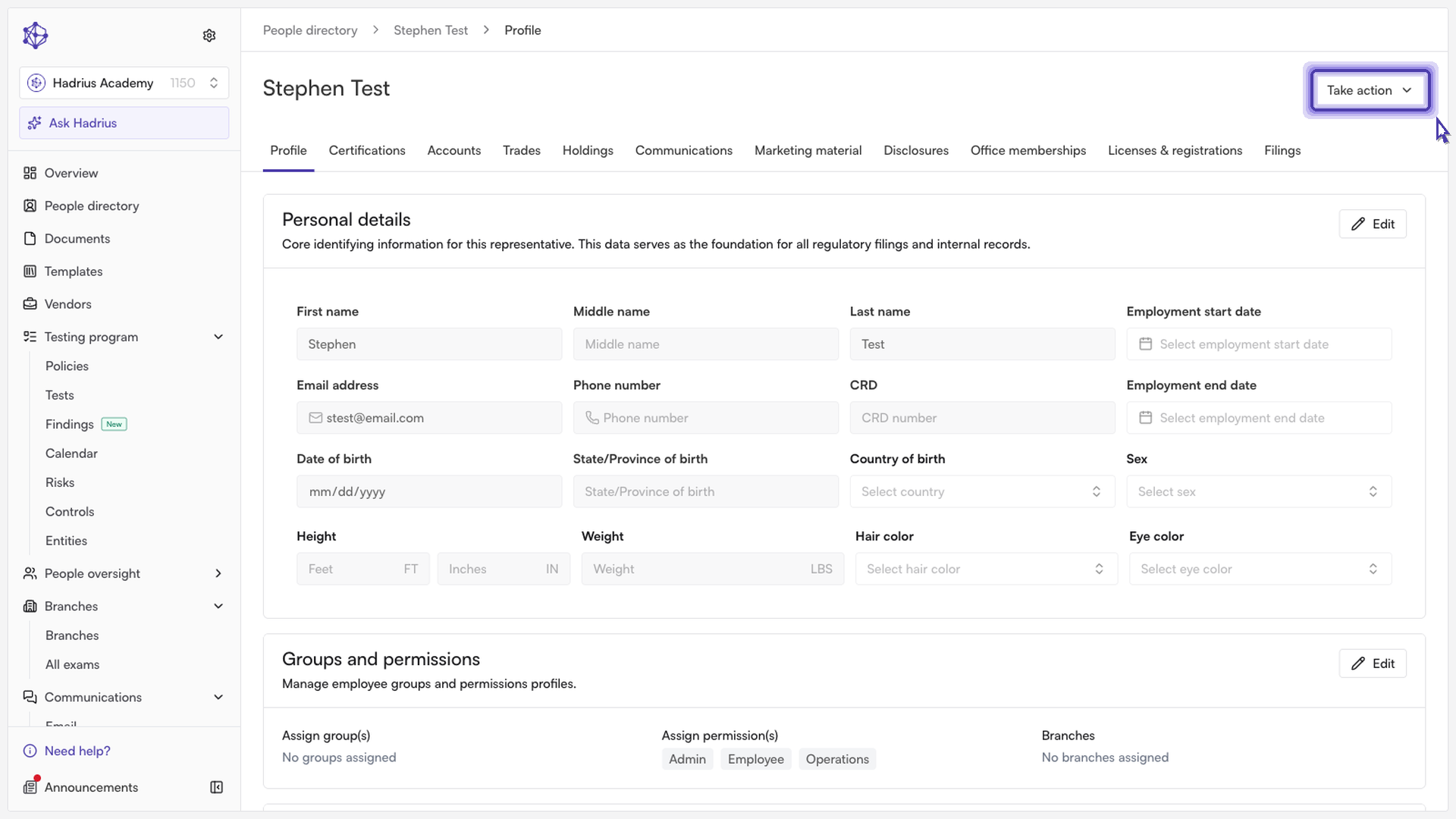
- Choose "Deactivate employee". This option appears only for employees who are currently active.
- Review and confirm. A "Deactivate employee?" window lists what will happen. Select "Deactivate employee" to proceed, or "Cancel" to back out without changes.
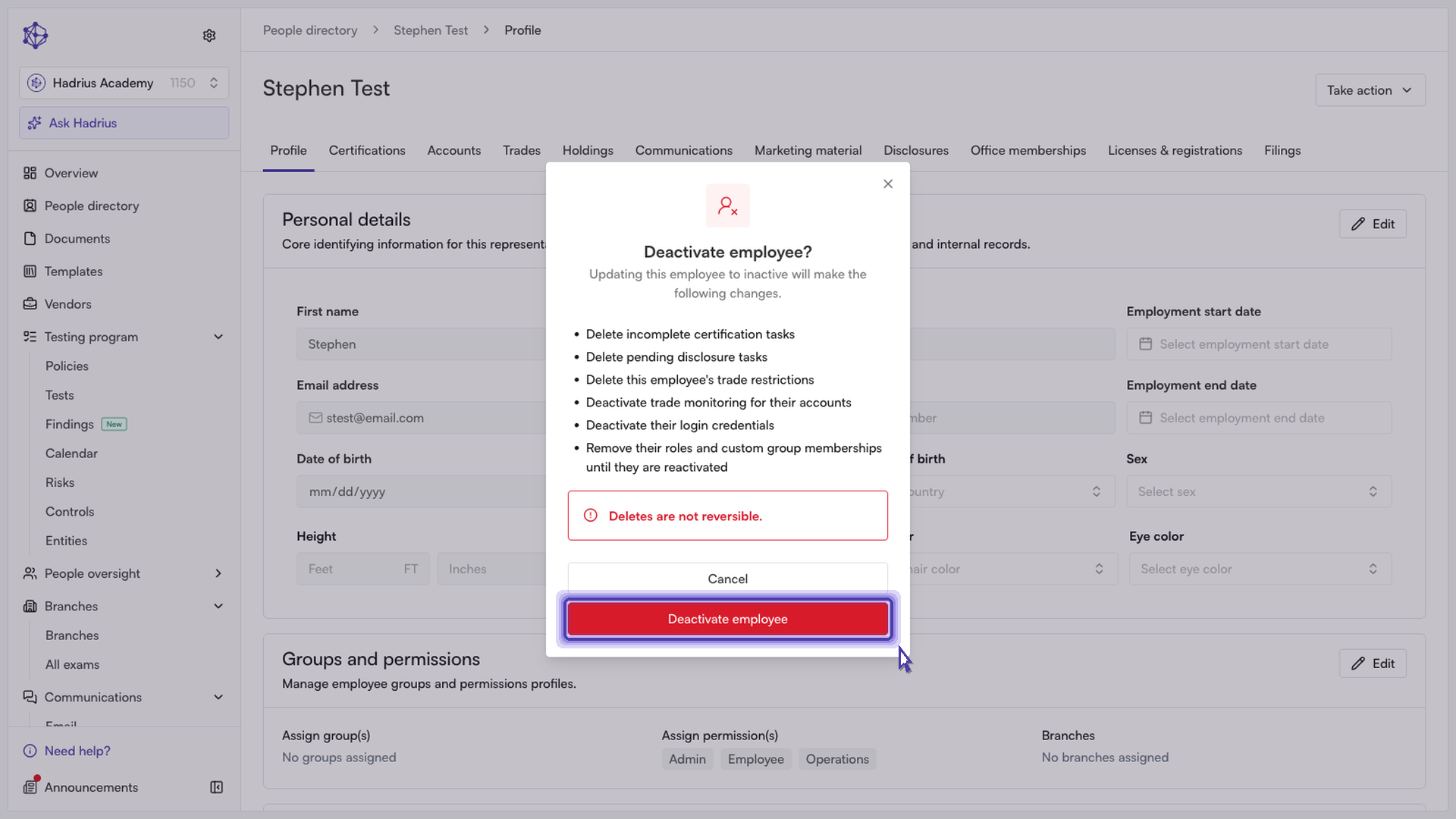
When the change goes through, a "Employee deactivated" notification appears.
What deactivation does
The confirmation window lists these changes:
- Deletes incomplete certification tasks.
- Deletes pending disclosure tasks.
- Deletes the employee's trade restrictions.
- Deactivates trade monitoring for their accounts.
- Deactivates their login credentials.
- Removes their roles and custom group memberships until they are reactivated.
- For parent firms, ends their access at the firm's client firms.
The deletions can't be undone. Reactivating an employee does not bring back deleted tasks or trade restrictions. For parent firms, it also does not restore client firm access. You would grant that access again through Manage access.
Confirm the result
Go back to the People Directory and filter by Inactive. This shows everyone who is no longer active at the firm. The employee you deactivated is listed there as inactive and no longer appears in the active roster.

Reactivating an employee
If you deactivate someone by mistake, or they return to the firm, open their profile and choose "Reactivate employee" from the Take action menu. This restores their active status, the roles and group memberships they had, their login if it was previously enabled, and trade monitoring for their accounts.