How to Connect Slack for Archiving
Last updated: November 2, 2026
Connecting Slack to Hadrius brings your firm's Slack workspace conversations into Comms Review, where they're archived and available for compliance review. Set this up when your firm first starts archiving Slack, or any time you need to reconnect a workspace. Before you begin, make sure someone who can sign in as your Slack workspace owner is available, because Slack requires the owner to approve the connection.
Before you start
Hadrius can only archive Slack if your Slack organization is on an Enterprise plan with eDiscovery turned on. If you aren't sure whether eDiscovery is on, check with your Slack administrator before you continue, because the connection won't work without it. If you don't see Slack as an option in Hadrius at all, contact your account manager to have Slack archiving turned on for your firm.
Connect Slack
Open Integrations. Go to Settings and select Integrations. This page lists every tool your firm can connect to the platform, grouped by category.
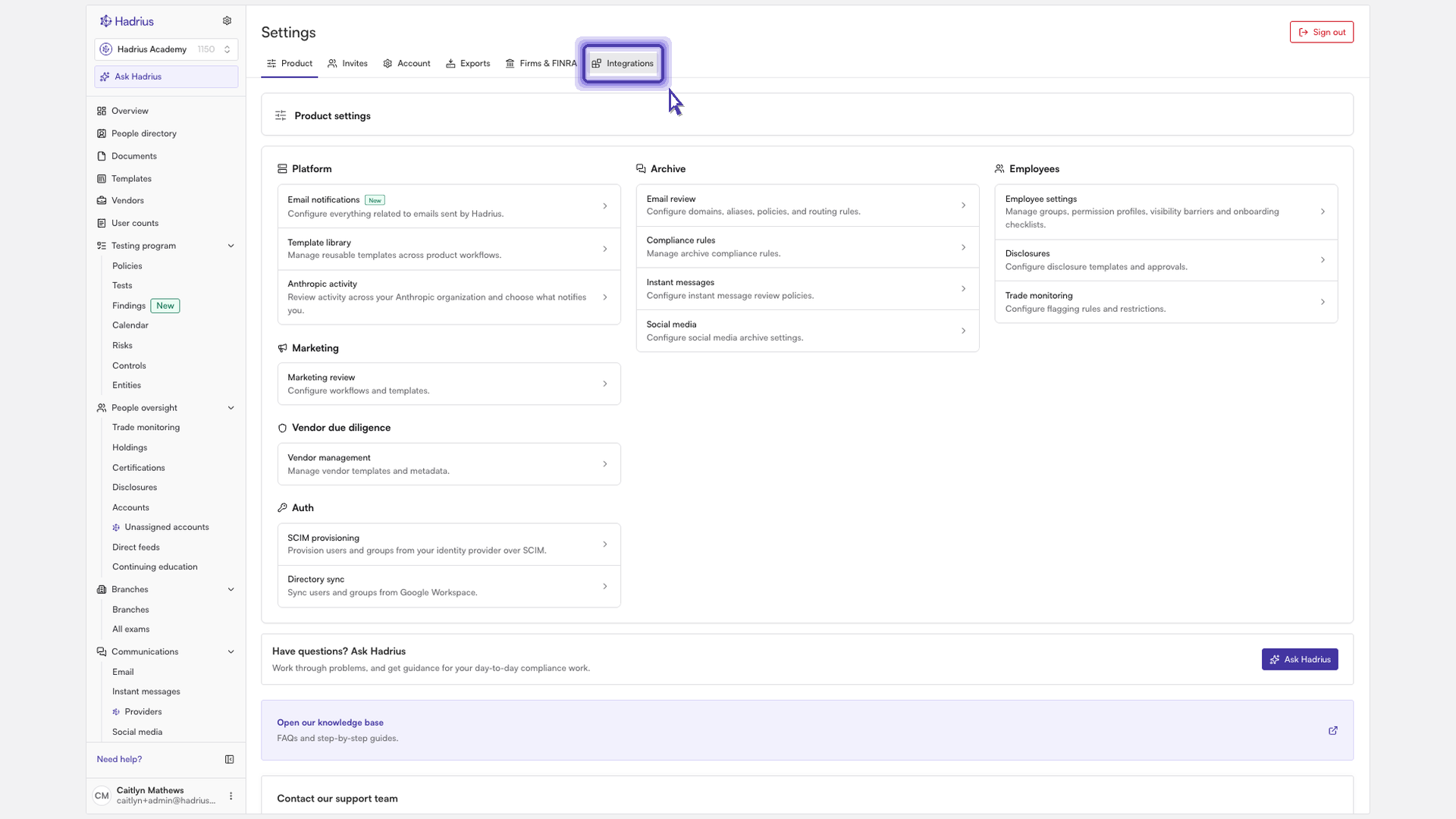
Find Slack. Under "Communications archiving," find the Slack integration and click "Connect" to open its setup steps.
Confirm eDiscovery is on. The first step, "Confirm eDiscovery is on in Slack," is a reminder to check that your organization is on an Enterprise plan with eDiscovery turned on. The linked setup guide walks through everything you need to prepare in Slack before you authorize the connection.
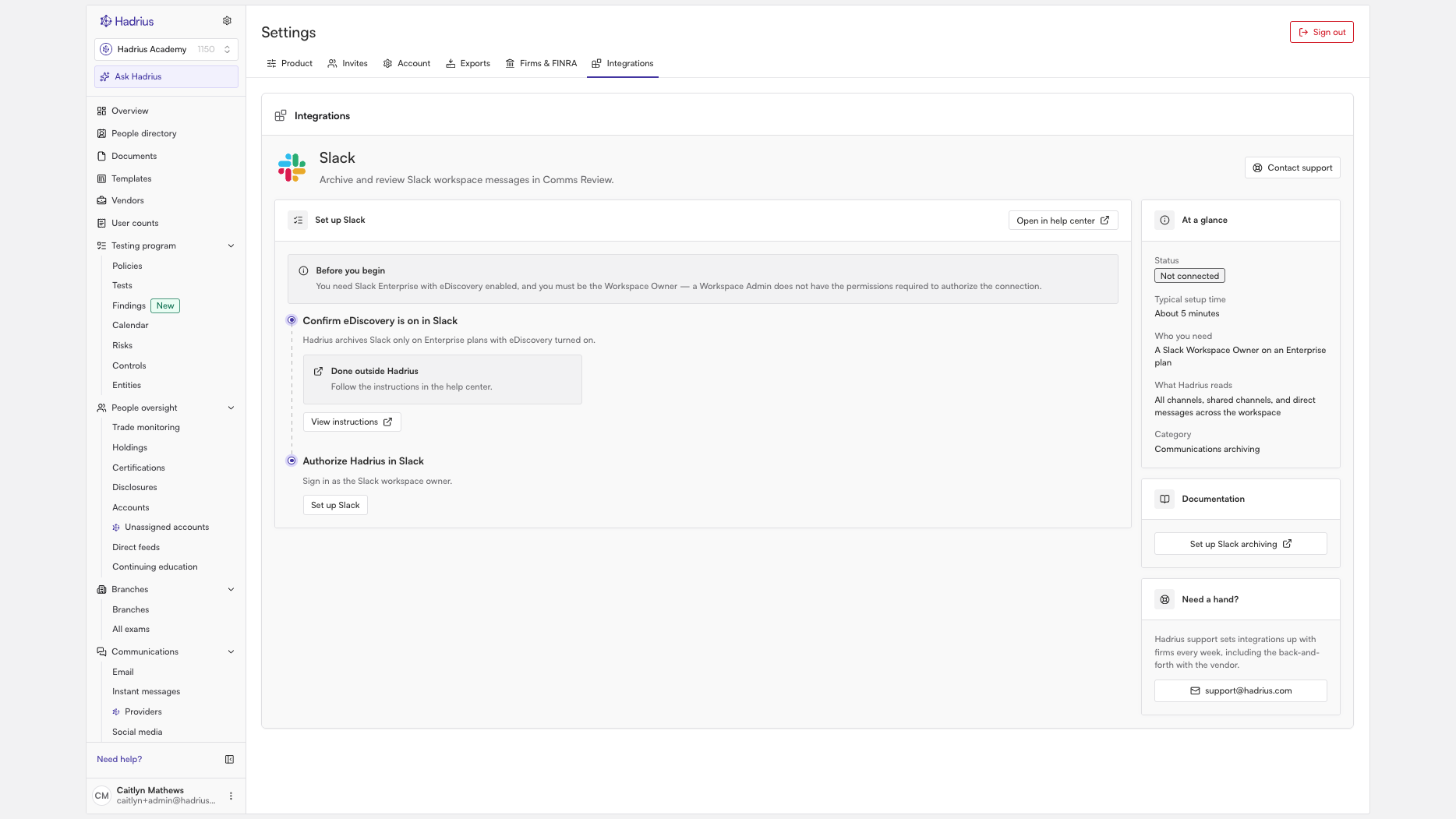
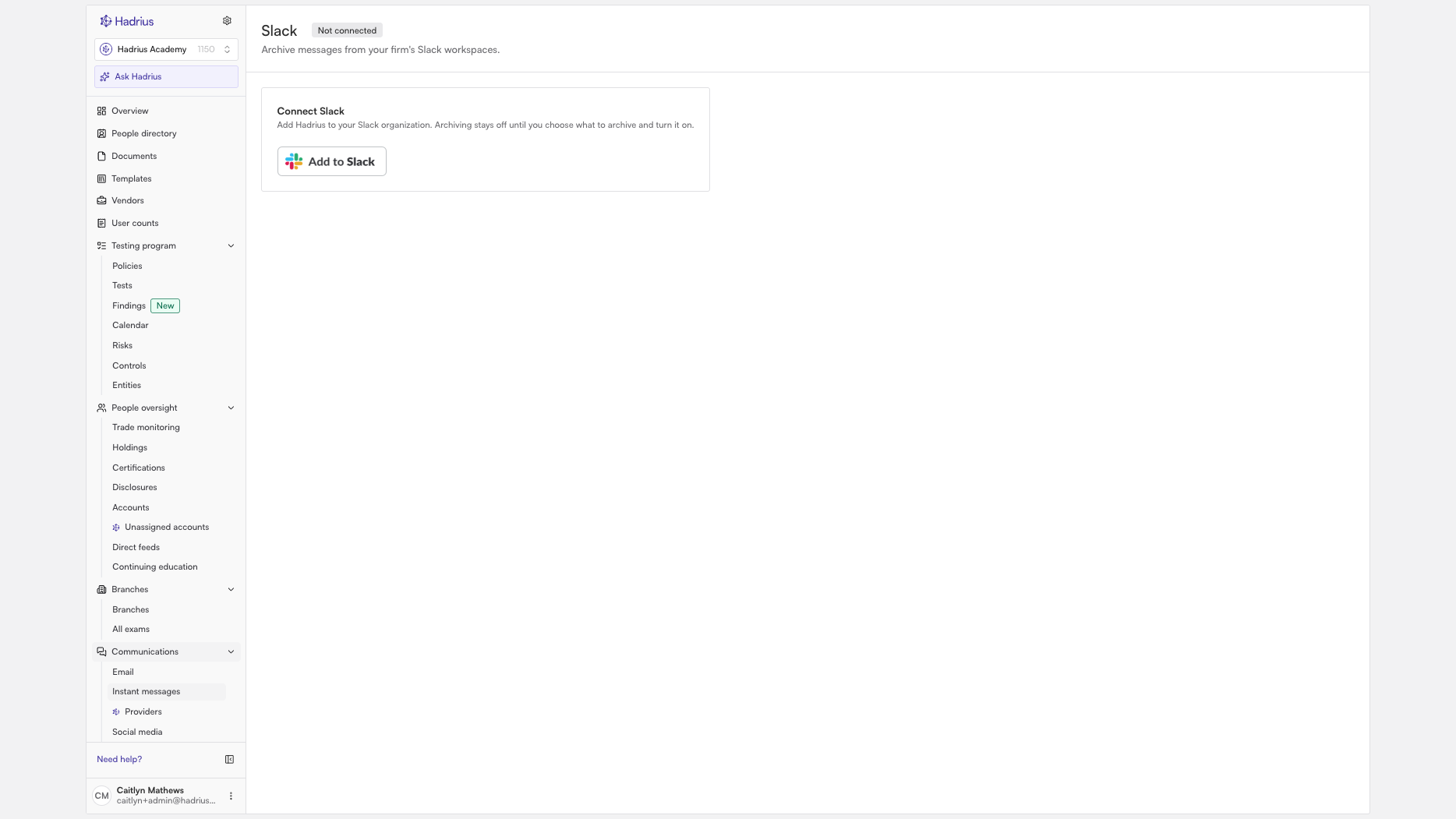
Start the authorization. Once you've confirmed eDiscovery, go to the "Authorize Hadrius in Slack" step and click "Set up Slack." This opens the Slack connection page, which shows Slack as "Not connected."
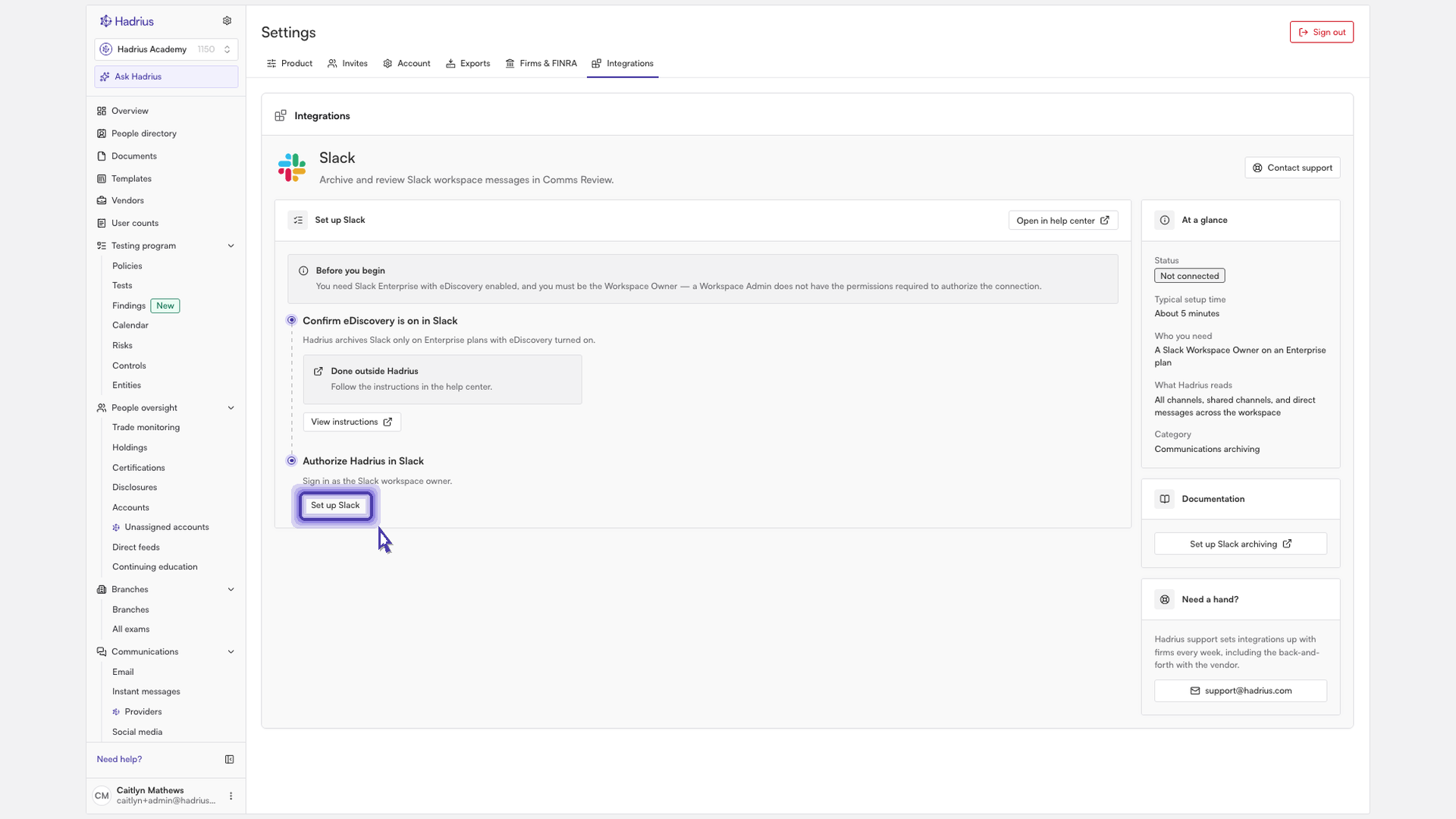
Authorize as the workspace owner. Click "Add to Slack" and sign in to Slack as the workspace owner. Review the requested permissions and approve them. Slack then sends you back to Hadrius, and a "Connected to Slack" confirmation appears.
What happens next
When the owner approves the connection, your Slack organization is linked to Hadrius, but archiving doesn't start right away. The Slack page shows that Slack archiving is off and no messages are being archived yet. To start archiving:
Under Workspaces, choose how each workspace should be archived. You need to pick at least one.
If you only want to archive certain employees, use Archived employees to limit archiving to them.
Save your changes, click "Turn on archiving," and confirm.
After you turn on archiving, Slack messages start flowing into Comms Review. You can go back to the Slack integration in Settings > Integrations at any time to check the connection's status or update your archiving settings.