Creating Marketing Submission Questionnaires
Last updated: September 30, 2026
Submission questionnaires let your firm collect extra context from submitters at the moment they create a marketing review project — the channel a piece will run on, an intended audience, a distribution date, or anything else your reviewers need before they can assess the material. This article covers how to build and maintain that questionnaire in Marketing Review settings, and what submitters see once it is live. You would typically do this during initial configuration of Marketing Review, or any time your intake requirements change.
Before you begin: the Submission questions tab is only available when Marketing Review is active for your firm and you have permission to manage marketing review workflows. If you do not see the tab, contact your Hadrius administrator.
Building the questionnaire
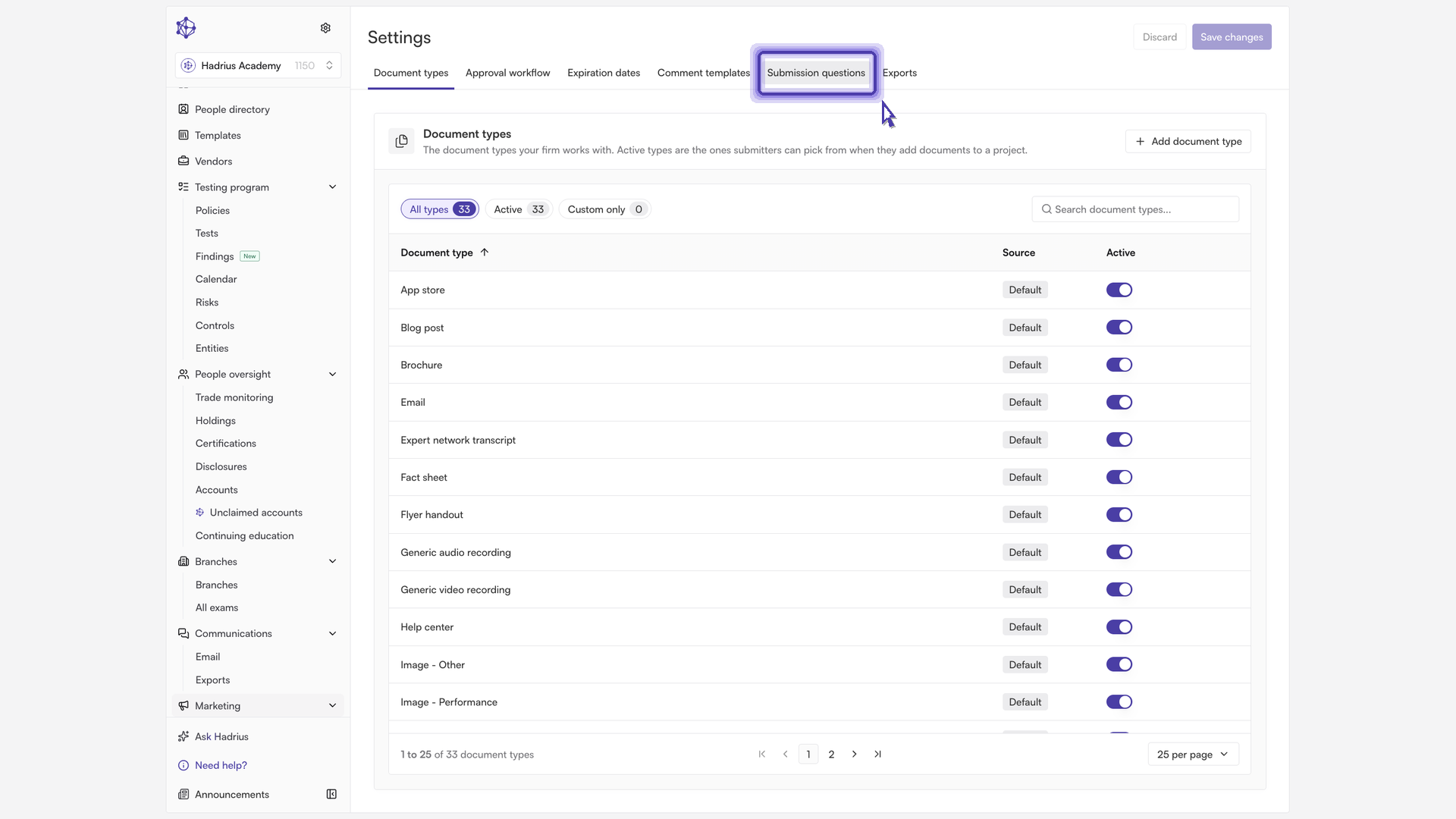
From the main navigation, open Settings, then select Marketing review settings. Switch to the Submission questions tab.
Start with the How submitters answer card at the top of the tab. This controls the scope of every answer collected on a project:
Once per project — one set of answers is applied to every document in the project.
Once per document — every document is answered separately, so the answers can differ from one piece of collateral to the next.
Let the submitter choose — submitters decide per project, and default to answering once for the whole project.
Your selection saves as soon as you make it, and applies to document details as well as the submission questions below. Routing questions are always answered once per project regardless of this setting.
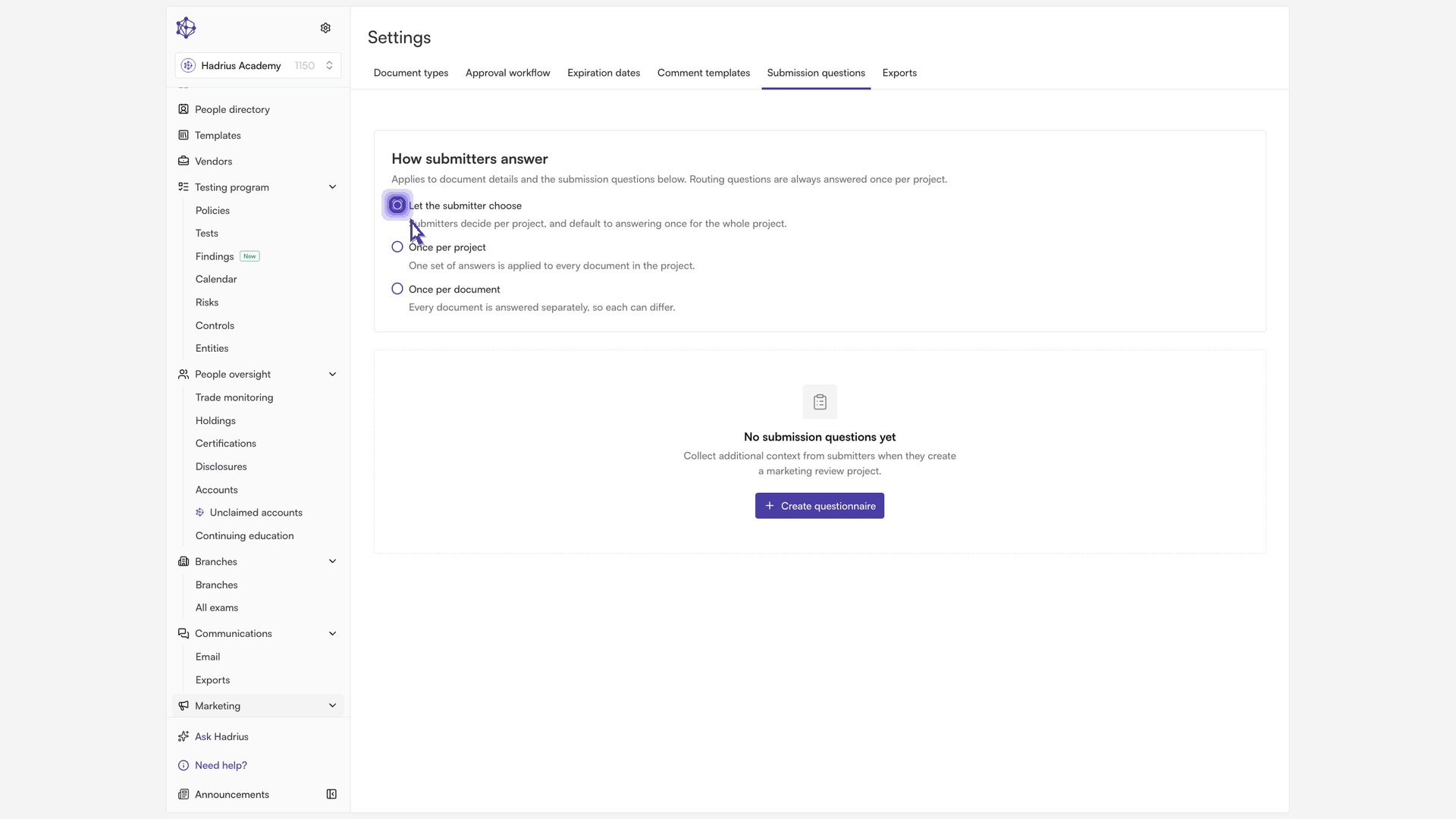
If no questionnaire exists yet, select Create questionnaire to begin. Otherwise, select Edit to reopen the existing questionnaire for changes.
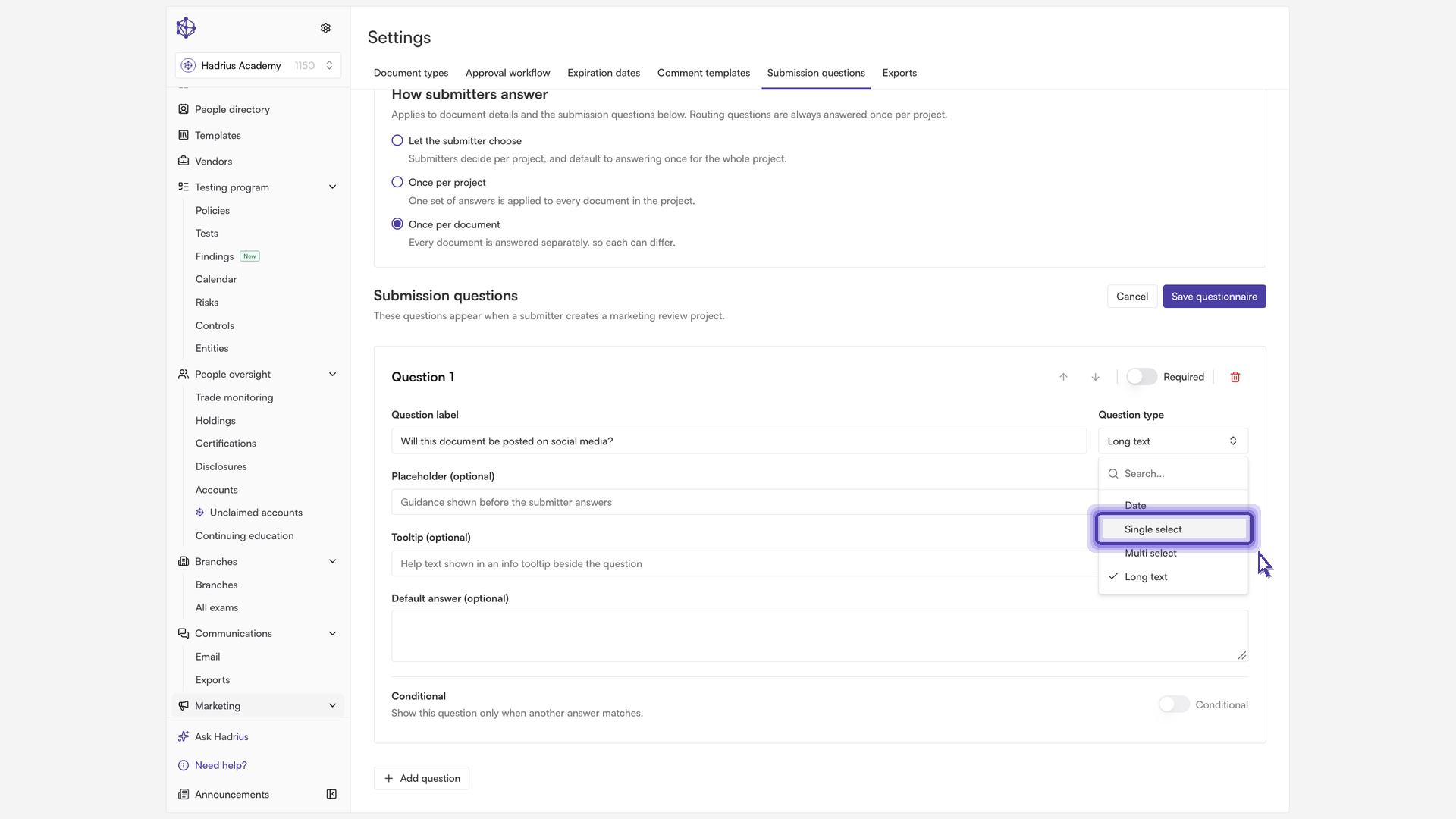
Select Add question to create your first question. In the question card, enter the prompt submitters will see in the Question label field, then choose a Question type: Single select, Multi select, Date, or Long text. You can optionally add placeholder text and a tooltip to guide submitters, and use the Required toggle to decide whether an answer is mandatory.
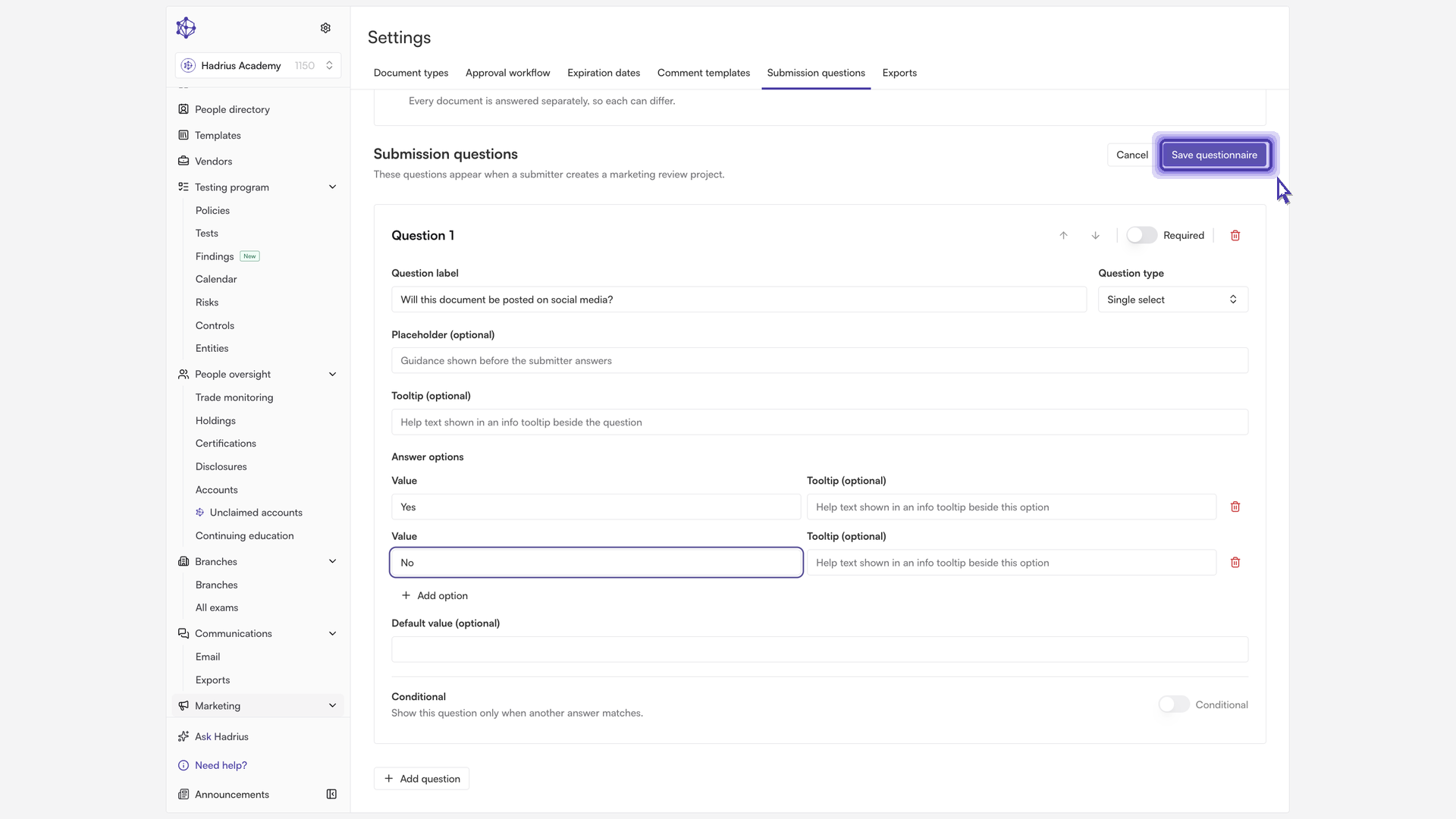
For a single or multi select question, fill in the Answer options section. Enter the first choice, then select Add option to add each additional choice. Every option can carry its own tooltip, and you can set a default answer if one selection is by far the most common.
Repeat for each additional question. Use the arrow controls in a question's header to change its order, and the Conditional toggle to show a question only when an earlier answer matches a condition you define. Because conditions depend on question order, Hadrius will warn you before a reorder or deletion that would break an existing condition.
When the questionnaire is complete, select Save questionnaire. Hadrius validates your questions first and lists anything that needs fixing — such as an empty option label or a duplicate value — before the questionnaire is saved.
How it appears to submitters
To see the questionnaire in practice, go to Projects and start a new marketing review project. The submitter completes the project details, attaches the marketing collateral for review, and works through the wizard's steps. Your questions appear under the Custom questions heading, with required questions marked and any conditional questions surfacing only when their trigger answer is given. Depending on the scope you selected, the submitter answers once for the project or separately for each document.
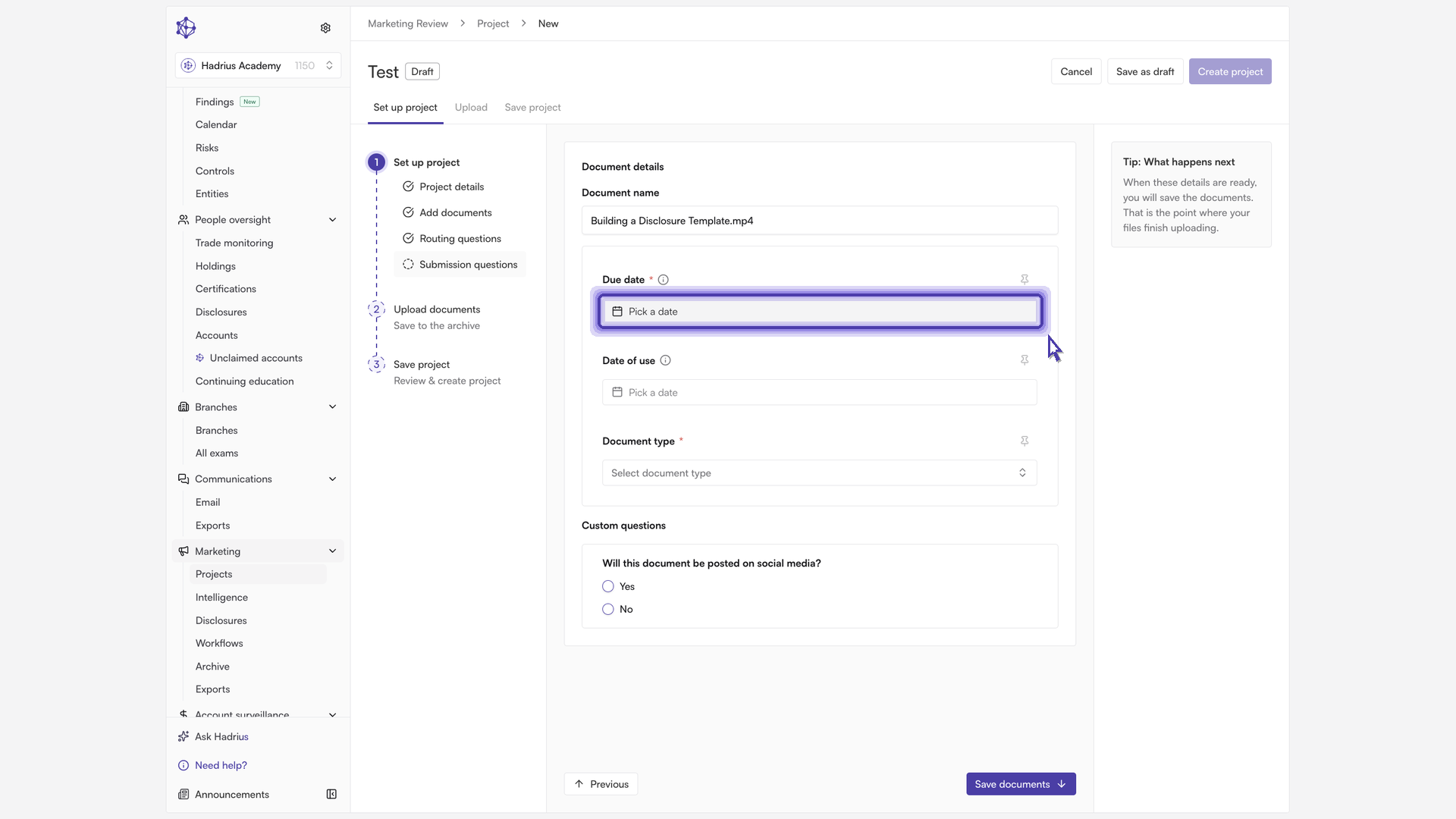
Once every required field is complete, the submitter selects Create project to finish the wizard, then submits the project for review. Answers travel with the submission, so reviewers see the context alongside the documents they are assessing.
Updating the questionnaire
The questionnaire can be updated at any time by returning to the Submission questions tab and selecting Edit. Changes apply to projects created after you save; projects already in flight keep the questions they were submitted with. If another administrator saves changes while you are editing, Hadrius will prompt you to reload the latest version before continuing.