How to Withdraw a Document
Last updated: October 17, 2026
Withdrawing a document pulls it out of the approval process before it has been fully approved or rejected, returning it to the submitter so it can be revised and resubmitted later. Use this when a document in review needs to be pulled back — for example, if it needs further edits, was submitted by mistake, or is no longer needed for the current review cycle.
Withdrawing a document
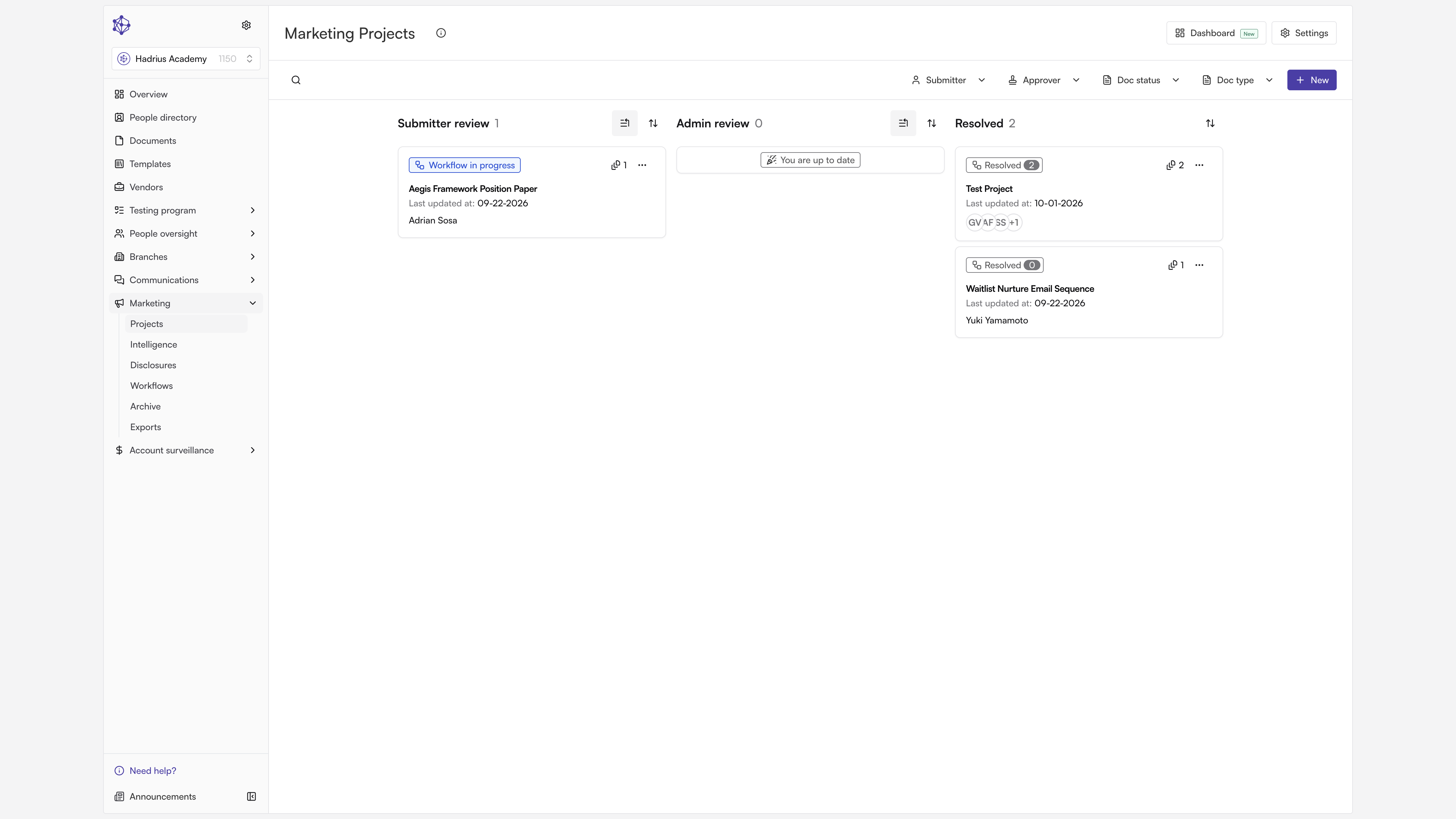
From the marketing review queue, which shows every active project at a glance, select the project that contains the document you want to withdraw.
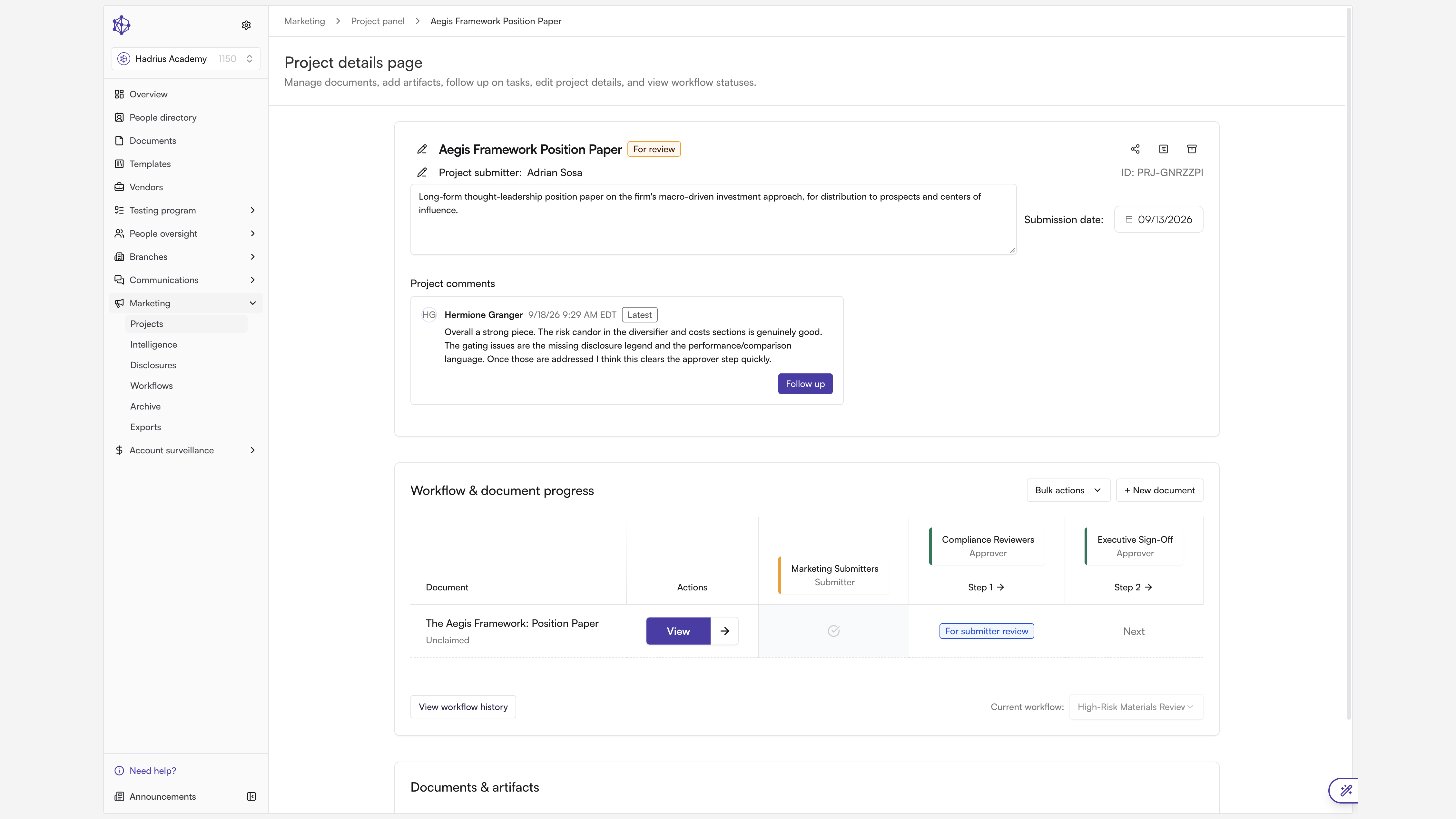
On the project's details page, you'll see a list of all documents included in that project. Navigate to the specific document you want to withdraw.
Open the document's action menu, found at the top right of the document view, to see the available options.
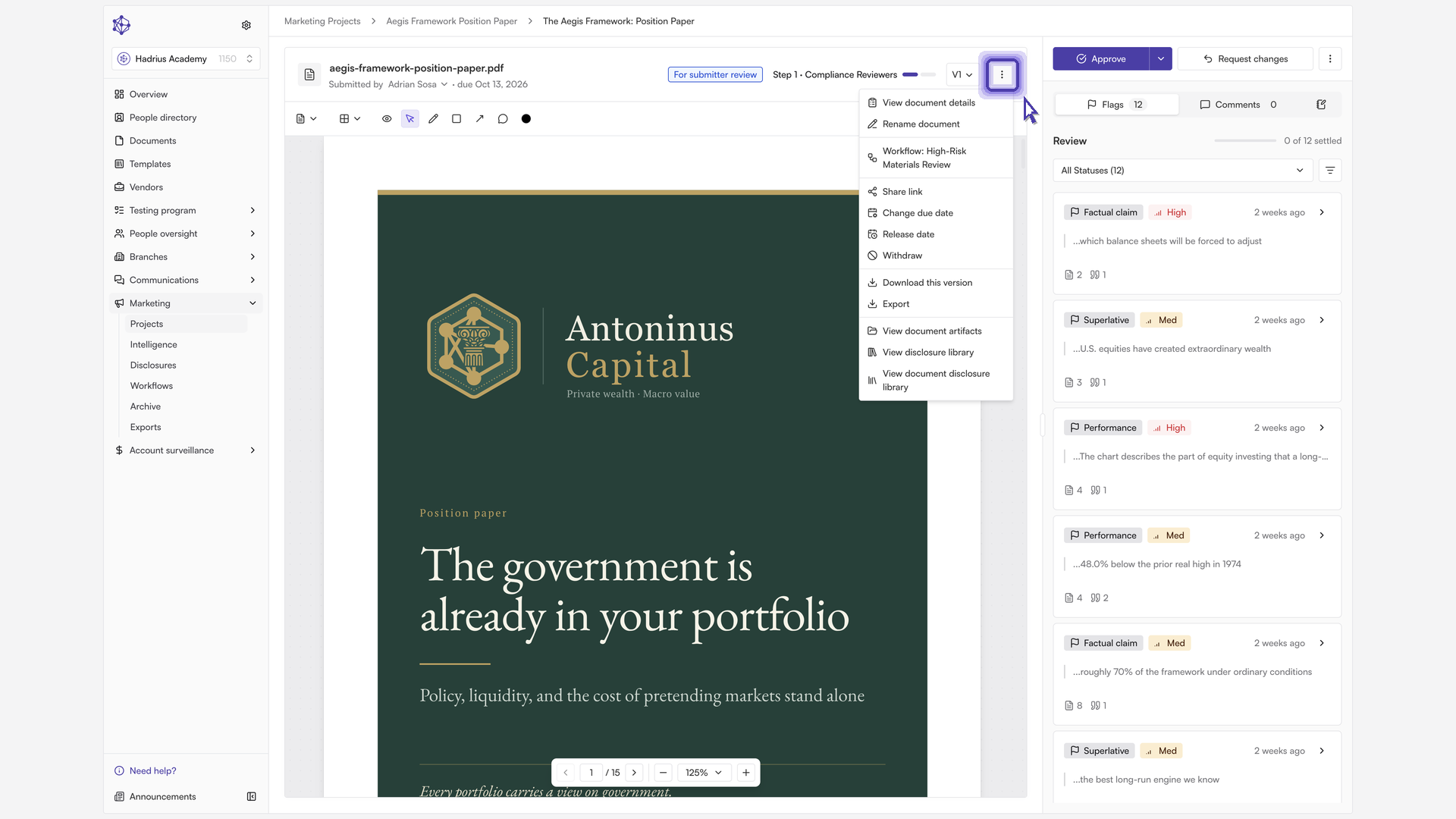
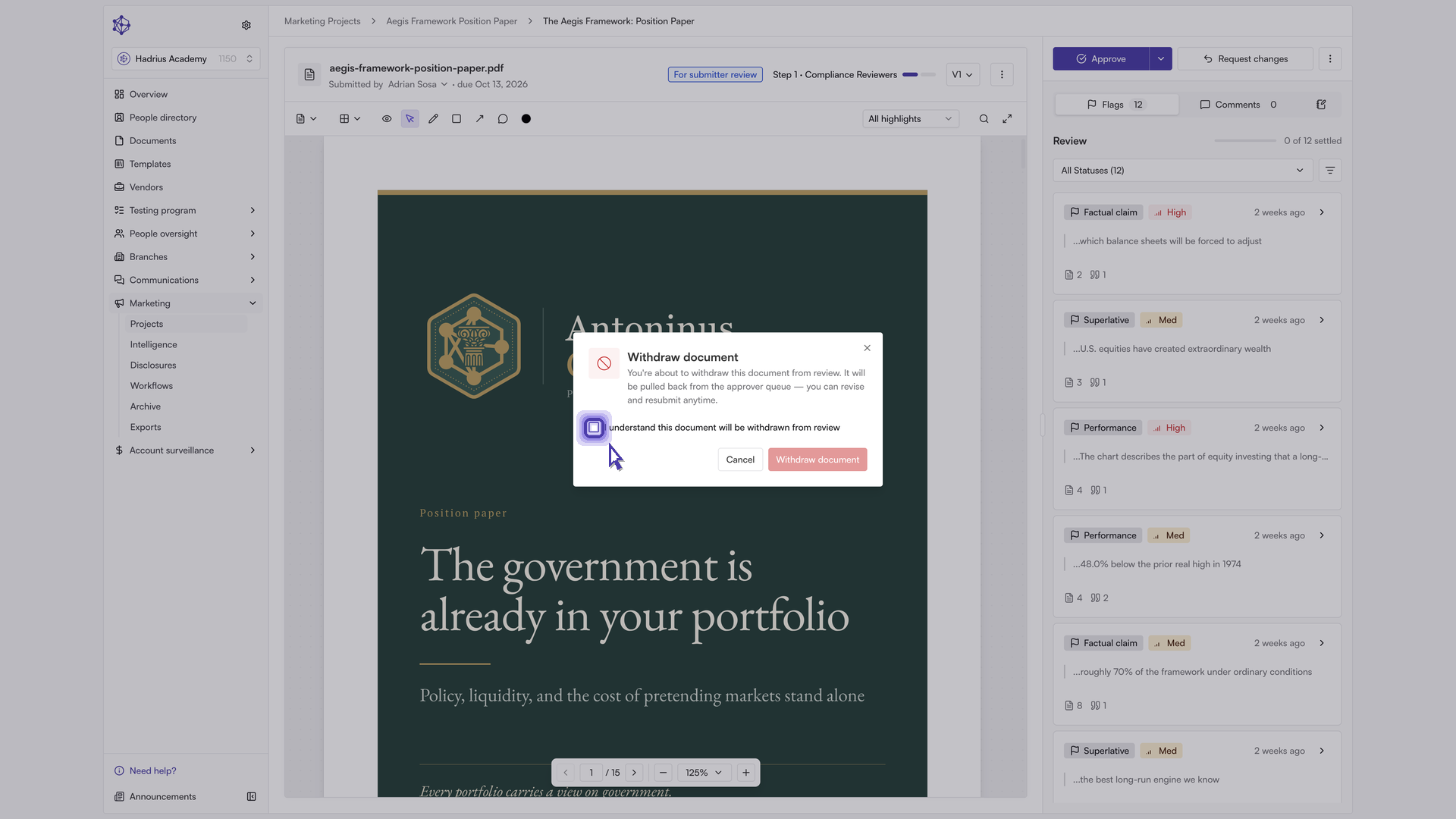
Select Withdraw from the menu. This removes the document from the approval chain entirely — it's pulled back from the approver queue so it can be revised and resubmitted later.
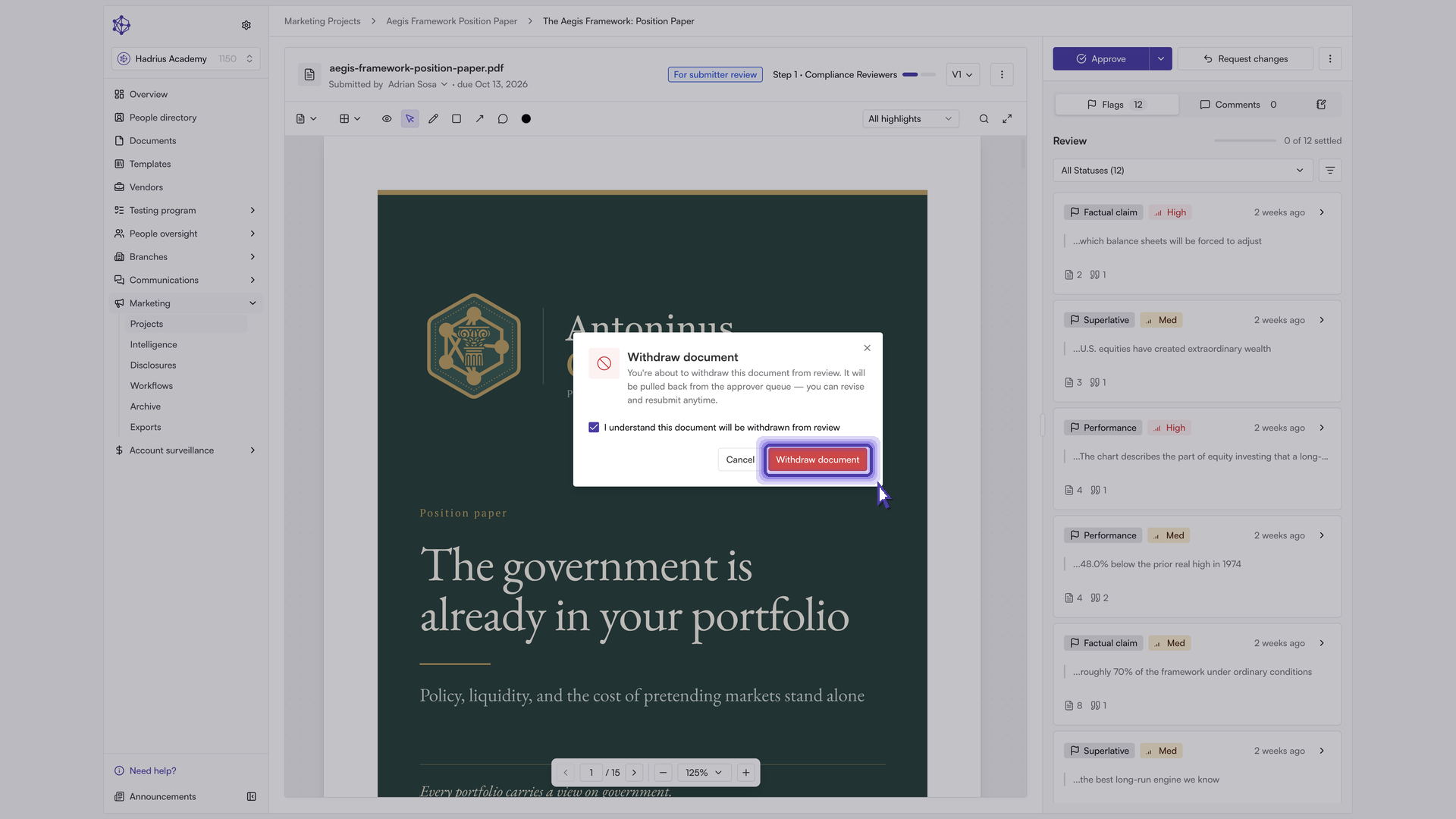
A confirmation dialog appears. Check the box acknowledging that resubmitting the document later will restart the review from the beginning, then click Withdraw document to confirm.
What happens next
Once confirmed, the document is removed from the approver queue right away and its status changes to Withdrawn. It's no longer awaiting review, and no approver action is needed. If the document still needs to go through marketing review, it can be revised and resubmitted — doing so starts the approval process over from the first step.