How to Find Archived Emails with Advanced Search
Last updated: November 2, 2026
The email archive holds all captured firm correspondence. A basic keyword search works when you know exactly what you're after. When you need to narrow the archive by participant, time period, review outcome, or specific wording, use advanced search. This is useful when you are answering a regulatory request, investigating a particular matter, or pulling a set of messages together for a periodic review.
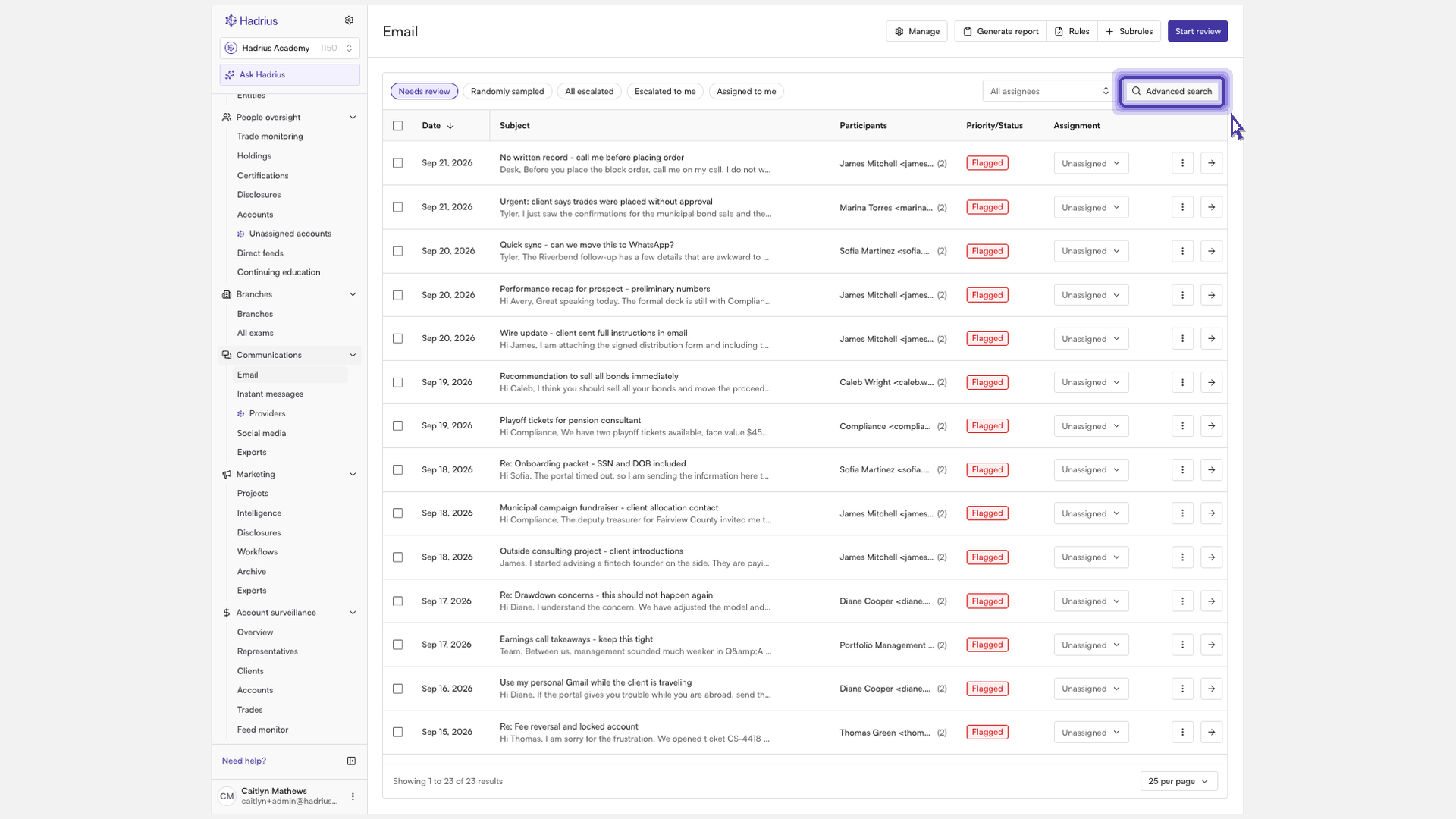
Open advanced search
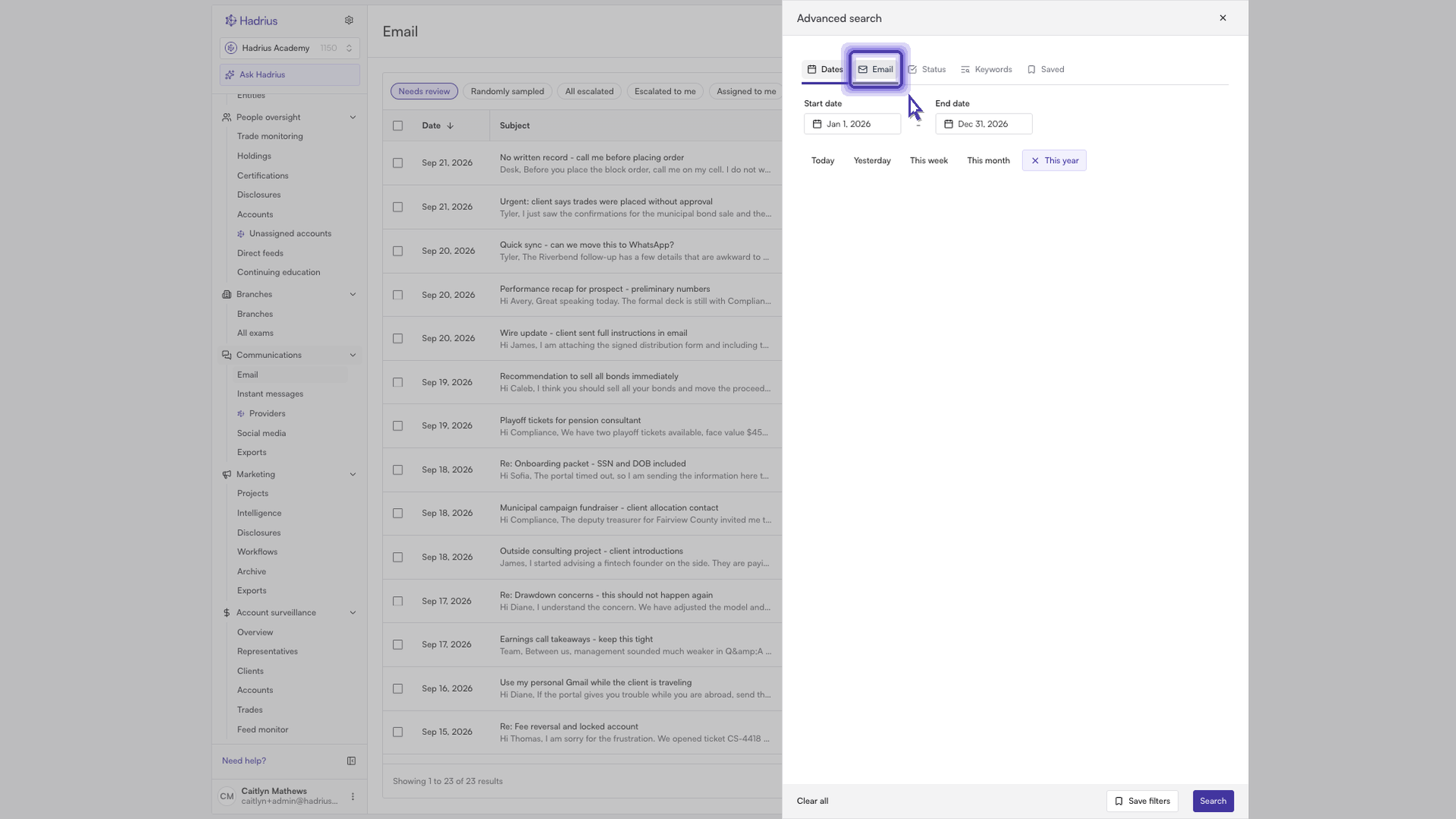
Go to the email archive, then open advanced search. The "Advanced search" panel opens with its filters grouped into tabs: "Dates," "Email," "Status," "Keywords," and "Saved." Each tab shows a badge with the number of filters you've applied there, so you can see at a glance what will affect your results.
Set your filters
You can use any combination of tabs. Only the filters you set are applied to the search.
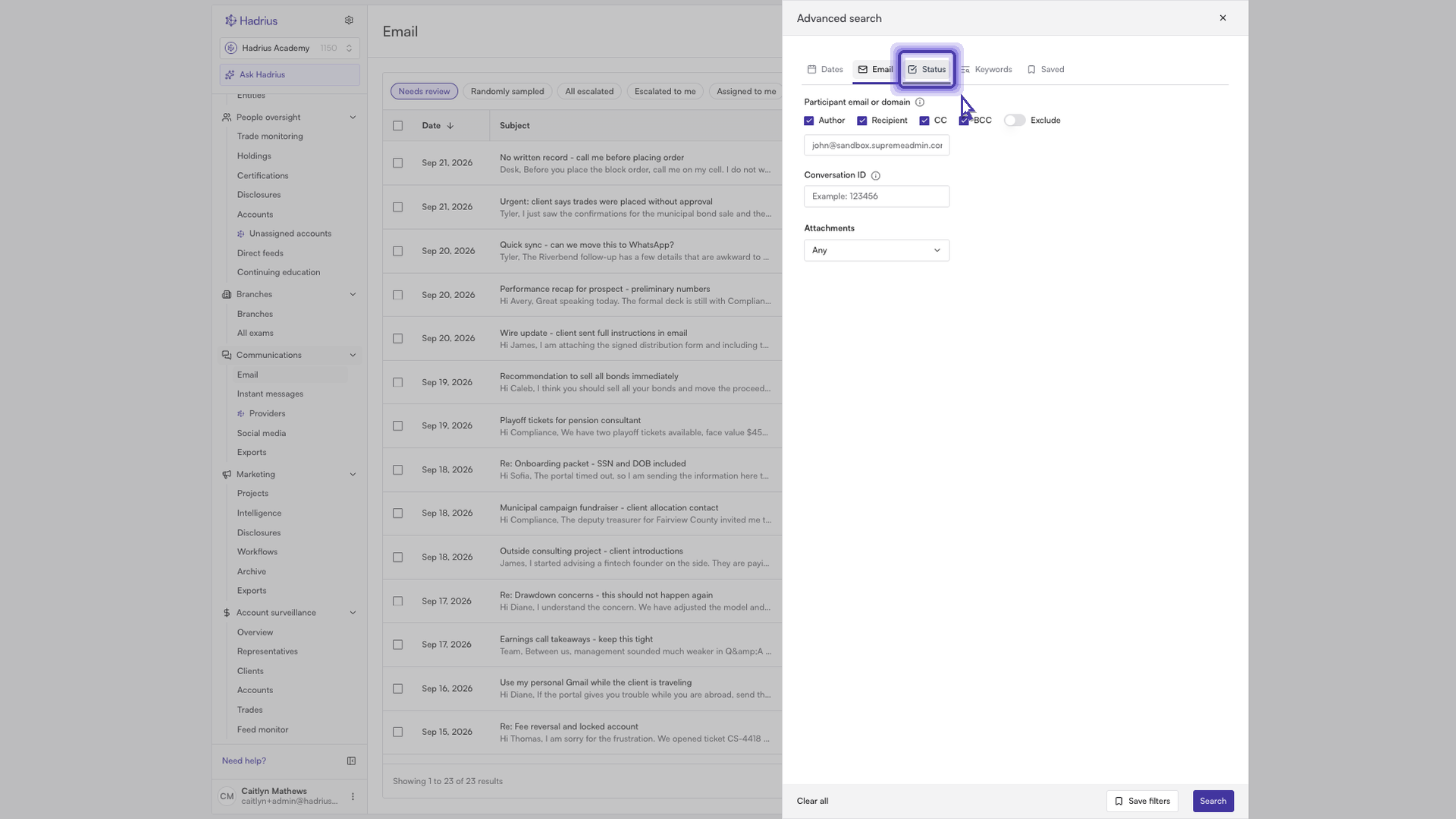
Email: Filter by message participants, by whether a message has attachments, and by whether anyone from your firm was included on the message. You can also exclude participants, which helps you remove known senders or recipients from the results.
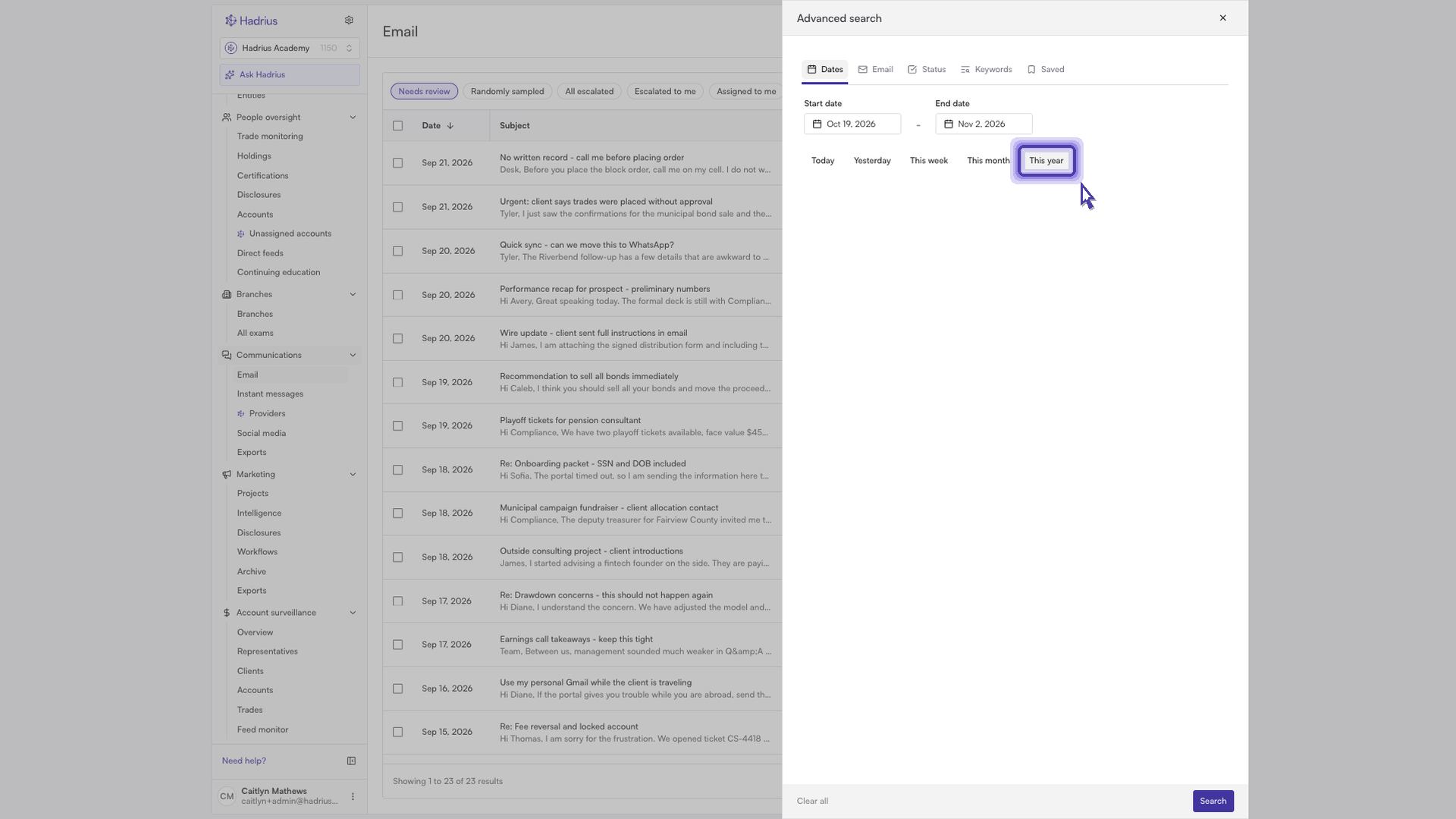
Dates: Choose a quick preset or type in the exact start and end dates you need. If the start date falls after the end date, the panel shows an error and won't run the search until you fix the range.
Status: Filter messages by their review outcome. For example, you can show only messages that still need review, messages that were escalated, or messages flagged by AI.
Keywords: Enter words or phrases to find messages that contain them. You can also exclude a keyword group so that messages containing those terms are left out.
Run the search
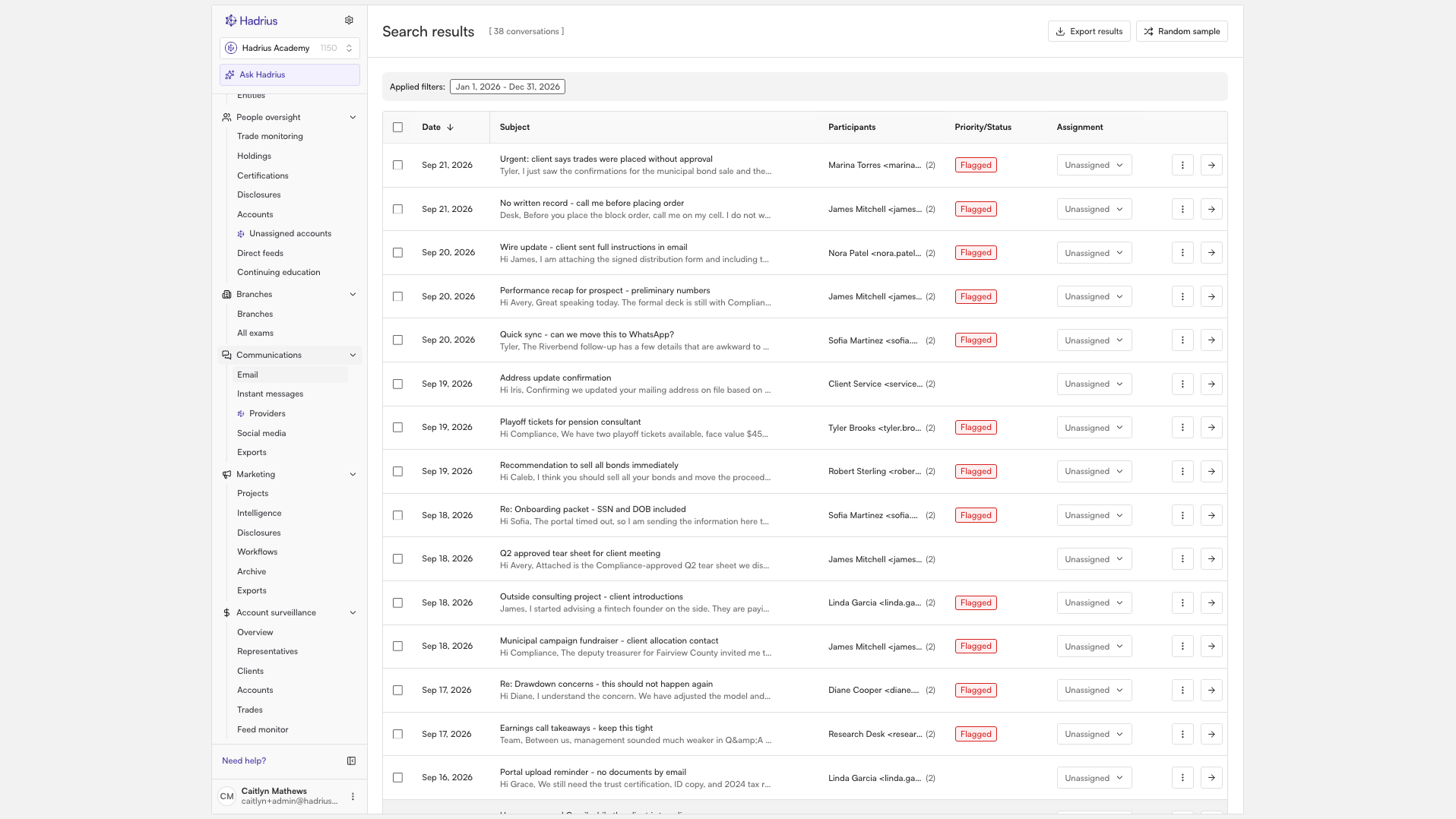
When your filters are ready, click "Search" at the bottom of the panel. The archive refreshes to show only the matching emails, with the newest messages at the top. To start over, click "Clear all" to reset every filter.
Save filters for later
If you'll run the same search again, such as a recurring monthly review, click "Save filters" before you search and give the search a name. Saved searches appear on the "Saved" tab, where you can reapply them in one click or update them later.