Submitting Disclosures
Last updated: October 2, 2026
Employees can file a disclosure at any time, without waiting to be assigned one by the compliance team. This is known as a self-initiated disclosure, and it is the right path whenever something arises that your firm's policies require you to report — an outside activity, a gift, or anything else your compliance team has published a template for. This article walks through creating a self-initiated disclosure, submitting it for review, and tracking it afterward.
Before you start
You can only file against templates your compliance team has published and made active. If no templates appear when you go to create a disclosure, contact your compliance team — they control which disclosure types are available to employees.
Filing a self-initiated disclosure
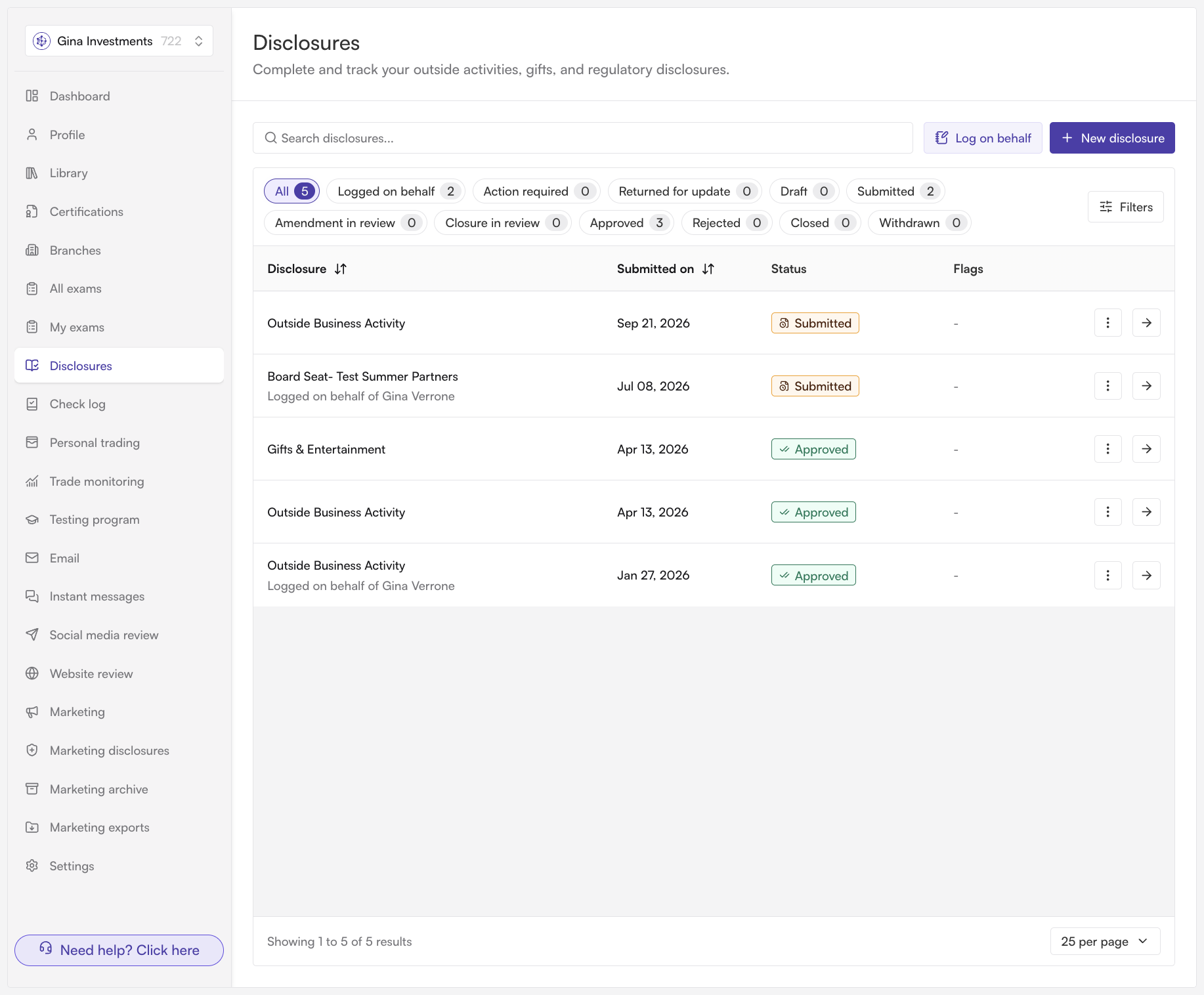
Open your disclosures. Go to the disclosures tab. Everything you have disclosed lives here in one list: past filings, anything still awaiting review, and drafts you have not submitted yet. You can filter the list by status or by submitted date, or search it by name.
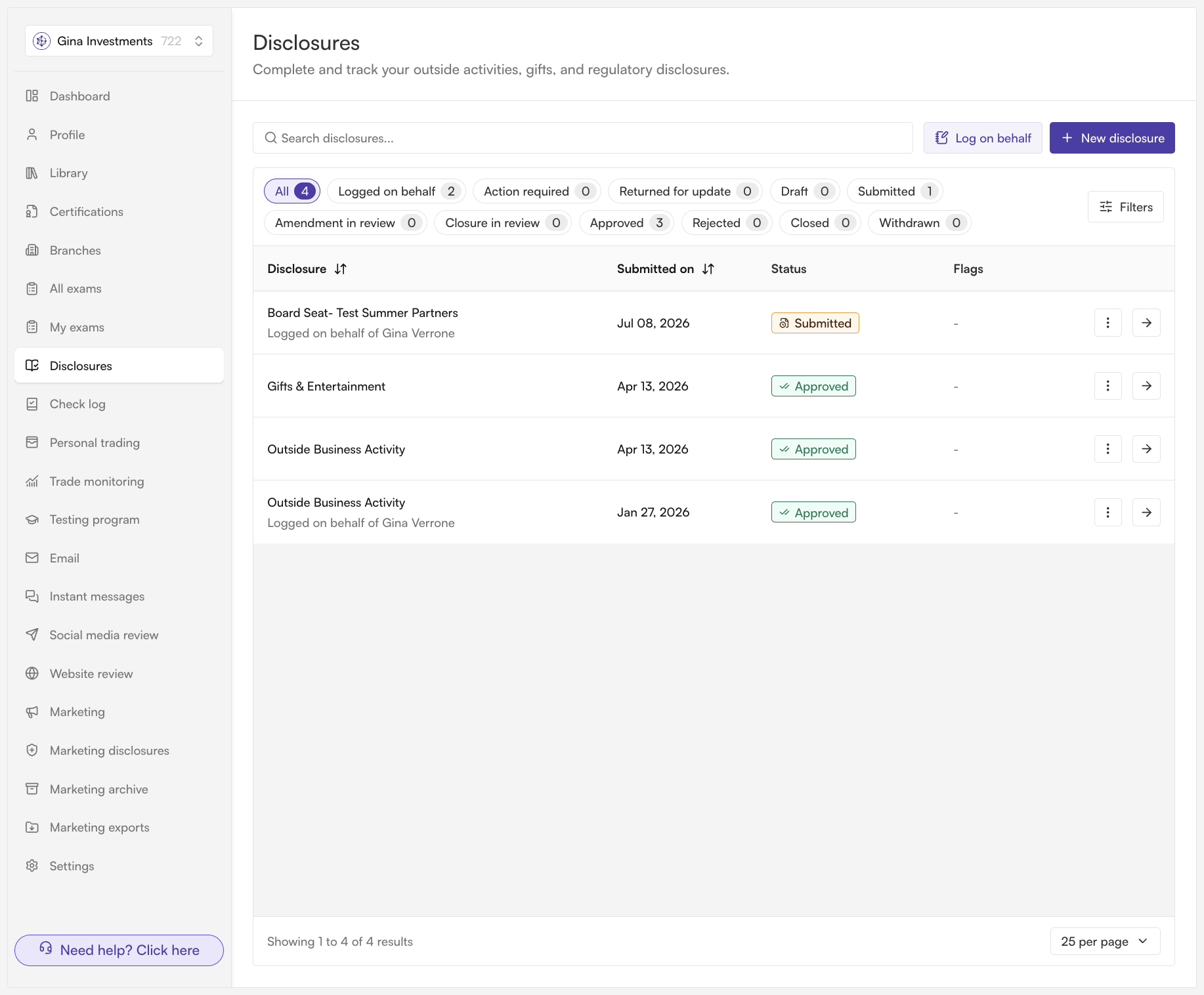
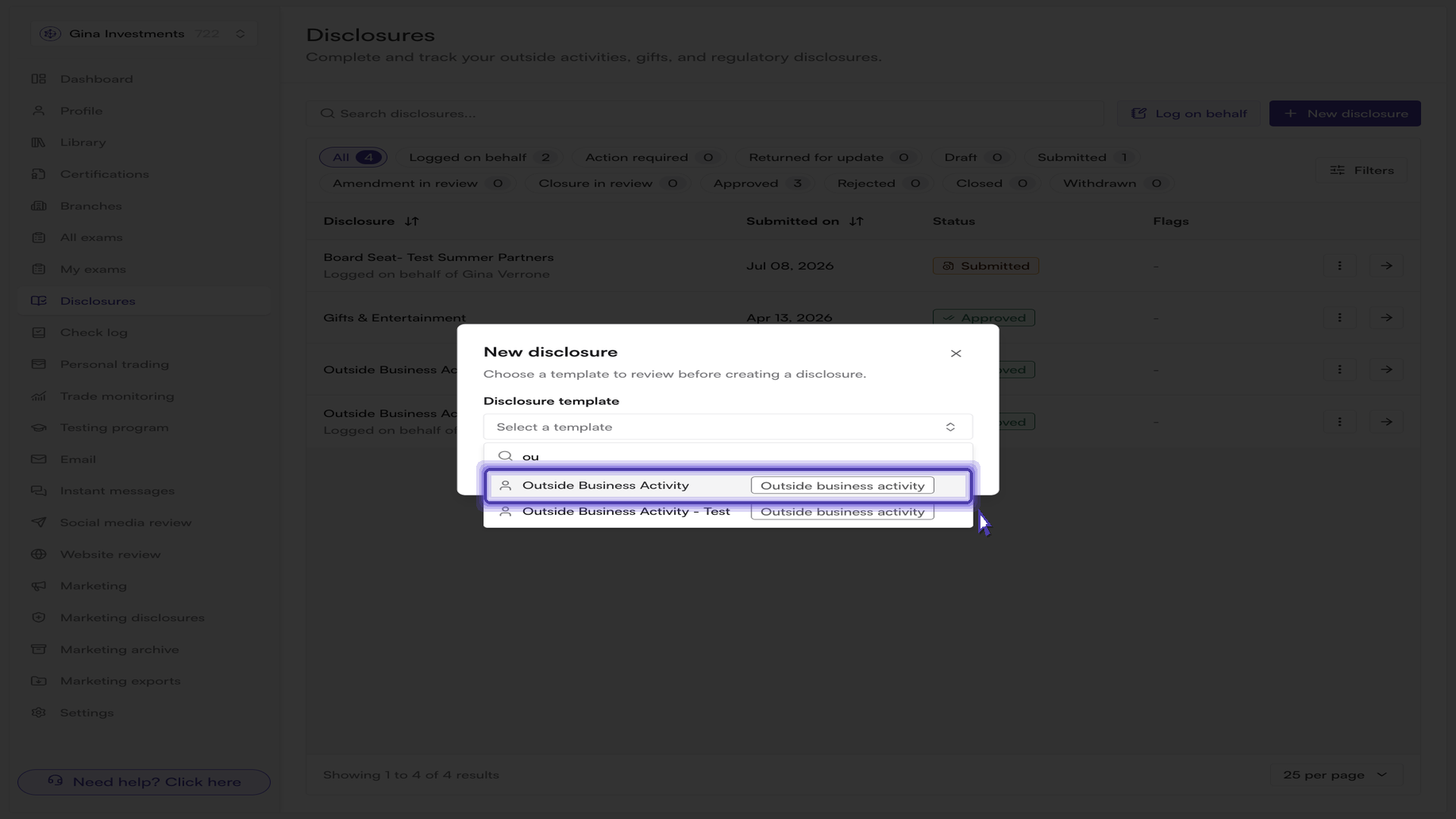
Start a new filing. Select "New disclosure". A dialog opens asking you to choose a disclosure template. Only templates your administrator has published and set to active appear in this list, so pick the one that matches what you need to report — for example, the template covering outside business activity. Then select "Continue".
Answer the questionnaire. The platform opens the questionnaire exactly as your compliance team configured it in the template. Work through the questions, including any short description fields — a clear description gives the reviewer the context they need and usually means fewer follow-up questions later. If you need to stop partway through, select "Save as draft"; the filing returns to your disclosures list under the Draft status so you can pick it up again.
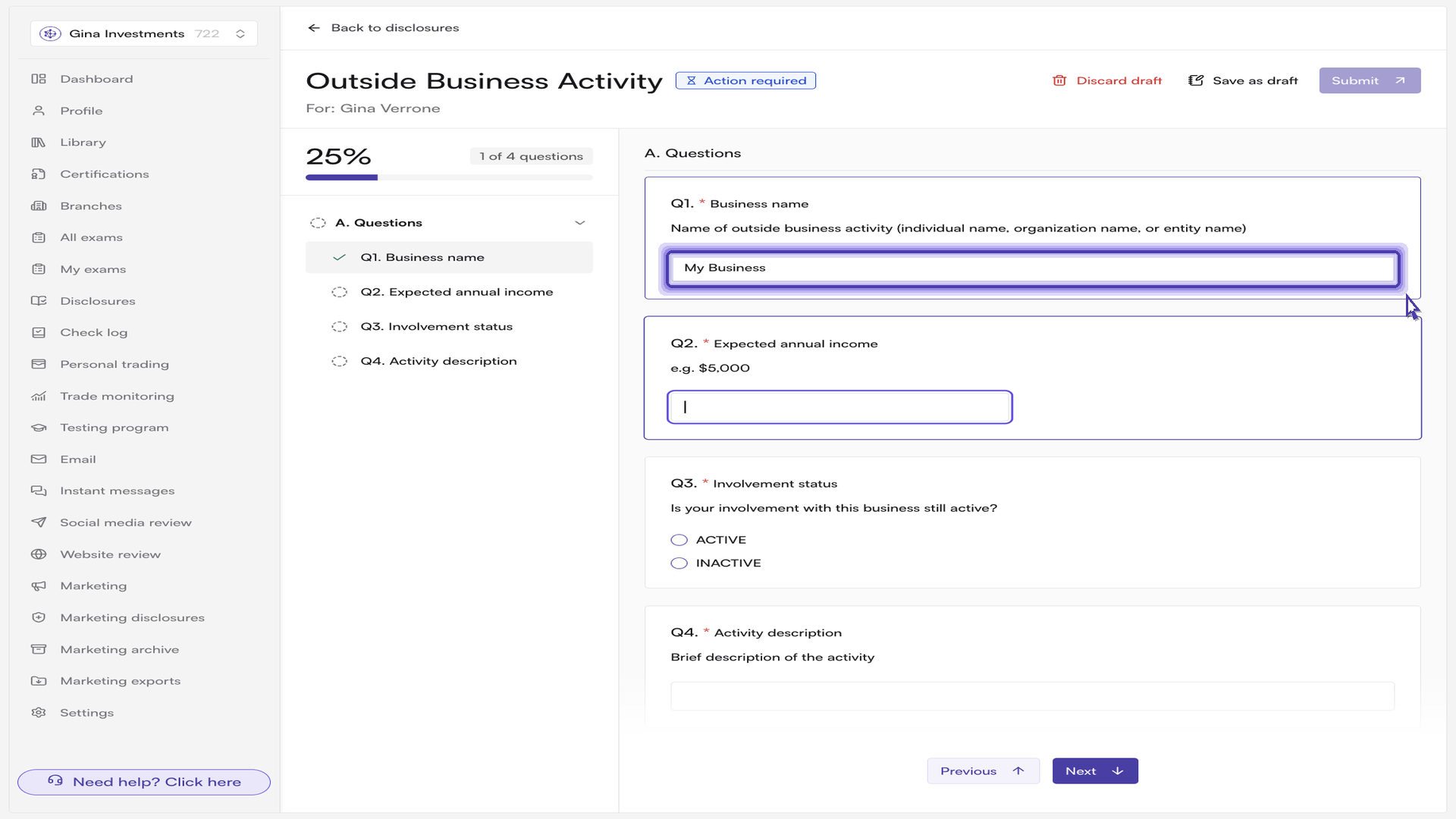
Submit for review. Once every required question is answered, the "Submit" button becomes available. (Until then, it stays disabled and shows a reminder to finish all required questions.) Submitting sends the filing into the reviewer workflow your compliance team configured. In some cases a filing that meets your firm's auto-approval criteria is approved immediately; otherwise it moves to Submitted and waits for a reviewer.
Tracking and managing a submitted disclosure
Once submitted, the disclosure has its own record, tracked from submission through approval. Opening that record shows the answers you gave, the current status, and the actions still available to you.
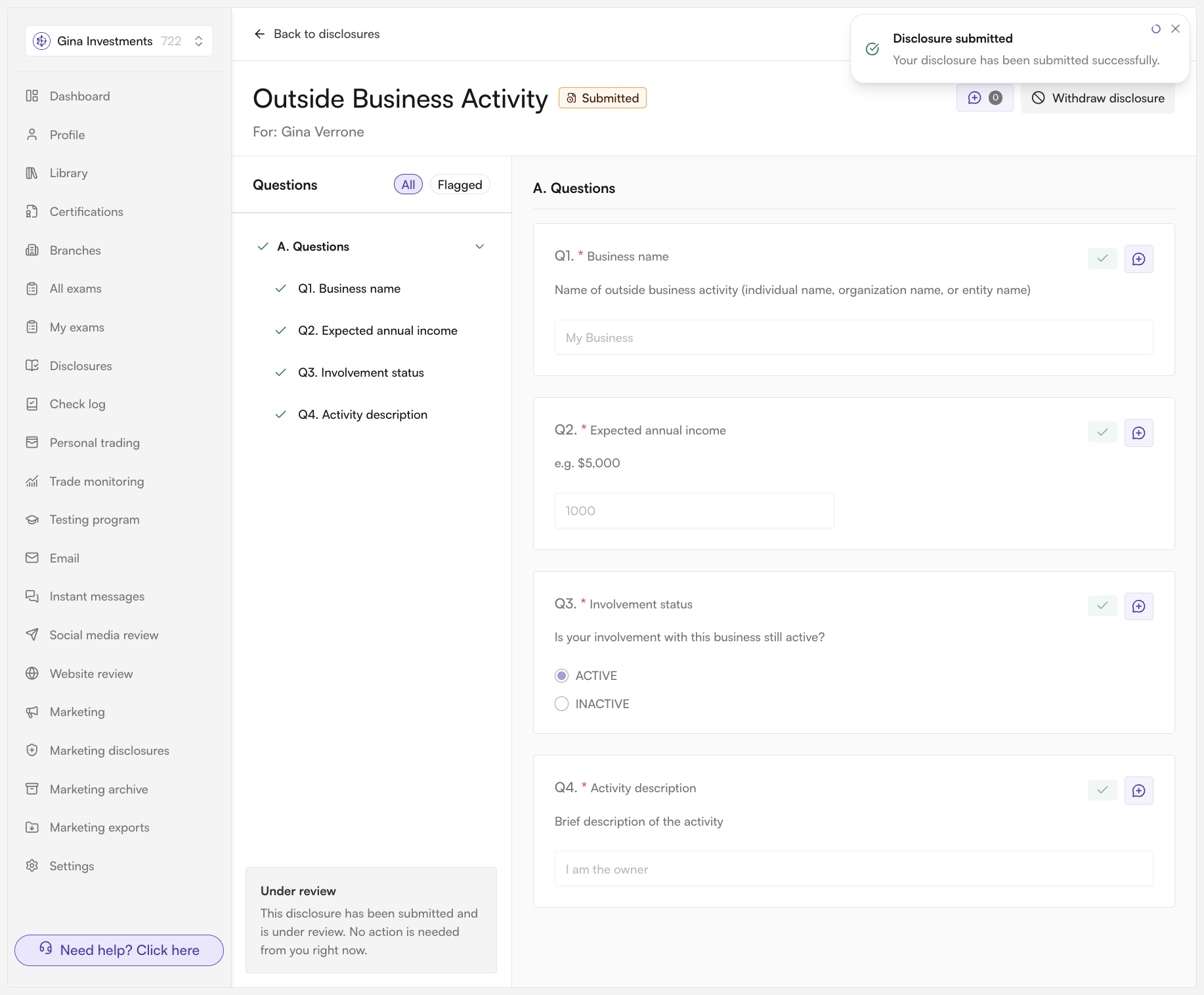
Use the comments panel on the record to communicate with your reviewer without leaving the filing. Anything worth flagging — extra context, a document reference, an update to your circumstances — can be added there, and the exchange stays attached to the disclosure. You can also comment on an individual question rather than the filing as a whole.
While a filing is still under review, "Withdraw disclosure" is available in the record header. Withdrawing is permanent: the disclosure can't be reopened, the reviewer no longer sees it, and you would need to start a new filing from scratch to disclose the same thing again. Because of that, withdraw only when you are certain the filing shouldn't proceed — if you simply need to correct or explain something, leave it with the reviewer and use a comment instead.
What happens next
Back on the disclosures tab, the new filing sits alongside everything else you have submitted, with its current status shown in the list. Status labels tell you where each filing stands — Draft, Submitted while it waits for a reviewer, Returned for update if a reviewer needs changes from you, and Approved, Rejected, Withdrawn, or Closed once resolved. Nothing further is required from you while a disclosure is under review; you'll see the status change here, and any reviewer questions arrive as comments on the filing.
After a disclosure is approved and active, you can amend it from the same record if your circumstances change, or request closure when it no longer applies. Both go back through your firm's review workflow.