Finding your Firm's Unique Journaling Address
Last updated: November 2, 2026
Hadrius gives your firm a unique journaling address. This is the dedicated inbox that your email provider sends copies of your firm's messages to, so they can be archived and reviewed for compliance. You'll need this address when you set up or check a journaling rule in your email system, such as Microsoft 365 or Google Workspace. This article explains where to find it.
Find your journaling address
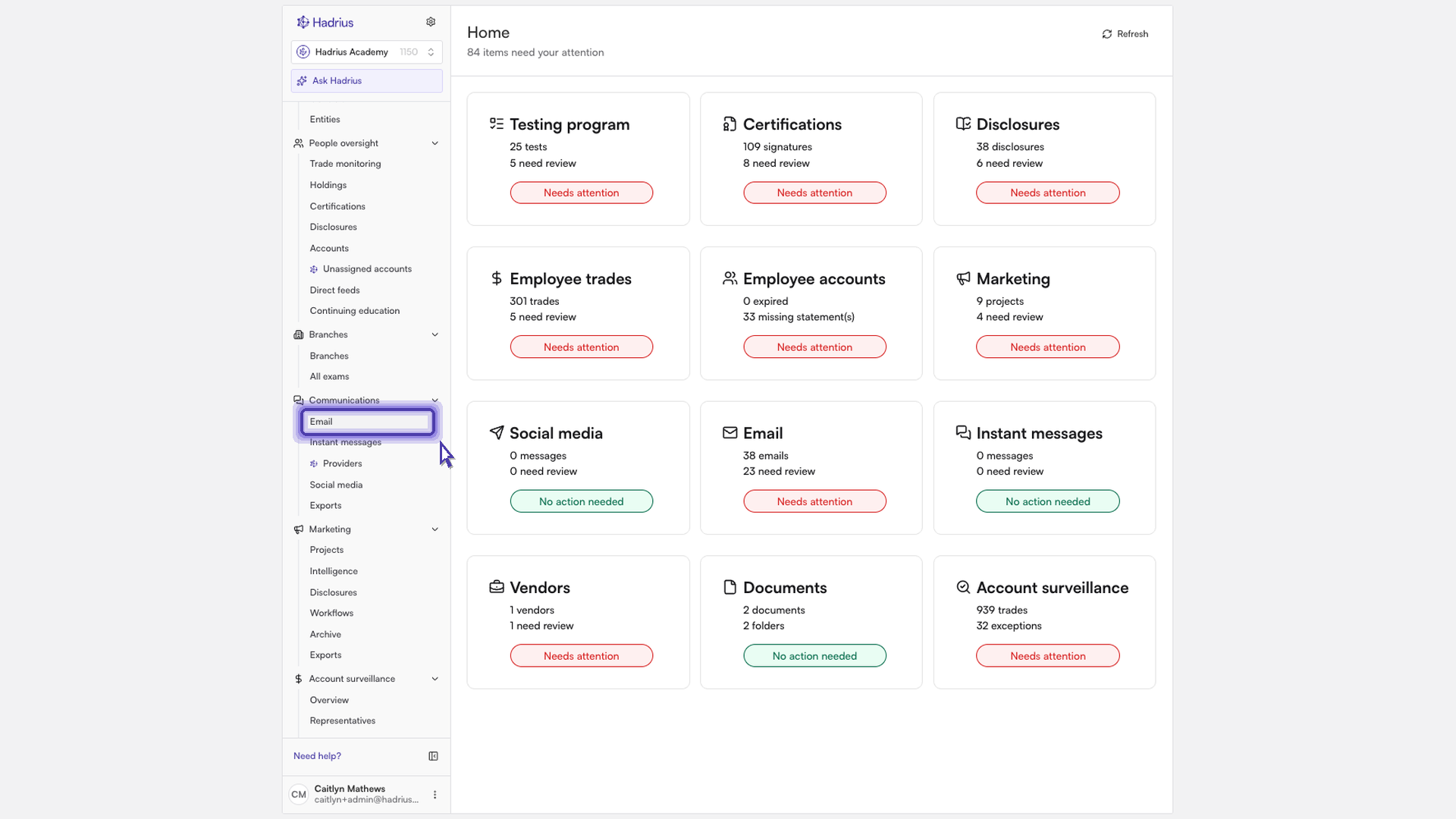
Open the Email section of Communications. Go to Communications and select Email. Captured email arrives here for compliance review.
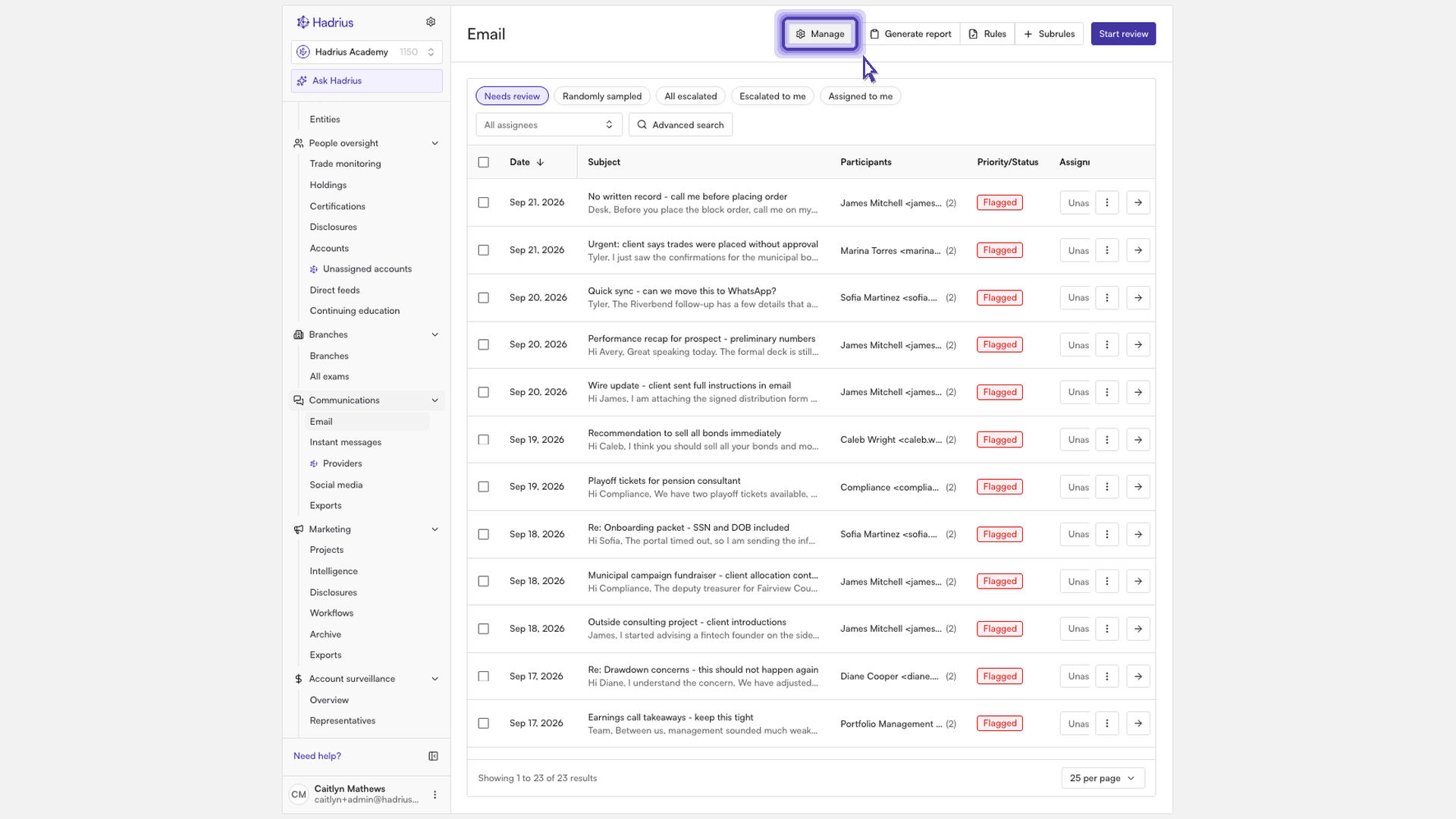
Open the email settings. Click "Manage" to open the "Email settings" page. This is where you configure how email reaches the platform, including domains, journal addresses, and aliases.
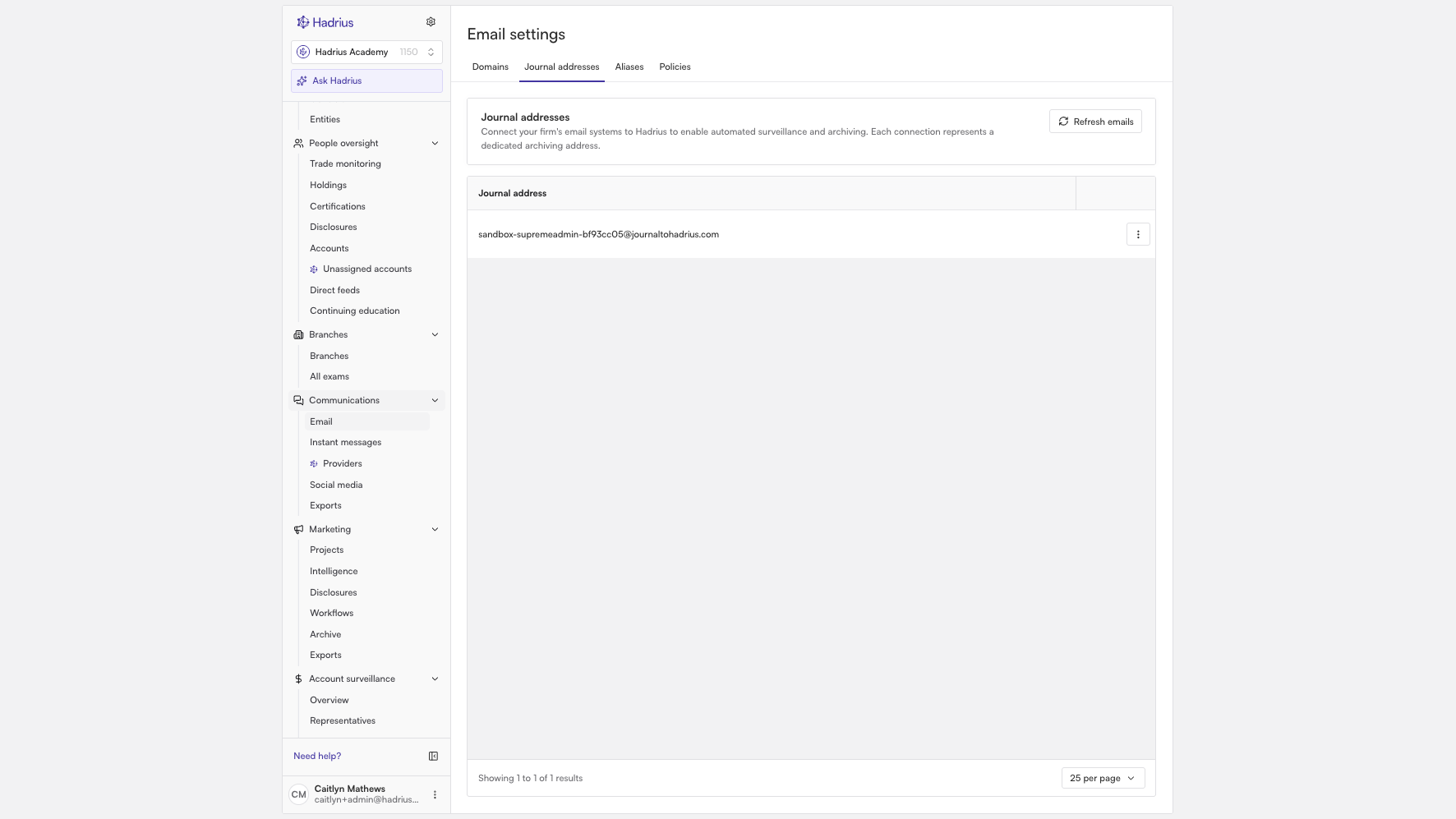
Select the "Journal addresses" tab. The settings page opens on the "Domains" tab, so switch to "Journal addresses". This tab lists the archiving addresses that your email provider forwards copies of messages to.
Copy your address. Your firm's unique address appears in the "Journal address" column of the table. Copy it and use it as the destination in your email provider's journaling rule.
What happens next
After your journaling rule points to this address, copies of your firm's messages are sent to Hadrius and appear in the Email section for review. To see activity for an address, open the actions menu on its row and choose "View stats". If you think messages are missing, click "Refresh emails" to re-ingest email from all of your journal addresses. It may take a little while for the updated emails to appear.
Note: The "Deactivate" option in the same actions menu turns off a journal address. Don't use it unless you mean to stop email from reaching the platform through that address.