How to create a workflow group
Last updated: October 17, 2026
Workflow groups let you bundle employees and employee groups together so you can assign them as a unit — as submitters, approvers, or both — anywhere group-based rules are used in Marketing Workflows. Use this workflow whenever you need a new reviewer or routing group that doesn't already exist, such as a group representing a specific team or role.
Starting a new group
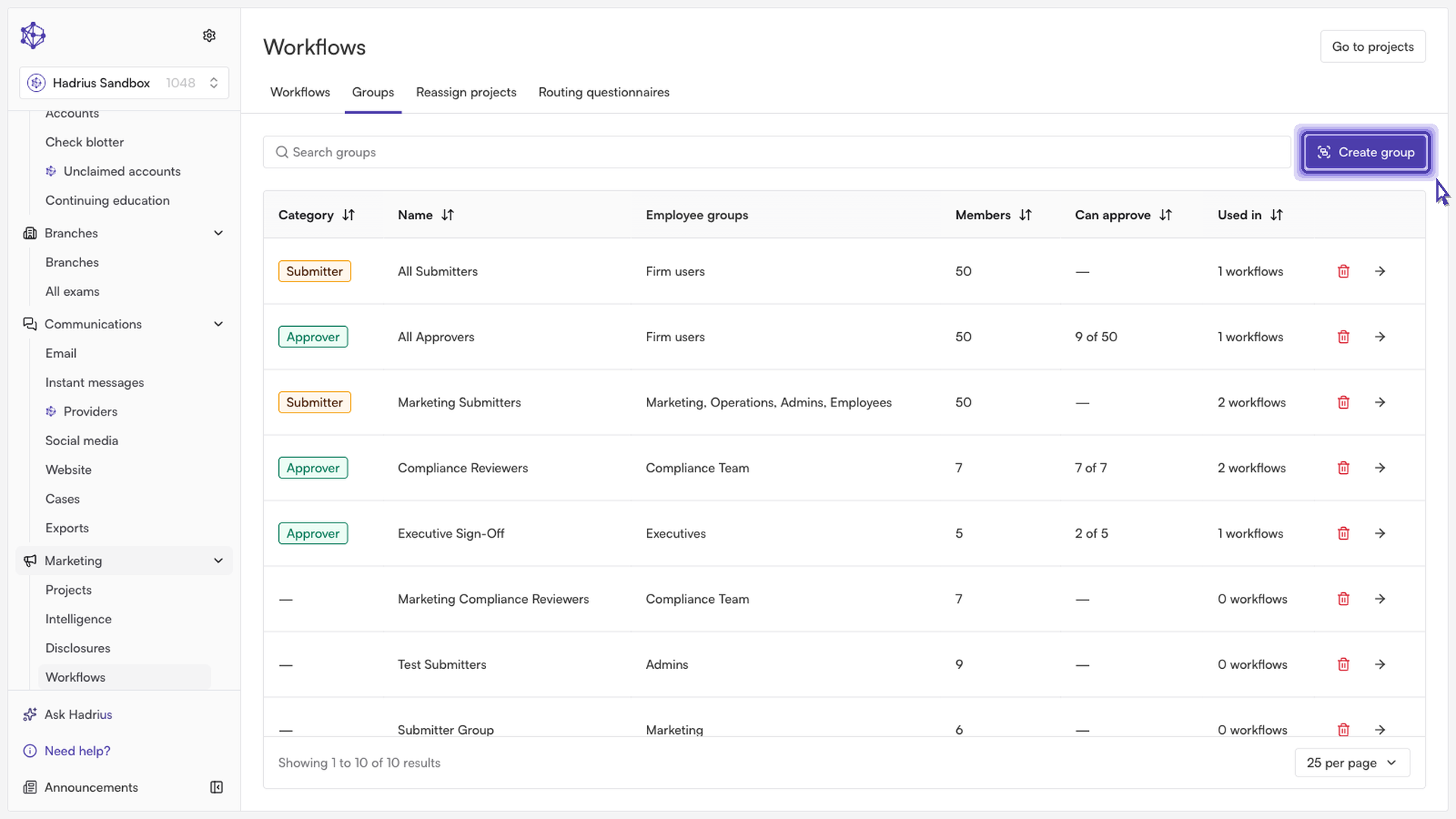
From the Workflows section, open the Groups tab, where all existing workflow groups are listed along with their category, member count, and where they're used. Click Create group to start building a new one from scratch.
Naming the group
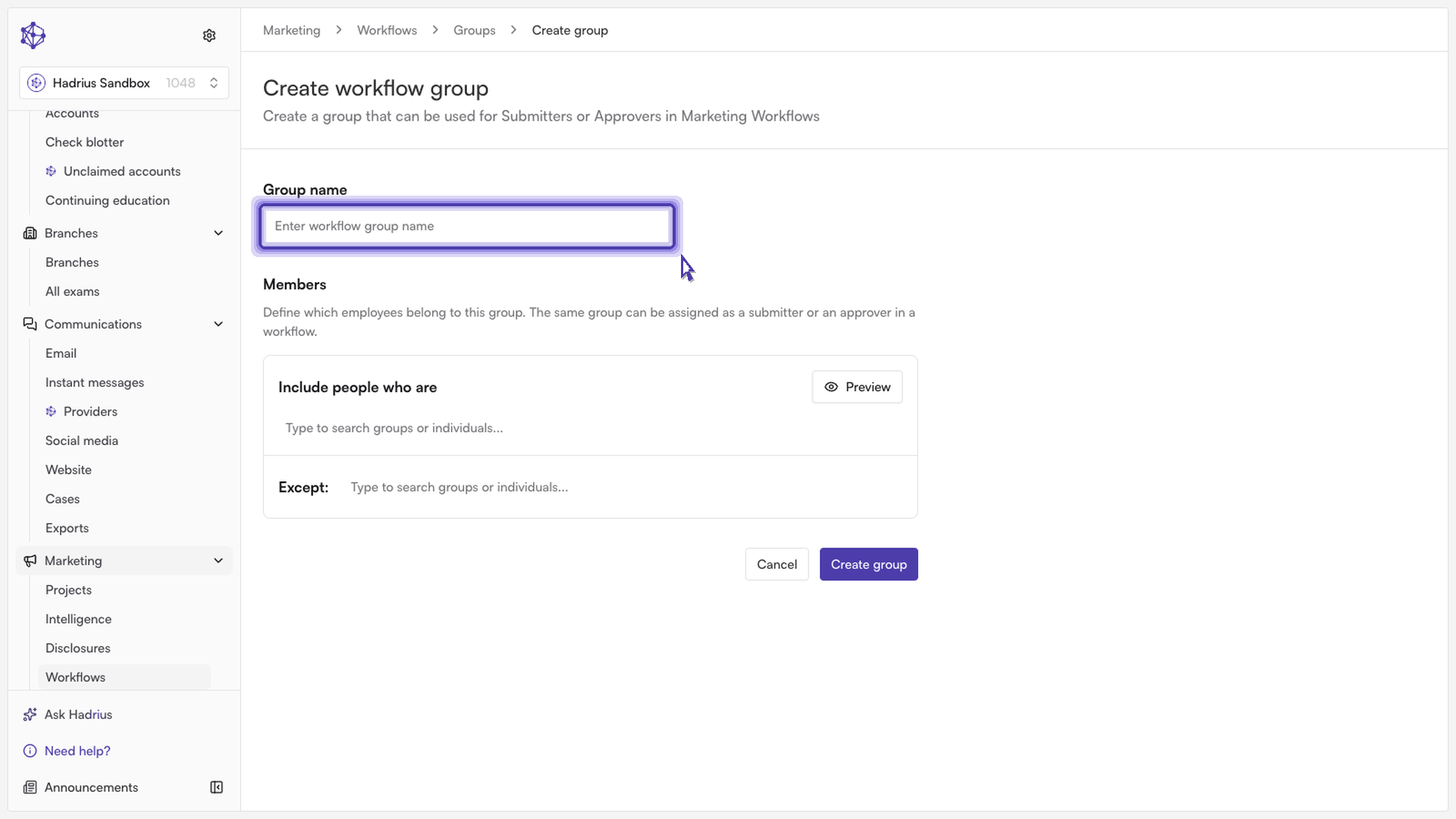
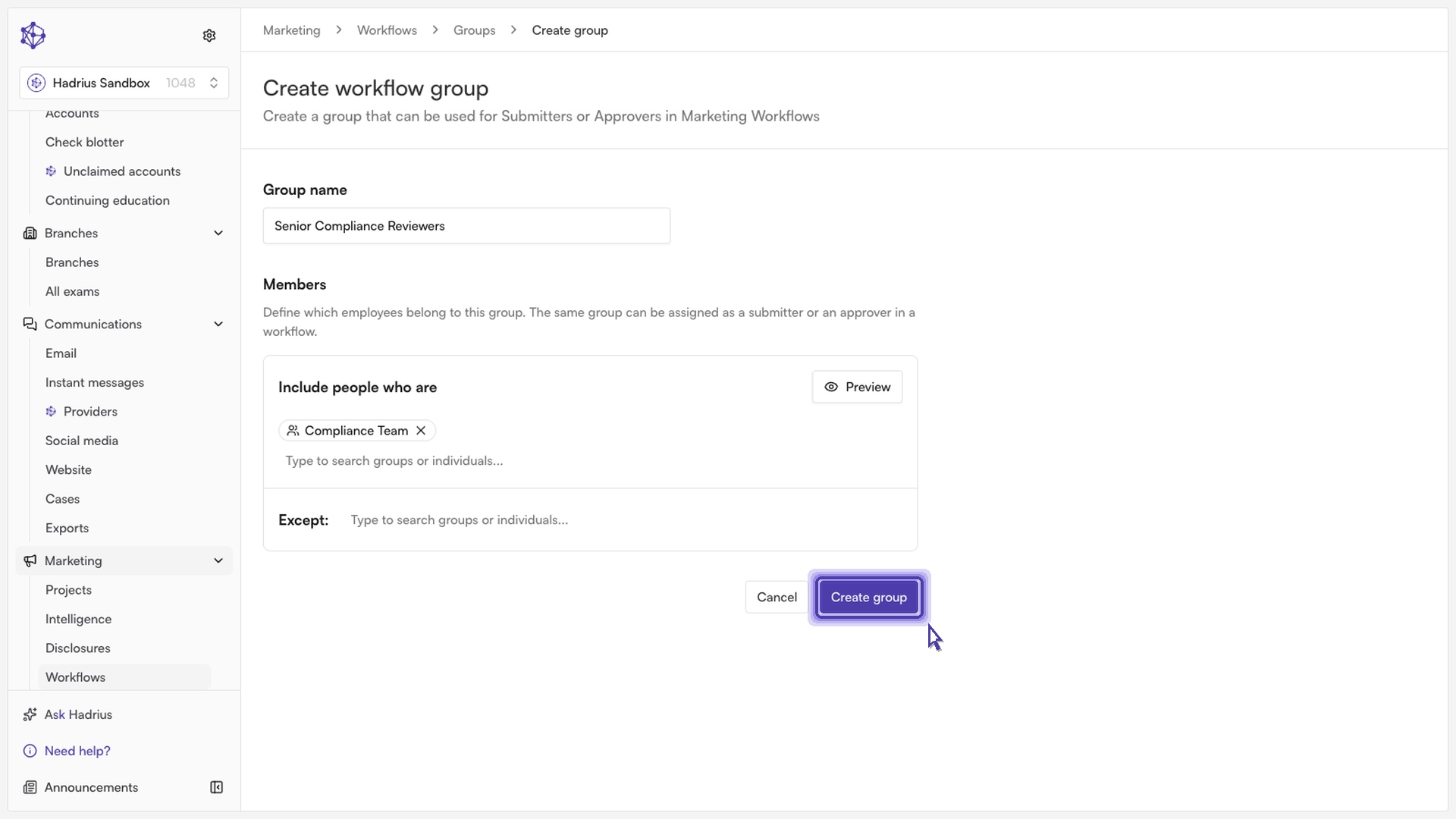
On the "Create workflow group" screen, enter a name in the Group name field. This name is how the group will appear anywhere it can be assigned, so choose something that clearly identifies who belongs to it. A name is required — you won't be able to save the group without one.
Adding members
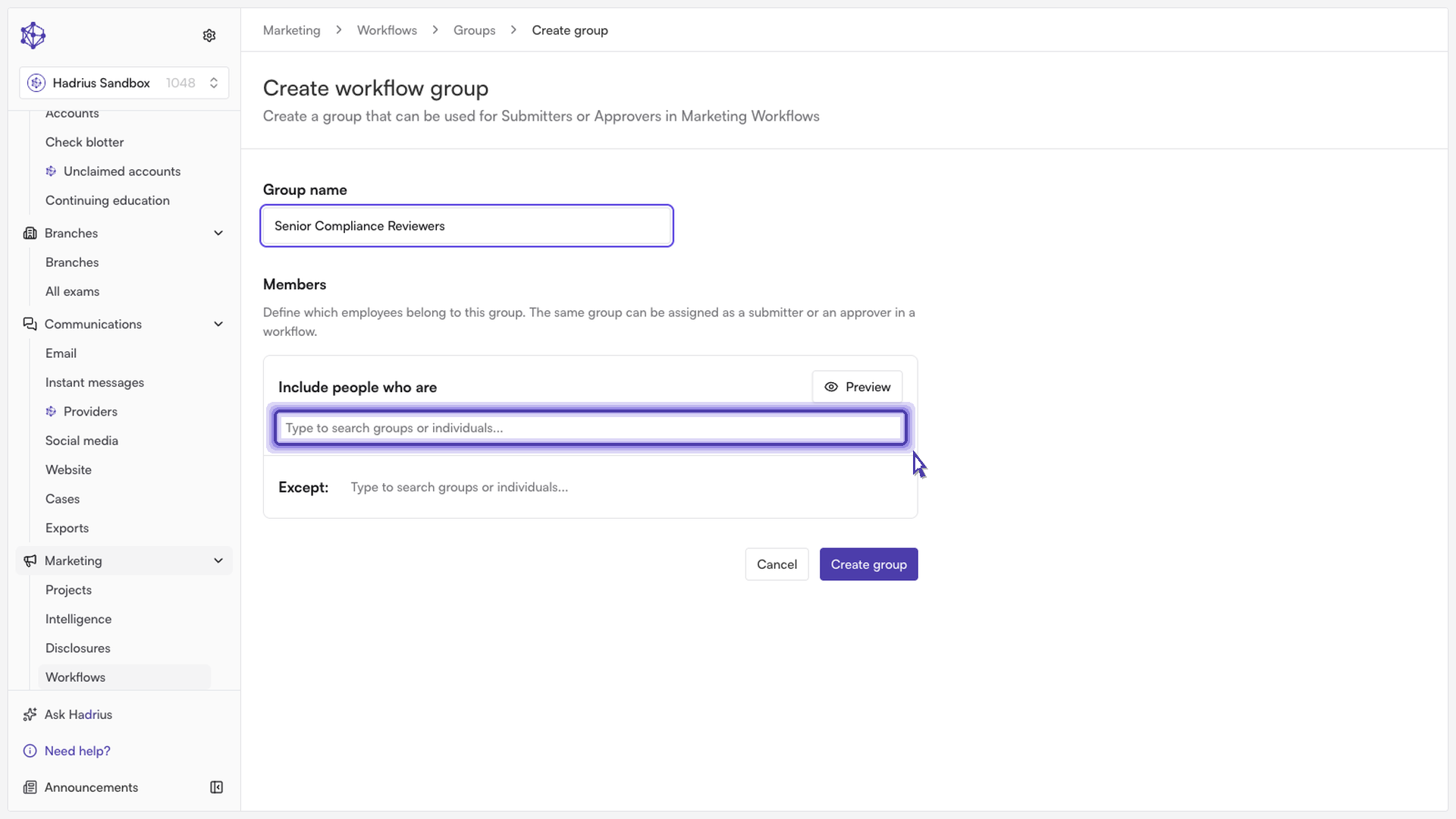
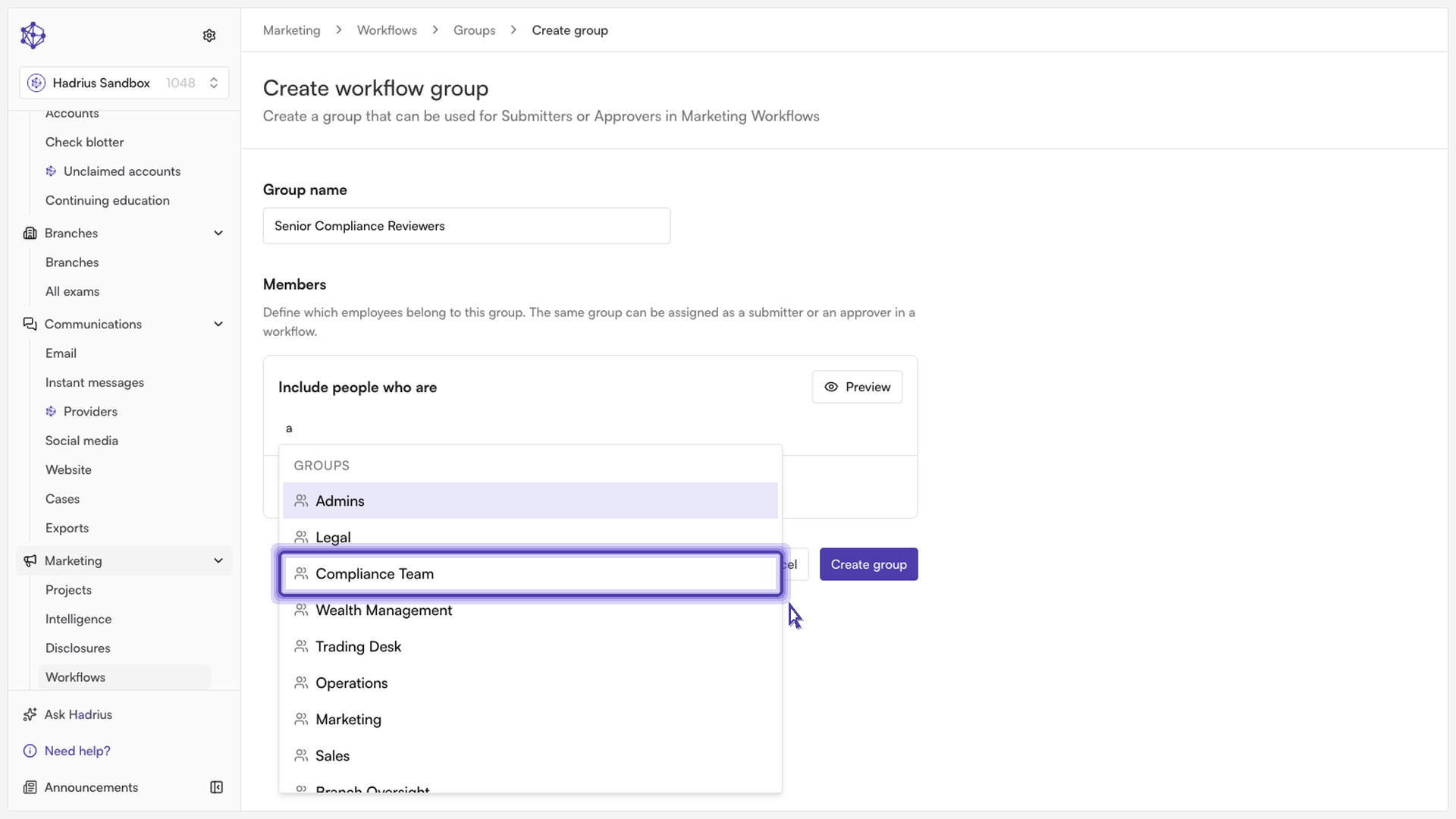
Under Members, use the search field labeled "Type to search groups or individuals..." to find the people or employee groups that should belong to this group. As you type, matching individuals and employee groups appear in a dropdown.
Selecting a match adds it as a chip to the group. You can add as many individuals and groups as needed — each one you select appears alongside the others, and you can remove any of them later by deleting its chip. Once you've selected what you need, click elsewhere to close the search dropdown and lock in your selections.
If you need to leave specific people out of an otherwise broad selection, use the Except field below the members list the same way — search for and select anyone who should be excluded, even if they'd otherwise be included through a group. At least one person or group must be included before the group can be saved.
Saving the group
When you're satisfied with the name and membership, click Create group to save it. This makes the group available for use anywhere group-based rules are configured, such as assigning submitters or approvers on a workflow.
What happens next
After saving, you're returned to the Groups list, where the new group now appears with its member count. From there it can be assigned to any workflow that uses group-based submitter or approver rules, and it can be edited or archived later from the same list.